

Introduction to ActiveX Installer Windows 11
ActiveX Installer Windows 11 is a legacy compatibility topic, not a normal modern browser feature. If you are searching for it, you are probably dealing with an older intranet app, a vendor portal, a camera or DVR interface, an industrial control page, a document-management system, a banking or government portal, or a business application that still expects an Internet Explorer-era ActiveX control. On Windows 11, that immediately changes the conversation: the standalone Internet Explorer desktop app is not the normal path, Microsoft Edge is the supported browser, and ActiveX belongs only in carefully managed Internet Explorer mode scenarios.
Microsoft explains that IE mode in Microsoft Edge uses the modern Chromium engine for modern sites and the Trident MSHTML engine from Internet Explorer 11 for legacy sites. Microsoft also states that IE mode supports ActiveX controls, Browser Helper Objects, document modes, Enterprise modes, and Internet Explorer settings that affect security zones and Protected Mode. That makes Microsofts IE mode overview the most important official starting point for this topic. The practical meaning is simple: an ActiveX control should not be expected to run in a normal Microsoft Edge tab, Chrome, Firefox, or other modern browser. If it still has to run, it should be loaded through an approved IE mode site.
The phrase ActiveX Installer can also refer to the Windows service named ActiveX Installer (AxInstSV). On Windows 11, this service can exist as a manual service. Its presence does not mean you should install random ActiveX controls. It means Windows still includes compatibility plumbing for controlled legacy scenarios. The safe question is not “How do I turn ActiveX on everywhere?” The safe question is “Which exact legacy site needs this, which signed control does it require, which policy allows it, and how soon can the organization retire it?”
This guide explains how to understand ActiveX Installer on Windows 11, how IE mode fits into the picture, what AxInstSV is for, how Enterprise Mode Site List policy should be used, what security risks matter, and how to troubleshoot a control that will not install or load without weakening the whole device. It is written for administrators, IT support teams, and careful power users who must keep an old line-of-business app alive while reducing the blast radius.
Table of contents
Key Takeaways
- ActiveX is legacy technology. On Windows 11, treat it as a compatibility exception for old business apps, not as a normal browsing requirement.
- Normal Microsoft Edge tabs do not run ActiveX controls. Microsoft Edge IE mode is the managed compatibility path for sites that still require Internet Explorer technologies.
- IE mode supports ActiveX controls. Microsoft documents ActiveX support as part of IE mode for configured legacy sites.
- Use policy and site lists. Microsofts IE mode policy guidance recommends configuring Internet Explorer integration and an Enterprise Mode Site List for exact legacy sites.
- AxInstSV is not a magic fix. The ActiveX Installer service may help controlled legacy installation scenarios, but site mode, policy, trust, signature, and permissions still matter.
- Do not lower security globally. Avoid enabling unsigned controls, broad intranet IE mode, or weak security zones just to make one old control load.
- Document a retirement path. Every ActiveX dependency should have an owner, vendor contact, replacement plan, and review date.
What ActiveX Installer Means on Windows 11
ActiveX is a Windows and Internet Explorer-era component technology that allowed compiled controls to run inside browser-hosted experiences. That made old business applications powerful, but it also made them risky. A control could interact with local resources, talk to devices, render custom UI, or bridge a web page to native code. Modern browsers moved away from this model because browser security, cross-platform compatibility, sandboxing, and standards-based web APIs changed the direction of the web.
On Windows 11, ActiveX is not a feature you enable for the open internet. It is a legacy dependency that should be pinned to a known application. If a vendor page says “install ActiveX,” first identify what the control does. Is it required for scanning, signing, camera preview, smart-card access, document upload, terminal emulation, medical device integration, or some other old workflow? Who publishes the control? Is it signed? Is the vendor still supporting it? Does the site require IE mode or just an outdated user-agent check?
The ActiveX Installer service, also known as AxInstSV, is a Windows service name you may see in Services or PowerShell. It should not be confused with the control itself. The service is part of the installation path for ActiveX controls in managed environments. If the site is not opened in IE mode, if the control is blocked by policy, if the publisher is untrusted, if the architecture is wrong, or if the security zone forbids installation, simply starting AxInstSV will not solve the problem.
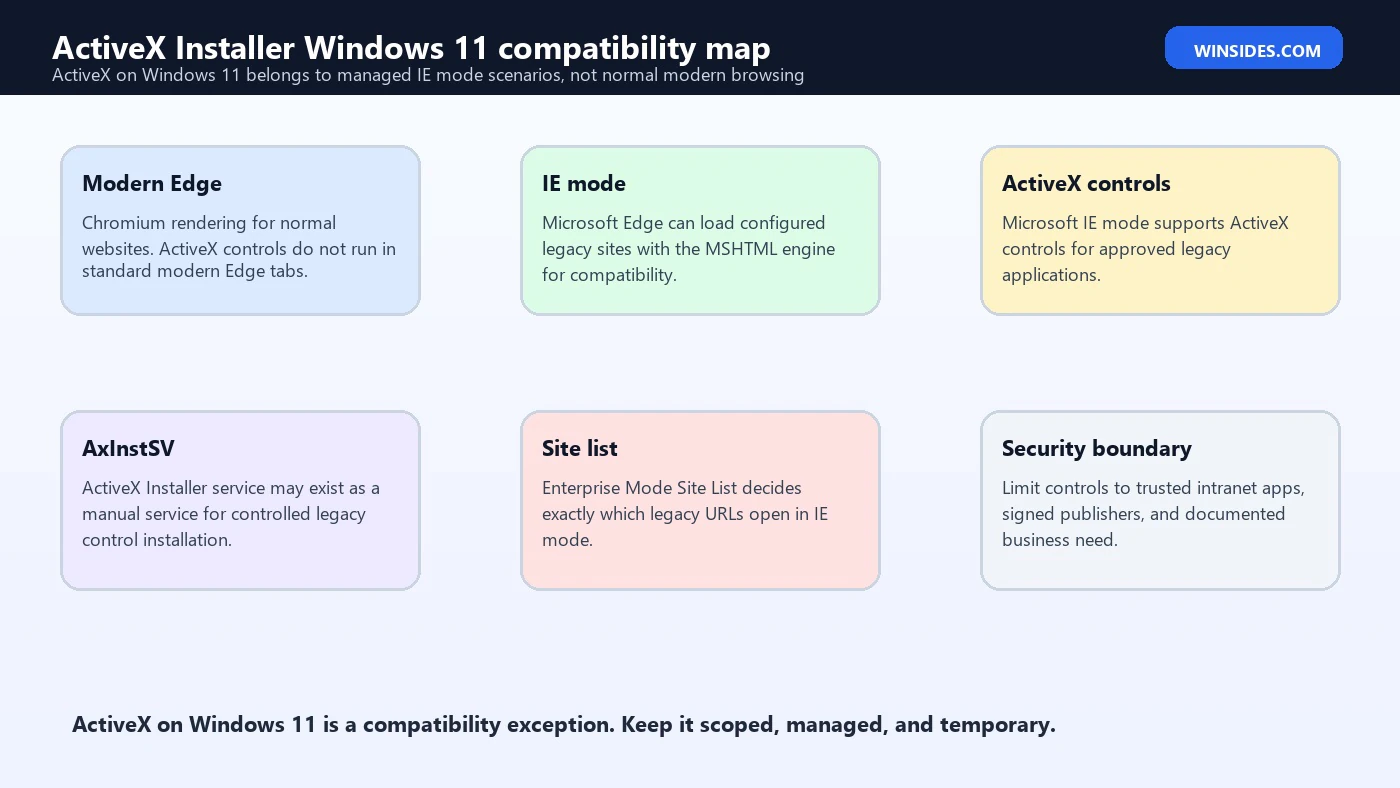
Windows 11 Reality: Edge, IE Mode, and ActiveX
The first Windows 11 reality is that Microsoft Edge is the browser path. Legacy Internet Explorer technologies survive for compatibility through IE mode, not as a general recommendation to browse with Internet Explorer. Microsofts IE mode overview says organizations can use one browser for both modern web apps and legacy web apps, with IE mode using MSHTML for configured legacy sites. It also says only sites configured through policy or the site list should use IE mode, while all other sites render as modern websites.
That matters because ActiveX often fails simply because the page is not actually in IE mode. Users may open an intranet URL in Edge, see the page, click an install prompt, and assume Windows is blocking ActiveX. In reality, the page may be running in normal Chromium Edge, where the control cannot load. The IE logo indicator in Edge helps confirm when a page is in IE mode. If the indicator is missing, troubleshoot IE mode policy and site-list configuration before touching service settings.
The second reality is that IE mode is meant for organizations. A home user can stumble into an ActiveX requirement on an old device portal or vendor site, but the supported management story is enterprise policy. If a business app still requires ActiveX, it should be listed, tested, owned, and monitored. A user should not have to weaken browser security manually or install controls from random prompts.
What IE Mode Supports and Does Not Support
Microsoft documents that IE mode supports document modes, enterprise modes, ActiveX controls, Browser Helper Objects, Internet Explorer settings and group policies that affect security zone settings and Protected Mode, and IE F12 developer tools through IEChooser. It also documents limits, including that Internet Explorer toolbars and certain old navigation-menu policies are not supported in IE mode.
This distinction helps troubleshooting. If the legacy app needs an ActiveX control, IE mode may be the right compatibility target. If it depends on an old toolbar, a browser shell extension, or a workflow that launches the standalone Internet Explorer UI, IE mode may not fully reproduce it. The vendor may need to update the application, provide a supported client, or document a different workflow.
Do not treat IE mode as a universal time machine. It is a compatibility bridge. It can keep important legacy apps running while the organization migrates, but it should not become the default place for every intranet site. Modern sites should run in modern Edge. Only the sites that truly need old IE behavior should be placed in the Enterprise Mode Site List.
ActiveX Installer Service AxInstSV
The Windows service name AxInstSV stands for ActiveX Installer. In Services, it appears as ActiveX Installer (AxInstSV). On a typical Windows 11 machine, it may be stopped and set to Manual. That is normal. A manual service is not necessarily broken; it starts only when something needs it and policy allows the scenario. Turning it on permanently is usually not the right repair.
Use PowerShell only for observation first. You can check whether the service exists and how it is configured:
Get-Service -Name AxInstSV -ErrorAction SilentlyContinue | Format-List Name,DisplayName,Status,StartTypeIf the service is missing, disabled by policy, or blocked by a security baseline, that may be intentional. Many organizations do not want users installing ActiveX controls. If the service exists but remains stopped, that may also be normal until an installation path invokes it. If a legacy app owner says the service must be enabled, require documentation from the vendor or internal app team explaining the exact control, site, publisher, and policy requirements.
AxInstSV should not be your first troubleshooting step. Confirm IE mode first. Confirm the site list next. Confirm the control signature and publisher. Confirm security zone assignment. Confirm whether the user has the right permissions. Confirm whether the control is 32-bit-only or tied to an old dependency. Only then decide whether the ActiveX Installer service is involved.
Use IE Mode Policy Instead of Manual Guesswork
Microsofts IE mode policy guidance describes a clear policy path. You configure Internet Explorer integration in Microsoft Edge, then configure which sites open in IE mode, usually through the Enterprise Mode Site List. The policy page explains that organizations can use Group Policy or Intune, and it recommends site-list targeting instead of broad, user-driven compatibility behavior. See Microsofts IE mode policy guidance for the official policy flow.
For most organizations, the correct setup has three layers. First, enable IE mode through Microsoft Edge policy. Second, publish an Enterprise Mode Site List that includes only the exact legacy sites that require IE mode. Third, manage the Internet Explorer security-zone and ActiveX-related settings for those sites through policy, not through local user clicks. That gives IT repeatability, auditability, and a way to remove the exception later.
Avoid the lazy setting that sends every intranet site to IE mode unless the organization truly understands the risk. Microsofts policy documentation warns that the Local Intranet zone can include explicitly added sites and heuristic assignments, such as dotless host names or proxy-bypass sites. That means a broad intranet policy can be wider than expected. Exact site-list entries are safer because they reduce accidental IE mode exposure.
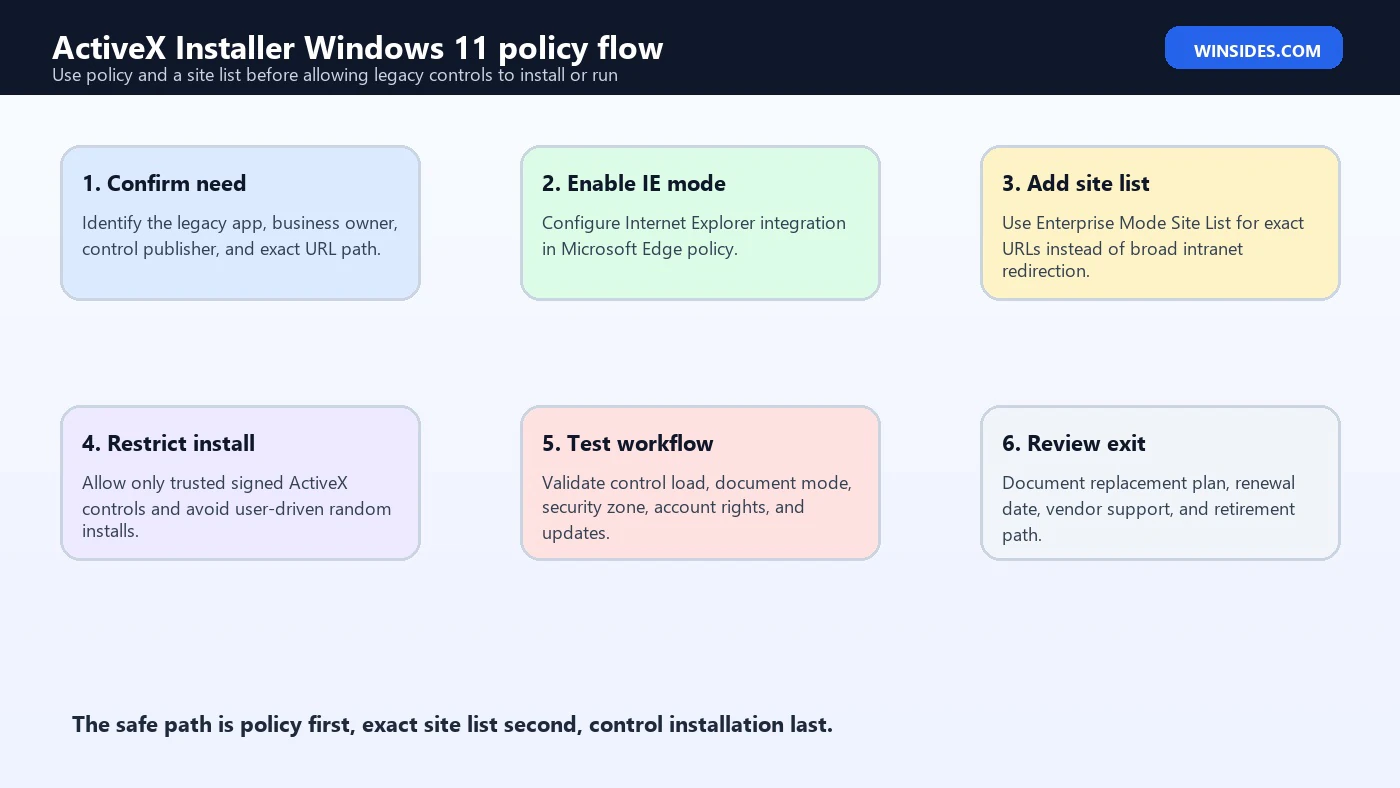
Enterprise Mode Site List for ActiveX Sites
The Enterprise Mode Site List is the control point for deciding which URLs open in IE mode. Microsofts Enterprise Site List Manager guidance explains that the in-browser manager at edge://compat/SiteListManager can create, edit, and export an Enterprise Mode Site List. It also explains that access to the tool can be controlled by policy. See Microsofts Enterprise Site List Manager guidance for the official management guidance.
For ActiveX sites, use exact entries. Add the application URL, choose the correct open-in behavior, set the needed compatibility mode if the vendor documents one, and test the workflow. Avoid adding entire domains when only one path needs ActiveX. Avoid adding public internet sites. Avoid adding wildcard-like coverage just to reduce tickets. Every extra URL in IE mode increases legacy attack surface.
A good site-list entry should have documentation outside the XML too. Record the business owner, application owner, vendor, control name, publisher, version, control file name, install source, expected security zone, test account, last validation date, and retirement plan. This is not bureaucracy for its own sake. When the control breaks after an Edge update, Windows update, certificate expiry, or vendor change, that documentation prevents guesswork.
Security Zones, Protected Mode, and Trust
ActiveX behavior is tied to Internet Explorer-era security concepts such as zones, trusted sites, signed controls, prompt behavior, and Protected Mode. IE mode can honor relevant Internet Explorer settings and group policies that affect security zones and Protected Mode. That is useful for compatibility, but it also means careless zone changes can create broad risk.
Do not put large parts of the internet into Trusted Sites. Do not disable Protected Mode globally. Do not allow unsigned ActiveX controls for all sites. Do not train users to click every install prompt. If a specific control is required, scope the exception tightly to the legacy site and the trusted publisher. Signed controls are not automatically safe, but unsigned or unknown controls are a much worse starting point.
For enterprise deployments, use policy to define what is allowed. Users should not be expected to decide whether a compiled browser control is safe. If a vendor cannot provide a signed, supported control, that is a business risk. The correct response may be to isolate the app, restrict it to a managed device group, use a virtualized legacy environment, or accelerate migration.
Safe Installation Workflow
Start with the business need. Which app requires ActiveX and why? Then confirm the browser path. Does the site open in IE mode, and does the IE indicator appear in Edge? Next, confirm site-list entry and policy application. Use edge://policy to review Microsoft Edge policies and edge://compat to inspect compatibility data where appropriate. Then test with a controlled account and device.
Before allowing installation, identify the control publisher and version. Confirm it comes from the vendor or internal application source, not a random download mirror. Check whether the control is signed and whether the certificate is valid. Confirm whether the control has known vulnerabilities or end-of-life status. If the app runs only with an old vulnerable control, treat it as an exception that may require network isolation.
After installation, test the full workflow: page load, control load, authentication, device access, printing, scanning, upload, signing, or whatever function the control provides. Then test a normal modern site to ensure it does not open in IE mode accidentally. Finally, record the policy, site-list version, control version, test result, and rollback plan.
Troubleshooting: ActiveX Control Will Not Install
When an ActiveX control will not install on Windows 11, start with browser mode. A normal Edge tab will not load ActiveX. Confirm the site is in IE mode. If it is not, fix the site list or policy first. If it is in IE mode, check whether the site is in the expected security zone. Then check whether the control is signed and trusted. Unsigned controls may be blocked by policy, and that block may be correct.
Next, check permissions. Some controls install per-machine and require administrator rights. Others install per-user. A locked-down endpoint may block local installation by design. If the business app requires users to be local administrators just to install a web control, that app needs review. Consider packaging the control through enterprise software deployment instead of letting each user install it from the browser.
Then check AxInstSV. Is the service disabled? Is it manual and stopped? Is a policy supposed to allow ActiveX installation? Is an endpoint protection product blocking the installation? Are there related events in the Application, System, or Security logs? Do not simply start the service and loosen every IE option. Find the exact block.
Troubleshooting: ActiveX Control Installs but Does Not Load
If installation succeeds but the control does not load, check bitness, dependencies, and document mode. Some old controls are 32-bit-only. Some need older Visual C++ runtimes, vendor DLLs, device drivers, smart-card middleware, or local COM registration. Some need a specific document mode. IE mode can help with rendering and ActiveX, but it cannot make an abandoned control compatible with every modern Windows security change.
Check whether the control is disabled in Manage Add-ons or blocked by policy. Check whether the vendor control appears with the expected version. Check whether a previous broken version is still installed. In some cases, removing the old control and reinstalling the supported version is cleaner than layering updates. For enterprise devices, package the known-good version and avoid per-user drift.
Also check whether the application is trying to call local resources that are now blocked. Legacy controls often bridge a web page to hardware or local software. If the scanner driver, card reader, camera plugin, or signing middleware changed, ActiveX may be blamed when the real break is the local dependency.
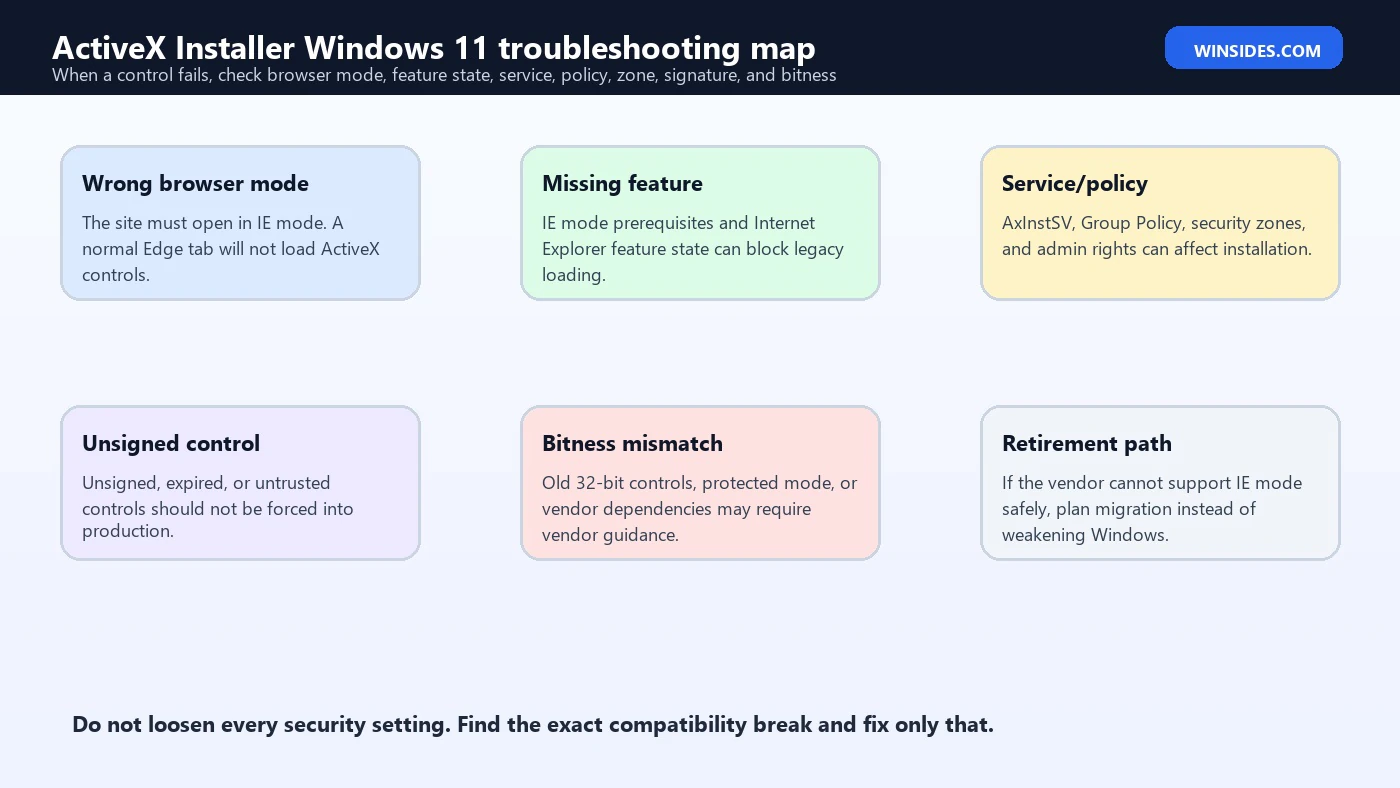
Commands and Places to Check
Use these commands and pages for evidence, not as blind fixes:
Get-Service -Name AxInstSV -ErrorAction SilentlyContinue | Format-List Name,DisplayName,Status,StartTypeedge://policy
edge://compat
edge://compat/SiteListManagergpresult /h %TEMP%\gpresult.htmlThe service command tells you whether AxInstSV exists and how it is configured. edge://policy shows applied Microsoft Edge policies. edge://compat helps inspect IE mode compatibility state. edge://compat/SiteListManager is useful only when the organization allows access to the Enterprise Site List Manager. gpresult helps confirm which Group Policy settings reached the machine or user.
Do not change policy based on one command alone. If policy says IE mode is disabled, that may be intentional. If the site list is not configured, the site may never enter IE mode. If AxInstSV is manual and stopped, that may be normal. Evidence needs to be combined.
Home Users and Old Device Portals
Some home users encounter ActiveX through old IP cameras, DVRs, NAS devices, router tools, or vendor portals. Windows 11 is a poor place to revive insecure browser plugins for internet-connected devices. First check whether the device vendor provides a modern firmware update, HTML5 interface, desktop utility, mobile app, ONVIF-compatible viewer, RTSP stream, or replacement client. Many old ActiveX camera controls were built for a much less secure web.
If the device is unsupported and requires ActiveX, do not expose it to the internet. Keep it on a trusted local network, change default passwords, update firmware if possible, and consider replacing it. Using IE mode for a local legacy device may be acceptable as a temporary measure, but it should not become a permanent internet-facing setup. An old control that needs lowered security settings is a sign the device is past its safe life.
For personal PCs, avoid downloading “ActiveX installers” from third-party sites. If a vendor requires a control, get it from the vendor, verify the device model and firmware, and scan it. Better yet, use a modern alternative. The risk of running old compiled browser code is rarely worth it for a device that should have been updated years ago.
Enterprise Security Guidance
For enterprises, ActiveX should be treated like a legacy exception with a risk owner. The app may be business-critical, but that does not make the technology low-risk. Use device groups, network segmentation, restricted accounts, signed-control enforcement, application control, endpoint monitoring, and change windows. Do not allow every employee device to become an IE mode host for one old workflow if only a small team needs it.
Monitor changes. If a new ActiveX control appears, if a control installs from a new URL, if a site list grows unexpectedly, or if IE mode starts applying to broad intranet zones, investigate. Legacy compatibility settings tend to expand over time unless someone owns them. Review the site list regularly and remove entries that no longer need IE mode.
Plan migration. Microsoft designed IE mode to help organizations bridge legacy apps into a modern browser strategy, not to freeze applications in 2005 forever. Track vendor timelines, replacement projects, and risk acceptance. A legacy app without a migration plan eventually becomes an incident waiting for a date.
Security Review Checklist Before Approving ActiveX
Before approving an ActiveX control on Windows 11, run a short review that answers operational and security questions. The first question is ownership. A legacy control without a business owner becomes impossible to patch, test, or retire. The second question is vendor support. If the vendor cannot confirm Windows 11, Microsoft Edge IE mode, certificate status, control version, and supported deployment steps, treat the control as a risk acceptance item instead of a routine install.
The third question is scope. Which exact URL needs IE mode? Which exact users need access? Which exact devices need the control? The safest answer is rarely “all intranet sites” or “all users.” Use a pilot group, a limited device collection, and exact Enterprise Mode Site List entries. If the application is critical but risky, consider isolating access through a dedicated virtual desktop, jump host, kiosk-style workstation, or segmented network rather than installing the control everywhere.
The fourth question is monitoring. Decide how you will know if the control changes, if the site list expands, if the control starts failing, or if users try to install a different version. Keep installation files in a controlled software repository. Record hashes where appropriate. Track certificate expiry. Review the site-list XML during change control. Legacy compatibility becomes safer when it is visible.
Finally, define the exit condition. The review should include a target date to replace, upgrade, virtualize, or retire the ActiveX dependency. Without that date, the temporary exception becomes permanent. IE mode and AxInstSV can keep an old workflow alive, but they should not remove pressure to modernize the application.
When to Use Isolation Instead of Local Installation
Sometimes the safest ActiveX answer is not to install the control on every Windows 11 endpoint. If the control is unsigned, unsupported, tied to old hardware, requires broad trusted-site settings, or runs only with elevated rights, isolation may be better. A small number of managed workstations, a virtual desktop pool, or a RemoteApp-style published application can reduce exposure while keeping the business process working.
Isolation is especially useful for industrial systems, medical devices, old camera interfaces, building-management consoles, lab equipment, and vendor portals that cannot be upgraded quickly. The goal is to keep the control away from daily browsing, email, office documents, and general user activity. A dedicated access path also makes monitoring and incident response easier because fewer machines can run the legacy code.
This approach is not perfect. It still needs patching, backups, access control, logging, and vendor planning. But it is often safer than weakening the browser posture on every laptop. If an ActiveX dependency is important enough to keep, it is important enough to isolate, document, and eventually replace.
FAQ
Does ActiveX work on Windows 11?
ActiveX controls can work only in supported legacy scenarios, typically through Microsoft Edge IE mode for configured sites. They do not run in normal modern Edge tabs.
What is ActiveX Installer (AxInstSV)?
AxInstSV is the Windows service named ActiveX Installer. It can exist on Windows 11 as a manual service for controlled legacy ActiveX installation scenarios. It is not a general recommendation to install unknown controls.
Why does my ActiveX control not install in Edge?
The site may not be in IE mode. Standard Microsoft Edge uses the Chromium engine and does not run ActiveX controls. Configure IE mode and a site list before troubleshooting the control itself.
Should I enable ActiveX for all intranet sites?
Usually no. Exact Enterprise Mode Site List entries are safer. Broad intranet IE mode can include more sites than expected and increases legacy attack surface.
Can I start AxInstSV manually to fix ActiveX?
You can check the service, but starting it manually is rarely the whole fix. Browser mode, policy, site list, security zone, publisher trust, signature, permissions, and bitness must also be correct.
Is it safe to install unsigned ActiveX controls?
No. Unsigned or unknown ActiveX controls are high risk. Use trusted vendors, signed controls, policy enforcement, and a limited site scope.
Where do I manage IE mode sites?
Organizations usually manage IE mode with Microsoft Edge policy and the Enterprise Mode Site List. Microsoft also provides Enterprise Site List Manager in Edge at edge://compat/SiteListManager when policy allows it.
What is the best long-term fix?
Migrate the application away from ActiveX. Use IE mode only as a controlled bridge while the business replaces or modernizes the legacy dependency.
Conclusion: Keep ActiveX Installer Scoped and Temporary
ActiveX Installer Windows 11 is best understood as a legacy compatibility workflow. Microsoft Edge IE mode can support ActiveX controls for configured legacy sites, and Windows may include the AxInstSV service for controlled installation scenarios. But none of that makes ActiveX a normal or safe default for everyday browsing. It should be scoped to exact business apps, exact URLs, trusted publishers, managed policies, and known device groups.
The safe path is policy-first. Configure IE mode through Microsoft Edge policy, use an Enterprise Mode Site List, verify the site opens in IE mode, inspect the control publisher and signature, and avoid broad security-zone changes. If the control fails, troubleshoot browser mode, site list, security zone, AxInstSV, permissions, bitness, and dependencies one layer at a time.
The strategic answer is migration. Every ActiveX dependency should have an owner, a risk record, and a retirement date. Use IE mode and ActiveX Installer only to keep essential legacy work alive while a modern replacement is built or purchased. The smaller and more temporary the exception, the safer the Windows 11 environment remains.
For more interesting articles, stay tuned to Winsides.com!









Community
Comments (0)