

Introduction to 0x80070002
0x80070002 is a Windows error code that often appears when Windows 11 fails to install an update, repair a component, restore a backup, run a scheduled task, or find a required file during a system operation. In the Windows Update context, it usually means Windows expected a file, package, manifest, metadata record, or cached update component to be available, but the servicing process could not use it at the moment it was needed.
Microsofts system error code reference defines ERROR_FILE_NOT_FOUND as error code 2, with the message that the system cannot find the file specified. Microsofts system error codes reference The Windows Update page also lists 0x80070002 among common update problems and identifies it as an update failed-to-install code. Microsofts Windows Update troubleshooting guidance Put together, the practical meaning is simple: Windows Update, servicing, or another Windows component could not find or trust something it needed to continue.
That does not always mean the file is literally missing from your PC. The update cache might contain a partial download. The update database might point to a stale package. The component store might be damaged. Date and time can be wrong enough to confuse update validation. A third-party security tool may quarantine a file. An interrupted update can leave metadata behind. A driver package may reference a payload that no longer exists. The same hexadecimal code can surface in several places because many Windows components use the same underlying error family.
This guide focuses on Windows 11. It explains what 0x80070002 means, why it appears during Windows Update, how to repair the update cache safely, when to use DISM and SFC, when to use Fix problems using Windows Update, how to read logs, what not to delete, and how to prevent the error from coming back.
Table of contents
Key Takeaways
- 0x80070002 often points to a missing or unavailable file. Microsofts Win32 error code list defines error 2 as ERROR_FILE_NOT_FOUND. Microsofts system error codes reference
- In Windows Update, it usually means the update failed to install. Microsoft lists 0x80070002 as a Windows Update error code. Microsofts Windows Update troubleshooting guidance
- The update cache is a common suspect. Partial downloads and stale SoftwareDistribution content can cause Windows Update to look for files that are no longer valid.
- Date, time, internet, storage, and permissions matter. A wrong system clock, unstable connection, low disk space, or non-admin account can break update servicing.
- DISM should run before SFC. Microsoft recommends using DISM before System File Checker when repairing missing or corrupted system files. Microsofts DISM and System File Checker guidance
- Do not delete random Windows folders. Clearing the update cache is different from removing WinSxS, servicing folders, or driver store content.
- Fix problems using Windows Update is a useful later step. Microsoft documents it as a repair reinstall that preserves apps, files, and settings. Microsofts Fix problems using Windows Update guidance
- Logs matter when the error repeats. CBS.log, WindowsUpdate.log, Reliability Monitor, and Event Viewer help separate cache damage from servicing, driver, disk, or policy problems.
What 0x80070002 Means in Plain English
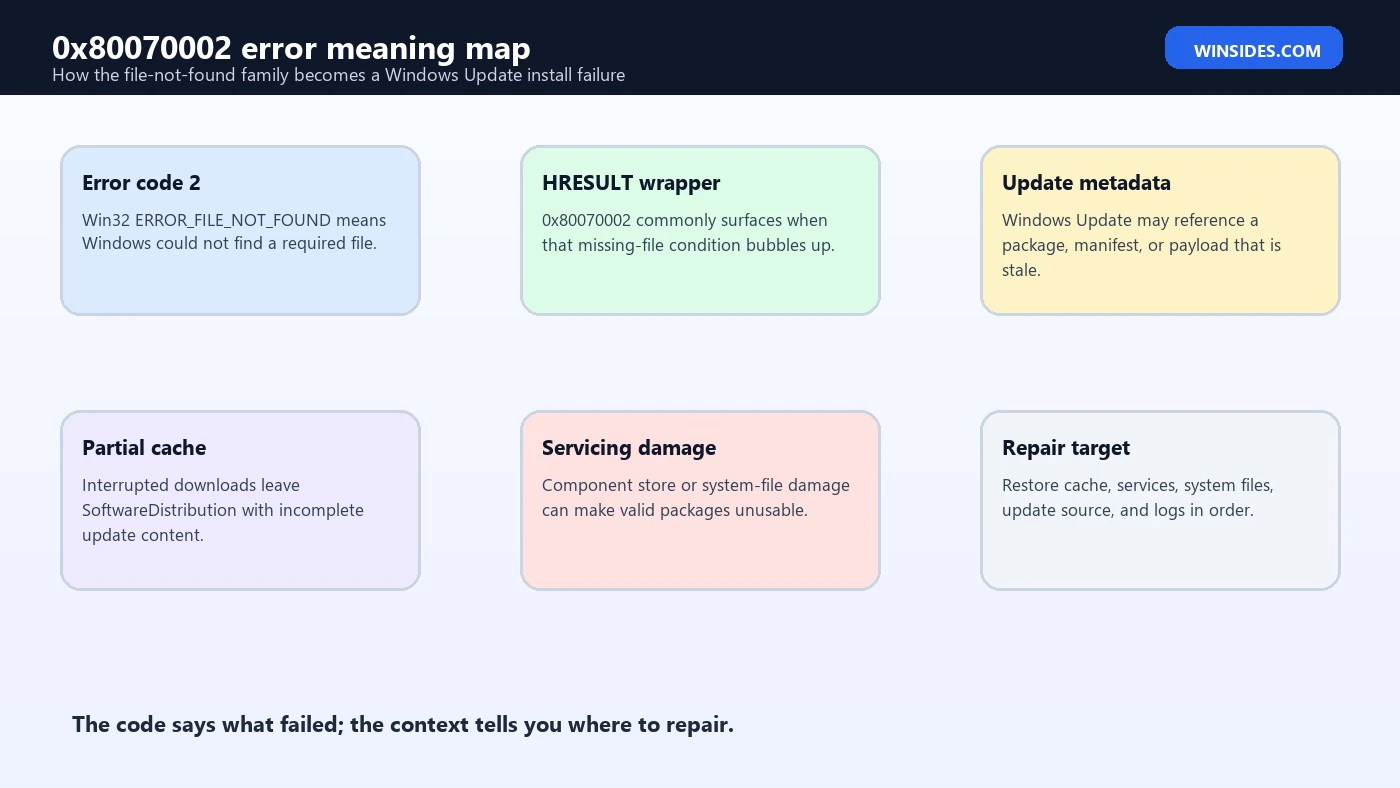
The code 0x80070002 looks intimidating because it is written as a hexadecimal HRESULT-style value, but the important part is the ending: 0002. In many Windows contexts, that ending maps back to the Win32 file-not-found error. Microsofts official system error list describes error 2 as ERROR_FILE_NOT_FOUND. Microsofts system error codes reference
In plain English, Windows asked for something and could not find it. That something might be a file path, a downloaded update payload, a package manifest, a component store file, a scheduled-task executable, a backup source, or a driver-related file. The user-facing message may not show all that detail. It may simply say that an update failed, something did not go as planned, or Windows could not complete the requested operation.
When 0x80070002 appears in Windows Update, do not assume one exact cause. It is a symptom code, not a full diagnosis. The missing file may be missing because the download was incomplete. It may exist but be inaccessible because services are stopped. The update database may be stale. The system may be pointed at a wrong path. A security product may have isolated the file. A cleanup tool may have removed temporary content while Windows expected it to remain available.
The right repair strategy is to restore Windows Update to a clean, consistent state. That usually means checking basics first, clearing the update cache only in a controlled way, repairing system files, and then using stronger recovery options if the error repeats.
Common Places You May See 0x80070002
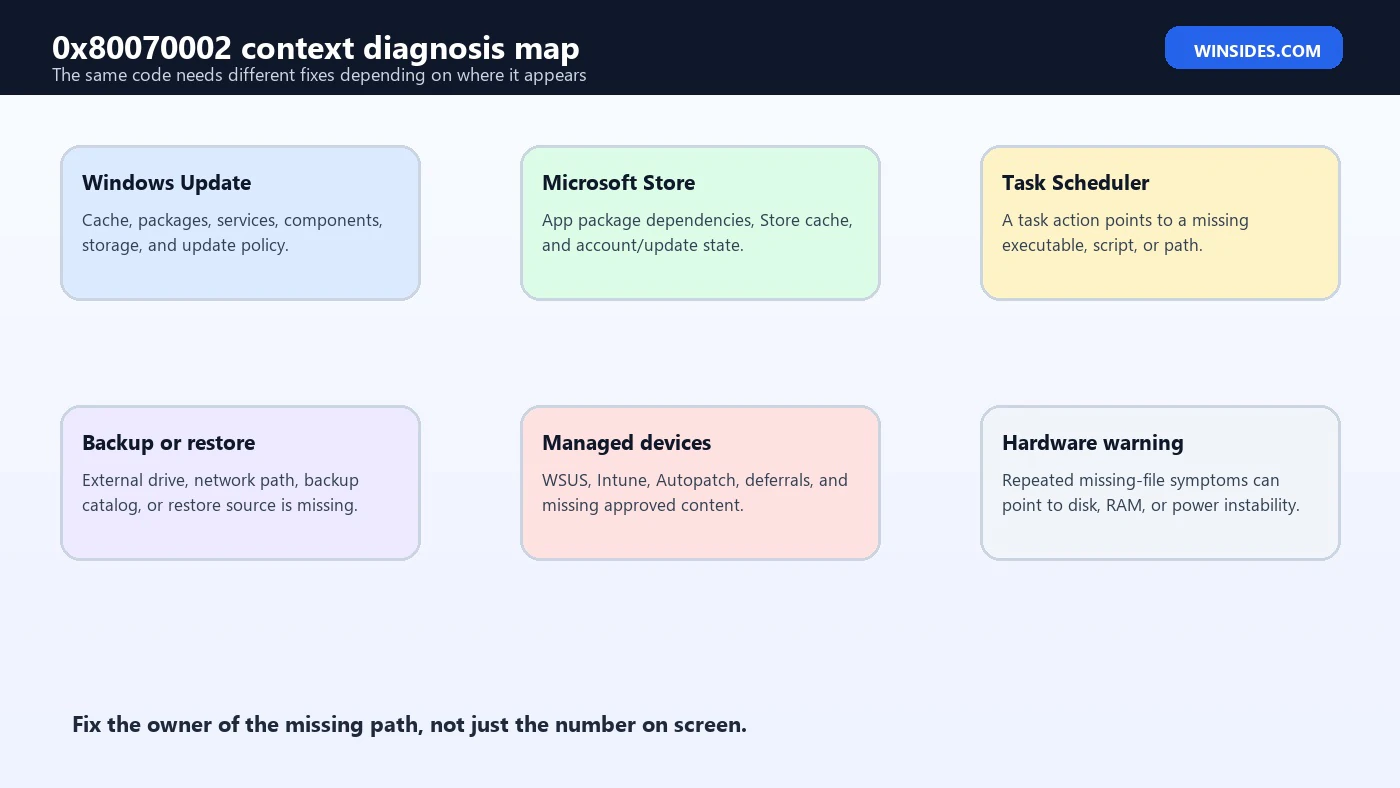
The most common place is Windows Update. You may see the error after an update downloads, during installation, after a reboot, or when Windows shows the update history. The update may retry repeatedly and fail with the same code. Sometimes the update reaches a percentage, restarts, rolls back, and then reports 0x80070002 later.
You may also see it in Microsoft Store app updates or built-in app repair if the app package, dependency, or update payload cannot be found. The Store uses a different update path than Windows Update, but both can still expose file or package availability problems.
Task Scheduler can show related file-not-found behavior when a task points to an executable or script that no longer exists. That is not the same as Windows Update failure, but the underlying idea is similar: the system is trying to run or use something referenced by configuration.
Backup, restore, and imaging operations can also surface 0x80070002 when Windows cannot find an expected backup file, catalog, restore point component, or source path. In those cases, Windows Update cache repair may not help because the missing item belongs to backup state instead of update servicing.
This article focuses on Windows Update and Windows 11 repair because that is where most users encounter the code. The first rule is to confirm the context. A Windows Update 0x80070002 and a Task Scheduler 0x80070002 are not the same troubleshooting path.
Why Windows Update Triggers 0x80070002
Windows Update is not just a download button. It uses services, metadata, manifests, package catalogs, the component store, temporary staging folders, update history, and system policies. A missing or mismatched item anywhere in that path can create a file-not-found style failure.
A partial download is the simplest cause. If the update download was interrupted, Windows may have metadata that says the update exists but payload files are incomplete. When installation begins, the installer looks for files that were never fully downloaded.
A stale update cache is another common cause. The SoftwareDistribution folder stores update downloads and update database information. If it contains corrupt, partial, or outdated content, Windows Update can keep reusing bad state instead of downloading fresh packages.
Incorrect date and time can also interfere. Update validation depends on certificates, timestamps, secure connections, and update metadata. Microsofts Windows Update troubleshooting guidance includes verifying date and time settings as a general update repair step. Microsofts Windows Update troubleshooting guidance If the system clock is badly wrong, Windows may fail before the problem looks obvious.
Low disk space can create confusing symptoms. Windows may download part of an update, fail to stage it, then later report a file or package problem. Microsofts guidance notes that devices need enough free space for updates and gives 16 GB for 32-bit upgrades or 20 GB for 64-bit upgrades as a reference point. Microsofts Windows Update troubleshooting guidance Even ordinary cumulative updates need working room.
External hardware can matter too. Microsoft recommends removing external storage devices, drives, docks, and hardware not needed for basic functionality when troubleshooting Windows Update. Microsofts Windows Update troubleshooting guidance That is not because every USB device causes 0x80070002, but because reducing variables helps prevent setup from looking at the wrong storage path, stalled device, or unstable dock state.
First Checks Before Repairing Anything
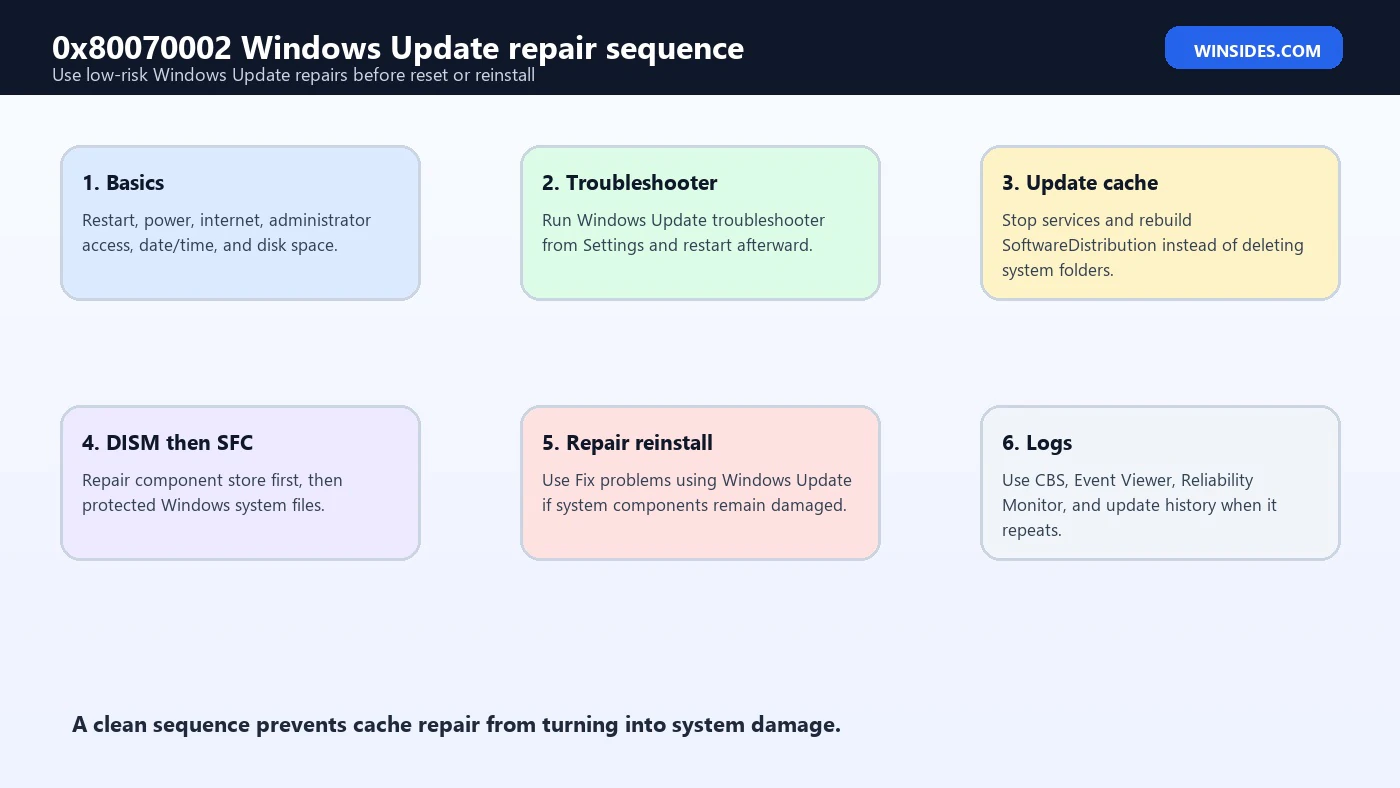
Start with the basics because they are fast and safe. Restart the PC once. Do not repeatedly force shutdowns. A clean restart clears pending service states and may let Windows finish a previous update step.
Check internet connectivity. Use a stable connection, ideally without a VPN while testing. If Windows Update cannot reach Microsoft servers reliably, downloads can fail or arrive incomplete. If you are on a metered network, temporarily allow update downloads if appropriate.
Check power. Laptops should stay plugged in. A repair process that stops mid-download or mid-install can leave the update state worse than before.
Check the system drive for free space. If C: is nearly full, free space before trying again. Remove temporary files, empty the Recycle Bin, move large downloads, and uninstall unused apps. Do not delete Windows servicing folders manually.
Check date and time. Go to Settings > Time & language > Date & time. Turn on Set time automatically and Set time zone automatically, then use Sync now. This is a simple step, but it belongs early because clock errors can break update trust.
Confirm you are using an administrator account. Microsofts Windows Update troubleshooting page notes that some updates require administrator access. Microsofts Windows Update troubleshooting guidance If you are using a standard account, switch to an admin account or ask the device administrator to run the update.
Run the Windows Update Troubleshooter
Microsoft recommends starting with the automated Windows Update troubleshooter on Windows 11. The path is Settings > System > Troubleshoot > Other troubleshooters, then Windows Update > Run. Microsofts Windows Update troubleshooting guidance The troubleshooter can inspect update services, basic configuration, common stuck states, and repairable update problems.
The troubleshooter is not perfect, but it is a good first official step because it makes supported changes and records diagnostic details. If it reports that it fixed something, restart the PC and run Windows Update again. If it says it could not fix the problem, continue with manual repair.
Do not dismiss the troubleshooter just because you know advanced commands. Windows Update has many moving pieces, and the troubleshooter may reset a simple state that would otherwise waste time.
After running it, check for updates again. Go to Settings > Windows Update > Check for updates. If the error returns, note the update name, KB number, and exact time. You will use that information later when checking logs.
Clear the Windows Update Cache Safely
If 0x80070002 repeats after the basic checks, the update cache is a strong suspect. Microsofts Windows Update troubleshooting guidance includes clearing the Windows Update cache by stopping the Windows Update service, deleting the contents of C:WindowsSoftwareDistribution, and starting the service again. Microsofts Windows Update troubleshooting guidance
The important word is contents. You are clearing cached update downloads and metadata, not deleting core Windows servicing folders. Do not delete C:WindowsWinSxS. Do not delete random folders inside System32. Do not remove the driver store. The update cache can be rebuilt; core servicing folders are part of Windows itself.
A careful cache reset looks like this:
net stop wuauserv
net stop bits
ren C:WindowsSoftwareDistribution SoftwareDistribution.old
net start bits
net start wuauserv
Renaming the folder instead of immediately deleting it is a safer habit. Windows creates a fresh SoftwareDistribution folder when Windows Update runs again. If you need to inspect the old cache or recover information, the renamed folder still exists temporarily.
After the reset, restart the PC and check for updates again. The first scan may take longer because Windows has to rebuild update state. That is normal.
Repair System Files with DISM and SFC
If the cache reset does not solve 0x80070002, repair Windows system files and the component store. Microsofts System File Checker guidance says DISM provides the files needed to repair corrupted files and should be run before SFC. Microsofts DISM and System File Checker guidance
Open Command Prompt or Terminal as administrator and run:
DISM.exe /Online /Cleanup-image /Restorehealth
sfc /scannow
DISM may take several minutes. Do not close the window while it runs. After DISM completes, run SFC. Microsoft explains that SFC scans protected system files and replaces corrupted files with a cached copy. Microsofts DISM and System File Checker guidance
If SFC reports that Windows Resource Protection found corrupt files and repaired them, restart and try Windows Update again. If it reports that it could not perform the requested operation, Microsoft suggests running SFC in Safe Mode. Microsofts DISM and System File Checker guidance If it reports corrupt files but cannot fix some of them, check CBS.log details before making stronger changes.
Do not run these commands in a loop all day. If DISM and SFC fail repeatedly, you need a different repair path, not the same command repeated ten times.
Check Services That Windows Update Depends On
Windows Update depends on services. If key services are disabled, broken, or blocked, update installation can fail with misleading file or package errors. The most relevant services include Windows Update, Background Intelligent Transfer Service, Cryptographic Services, Windows Modules Installer, and sometimes Delivery Optimization.
Open Services with services.msc. Check that Windows Update and BITS are not disabled. Windows Modules Installer should be available for servicing operations. Cryptographic Services matters because update packages and catalogs are validated.
You can also query services from an elevated terminal:
sc query wuauserv
sc query bits
sc query cryptsvc
sc query trustedinstaller
If a service is stopped, starting it may help. If it immediately stops again, check Event Viewer for service failure details. Do not change every service to Automatic without understanding the default. Some Windows services start on demand.
Third-party security tools can interfere with services or update folders. If the error started after installing an antivirus, firewall, endpoint agent, VPN, or system optimizer, include that in the timeline. Do not permanently disable security tools just to install updates, but you may need to update, repair, or temporarily pause a third-party tool during troubleshooting.
Check Date, Time, Region, and Language State
Date and time errors can cause update validation failures. Windows Update relies on secure communications and signed packages. If the local time is far away from reality, certificates may appear invalid or metadata may fail validation.
Set date and time automatically. Sync the clock. Confirm the time zone. Restart and check for updates again. This simple step is especially important on laptops with a drained battery, desktop PCs with CMOS battery issues, virtual machines, and devices that have been offline for a long time.
Region and language are less common causes, but they can matter for feature updates, language packs, optional features, and edition-specific packages. If 0x80070002 appears while installing a language pack, .NET component, optional feature, or feature-on-demand package, check whether the source files are available for that exact Windows build and language.
For normal cumulative updates, do not overfocus on region. The cache, servicing stack, storage, and system files are much more common suspects.
Use Fix Problems Using Windows Update
Windows 11 includes a repair option called Fix problems using Windows Update. Microsoft describes it as a recovery option that reinstalls the current version of Windows, repairs system files and components, and preserves apps, files, and settings. Microsofts Fix problems using Windows Update guidance
This option is useful when 0x80070002 keeps returning after the usual repair steps. It is stronger than clearing the cache or running SFC, but less disruptive than Reset this PC. It uses Windows Update to download a repair version of the current Windows installation.
Find it under Settings > System > Recovery. Under Fix problems using Windows Update, choose Reinstall now. Keep the PC connected to power and the internet. Microsoft specifically says to keep the PC connected during the entire reinstallation process. Microsofts Fix problems using Windows Update guidance
This option may be missing on managed work or school PCs, older Windows 11 builds, or devices controlled by update policies. If the PC is managed, do not try to bypass policy. Ask IT.
After the repair completes, restart, check Windows Update again, and confirm whether the failing update installs. If 0x80070002 still returns, logs become more important.
Read Logs When the Error Repeats
If 0x80070002 returns after cache reset, DISM, SFC, and repair options, gather evidence. Guessing becomes inefficient at that point.
Start with Windows Update history in Settings. Note the KB number and failed install time. Then open Reliability Monitor by searching for View reliability history. Look for Windows failures, update failures, app crashes, or hardware errors at the same time.
Event Viewer can show WindowsUpdateClient, Service Control Manager, disk, or servicing messages. Look under Windows Logs > System and Windows Logs > Application around the failure time. Do not treat one warning as proof. Look for clusters that match the exact update attempt.
CBS.log lives under C:WindowsLogsCBS. It can show servicing failures, missing manifests, package staging problems, and component repair details. WindowsUpdate.log can also be generated on newer Windows versions with PowerShell, but CBS.log is often more immediately useful for servicing failures.
If SFC reported unrepaired files, Microsoft documents a way to extract SFC details from CBS.log into a text file using findstr. Microsofts DISM and System File Checker guidance That can help identify whether the missing file belongs to Windows, an optional component, or something else.
If 0x80070002 Appears Outside Windows Update
If the code appears in Task Scheduler, check the task action path. A scheduled task that points to a deleted executable, moved script, missing network path, or unavailable mapped drive can produce a file-not-found style failure. Update the task action to a valid full path and test it manually.
If it appears during backup or restore, check the backup location. Make sure the external drive is connected, the network share is reachable, the drive letter did not change, and the backup catalog is intact. Windows Update cache repair will not fix a missing backup source.
If it appears while installing an app, the installer may be looking for a temporary file, dependency, source folder, or package that no longer exists. Re-download the installer from the official source, run it from a local folder, and avoid cleaning temp files while installation is running.
If it appears while enabling optional Windows features, the feature payload may be unavailable. In that case, DISM source options, Windows Update access, edition compatibility, and policy settings matter more than the SoftwareDistribution cache alone.
The repair path depends on context. The code tells you Windows cannot find something; it does not tell you which system owns the missing item until you inspect where it appeared.
Managed PCs, WSUS, and Policy Scenarios
On personal PCs, 0x80070002 usually points toward cache, servicing, storage, clock, or repair state. On managed work or school PCs, another layer enters the picture: policy. Windows Update may be controlled by Microsoft Intune, Group Policy, Windows Server Update Services, Autopatch, or another deployment platform. In that environment, a missing update file may be missing from the local cache, but it may also be unavailable from the configured update source.
If a device is pointed to WSUS or another internal update service, it may not be allowed to download directly from Microsoft. If the internal server does not have the needed package, metadata, language payload, feature-on-demand content, or driver approval, Windows can fail even though the public update exists. The user sees the same code, but the repair belongs to the update management path.
For managed PCs, do not immediately reset update policies. Check whether the device is supposed to receive updates from an organization. Review the update ring, target version policy, deferral settings, and approved updates. If other computers in the same group fail with the same KB and code, the problem is probably not one corrupted laptop. It may be a deployment, approval, synchronization, or content-distribution issue.
This is also where logs become more useful than repeated local repairs. A clean SoftwareDistribution reset may help one machine, but if policy sends it back to a source that lacks the required payload, the error returns. In business environments, compare the affected device with a healthy device in the same update ring before making broad changes.
What Not to Do
Do not delete WinSxS. The WinSxS folder is the Windows component store, not a disposable cache. Removing or shrinking it manually can break servicing and make update errors worse.
Do not run random all-in-one repair scripts without reading them. Some scripts stop services, delete folders, reset permissions, alter registry keys, and remove policies in one pass. That may hide the original cause and create new problems.
Do not permanently disable Windows Update services. Stopping services briefly for cache repair is different from disabling them. Windows 11 needs update services for security fixes, Defender updates, Store dependencies, optional features, and repair operations.
Do not ignore disk health. If files repeatedly disappear, updates fail in different ways, and logs show read/write errors, check the drive. A failing SSD can masquerade as update corruption.
Do not keep retrying the same update without changing anything. If the error repeats, repair cache, system files, services, storage, or policy state before another attempt.
Best Practices to Prevent 0x80070002
Keep enough free space on the system drive. Windows needs room to download, stage, install, roll back, and clean up updates. A nearly full C: drive creates a perfect environment for partial packages and failed servicing.
Avoid interrupting updates. Do not shut down the PC while updates are installing unless it is truly frozen for an unreasonable amount of time. Let restarts complete. Keep laptops plugged in.
Use trusted driver sources. Bad driver packages and third-party driver updaters can create missing-file references. Prefer Windows Update, the PC manufacturer, or the hardware vendor.
Be careful with cleanup tools. Deleting temporary files after updates are complete is fine. Running aggressive cleanup during update staging is not. Let Windows finish installing and restart before cleaning.
Keep date and time automatic. This prevents certificate and validation issues that can look unrelated at first.
Back up important files. Most Windows Update repairs are safe, but update failure is a sign that the system is already in an unhealthy state. A current backup turns repair from a high-stress gamble into a controlled maintenance task.
Frequently Asked Questions
What does 0x80070002 mean?
In many Windows contexts, it points to a file-not-found condition. Microsofts system error code reference defines ERROR_FILE_NOT_FOUND as error 2, meaning the system cannot find the file specified. Microsofts system error codes reference In Windows Update, Microsoft lists 0x80070002 as an update failed-to-install code. Microsofts Windows Update troubleshooting guidance
Is 0x80070002 always caused by Windows Update cache?
No. The update cache is common, but not the only cause. The code can also come from system file corruption, component store issues, missing package files, wrong date and time, low disk space, service problems, security software interference, backup paths, scheduled task paths, or optional feature sources.
Should I delete C:WindowsSoftwareDistribution?
Clearing or renaming SoftwareDistribution can help when cached update files are corrupt. Microsofts Windows Update troubleshooting guidance includes clearing the Windows Update cache. Microsofts Windows Update troubleshooting guidance Renaming the folder is safer than immediate deletion because it lets Windows rebuild a fresh cache while preserving the old one temporarily.
Should I run DISM or SFC first?
Run DISM first, then SFC. Microsofts SFC guidance says DISM provides files needed to repair corrupted files and should be run before System File Checker. Microsofts DISM and System File Checker guidance
Can Fix problems using Windows Update solve 0x80070002?
It can help when the error comes from damaged system files or Windows components. Microsoft says Fix problems using Windows Update reinstalls the current Windows version, repairs system files and components, and preserves apps, files, and settings. Microsofts Fix problems using Windows Update guidance It will not fix every hardware, policy, backup path, or third-party driver issue.
Do I need to reset Windows?
Not usually at first. Try the troubleshooter, basic checks, cache reset, DISM, SFC, and Fix problems using Windows Update before Reset this PC. Use Reset when the system remains unstable and less disruptive repairs fail.
Conclusion: Fix the Missing Update Path, Not Just the Error Code
0x80070002 usually means Windows could not find something it needed. In Windows Update, that missing item is often an update payload, cached file, package record, or system component required for installation. The right fix is not to chase the code blindly, but to repair the path Windows Update uses.
Start with safe checks: restart, internet, power, administrator access, date and time, free space, and external hardware. Run the Windows Update troubleshooter. Clear the update cache carefully. Repair Windows with DISM and SFC. If the error still returns, use Fix problems using Windows Update as a supported repair reinstall that preserves apps, files, and settings. If the issue still survives, inspect logs and confirm whether the code belongs to Windows Update or another component such as Task Scheduler, backup, optional features, or an installer.
The safest repair order is patient and evidence-based. Do not delete core Windows folders, disable services permanently, or run mystery scripts. Restore the update cache, repair system files, verify the source of the missing file, and only escalate to Reset or reinstall when narrower fixes have genuinely failed.
For more interesting articles, stay tuned to Winsides.com!









Community
Comments (0)