

Introduction to Windows Update 0x80070643
windows update 0x80070643 is a Windows 11 update failure that usually appears when an update package, installer, repair component, or servicing action cannot complete installation. The message can look generic in Settings, but the code itself is useful: the ending 0x643 maps to Windows Installer-style install failure behavior, not simply a download problem.
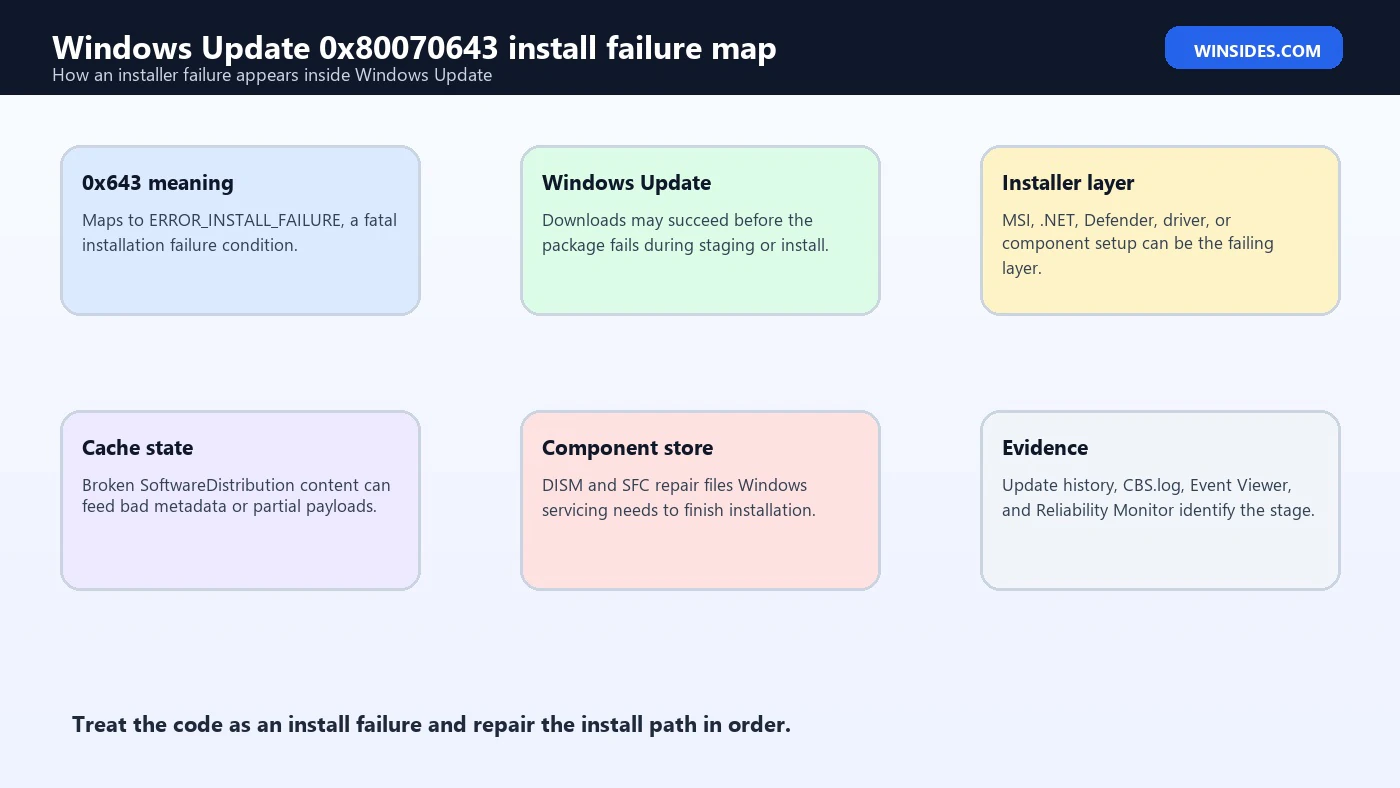
Microsofts system error code reference lists ERROR_INSTALL_FAILURE as code 1603, or 0x643, with the description that a fatal error occurred during installation. Microsofts system error codes reference When Windows wraps that lower-level failure into an HRESULT-style code, users often see 0x80070643. In practical Windows Update troubleshooting, that means the download may have succeeded, but something failed while Windows tried to install, stage, configure, or finalize the update.
That distinction matters. If Windows Update fails with a network error, the first repair target is connectivity. If it fails with a missing-file code, the cache or package source may be the first target. But with 0x80070643, the issue often sits inside the installation phase: Windows Installer, .NET servicing, Microsoft Defender platform updates, Windows Recovery Environment-related updates, component store damage, corrupted update cache, another installer already running, insufficient space, permissions, or a broken repair source.
Microsofts Windows Update troubleshooting guidance recommends starting with safe basics: back up personal files, run the Windows Update troubleshooter, verify power and internet, make sure administrator access is available, disconnect unnecessary external hardware, clear the Windows Update cache, verify date and time, update drivers, free up space, run Windows Update again, and restart to apply updates. Microsofts Windows Update troubleshooting guidance This article follows that safe order and adds specific context for 0x80070643 so you can fix the installation path without damaging Windows servicing folders.
Table of contents
Key Takeaways
- Windows Update 0x80070643 is usually an install failure. Microsoft maps 1603, or 0x643, to ERROR_INSTALL_FAILURE. Microsofts system error codes reference
- The update may download but fail during installation. The problem can be Windows Installer, servicing, .NET, Defender, WinRE-related updates, permissions, cache, or component corruption.
- Start with supported Windows Update troubleshooting. Use the Windows Update troubleshooter, power/internet checks, admin access, cache reset, date/time checks, driver updates, free space, and restart. Microsofts Windows Update troubleshooting guidance
- Run DISM before SFC. Microsoft recommends DISM first, then System File Checker, when repairing missing or corrupted system files. Microsofts DISM and System File Checker guidance
- Do not delete WinSxS or installer folders. Clearing update cache is different from damaging the component store or Windows Installer database.
- Only treat it as a recovery partition issue when evidence points there. Some update failures involve Windows Recovery Environment servicing, but most 0x80070643 cases should not start with partition resizing.
- Fix problems using Windows Update is a good later step. Microsoft says it reinstalls the current Windows version, repairs system files and components, and preserves apps, files, and settings. Microsofts Fix problems using Windows Update guidance
- Logs decide repeated failures. CBS.log, Event Viewer, Windows Update history, and Reliability Monitor help separate cache, installer, component, driver, and storage causes.
What 0x80070643 Means
The code 0x80070643 is easier to understand when you split it apart. The useful part for most troubleshooting is 0x643. Microsofts Win32 system error code list identifies 1603, or 0x643, as ERROR_INSTALL_FAILURE. Microsofts system error codes reference In everyday language, Windows tried to install something and the installation failed hard enough that the caller could not continue.
That does not identify one exact broken file. It identifies a failure class. Windows Update may have handed a package to the servicing stack. The servicing stack may have called an installer. The installer may have failed because another installation was already active, a package source was missing, a previous installation was half-finished, permissions were wrong, Windows Installer was unhealthy, .NET components were damaged, a security tool blocked a file, or the component store could not provide required files.
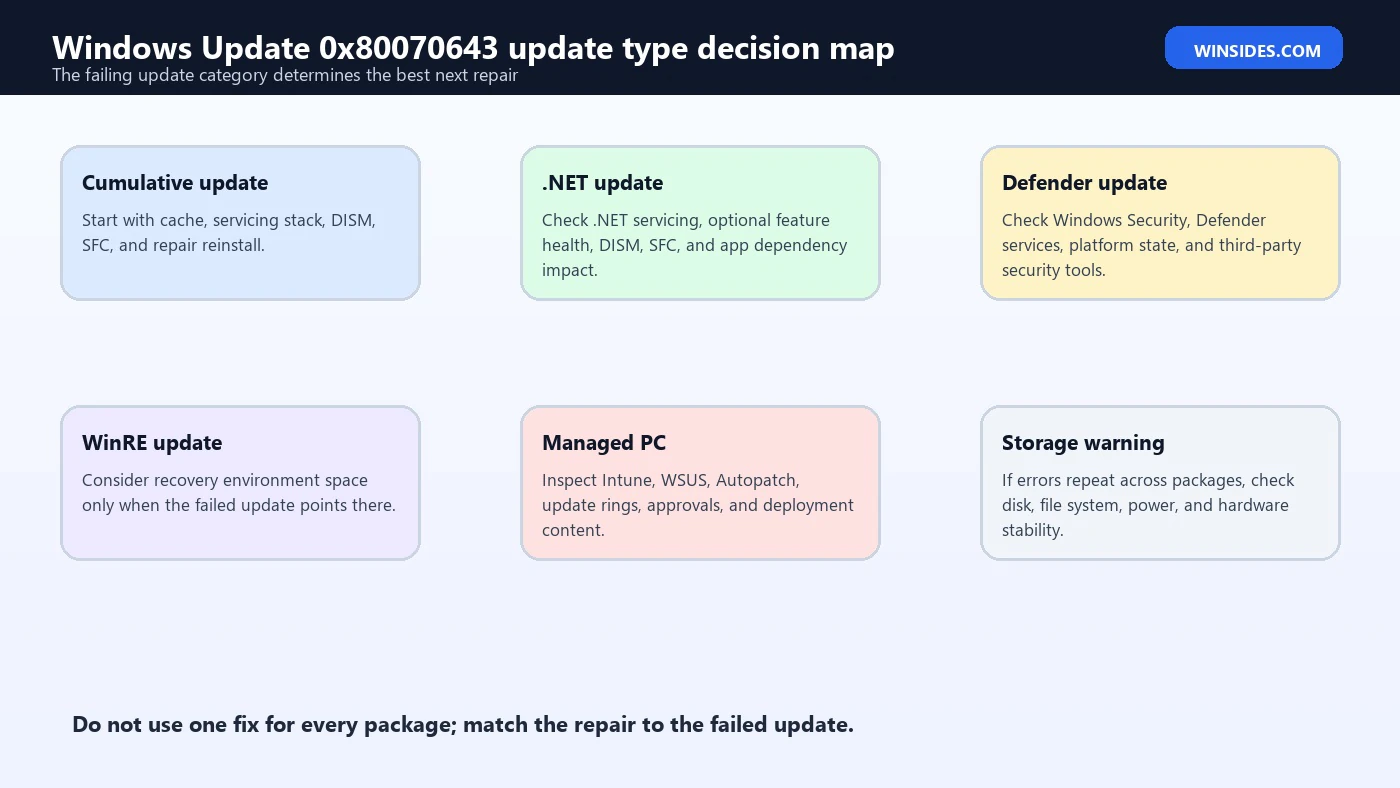
This is why the same code can appear for different update types. A cumulative update, a .NET Framework update, a Microsoft Defender platform update, a Windows Recovery Environment update, or a driver package can all expose 0x80070643 if the installation stage fails. The repair must match the update type.
For example, a .NET-related update failure should make you consider .NET servicing and system-file repair. A Defender update failure should make you check security services and update channels. A WinRE-related update failure should make you check recovery environment state and available recovery partition space only after confirming that the failing update is actually in that category. A generic cumulative update failure should push you toward cache reset, DISM, SFC, and Windows Update repair.
Common Causes of Windows Update 0x80070643
The first common cause is a damaged or stale Windows Update cache. Windows Update may have downloaded part of a package, saved old metadata, or kept a broken staging state after an interrupted install. The next attempt then reuses bad state and fails during install.
The second cause is component store damage. Windows servicing depends on the component store. If the store cannot provide needed files, manifests, or payloads, an update can fail even though the download is good. That is why DISM and SFC belong in the repair order.
The third cause is another installer already running or a pending restart. Windows Installer and Windows servicing do not like overlapping installation sessions. A partially installed app, driver, Office component, Visual C++ package, .NET update, or previous Windows update can leave a pending state. A restart may clear it.
The fourth cause is Windows Installer or package-source trouble. Microsofts system error list places several installer-related errors near 1603, including Windows Installer service access problems, installation source absent, invalid packages, and another installation already in progress. Microsofts system error codes reference Those neighboring errors explain why a generic install failure can be caused by installer plumbing, not only Windows Update itself.
The fifth cause is insufficient working space. Windows Update needs room to download, stage, install, roll back, and clean up packages. Microsofts Windows Update guidance recommends freeing disk space and notes that upgrades require significant free space. Microsofts Windows Update troubleshooting guidance Even ordinary cumulative updates can fail when the system drive or a servicing partition is too tight.
The sixth cause is third-party interference. Antivirus, endpoint protection, VPN clients, driver updaters, cleanup tools, encryption tools, and system optimizers can interfere with package installation. They may lock files, remove temporary payloads, block services, or quarantine installer files.
Identify the Failing Update First
Before repairing, identify which update is failing. Open Settings > Windows Update > Update history. Note the update title, KB number, category, and failure date. This is not busywork. A failing .NET update, Defender platform update, cumulative update, driver update, or recovery update points to different repair paths.
If the update title includes .NET Framework, include .NET servicing in your thinking. If it mentions Security Intelligence or Microsoft Defender, check Defender update state. If it mentions Windows Recovery Environment, recovery partition or WinRE state may matter. If it is a cumulative update, start with the normal Windows Update repair sequence.
Look for whether the error happens before download, during download, during install, after restart, or after rollback. 0x80070643 is usually an installation-phase code, but the screen may not reveal the phase clearly. Update history, Event Viewer, and Reliability Monitor can help.
If multiple updates fail with the same code, the cause is more likely shared infrastructure: cache, servicing, disk space, services, policy, system-file corruption, or security software. If only one update fails repeatedly while others install, focus on that package type and its prerequisites.
For managed work or school PCs, identify whether updates come from Microsoft directly or from an organization-managed source. If WSUS, Intune, Autopatch, or Group Policy controls the device, the failure may involve update approvals, policies, or internal content distribution.
Start with Safe Basic Checks
Restart the PC once. Many update failures continue because Windows is waiting for a pending restart from another installation. A normal restart can clear pending state and let the update retry cleanly.
Check power and internet. Microsofts Windows Update troubleshooting guidance includes verifying that the device is plugged into power and connected to the internet. Microsofts Windows Update troubleshooting guidance For laptops, keep the charger connected. For unstable Wi-Fi, use a stronger connection or Ethernet if possible.
Confirm administrator access. Some updates require admin rights. If you are using a standard account, switch to an administrator account or have an administrator run the update.
Disconnect unnecessary external hardware. Microsoft recommends removing external storage devices, drives, docks, and other hardware not needed for basic functionality while troubleshooting updates. Microsofts Windows Update troubleshooting guidance Keep the system simple until the update installs.
Check date and time. Incorrect date and time can interfere with secure update validation. Enable automatic time and time zone, then sync the clock.
Free up disk space. Do not wait until C: is completely full. Give Windows room to download, stage, install, and roll back updates. Remove unneeded downloads, temporary files, old installers, and unused apps. Avoid deleting system folders manually.
Run the Windows Update Troubleshooter
On Windows 11, run the Windows Update troubleshooter from Settings > System > Troubleshoot > Other troubleshooters > Windows Update > Run. Microsoft recommends this as a first supported troubleshooting step. Microsofts Windows Update troubleshooting guidance
The troubleshooter can check common service and configuration problems. It may reset update state, detect pending restarts, repair obvious policy conflicts, or provide a more specific message. Restart afterward even if it says repairs were applied automatically.
After the restart, run Windows Update again. If the same update fails with 0x80070643, do not keep clicking Retry endlessly. Move to cache and servicing repair.
If the troubleshooter reports a specific error, save it. The output may point to a blocked service, database issue, missing source, or network problem. Those details matter if the issue needs deeper log review.
Clear the Windows Update Cache
A corrupt cache can make Windows Update fail during installation even when the real update package is available online. Microsofts guidance includes clearing the Windows Update cache by stopping the Windows Update service, clearing the contents of C:WindowsSoftwareDistribution, and starting the service again. Microsofts Windows Update troubleshooting guidance
A safer command-line approach is to rename the cache folder so Windows rebuilds it:
net stop wuauserv
net stop bits
ren C:WindowsSoftwareDistribution SoftwareDistribution.old
net start bits
net start wuauserv
Run these from an elevated Command Prompt or Terminal. If a service says it is not started, continue. If the rename fails because files are in use, restart and try again before Windows Update starts another scan.
Do not delete C:WindowsWinSxS. Do not delete C:WindowsInstaller. Do not remove files from System32 because a forum said they are old. SoftwareDistribution is an update cache. WinSxS and Installer contain core servicing and installed-product state.
After rebuilding the cache, restart and check for updates again. The first scan may take longer because Windows has to rebuild metadata.
Repair System Files with DISM and SFC
If the cache reset does not fix Windows Update 0x80070643, repair system files and the component store. Microsofts System File Checker guidance says DISM provides the files required to repair corrupted files and should be run before SFC. Microsofts DISM and System File Checker guidance
Open an elevated Command Prompt or Windows Terminal and run:
DISM.exe /Online /Cleanup-image /Restorehealth
sfc /scannow
Let DISM finish. It may take several minutes and can appear paused. Then run SFC. Microsoft explains that SFC scans protected system files and replaces corrupted files with cached copies. Microsofts DISM and System File Checker guidance
If SFC reports that corrupt files were repaired, restart and try Windows Update again. If SFC reports that it could not perform the requested operation, Microsoft suggests running the scan in Safe Mode and making sure pending folders exist under WinSxS Temp. Microsofts DISM and System File Checker guidance If SFC reports unrepaired files, inspect CBS.log rather than guessing.
If DISM cannot complete because Windows Update is broken, that is a clue. DISM normally uses Windows Update as a repair source unless told otherwise. A broken update client can make system repair harder, which is one reason the built-in repair reinstall option can help later.
Check Windows Installer and Pending Installations
Because 0x80070643 maps to install failure, check for pending or overlapping installations. Restart first. Then open Task Manager and look for installers that keep running, such as msiexec.exe, setup.exe, update installers, driver setup tools, or app installers.
Open Services and check the Windows Installer service. It does not need to run all the time, but it should not be disabled. If an MSI-based update or dependency is involved, Windows Installer must be able to start on demand.
If you recently installed or uninstalled an app, driver, VPN client, security suite, Office component, Visual C++ redistributable, or .NET component, that installer may have left pending state. Finish or repair that installation before retrying Windows Update.
Do not delete C:WindowsInstaller to free space. That folder contains installed-product repair and uninstall information. Removing it can break future patches and make 0x80070643-style errors more likely.
If another installation is truly stuck, reboot into a clean startup state and try Windows Update before launching other installers. Avoid running Windows Update at the same time as GPU driver installers, Office updates, game anti-cheat updates, or vendor support tools.
Consider .NET Framework Update Failures
0x80070643 is commonly associated with installer failures, and .NET Framework updates are one category where users often see it. On Windows 11, .NET Framework components are serviced through Windows features and Windows Update. A .NET update failure may reflect component store trouble, Windows Installer state, or a damaged .NET servicing path.
Start with the same safe repair sequence: Windows Update troubleshooter, cache reset, DISM, and SFC. Do not download random .NET repair packages from unofficial sites. Use Microsoft-delivered updates and built-in Windows repair first.
If the failed update title clearly includes .NET Framework, check whether optional Windows features are healthy. Open Windows Features and look for .NET Framework entries. Do not turn features off and on repeatedly without a reason, but if logs point to .NET feature payload issues, Windows optional feature repair may become relevant.
If a business app depends on .NET Framework, test the app after the repair. Sometimes users focus only on the update error and miss that the underlying .NET component is also affecting a line-of-business program.
Consider Microsoft Defender and Security Updates
Microsoft Defender updates can also produce update errors when security services, definitions, platform components, or endpoint protection policies are unhealthy. If the failing update title mentions Security Intelligence, Microsoft Defender Antivirus, or Defender platform, check Windows Security.
Open Windows Security and review Virus & threat protection. Make sure the security provider is not disabled by a third-party suite or policy. Check for protection updates from inside Windows Security as well as Windows Update.
If a third-party antivirus is installed, it may own parts of the security stack. Update that product first. If it recently changed, repaired itself, or removed Defender integration incorrectly, Windows Update may report failures for security components.
Do not permanently disable antivirus to fix updates. If temporary testing is necessary, keep it brief and turn protection back on. The better long-term repair is to update, repair, or cleanly remove conflicting security software.
Be Careful with WinRE and Recovery Partition Advice
Some users search 0x80070643 and immediately find advice about resizing the Windows Recovery Environment partition. That can be relevant for specific recovery environment updates, but it is not the right starting point for every Windows Update 0x80070643 case.
Only consider recovery partition work if the failing update title, KB documentation, or logs point to Windows Recovery Environment, WinRE, recovery image servicing, or insufficient space in the recovery partition. If the failed item is a .NET update, Defender update, cumulative update, or driver update, partition resizing may be irrelevant and risky.
Recovery partitions are easy to damage if commands are copied blindly. A wrong shrink, delete, or reagentc step can remove recovery tools or make future recovery harder. Before touching partitions, back up the device, confirm the exact failing update, check WinRE status, and understand the disk layout.
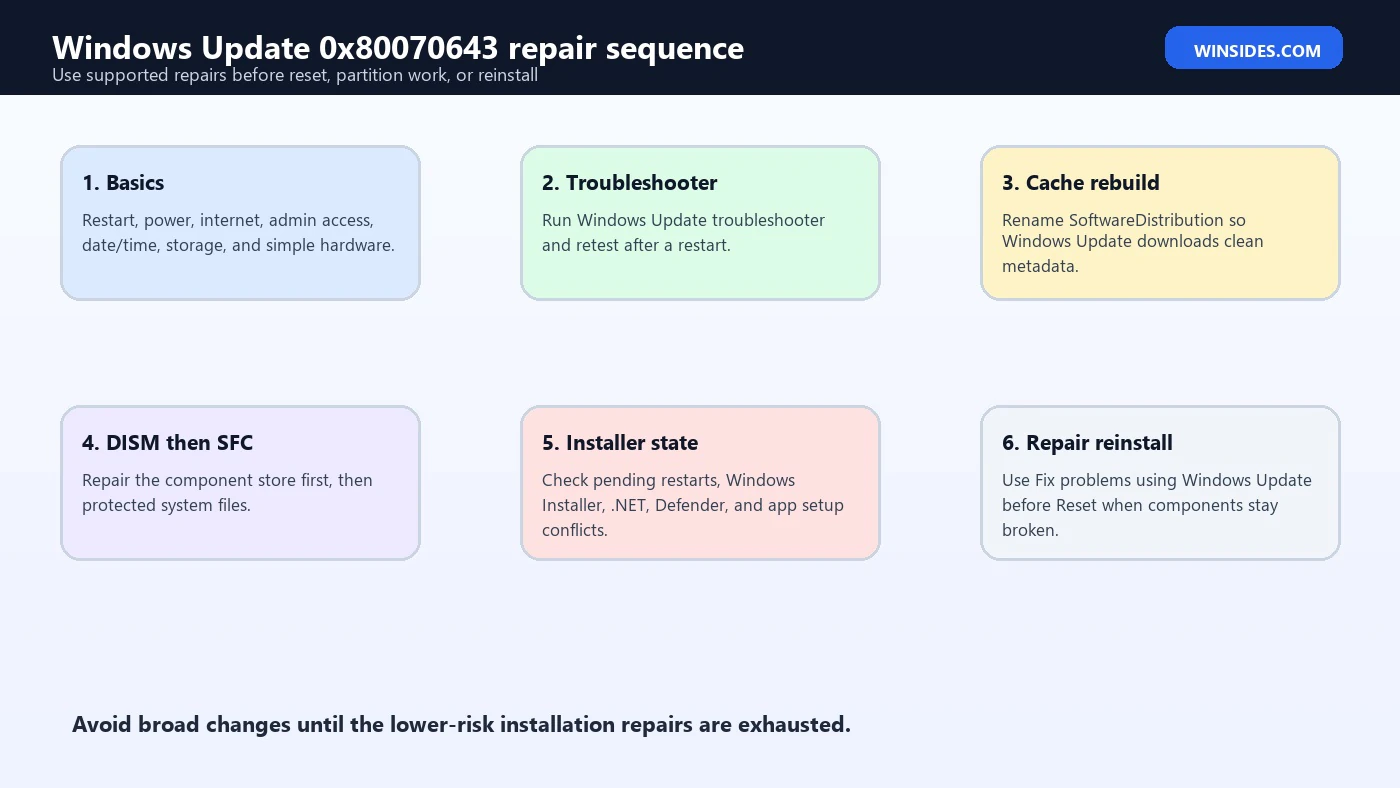
For most users, the safer order is normal Windows Update repair first: troubleshooter, cache reset, DISM, SFC, service checks, free space, and Fix problems using Windows Update. Partition changes belong much later and only with evidence.
Check Storage Health and Installer Source Problems
Disk space and disk health are not the same thing. A PC can have enough free space but still fail installations if the SSD is producing read or write errors, if the file system is damaged, or if temporary update files cannot be staged reliably. If 0x80070643 appears alongside freezes, slow boots, sudden restarts, or different update errors each time, check storage health before repeating repairs.
Open Event Viewer and look for disk, Ntfs, storahci, stornvme, or controller warnings around the update failure time. A single old warning is not proof, but repeated storage warnings during update installation should change your repair plan. Back up important files before doing anything else.
Run a basic file-system check only when appropriate:
chkdsk C: /scanThe online scan checks for file-system issues without immediately forcing a reboot repair. If it reports problems that require offline repair, schedule that repair only after saving work and backing up important data.
Installer source problems are another subtle cause. If the failed update depends on a package, driver, feature, or app component whose original source is missing, Windows may report an installation failure rather than a clear missing-source message. This is especially common after aggressive cleanup utilities remove installer caches, temporary setup folders, or vendor update packages.
For driver or app-related failures, download the latest official installer from the hardware or software vendor and repair that product before rerunning Windows Update. For Windows components, use DISM, SFC, and Fix problems using Windows Update instead of hunting for individual DLL files online.
Use Fix Problems Using Windows Update
If the standard repairs do not clear Windows Update 0x80070643, use the Windows 11 repair option called Fix problems using Windows Update. Microsoft describes this feature as reinstalling the same Windows version already on the PC, repairing system files and components, and preserving apps, files, and settings. Microsofts Fix problems using Windows Update guidance
Open Settings > System > Recovery. Under Fix problems using Windows Update, choose Reinstall now. Keep the PC connected to power and internet through the whole process. Microsoft specifically notes that the device should remain connected during the reinstallation. Microsofts Fix problems using Windows Update guidance
This is a good middle step before Reset this PC. It is stronger than DISM and SFC because it reinstalls the current Windows version through Windows Update, but it is less disruptive than resetting Windows and removing apps.
The option may be unavailable on managed work or school PCs or on devices controlled by update policies. If the PC is managed, involve IT rather than bypassing policy.
After the repair finishes, restart and check for updates again. If the same update still fails with 0x80070643, use logs to find the exact install stage.
Read Logs When It Keeps Coming Back
Repeated 0x80070643 failures need evidence. Open Update history and note the KB number and failure time. Then open Reliability Monitor by searching for View reliability history. Look for Windows failures, installer failures, app crashes, or hardware errors at the same time.
Event Viewer can show WindowsUpdateClient, MsiInstaller, Service Control Manager, Defender, disk, or servicing events. Check Windows Logs > System and Windows Logs > Application around the failure time. If the failure is .NET-related, Application logs may include more useful installer details than Windows Update history.
CBS.log under C:WindowsLogsCBS is important for servicing failures. DISM logs can also help if DISM fails. If SFC reports unrepaired files, Microsoft documents a way to extract SFC details from CBS.log into a desktop text file with findstr. Microsofts DISM and System File Checker guidance
Look for patterns. If logs mention another installation already in progress, fix installer state. If they mention access denied, check permissions and security software. If they mention source absent or package missing, check cache and update source. If they mention disk or file corruption, check storage health.
Managed PCs and Policy-Controlled Updates
On work and school devices, Windows Update may be controlled by Intune, Group Policy, WSUS, Autopatch, or another deployment system. A local PC can show 0x80070643 even when the root cause is an update approval, content distribution, deferral policy, or internal source problem.
If many devices in the same group fail on the same KB, do not treat it as a one-laptop cache issue. Compare update rings, WSUS approvals, driver policies, feature update targeting, and endpoint security changes. The fix may be server-side.
If only one managed device fails, local cache repair, DISM, SFC, and Windows Update repair may still help. But avoid deleting policies or bypassing management tools. That can make the device non-compliant and harder to support.
Record the exact KB, update category, device build, update source, and failure time before escalating. That gives IT enough information to compare logs and deployment status.
What Not to Do
Do not delete WinSxS. It is the component store, not junk. Damaging it can break updates, optional features, DISM, and recovery.
Do not delete C:WindowsInstaller. It may look large, but it contains installer state needed to repair, patch, and uninstall applications.
Do not resize recovery partitions just because the code is 0x80070643. Confirm the failing update is WinRE-related first.
Do not run multiple repair scripts in one session. If you reset services, delete caches, alter permissions, run registry edits, and install drivers all at once, you will not know what helped or what broke.
Do not permanently disable Windows Update services or antivirus. Short troubleshooting pauses are different from leaving the system unprotected or unable to receive security fixes.
Frequently Asked Questions
What does Windows Update 0x80070643 mean?
It usually means an installation failed. Microsoft lists ERROR_INSTALL_FAILURE as 1603, or 0x643, with a fatal installation failure description. Microsofts system error codes reference Windows Update can surface that lower-level failure as 0x80070643.
Is 0x80070643 always a .NET Framework problem?
No. It can happen with .NET updates, but it can also happen with cumulative updates, Defender updates, WinRE-related updates, driver packages, installer conflicts, component store damage, cache corruption, or policy-controlled update sources.
Should I clear SoftwareDistribution?
Clearing or renaming SoftwareDistribution can help when cached update state is corrupt. Microsoft includes clearing the Windows Update cache in its troubleshooting guidance. Microsofts Windows Update troubleshooting guidance Renaming the folder is safer than deleting it immediately.
Should I run DISM or SFC first?
Run DISM first, then SFC. Microsofts repair guidance says DISM provides files required to repair corrupted files and should be run before System File Checker. Microsofts DISM and System File Checker guidance
Should I resize the recovery partition?
Only if the failing update and logs point to Windows Recovery Environment or recovery partition space. Do not start with partition changes for ordinary .NET, Defender, cumulative, or driver update failures.
Can Fix problems using Windows Update repair this error?
Yes, it can help when the error comes from damaged Windows system files or components. Microsoft says the option reinstalls the current Windows version, repairs system files and components, and preserves apps, files, and settings. Microsofts Fix problems using Windows Update guidance
Conclusion: Treat 0x80070643 as an Installation Failure
windows update 0x80070643 is best understood as an installation failure, not just a generic update complaint. The download may be fine, but Windows cannot complete the install stage because of cache damage, component store corruption, installer state, .NET servicing, Defender servicing, WinRE-related requirements, security software interference, low space, or policy-controlled update sources.
Use a safe repair order. Restart, check power and internet, confirm admin access, sync date and time, free disk space, disconnect unnecessary hardware, run the Windows Update troubleshooter, rebuild the SoftwareDistribution cache, run DISM and SFC, check Windows Installer and pending installs, and then use Fix problems using Windows Update if system components still appear damaged.
Do not jump straight to destructive repairs. Avoid deleting WinSxS or Windows Installer folders. Avoid partition changes unless the failed update clearly involves Windows Recovery Environment. If the error repeats after supported repairs, read logs and identify the failing package type. The more precisely you identify the installer that failed, the faster 0x80070643 becomes a fixable Windows Update problem instead of an endless retry loop.
For more interesting articles, stay tuned to Winsides.com!









Community
Comments (0)