

Introduction to 0x80070005 Access Denied
0x80070005 Access Denied is one of those Windows errors that looks simple but can come from many different layers. You may see it during Windows Update, Microsoft Store app installation, activation, backup, DISM, SFC, app setup, file copy, registry access, service startup, or enterprise policy work. The message usually means that a caller tried to read, write, modify, register, or install something and Windows denied that operation. The important part is identifying which caller was denied and which resource was being protected.
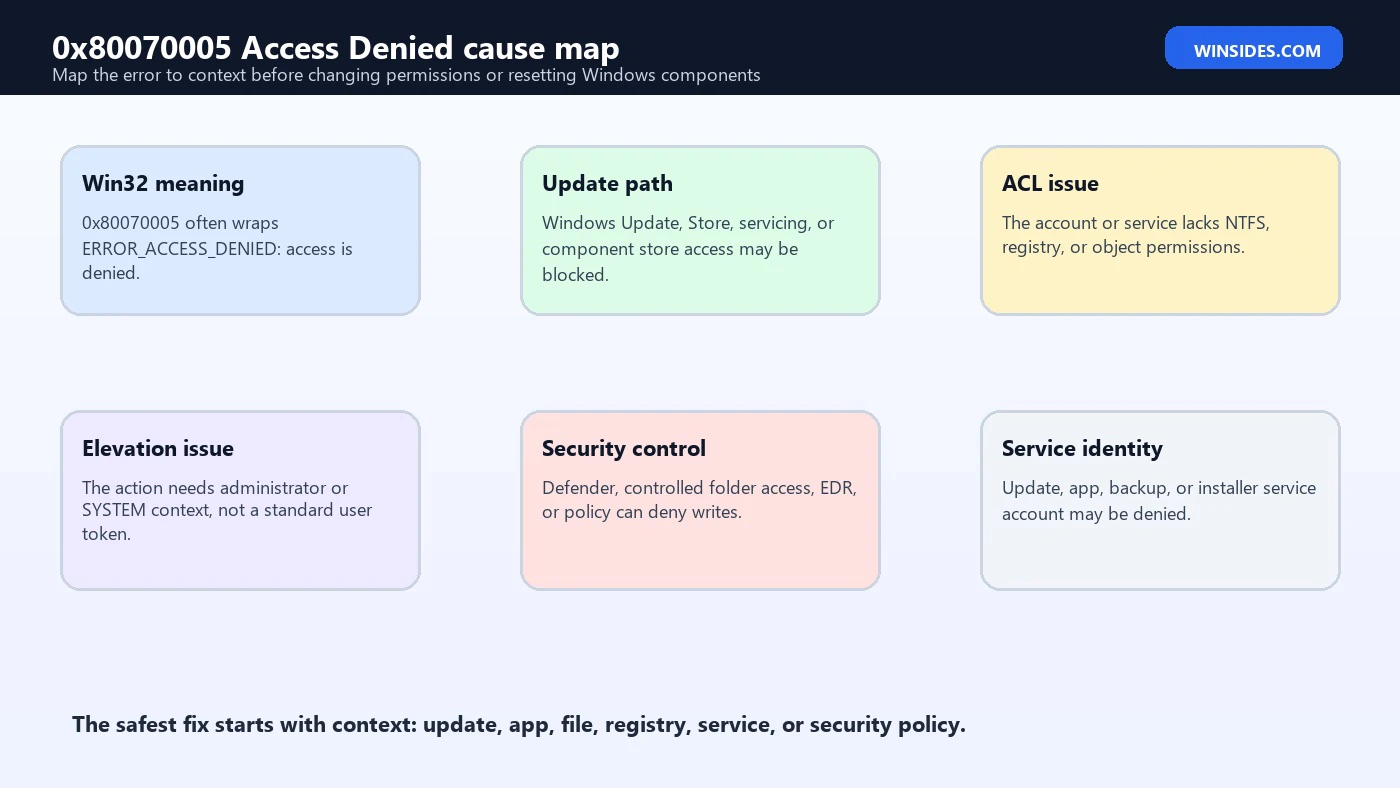
The code also has a useful clue inside it. Microsoft’s system error code documentation lists ERROR_ACCESS_DENIED as error 5 (0x5), with the meaning that access is denied. The longer code 0x80070005 is commonly an HRESULT-style wrapper around that underlying access-denied condition. In practical terms, Windows is not telling you that one single feature is broken. It is telling you that a specific operation hit a permission, token, policy, servicing, or security boundary.
For Windows repair work, the safest approach is to use official tooling and narrow fixes. Microsoft’s system error codes explain the underlying access-denied meaning. The icacls documentation is useful for inspecting and repairing NTFS permissions. Microsoft’s Windows image repair guidance covers DISM servicing repair, while Microsoft’s Windows Update troubleshooting page is the right starting point when the code appears during update installation.
This guide focuses on diagnosing 0x80070005 Access Denied without turning a small denial into a bigger security problem. The goal is not to grant broad permissions, disable security tools forever, or reset every Windows folder. The goal is to map the error to the right context, repair Windows Update or servicing when that is the failing layer, inspect targeted ACLs when a file or folder is the failing resource, and preserve Windows security boundaries while restoring the operation that failed.
Table of contents
Key Takeaways
- 0x80070005 Access Denied is a symptom, not a single root cause. It can come from Windows Update, Store apps, activation, DISM, file permissions, registry permissions, service identity, or security policy.
- The code usually wraps access denied. Microsoft documents
ERROR_ACCESS_DENIEDas5 (0x5), and0x80070005often points back to that condition. - Context matters more than random fixes. Record the app, action, path, account, time, update KB, and whether the operation ran elevated.
- Use broad resets only as a last resort. Do not take ownership of the entire Windows folder or grant Everyone Full Control to system locations.
- Windows Update cases should start with update and servicing repair. Use the Windows Update troubleshooter, restart, check storage, then DISM and SFC when appropriate.
- File and folder cases should use targeted ACL repair. Use
icaclsto inspect and adjust the exact path involved, not every path on the drive. - Security tools can be the reason for the denial. Controlled folder access, Defender, enterprise EDR, AppLocker, WDAC, and Group Policy can intentionally block writes.
What 0x80070005 Means in Windows
0x80070005 usually means an operation ended in an access-denied condition. The first trap is assuming the account itself is always wrong. Sometimes the account lacks permission. Sometimes the account has permission but the process is not elevated. Sometimes a service runs under a different identity than the signed-in user. Sometimes Windows Update or the component store cannot write to a servicing location. Sometimes a security product blocks a write on purpose. Same code, different layer.
That is why this error appears in so many places. A Windows Update failure with 0x80070005 is not the same case as a folder copy failure with the same code. A Microsoft Store install error is not the same as a registry key denial during application setup. A backup failure is not the same as DISM returning access denied. Treating them all with one permission command is risky because Windows security descriptors are part of the operating system’s protection model.
A good mental model is caller, target, action, and policy. The caller is the user, service, installer, update agent, app package, script, or system component that performed the action. The target is the file, folder, registry key, service, package location, update cache, or protected directory. The action is read, write, delete, modify, register, replace, or execute. The policy is the combination of NTFS permissions, registry permissions, user rights, UAC token, integrity level, service identity, antivirus controls, and enterprise policy that allowed or denied the request.
Common Places You See This Error
| Scenario | What usually failed | Best first direction |
|---|---|---|
| Windows Update | Update agent, servicing stack, cache, component store, or policy write failed. | Run update troubleshooting, restart, check storage, then DISM and SFC. |
| Microsoft Store or AppX | Per-user app package, Store cache, app data, or package registration failed. | Check account context, Store cache, app package state, and security tools. |
| DISM or SFC | The repair tool could not access servicing files, source files, or protected paths. | Use an elevated terminal and review DISM/CBS logs. |
| File or folder operation | NTFS ACL, ownership, inherited permission, deny entry, or controlled folder access blocked the action. | Inspect the exact path with icacls. |
| Registry or service setup | Installer or service account could not write protected configuration. | Run elevated and inspect target key or service identity. |
| Activation or licensing | Licensing service, token store, or policy could not update required data. | Check services, activation troubleshooter, and account/license state. |
| Backup or restore | Backup engine could not access a volume, destination, shadow copy, or protected profile path. | Check destination ACLs, VSS health, and security software. |
The table is useful because it prevents overcorrection. A Windows Update denial should not immediately lead to changing permissions on your profile folder. A folder denial should not lead to resetting Windows Update. A Store app denial should not lead to taking ownership of C:\Windows. The same visible error code can sit above very different components.
Start with Context Before You Repair
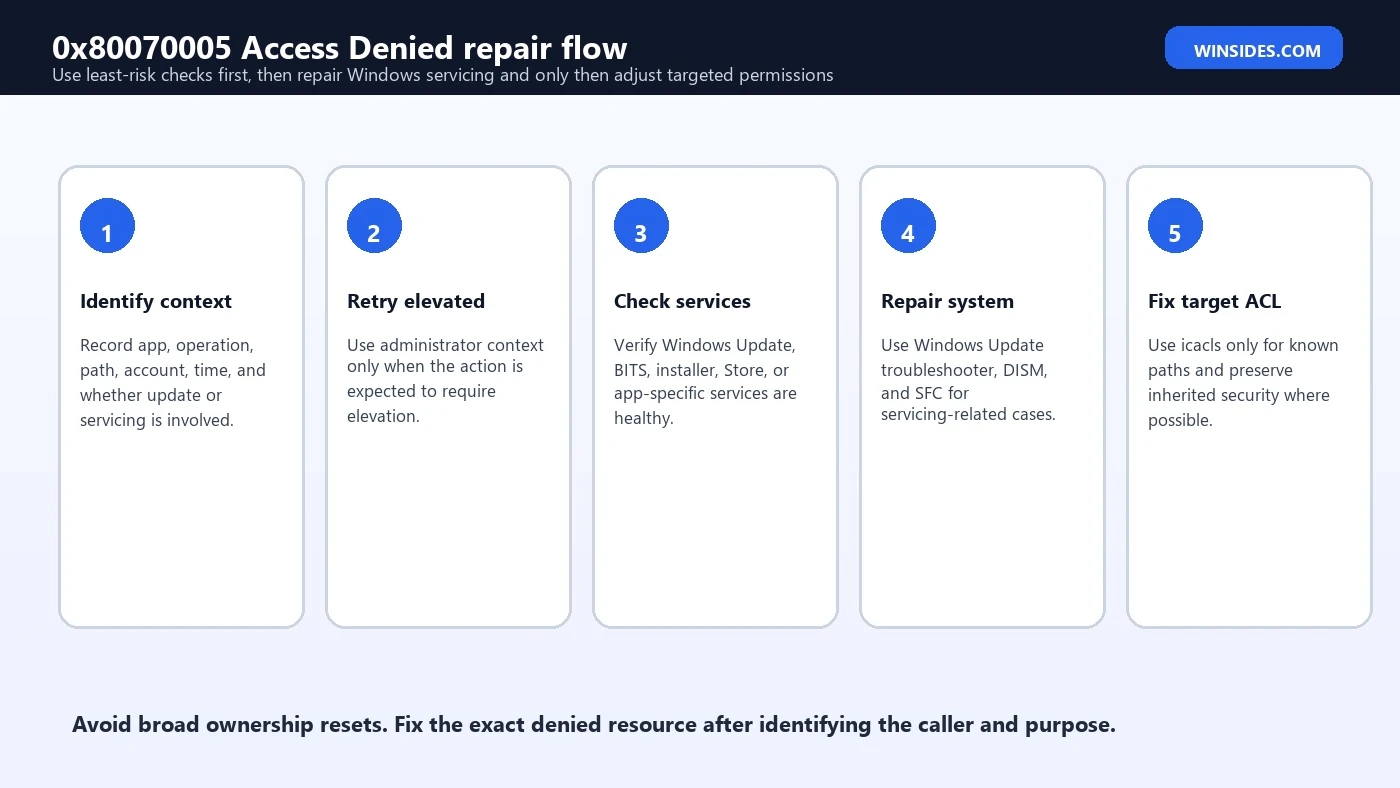
Before running fixes, capture the exact failure. Write down the app or Windows feature, the operation, the full error text, the time, the account that was signed in, whether the process was elevated, and the path or update involved. If Windows Update failed, note the KB number and the update type. If an installer failed, note whether it was a per-user installer or machine-wide installer. If a script failed, capture the command line and the target path.
Then separate user context from service context. If you click an installer, the caller may be your user token after UAC elevation. If Windows Update runs, the caller may be a Windows service identity. If an enterprise management tool deploys software, the caller may be SYSTEM or a management agent. If a Store package updates, the caller may involve AppX deployment services and per-user package data. You can be an administrator and still see access denied if the actual caller is a service that lacks access or is blocked by policy.
Event Viewer can help, but it is not always the first stop. For Windows Update, check Settings first, then the Windows Update troubleshooting path and logs if needed. For file access, the path and ACL are usually more useful. For app setup, installer logs or MSI logs may reveal the denied resource. For DISM, the DISM and CBS logs are the main evidence. The goal is to avoid running a command that changes thousands of permissions when one denied resource would have explained the issue.
Fix Path 1: Elevation and Administrator Context
The simplest cause is an unelevated process trying to do administrative work. Windows administrators normally run with a filtered token until UAC elevation occurs. That means being a member of the Administrators group is not always enough for installers, scripts, service changes, protected folder writes, or system-level repairs. Open Windows Terminal, Command Prompt, PowerShell, or the installer with Run as administrator when the operation is expected to change machine-wide settings.
However, elevation is not a universal cure. If the denied operation is in your user profile, elevation may change the caller and create different ownership results. If the action is performed by Windows Update, the signed-in user’s elevated terminal may not be the caller. If the device is managed, policy may deny even administrators. Use elevation to test the correct context, not as an excuse to override every security boundary.
- Use Run as administrator for DISM, SFC, machine-wide installers, service changes, driver installers, and protected system locations.
- Do not run random downloaded scripts elevated unless you trust the source and understand the action.
- If a scheduled task or service fails, inspect the service account rather than only your signed-in account.
- If an enterprise policy blocks the action, local administrator rights may not be enough.
Fix Path 2: Windows Update and Servicing
When 0x80070005 Access Denied appears in Windows Update, start with update-specific repair. Microsoft recommends using Windows Update troubleshooting, checking common update blockers, restarting the device, and ensuring the PC has enough disk space. Update failures can be caused by a damaged cache, blocked servicing file, incomplete restart, missing servicing prerequisite, component store issue, third-party security product, or policy that controls update installation.
After the basic checks, use DISM and SFC from an elevated terminal. Microsoft’s Windows image repair guidance documents DISM options such as /CheckHealth, /ScanHealth, and /RestoreHealth. In normal online repair, DISM /Online /Cleanup-Image /RestoreHealth checks the running Windows image and attempts to repair corruption using configured sources such as Windows Update. SFC then checks protected system files against the repaired component store.
DISM /Online /Cleanup-Image /CheckHealth
DISM /Online /Cleanup-Image /ScanHealth
DISM /Online /Cleanup-Image /RestoreHealth
sfc /scannow
Run those commands in order only when the scenario fits. If Windows Update itself cannot provide repair content, DISM may need a source path from a Windows image that matches the installed version and edition. If DISM reports access denied, confirm the terminal is elevated, check whether security software is blocking writes, verify the Windows Modules Installer service is not disabled, and review DISM and CBS logs for the denied path or package.
Fix Path 3: Microsoft Store and App Package Errors
Store and AppX package errors with 0x80070005 often involve per-user app data, package registration, Store cache, or security controls. Because Store apps are installed and registered differently from classic desktop programs, the fix is not always a normal folder permission change. Start by signing out and back in, checking Windows Update, restarting, and confirming the Microsoft Store app itself is current. If the issue affects only one Store app, reset or repair that app from Settings before changing permissions manually.
The Store cache can also be involved. Running wsreset.exe is a common low-risk reset for Store cache symptoms. If the issue is a managed device, check whether the Store, app installation, or package source is controlled by policy. A school or work device can intentionally block Store app installation or app package registration. In that case, the access-denied result is expected until policy changes.
Avoid deleting random package folders under C:\Program Files\WindowsApps. That directory is protected for a reason, and manual ownership changes can break Store app servicing. If an app is badly broken, prefer Settings repair/reset, Microsoft Store reinstall, PowerShell package repair only when you know the target package, or a new Windows user profile test. A profile-specific success or failure is a strong clue that the problem is user package data rather than the whole operating system.
Fix Path 4: File and Folder Permissions
When the error names a file or folder, inspect that exact path. Microsoft’s icacls tool displays or modifies discretionary access control lists on files and directories. It can also save and restore ACLs, which is useful before making changes. The safe method is to read the current ACL, identify the missing permission or deny entry, and make the smallest targeted change that lets the correct account perform the required action.
icacls "C:\Path\To\Folder"
icacls "C:\Path\To\Folder" /save "%TEMP%\folder-acl.txt" /t
The first command displays permissions. The second saves ACLs for the target tree so you have a reference before editing. If you need to grant access, replace the path and account with the exact target. For example, granting modify rights to a known user on an application data folder is very different from granting broad rights to a system folder. Use inherited permissions where possible, and avoid deny entries unless there is a clear reason.
icacls "C:\Path\To\Folder" /grant "DOMAIN\User:(OI)(CI)M"That example is intentionally narrow. (OI) and (CI) help permissions flow to files and child folders, and M means modify. Do not copy it into C:\Windows, C:\Program Files, C:\Program Files\WindowsApps, or a whole drive without understanding the consequences. Broad ACL changes can weaken the machine or break servicing. If the denied path is a system path, it is often better to repair the system component or installer rather than force ownership changes.
Fix Path 5: Registry and Service Permissions
Some 0x80070005 cases come from registry or service permissions. Installers and management tools may need to create service entries, write configuration, register COM components, or update protected keys. If an installer log names a registry key, run the installer elevated first. If it still fails, check whether the key is owned by a system component, protected by policy, or blocked by security software.
Be careful with registry permission changes. Changing ACLs on broad registry branches can create strange failures later because Windows, apps, and services expect specific permissions. If a vendor installer fails on a vendor-owned key, targeted repair may be appropriate. If Windows itself fails on a core service key, prefer official repair tools, reinstallation of the related feature, DISM/SFC, or vendor support. The registry is not a place to experiment with full-control grants.
Service identity matters here. A service may run as LocalSystem, LocalService, NetworkService, a virtual service account, a managed service account, or a domain user. The service account needs access to its configuration, files, certificates, network paths, and dependencies. If a service fails with access denied after you moved files or changed a folder ACL, grant the service identity access to the application folder instead of granting access to every user.
Fix Path 6: Security Controls and Policy Blocks
Security controls can intentionally produce access-denied behavior. Windows Security controlled folder access can block untrusted apps from writing to protected folders. Microsoft Defender, third-party antivirus, EDR, AppLocker, Windows Defender Application Control, Exploit Protection, Smart App Control, and enterprise Group Policy can block execution, script activity, DLL loading, folder writes, or app installs. In those cases, turning off protection permanently is the wrong answer.
Check protection history, security product logs, and policy events. If controlled folder access blocks a trusted app, allow the app through the controlled folder access settings rather than disabling the feature broadly. If EDR blocks an installer, review the detection, hash, publisher, and source. If AppLocker or WDAC blocks a binary, the fix is a policy change by the device administrator, not a local ACL change. The denial is doing what the policy instructed it to do.
This is especially important on work or school devices. Local troubleshooting may not be able to override MDM, Intune, Group Policy, or security baseline settings. If 0x80070005 appears during software installation on a managed PC, collect the exact app, publisher, install command, time, and policy message, then send that evidence to the admin team. Avoid trying to bypass enterprise controls.
Safe Permission Repair Checklist
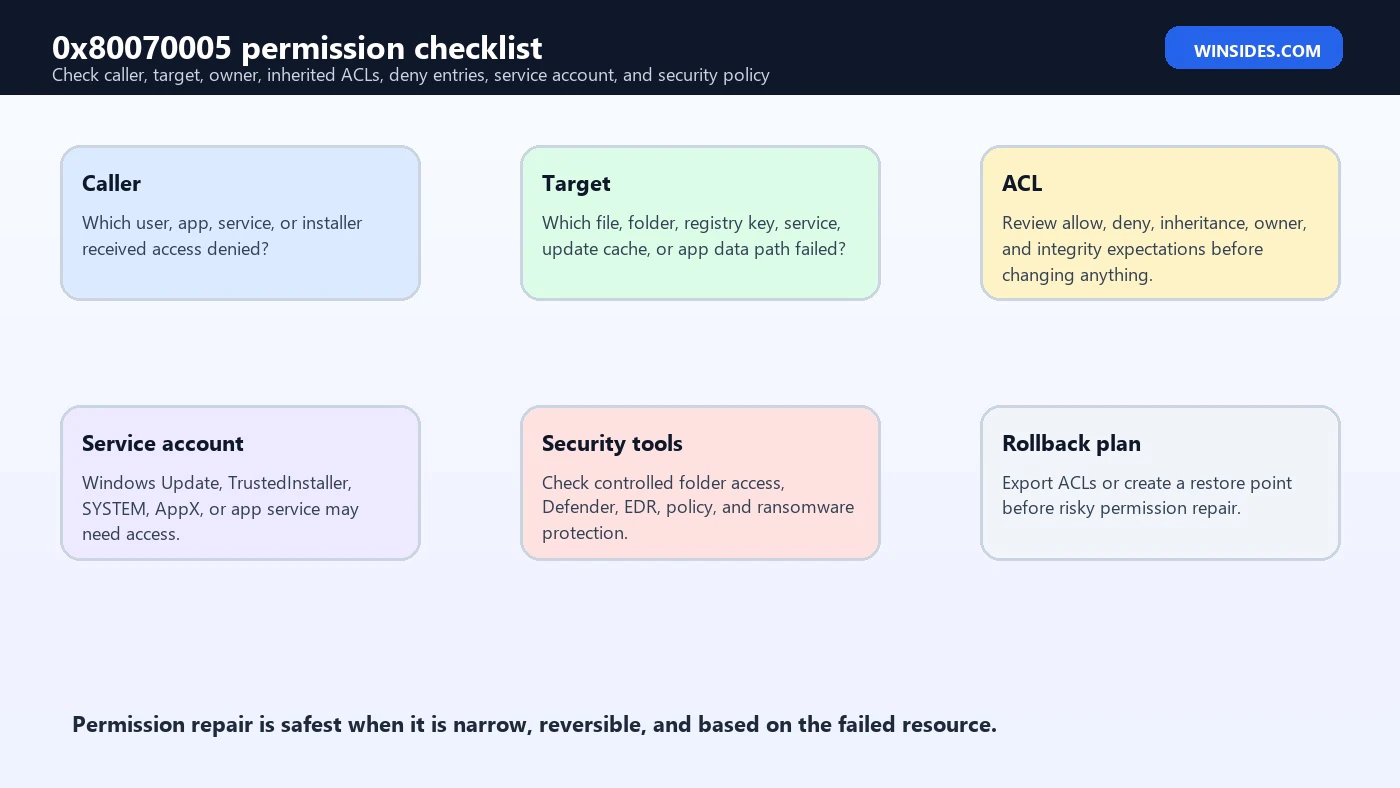
Before changing permissions, use a checklist. First, confirm the target. Second, confirm the caller. Third, confirm the required action. Fourth, inspect current permissions. Fifth, check whether the denial is intentional policy. Sixth, back up ACLs or create a restore point if the change is risky. Seventh, make the smallest change. Eighth, retest the original operation. Ninth, document what changed.
- Target: exact file, folder, registry key, package, service, or update component.
- Caller: user, elevated admin, service identity, SYSTEM, installer, AppX service, update agent, or management tool.
- Action: read, write, modify, delete, execute, register, install, replace, or repair.
- Current ACL: inherited permissions, explicit allow entries, deny entries, owner, and integrity expectations.
- Policy layer: Defender, controlled folder access, EDR, AppLocker, WDAC, MDM, or Group Policy.
- Rollback: saved ACL, restore point, backup, uninstall path, or known-good configuration.
What Not to Do
Some online fixes for 0x80070005 Access Denied are more dangerous than the error. Taking ownership of the entire Windows directory, granting Everyone Full Control to system folders, deleting update folders without understanding pending operations, disabling Windows Defender permanently, or resetting all ACLs on the drive can create new problems that are harder to diagnose. A working Windows installation depends on carefully designed permissions.
Avoid broad commands unless you have a backup and a clear reason. Changing ownership of protected Windows components can break servicing because TrustedInstaller and Windows Resource Protection expect certain ownership and ACLs. Changing C:\Program Files\WindowsApps permissions can break Store apps. Changing registry root permissions can destabilize services and COM registration. A single access denied error rarely justifies broad permission surgery.
Also avoid repeatedly rerunning failed installers without reading logs. If the first failure created partial files or registry entries, repeated attempts can add noise. Capture an install log if possible, cleanly uninstall partial components when the vendor provides a method, and then retry after fixing the actual denied resource. Guesswork is slow; evidence is faster.
Troubleshooting Windows Update 0x80070005 Step by Step
- Restart first. Pending servicing operations often need a clean reboot before update repair makes sense.
- Check free space. Low storage can cause update staging and servicing failures that appear as unrelated errors.
- Run Windows Update troubleshooting. Use Settings and Microsoft-supported update troubleshooting before changing permissions.
- Temporarily remove obvious blockers. Disconnect unnecessary VPNs, pause third-party security only if policy allows, and retry once.
- Run DISM and SFC elevated. Repair the component store, then protected files.
- Review logs if it repeats. Look at Windows Update, CBS, and DISM evidence to identify the denied package or path.
- Use in-place repair only after targeted repair fails. A repair install can be useful, but it should not be the first move for every denial.
This path is intentionally conservative. Windows Update is a servicing system, not just a download folder. Resetting pieces without understanding the state can sometimes help, but it can also hide the real problem. If the failure names one KB repeatedly, check whether that update has known issues, whether the device meets prerequisites, and whether the same error appears after DISM repair.
Troubleshooting File Access 0x80070005 Step by Step
- Confirm the exact path. Do not troubleshoot the parent drive if the denial is one subfolder.
- Check whether the file is in use. A locked file may look like a permission problem from the user perspective.
- Inspect ACLs with icacls. Look for missing allow entries, deny entries, unexpected owner, or broken inheritance.
- Check controlled folder access. If the path is Documents, Pictures, Desktop, or another protected folder, security controls may be involved.
- Test with a known safe folder. If the operation works elsewhere, the denied path is the issue.
- Grant only what is required. Modify is often enough; Full Control is rarely necessary for normal app data.
- Retest and document. Keep a note of what changed so future access issues are easier to audit.
If the file came from another computer, also check file properties for blocking, cloud sync state, encryption, and backup software. If the path is under OneDrive, Dropbox, enterprise sync, or a backup destination, the sync client may be the process that needs access, not just the signed-in user. Cloud placeholders, offline files, and ransomware protection can all add context.
When DISM or SFC Reports Access Denied
DISM and SFC require an elevated terminal. If you run them from a normal terminal, access denied is expected for many repair operations. If you are elevated and still see the error, check whether another servicing operation is pending, whether Windows Modules Installer is disabled, whether security software is blocking access, and whether the component store source is available. A failed DISM command usually has more detail in C:\Windows\Logs\DISM\dism.log.
SFC writes details to the CBS log under C:\Windows\Logs\CBS\CBS.log. The log can be large, but it is valuable when SFC says it found corrupt files but could not repair some of them. If DISM repair succeeds and SFC still fails with access denied, the denied file, folder, or component name in the logs matters. Do not assume that granting broad permissions to the Windows folder is the right fix.
If the system is heavily damaged, an in-place repair install may be safer than manual permission reconstruction. That keeps apps and data in many cases while refreshing Windows components. Before any large repair, back up important data and recovery keys. Access denied on a repair tool is still a diagnostic clue; it is not permission to skip backup discipline.
Event Logs and Files Worth Checking
| Evidence source | Where to look | Why it helps |
|---|---|---|
| Windows Update | Settings, WindowsUpdateClient events, update history | Shows update KB, timing, and recurring failure pattern. |
| DISM log | C:\Windows\Logs\DISM\dism.log | Shows DISM command details, sources, and denied packages or paths. |
| CBS log | C:\Windows\Logs\CBS\CBS.log | Shows component servicing and SFC repair details. |
| AppX deployment | Event Viewer AppXDeploymentServer operational log | Useful for Store and package registration errors. |
| Security product logs | Windows Security protection history or EDR console | Shows controlled folder access, malware, or policy block events. |
| Installer logs | MSI log, vendor log, setup log path | Names the registry key, folder, service, or custom action that failed. |
| Security audit | Object access events if auditing is enabled | Can reveal who attempted access and what object was denied. |
Logs are most useful when matched to time. Reproduce the error once, note the minute, then check logs around that window. That is much faster than reading thousands of unrelated events. If an event names a path, do not immediately edit it; first decide whether the denial is expected, policy-driven, or caused by a missing prerequisite.
Enterprise and Domain-Joined Device Considerations
On domain-joined, Entra-joined, or Intune-managed PCs, 0x80070005 may be caused by policy rather than broken permissions. Software restriction policies, AppLocker, WDAC, Defender for Endpoint, attack surface reduction rules, local user-right assignments, device compliance, update rings, and controlled folder access can all intentionally deny an action. Local administrators may not be allowed to bypass those settings.
For enterprise devices, collect evidence instead of fighting policy. Include the error code, app name, publisher, install command, path, time, device name, signed-in user, and whether the issue occurs on multiple devices. If the issue is Windows Update, include the KB number and update channel. If it is an installer, include the installer log. A clean evidence packet helps the admin adjust policy or fix deployment rights without weakening security unnecessarily.
If you administer the environment, avoid solving access denied by making users local admins. Prefer managed deployment tools, correct service accounts, proper certificate and package trust, least-privilege folder ACLs, and policy exceptions that are scoped to signed, known binaries. The fix should make the intended process work, not make every process powerful.
Frequently Asked Questions
What is 0x80070005 Access Denied?
It is a Windows error that commonly indicates an access-denied condition. It can appear when an operation lacks permission, runs without elevation, is blocked by policy, or cannot access a servicing, file, registry, app, or update resource.
Is 0x80070005 always a permission problem?
No. Permissions are common, but the same code can also come from Windows Update servicing issues, Store package registration, security products, Group Policy, controlled folder access, service identity, or corrupted system components.
Should I grant Full Control to fix it?
Usually no. Granting Full Control broadly can weaken security and break Windows servicing. Inspect the exact path or component and make a targeted change only when you know which account needs which permission.
Can DISM and SFC fix 0x80070005?
They can help when the error is related to Windows servicing, protected files, or component store corruption. They are not a universal fix for app-specific policy blocks or folder ACL mistakes.
Why does Windows Update show 0x80070005?
Windows Update may be denied access to a servicing file, package, cache, component store location, or policy-controlled resource. Start with update troubleshooting, restart, storage checks, DISM, and SFC before manual permission changes.
Can antivirus cause 0x80070005?
Yes. Defender features, controlled folder access, third-party antivirus, EDR, AppLocker, WDAC, or enterprise policy can block writes or execution. Check protection history and policy logs before disabling protection.
What if the error appears only in one Windows user profile?
That points toward per-user app data, profile permissions, Store package registration, or profile corruption. Test another profile and repair the affected app or profile-specific path before changing system permissions.
When should I do an in-place repair install?
Consider it after targeted update, DISM/SFC, and permission checks fail, especially when system components are damaged. Back up data and recovery keys before large repair actions.
Conclusion: Fix the Denied Resource, Not the Whole System
0x80070005 Access Denied is best handled as a diagnostic clue. It says that Windows blocked a specific operation, but it does not automatically say which permission to change. The right repair starts by identifying the caller, target, action, and policy layer. Once you know those details, the fix may be as simple as running elevated, repairing Windows Update, allowing a trusted app through controlled folder access, correcting a service account ACL, or using DISM and SFC for servicing damage.
The safest repair is narrow and reversible. Use official Windows tools, inspect evidence, avoid broad ownership resets, and preserve the security model that protects the system. When the problem is Windows Update or servicing, fix the servicing layer. When the problem is one folder, fix that folder. When policy blocks an action, change policy through the right administrative path. That discipline fixes the error without creating a weaker or more fragile Windows installation.
For official reference, keep Microsoft’s system error codes, icacls command documentation, Windows image repair guidance, and Windows Update troubleshooting page nearby while working through the case. They provide the foundation for reading the error correctly, repairing permissions carefully, and choosing the right Windows repair path.
For more interesting articles, stay tuned to Winsides.com!









Community
Comments (0)