

Introduction to 0x80073712 Windows 11
0x80073712 windows 11 is one of the Windows Update errors most strongly associated with servicing and component-store damage. It commonly appears when Windows 11 tries to install a cumulative update, security update, optional update, or feature-related package and discovers that one or more files, manifests, or components needed for servicing are missing, damaged, or inconsistent.
This error is different from a simple download failure. A download error means Windows could not get the update. A file-not-found error may mean a specific payload is missing from the cache. But 0x80073712 often points deeper: Windows servicing cannot trust the local component state enough to complete the update. In many practical cases, the component store, update cache, manifest state, or repair source needs attention.
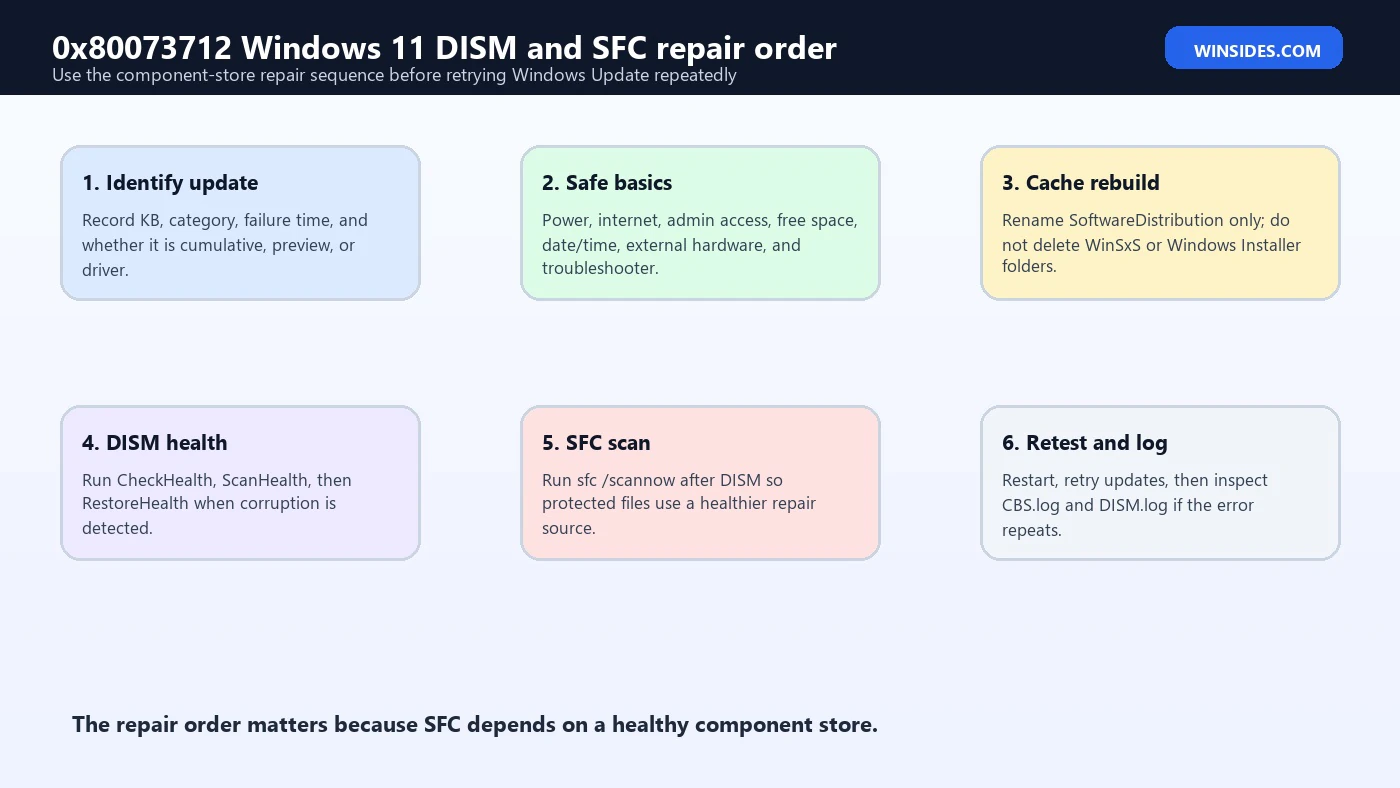
That is why the repair order matters. Randomly deleting update folders can make the problem worse. Deleting WinSxS can seriously damage Windows. Repeatedly clicking Retry without changing anything usually wastes time. The better approach is to confirm the failed update, perform safe Windows Update checks, repair the component store with DISM, follow with SFC, use a matching source if DISM cannot repair from Windows Update, and then use the built-in Windows Update repair reinstall if the installation remains unhealthy.
Microsofts Windows Update troubleshooting guidance recommends safe basics such as running the Windows Update troubleshooter, keeping the PC on power and internet, using an administrator account, removing unnecessary external hardware, freeing space, clearing the Windows Update cache, checking date and time, and restarting after updates. Microsofts Windows Update troubleshooting guidance Microsofts System File Checker guidance also recommends running DISM before SFC when repairing missing or corrupted system files. Microsofts DISM and System File Checker guidance This article follows those supported repair paths and adapts them to the specific shape of 0x80073712.
Table of contents
Key Takeaways
- 0x80073712 on Windows 11 usually points to servicing or component-store trouble. The update cannot complete because Windows does not have a healthy local component state.
- Do not delete WinSxS. WinSxS is the component store Windows uses for servicing and repair. It is not a disposable cache.
- Start with supported Windows Update basics. Run the Windows Update troubleshooter, check power and internet, confirm admin access, free space, remove unnecessary hardware, sync time, and restart. Microsofts Windows Update troubleshooting guidance
- Use DISM before SFC. Microsoft recommends DISM first, then System File Checker, when repairing corrupted system files. Microsofts DISM and System File Checker guidance
- Use CheckHealth, ScanHealth, and RestoreHealth in order when needed. Microsofts Windows image repair guidance documents DISM image health and repair options. Microsofts Windows image repair guidance
- Use a matching Windows 11 ISO source only when the online repair source fails. The source must match version, edition, architecture, and language as closely as possible.
- Fix problems using Windows Update is a strong later step. Microsoft says it reinstalls the current Windows version, repairs system files and components, and preserves apps, files, and settings. Microsofts Fix problems using Windows Update guidance
- Logs matter when the error repeats. CBS.log and DISM.log can reveal whether the issue is component corruption, source repair failure, package metadata, storage, or policy.
What 0x80073712 Means in Windows Update
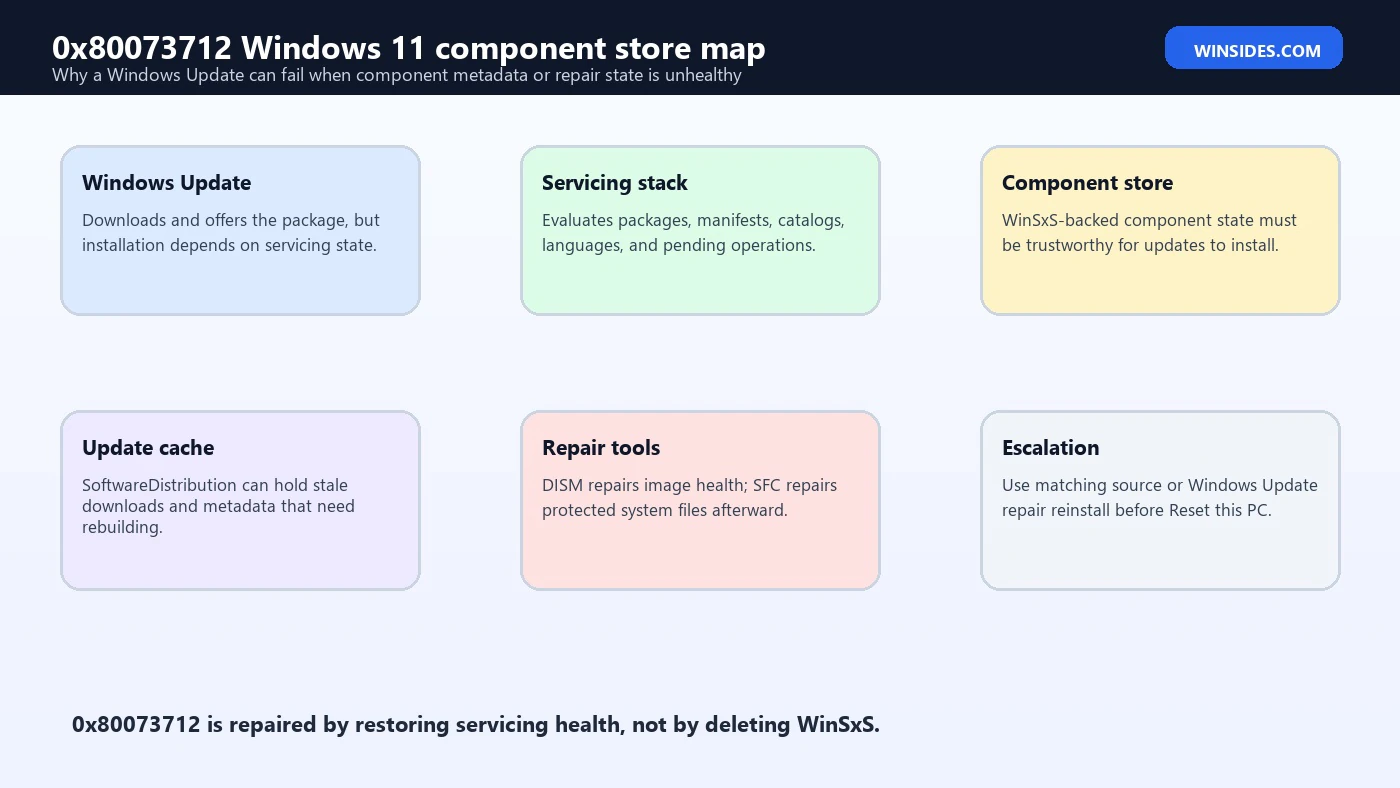
In Windows Update, 0x80073712 usually means Windows servicing reached a state where a required component, manifest, package identity, or repair file is missing or corrupt. The update may download correctly, but the install phase cannot proceed because Windows cannot assemble a valid component state.
Windows servicing is built on component relationships. A cumulative update does not simply copy one file into one folder. It evaluates package metadata, manifests, catalogs, component versions, language resources, pending operations, and system state. If the component store is damaged, an update can fail even when the downloaded update package is perfectly fine.
The component store is commonly associated with C:WindowsWinSxS. That folder looks large and complicated because it is large and complicated. It stores component versions, manifests, and servicing information used by Windows Update, optional features, DISM, SFC, and system repair. It should not be manually cleaned or deleted.
0x80073712 can also appear when the update cache points to stale metadata, when a pending update was interrupted, when a cleanup tool removed files Windows expected, when the disk has corruption, or when a managed update source provides incomplete content. The code points to a broken servicing path; the task is to identify which part of that path broke.
Why This Error Happens After Windows Updates
One common cause is an interrupted update. If the PC lost power, forced a shutdown, crashed, or rebooted during update staging, Windows may be left with pending operations that do not match the actual component state. The next update attempt then hits 0x80073712 because Windows cannot reconcile what is installed, pending, and available.
Another cause is component store corruption. This can happen after failed updates, disk problems, cleanup tools, malware, broken driver packages, or repeated servicing errors. Once the component store is unhealthy, Windows Update may fail across multiple different KBs rather than one isolated update.
A stale Windows Update cache can contribute. SoftwareDistribution is a cache and metadata store for update downloads. If it contains old or corrupted state, Windows Update may keep trying to apply an update using stale information. Cache repair is useful, but it is not the same as component store repair.
Storage problems can produce the same symptom. If Windows cannot reliably read or write update staging files, logs may show servicing corruption even though the root cause is a disk, controller, file-system, or power issue. This is why repeated update errors across many packages should trigger a storage-health check.
Managed update environments can also cause it. If a PC receives updates from WSUS, Intune, Autopatch, or another managed source, update content and metadata may be controlled by policy. If the internal source lacks the required package or language payload, a local PC may show a servicing error even though the repair belongs to the update distribution path.
Identify the Failing Update First
Open Settings > Windows Update > Update history. Write down the failing update title, KB number, category, date, and whether it is a cumulative update, preview update, .NET update, driver update, Defender update, optional feature, or feature update. The more specific the update type, the better the repair path.
A cumulative update failure with 0x80073712 strongly points to servicing or component store repair. A .NET update may still involve servicing, but optional feature state and .NET components may matter. A driver update may be better handled by installing the OEM driver directly. A preview update may simply be optional and safer to skip until Microsoft republishes or replaces it.
Check whether other updates install successfully. If only one optional update fails, the package itself or that update category may be the issue. If multiple updates fail, the local update infrastructure is more suspicious.
Also note whether the failure happens before restart, during install, after reboot, or during rollback. 0x80073712 often appears during install or rollback, but update history may only show the final code. Reliability Monitor and Event Viewer can fill in the timeline.
Do not begin with Reset this PC. A system that still boots and reports a servicing error often has narrower repair options available.
Start with Safe Windows Update Checks
Restart the PC once before deeper repairs. A pending reboot can block servicing, especially if another update, driver, or installer is waiting to finish. Avoid repeated forced shutdowns; use a normal restart.
Run the Windows Update troubleshooter. In Windows 11, go to Settings > System > Troubleshoot > Other troubleshooters > Windows Update > Run. Microsoft recommends this path as a first troubleshooting step for update problems. Microsofts Windows Update troubleshooting guidance Restart afterward and test the update again.
Make sure the PC is plugged in and connected to the internet. Microsofts update guidance calls out power and internet as basic requirements. Microsofts Windows Update troubleshooting guidance A repair that stops during staging can deepen servicing damage.
Use an administrator account. Some updates require administrator access, especially when services, drivers, or system components are involved. If this is a managed device, local administrator rights may not be enough because policy controls the update source.
Disconnect unnecessary external hardware. Microsoft recommends removing external storage devices, drives, docks, and other hardware not needed for basic functionality when troubleshooting update problems. Microsofts Windows Update troubleshooting guidance This reduces setup and storage variables.
Check date and time. Secure update validation depends on valid time, certificates, and metadata. Turn on automatic time and time zone, sync the clock, restart, and try again.
Free Space and Check the System Drive
Component servicing needs working space. Windows Update must download, stage, install, keep rollback data, and clean up. If the system drive is nearly full, 0x80073712 can appear because Windows cannot complete a consistent component transaction.
Free space safely. Empty the Recycle Bin, remove old downloads, uninstall unused applications, clear temporary files from Settings > System > Storage, and move large personal files to another drive. Do not manually delete C:WindowsWinSxS or C:WindowsInstaller.
Check file-system health if the error repeats after normal repairs. Use an elevated terminal:
chkdsk C: /scanThis online scan checks for file-system problems without immediately scheduling an offline repair. If it reports that repairs are needed, back up important files before continuing.
Review Event Viewer for disk, NTFS, storage controller, or unexpected shutdown errors around the time updates failed. A component store error can be the symptom of a drive that cannot reliably preserve servicing files.
If the PC has a history of freezes, sudden power loss, random restarts, or different update errors every week, treat storage and power stability as part of the update repair.
Clear Windows Update Cache Carefully
Clearing the Windows Update cache can help when 0x80073712 is caused or worsened by stale update downloads. Microsofts Windows Update troubleshooting guidance includes clearing the cache by stopping the Windows Update service, deleting the contents of SoftwareDistribution, and starting the service again. Microsofts Windows Update troubleshooting guidance
A cautious method is to rename the cache folder:
net stop wuauserv
net stop bits
ren C:WindowsSoftwareDistribution SoftwareDistribution.old
net start bits
net start wuauserv
Run the commands as administrator. If a service is not running, continue. If the folder is in use, restart and try before Windows Update begins a new scan.
Renaming is safer than immediate deletion because it lets Windows create a fresh cache while preserving the old folder temporarily. After Windows Update works again, the old folder can be removed later if needed.
Do not confuse this with deleting WinSxS. SoftwareDistribution is an update cache. WinSxS is the component store. Clearing the cache may remove broken downloads, but it does not repair component store corruption by itself.
Run DISM Health Checks
DISM is the main tool for checking and repairing Windows image/component health. Microsofts Windows image repair guidance documents DISM options such as CheckHealth, ScanHealth, and RestoreHealth. Microsofts Windows image repair guidance For 0x80073712, DISM belongs before SFC because the component store may be the damaged layer.
Open Command Prompt or Windows Terminal as administrator and run:
DISM /Online /Cleanup-Image /CheckHealthCheckHealth is quick. It reports whether corruption has already been detected. It does not perform a deep scan or repair.
Then run:
DISM /Online /Cleanup-Image /ScanHealthScanHealth takes longer. It performs a deeper scan of the component store and can appear paused. Let it finish.
If corruption is detected or Windows Update continues failing, run:
DISM /Online /Cleanup-Image /RestoreHealthRestoreHealth attempts to repair the image. It may use Windows Update as a repair source. If Windows Update itself is broken, RestoreHealth can fail, but the failure code and DISM log still give useful evidence.
Run SFC After DISM
After DISM repairs the component store, run System File Checker:
sfc /scannowMicrosofts SFC guidance explains that System File Checker scans protected system files and replaces corrupted files with cached copies. It also recommends running DISM before SFC because DISM supplies the files needed for repair. Microsofts DISM and System File Checker guidance
If SFC reports that it repaired files, restart and try Windows Update again. If it says it could not perform the requested operation, Microsoft suggests running SFC in Safe Mode and checking required pending folders. Microsofts DISM and System File Checker guidance
If SFC says it found corrupt files but could not repair some of them, inspect CBS.log instead of guessing. The log can show which files or components failed repair. That helps decide whether the next step is a matching source, Windows Update repair reinstall, or a broader recovery option.
Do not run SFC ten times in a row expecting a different result. If DISM and SFC cannot repair the component store, escalate to a better repair source.
Use a Matching Source When DISM Cannot Repair
Sometimes DISM RestoreHealth cannot repair the component store from Windows Update. This can happen if Windows Update is blocked, managed, offline, damaged, or unable to provide the exact files needed. In that case, DISM can use a local repair source such as a Windows 11 ISO.
The source must match the installed Windows as closely as possible: version, build, edition, architecture, and language. A mismatched ISO can fail repair or introduce confusion. Do not use a random ISO from an unofficial site.
A typical source-based repair looks like this after mounting a matching Windows 11 ISO:
DISM /Online /Cleanup-Image /RestoreHealth /Source:D:Sourcesinstall.wim /LimitAccessThe drive letter and image file may differ. Some ISOs use install.esd instead of install.wim. You may need to identify the correct image index for your edition. This is a more advanced step, so use it only when normal RestoreHealth cannot repair.
After source-based DISM completes, run SFC again and restart. Then retry Windows Update.
Use Fix Problems Using Windows Update
Windows 11 includes a built-in repair option called Fix problems using Windows Update. Microsoft describes it as reinstalling the current Windows version, repairing system files and components, and preserving apps, files, and settings. Microsofts Fix problems using Windows Update guidance
This is a strong option for 0x80073712 when DISM and SFC do not fully repair the system, but Windows still boots. It is less disruptive than Reset this PC because it is designed to keep the working environment intact.
Go to Settings > System > Recovery. Under Fix problems using Windows Update, choose Reinstall now. Keep the PC connected to power and internet throughout the process. Microsoft specifically instructs users to remain connected during the reinstallation. Microsofts Fix problems using Windows Update guidance
After the repair finishes, restart and check for updates again. If the same error returns, logs and update-source questions become more important.
This option may be unavailable on managed PCs or older Windows 11 builds. If the PC belongs to work or school, do not bypass update policy. Involve IT.
If the Update Itself Is the Problem
Not every 0x80073712 case is caused by your local installation. Sometimes an optional preview update, driver update, or staged rollout can be temporarily pulled, replaced, or superseded after users report installation failures. This is most relevant when the failing update is optional, preview-labeled, newly released, or only offered when the Get the latest updates as soon as they are available toggle is enabled.
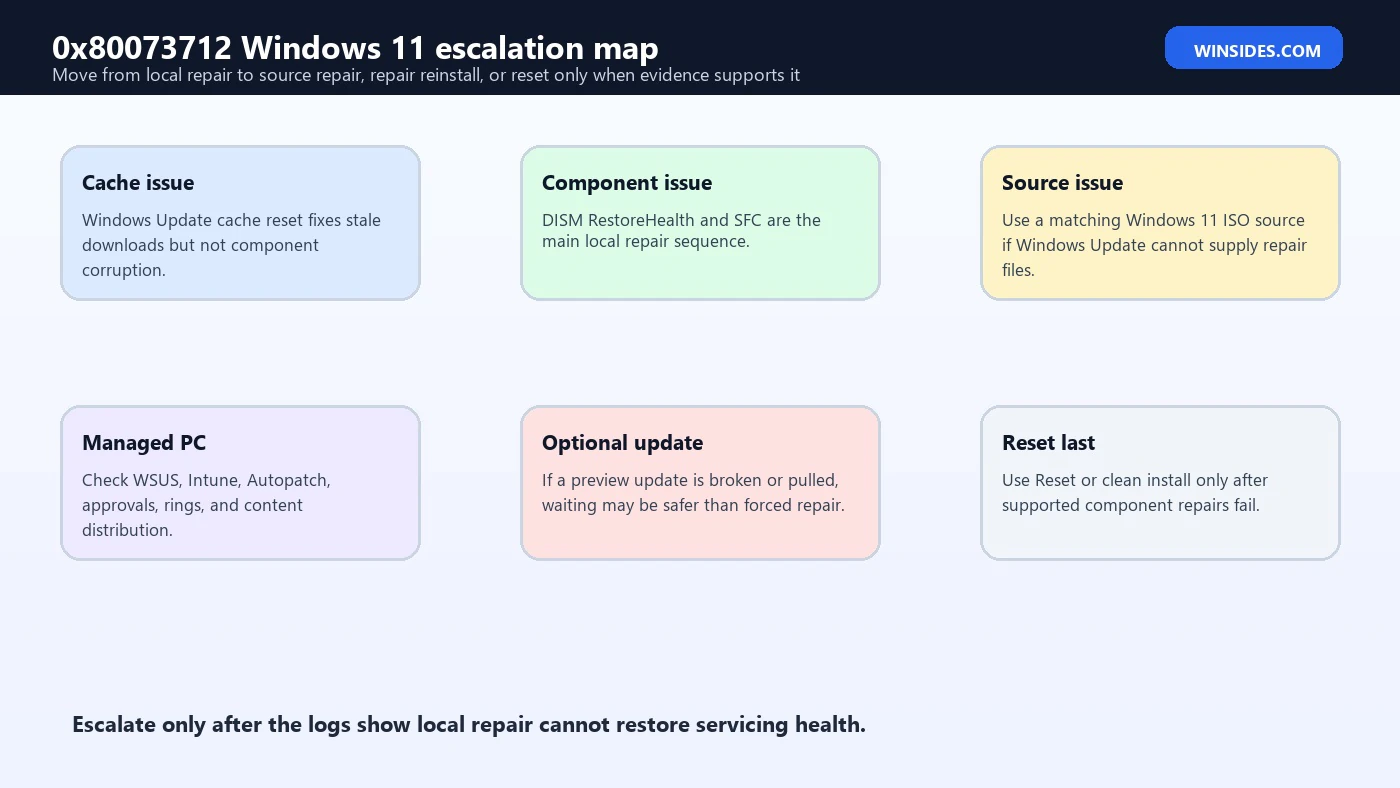
If the PC is otherwise healthy and only one optional preview update fails, do not overreact. Run the safe checks, clear cache if needed, and repair the component store if DISM reports corruption. But if DISM and SFC are clean and the failing package is optional, waiting for the next cumulative update may be safer than forcing source repairs or resetting Windows.
The difference between an optional preview update and a required security update matters. Security updates should not be ignored indefinitely. Optional previews can often be skipped until Microsoft republishes or rolls the fixes into a later monthly update. Feature updates also deserve a different decision: if a feature update fails with 0x80073712, confirm hardware readiness, free space, driver health, and rollback state before repeating it.
Update history helps here. If the same required cumulative update fails every month, the local servicing state probably needs repair. If one optional update fails and disappears later, the package may have been replaced. The repair plan should follow evidence, not just the error code.
Read CBS.log and DISM.log When It Repeats
When 0x80073712 repeats after cache reset, DISM, SFC, and repair options, stop guessing and read logs. The two most useful files are usually:
C:WindowsLogsCBSCBS.log
C:WindowsLogsDISMdism.log
CBS.log records servicing activity, package failures, manifest issues, and component repair details. DISM.log records image repair operations and source failures. Together, they can show whether the issue is missing manifests, source repair failure, payload corruption, access denied, pending operations, or another servicing state.
Use timestamps. Match the log entries to the exact time you ran Windows Update or DISM. Large logs can contain old errors that are no longer relevant.
Reliability Monitor is useful too. Search for View reliability history and inspect the day of the failure. It can reveal Windows failures, update failures, app crashes, or hardware errors around the same time.
Event Viewer may show WindowsUpdateClient, Servicing, disk, NTFS, Service Control Manager, or unexpected shutdown entries. Look for clusters of events, not isolated warnings.
Component Cleanup Without Breaking Windows
Component cleanup can be useful, but it must be done with Windows tools. The safe way is not to browse into WinSxS and remove folders manually. The safe way is to let DISM evaluate superseded components and clean only what Windows knows is removable.
After updates are working again, you can run:
DISM /Online /Cleanup-Image /StartComponentCleanupThis command is not the primary fix for 0x80073712. It is a maintenance step that can remove superseded components and reduce servicing clutter after the system is healthy enough to clean. If the component store is already corrupt, focus first on RestoreHealth, SFC, source repair, and Windows Update repair reinstall.
Be careful with ResetBase-style cleanup advice. Some advanced DISM cleanup options can remove the ability to uninstall older updates. That may be acceptable in managed imaging scenarios, but it is not a first-line repair for a home PC with a current update failure.
The safest rule is simple: never delete component-store files yourself. Use DISM for image health, use Storage Sense for ordinary temporary files, and keep backups before major repair work.
Managed PCs, WSUS, and Intune Scenarios
On managed devices, 0x80073712 may involve the update source rather than only the local PC. If a device receives updates from WSUS, Intune, Autopatch, Configuration Manager, or Group Policy, the local system may depend on organization-controlled metadata and content.
If several PCs in the same update ring fail on the same KB, do not treat each device as separately corrupt. The issue may be approval, supersedence, content synchronization, language payload availability, driver policy, or a deployment ring problem.
If only one managed PC fails, local repair still makes sense. Run the troubleshooter, clear cache, run DISM and SFC, and check logs. But avoid deleting policies, disabling management services, or forcing update source changes without approval from the organization.
For IT teams, compare CBS.log, WindowsUpdate.log, update compliance status, and WSUS or Intune deployment reports. A local 0x80073712 can be the symptom of a deployment system offering a package the client cannot assemble correctly.
What Not to Do
Do not delete WinSxS. This is the most important warning. WinSxS is the component store Windows uses for updates and repair. Deleting it can break Windows Update, optional features, DISM, SFC, and future servicing.
Do not run aggressive registry or cleanup scripts without reading them. Scripts that reset services, delete folders, change permissions, remove policies, and alter component state can make logs harder to interpret and damage servicing further.
Do not keep retrying the same update endlessly. If the same update fails with 0x80073712, something in the repair path must change: cache, component store, source, disk health, policy, or the update itself.
Do not assume every 0x80073712 is your fault. Occasionally, a preview update or optional update can be temporarily broken on Microsofts side. If the failing update is optional and widely reported, waiting for a corrected release may be safer than forcing risky local repairs.
Do not reset Windows before trying narrower repairs if the PC still boots. Reset has its place, but 0x80073712 is often repairable with DISM, SFC, source repair, or the Windows Update repair reinstall.
Best Practices to Prevent Component Store Problems
Keep the PC powered during updates. Laptops should be plugged in, especially during cumulative updates and feature updates. Sudden shutdowns during servicing are a classic way to create pending-state problems.
Avoid forcing shutdown unless the PC is truly frozen. Windows can sit at update percentages for longer than expected. Interrupting too early may create the corruption you were trying to avoid.
Keep free space available. Component servicing needs room. A system drive that constantly runs near full capacity increases the risk of failed staging and rollback.
Be selective with cleanup tools. Use Settings, Storage Sense, or Disk Cleanup for normal cleanup. Avoid tools that promise to shrink WinSxS by deleting unknown component files.
Install drivers from reliable sources. Bad driver packages and driver-updater utilities can interfere with servicing state. Prefer Windows Update, the PC manufacturer, or the hardware vendor.
Back up important files. Most servicing repairs are non-destructive, but repeated update corruption is a signal that the system deserves caution.
When Reset or Clean Install Becomes Reasonable
Reset this PC and clean installation are later steps, not first reactions. They become reasonable when Windows still fails after cache repair, DISM, SFC, matching-source repair, Fix problems using Windows Update, and log review. They also become more reasonable when the system has multiple symptoms beyond Windows Update: broken Settings, repeated app crashes, failed optional features, damaged user profiles, unexplained service failures, or recurring storage errors.
Before resetting, back up files and collect recovery keys. If BitLocker is enabled, make sure the recovery key is available. If the PC is used for work, confirm how it will be re-enrolled into management tools. Resetting a managed device without planning can create more work than the original update error.
Use Reset this PC when you want Windows to rebuild the installation while keeping personal files if possible. Use a clean install when you need the most reliable fresh start, when malware is suspected, when storage was replaced, or when the existing installation is too damaged to trust. Those are legitimate repair paths, but they are larger decisions than fixing 0x80073712 through servicing repair.
A good rule is to reset only when the component repair evidence points there. If logs show unrecoverable servicing corruption and every supported repair path fails, reset is no longer excessive. It becomes the cleanest way to return the PC to a maintainable state.
Frequently Asked Questions
What does 0x80073712 mean on Windows 11?
It usually means Windows servicing cannot complete an update because required component-store files, manifests, packages, or servicing state are missing or corrupt. It is commonly handled as a component store or Windows Update servicing problem.
Is 0x80073712 caused by a corrupt Windows Update cache?
Sometimes, but not always. A bad SoftwareDistribution cache can contribute, but true 0x80073712 cases often need DISM component-store repair and SFC afterward.
Should I delete WinSxS to fix it?
No. Never delete WinSxS manually. It is the Windows component store. Deleting it can break updates and repair tools.
Should I run DISM or SFC first?
Run DISM first, then SFC. Microsofts SFC guidance recommends DISM before System File Checker when repairing corrupted system files. Microsofts DISM and System File Checker guidance
What if DISM RestoreHealth fails?
Check DISM.log and CBS.log. If Windows Update cannot provide repair files, use a matching Windows 11 ISO as a repair source or use Fix problems using Windows Update if Windows still boots.
Can Fix problems using Windows Update repair 0x80073712?
Yes, it can help when damaged system files or components are the cause. Microsoft says it reinstalls the current Windows version, repairs system files and components, and preserves apps, files, and settings. Microsofts Fix problems using Windows Update guidance
Do I need to reset Windows?
Usually not as the first step. Try Windows Update troubleshooting, cache reset, DISM, SFC, source repair, and Fix problems using Windows Update before Reset this PC.
Conclusion: Repair the Component Store Before Retrying Updates
0x80073712 windows 11 is best treated as a Windows servicing and component-store problem. The update cannot complete because Windows cannot rely on the component files, manifests, metadata, or repair state needed to install safely. That is why simple retries rarely fix it.
Use a controlled repair order. Identify the failing update. Run the Windows Update troubleshooter. Check power, internet, administrator access, date and time, free disk space, external hardware, and storage health. Rebuild the Windows Update cache carefully. Run DISM CheckHealth, ScanHealth, and RestoreHealth. Then run SFC. If DISM cannot repair from Windows Update, use a matching source or the built-in Fix problems using Windows Update repair reinstall.
Most importantly, protect the component store. Do not delete WinSxS, do not run mystery cleanup scripts, and do not reset Windows before supported repair paths have been tried. Once the component store is healthy again, Windows Update has a much better chance of installing normally instead of looping on 0x80073712.
For more interesting articles, stay tuned to Winsides.com!









Community
Comments (0)