

Introduction to Windows Updates Something Went Wrong
windows updates something went wrong is a frustrating Windows 11 message because it tells you the update experience failed, but it does not always tell you which layer failed. Sometimes the Windows Update page in Settings says something went wrong before it even scans. Sometimes the update scan runs, downloads begin, and then the message appears. Sometimes an update installs, restarts, rolls back, and Windows only shows a generic failure afterward.
That vague wording can hide several different problems. The Settings app may be unable to load the Windows Update page. Windows Update services may be stopped. The update cache may be damaged. The device may be offline, on a metered connection, low on storage, or blocked by policy. System files may be damaged. The component store may need DISM repair. A driver or security tool may be interfering with installation. On managed PCs, the update source may be controlled by work or school policies.
Microsofts Windows Update troubleshooting guidance recommends a safe repair order: back up personal files, run the Windows Update troubleshooter, keep the PC connected to power and internet, use an administrator account, remove unnecessary external hardware, clear the Windows Update cache, check date and time, update drivers, free disk space, and restart to apply updates. Microsofts Windows Update troubleshooting guidance This guide follows that supported path and adds practical ways to identify which layer of the Windows Update experience produced the generic Something went wrong message.
The goal is not to click Retry endlessly. The goal is to identify where the update pipeline breaks, repair that layer, and only escalate to stronger recovery tools when the evidence supports it.
Table of contents
Key Takeaways
- Windows updates something went wrong is a symptom, not a diagnosis. It can come from Settings, services, cache, internet, storage, policy, drivers, or servicing corruption.
- Identify where it fails first. A Settings-page failure is different from a download failure, install failure, rollback failure, or update-history error.
- Start with Microsofts supported Windows Update troubleshooting steps. The official sequence includes the troubleshooter, power and internet checks, admin access, external hardware removal, cache cleanup, date/time checks, driver updates, free space, and restart. Microsofts Windows Update troubleshooting guidance
- DISM should run before SFC. Microsoft recommends DISM first, then System File Checker, when repairing missing or corrupted system files. Microsofts DISM and System File Checker guidance
- Fix problems using Windows Update is a strong later step. Microsoft says it reinstalls the current Windows version, repairs system files and components, and preserves apps, files, and settings. Microsofts Fix problems using Windows Update guidance
- Do not delete WinSxS or Installer folders. Cache repair is safe when done carefully; deleting servicing folders is not.
- Managed PCs need policy-aware troubleshooting. Work or school devices may receive updates through Intune, WSUS, Autopatch, or Group Policy.
- Use recovery options only after narrower repairs. Startup Repair, System Restore, Reset this PC, and reinstall paths have different risk levels. Microsofts Windows recovery options guidance
What the Something Went Wrong Message Usually Means
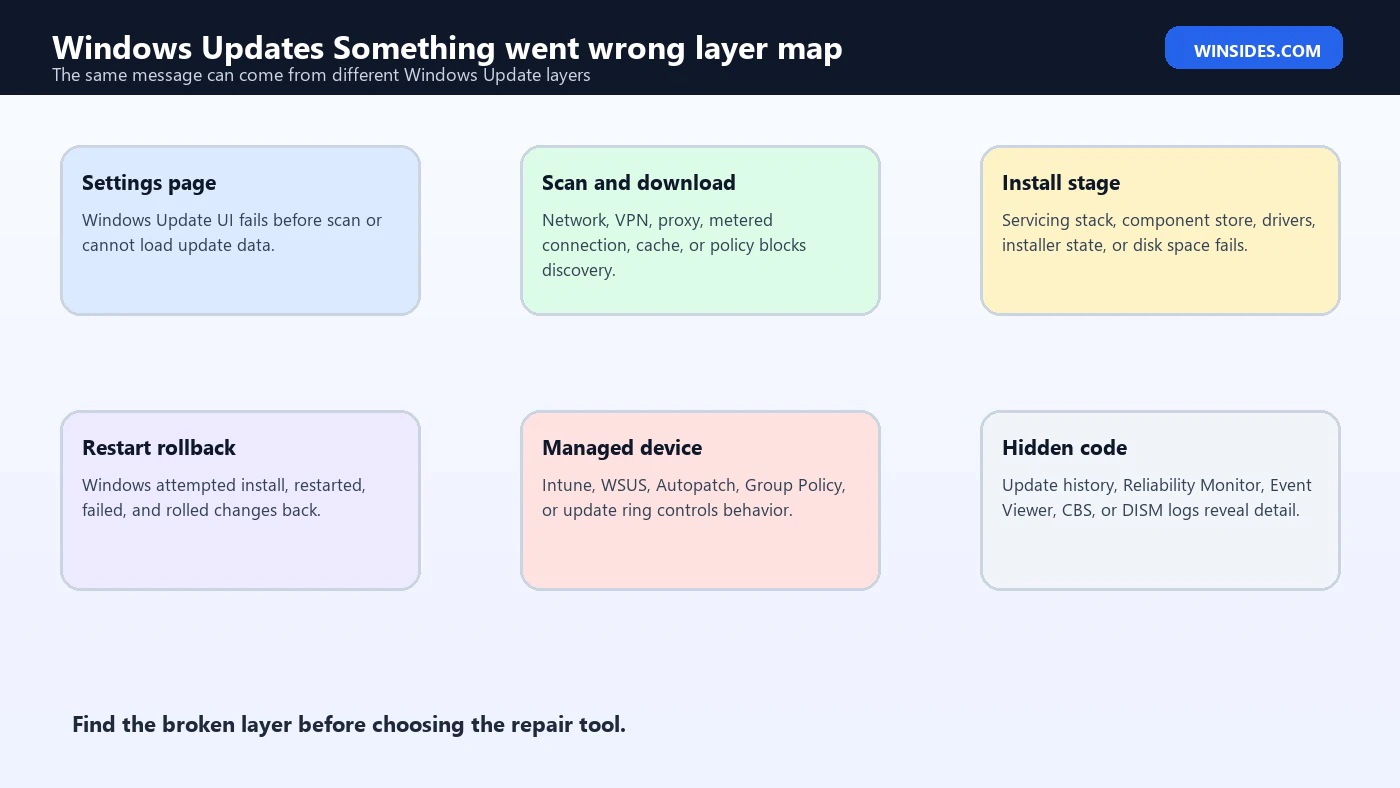
The phrase Something went wrong is deliberately broad. Windows uses it when the user interface knows an operation failed but cannot show a precise cause in that screen. In Windows Update, it may appear because Settings could not load update data, the update scan failed, the download failed, installation failed, a restart was required, or Windows Update received an error from another servicing component.
The first question is where you saw it. If Settings > Windows Update cannot load at all, focus on Settings, services, account, policy, and Windows Update client state. If updates appear but cannot download, focus on internet, VPN, proxy, metered network, cache, and Microsoft Update reachability. If downloads complete but installation fails, focus on component store health, DISM, SFC, installer state, drivers, and free disk space.
If the message appears after a restart, Windows may have attempted to install an update and rolled it back. In that case, update history, Event Viewer, Reliability Monitor, CBS.log, and DISM.log become more useful than the visible Settings message.
If the PC is managed by work or school, the message may be caused by update policy. The device may be waiting for an organization-controlled update ring, approval, compliance state, or internal content source. A home-PC repair step may not apply cleanly to a managed machine.
Treat the message as a doorway into troubleshooting, not the whole answer.
Identify the Failure Stage
Open Settings > Windows Update. If the page loads, check whether Windows can scan, download, install, or restart. Write down the step where it fails. That one detail can save a lot of time.
If the page does not load, restart the Settings app. Close Settings, reopen it, and try again. If it still fails, restart Windows. A broken Settings page can be temporary, especially after a previous update or app package refresh.
If the page loads but Check for updates fails quickly, think about services, internet, cache, date and time, administrator access, and policy. If updates download but fail to install, think about storage, DISM, SFC, component store, drivers, installer conflicts, and logs.
If Windows Update says a restart is needed, restart before deeper troubleshooting. A pending reboot can block the update pipeline. Do not keep retrying updates while Windows is waiting to finish another operation.
If an error code appears anywhere, capture it. The generic message is useful, but a code such as 0x80070002, 0x80070643, or 0x80073712 points to a more specific repair path.
Look for a Hidden Error Code
The visible message may only say Something went wrong, but Windows often records a more specific code behind it. Before making larger changes, look for that code. Open Windows Update history and expand failed updates. Some entries reveal codes such as 0x80070002, 0x80070643, 0x80073712, 0x8024a105, or 0x800f081f. Each one points to a different repair path.
If the Settings page does not show a code, check Reliability Monitor. It groups failures by day and can show whether the issue is Windows Update, Settings, an app crash, a hardware event, or a Windows failure. That timeline is easier to scan than raw logs.
Event Viewer can reveal WindowsUpdateClient events that the Settings page hides. Use the failure time from Settings or Reliability Monitor, then inspect System and Application logs around that moment. If logs show a specific update code, follow that code-specific repair path after completing the safe basics.
This matters because the generic message can be a wrapper. A download problem, component store problem, installer failure, policy block, and driver conflict can all land as Something went wrong in the interface. The hidden code is often the difference between a fast repair and hours of wrong fixes.
Start with Safe Basics
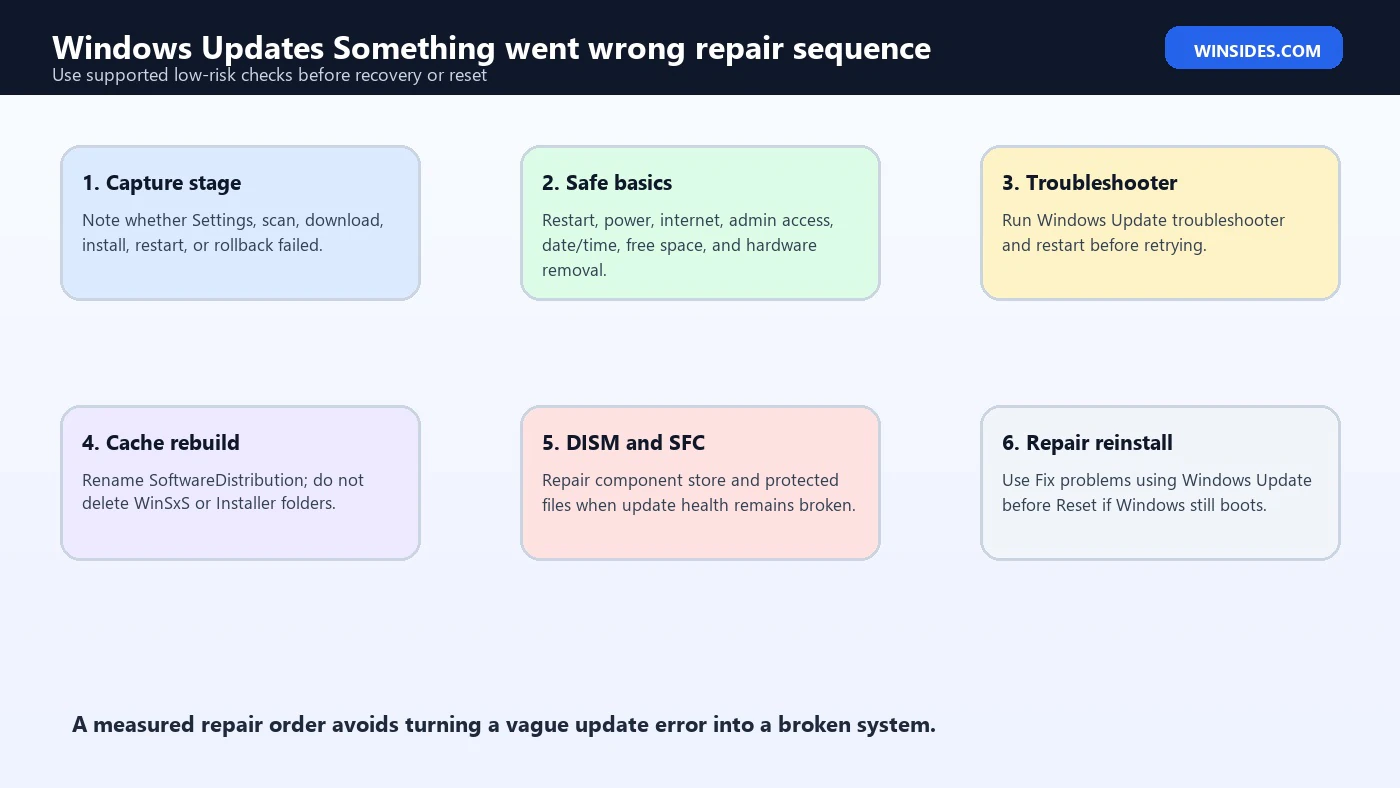
Restart the PC once. Use a normal restart, not a forced shutdown. Many Windows Update problems remain because a previous install, driver, or app update is waiting for a reboot.
Check internet. Disable VPN temporarily while testing if appropriate. If you are on a metered connection, allow updates or switch to a standard network. Windows Update needs stable access to Microsoft servers unless a managed update source is being used.
Connect power. Microsofts troubleshooting guidance specifically calls out keeping the device plugged in and connected to the internet. Microsofts Windows Update troubleshooting guidance Laptops should stay on the charger during update repair.
Use an administrator account. Some updates need admin rights. If this is a shared or managed PC, sign in with an account that can install updates or involve the administrator.
Check date and time. Incorrect date, time, or time zone can interfere with secure update validation. Turn on automatic time and time zone, use Sync now, then restart and test Windows Update again.
Free disk space. Updates need room to download, stage, install, roll back, and clean up. A nearly full C: drive can turn a simple update into a vague Something went wrong message.
Disconnect unnecessary hardware. Microsoft recommends removing external storage devices, drives, docks, and other hardware not needed for basic functionality during update troubleshooting. Microsofts Windows Update troubleshooting guidance Keep the setup simple until updates install.
Run the Windows Update Troubleshooter
Windows 11 includes a Windows Update troubleshooter. Go to Settings > System > Troubleshoot > Other troubleshooters, then run Windows Update. Microsoft recommends this as a first repair step. Microsofts Windows Update troubleshooting guidance
The troubleshooter can inspect common update problems, service state, pending restart conditions, and configuration issues. If it applies a fix, restart before trying Windows Update again. If it reports that it could not fix the issue, save the message and continue.
Do not skip this just because it feels basic. The troubleshooter is not magical, but it can repair supported Windows Update states without risky manual edits.
After running it, open Windows Update and check again. If the Something went wrong message disappears, install updates in small batches if possible. Required security updates should still be installed, but optional previews and drivers can wait until the core update path is stable.
If the message returns, move to service and cache checks.
Network, VPN, Proxy, and Metered Connection Cases
Windows Update depends on reliable network access unless the PC receives updates from an organization-managed source. If the error appears during scan or download, network conditions deserve attention before system repair commands.
Temporarily disconnect VPN while testing if your environment allows it. Some VPNs filter update traffic, change DNS, route Microsoft services through inspection, or block delivery optimization endpoints. If the update works without the VPN, update the VPN client or adjust policy rather than leaving the PC unprotected forever.
Check proxy settings. Go to Settings > Network & internet > Proxy. A stale manual proxy can break Windows Update after a network change. In work environments, do not remove required proxy settings without IT, but confirm they are correct.
Metered connections can delay or restrict update downloads. If you are on a metered connection, Windows may avoid downloading some updates. Temporarily use an unmetered connection if possible.
DNS problems can also show up as vague update failures. If Microsoft Store, Microsoft account sign-in, Edge downloads, and Windows Update all behave oddly, test a different network before assuming Windows itself is corrupt. A hotspot test can quickly separate device repair from router or DNS repair.
Check Windows Update Services
Windows Update depends on services. If services are disabled or stuck, the Settings page may fail to scan or install updates. The most relevant services are Windows Update, Background Intelligent Transfer Service, Cryptographic Services, Windows Modules Installer, and sometimes Delivery Optimization.
Open Services with services.msc. Confirm Windows Update is not disabled. Confirm BITS is not disabled. Windows Modules Installer should be available because it supports servicing and update installation. Cryptographic Services supports package and certificate validation.
You can also check from an elevated terminal:
sc query wuauserv
sc query bits
sc query cryptsvc
sc query trustedinstaller
Do not set every service to Automatic without understanding defaults. Some services run on demand. The key is that they are not disabled and can start when Windows Update needs them.
If a service immediately fails after starting, check Event Viewer. Service Control Manager events can show access denied, missing files, dependency failures, or security software interference.
Clear the Windows Update Cache Safely
A damaged update cache is one of the most common causes of vague Windows Update errors. Microsofts troubleshooting page includes clearing the Windows Update cache by stopping the Windows Update service, deleting the contents of SoftwareDistribution, and starting the service again. Microsofts Windows Update troubleshooting guidance
A cautious approach is to rename the folder instead of deleting it immediately:
net stop wuauserv
net stop bits
ren C:WindowsSoftwareDistribution SoftwareDistribution.old
net start bits
net start wuauserv
Run Command Prompt or Terminal as administrator. If a service is already stopped, continue. If the rename fails because files are in use, restart and try again before Windows Update begins scanning.
After renaming the folder, restart and check for updates. Windows will rebuild a fresh SoftwareDistribution folder. The first scan may take longer because update metadata must be recreated.
Do not delete WinSxS. Do not delete C:WindowsInstaller. Do not delete random System32 files. SoftwareDistribution is an update cache; those other folders are core system and installer state.
Repair Windows with DISM and SFC
If Windows Update still says Something went wrong after basic checks and cache repair, repair the Windows component store and protected system files. Microsofts SFC guidance recommends using DISM before System File Checker because DISM provides the files needed to repair corrupted system files. Microsofts DISM and System File Checker guidance
Open an elevated terminal and run:
DISM /Online /Cleanup-Image /RestoreHealth
sfc /scannow
DISM may take several minutes. Let it finish. Then run SFC. If SFC repairs files, restart and test Windows Update again.
If DISM fails, read the error. DISM may use Windows Update as a repair source, so a broken Windows Update client can make DISM repair harder. Microsofts Windows image repair documentation covers image health and repair options such as CheckHealth, ScanHealth, and RestoreHealth. Microsofts Windows image repair guidance If the online repair source fails, a matching Windows 11 ISO may be needed as a repair source.
If SFC reports that it cannot repair some files, inspect CBS.log instead of guessing. The log may reveal a broken component, missing manifest, access denied problem, or repair-source issue.
Use Fix Problems Using Windows Update
Windows 11 has a recovery option called Fix problems using Windows Update. Microsoft describes it as reinstalling the current version of Windows, repairing system files and components, and preserving apps, files, and settings. Microsofts Fix problems using Windows Update guidance
This is useful when Windows still boots but Windows Update, system files, or components remain unhealthy after simpler repairs. It is stronger than DISM and SFC because it reinstalls the current Windows version through Windows Update, but less disruptive than Reset this PC.
Go to Settings > System > Recovery. Under Fix problems using Windows Update, choose Reinstall now. Keep the PC connected to power and the internet during the whole process. Restart when prompted.
This option may be missing on some managed devices or older Windows 11 builds. If the PC belongs to work or school, involve IT before trying to bypass policy.
After the repair, open Windows Update again and check whether the Something went wrong message is gone.
Check Drivers and Optional Updates
A driver update can make Windows Update look broken when the real problem is a device package. Microsofts update guidance includes updating drivers as part of troubleshooting. Microsofts Windows Update troubleshooting guidance If the failure started after a driver update or appears only for an optional driver, install the correct driver from the PC manufacturer or hardware vendor.
Do not install every optional driver just because Windows offers it. Optional drivers can be useful for specific problems, but a stable OEM driver is often better than a newer generic package.
Check Device Manager for warning icons. Network adapters, storage controllers, chipset devices, Bluetooth, graphics, and audio drivers can all affect update behavior indirectly.
If a driver update fails through Windows Update, try the OEM package. If the OEM package installs cleanly, Windows Update may stop offering the failing driver or may install remaining updates successfully.
For firmware and BIOS updates, follow the device manufacturers instructions. Do not interrupt firmware updates and keep laptops plugged in.
Managed PCs and Work or School Policy
On managed devices, Windows Update may be controlled by Intune, Group Policy, WSUS, Autopatch, Configuration Manager, or another deployment system. The Something went wrong message may reflect policy, content distribution, update ring timing, or compliance state.
If the PC says Some settings are managed by your organization, do not assume local repair is enough. A home-PC cache reset can help local corruption, but it will not fix a missing WSUS approval, a deployment ring issue, or a policy block.
If several devices in the same group show the same message, compare update policy and deployment status. The fix may be server-side.
If only one managed device is affected, safe local repairs still make sense: restart, troubleshooter, cache reset, DISM, SFC, and logs. But avoid deleting policies, disabling management services, or changing update sources without IT.
Check Security Software and Cleanup Tools
Third-party antivirus, endpoint protection, firewall suites, VPN tools, and cleanup utilities can interfere with Windows Update. They may lock update files, block services, inspect HTTPS traffic, remove temporary payloads, or prevent installers from writing to protected folders.
If the Something went wrong message started immediately after installing or updating a security product, repair or update that product first. Do not permanently turn off security, but make sure the product is healthy and compatible with the current Windows build.
Cleanup tools deserve special caution. Running aggressive cleanup while Windows Update is downloading or staging packages can remove files Windows expects to use later. Use Storage Sense or Windows built-in cleanup tools after updates finish, not in the middle of update installation.
If you recently used a debloat script or update blocker, review what it changed. Some scripts disable services, change policies, block Microsoft endpoints, or remove scheduled tasks. Restoring those changes may be necessary before Windows Update can work normally again.
Read Logs When the Message Repeats
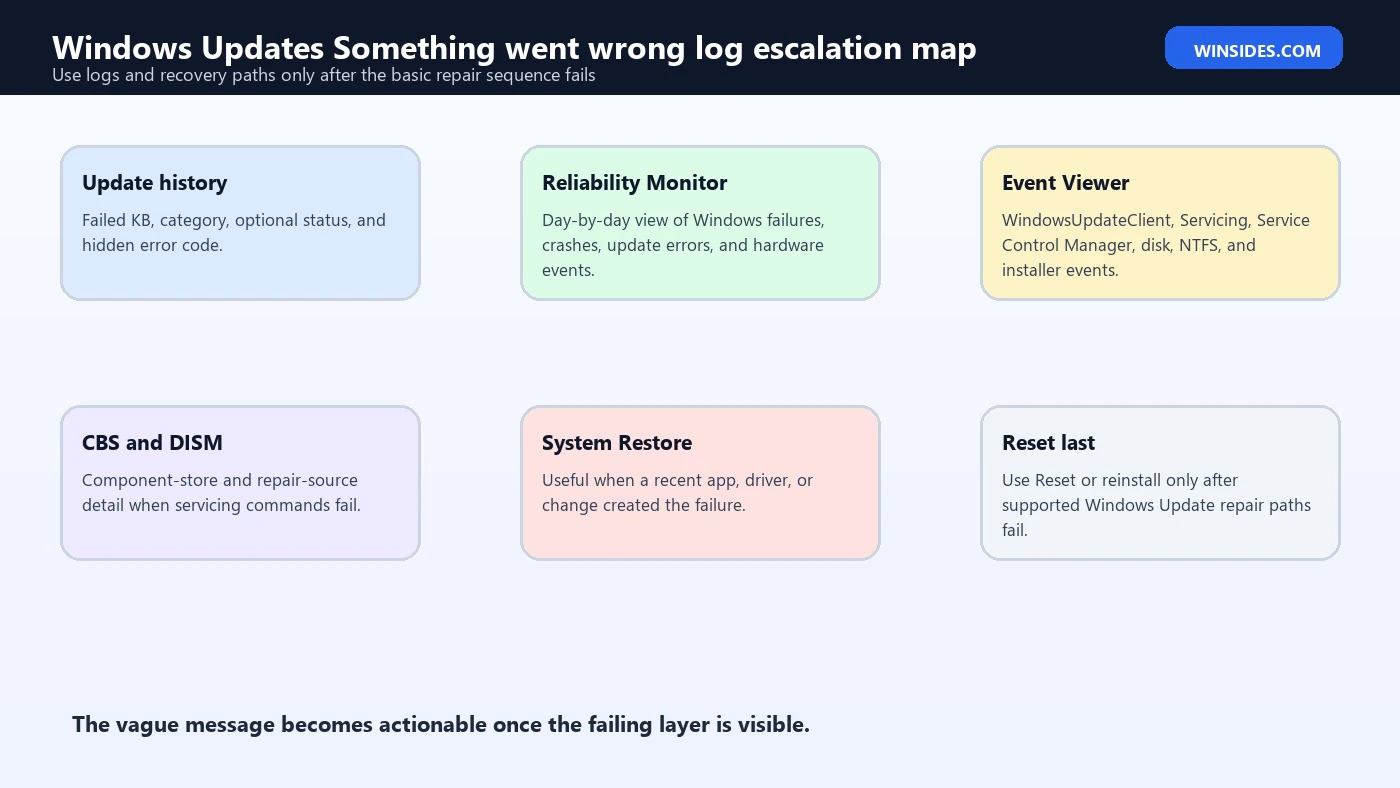
If the message keeps returning, collect evidence. Start with Settings > Windows Update > Update history. Look for failed KBs and categories. Then open Reliability Monitor by searching for View reliability history. It can show Windows failures, app crashes, and update failures by date.
Open Event Viewer and check Windows Logs > System and Windows Logs > Application around the failure time. Look for WindowsUpdateClient, Servicing, Service Control Manager, disk, NTFS, MsiInstaller, or application errors.
For servicing issues, inspect:
C:WindowsLogsCBSCBS.log
C:WindowsLogsDISMdism.log
CBS.log is useful for component store and servicing failures. DISM.log helps when image repair fails. Use timestamps so you do not chase old errors.
If the visible message is vague but logs show a specific code, use that code for the next repair path. Something went wrong is generic; the log code is often specific.
Install Updates in a Controlled Order
After repair, avoid installing every optional item at once. Start with required cumulative and security updates. Restart. Then check again. Once Windows Update is stable, review optional updates separately.
This controlled order is useful because optional driver updates, preview updates, and feature updates can introduce separate variables. If everything installs together and something fails, you may not know which update caused the new problem. If required updates install successfully first, you have a cleaner baseline.
If a feature update is available, make sure the PC is ready before installing it. Confirm free space, backup status, driver health, and firmware stability. Feature updates are larger than ordinary cumulative updates and can expose old driver or storage problems.
If an optional preview update fails but required updates install, consider waiting. Preview updates are not always necessary for every PC. The fixes usually arrive later in a regular cumulative update. This is not an excuse to skip security updates, but it is a good way to avoid turning optional testing into mandatory repair work.
If the Windows Update Page Itself Is Broken
Sometimes the Windows Update page in Settings fails before any scan. In that case, the issue may be Settings, Windows Update client state, app package state, or policy rather than a specific update package.
First restart. Then try opening Settings from a different path: press Win + I, use Start menu search, or open Windows Update from the Run dialog with:
ms-settings:windowsupdateIf Settings works elsewhere but Windows Update does not, continue with services, troubleshooter, cache reset, DISM, and SFC. If Settings itself crashes broadly, system file repair becomes more important.
Check whether another update or app install is pending. A newly installed feature update or Store app update can temporarily leave Settings unstable until after restart.
If the page is blocked by organization policy, Windows may show management wording. In that case, local repair may not change the behavior.
When to Use Recovery Options
If Windows Update remains broken after supported repair steps, use recovery options in the right order. Microsofts recovery options page distinguishes between several paths: Startup Repair when Windows does not start, System Restore when a recent app or change caused problems, Reset this PC when the system has been unstable for a while, and reinstall options when narrower tools fail. Microsofts Windows recovery options guidance
Use System Restore if the message started immediately after a known app, driver, or system change and a restore point exists. Use Startup Repair only when Windows itself does not start. Use Reset this PC later, when Windows remains unstable and you accept app/settings disruption.
If Windows still boots, Fix problems using Windows Update should usually be tried before Reset because it is designed to repair system files and components while preserving apps, files, and settings. Microsofts Fix problems using Windows Update guidance
Before any recovery action, back up important files. Recovery tools are safer when data is already protected.
What Not to Do
Do not delete WinSxS. It is the Windows component store and is required for servicing and repair.
Do not delete C:WindowsInstaller to free space. It contains installer state needed for patching, repairing, and uninstalling apps.
Do not run unknown all-in-one repair scripts. They may reset services, remove policies, delete folders, alter permissions, and make the original issue harder to diagnose.
Do not disable Windows Update permanently. That may hide the message temporarily while leaving the PC without security fixes.
Do not keep clicking Retry without changing anything. If the same generic message returns, the update path needs repair.
Best Practices to Prevent Future Update Failures
Keep free space on the system drive. Windows Update needs more than just download space; it needs staging, rollback, and cleanup room.
Keep the PC powered during updates. Laptops should be plugged in. Avoid closing the lid during major updates unless sleep settings are configured safely.
Avoid interrupting updates. Give Windows time to finish before forcing power off.
Use trusted driver sources. Prefer Windows Update, the PC maker, or the hardware vendor. Avoid random driver-updater utilities.
Let Windows restart when needed. Pending restarts are a common reason the update pipeline gets stuck.
Back up important files. A good backup makes update repair much less stressful.
Frequently Asked Questions
Why does Windows Update say Something went wrong?
It means the update experience failed but the visible page is not showing the specific cause. It can be Settings, services, cache, internet, storage, policy, drivers, system files, or servicing corruption.
Should I run the Windows Update troubleshooter first?
Yes. Microsoft recommends the Windows Update troubleshooter as a first step for update problems. Microsofts Windows Update troubleshooting guidance Restart afterward and test again.
Should I clear SoftwareDistribution?
It can help when cached update state is damaged. Microsoft includes clearing the Windows Update cache in its troubleshooting guidance. Microsofts Windows Update troubleshooting guidance Rename or clear SoftwareDistribution, but do not delete WinSxS.
Should I run DISM or SFC first?
Run DISM first, then SFC. Microsoft recommends DISM before System File Checker when repairing corrupted system files. Microsofts DISM and System File Checker guidance
Can Fix problems using Windows Update repair this?
Yes, if the cause is damaged system files or Windows components. Microsoft says the option reinstalls the current Windows version, repairs system files and components, and preserves apps, files, and settings. Microsofts Fix problems using Windows Update guidance
Do I need to reset Windows?
Usually not first. Try basic checks, the troubleshooter, cache repair, DISM, SFC, driver checks, logs, and Fix problems using Windows Update before Reset this PC.
Conclusion: Find the Broken Update Layer
windows updates something went wrong is vague, but it is still fixable when you treat it as a layered Windows Update problem. First identify where it fails: Settings page, scan, download, install, restart, or rollback. Then repair that layer instead of blindly retrying.
Start with safe basics: restart, power, internet, admin access, date and time, free space, and unnecessary hardware removal. Run the Windows Update troubleshooter. Rebuild the update cache. Repair Windows with DISM and SFC. Check drivers and managed-device policy. If the system remains unhealthy, use Fix problems using Windows Update before escalating to Reset or reinstall.
The most important rule is to protect Windows servicing while repairing Windows Update. Do not delete WinSxS, do not remove installer folders, and do not run mystery scripts. Use supported tools, read logs when the message repeats, and escalate only when narrower repairs fail.
For more interesting articles, stay tuned to Winsides.com!









Community
Comments (0)