

Introduction to 0x87E10BC6
0x87E10BC6 is an activation and licensing error that Windows 11 users may see when Windows cannot complete a license-related action cleanly. It is often discussed around Windows activation, Microsoft Store digital purchases, Microsoft account entitlement, Store-delivered upgrades, and license validation. Unlike some activation codes, it is not clearly listed in Microsofts common activation error table at the time of writing, so the safest way to troubleshoot it is to follow the official activation workflow and then check the Store/account path that may be involved.
That distinction matters. A code that appears during activation does not always mean the product key is bad. It can point to a Store entitlement that has not synced, a Microsoft account mismatch, a Windows edition mismatch, a blocked internet path, a broken Store cache, a temporary service issue, a device that recently changed hardware, or a business device trying to use the wrong license channel. If you jump directly to random activation commands or replacement keys, you can make the evidence harder to read and still not solve the problem.
Use official references as the guardrails. Microsofts Windows activation error guidance says to confirm the device is up to date, run the Activation Troubleshooter, and then check the error code. Microsofts Activate Windows page explains activation methods, digital licenses, and product-key paths. If hardware changed, Microsofts hardware-change reactivation guidance becomes important. For advanced license-state inspection, Microsoft documents slmgr.vbs options. If the error appears around Store purchases or a Store upgrade, keep Microsoft Store and billing support nearby.
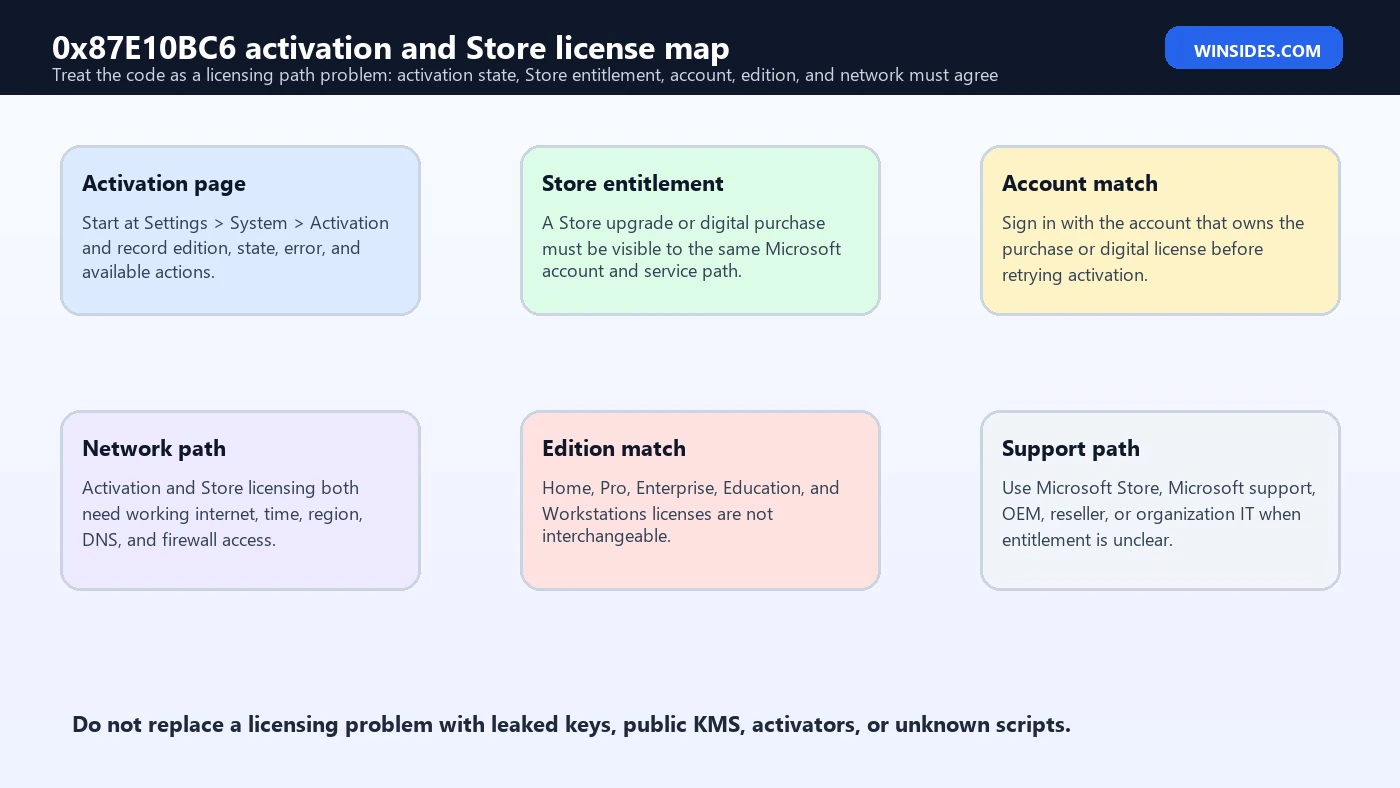
This guide treats 0x87E10BC6 as a licensing-path problem rather than a single magic-code problem. The goal is to find whether Windows is failing at activation, Store entitlement retrieval, account proof, edition match, internet access, hardware identity, or organization licensing. The fixes below are deliberately safe: update, troubleshoot, verify account and edition, repair Microsoft Store, inspect license state, collect proof, and escalate through Microsoft, OEM, reseller, or IT support when needed.
Table of contents
Key Takeaways
- 0x87E10BC6 should be handled as an activation or license-acquisition problem. It may involve Windows activation, Store entitlement, account sign-in, edition match, or network access.
- Start with official activation workflow. Update Windows, open Activation settings, run Activation Troubleshooter, and check whether the code changes.
- Check the Microsoft Store branch. If the issue started after a Store upgrade or purchase, verify account, order history, Store updates, and Store cache/repair state.
- Edition match is non-negotiable. A Home digital license cannot activate Pro, and an Enterprise or organization path should not be forced onto a personal PC.
- Hardware changes can break the license match. Motherboard replacement may require Microsoft account-linked reactivation, OEM support, or a new license depending on license type.
- Use slmgr for evidence, not bypassing. Commands such as
slmgr /dlvandslmgr /xprhelp read license state but do not make an invalid entitlement valid. - Avoid activation shortcuts. Public KMS servers, leaked keys, activators, patched files, and unknown scripts can create malware, compliance, and future update problems.
What 0x87E10BC6 Usually Points To
When a Windows activation code is not listed in the common table, the best practical question is not, “What one sentence defines this code?” The better question is, “Which licensing step failed?” For 0x87E10BC6, the useful working model is that Windows or Microsoft Store could not complete a license-related validation or entitlement retrieval action. That can happen while activating Windows, applying a Store upgrade, syncing a digital license, or checking a purchase tied to a Microsoft account.
This does not mean every case has the same root cause. One device may fail because the Microsoft Store is signed into the wrong account. Another may fail because Windows 11 Pro was installed on a device that only has a Home digital license. Another may fail because the internet path to activation services is blocked by VPN, proxy, DNS filtering, firewall, or incorrect date/time. Another may fail after a motherboard replacement. A managed laptop may fail because the user is outside the organization activation model.
A reliable repair therefore has to cover both sides: the Windows activation side and the Store/account side. If you only test product keys, you may miss the Store purchase path. If you only reset Microsoft Store, you may miss an edition mismatch. If you only reinstall Windows, you may still install the wrong edition. The workflow below is designed to keep those branches visible.
Why It May Not Appear in the Common Microsoft Table
Microsofts activation error article includes many common codes and also explains what to do when the code is not listed: contact customer support after confirming the device is current and using the Activation Troubleshooter. That is important for 0x87E10BC6 because public explanations often compress the error into a vague Store or activation phrase without confirming the exact device context. A careful article should not invent a certainty Microsoft does not publish in the common table.
Instead, use the official activation guidance as a diagnostic frame. The article says to confirm the device is running Windows 11, use the Activation Troubleshooter, and check whether the code changes. It also notes that activation verifies Windows is genuine and not used on more devices than the license terms allow. Those points apply even when the exact code is uncommon.
If the issue involves Microsoft Store, the Store and billing support route matters because a digital upgrade or purchase belongs to an account and order history, not just a string typed into Activation settings. A Store purchase problem, wrong account, or stuck Store cache can look like activation trouble from the users point of view. That is why this guide checks Store sign-in and Store repair before recommending any drastic reinstall or purchase decision.
Start in Activation Settings
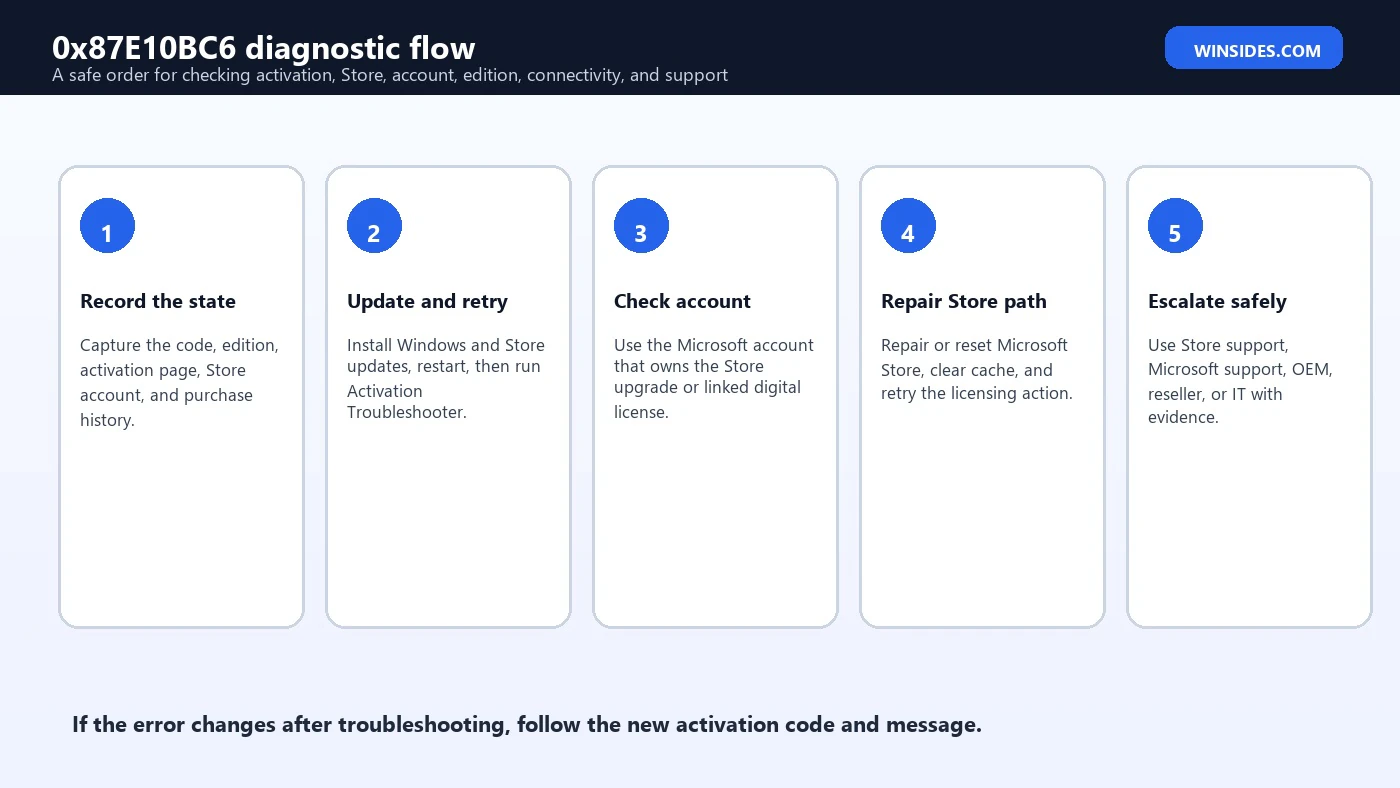
Open Settings, select System, and open Activation. Record the installed edition, activation state, exact error code, and available buttons. You may see Troubleshoot, Change product key, Go to Microsoft Store, or organization-related messages. Do not click randomly. The options that appear are clues. A visible Store option points toward purchase or license acquisition. A visible Troubleshoot option means Windows has a supported diagnostic path. An organization message suggests the device may be controlled by workplace licensing.
Run Activation Troubleshooter when it is available. Microsoft specifically recommends using the troubleshooter for Windows 11 activation errors. It may fix simple issues, identify a valid digital license for another edition, or change the error message. If the error code changes, follow the new code. That is not a nuisance; it is useful evidence because activation can move from a broad licensing failure to a more specific edition, hardware, connectivity, or product-key condition.
After the troubleshooter, restart once and return to the Activation page. If the device recently upgraded editions through Microsoft Store, make sure the Store app is signed in with the account that bought the upgrade. If the device is newly purchased, confirm whether Windows was preinstalled and whether the OEM expects automatic digital activation. If the PC belongs to a company or school, do not install personal keys without IT approval.
Update Windows and Microsoft Store First
Before changing licenses, make the machine current. Microsofts activation error guidance notes that current Windows versions include improvements to activation and troubleshooting. Install pending Windows updates, reboot, and then retry activation. This is not busywork. Activation and Store components both depend on current services, certificates, account flows, and system components. A half-updated machine can fail license retrieval in ways that look like a bad key.
Also update Microsoft Store and Store apps. Open Microsoft Store, go to Library, and check for updates. If the code appeared after a Store-based Windows edition upgrade, the Store account and app state are part of the activation story. A Store entitlement can be hard to validate if the Store app is stale, signed into the wrong account, or unable to refresh its cache. Updating Store components is safer than replacing keys.
Check the clock, region, and internet connection at the same time. Incorrect date/time, stale region settings, captive portals, VPN filters, proxy rules, DNS blocks, and firewall restrictions can interfere with activation and Store licensing. If the device is on a restrictive network, temporarily test on a normal trusted network. Do not disable security products permanently; simply isolate whether the network path is the reason Windows cannot reach the licensing service.
Check the Microsoft Account and Store Purchase Path
If 0x87E10BC6 appeared after buying or applying a Windows upgrade through Microsoft Store, account identity is the first thing to check. Sign into Microsoft Store with the account that made the purchase. Then check order history in the account portal or Store purchase records. If a Windows 11 Pro upgrade was purchased under a different Microsoft account, the current Windows profile may not be able to prove the entitlement until the right account is used.
This is especially common on shared PCs. One person may have bought the upgrade, another may be signed into Windows, and a third account may be signed into Microsoft Store. Windows activation, Microsoft Store, and Microsoft account identity can overlap, but they are not always the same login. Make the ownership path explicit: which account owns the Store purchase, which account is signed into Store, which account is linked to Windows activation, and which user profile is performing activation?
If the purchase appears in order history but activation still fails, do not buy another license immediately. Capture the order number, account email domain, Activation screenshot, Windows edition, and exact error. Then use Microsoft Store and billing support. The issue may be entitlement sync, region/payment status, a failed upgrade handoff, or an account mismatch that support can validate better than a local command can.
Repair or Reset the Microsoft Store Path
When the Store branch is suspicious, repair the Store path before touching Windows licensing files. Start with simple steps: close Microsoft Store, sign out, sign back in with the correct account, and restart. Then run wsreset.exe from the Run dialog or Start menu to clear the Store cache. After the Store reopens, check Library updates and retry the Store action or activation workflow.
wsreset.exeIf the Store still behaves incorrectly, open Settings, go to Apps, Installed apps, Microsoft Store, Advanced options, and use Repair. If Repair does not help, use Reset. Resetting the Store app can clear local app data, so make sure you know the Microsoft account that owns the purchase before doing it. After reset, open Store again, sign in, update apps, and verify order history where applicable.
Do not use random PowerShell packages from forums to reinstall Store components unless official support asks for it. Microsoft Store is tied into licensing, app packages, account identity, and Windows components. Aggressive package removal can create a second problem on top of the activation issue. The safe progression is sign-in, update, cache reset, app repair/reset, then Microsoft support if entitlement still does not appear.
Check Edition and Digital License Match
Edition mismatch is one of the easiest ways to misread an activation error. Windows 11 Home, Pro, Pro for Workstations, Education, and Enterprise are different editions with different license expectations. If a Store upgrade was meant to move Home to Pro but the device is still on Home, the upgrade handoff may not have completed. If the device is running Pro but only owns a Home digital license, activation may fail until the device has a Pro entitlement or is returned to Home.
Confirm the installed edition in Settings > System > Activation or with winver. Then compare it with the license source: OEM invoice, Microsoft Store order, retail key, organization license, or previous activation state. Microsofts activation guidance says Windows can be activated by digital license or product key. The correct method depends on how Windows was obtained. A digital license does not require manually entering a product key, but it still needs the correct edition and entitlement.
If the edition is wrong, fix the edition problem rather than forcing keys. For a Home device accidentally installed as Pro, reinstalling Home may be cleaner than trying keys that do not belong to it. For a Pro upgrade purchased through Store, use the correct Store account and Activation Troubleshooter before reinstalling. For Enterprise or Education, check whether the device is actually managed by an organization.
Use slmgr for Evidence
Microsoft documents slmgr.vbs options for reading and managing activation state. For 0x87E10BC6, the most useful commands are usually slmgr /dlv and slmgr /xpr. They can show detailed license information, license status, partial key, activation channel, and expiration state. That evidence helps distinguish retail/OEM/digital paths from volume or organization paths.
slmgr /dlv
slmgr /xpr
Use the output carefully. Do not publish a full product key. Partial key, channel, edition, and license state are normally enough. If slmgr /dlv shows an unexpected KMS or volume channel on a personal PC, someone may have installed the wrong key or image. If it shows a retail path but activation fails, focus on Store entitlement, account, edition, internet access, and hardware change. If it shows organization activation on a work device, contact IT.
slmgr is not a bypass tool. Commands like /ipk and /ato can install a valid key and attempt activation, but they cannot create a legitimate license. If the issue is a Store entitlement or Microsoft account purchase, local key commands may not address the right branch. Use commands to collect evidence and apply legitimate keys only when you are sure the key matches the edition and ownership path.
If Hardware Changed Recently
A major hardware change can break the connection between Windows and its previous digital license. Microsofts hardware-change reactivation guidance focuses on signing in with the same Microsoft account and using the Activation Troubleshooter path. Motherboard replacement is the classic example. If 0x87E10BC6 appeared after a repair, rebuild, or board swap, treat the hardware timeline as central evidence rather than a footnote.
If the PC came with Windows preinstalled and the motherboard was replaced by the manufacturer under warranty, contact the OEM with the repair record and serial number. If an independent repair shop changed the board, ask whether the original Windows license can remain valid or whether a new license is required. If you built the PC and transferred a retail license, the Microsoft account link and license terms matter. The Activation Troubleshooter may offer a path to reactivate after hardware change in supported cases.
Do not wipe the PC before collecting evidence. Keep screenshots of Activation settings, purchase or device invoices, repair records, Microsoft account information, and partial license details. Support can work faster when it can see whether the problem is a hardware identity change, wrong edition, Store purchase issue, or invalid key. A clean reinstall without evidence may make the licensing story harder to prove.
Connectivity, Proxy, VPN, and Firewall Checks
Activation and Microsoft Store licensing both require communication with Microsoft services. If the PC is behind a strict corporate firewall, school filtering, VPN, proxy, DNS sinkhole, ad-blocking DNS, SSL inspection, or captive portal, license acquisition can fail even though normal websites appear to load. Test on a known-good network when possible. For a home PC, briefly disconnect VPN and retry. For a work PC, ask IT before changing proxy or firewall settings.
Check date and time as well. Authentication and licensing services depend on accurate time. Set time automatically, set time zone automatically when appropriate, restart, and retry activation. If Windows time is far off, Microsoft account sign-in and Store entitlement checks can fail in confusing ways. Region mismatch can also complicate Store purchase or billing issues, especially if the account, payment method, and device region do not agree.
A practical network test sequence is simple: confirm internet works, disable only temporary VPN layers you control, correct time and region, restart Microsoft Store, run Activation Troubleshooter, and retry. If the device works on another network, do not keep changing keys. Fix the network policy that blocks activation or Store licensing. If the device belongs to an organization, provide IT with the code, timestamp, network name, VPN status, and activation screenshot.
Product Key vs Digital License
Windows 11 activation can use a product key or a digital license. A product key is a 25-character code. A digital license is an entitlement associated with hardware and, in some cases, a Microsoft account. Store upgrades commonly feel like “I bought a key,” but the user may actually have a digital entitlement that needs account and service sync rather than a key typed into a box. Knowing which model applies prevents wasted work.
If you have a genuine 25-character product key for the installed edition, use Settings > System > Activation > Change product key. Type it carefully. Do not copy keys from search results, forums, videos, or activation scripts. If the key is from a retailer, keep the invoice and packaging. If the key came with a PC, keep OEM documentation. If the key belongs to school or work, do not use it on personal hardware.
If the activation path is digital license or Store purchase, focus on account, edition, internet, Store, and hardware. Re-entering random keys can mask the original entitlement. If Microsoft Store order history shows a valid Windows edition upgrade, support that purchase path instead of buying again. If the Store purchase does not appear, solve the account or billing issue first.
Managed, School, and Enterprise Devices
If the device is managed by a company, school, or organization, 0x87E10BC6 should be escalated to IT quickly. Managed devices may use Enterprise, Education, KMS, MAK, subscription activation, Autopilot, Intune, or another licensing model. A user entering a personal key can break compliance or move the device away from the intended activation channel. The correct repair may be account licensing, network/VPN access, device enrollment, or image correction.
For IT teams, collect Windows edition, build, activation state, error code, timestamp, user, tenant, network path, VPN status, Store availability, slmgr /dlv summary, and whether the device recently changed hardware or was reimaged. If multiple devices show the code after a deployment, check the image, edition assignment, key injection, Store policy, account licensing, and activation infrastructure rather than repairing each endpoint manually.
Organization policy can intentionally disable Microsoft Store or consumer account features. That may be appropriate for business devices, but it can also affect Store-delivered upgrades or apps. If a user tries to activate a personal upgrade on a managed machine, the issue may be policy rather than failure. Decide whether the device should be consumer-activated, organization-activated, or reimaged into the correct management path.
Safe Repair Checklist
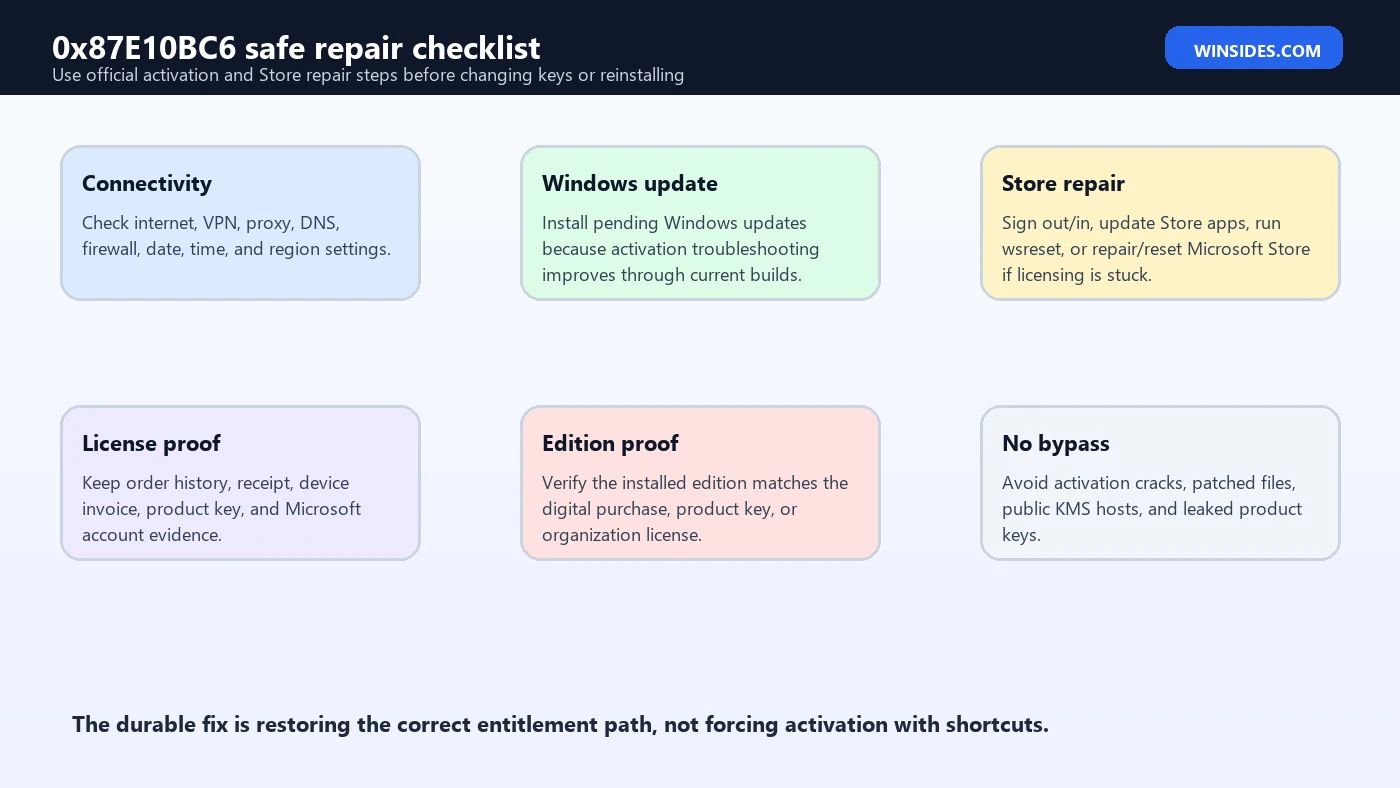
- Capture the state. Screenshot Activation settings, code 0x87E10BC6, Windows edition, and Store account state.
- Update first. Install Windows updates, update Microsoft Store apps, restart, and retry.
- Run Activation Troubleshooter. Use the supported Windows activation path and follow any new code if it changes.
- Check Store account. Sign into Microsoft Store with the account that owns the upgrade or purchase.
- Confirm edition. Match Home, Pro, Enterprise, Education, or Workstations with the actual license source.
- Repair Store. Sign out/in, run
wsreset.exe, then repair or reset Microsoft Store if needed. - Review hardware changes. Motherboard replacement can require hardware-change reactivation or OEM support.
- Use evidence-based support. Contact Microsoft Store, Microsoft support, OEM, reseller, or IT with proof.
What Not to Do
Do not download activation cracks, leaked keys, public KMS scripts, patched licensing DLLs, or command packs that promise to remove activation errors. They do not create a valid Windows license. They can install malware, weaken security, corrupt licensing files, break Store services, or create future update failures. For a licensing error, the repair must restore a legitimate entitlement path.
Do not buy a second license before checking the first one. If the issue is Store entitlement sync, wrong account, edition mismatch, or temporary service trouble, another purchase may not fix the root cause. Keep order history, receipts, product keys, device invoices, and repair records. Use those to prove the license path. If the first purchase is valid, support should help you resolve that path.
Do not reinstall Windows blindly. Reinstalling can help if the wrong edition is installed, but it can also waste time or make evidence harder to preserve. If you reinstall Pro on a device that only owns Home, activation remains wrong. If the Store purchase is tied to an account you forgot, reinstalling will not identify it. Diagnose before erasing.
Decision Matrix for 0x87E10BC6
| Situation | Likely branch | Best next action |
|---|---|---|
| Error after Microsoft Store Pro upgrade | Store entitlement or account sync | Sign into Store with purchase account, update Store, run troubleshooter, verify order history. |
| Error after clean reinstall | Wrong edition or missing digital license | Confirm previous edition and reinstall or activate the licensed edition. |
| Error after motherboard replacement | Hardware identity changed | Use hardware-change reactivation guidance and contact OEM or Microsoft if needed. |
| Store purchase visible but activation fails | Entitlement sync or activation service path | Collect order ID and contact Microsoft Store or activation support. |
| Enterprise edition on personal PC | Wrong image or organization license path | Install licensed Home/Pro or use legitimate organization activation. |
| Work or school laptop | Managed activation or policy | Contact IT with screenshots, slmgr summary, network/VPN state, and timestamp. |
| Works on another network | Firewall, VPN, proxy, DNS, or time issue | Repair network path instead of changing keys. |
| Key from unknown seller fails | Invalid, blocked, or mismatched key | Use seller refund/support or buy through trusted channel. |
This matrix keeps the repair grounded. A Store upgrade problem needs account and Store evidence. A wrong edition problem needs edition correction. A hardware-change problem needs reactivation support. A managed-device problem needs IT. A network problem needs connectivity repair. The same code can sit on top of different branches, so the branch matters more than memorizing a single definition.
Evidence to Collect Before Support
| Evidence | Why it matters | Who may need it |
|---|---|---|
| Activation screenshot | Shows 0x87E10BC6, edition, and current state. | Microsoft, OEM, reseller, IT |
| Microsoft Store account | Shows which account is signed into Store. | Microsoft Store support |
| Order history or receipt | Proves Store upgrade or license purchase. | Microsoft Store, reseller |
| Windows edition | Confirms whether the installed edition matches the entitlement. | All support paths |
| Hardware repair record | Shows motherboard or major hardware changes. | OEM, Microsoft |
| slmgr summary | Shows channel, partial key, and license state without exposing full key. | IT or advanced support |
| Network/VPN status | Shows whether activation is blocked by connectivity or policy. | IT, network admin |
| Device ownership | Determines consumer, OEM, reseller, or organization path. | All support paths |
Good evidence reduces repeated troubleshooting. If a Store purchase exists, the order history matters. If a motherboard changed, the repair record matters. If the device is managed, IT needs channel and network details. If the key came from a reseller, proof of purchase matters. The goal is to show the entitlement story clearly enough that support can fix the right side of the system.
Frequently Asked Questions
What is 0x87E10BC6?
It is best handled as a Windows 11 activation or license-acquisition error that may involve activation, Microsoft Store entitlement, account sign-in, edition match, internet access, or hardware change. Microsoft does not list it in the common activation table, so use the official troubleshooting workflow and support paths.
Is 0x87E10BC6 a Microsoft Store error?
It can be Store-related when it appears after a Store purchase or edition upgrade, but do not assume every case is Store-only. Check Activation settings, Store account, order history, Windows edition, network, and hardware history.
Can the Activation Troubleshooter fix it?
It may. Microsoft recommends the Activation Troubleshooter for Windows 11 activation errors. Even if it does not fix the issue, it may change the error code or reveal an edition/digital-license mismatch.
Should I run wsreset.exe?
Yes, if the Store branch is involved. wsreset.exe clears the Microsoft Store cache and is a safe early repair step before more invasive Store or Windows changes.
Does this mean my product key is invalid?
Not necessarily. It can be a bad key, but it can also be wrong edition, Store entitlement sync, wrong Microsoft account, blocked internet path, temporary service issue, hardware change, or organization licensing.
What if I bought Windows 11 Pro in Microsoft Store?
Sign into Store with the purchase account, check order history, update Store apps, run Activation Troubleshooter, and contact Microsoft Store or activation support with the order proof if it still fails.
Can I use slmgr to fix it?slmgr can show license details and attempt activation with a valid key, but it cannot create a valid digital entitlement or fix a Store account mismatch by itself.
Can I use a public KMS server or activator?
No. Avoid public KMS hosts, activation cracks, leaked keys, patched files, and unknown scripts. They are not legitimate fixes and can damage security or licensing state.
Who should I contact if nothing works?
Use the license owner path: Microsoft Store support for Store purchases, Microsoft support for digital license and activation issues, OEM support for preinstalled Windows or hardware repair, reseller support for purchased keys, or IT for managed devices.
Conclusion: Restore the Correct License Path
0x87E10BC6 is not a code to fight with random keys. Treat it as a signal that Windows, Microsoft Store, account identity, edition, network access, or hardware identity could not complete the licensing path cleanly. Start with Activation settings, update Windows and Store, run Activation Troubleshooter, and check whether the error changes. Then follow the branch that fits the evidence.
For Store upgrades, verify the purchase account and order history. For digital licenses, confirm edition and Microsoft account linking. For product keys, use only a valid key that matches the installed edition. For hardware changes, use Microsofts reactivation guidance and keep repair records. For managed devices, let IT handle the activation model. For network-blocked devices, repair connectivity rather than replacing licenses.
The safe result is boring in the best way: Windows 11 activates through a legitimate digital license, a matching product key, Microsoft Store entitlement, OEM/reseller proof, Microsoft support, or organization licensing. Avoid activators, leaked keys, and public KMS shortcuts. They can make the PC less trustworthy and still leave the real entitlement problem unsolved.
For more interesting articles, stay tuned to Winsides.com!









Community
Comments (0)