

Introduction to Windows 11 SE
Windows 11 SE is a special education edition of Windows 11 built for school-managed, web-first student devices. It is not a normal retail edition, and it is not the same thing as Windows 11 Education. Microsoft designed it for low-cost classroom hardware, simplified student use, privacy-focused school scenarios, and centralized management through education IT. In practice, that means a student gets a cleaner device that runs the essential school tools, while administrators get a more locked-down platform that is easier to deploy and supervise.
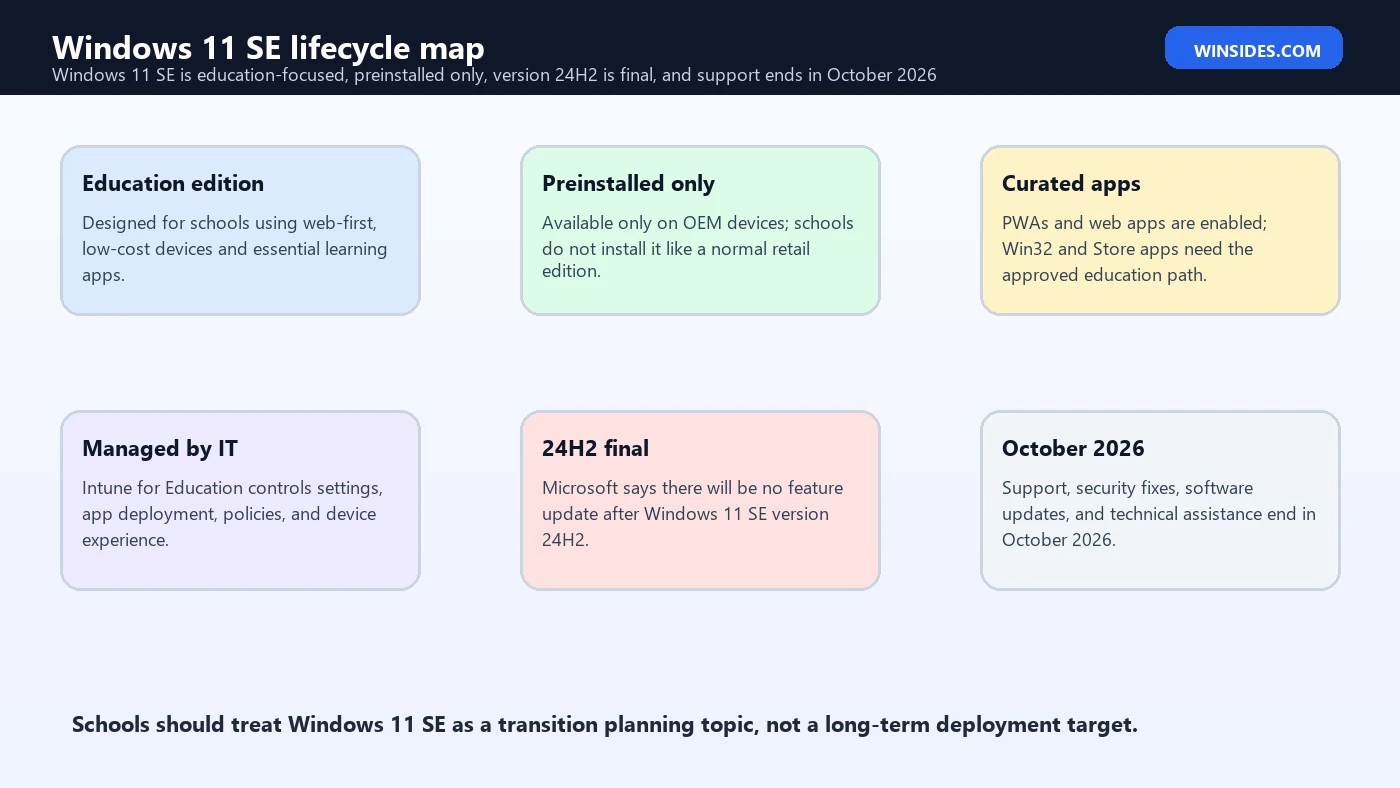
The most important detail in 2026 is the lifecycle. Microsoft says support for Windows 11 SE ends in October 2026. Microsoft also says it will not release a feature update after Windows 11 SE, version 24H2. The device may keep working after that date, but the supported path is to transition to a device or installation that supports another Windows 11 edition. For schools, that turns Windows 11 SE from a simple operating system topic into a fleet planning topic.
Windows 11 SE is also unusual because it is available only preinstalled on devices from original equipment manufacturers. Schools do not buy it like a normal Windows upgrade and install it on random laptops. The edition is tied to the kind of devices Microsoft and hardware partners built for education, such as Surface Laptop SE-class hardware and similar school-focused systems. That preinstalled-only model is one reason the migration plan should include device inventory, warranty status, classroom app requirements, and replacement timing, not just a Windows license discussion.
For source context, this guide uses Microsofts Windows 11 SE overview, the Windows 11 SE settings list, the current Windows 11 release information, and the broader Windows Education documentation. The goal is to explain what Windows 11 SE is, what it restricts, why it exists, how schools manage it, and what administrators should do before October 2026 arrives.
Table of contents
Key Takeaways
- Windows 11 SE is an education-focused edition. It is designed for school-managed, web-first student devices, not for general retail installation.
- Support ends in October 2026. Microsoft says there will be no Windows 11 SE feature update after version 24H2.
- It is preinstalled only. Schools get Windows 11 SE on OEM devices rather than installing it freely on existing PCs.
- The app model is restricted. Progressive Web Apps and web apps are enabled by default, while unapproved Win32 and UWP apps fail.
- Intune for Education is central. School IT manages apps, settings, restrictions, and classroom device behavior remotely.
- It is not Windows 11 Education. Windows 11 Education is a broader managed edition; Windows 11 SE is a more constrained school-device edition.
- Migration planning should start early. Inventory devices, classroom apps, profiles, data, testing requirements, accessibility needs, and replacement budgets before the support deadline.
What Windows 11 SE Is
Windows 11 SE is best understood as a classroom operating system profile, not as a lighter edition for every user. Microsoft positions it for education customers who want cost-effective, easy-to-manage student devices. The experience is intentionally simplified. Students spend more time in Microsoft Edge, Office apps, Teams, OneDrive, learning platforms, testing tools, and school-approved apps, and less time modifying the system or installing random software.
The SE design is rooted in three ideas: limit distractions, simplify management, and keep the device useful on lower-cost hardware. That is why the edition emphasizes web apps, Progressive Web Apps, Microsoft 365 school workflows, cloud storage, and a curated application approach. It is also why the device experience may feel restrictive compared with a standard Windows 11 Home, Pro, or Education computer. The restrictions are not accidental; they are the product.
A student should not need to understand installers, drivers, local software risk, multiple browsers, or unmanaged app stores just to use a school laptop. At the same time, a school IT team should not need to manually clean up dozens of classroom devices after every semester. Windows 11 SE tries to solve that by narrowing the allowed behavior and pushing more of the control into central management.
Support Ends in October 2026
The lifecycle change is the headline. Microsoft states that support for Windows 11 SE, including software updates, technical assistance, and security fixes, will end in October 2026. Microsoft also states that there will be no feature update after Windows 11 SE, version 24H2. That means Windows 11 SE should not be treated as a long-term platform for new school rollouts in 2026 unless the school has a very deliberate short lifecycle plan.
The phrase the device will continue to work can be misleading if read casually. A device that continues to boot is not the same as a device that remains a good supported classroom endpoint. After support ends, the school loses the normal security and servicing assurance that administrators rely on. In an education environment, that matters because student devices may connect to school accounts, learning platforms, shared networks, cloud storage, testing systems, and identity services.
Schools should treat October 2026 as a planning deadline, not a reminder date. Procurement, budget approval, pilot testing, app validation, device enrollment, teacher communication, student handoff, data cleanup, and retirement logistics can take months. A district that waits until the last quarter of support may find that replacement devices, licenses, carts, filters, testing browsers, and accessibility tools cannot all be validated quickly enough.
How Windows 11 SE Differs from Standard Windows 11
| Area | Windows 11 SE | Standard Windows 11 editions |
|---|---|---|
| Availability | Preinstalled on specific education OEM devices. | Available through retail, OEM, volume, and upgrade paths depending on edition. |
| Audience | Schools deploying student devices at scale. | Consumers, professionals, enterprises, schools, and general PC users. |
| App model | Curated allowlist with web-first emphasis; unapproved Win32 and UWP apps fail. | Users or admins can install a much wider range of apps. |
| Management | Designed around school administration and Intune for Education. | Can be unmanaged, consumer-managed, domain-managed, or Intune-managed. |
| Flexibility | Lower flexibility by design to reduce distractions and support burden. | Higher flexibility for power users, developers, and broad workloads. |
| Lifecycle concern | Support ends October 2026; version 24H2 is final. | Normal Windows 11 lifecycle depends on edition and version. |
The difference is not only cosmetic. A normal Windows 11 Pro or Education device can be locked down by policy, but it remains a broad Windows platform. Windows 11 SE starts from a narrower assumption: this is a school device for a student workflow. That changes the app story, the settings story, the support story, and the migration story.
That is also why a Windows 11 SE article should not recommend ordinary consumer tweaks without checking whether the edition allows them. Many normal Windows guides assume a user can download tools, run installers, adjust local settings, change account behavior, or modify storage patterns. On Windows 11 SE, those assumptions may be wrong because the environment is intentionally controlled by the school.
Device Availability and Licensing
Microsofts Windows 11 SE overview says the edition is only available preinstalled on devices from OEMs. That matters for licensing and support. If a school owns Windows 11 SE devices, the operating system came as part of a device program, not as a generic install image for any laptop. If someone asks whether they can download Windows 11 SE and install it on an older PC, the practical answer is no for normal use.
This preinstalled model also affects replacement planning. A school may not be able to simply reinstall Windows 11 SE on different hardware or move the edition around like a normal image. The supported transition is usually toward another Windows 11 edition or a new device model that fits the schools management and budget needs. That could mean Windows 11 Education, Windows 11 Pro Education, another supported Windows 11 device program, or a non-Windows education platform if the school chooses that route.
Administrators should inventory every Windows 11 SE device with model, serial number, warranty end, assigned school, grade level, cart or room, storage size, memory, battery condition, operating system version, and management group. If support ends in October 2026, the replacement schedule should be driven by actual device condition and classroom criticality, not by a flat count in a spreadsheet.
The App Model and Curated Allowlist
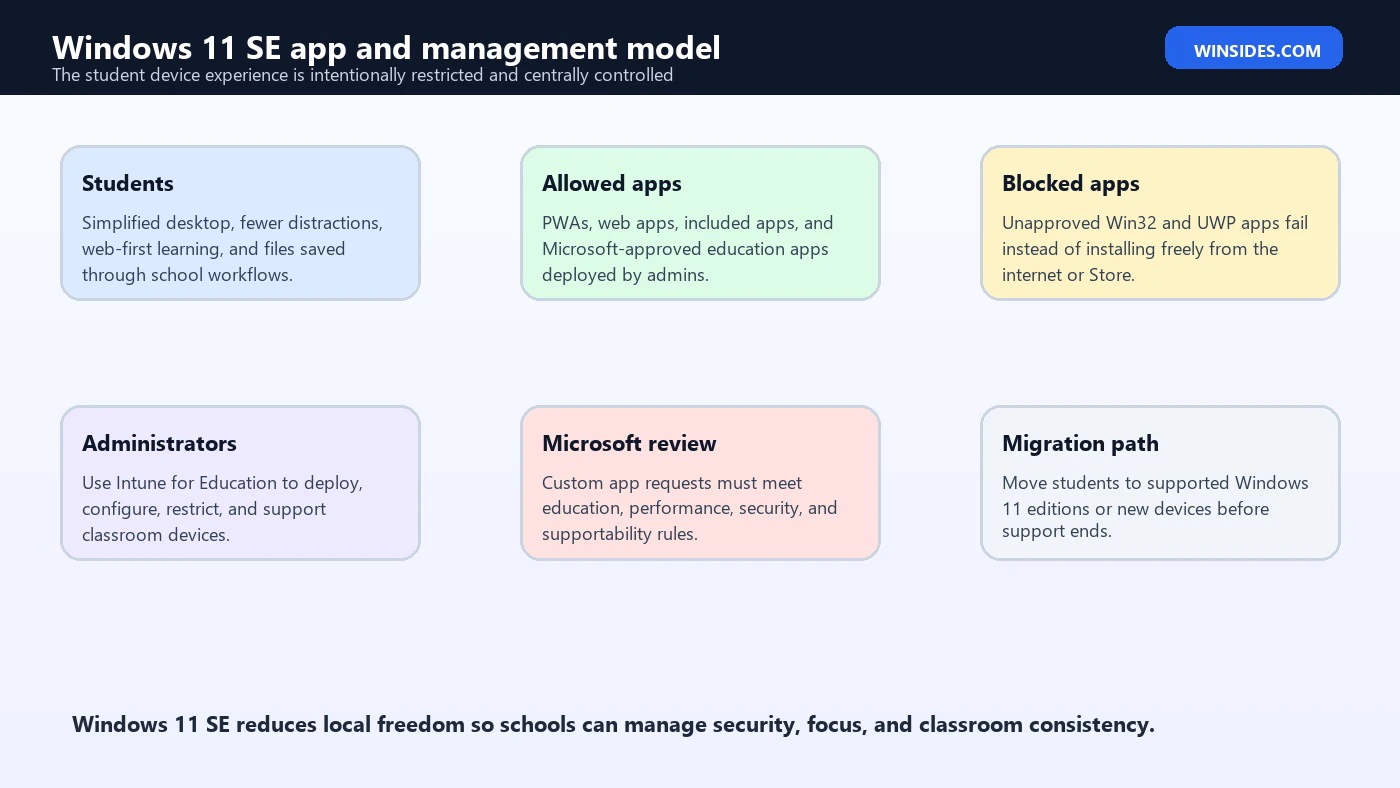
The application model is one of the defining parts of Windows 11 SE. Microsoft says Progressive Web Apps and web apps are enabled by default. It also says Win32 applications and UWP or Store apps that are not allowed will fail if users try to install or run them. That makes Windows 11 SE very different from a normal student laptop where a user might download a browser, utility, game, driver package, or desktop app without much friction.
This design has benefits. It reduces unmanaged software, lowers the chance of students installing distracting or risky applications, and keeps the device closer to the school-approved learning environment. It also helps IT avoid the sprawl that happens when every classroom, club, and individual user installs different local tools. For low-cost devices, reducing background software also helps performance and battery predictability.
The tradeoff is flexibility. A school that depends on a niche desktop app, test-taking client, accessibility utility, lab tool, printer utility, or classroom management agent must check whether that app is available, allowed, and deployable. Microsoft provides an app request path for specific Win32 or UWP applications that are not already available, and it reviews app categories, performance, security, code signing, driver signing, supportability, and whether the app has an equivalent web application.
That review model is useful, but it is not instant freedom. It means schools should validate curriculum apps before buying or renewing Windows 11 SE hardware. A tool that works on a normal Windows 11 Education laptop may not be deployable on Windows 11 SE unless it fits the allowed education app path. This is especially important for state testing, assistive technology, content filtering, classroom monitoring, and special education workflows.
Included Apps and Classroom Experience
Windows 11 SE includes a set of Microsoft and education-relevant apps. Microsofts list includes apps such as Microsoft Edge, File Explorer, Office apps including Word, Excel, PowerPoint, and OneNote, Teams, OneDrive, Paint, Calculator, Camera, Minecraft Education, Whiteboard, Media Player, Settings, and other standard tools. The exact value is not that every included app is exciting; the value is that the student device starts with the common classroom basics already present.
The experience is designed around school work rather than personal PC customization. A student can open documents, use a browser, join class communication, access learning portals, and save work through school-managed storage. At the same time, the device gives administrators fewer local app surprises. That can be helpful in younger grades, shared device carts, or schools where classroom time is easily lost to setup issues.
Teachers may still notice differences. Some ordinary Windows software may not run, some settings may be hidden or locked, and local storage behavior may feel more cloud-oriented. This does not mean the device is broken. It means the school chose a restricted device strategy. The classroom rollout should include teacher-facing notes so staff understand what students can and cannot do before the first lesson depends on it.
Intune for Education Management
Remote management is central to Windows 11 SE. Microsoft highlights that IT admins can remotely manage Windows 11 SE devices using Microsoft Intune for Education. That is where schools deploy supported apps, configure policies, control settings, assign devices or groups, and keep the student experience aligned with school requirements. For small schools, the appeal is simpler device control. For larger districts, the appeal is consistent fleet behavior.
Intune for Education is not just a convenience layer. On a restricted edition like Windows 11 SE, central management is how the device becomes useful at scale. Without a clear Intune structure, the restrictions can frustrate users because there is no quick local workaround. With a clear structure, IT can predefine app availability, storage expectations, browser access, security posture, and classroom device groups.
Administrators should document management intent before the device reaches students. Which groups receive which apps? Which devices are shared? Which are one-to-one? Which grades need testing browsers? Which users need assistive technology? Which policies differ by school? Which support desk scripts cover reset, re-enrollment, lost device, graduation, and device retirement? The more restricted the endpoint, the more important the management design becomes.
Settings, Storage, and Student Restrictions
Microsofts Windows 11 SE settings list explains that Windows 11 SE automatically configures certain settings and features, and that administrators can customize some of them with Microsoft Intune. Examples include blocking manual MDM unenrollment, allowing or hiding certain File Explorer locations, configuring allowed folders, blocking local and network storage locations, hiding widgets, disabling advertising ID, enabling app install control, and configuring Storage Sense cloud content dehydration behavior.
These settings reveal the philosophy of the edition. The device is supposed to stay managed. Students should not easily remove it from management. Storage should be predictable. App installation should be controlled. Cloud-first work should be encouraged. Privacy-sensitive settings should be constrained. The system is not trying to be a blank canvas; it is trying to be a managed classroom endpoint.
Administrators should test these defaults against real classroom behavior. For example, blocking local drives can reduce risk, but some classes may expect students to import files from USB storage or save local project assets. Cloud dehydration can help storage on low-cost hardware, but it can also affect offline availability. App install control reduces unmanaged software, but it can surface when a legitimate class resource expects a local helper app. The right question is not whether the restriction is good or bad in theory; it is whether the restriction matches the schools workflow.
Security and Privacy Benefits
Windows 11 SE can reduce several common school endpoint risks. A curated allowlist reduces unmanaged software. Central management reduces local drift. Limited student control reduces accidental breakage. Cloud-first storage can reduce the risk of assignments being stranded on a single device. Blocking manual unenrollment helps keep the device connected to school policy. For younger users and shared carts, that predictability can be valuable.
Privacy is also part of the design. Microsoft describes Windows 11 SE as prioritizing student privacy, and the settings list includes disabling advertising ID behavior. For schools, this aligns with the broader need to protect student data, minimize unnecessary tracking, and keep the device focused on education. Technical controls do not replace policy, but they help make the policy easier to enforce.
Security benefits should still be evaluated honestly. A restricted operating system does not remove the need for identity protection, browser filtering, phishing awareness, device encryption strategy, update monitoring, incident response, and account lifecycle management. Windows 11 SE narrows the local device surface, but the schools cloud accounts and web services remain part of the security model.
Limitations and Tradeoffs
The main tradeoff is that Windows 11 SE is less flexible than a normal Windows laptop. That is the point, but it can still surprise users. A teacher may ask for a desktop app that is not allowed. A student may need a specialized accessibility tool. A testing provider may update requirements. A printer or lab device may rely on a local utility. A club activity may need software outside the normal classroom catalog. Each of these situations is solvable only if it fits the approved app model or if the school changes device strategy.
Another limitation is the lifecycle. In 2024 or 2025, Windows 11 SE may have made sense as a managed low-cost classroom device. In 2026, any new decision has to include the October 2026 support end. A school should not buy a large number of SE devices without understanding that the supported runway is short. Existing devices can still be used during the remaining support period, but planning should be active.
There is also a communication tradeoff. Because SE devices look like Windows devices, users may expect all normal Windows guidance to apply. IT teams should be clear that Windows 11 SE is a managed school edition with intentional limits. That reduces support tickets caused by users trying to install apps, change storage behavior, remove management, or use unsupported workflows.
When Windows 11 SE Still Makes Sense
Windows 11 SE can still make sense in a limited window for existing fleets and specific classrooms. If a school already owns SE devices, the devices are healthy, the required apps are approved, students work mainly through Edge, Microsoft 365, Teams, OneDrive, and web learning platforms, and the school has a replacement plan before October 2026, continuing to use the fleet through its supported life may be reasonable.
It can also make sense where a restricted student environment is more important than local app flexibility. Younger grades, shared carts, exam-focused devices, and simple web-first classroom workflows may benefit from a device that does fewer things and therefore breaks in fewer ways. The key is to avoid mistaking a good short-term fit for a long-term platform decision.
For new procurement, the calculus is different. A school should compare the remaining support runway, device cost, management cost, app compatibility, teacher needs, and replacement timing against supported alternatives. If the device will need replacement or migration within months, a cheaper purchase may not be cheaper after deployment, training, and retirement work are counted.
Migration Planning Before October 2026
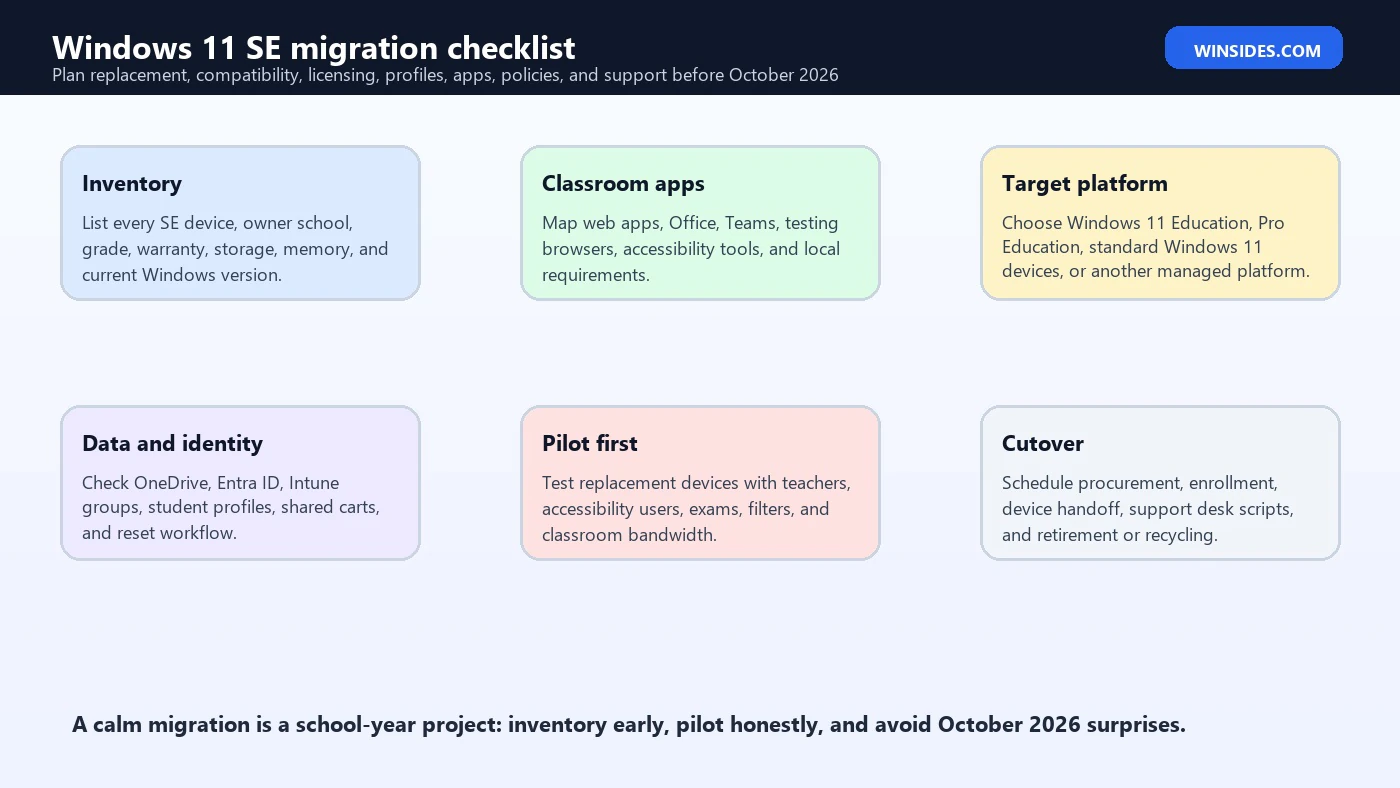
The cleanest Windows 11 SE migration starts with inventory. List every device, model, serial, assigned location, student group, warranty, memory, storage, battery health, operating system version, last check-in, and management group. Then map each device to classroom use. A device used for general browsing and Office work has a different migration risk than a device used for accessibility, testing, lab equipment, or specialized instruction.
Next, build an app and workflow map. Identify web apps, PWAs, Microsoft 365 apps, Teams, OneDrive, testing browsers, filtering agents, classroom management tools, assistive technology, printing requirements, VPN requirements, and any local utilities. Confirm whether each workflow works on the target platform. If the target is Windows 11 Education or Pro Education, test the same policies in Intune. If the target is a different device ecosystem, test identity, file access, and teacher workflow early.
Finally, plan the cutover. Decide whether devices will be replaced by grade, school, cart, or semester. Decide what happens to OneDrive data, local files, user profiles, asset tags, chargers, carts, warranties, and recycling. Prepare help desk scripts for enrollment, sign-in, missing apps, testing day, accessibility users, and device return. A Windows 11 SE migration is not only an operating system replacement; it is a classroom continuity project.
Replacement Options for Schools
The closest Windows replacement is usually a supported Windows 11 edition managed through Intune, such as Windows 11 Education or Pro Education, depending on licensing and school agreements. That path keeps the Windows app ecosystem, Microsoft 365 integration, familiar keyboard shortcuts, File Explorer, and broader compatibility. It also lets administrators apply policies without the same SE-specific app limitations.
The tradeoff is that broader Windows flexibility requires stronger policy design. If students receive standard Windows 11 devices, IT needs to decide how much to lock down with Intune, Microsoft Defender, app control, browser policy, local admin restrictions, storage rules, and account policy. A normal Windows device can be more capable, but it can also create more support overhead if left too open.
Some schools may evaluate non-Windows education devices as well. That can be valid if the curriculum is fully web-based and management is mature. The comparison should be honest: identity, accessibility, testing, teacher tools, content filtering, printing, offline needs, device repair, and app availability all matter. The right replacement is the one that preserves classroom work with the least risk, not merely the one that looks cheapest on a quote.
Decision Matrix for Administrators
| Question | If the answer is yes | Suggested action |
|---|---|---|
| Do you already own Windows 11 SE devices? | The fleet can remain useful during support. | Keep it managed, monitor health, and schedule replacement before October 2026. |
| Are critical apps web-based or approved? | The SE app model fits the classroom. | Continue with clear teacher communication and migration planning. |
| Do classes need unapproved desktop apps? | The SE model may block essential work. | Move affected groups to a broader managed Windows edition or another validated platform. |
| Are devices near warranty or battery failure? | Hardware risk may exceed operating system risk. | Prioritize replacement by condition, not only by grade or school. |
| Do you need the fleet beyond October 2026? | Unsupported use becomes a security and compliance concern. | Budget, pilot, and migrate before support ends. |
| Are state tests or accessibility tools involved? | Testing and accommodations carry high operational risk. | Pilot early with the exact provider, user group, and support process. |
This matrix prevents a common mistake: treating all Windows 11 SE devices the same. A healthy device cart used for web reading in a lower-risk classroom can be scheduled later than a testing lab that needs strict compliance. A school with a simple web curriculum has a different migration risk than a school using local assistive technology. The right order is based on instructional impact.
What Not to Do
Do not assume Windows 11 SE can be converted casually into a long-term general-purpose Windows laptop. The edition exists for a specific managed education use case, and Microsoft has announced its support end. If the school needs a general Windows endpoint after October 2026, plan a supported replacement path rather than trying to stretch SE beyond its lifecycle.
Do not build the migration plan around vague app names. Test exact applications, exact versions, exact user groups, exact policies, and exact classroom networks. A browser-based learning platform may work everywhere, while a testing browser, printing utility, or accessibility driver may have specific requirements. The stricter the classroom deadline, the earlier the pilot should happen.
Do not ignore teachers and support staff. A technically successful device swap can still fail if teachers discover missing tools during class. Publish a simple compatibility list, known changes, sign-in instructions, where files will live, what students should do if an app is missing, and how staff report a classroom-blocking issue.
Evidence to Collect Before Migration
| Evidence | Why it matters | Owner |
|---|---|---|
| Device inventory | Shows how many SE devices exist, where they are, and which need replacement first. | IT asset team |
| App catalog | Identifies web apps, PWAs, approved apps, testing tools, and unsupported local needs. | IT and curriculum leads |
| Intune groups and policies | Reveals how current controls map to replacement devices. | Endpoint administrators |
| User data pattern | Confirms OneDrive, local storage, shared carts, and profile reset behavior. | IT support |
| Accessibility requirements | Protects students who depend on assistive technology or accommodations. | Special education and IT |
| Testing requirements | Prevents exam-day failure from unsupported browsers, lockdown clients, or filters. | Assessment coordinators |
| Teacher feedback | Finds classroom blockers before full rollout. | School leadership |
| Budget and procurement dates | Turns the October 2026 deadline into a workable purchase and deployment schedule. | Administration |
Good evidence changes the conversation from we need new laptops to we need this many supported devices, for these classrooms, by these dates, with these apps and policies validated. That is the level of detail that prevents emergency replacements, unsupported endpoints, and rushed classroom disruption.
Frequently Asked Questions
What is Windows 11 SE?
Windows 11 SE is an education-focused edition of Windows 11 designed for school-managed, web-first student devices. It is simplified, restricted, and managed through education IT workflows.
Can I download Windows 11 SE and install it?
No. Microsoft describes Windows 11 SE as available only preinstalled on devices from OEMs. It is not a normal retail Windows edition for general installation.
When does Windows 11 SE support end?
Microsoft says support for Windows 11 SE ends in October 2026, including software updates, technical assistance, and security fixes.
What is the last Windows 11 SE version?
Microsoft says it will not release a feature update after Windows 11 SE, version 24H2.
Is Windows 11 SE the same as Windows 11 Education?
No. Windows 11 Education is a broader managed Windows edition. Windows 11 SE is a more restricted education edition for specific school-managed, web-first devices.
Can Windows 11 SE run normal desktop apps?
Only approved or available apps fit the Windows 11 SE model. Microsoft says unapproved Win32 and UWP apps fail if users try to install or execute them.
How are Windows 11 SE devices managed?
Schools manage them with tools such as Microsoft Intune for Education, using policies, app deployment, settings, and device groups.
Should schools keep using Windows 11 SE after October 2026?
A device may continue to work, but Microsoft recommends transitioning to another Windows 11 edition to ensure continued support and security. Schools should plan supported migration before the deadline.
Conclusion: Treat Windows 11 SE as a Transition Plan
Windows 11 SE made sense as a focused education edition: web-first, school-managed, privacy-aware, simpler for students, and easier for IT to control at scale. Its curated app model, preinstalled-only availability, and Intune for Education management all serve that classroom purpose. The same qualities that make it useful also make it a poor fit for users who expect a flexible general-purpose Windows PC.
In 2026, the lifecycle is the center of the story. Microsoft says Windows 11 SE support ends in October 2026 and that version 24H2 is the final feature update. That means every existing SE fleet needs an inventory, app review, support plan, and replacement schedule. The safest schools will not wait for the last month; they will pilot replacement devices, validate classroom apps, communicate with teachers, and move students before the deadline becomes urgent.
If your Windows 11 SE devices are still healthy and the classroom workflow fits the restrictions, use the remaining supported time wisely. If the restrictions are already blocking instruction or critical apps, start the move sooner. The goal is not to abandon useful devices overnight. The goal is to make sure students, teachers, IT staff, and school data remain on a supported, secure, and practical platform after Windows 11 SE reaches the end of its supported life.
For more interesting articles, stay tuned to Winsides.com!









Community
Comments (0)