

Introduction to atikmpag.sys and its Role
Encountering a system crash or a perplexing Blue Screen of Death (BSOD) on your Windows 11 machine can be a frustrating experience. Among the myriad of potential error messages, one that frequently troubles users with AMD graphics hardware is related to atikmpag.sys. This seemingly obscure file is, in fact, a critical component of your AMD graphics driver, acting as a bridge between your operating system and your graphics processing unit (GPU). For additional context, see AMD Support website and Bug Check Code Reference on Microsoft Learn.
When atikmpag.sys malfunctions, it can lead to a cascade of issues, ranging from minor display glitches to complete system freezes and the dreaded BSOD, often accompanied by messages like VIDEO_TDR_FAILURE. Such errors not only disrupt your workflow but can also indicate deeper underlying problems with your system’s stability or hardware health.
Understanding the role of atikmpag.sys on Windows 11 and the common reasons for its failure is the first step towards a stable and reliable computing experience. This comprehensive guide will arm you with the knowledge and actionable steps needed to diagnose, troubleshoot, and ultimately resolve these persistent graphics driver issues, restoring peace to your digital life.
We will delve into everything from basic driver updates to advanced system file repairs and hardware diagnostics, ensuring you have a systematic approach to tackle this challenging problem. Resolving atikmpag.sys errors is crucial for maintaining optimal performance and preventing potential damage to your system components.
Table of contents
Key Takeaways for Resolving atikmpag.sys Errors
Before diving into the detailed troubleshooting steps, here’s a quick summary of the most crucial information and actionable advice to address atikmpag.sys on Windows 11 issues effectively:
- Update Drivers First: Always start by ensuring your AMD graphics drivers are the latest stable version directly from AMD’s website or through AMD Radeon Software.
- Roll Back if Necessary: If new drivers cause issues, know how to roll back to a previously stable version using Device Manager.
- Address Overclocking/Heat: Temporarily disable any GPU or CPU overclocking and monitor system temperatures to rule out instability caused by excessive heat.
- Manual File Replacement: For persistent issues, learn how to manually extract and replace a potentially corrupt atikmpag.sys file from a fresh driver package.
- System File Integrity: Utilize Windows built-in tools like SFC and DISM to scan and repair corrupted system files that might be affecting driver operation.
- Clean Driver Installation: When all else fails, perform a complete clean installation of your graphics drivers using a utility like DDU to eliminate residual conflicts.
- Hardware Diagnostics: If software solutions don’t work, test your graphics card, RAM, and power supply for potential hardware malfunctions.
Understanding the atikmpag.sys File on Windows 11
To effectively troubleshoot issues related to atikmpag.sys on Windows 11, it’s essential to first understand what this file is and its integral role within your system. This knowledge forms the foundation for diagnosing and resolving the problems you might be encountering.
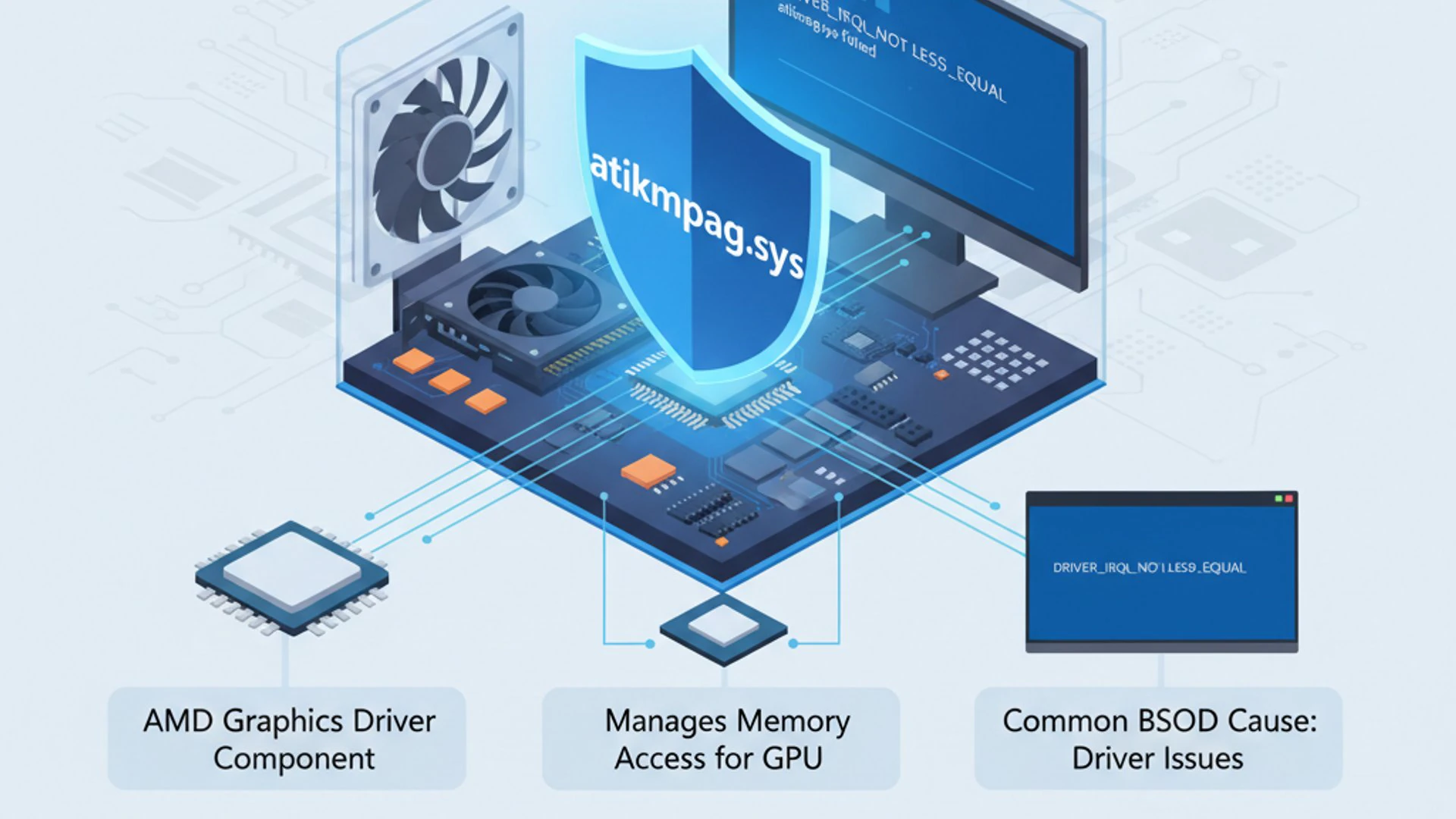
The atikmpag.sys file is not just a random system component; it’s a critical piece of software that facilitates communication between your operating system and your AMD graphics hardware. Its proper functioning is paramount for stable display output and graphics performance.
What is atikmpag.sys?
atikmpag.sys stands for “ATI Kernel Mode Driver Package.” It is a core driver file associated with AMD (formerly ATI) graphics cards. This file operates in the kernel mode of Windows 11, meaning it has direct access to the system’s hardware and memory.
Its primary function is to translate commands from the operating system and applications into instructions that your AMD GPU can understand and execute. This includes everything from rendering complex 3D graphics in games to simply displaying your desktop interface.
Because it operates at such a fundamental level, any corruption or malfunction within atikmpag.sys can have severe consequences for system stability. It’s a cornerstone of your graphics subsystem, and its integrity is vital for a smooth computing experience.
When this driver encounters an unrecoverable error, Windows 11 often triggers a Blue Screen of Death (BSOD) to prevent potential data corruption or further system damage. This protective measure highlights the critical nature of this particular system file.
Common Symptoms of atikmpag.sys Errors
Identifying the symptoms associated with atikmpag.sys on Windows 11 is crucial for confirming that this is indeed the root cause of your system’s woes. These symptoms can range from minor annoyances to complete system shutdowns, all pointing towards a graphics driver issue.
Recognizing these signs early can help you initiate troubleshooting before the problem escalates, potentially saving you from more severe system instability or data loss. Pay close attention to any unusual behavior related to your display or overall system performance.
Blue Screen of Death (BSOD) Messages
The most dramatic and unambiguous symptom of an atikmpag.sys error is a Blue Screen of Death. When this occurs, your system will abruptly halt, display a blue screen with an error message, and then often restart automatically.
Common BSOD messages associated with atikmpag.sys on Windows 11 include:
- VIDEO_TDR_FAILURE (atikmpag.sys): This is perhaps the most direct indicator, explicitly naming the problematic file. TDR stands for Timeout Detection and Recovery, a Windows feature that attempts to reset the graphics driver if it stops responding. If it fails, a BSOD occurs.
- DRIVER_IRQL_NOT_LESS_OR_EQUAL (atikmpag.sys): This error often indicates a driver attempting to access memory it shouldn’t, frequently pointing to a faulty or incompatible driver.
- PAGE_FAULT_IN_NONPAGED_AREA (atikmpag.sys): This suggests that the system tried to access a page of memory that was not available, which can be caused by corrupted drivers or faulty hardware.
These messages provide direct clues that your AMD graphics driver, specifically the atikmpag.sys component, is at the heart of your system’s instability. Documenting the exact error message can be helpful for further research.
System Instability and Crashes
Beyond the outright BSODs, atikmpag.sys errors can manifest as a range of less severe but equally disruptive symptoms. These indicate that the driver is struggling but hasn’t yet triggered a full system crash.
- Frequent Freezes and Stuttering: Your system might intermittently freeze, especially when performing graphics-intensive tasks like gaming or video editing.
- Display Artifacts: You might notice strange visual anomalies on your screen, such as flickering, colored dots, lines, or corrupted textures.
- Application Crashes: Games or other graphics-heavy applications may crash unexpectedly, often without a clear error message from the application itself.
- Black Screens: Your display might go black for a few seconds before recovering, sometimes accompanied by a notification that the display driver stopped responding and has recovered.
- Slow Performance: Overall system performance might degrade, with noticeable lag even during simple tasks, as the graphics driver struggles to function correctly.
These symptoms, particularly when combined, strongly suggest an issue with your AMD graphics driver. Addressing them promptly can prevent more severe system failures and ensure a smoother computing experience with atikmpag.sys on Windows 11.
Primary Causes of atikmpag.sys Errors
Understanding the common culprits behind atikmpag.sys on Windows 11 errors is crucial for effective troubleshooting. Issues with this file rarely appear without a reason; they are typically symptoms of underlying problems that need to be addressed.
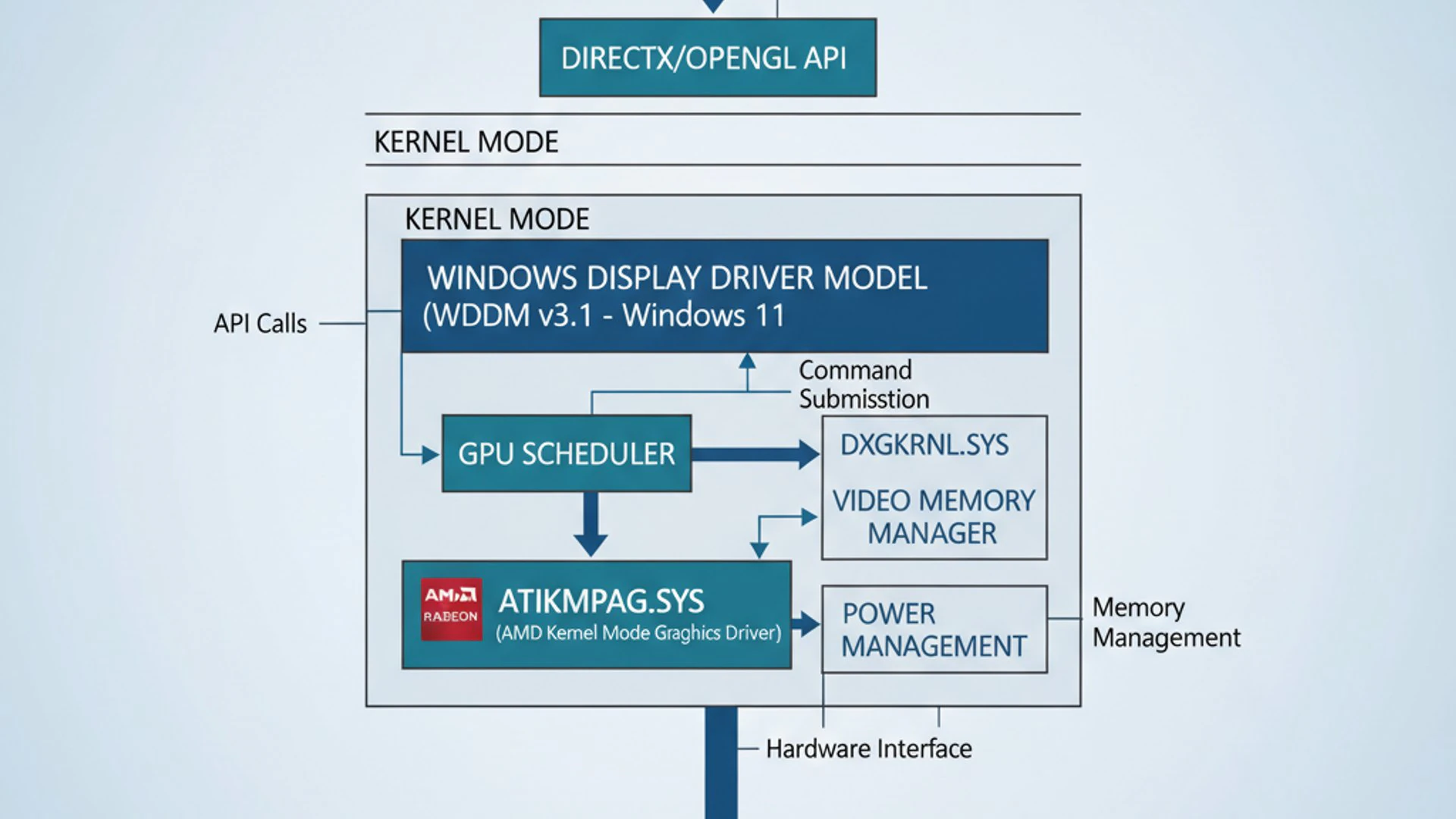
These causes can range from simple software conflicts to more complex hardware failures. A systematic approach to identifying the root cause will significantly improve your chances of a successful resolution.
Outdated or Corrupt AMD Graphics Drivers
The most frequent cause of atikmpag.sys errors is related to the AMD graphics drivers themselves. Drivers are software programs that allow your operating system to communicate with your hardware. If these drivers are not up-to-date or become corrupted, communication breaks down.
Outdated drivers may lack compatibility with the latest Windows 11 updates or newer applications, leading to instability. Graphics card manufacturers regularly release new drivers to improve performance, fix bugs, and enhance compatibility.
Corrupt drivers can occur due to various reasons:
- Incomplete or interrupted driver installations.
- Conflicts with other software or drivers.
- Malware infections.
- System crashes during driver operations.
Overclocking and Overheating Issues
Pushing your hardware beyond its factory specifications through overclocking can significantly contribute to driver instability, including errors with atikmpag.sys. While overclocking aims to boost performance, it can introduce instability if not done carefully.
Increased clock speeds demand more power and generate more heat. If your cooling solution is inadequate, your GPU can quickly reach critical temperatures, leading to thermal throttling, performance degradation, and ultimately, system crashes.
Overheating can cause the GPU to become unstable, leading to errors where the driver, including atikmpag.sys, stops responding. The TDR (Timeout Detection and Recovery) mechanism might fail to recover the driver, resulting in a BSOD.
Even without explicit overclocking, poor airflow within your PC case, dust accumulation on heatsinks, or a failing fan can lead to components overheating under load. Monitoring your system’s temperatures is a crucial diagnostic step.
System File Corruption
Windows 11 relies on a vast network of system files to operate correctly. If any of these core files become corrupted, it can have a ripple effect, impacting the functionality of other components, including graphics drivers like atikmpag.sys.
Corruption can arise from various sources:
- Unexpected system shutdowns or power outages.
- Malware or virus infections.
- Faulty hard drive sectors.
- Improper software installations or uninstalls.
- Windows updates that didn’t complete successfully.
A corrupted system file might prevent atikmpag.sys from loading correctly, interacting with the system as expected, or even being accessed by the operating system. This can lead to a variety of errors, including BSODs.
Fortunately, Windows 11 includes built-in tools like System File Checker (SFC) and Deployment Image Servicing and Management (DISM) to scan for and repair such corruption. These tools are invaluable for maintaining system integrity.
Hardware Malfunctions
While often attributed to software, atikmpag.sys errors can sometimes be a symptom of underlying hardware malfunctions. If your graphics card, RAM, or even your power supply unit (PSU) is failing, it can manifest as driver-related issues.
A faulty graphics card might not be able to process instructions correctly, leading to driver crashes. Similarly, issues with system RAM can cause data corruption when the driver attempts to load or store information, triggering errors.
An insufficient or unstable power supply can also starve your GPU of the necessary power, especially under load, leading to instability and driver failures. This is particularly relevant for high-performance graphics cards that demand significant power.
Diagnosing hardware issues can be more challenging, often requiring specialized testing or component replacement. However, it’s a critical step if software-based solutions fail to resolve the persistent atikmpag.sys on Windows 11 errors.
Step-by-Step Troubleshooting: Initial Checks
When faced with atikmpag.sys on Windows 11 errors, it’s best to start with the simplest and most common solutions before moving to more complex diagnostics. These initial checks often resolve the issue without extensive effort.
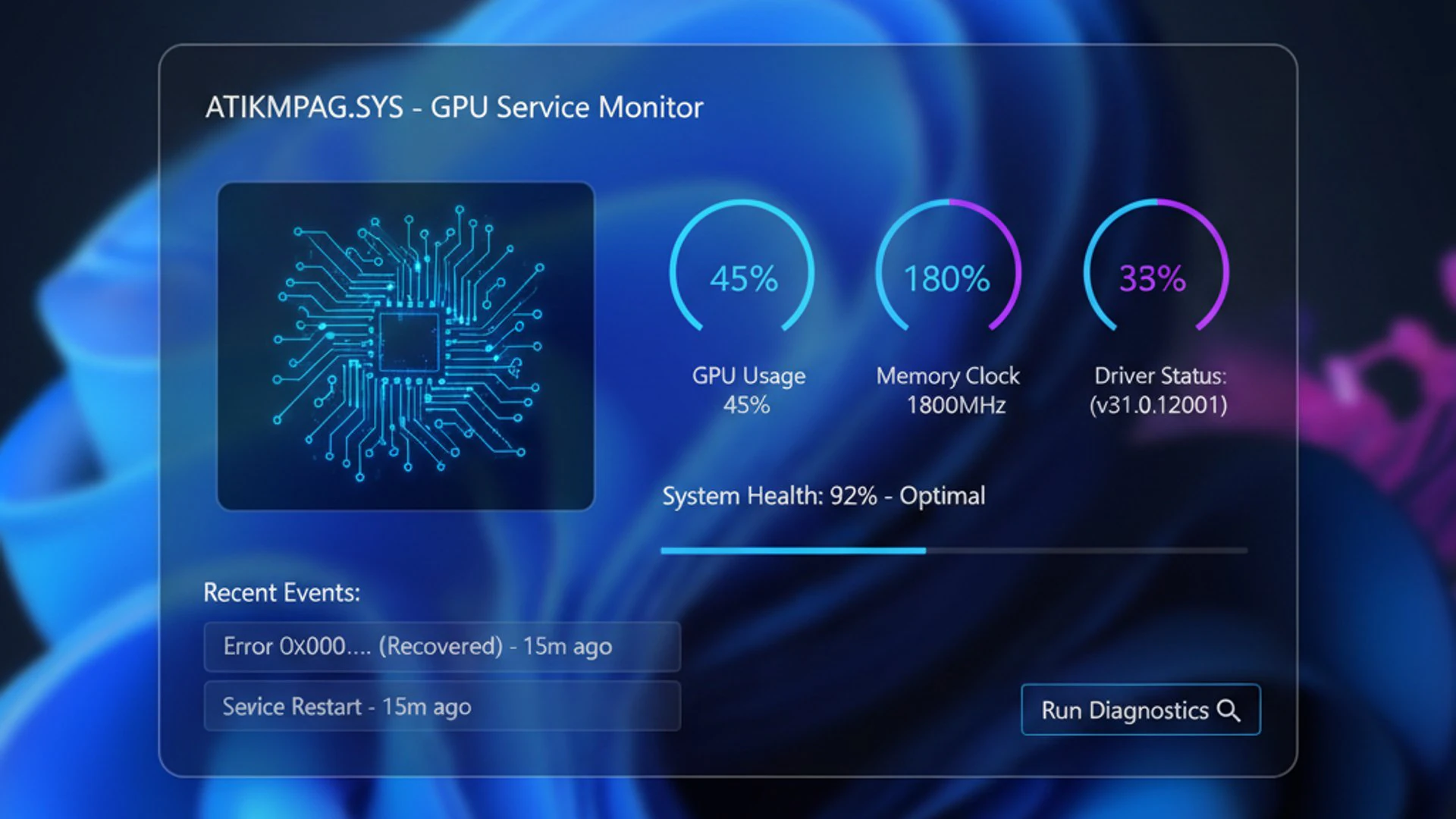
The goal here is to address the most probable causes first, such as outdated drivers or unstable system conditions. A systematic approach will save you time and frustration.
Update Your AMD Graphics Drivers
Outdated or corrupted drivers are the leading cause of atikmpag.sys errors. Ensuring your AMD graphics drivers are up-to-date is often the most effective first step. There are two primary methods to achieve this, both offering slightly different approaches.
Always prioritize obtaining drivers directly from the manufacturer to ensure compatibility and stability. Generic drivers provided by Windows Update might not always be the most optimized version for your specific hardware.
Using Device Manager
The Device Manager is a built-in Windows tool that allows you to manage all hardware devices connected to your system, including graphics cards. It’s a straightforward way to check for and update drivers.
- Press
Windows Key + Xand select Device Manager from the menu. - Expand the Display adapters section.
- Right-click on your AMD graphics card (e.g., AMD Radeon Graphics) and select Update driver.
- Choose Search automatically for drivers. Windows will then attempt to find and install the latest driver software available through Windows Update.
- If Windows finds a newer driver, follow the on-screen prompts to install it and then restart your computer.
While convenient, Device Manager might not always pull the absolute latest drivers directly from AMD. For the most current versions, the next method is usually preferred.
Using AMD Radeon Software
AMD Radeon Software (formerly Radeon Settings) is the official utility provided by AMD for managing and updating their graphics drivers. It offers the most comprehensive and up-to-date driver packages.
- Visit the official AMD Driver & Support website.
- Use the auto-detect tool or manually select your graphics card model from the list.
- Download the latest recommended driver package for Windows 11.
- Run the downloaded installer. It will typically guide you through the process of installing or updating your drivers. Choose the “Factory Reset” option if available, as this performs a cleaner install by removing previous driver components.
- Follow all on-screen instructions, which may include restarting your computer multiple times.
Always download drivers from the official AMD website to avoid potential malware or incompatible software. This ensures you get the most stable and optimized drivers for your specific GPU, which is critical for resolving atikmpag.sys on Windows 11 errors.
Roll Back Graphics Drivers
Sometimes, a newly installed driver update, even from official sources, can introduce new problems or conflicts, leading to atikmpag.sys on Windows 11 errors. In such cases, rolling back to a previous, stable driver version can be an effective solution.
- Press
Windows Key + Xand open Device Manager. - Expand Display adapters and right-click on your AMD graphics card.
- Select Properties.
- Go to the Driver tab.
- Click on the Roll Back Driver button. If the button is grayed out, it means there’s no previous driver version to roll back to.
- Provide a reason for rolling back if prompted, then click Yes.
- Restart your computer to apply the changes.
If rolling back resolves the issue, you might want to temporarily prevent Windows from automatically updating that specific driver until AMD releases a more stable version. You can find options for this in Windows Update settings or by using specific utilities.
Disable Overclocking and Monitor Temperatures
If you’ve overclocked your CPU or GPU, or if your system tends to run hot, these factors can directly contribute to atikmpag.sys on Windows 11 errors. Temporarily disabling overclocking and monitoring temperatures are crucial diagnostic steps.
- Disable Overclocking:
- If you used software like MSI Afterburner or AMD Radeon Software to overclock, revert all settings to their default values.
- If you overclocked via your motherboard’s BIOS/UEFI, restart your computer, enter the BIOS/UEFI setup (usually by pressing Del or F2 during boot), and load optimized defaults or manually disable any overclocking profiles. Save and exit.
- Monitor Temperatures:
- Download and install a reliable hardware monitoring tool such as HWMonitor or MSI Afterburner (even if not overclocking, its monitoring features are useful).
- Run the monitoring tool in the background while performing tasks that usually trigger the atikmpag.sys error (e.g., gaming, video editing).
- Pay close attention to your GPU and CPU temperatures. GPU temperatures consistently above 85-90°C (185-194°F) under load are often indicative of overheating.
If disabling overclocking or improving cooling (e.g., cleaning dust, improving airflow) resolves the issue, then overheating or an unstable overclock was the culprit. Consider a more robust cooling solution or a less aggressive overclock if you wish to re-enable it.
Pro Tip: Ensure your PC’s internal components are free from dust. A clogged heatsink can drastically reduce cooling efficiency, leading to higher temperatures and potential hardware instability. Regular cleaning is a simple yet effective maintenance task.
Advanced Troubleshooting Methods
When initial checks don’t resolve the atikmpag.sys on Windows 11 errors, it’s time to delve into more advanced troubleshooting. These methods address deeper software and file integrity issues that might be causing the problem.
These steps involve a bit more technical expertise but are crucial for diagnosing persistent problems. Proceed carefully, following each instruction precisely to avoid further complications.
Replace Corrupt atikmpag.sys File (Manual Method)
If you suspect the atikmpag.sys file itself is corrupted and driver updates haven’t fixed it, you can manually replace it with a fresh copy extracted from an official AMD driver package. This method ensures you have a known good version of the file.
This process requires careful attention to detail, as incorrect file manipulation can lead to further system instability. Always work from a fresh, official driver download.
Extracting from AMD Driver Package
- Download the latest stable AMD graphics driver package for your specific GPU from the official AMD website.
- Do NOT run the installer yet. Instead, locate the downloaded executable file (e.g., radeon-software-adrenalin-2020-edition-20.11.2-win10-64bit.exe).
- You need to extract its contents. You can often do this by running the installer and letting it extract files to a temporary location (usually
C:\AMDorC:\Program Files\AMD) before canceling the actual installation. Alternatively, use a file archiving tool like 7-Zip or WinRAR to open the executable and extract its contents to a new folder. - Navigate into the extracted folder structure. You’re looking for a subfolder named
Packages\Drivers\Display\WT6A_INF(or similar, the exact path might vary slightly depending on the driver version). - Inside this folder, you should find a file named atikmpag.sy_ (note the underscore). This is the compressed version of the file you need.
- Open Command Prompt as an administrator (search for “cmd”, right-click, and select “Run as administrator”).
- Navigate to the folder containing atikmpag.sy_ using the
cdcommand (e.g.,cd "C:\AMD\Packages\Drivers\Display\WT6A_INF"). - Use the
expandcommand to decompress the file:expand atikmpag.sy_ atikmpag.sys. This will create an uncompressed atikmpag.sys file in the same directory.
This newly extracted atikmpag.sys file is a pristine, uncorrupted version ready for replacement. Keep this Command Prompt window open for the next step.
Replacing the File in System32
Now that you have a fresh atikmpag.sys file, you need to replace the potentially corrupt one in your system directory. This step requires booting into Safe Mode to ensure the file isn’t in use.
- Restart your computer and boot into Safe Mode with Networking. You can usually do this by holding
Shiftwhile clicking Restart, then navigating to Troubleshoot > Advanced options > Startup Settings > Restart, and selecting option 5. - Once in Safe Mode, open Command Prompt as an administrator again.
- Navigate to the
C:\Windows\System32\driversdirectory:cd C:\Windows\System32\drivers. - Rename the existing (potentially corrupt) atikmpag.sys file:
ren atikmpag.sys atikmpag.sys.old. This creates a backup in case you need to revert. - Copy the newly extracted atikmpag.sys file from its temporary location (from the previous step) to the
C:\Windows\System32\driversfolder. Use the command:copy "C:\Path\To\Extracted\atikmpag.sys" C:\Windows\System32\drivers\(replaceC:\Path\To\Extracted\atikmpag.syswith the actual path to your extracted file). - Once the copy is complete, restart your computer normally.
After restarting, your system will be using the fresh atikmpag.sys file. This can often resolve issues caused by specific file corruption that driver reinstalls might not fully address.
Run System File Checker (SFC) and DISM
Corrupted system files can indirectly affect driver functionality, including atikmpag.sys on Windows 11. Windows provides powerful built-in tools, SFC and DISM, to scan for and repair such corruption. It’s a good practice to run these utilities regularly, especially after system crashes.
These tools work by comparing your current system files against known good versions, replacing any that are found to be damaged or altered. They are essential for maintaining the overall health of your Windows installation.
- Open Command Prompt as Administrator: Search for “cmd”, right-click on “Command Prompt”, and select “Run as administrator”.
- Run DISM first (Deployment Image Servicing and Management): This tool repairs the Windows system image, which SFC relies on.
- Type
DISM /Online /Cleanup-Image /RestoreHealthand press Enter. - This process can take several minutes to complete. Do not close the window until it finishes.
- Type
- Run SFC (System File Checker): After DISM, run SFC to scan and repair individual system files.
- Type
sfc /scannowand press Enter. - This scan also takes some time. Wait for it to complete and report its findings.
- Type
- Review Results:
- If SFC reports “Windows Resource Protection found corrupt files and successfully repaired them,” restart your computer.
- If it reports “Windows Resource Protection found corrupt files but was unable to fix some of them,” you might need to run the commands again, or consider more drastic measures like a system restore or clean install.
Running these commands can resolve underlying system integrity issues that might be preventing atikmpag.sys from functioning correctly, thereby improving overall system stability. For more on system health, you might find information on optimizing ReFS Dedup Service on Windows 11 helpful.
Perform a Clean Installation of Graphics Drivers
Sometimes, even a standard driver update leaves behind residual files or registry entries from previous installations, leading to conflicts that manifest as atikmpag.sys on Windows 11 errors. A clean installation completely removes all traces of old drivers before installing new ones.
This method is highly recommended if you’ve tried multiple driver updates or rollbacks without success. It ensures a fresh start for your graphics subsystem, eliminating potential software conflicts.
- Download the Latest Drivers: Download the latest AMD graphics drivers for your GPU from the official AMD website, but do NOT install them yet.
- Download Display Driver Uninstaller (DDU): Download the latest version of DDU from Guru3D’s website.
- Boot into Safe Mode: Restart your computer and boot into Safe Mode with Networking (as described in the manual file replacement section).
- Run DDU:
- Extract and run DDU.
- Select GPU and then AMD from the dropdown menus.
- Click on Clean and restart. DDU will thoroughly remove all AMD graphics driver components and then restart your system.
- Install New Drivers: Once your computer restarts into normal Windows mode, run the AMD driver installer you downloaded in step 1.
- Follow Prompts: Follow the on-screen instructions to perform a fresh installation of your graphics drivers. Restart your computer if prompted.
A clean driver installation is often the most effective software-based solution for persistent graphics driver issues, as it eliminates any lingering conflicts or corrupted files that might be causing problems with atikmpag.sys.
Check for Windows Updates
Microsoft regularly releases Windows updates that include bug fixes, security patches, and sometimes updated drivers or compatibility improvements. An outdated Windows 11 installation can sometimes lead to conflicts with graphics drivers, resulting in atikmpag.sys on Windows 11 errors.
Ensuring your operating system is fully up-to-date can resolve compatibility issues and provide a more stable environment for your hardware and drivers.
- Press
Windows Key + Ito open Settings. - Click on Windows Update in the left-hand pane.
- Click the Check for updates button.
- If updates are available, download and install them. Your system may require one or more restarts.
- After all updates are installed, restart your computer even if not prompted, to ensure all changes are applied correctly.
Keeping your Windows 11 installation current is a fundamental step in maintaining system stability and compatibility, potentially preventing a wide range of issues, including those related to graphics drivers.
Hardware-Related Solutions
If software-based troubleshooting doesn’t resolve the atikmpag.sys on Windows 11 errors, the problem might stem from a hardware malfunction. Diagnosing hardware issues can be more complex, but it’s a necessary step to rule out physical component failures.
These steps involve testing individual components to pinpoint the source of the instability. Always ensure your system is powered off and unplugged before physically handling any internal components.
Test Your Graphics Card
A faulty graphics card is a direct cause of atikmpag.sys errors. Testing it can confirm if the hardware itself is the problem. This can be done in a few ways:
- Stress Test: Use a benchmarking tool like FurMark or 3DMark to put your GPU under heavy load. Monitor temperatures and watch for crashes, artifacts, or performance drops. If the system crashes or shows severe artifacts during the stress test, it strongly suggests a hardware issue with the GPU.
- Test in Another PC: If possible, install your AMD graphics card into another known-good PC. If the errors persist in the second system, your graphics card is likely faulty.
- Test with Another GPU: Conversely, if you have access to a different, working graphics card, install it into your system. If the atikmpag.sys errors disappear, then your original GPU was the problem.
- Check Physical Connection: Ensure your graphics card is properly seated in its PCIe slot and that all power connectors are securely attached. A loose connection can cause intermittent issues.
If testing confirms a faulty graphics card, replacement is typically the only solution. This is a significant step, so ensure thorough testing before making such a decision.
Check RAM for Errors
Faulty Random Access Memory (RAM) can cause a wide array of system instability issues, including BSODs related to drivers like atikmpag.sys on Windows 11. Corrupted data in RAM can lead to incorrect instructions being passed to the GPU or driver, causing crashes.
Windows 11 includes a built-in memory diagnostic tool that can help identify RAM issues.
- Press
Windows Key + Rto open the Run dialog. - Type
mdsched.exeand press Enter. This will open the Windows Memory Diagnostic tool. - Select Restart now and check for problems (recommended).
- Your computer will restart and run a memory test. This can take several minutes.
- After the test, your computer will restart again. The results will typically be displayed upon logging back into Windows, or you can find them in the Event Viewer (under Windows Logs > System, look for “MemoryDiagnostics-Results”).
If the memory diagnostic tool reports errors, it indicates faulty RAM. You might need to replace the problematic RAM stick(s). If you have multiple RAM sticks, try testing them individually to pinpoint the faulty one.
Ensure Adequate Power Supply
The Power Supply Unit (PSU) is the heart of your computer, delivering power to all components. An insufficient or failing PSU can lead to instability, especially for power-hungry components like modern graphics cards, potentially triggering atikmpag.sys on Windows 11 errors.
Symptoms of a failing PSU can include random shutdowns, system freezes under load, or components not receiving enough power to function correctly.
- Check PSU Wattage: Ensure your PSU has enough wattage to comfortably power all your components, especially your graphics card. High-end GPUs often require 600W-850W or more. Check your GPU manufacturer’s recommendations.
- Check Connections: Verify that all power cables, especially the PCIe power connectors to your graphics card, are securely seated. Loose connections can cause intermittent power delivery issues.
- Test with Another PSU: If possible, test your system with a known-good, higher-wattage PSU. If the errors disappear, your original PSU was likely inadequate or faulty.
- Age of PSU: PSUs degrade over time. If your PSU is several years old, it might not be delivering its rated power efficiently, especially under load.
A stable and sufficient power supply is fundamental for system reliability. Do not underestimate its importance when troubleshooting persistent hardware-related issues.
When to Consider a System Restore or Reinstallation
After exhausting all other troubleshooting steps, if atikmpag.sys on Windows 11 errors persist, it might be time to consider more drastic measures. These options essentially reset your system’s software state, providing a clean slate.
While these steps are more time-consuming, they are often the last resort before concluding that the issue is purely hardware-related and requires component replacement.
Using System Restore Points
System Restore is a Windows feature that allows you to revert your system’s state to an earlier point in time, called a restore point. This can be incredibly useful if the atikmpag.sys errors began after a recent software installation, driver update, or system change.
It essentially undoes system changes without affecting your personal files, making it a less disruptive option than a full reinstallation.
- Press
Windows Key + R, typerstrui.exe, and press Enter to open System Restore. - Click Next.
- You will see a list of available restore points. Choose a restore point from a date and time before the atikmpag.sys errors started occurring. You can click “Show more restore points” to see additional options.
- Click Next, then Finish to confirm.
- Your computer will restart and begin the restoration process. Do not interrupt it.
If System Restore successfully completes, check if the atikmpag.sys errors are resolved. If they are, the problem was likely introduced by a software change that occurred after the chosen restore point. For comprehensive backup strategies, consider learning about System Image Backup on Windows 11.
Clean Installation of Windows 11
A clean installation of Windows 11 is the ultimate software troubleshooting step. It completely wipes your primary drive and reinstalls the operating system from scratch. This guarantees that any software conflicts, corrupted files, or deep-seated driver issues are eliminated.
This should only be considered as a last resort when all other methods, including hardware diagnostics, have failed to resolve the persistent atikmpag.sys on Windows 11 errors.
- Back Up Your Data: This is critical. A clean installation will erase everything on your C: drive. Back up all important personal files, documents, photos, and applications to an external drive or cloud storage.
- Create Windows 11 Installation Media: Download the Windows 11 Media Creation Tool from Microsoft’s website and create a bootable USB drive or DVD.
- Boot from Installation Media: Restart your computer and boot from the USB drive/DVD. You may need to adjust your BIOS/UEFI settings to change the boot order.
- Follow Installation Prompts:
- Choose your language and region.
- Click “Install now.”
- Select “Custom: Install Windows only (advanced).”
- Delete all partitions on your primary drive (usually Drive 0) and then select the unallocated space to install Windows.
- Install Drivers: After Windows 11 is installed, immediately download and install the latest AMD graphics drivers from the official AMD website. Do not rely solely on Windows Update for this.
If atikmpag.sys errors persist even after a clean installation of Windows 11 and fresh drivers, it almost definitively points to a hardware problem that needs physical repair or replacement.
Preventing Future atikmpag.sys Issues
Resolving atikmpag.sys on Windows 11 errors is a relief, but proactive measures are essential to prevent their recurrence. A stable system is a result of consistent maintenance and mindful usage practices.
By adopting a few key habits, you can significantly reduce the likelihood of encountering these frustrating graphics driver issues again, ensuring a smoother and more reliable computing experience.
Regular Driver Maintenance
Keeping your graphics drivers updated is paramount for preventing atikmpag.sys errors. AMD frequently releases new driver versions that include performance improvements, bug fixes, and enhanced compatibility with the latest games and applications.
- Scheduled Checks: Make it a habit to check for new AMD driver releases every month or so, or whenever a major game or Windows update is released.
- Official Sources Only: Always download drivers directly from the official AMD Support website or use the AMD Radeon Software’s update feature. Avoid third-party driver download sites.
- Consider Clean Installs Periodically: Even if not experiencing issues, performing a clean installation of your graphics drivers (using DDU) once or twice a year can help prevent accumulated conflicts.
Consistent driver maintenance is the single most effective way to ensure the stability of your graphics subsystem.
Monitoring System Health
Proactive monitoring of your system’s health can help you detect potential problems before they escalate into critical errors like those involving atikmpag.sys. Paying attention to key metrics can provide early warnings.
- Temperature Monitoring: Use tools like HWMonitor or MSI Afterburner to regularly check your CPU and GPU temperatures, especially during intensive tasks. High temperatures are a precursor to instability.
- Disk Health: Periodically check the health of your storage drives using built-in Windows tools or third-party utilities. Bad sectors can corrupt system files and drivers.
- Event Viewer: Learn to use the Windows Event Viewer (search for “Event Viewer”). It logs system events and errors, which can provide clues about recurring issues even before they lead to a BSOD. Look under “Windows Logs” > “System” for critical errors.
- Windows Updates: Ensure Windows Update is set to automatically download and install updates. These often include critical security patches and system stability improvements.
A healthy system environment is less prone to unexpected driver failures. Regular checks can save you from significant downtime and frustration.
Avoiding Risky Overclocking
While overclocking can offer performance gains, it inherently introduces an element of risk and instability. If you’ve experienced atikmpag.sys on Windows 11 errors, it’s wise to reconsider aggressive overclocking practices.
- Stable Defaults: For most users, running hardware at its factory default speeds provides the best balance of performance and stability.
- Gradual Overclocking: If you must overclock, do so incrementally and thoroughly test for stability after each small adjustment. Use stress tests and monitoring tools.
- Adequate Cooling: Ensure your cooling solution (CPU cooler, case fans, GPU cooler) is more than capable of handling the increased heat generated by overclocked components.
- Power Supply: Always pair an overclocked system with a high-quality, sufficiently powerful PSU to ensure stable power delivery.
Prioritizing system stability over marginal performance gains is a wise decision for a reliable computing experience. Unstable overclocks are a common trigger for graphics driver crashes.
Conclusion: Maintaining a Stable Windows 11 System
The appearance of atikmpag.sys on Windows 11 errors can be a significant headache, often signaling deeper issues within your graphics subsystem or even your hardware. However, as this comprehensive guide has shown, these problems are almost always resolvable through a systematic and patient approach.
From ensuring your AMD graphics drivers are meticulously updated and free from corruption, to performing thorough system file checks and even delving into hardware diagnostics, each step plays a crucial role in restoring stability to your Windows 11 machine. Remember that the journey to a stable system often involves eliminating potential culprits one by one.
The key takeaway is the importance of proactive maintenance and informed troubleshooting. Regular driver updates, diligent system health monitoring, and a cautious approach to performance-enhancing tweaks like overclocking are your best defenses against future atikmpag.sys woes. By applying the strategies outlined here, you’re not just fixing a problem; you’re cultivating a more resilient and enjoyable computing experience.
Embrace these practices, and you’ll find that maintaining a stable Windows 11 environment, free from the disruptions of graphics driver errors, becomes a much more manageable task. Your patience and persistence in troubleshooting will ultimately lead to a smoother, more reliable system.
For more interesting articles, stay tuned to Winsides.com!









Community
Comments (0)