

Introduction to spatial sound windows 11
spatial sound windows 11 refers to Microsofts platform-level 3D audio system and the user-facing formats that make sound feel like it is coming from around, above, below, or in front of you instead of only from the left and right sides. In everyday settings, most users see it as Windows Sonic for Headphones, Dolby Atmos for Headphones, DTS Headphone:X, Dolby Atmos for home theater, or DTS:X home theater options.
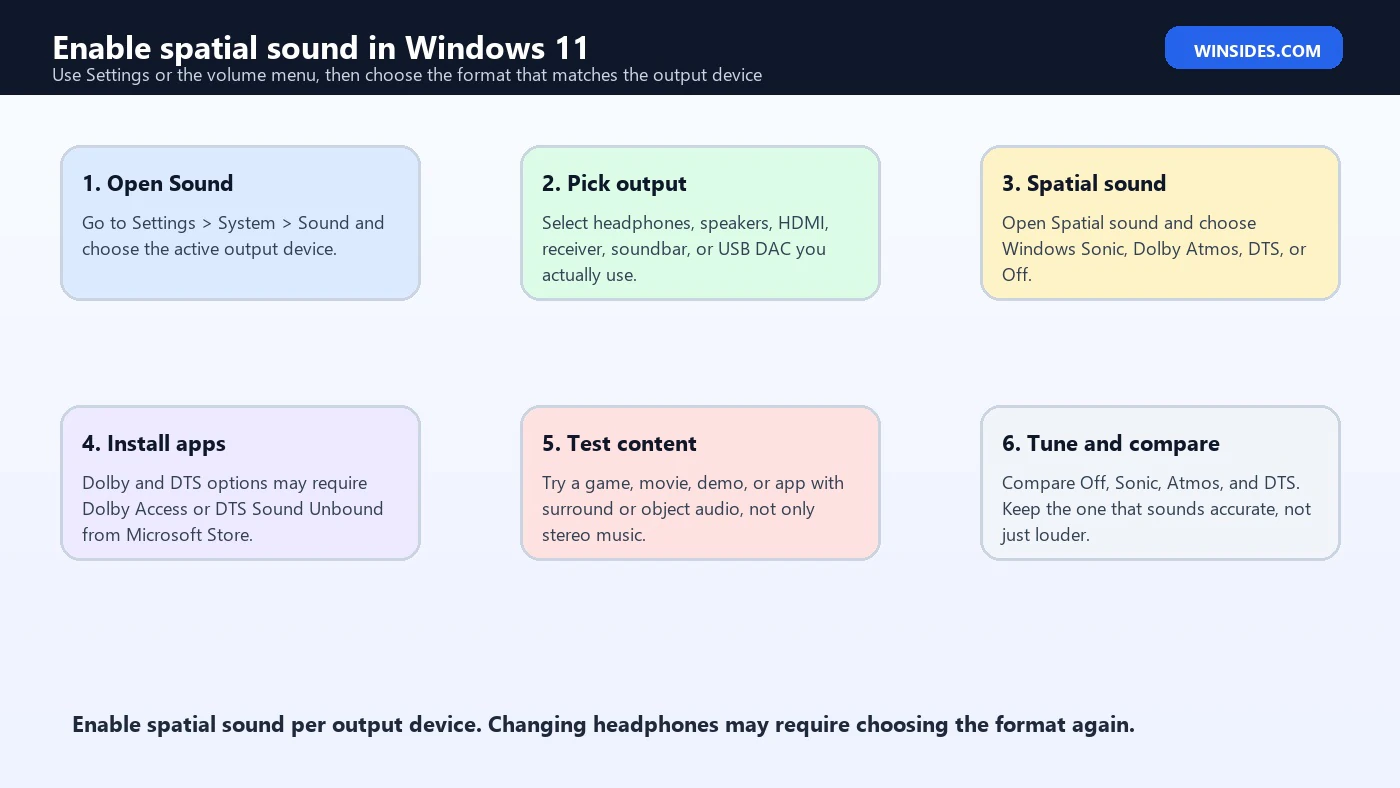
Microsofts end-user article explains that Windows Sonic is a spatial sound solution in Windows that can enhance movies or gaming, and it shows the basic path: open Settings, go to System > Sound, select the output playback device, open device properties, and choose Windows Sonic for Headphones under Spatial sound. Microsoft also notes that other spatial sound options can be added by downloading Dolby Access or DTS Sound Unbound from Microsoft Store. See Microsofts spatial sound setup guide for the official user-facing steps.
Under the hood, Microsoft Spatial Sound is broader than a toggle. Microsofts developer documentation describes it as a platform-level solution for spatial sound on Windows, Xbox, and HoloLens 2, supporting surround and elevation cues. It lets apps create audio objects positioned in 3D space, while the actual output format is chosen by the user. That means a game or app can produce spatial audio, and Windows can render it through Windows Sonic, Dolby Atmos, DTS Headphone:X, headphones, speakers, or supported home theater output without the app needing a separate mix for every device. See Microsofts Spatial Sound platform documentation for that platform context.
This guide is written for Windows 11 users, not audio API developers. It explains what spatial sound does, when it helps, how to turn it on, which format to choose, why it may be missing, why it may sound wrong, how to troubleshoot it, and when Off is actually the best setting. For general sound failures, Microsofts Windows audio troubleshooting guide remains the broader repair path.
Table of contents
Key Takeaways
- Spatial sound is per output device. You enable it for the headphones, speakers, HDMI receiver, soundbar, or USB DAC you are actually using.
- Windows Sonic is built in. It is the free spatial renderer included with Windows and is commonly used for headphones.
- Dolby and DTS usually need apps. Dolby Access and DTS Sound Unbound can add licensed spatial formats when supported.
- Content matters. Games, movies, and apps with surround, object, or positional audio benefit more than ordinary stereo music.
- Headphones and home theater are different paths. Headphone spatial sound virtualizes direction over stereo drivers; home theater formats depend on supported HDMI devices and content.
- Wrong direction is usually a chain problem. Check app audio mode, Windows output, left/right channels, enhancements, driver, and selected spatial format.
- Off is sometimes correct. If content is already binaural, stereo music sounds worse, or direction feels inaccurate, turning spatial sound off may be the cleanest choice.
What Spatial Sound Means in Windows 11
Spatial sound is a way of rendering audio with location cues. Normal stereo gives you left and right. Surround sound adds channel positions such as front, center, side, rear, and low-frequency effects. Object-based spatial audio can go further by describing sounds as objects in a three-dimensional space. Windows then renders those cues for the output device you selected.
On headphones, the trick is virtualization. You still have two physical headphone drivers, but the spatial renderer uses filtering, timing, level, and head-related cues to make sound feel externalized and positioned around you. When it works well, a game can make footsteps feel like they are behind you, a movie can place ambience around the room, and a meeting app can make speakers feel separated instead of stacked in the center.
On home theater hardware, the chain is different. A receiver, TV, or soundbar may receive a Dolby Atmos or DTS:X-capable stream over HDMI. In that case, Windows, the app, the content, the HDMI path, and the playback device all need to agree. A movie app may support Atmos, but the selected output device might not. A soundbar may support Atmos, but the TV HDMI path might not pass it correctly. That is why spatial sound troubleshooting often requires checking the full path, not only the Windows toggle.
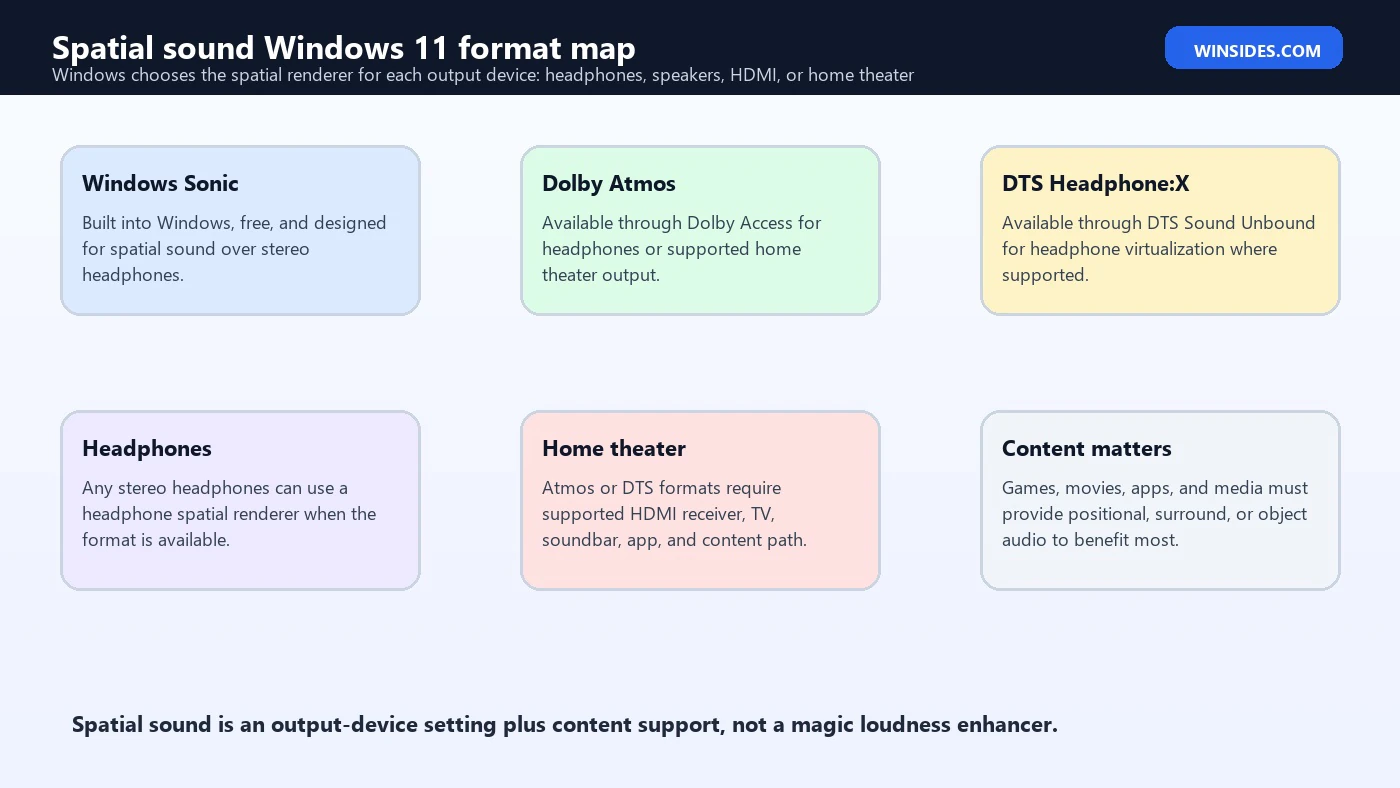
Windows Sonic, Dolby Atmos, and DTS Explained
| Format | Best fit | What to know |
|---|---|---|
| Windows Sonic for Headphones | Free headphone spatial sound built into Windows. | Good first choice because it requires no paid app and works with ordinary stereo headphones when available. |
| Dolby Atmos for Headphones | Headphone virtualization for Atmos-aware games, movies, and apps. | Often requires Dolby Access and licensing; compare it with Sonic instead of assuming it is always better. |
| DTS Headphone:X | Headphone virtualization through DTS Sound Unbound. | Can sound different from Atmos and Sonic; preference varies by headphones and content. |
| Dolby Atmos for home theater | Supported HDMI receiver, TV, or soundbar with Atmos content. | Requires the whole chain to support the format, including app, content, HDMI path, and device. |
| DTS:X for home theater | Supported DTS:X home theater path. | Same chain principle: supported content, app, output, and receiver or soundbar. |
| Off | Stereo music, already-binaural audio, troubleshooting, or inaccurate spatial cues. | Off is a valid setting when virtualization harms clarity or direction. |
The most practical advice is to treat spatial formats like listening profiles, not rankings. Windows Sonic may sound cleaner on one pair of headphones. Dolby Atmos may sound more immersive in a supported game. DTS may produce better front/back separation for another user. Some users prefer Off for music because spatial processing can widen the image but soften the center, change tonal balance, or reduce the artists intended mix.
How to Enable Spatial Sound in Windows 11
Open Start, choose Settings, go to System, and select Sound. Under Output, choose the playback device you actually use. This is important because spatial sound settings are tied to an output endpoint. If you configure laptop speakers and then plug in USB headphones, the headphones may have a different spatial sound setting. If you connect HDMI to a receiver, that HDMI output has its own capabilities.
After selecting the output device, open its properties and look for Spatial sound. Choose Windows Sonic for Headphones, Dolby Atmos for Headphones, DTS Headphone:X, or another available option. Select Apply if Windows presents that button. If Dolby or DTS options are missing, install or open Dolby Access or DTS Sound Unbound from Microsoft Store and follow the app licensing or setup flow.
You can also reach spatial sound from the volume icon or quick sound controls depending on your Windows build and device. The Settings path is better for troubleshooting because it makes the selected output device clearer. If you cannot find Spatial sound at all, first confirm that you selected the right output device, the driver is installed, Windows sees the device correctly, and the format is available for that endpoint.
Choosing the Right Output Device
Many spatial sound problems are really output-device problems. Windows may be playing to laptop speakers while your headset is connected. A monitor may expose an HDMI audio device that is not your receiver. A USB DAC may appear separately from your headset microphone. Bluetooth headphones may have separate stereo and hands-free modes. If you enable spatial sound on the wrong endpoint, nothing meaningful changes.
Open Settings > System > Sound and check the active output. Play a test sound if needed. If you use headphones, select the headphone output, not the monitor, controller, microphone hands-free device, or virtual audio cable. If you use a home theater receiver, select the HDMI output that leads to the receiver or soundbar. If you use a USB gaming headset, select the headset playback endpoint and then check whether the vendor app adds its own surround mode.
Do not stack multiple spatial processors unless you have a specific reason. Windows Sonic plus a headset vendors virtual 7.1 plus an in-game headphone HRTF can create smeared direction, hollow sound, or phasey audio. Usually you want one spatial path: either the games own headphone HRTF with Windows spatial sound off, or Windows spatial sound with the game set to surround or spatial output, or the headset vendors processor if it is the intended path for that hardware.
When Spatial Sound Actually Helps
Spatial sound helps most when the content contains directional information. Games are the classic example because engines can place footsteps, shots, vehicles, voices, doors, helicopters, ambience, and effects around the listener. Movies and streaming apps can help too, especially when the content has surround or object-based audio. Some meeting apps use spatial audio to separate voices so multiple speakers feel less crowded.
It helps less with ordinary two-channel stereo music. A spatial renderer can widen or externalize the sound, but it cannot invent a perfect 3D mix from a stereo song without changing the presentation. Some people enjoy the effect; others hear reduced clarity, weakened vocals, or less accurate imaging. If music sounds worse with spatial sound on, that is not a failure. It is a sign that Off may be better for that use case.
It also depends on the headphones. Spatial virtualization uses generic assumptions about how sound reaches human ears. Your ear shape, headphone fit, driver response, seal, and comfort affect the result. A format that sounds convincing to one person may sound vague to another. Compare options with the same content and volume before deciding.
Spatial Sound for Games
For gaming, decide whether the game itself has a dedicated headphone 3D audio mode. Some games include their own HRTF, binaural, headphone, or 3D audio option. In those cases, turning on both the games headphone HRTF and Windows spatial processing may double-process the sound. If the game asks for headphones and already renders binaural audio, try Windows spatial sound Off first. If the game outputs surround or uses Windows Spatial Sound APIs, try Windows Sonic, Dolby Atmos, or DTS and compare direction.
Check the games audio output mode. Some games offer Stereo, Headphones, 5.1, 7.1, Home Theater, Dolby Atmos, or Windows Sonic options. The right setting depends on the engine. If you choose stereo in the game and then expect Windows to create perfect overhead cues, you may be disappointed. If you choose 7.1 while using a headphone spatial renderer, Windows may have more positional information to virtualize. If the game exposes a Windows Sonic or Dolby Atmos mode directly, use the games documentation and test carefully.
Competitive players should prioritize accuracy over dramatic width. A mode that makes explosions cinematic but smears front/back footsteps is not useful for ranked play. Test with repeatable scenes, training areas, or known sound cues. Check left/right orientation, front/back separation, vertical cues, voice clarity, and fatigue over time. The best spatial format is the one that helps you identify direction reliably, not necessarily the one that sounds largest.
Spatial Sound for Movies, Streaming, and Music
Movie and streaming support depends on the app, subscription tier, content, device, and output chain. A streaming title may show an Atmos badge on one device but not another. A browser may not expose the same audio features as a dedicated app. A TV or soundbar may support Atmos, but a specific HDMI path or app setting may still deliver stereo or 5.1. For home theater, check the whole chain before blaming Windows.
For headphones, movie spatial sound can be enjoyable even when the hardware is simple. Windows Sonic, Dolby Atmos for Headphones, or DTS Headphone:X can make a surround mix feel wider and more externalized. Dialogue should remain clear. If voices become hollow, quiet, or distant, compare another renderer or turn spatial sound off for that app.
For music, use your ears and the source. Some Dolby Atmos music mixes are created intentionally for spatial playback. Ordinary stereo tracks are not. If you are listening to stereo music through a spatial renderer and the result sounds artificial, switch to Off. If an app has its own spatial music mode, avoid stacking it with Windows spatial sound unless the app specifically recommends that path.
Home Theater, HDMI, Soundbars, and Receivers
Home theater spatial sound is stricter than headphone virtualization because the hardware chain matters. A supported receiver, TV, or soundbar must be selected as the Windows output. The HDMI connection must carry the right format. The app must output supported content. The content itself must include the surround or object-based track. If any part of that chain falls back to stereo, the spatial effect may vanish.
In Windows, select the HDMI output that leads to the receiver or soundbar. In the spatial sound setting, choose a home theater format only if it is available and appropriate. Some formats may prompt installation of Dolby Access or DTS Sound Unbound. On the receiver or soundbar, check the displayed input format. If it says PCM stereo when you expect Atmos, the app or Windows output path may not be delivering the expected stream.
Be careful with TVs in the middle of the chain. Some TVs pass advanced audio through eARC, some only through specific ports, and some downmix depending on settings. Windows cannot force a receiver to decode a format it never receives. If Atmos or DTS:X works from a console or streaming box but not from the PC, compare the HDMI port, cable, app, Windows output device, driver, and receiver display.
Bluetooth Headphones and Spatial Sound
Bluetooth can complicate spatial sound because the audio path may change when a microphone is active. Classic Bluetooth headsets often switch between high-quality stereo playback and lower-fidelity hands-free voice mode when the microphone is used. If a game, chat app, or meeting app activates the headset mic, audio may become mono, muffled, or less spatial. This is not always a spatial sound failure; it can be the Bluetooth profile changing.
For reliable gaming or spatial testing, try wired headphones, a USB headset, a low-latency wireless headset with its own dongle, or Bluetooth LE Audio-compatible hardware where available. If spatial sound works over wired headphones but sounds wrong over Bluetooth during chat, test with the microphone disabled or choose a separate microphone. That can keep the headset in higher-quality stereo playback mode.
If you want spatial sound during Teams, Discord, game chat, or voice calls, check both Windows and app settings. Spatial audio often requires stereo output. If the device drops into hands-free mono mode, front/back and left/right cues can suffer. The solution may be a different audio device, updated Bluetooth drivers, a separate mic, or hardware that supports a newer audio path.
Why Spatial Sound May Be Missing
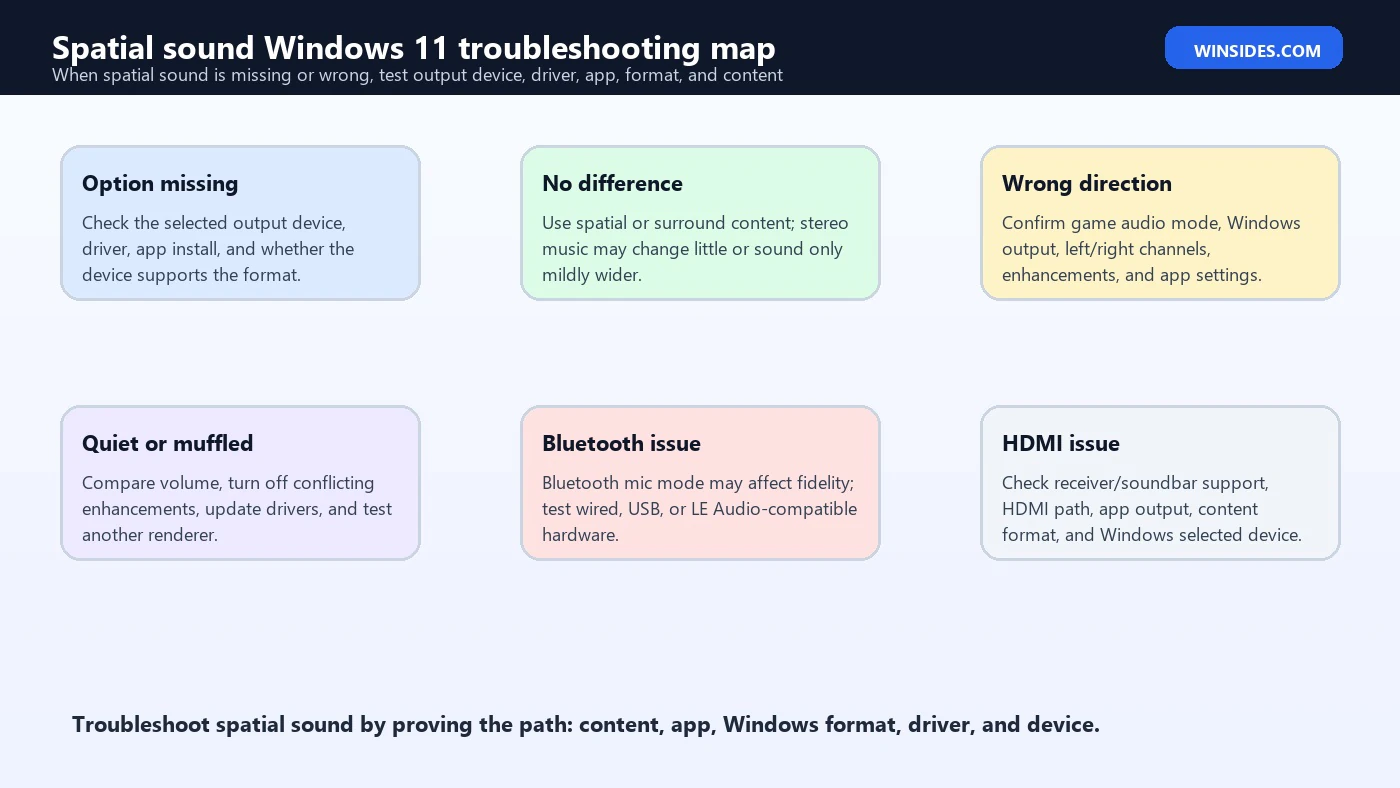
- The wrong output device is selected. Configure the actual headphones, speakers, HDMI device, or USB headset.
- The driver does not expose the option. Update audio, Bluetooth, USB, GPU HDMI, or headset drivers as appropriate.
- Dolby or DTS is not installed or licensed. Install Dolby Access or DTS Sound Unbound if you want those formats.
- The device does not support the selected format. Home theater formats depend on supported receiver, soundbar, TV, and HDMI path.
- A vendor app is controlling the audio mode. Gaming headset software may replace or conflict with Windows spatial settings.
- Windows audio is already in a fallback state. Fix general audio output detection before expecting spatial sound options.
Troubleshooting Spatial Sound Problems
Start simple. Confirm that normal audio works first. If there is no sound at all, follow Microsofts general Windows audio troubleshooting path before focusing on spatial sound. Check volume, output device, mute state, app volume, drivers, Windows Update, Bluetooth pairing, and whether another device is selected. Spatial sound cannot fix a broken base audio path.
Next, test one variable at a time. Turn spatial sound Off, play the same scene, then enable Windows Sonic, replay the same scene, then compare Dolby or DTS if available. Keep volume similar. A louder mode often sounds better at first even when direction is worse. For games, use a repeatable sound source. For movies, use a known surround scene. For music, use a track you know well and be willing to leave spatial sound off.
If direction is wrong, test left and right channels first. Reversed headphone cups, wrong cable, bad adapter, incorrect balance, or a virtual audio device can make every spatial renderer feel broken. Then check in-game audio mode, Windows output, headset app surround settings, and audio enhancements. Disable stacked enhancements while testing. If one renderer sounds wrong but another works, keep the working one or reinstall the app tied to the broken renderer.
Recommended Testing Workflow
- Pick one output device. Use the exact headphones, USB headset, HDMI receiver, or soundbar you care about.
- Verify normal stereo. Confirm left/right audio, volume, and clarity before enabling spatial sound.
- Enable Windows Sonic first. It is free and built in, so it creates a useful baseline.
- Use real spatial content. Test a game, surround movie, or spatial demo instead of only stereo music.
- Compare formats at similar volume. Do not let a louder mode fool you into thinking direction is better.
- Disable duplicate processing. Avoid stacking Windows spatial sound, headset virtual surround, and in-game HRTF unless intended.
- Keep notes. Record which format works for games, movies, meetings, and music because one setting may not be best everywhere.
Best Settings for Common Setups
| Setup | Good starting point | Why |
|---|---|---|
| Basic stereo headphones | Windows Sonic for Headphones | Free, built into Windows, and easy to compare with Off. |
| Gaming headset with vendor surround | Choose either vendor surround or Windows spatial, not both at first | Stacking processors can blur direction. |
| Dolby Atmos-supported game | Try Dolby Atmos for Headphones and Windows Sonic | The games mix may benefit from object or surround rendering. |
| Stereo music listening | Off or app-specific spatial music mode | Stereo music may sound more accurate without Windows virtualization. |
| Movies on headphones | Windows Sonic, Dolby Atmos for Headphones, or DTS Headphone:X | Compare dialogue clarity and surround ambience. |
| HDMI receiver or soundbar | Dolby Atmos or DTS home theater only if the full chain supports it | Home theater spatial audio depends on content, app, HDMI path, and device support. |
| Bluetooth headset with mic active | Test wired, USB, separate mic, or LE Audio-compatible hardware | Classic Bluetooth voice mode can reduce stereo quality and spatial cues. |
What Not to Do
Do not assume a paid spatial format is automatically better. Dolby Atmos and DTS can be excellent in the right content path, but Windows Sonic may be cleaner for some headphones, and Off may be best for some music. The correct setting is the one that preserves direction, dialogue, tone, and comfort for your actual device.
Do not stack every surround option at once. If a headset app has virtual 7.1 enabled, a game has headphone HRTF enabled, and Windows spatial sound is also enabled, the result can become wide but inaccurate. Start with one processor. Add another only if the app or device maker specifically documents that combination.
Do not troubleshoot home theater spatial sound without checking the receiver or soundbar display. If the hardware says it is receiving stereo PCM, Windows may not be sending the format you expect. Check the app, content, Windows output, HDMI cable, GPU audio driver, TV passthrough, eARC, receiver input, and soundbar mode before assuming spatial sound itself is broken.
App-Level Spatial Audio Settings
Windows spatial sound is only one layer. Many apps also have their own audio output settings. A game may ask whether you use headphones, stereo speakers, 5.1 speakers, 7.1 speakers, home theater, Windows Sonic, Dolby Atmos, or binaural audio. A streaming app may have different audio behavior from the same service in a browser. A meeting app may include its own spatial audio toggle. If Windows is configured correctly but the app is set to plain stereo, spatial sound may not receive much useful information.
The safest approach is to inspect the app before blaming Windows. In games, look for audio device, speaker configuration, dynamic range, headphone mode, HRTF, binaural, surround, or Atmos settings. In streaming apps, confirm the content track and playback quality. In meeting apps, check whether the app uses stereo output, spatial audio, noise suppression, or Bluetooth headset mode. If the app has its own spatial renderer, compare it against the Windows renderer rather than running both at the same time.
For creators, editors, and audio workers, spatial sound can interfere with monitoring decisions. If you are mixing, mastering, editing dialogue, or checking a stereo export, turn off consumer virtualization unless the project specifically requires monitoring that consumer format. Spatial processing is useful for playback, but it can mislead editing decisions because it changes how the signal reaches your ears.
Driver and Enhancement Conflicts
Audio drivers and enhancement layers can change the result before spatial sound ever reaches your ears. OEM audio consoles, Realtek enhancements, USB headset suites, Nahimic-style effects, Dolby or DTS speaker enhancements, GPU HDMI audio drivers, Bluetooth drivers, and virtual audio devices can all affect the endpoint Windows exposes. If spatial sound sounds muffled, distorted, hollow, or unavailable, driver and enhancement layers deserve attention.
Open the selected output device and compare with audio enhancements disabled when available. Then test the vendors own app. Some headset apps include EQ, surround virtualization, loudness, voice clarity, bass boost, sidetone, and game/chat mixing. These features are not always bad, but they can stack with Windows spatial sound. During troubleshooting, simplify the path: one output device, one spatial renderer, no unnecessary enhancement, one app, one piece of test content.
Driver updates can also help, especially for HDMI audio, USB headsets, Bluetooth adapters, and laptops with OEM audio packages. Use Windows Update, the PC makers support page, the headset makers software, or the GPU makers driver package depending on the device. If a driver update created the problem, rolling back the audio driver may be more useful than repeatedly changing spatial formats.
Frequently Asked Questions
What is spatial sound in Windows 11?
Spatial sound is Windows 11s system-level way to render audio with surround and elevation cues through supported headphone, speaker, HDMI, receiver, soundbar, or home theater output paths.
Is Windows Sonic free?
Yes. Windows Sonic for Headphones is built into Windows and is the easiest free starting point for headphone spatial sound.
Do I need special headphones?
For headphone virtualization, ordinary stereo headphones can work. Better headphones may image more clearly, but the processing does not require physical surround drivers.
Why do I not see Dolby Atmos or DTS?
You may need Dolby Access or DTS Sound Unbound, a license, a supported output device, or a driver that exposes the format.
Does spatial sound improve music?
Sometimes, but not always. Stereo music may sound more natural with spatial sound off unless the track or app is designed for spatial playback.
Why does spatial sound sound wrong in games?
The game may be set to stereo, the headset app may already apply surround processing, left/right channels may be reversed, or multiple spatial processors may be stacked.
Can Bluetooth headphones use spatial sound?
They can in some situations, but Bluetooth microphone mode can reduce stereo quality and harm spatial cues. Test with a wired headset, USB headset, separate microphone, or compatible newer Bluetooth audio hardware if needed.
Should I use Dolby Atmos, DTS, or Windows Sonic?
Compare them with the same device and content. Windows Sonic is the free baseline; Dolby and DTS may be better for certain games, movies, or headphones, but preference and accuracy vary.
Conclusion: Match Spatial Sound to the Device and Content
spatial sound windows 11 is most useful when the whole chain makes sense: spatial or surround content, an app that outputs the right audio, a selected Windows output device, a compatible spatial format, a working driver, and headphones or home theater hardware that can present the result clearly. If one part of the chain is wrong, the setting may do very little or even make audio worse.
Start with Windows Sonic because it is built in and easy to test. Add Dolby Atmos or DTS when you have the app, license, content, and hardware path to benefit from them. For games, choose accuracy over dramatic width. For movies, check dialogue and receiver/soundbar format. For music, do not be afraid to turn spatial sound off if the stereo mix sounds better that way.
The best spatial sound setup is not the most complicated one. It is the one that gives you clear direction, natural tone, stable output, and no duplicate processing. Use one renderer at a time, test with real content, and keep the format that actually improves your Windows 11 listening experience.
For more interesting articles, stay tuned to Winsides.com!









Community
Comments (0)