

Introduction to clean boot windows 11
A clean boot windows 11 troubleshooting session starts Windows with only essential Microsoft services and startup behavior, then lets you test whether a background app, third-party service, driver helper, updater, launcher, security add-on, sync client, overlay, or vendor utility is interfering with your PC. It is one of the most useful diagnostic methods when Windows starts normally but a specific app, game, installer, update, printer tool, VPN, browser, or workflow keeps failing.
Microsoft describes a clean boot as starting Windows with only essential drivers and startup programs so that background software conflicts are easier to identify. The official steps are covered in Microsofts clean boot guide. The key idea is controlled isolation: you temporarily hide Microsoft services, disable the remaining non-Microsoft services, disable startup apps from Task Manager, restart, and then test the exact problem again.
A clean boot is not the same as Safe Mode. Safe Mode is a more limited recovery and driver-loading environment. Clean boot keeps Windows closer to normal use while removing third-party startup noise. That makes it better for testing issues that only appear in a normal desktop session, such as a game overlay crash, an installer conflict, a background updater lock, a printer monitor problem, a VPN helper issue, or a sync client interfering with a file operation.
This guide explains when to use clean boot, how to perform it safely, how to isolate the specific service or startup item, how to restore normal startup, and when to move beyond clean boot. It also uses Microsofts startup app configuration guidance and the official Sysinternals Autoruns documentation for deeper startup-entry context.
Table of contents
Key Takeaways
- A clean boot is a diagnostic state. It helps test whether non-Microsoft services or startup apps are causing a problem.
- It is not Safe Mode. Clean boot keeps Windows closer to normal while reducing background startup interference.
- Do not skip Hide all Microsoft services. Disabling Microsoft services can break core Windows behavior and make troubleshooting worse.
- Record what you disable. Screenshots or notes make it much easier to restore normal startup later.
- Test the original symptom immediately after restart. The result tells you whether to continue isolating startup items or look elsewhere.
- Use the half-and-half method. Re-enable half of the disabled services or startup apps, restart, and repeat until the culprit is found.
- Always restore normal startup. Clean boot should end with normal startup restored and only the confirmed bad item handled intentionally.
What a Clean Boot Does
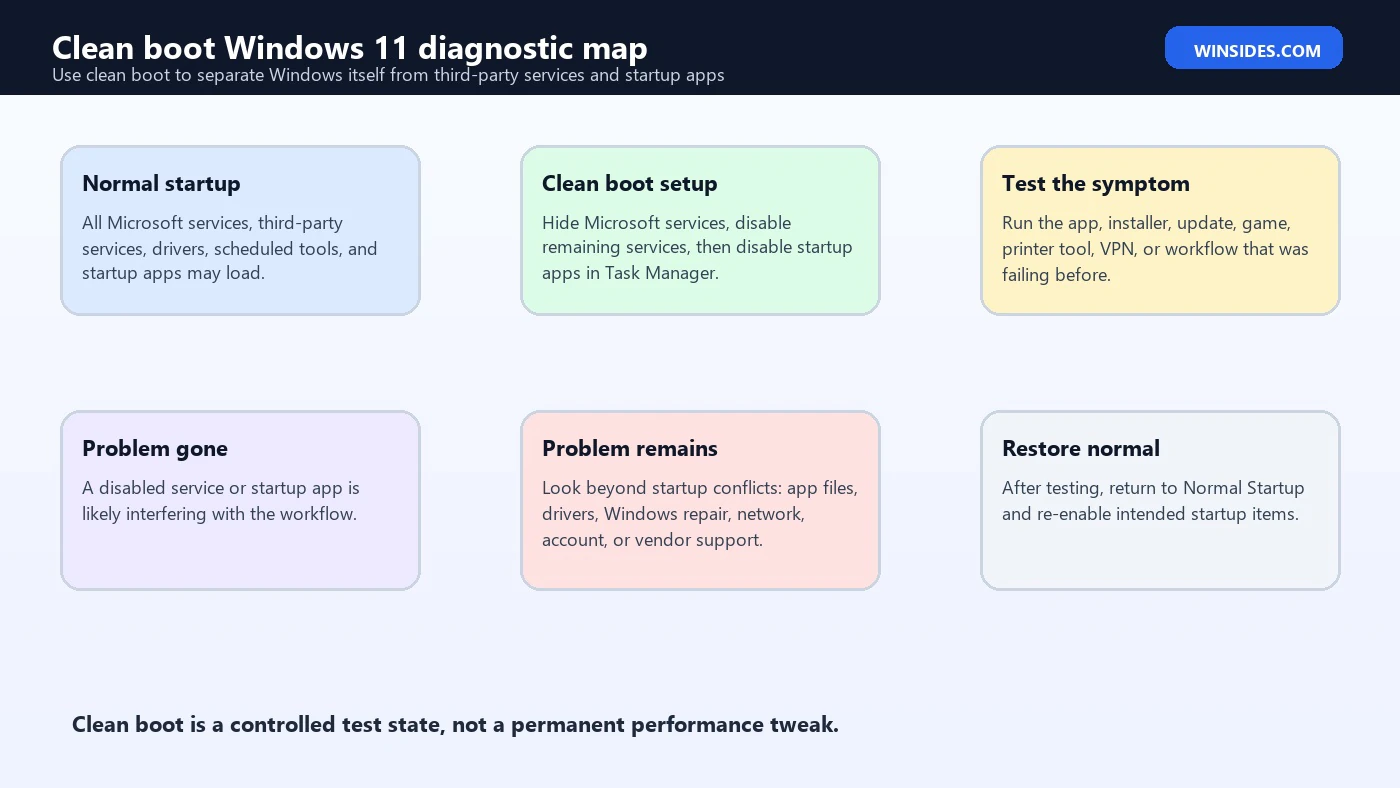
A clean boot reduces the number of background components that load when Windows 11 signs in. In normal startup, the PC may load third-party services, update agents, audio utilities, GPU overlays, keyboard and mouse software, cloud sync tools, VPN clients, security extensions, printer monitors, backup tools, game launchers, RGB utilities, OEM support agents, and many other small helpers. Most are harmless. Some can collide with another app or delay a service enough to cause a strange failure.
When you perform a clean boot correctly, Windows still starts. You still sign in. You can still run the app or installer you are testing. The difference is that non-Microsoft background services and startup apps are temporarily disabled. If the problem disappears in that cleaner state, you have strong evidence that something in the disabled group is involved. If the problem remains, the cause is probably not a normal startup service or startup app.
That evidence is the real value. Clean boot does not magically repair Windows. It changes the test environment so the symptom can be compared. If a setup program fails during normal startup but works during clean boot, the next step is to identify the disabled item that was interfering. If a game crashes normally but runs in clean boot, the likely suspects include overlays, capture tools, controller software, RGB utilities, audio enhancers, security hooks, or launchers. If nothing changes, you save time by moving to another repair path.
Clean Boot vs Safe Mode
| Area | Clean boot | Safe Mode |
|---|---|---|
| Purpose | Isolate third-party services and startup apps while keeping a normal desktop closer to everyday use. | Start Windows with a minimal driver and service set for recovery or deeper troubleshooting. |
| Best for | App conflicts, installer failures, startup performance, update interference, game overlays, vendor utilities, sync tools. | Driver failures, boot loops, severe crashes, malware cleanup, display driver issues, recovery tasks. |
| User experience | Looks and behaves more like normal Windows 11. | Limited Windows environment with reduced drivers and services. |
| How it is configured | System Configuration and Task Manager startup apps. | Startup Settings, recovery options, or advanced boot configuration. |
| Main risk | Forgetting to restore normal startup or disabling the wrong services. | Testing results may not match normal desktop behavior. |
Use clean boot when Windows can boot and the problem is likely caused by software that loads in the background. Use Safe Mode when Windows is unstable, driver-level trouble is suspected, or the machine cannot stay usable long enough for normal desktop testing. The two methods overlap, but they answer different questions.
When You Should Use Clean Boot
Clean boot is useful when a problem appears after sign-in, after launching an app, during installation, during uninstallation, while opening a game, during a Windows update, when printing, when starting a VPN, when syncing files, or when a particular vendor utility is active. The common pattern is that Windows itself can start, but something loaded in the normal desktop session may be interfering.
It is especially useful for intermittent or confusing symptoms. For example, an installer may fail because an endpoint security service locks a file. A game may crash because an overlay injects into the process. A browser may misbehave because a third-party security filter hooks network traffic. A printer setup may fail because an old monitor service is already running. A VPN client may refuse to connect because another network filter is loaded. Clean boot gives you a calmer test surface.
Clean boot is less useful when the PC cannot boot into Windows, when the drive is failing, when the problem happens before sign-in, when a blue screen occurs during early boot, when Windows files are corrupted, or when hardware is clearly unstable. In those cases, Windows Recovery Environment, Safe Mode, Event Viewer, DISM, SFC, driver rollback, memory tests, or hardware diagnostics may be more appropriate.
Before You Start
- Sign in with an administrator account. System Configuration changes require administrative rights.
- Save work and close apps. The process requires a restart.
- Take screenshots. Record enabled startup apps and services before disabling them.
- Write down the original symptom. You need a repeatable test, not a vague feeling that the PC is better.
- Do not change advanced boot options casually. Microsoft warns that the System Configuration utility can make a computer unusable if advanced boot options are changed without guidance.
- If the PC is managed by work or school, check policy. Network policy may prevent some steps, and disabling security or management services may violate organization rules.
The repeatable test is important. Before clean boot, decide exactly what you will do after the restart: launch the app, run the installer, start the game, connect the VPN, print the file, open the project, or trigger the update. If you cannot reproduce the original issue on demand, clean boot results become harder to interpret.
How to Perform a Clean Boot in Windows 11
The Microsoft-supported method starts with System Configuration and then uses Task Manager for startup apps. Open Search, type msconfig, and choose System Configuration. On the Services tab, select Hide all Microsoft services. This is the safety step that keeps you from disabling the core Microsoft services Windows needs. After Microsoft services are hidden, select Disable all and then Apply.
Next, open the Startup tab in System Configuration and choose Open Task Manager. In Task Manager, open the Startup apps tab. For each startup item currently enabled, select it and choose Disable. Keep track of which items you disable. Microsoft explicitly recommends keeping track because you will need to know what to enable later.
Close Task Manager. In System Configuration, choose OK, and restart the computer when prompted. After the restart, Windows 11 is in a clean boot environment. Now run the exact test you planned. Do not browse around randomly first, install unrelated updates, or change more settings. The clean boot result is most useful when the first test is the original problem.
msconfig
Services tab > Hide all Microsoft services > Disable all
Startup tab > Open Task Manager > Disable enabled startup apps
Restart Windows 11 and test the original problem
What the Result Means
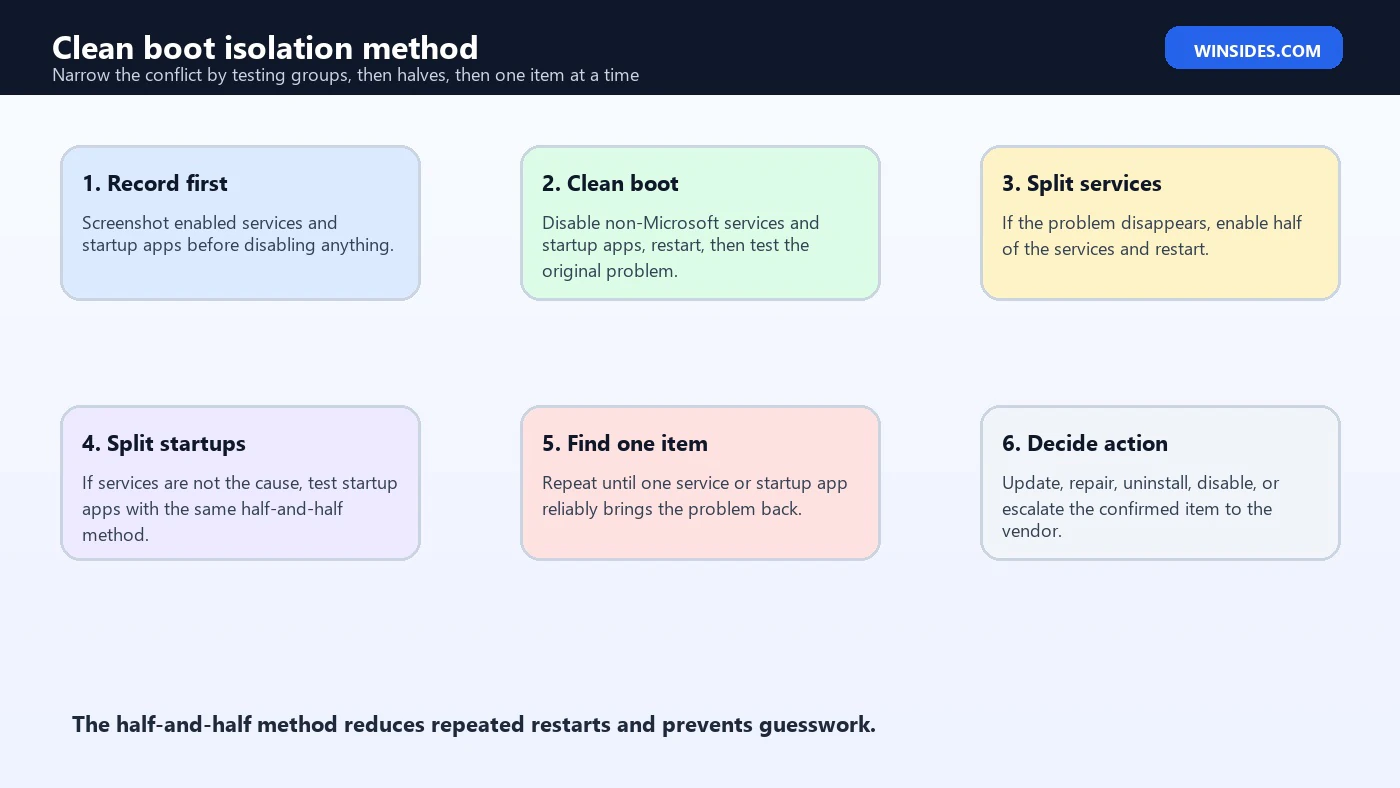
If the problem disappears in clean boot, the disabled group probably contains the conflict. That does not automatically tell you which service or startup app is guilty, but it narrows the field. The next step is systematic isolation. You re-enable a portion of the disabled services, restart, and test again. If the problem returns, the culprit is in the portion you just re-enabled. If it does not return, the culprit is in the portion still disabled or in the startup-app group you have not tested yet.
If the problem remains in clean boot, do not keep repeating the clean boot setup. The evidence says the issue is probably outside normal startup interference. Consider the application itself, corrupted app files, Windows component corruption, a driver, a Windows update issue, account permissions, network configuration, hardware, or vendor-specific support. Clean boot is powerful because it lets you stop guessing when the result is negative too.
If the result is mixed, test again carefully. Some issues need a service, a startup app, and a scheduled task to collide. Some only appear after several minutes. Some depend on network sign-in or cloud sync. Record what happened, how long you waited, which account you used, and whether the problem returned in exactly the same way. Precision beats a quick assumption.
How to Find the Conflicting Service or Startup App
Microsoft recommends a systematic method after the problem disappears in clean boot. The most efficient approach is to enable about half of the disabled services, restart, and test. If the problem returns, the bad item is likely in that enabled half. If it does not return, the bad item is likely in the disabled half. Repeat the same split until the list becomes small enough to test one item at a time.
After services are ruled in or out, repeat the process with startup apps in Task Manager. Enable a group of startup apps, restart, and test. Keep narrowing the group. This method may feel slow, but it is much faster than enabling one item at a time from the beginning when dozens of services and startup apps are involved. It also reduces false conclusions caused by impatience.
Once one service or startup app reliably brings the problem back, decide what to do with it. Update it first if it is legitimate software. If the vendor has a known fix, apply it. If the item is unnecessary, leave it disabled or uninstall the program. If it belongs to security software, VPN software, a backup product, hardware management, school/work management, or encryption software, do not remove it casually. Use the vendor or IT support path.
Startup Apps in Settings and Task Manager
Windows 11 also exposes startup apps through Settings > Apps > Startup. Microsofts startup app guidance explains that startup applications can be configured from Settings or Task Manager when they are registered with a startup task. Settings gives a simple on/off list. Task Manager shows a more troubleshooting-friendly view, including startup impact, which can be useful when performance is part of the problem.
Task Manager is the correct companion for the Microsoft clean boot procedure because System Configuration opens the Startup tab to Task Manager. It lets you disable enabled startup items and later enable them again. For a normal performance cleanup outside clean boot, Settings can be more comfortable. For diagnosis, Task Manager gives more context and matches the clean boot workflow.
Not every startup item appears in the same list. Some apps launch through Startup folders, scheduled tasks, services, browser extensions, shell extensions, drivers, or registry locations. That does not mean you should immediately use deep tools. Start with Microsofts clean boot steps. If the problem is advanced, persistent, or clearly tied to a hidden auto-start location, Sysinternals Autoruns can help an experienced user or technician inspect more auto-start locations.
Using Autoruns for Advanced Cases
Autoruns is a Microsoft Sysinternals utility that shows many auto-starting locations, including logon entries, Explorer add-ons, browser helper objects, services, drivers, scheduled tasks, Winlogon entries, Winsock providers, codecs, and more. Microsofts documentation says Autoruns goes far beyond other autostart utilities. That depth is useful, but it also means it should be used carefully.
For clean boot troubleshooting, Autoruns is not the first step. Use System Configuration and Task Manager first because they align with Microsofts clean boot procedure and are easier to reverse. Autoruns becomes useful when the suspected conflict does not appear in normal startup lists, when a technician needs to document all auto-start entries, or when a stubborn third-party component keeps returning after normal disable steps.
If you use Autoruns, prefer hiding signed Microsoft entries so third-party entries are easier to review. Do not delete entries casually. Unchecking an entry is usually safer than deleting it, and even that should be documented. If an entry belongs to security, encryption, backup, VPN, driver, or device-management software, understand the support impact before disabling it.
Common Clean Boot Mistakes
- Forgetting Hide all Microsoft services. This is the classic mistake that can disable important Windows components and confuse the test.
- Leaving the PC in clean boot forever. Clean boot is not a permanent optimization mode.
- Changing too many things after restart. Test the original symptom first before adding new variables.
- Not recording disabled items. Without notes or screenshots, restoring normal startup becomes guesswork.
- Assuming the first improvement is the final answer. A faster boot does not prove the original problem is fixed.
- Disabling managed security tools without permission. Work and school devices may depend on services you should not touch.
- Deleting startup entries instead of disabling them. Diagnosis should be reversible until the culprit is confirmed.
How to Return Windows 11 to Normal Startup
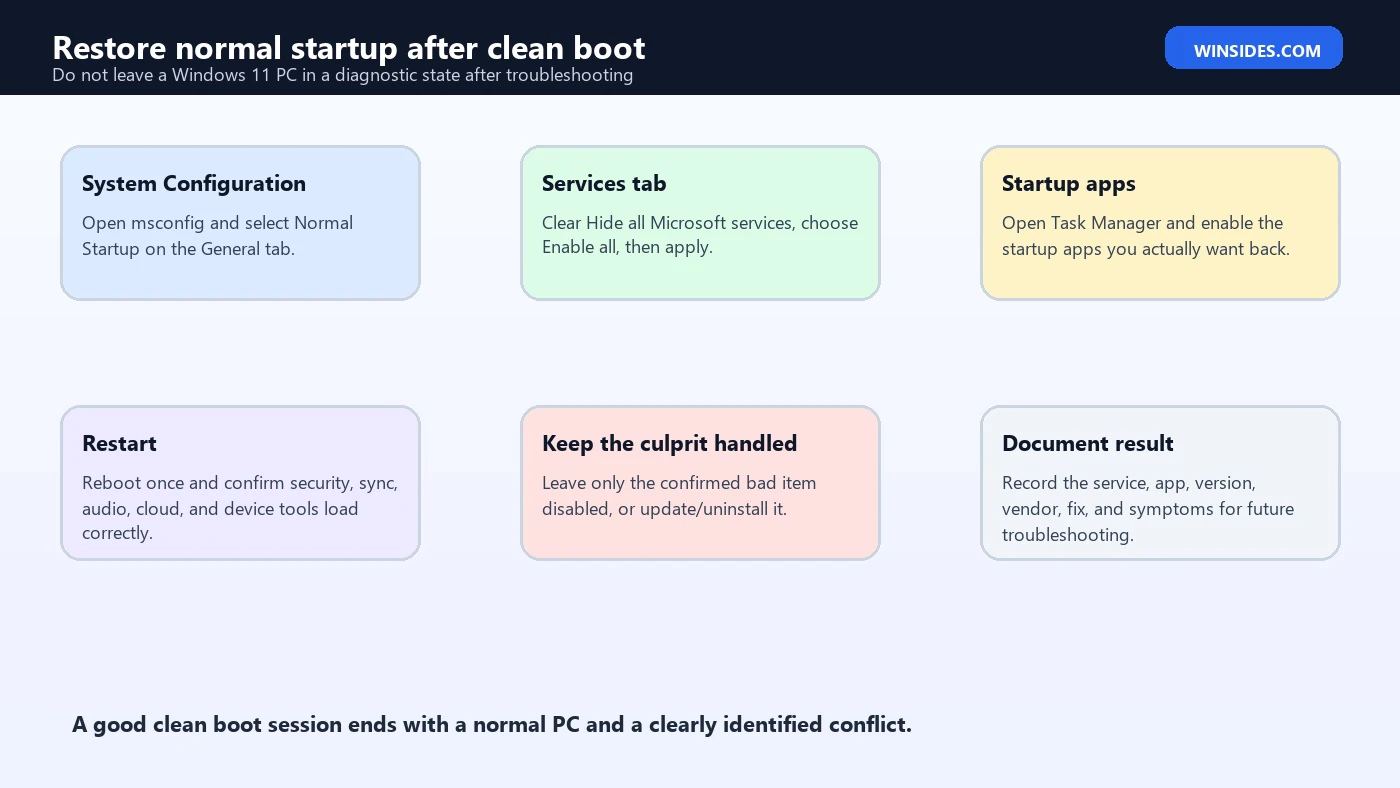
After troubleshooting, open System Configuration again by searching for msconfig. On the General tab, select Normal Startup. Then go to the Services tab, clear Hide all Microsoft services, choose Enable all, and apply. Open Task Manager from the Startup tab and enable the startup apps you disabled earlier, or enable only the ones you intentionally want to keep.
Restart the computer again. Confirm the PC behaves normally. Check security software, OneDrive or other sync tools, audio utilities, touchpad or keyboard helpers, printer utilities, VPN software, backup agents, and any work or school management tools. If you identified a bad item, keep only that item disabled or repair/update/uninstall it deliberately. Everything else should return to the expected state.
This restore step is part of Novak-level quality for a troubleshooting article because leaving users in a diagnostic state creates new problems. A clean boot environment may temporarily remove functionality. Microsoft warns that the computer might lose some functionality while in clean boot. The repair is not complete until the PC is back to normal startup or a documented intentionally modified startup state.
Troubleshooting Matrix
| What happens in clean boot | What it usually means | Best next action |
|---|---|---|
| Problem disappears | A disabled service or startup app is likely involved. | Use half-and-half isolation to find the item. |
| Problem remains unchanged | Startup interference is unlikely. | Check the app, Windows files, driver, account, network, or hardware path. |
| Installer works only in clean boot | A service, security hook, updater, or lock may have blocked setup. | Find the conflicting item, update it, or ask the vendor. |
| Game runs only in clean boot | Overlay, capture, audio, controller, RGB, or launcher software may be involved. | Test startup apps and services in groups. |
| Startup becomes much faster | A startup item may be heavy, but not necessarily broken. | Use Task Manager startup impact and disable only nonessential items intentionally. |
| Network or security breaks | A disabled service may be required for normal use. | Restore normal startup and coordinate with IT or vendor support. |
When Clean Boot Is Not Enough
If clean boot does not change the symptom, move on. For app problems, repair or reinstall the app, check vendor logs, update dependencies, and test a new Windows user profile. For Windows servicing problems, use Windows Update troubleshooting, DISM, SFC, or update history rollback when appropriate. For driver problems, check Device Manager, vendor driver updates, and Reliability Monitor. For blue screens, collect dump files and stop codes instead of focusing on startup apps.
If the PC cannot boot into Windows at all, clean boot is not available. Microsofts clean boot article notes that if an issue prevents booting into Windows, the clean boot steps cannot be followed and Windows Recovery Environment may be needed. That is a different repair path. Use recovery tools, Safe Mode, Startup Repair, uninstall latest updates, System Restore, or offline repair depending on the symptom.
If the PC is owned by a company, school, or organization, stop before disabling management or security components. Clean boot can temporarily remove important protections or compliance tools. Organization IT may have a safer way to test policy conflicts, collect logs, or isolate startup software without breaking the device management model.
Clean Boot Scenarios That Matter
Clean boot is especially helpful for installer failures. Installers often write files, register services, stop and start Windows Installer, change drivers, install runtimes, and update shared components. A background updater, security scanner, old service, or vendor monitor can lock files at exactly the wrong time. If an installer works in clean boot, do not assume Windows was broken. The more likely explanation is that a background component was interfering with setup. Update or repair the conflicting component, then restore normal startup and test the installed app again.
Games and creative apps are another common clean boot use case. Modern games and video tools often run alongside overlays, launchers, capture tools, anti-cheat services, audio enhancements, RGB utilities, controller software, GPU tuning tools, and chat clients. Any one of those can hook into the app, inject an overlay, reserve a device, or change timing. If the app works in clean boot, test overlays and launchers first because they often sit close to the affected process.
Clean boot can also clarify printer, scanner, VPN, and network-client problems. These tools often install services that start with Windows and keep background connections open. A stale printer monitor, old VPN filter, cloud sync client, or endpoint network inspection tool can affect a different program. Clean boot helps you prove whether the conflict is related to startup software before you spend time reinstalling Windows, resetting the network stack, or replacing drivers that may not be the real issue.
Clean Boot on Work or School PCs
Managed devices need extra care. A work or school Windows 11 PC may depend on security agents, device management services, compliance tools, encryption helpers, VPN clients, certificate services, backup tools, and monitoring agents. Disabling those items during clean boot can temporarily break sign-in, network access, compliance checks, or remote support. It can also trigger alerts for the IT team if the device is expected to keep those services running.
If the PC is managed, treat clean boot as a coordinated troubleshooting step rather than a casual tweak. Collect the symptom, timestamp, app name, error message, and recent changes first. If IT approves clean boot, document which services and startup apps were disabled, how long the device stayed in that state, and exactly what test was performed. Restore normal startup promptly after the test, especially if the disabled items include endpoint protection, VPN, encryption, inventory, or remote management software.
For administrators, the clean boot result is still useful even when users cannot perform the whole workflow themselves. A positive clean boot result points toward a conflict in a startup component, policy-delivered agent, endpoint security hook, shell extension, or vendor service. A negative result lets the team move faster toward app logs, driver analysis, Windows repair, profile testing, or vendor escalation. The value is the same: fewer guesses and a cleaner decision tree.
Documentation Checklist
- Symptom. Write the exact error, app name, version, and what action triggers the problem.
- Baseline. Record whether the issue happens before clean boot and how often it occurs.
- Disabled services. Screenshot the Services tab after hiding Microsoft services.
- Disabled startup apps. Screenshot Task Manager Startup apps before and after disabling items.
- Clean boot result. Record whether the symptom disappeared, changed, or remained the same.
- Isolation result. Record the one service or startup app that reliably reproduces the issue.
- Final action. Note whether the item was updated, repaired, disabled, removed, or escalated.
Good notes are not bureaucracy. They prevent circular troubleshooting. If the issue returns next month, you can see whether the same service was involved, whether a vendor update reintroduced the problem, or whether a different startup component is now responsible. This is especially useful on family PCs with many utilities, gaming PCs with several launchers, and business laptops where background agents change through policy.
Frequently Asked Questions
What is clean boot in Windows 11?
A clean boot starts Windows 11 with essential Microsoft services and startup behavior while temporarily disabling non-Microsoft services and startup apps so you can test software conflicts.
Is clean boot the same as Safe Mode?
No. Safe Mode is a minimal recovery environment. Clean boot keeps Windows closer to normal while reducing third-party startup interference.
Does clean boot delete files or apps?
No. It disables services and startup apps temporarily. It does not delete your files or uninstall programs.
Why must I hide Microsoft services first?
Hiding Microsoft services helps prevent you from disabling core Windows services. Skipping this step can make Windows behave unpredictably and make troubleshooting harder.
Can I leave Windows 11 in clean boot?
You should not treat clean boot as a permanent mode. Restore normal startup after troubleshooting, then leave only the confirmed problem item disabled if needed.
What if an app works only in clean boot?
That usually means a disabled startup app or service is interfering. Re-enable items in groups, restart, and test until you identify the culprit.
What if the issue still happens in clean boot?
Then the problem is probably not caused by normal startup services or apps. Check the app, drivers, Windows repair, account, network, or hardware path instead.
Should I use Autoruns?
Autoruns is useful for advanced startup analysis, but start with System Configuration and Task Manager first. Use Autoruns carefully because it exposes many deeper auto-start locations.
Conclusion: Use Clean Boot as a Controlled Test
A clean boot windows 11 workflow is valuable because it turns a vague software conflict into a controlled test. You remove non-Microsoft startup noise, restart, and try the exact failing task again. If the problem disappears, you isolate the disabled service or startup app. If the problem remains, you stop wasting time on startup conflicts and move to a more appropriate repair path.
The safest clean boot process is disciplined: sign in as an administrator, record what is enabled, hide Microsoft services, disable non-Microsoft services, disable startup apps in Task Manager, restart, test the original problem, isolate with the half-and-half method, and restore normal startup when done. Do not delete entries while diagnosing, do not leave the PC in clean boot permanently, and do not disable organization security or management tools without approval from IT.
Used correctly, clean boot is not a risky shortcut. It is a calm way to prove whether the problem comes from background software. Once the conflict is confirmed, the real fix is usually updating, repairing, uninstalling, disabling, or replacing the specific third-party component that caused the issue.
For more interesting articles, stay tuned to Winsides.com!









Community
Comments (0)