

Introduction to appxsvc Windows 11
appxsvc Windows 11 refers to the Windows service named AppXSVC, displayed in Services as AppX Deployment Service (AppXSVC). It is part of the app package deployment stack behind Microsoft Store apps, MSIX and AppX packages, packaged desktop apps, App Installer, and some PowerShell-based app repair or registration commands. Most people notice it only after the Microsoft Store stops installing apps, inbox apps fail to open, Windows apps show licensing or deployment errors, or Task Manager briefly shows app deployment activity while an app is being installed or updated.
The first thing to know is that AppXSVC is not a normal program you should disable for performance. It is a Windows service that supports deployment work when Windows needs to add, stage, update, register, reset, or repair packaged apps. On a Windows 11 PC, AppXSVC may be stopped while nothing is being installed or updated. That idle state alone is not proof of a problem. The signal is different: Store downloads failing, app packages refusing to register, Microsoft Store apps crashing after updates, Add-AppxPackage returning deployment errors, or the AppXDeploymentServer event log recording repeated failures.
Microsofts Appx PowerShell documentation helps explain the supported surfaces around this service. Add-AppxPackage adds a signed app package to a user account and works with .msix, .appx, .msixbundle, and .appxbundle packages. It can also register an existing package manifest when a package has become disabled or corrupted. See Microsofts Add-AppxPackage reference for the official cmdlet reference. That does not mean every app problem should be fixed by running a giant re-registration script. It means Windows has a package deployment model, and AppXSVC is part of that model.
This guide explains what AppXSVC does, how it relates to Microsoft Store, App Installer, WinGet, Appx PowerShell cmdlets, WindowsApps, package identity, and Client License Service, how to check whether the service is healthy, and how to troubleshoot app install or update problems without damaging the Windows app platform.
Table of contents
Key Takeaways
- AppXSVC is AppX Deployment Service. It supports deployment operations for packaged apps on Windows 11.
- Stopped while idle can be normal. AppXSVC can be stopped when no app package install, update, staging, registration, or repair task is active.
- Do not disable AppXSVC for performance. Disabling it can break Microsoft Store apps, App Installer behavior, app updates, and package registration.
- Appx cmdlets are the supported diagnostic surface.
Get-AppxPackage,Add-AppxPackage, andReset-AppxPackageshould be used carefully and with the correct user scope. - Package problems are often per-user. One Windows profile can have a broken app registration while another user on the same PC works normally.
- Microsoft Store, App Installer, WinGet, ClipSVC, and Windows Update can all matter. AppXSVC is one part of a larger deployment and licensing chain.
- Do not take ownership of WindowsApps as a fix. Package files are intentionally locked down by Windows.
- Use narrow repair first. Repair or reset one affected app before using broad all-users scripts that can disturb many packages.
What AppXSVC Does on Windows 11
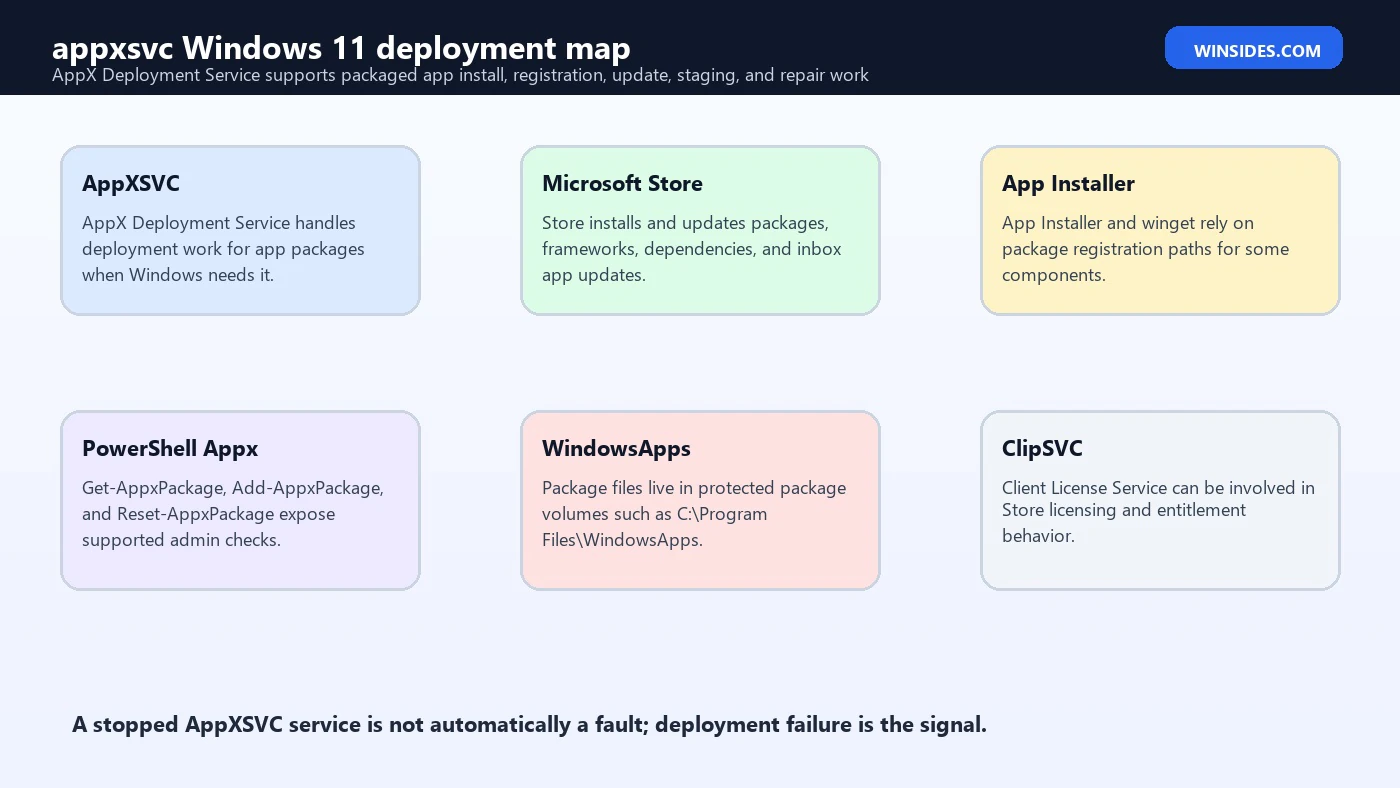
AppXSVC is the service behind AppX deployment tasks. In practical terms, it helps Windows install, stage, update, register, and maintain packaged apps. Those apps can be Microsoft Store apps, inbox Windows apps, MSIX packages, AppX packages, frameworks, resource packages, optional packages, and some packaged desktop apps.
When you install a Microsoft Store app, Windows is not just copying an executable into a folder. It must validate package identity, resolve dependencies, stage package files, register the package for a user, create Start menu entries, preserve package state, and ensure that protected package content is not tampered with. That is deployment work, and it is the world where AppXSVC becomes relevant.
The app package model also explains why some problems are user-specific. Microsofts Get-AppxPackage documentation says the cmdlet gets app packages installed in a user profile. It also notes that getting packages for another user requires administrator permissions. See Microsofts Get-AppxPackage reference for the official reference. That means a package can be present on disk while registration is broken only for one user profile. A machine-wide reinstall is not always the right answer.
AppXSVC is not the Microsoft Store app itself. It is not WinGet by itself. It is not a single app cache. It is the deployment service that those layers may rely on when package work needs to happen. When troubleshooting, keep the layers separate: Store account and cache, package deployment, package registration, licensing, user profile, Windows Update, and system integrity are related, but not identical.
Healthy AppXSVC Service State
On Windows 11, AppXSVC is often configured as Automatic, but it may still be stopped when nothing is using it. That can surprise users who assume every Automatic service must always show Running. Many Windows services use triggers, demand starts, or short bursts of activity. App deployment is usually not continuous work.
Check the service state with PowerShell:
Get-Service -Name AppXSVC,ClipSVC -ErrorAction SilentlyContinue |
    Format-List Name,DisplayName,Status,StartType
AppXSVC should appear as AppX Deployment Service (AppXSVC). ClipSVC is Client License Service, which can be relevant when Store licensing, entitlement, or Microsoft Store delivered apps are involved. Like AppXSVC, ClipSVC may not run constantly.
The important detail is not whether AppXSVC is stopped at one idle moment. The important detail is whether deployment succeeds when it is required. If Microsoft Store downloads fail, App Installer cannot install a package, an inbox app refuses to launch after update, or Add-AppxPackage returns an error, then service state becomes one clue in a broader investigation.
Avoid setting AppXSVC to Disabled. Avoid disabling Store-related services because you want fewer background processes. If a Store app or packaged app fails later, you will have created the problem you are trying to troubleshoot. A healthy Windows 11 installation keeps the package deployment stack available, even if the service is not always running.
How AppXSVC Relates to Microsoft Store
Microsoft Store sits above the package deployment stack. When the Store installs or updates a packaged app, Windows still needs package deployment plumbing. AppXSVC can be involved when packages are staged and registered. If AppXSVC is unhealthy, the Store may show errors that look like download failures, install failures, or update loops.
However, not every Store problem is AppXSVC. Store account sign-in, licensing, Microsoft services availability, network connectivity, Store cache, Windows Update, delivery optimization, device policy, time and region settings, and package dependencies can all affect installation. A user who sees a Microsoft Store error should not immediately change AppXSVC permissions or re-register every app.
Microsofts general app repair guidance for Windows 11 recommends using Settings, Apps, Installed apps, Advanced options, and then Repair or Reset when available. See Microsofts app repair guidance for the support article. That is a safer first step for one broken app because it targets app data and registration at the app level instead of disturbing the whole package repository.
For Store-specific issues, practical first checks include confirming internet access, signing into the Store, updating Windows, checking date and time, trying the app repair/reset option, and reviewing whether the problem affects one app or all Store apps. If every Store app update fails at deployment, AppXSVC becomes more likely. If only one app fails, the app package or that apps data may be the better target.
App Installer, WinGet, and Package Registration
WinGet and App Installer often come up in AppXSVC discussions because modern Windows app management is layered. Microsofts WinGet documentation says WinGet is a command-line tool for discovering, installing, upgrading, removing, and configuring applications on Windows 10, Windows 11, and Windows Server 2025. It also says WinGet is available on Windows 11 as part of App Installer, and App Installer is delivered and updated by Microsoft Store on Windows desktop versions. See Microsofts WinGet and App Installer guidance for the official guidance.
That means a problem with App Installer registration can appear as a WinGet problem. Microsofts WinGet page even mentions a registration command for cases where WinGet is not yet available after first user logon:
Add-AppxPackage -RegisterByFamilyName -MainPackage Microsoft.DesktopAppInstaller_8wekyb3d8bbweThis is a useful example because it shows that Appx registration is not an obscure hack; it is a supported package-management concept. But it is also a good warning. The command is specific to App Installer. Do not turn one focused registration example into an all-packages reset script.
If WinGet is missing or broken, check App Installer first. If App Installer is missing, damaged, or not registered for the user, AppXSVC may only be one part of the symptom. The fix may be Store update, App Installer repair, package re-registration, or Windows component repair depending on the condition.
PowerShell Cmdlets Around AppXSVC
The Appx PowerShell module gives administrators several useful tools. Get-AppxPackage lists app packages installed in a user profile. Add-AppxPackage adds signed packages, registers manifests, updates packages, and can stage packages depending on the parameters. Reset-AppxPackage resets an app to its original settings. These are powerful tools, and they deserve careful use.
Start with observation:
Get-AppxPackage -Name Microsoft.WindowsCalculatorFor all users, administrator permission is required:
Get-AppxPackage -AllUsers -Name Microsoft.WindowsCalculatorMicrosofts Get-AppxPackage page explains that app packages have .msix or .appx file extensions and that -AllUsers lists packages for all user accounts only when run with administrator permissions. This distinction is vital when a package is broken for only one profile.
If an app is installed but its registration is broken, Add-AppxPackage can register a manifest from the existing install location. Microsofts examples show the pattern of finding an installed apps InstallLocation, appending AppxManifest.xml, and registering it. That can repair some disabled or corrupted app registrations, but the command should target the affected app.
Use reset carefully:
Get-AppxPackage -Name Microsoft.WindowsCalculator | Reset-AppxPackageMicrosofts Reset-AppxPackage documentation says resetting restores the app to its initial configuration and makes it behave like a freshly installed app. See Microsofts Reset-AppxPackage reference for the official reference. That can delete app-specific local settings. It is safer than removing every package, but it is still a reset.
Why WindowsApps Should Not Be Manually Edited
Many AppXSVC repair rabbit holes lead to C:Program FilesWindowsApps. Users see access denied, take ownership, change permissions, delete folders, and then create a worse package deployment problem. Avoid that path.
Microsofts MSIX documentation explains that packages are installed under C:Program FilesWindowsApps<package_full_name> by default, and after deployment, package files are read-only and heavily locked down by the operating system. It also says Windows prevents apps from launching if those files are tampered with. See Microsofts packaged desktop app behavior guide for the packaged desktop app behavior guide.
That lock-down is a feature, not a bug. Package identity depends on integrity. The system needs to trust that package files match the package manifest and signatures. If you manually edit files, delete dependencies, or flatten permissions, you may break package integrity, Start menu registration, app updates, and future Store repairs.
If WindowsApps permissions are already damaged, do not try to improvise ownership fixes from random forum snippets. Use system repair, restore points, in-place repair install, or known vendor guidance. If the device is managed by an organization, coordinate with IT because package policy, Store policy, and app deployment may be controlled centrally.
Common Symptoms of AppXSVC Problems
AppXSVC problems often appear as app problems rather than service messages. Microsoft Store may download an app and then fail during install. Store apps may hang at pending or installing. An inbox app such as Photos, Calculator, Notepad, Terminal, Xbox, or Snipping Tool may fail to open after an update. WinGet may fail because App Installer is not registered. App Installer may refuse to open .appinstaller, .msix, or .appx packages. PowerShell may return deployment errors when running Add-AppxPackage.
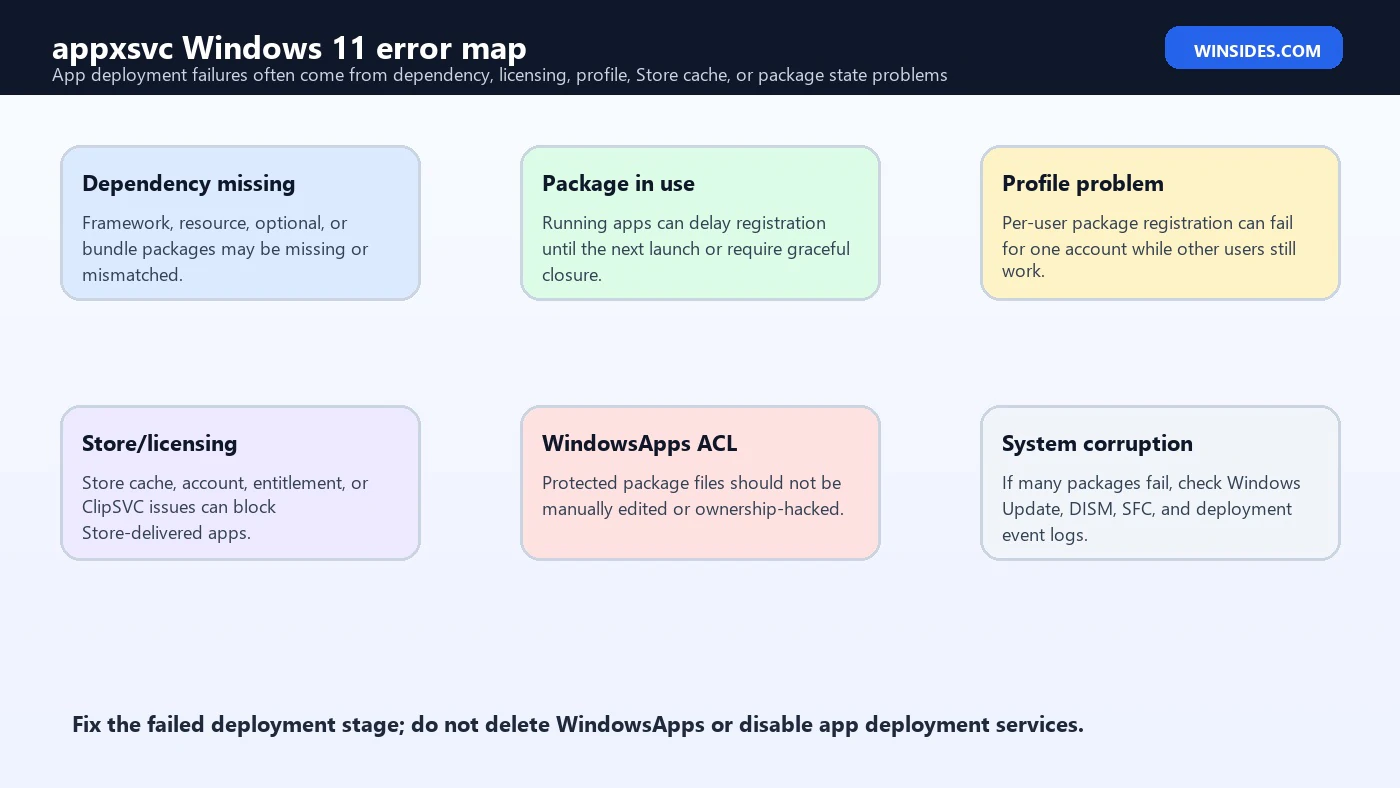
The error code matters. App deployment errors often begin with codes such as 0x80073, but the exact code and message must be read. Dependency missing, package already installed, package in use, deployment failed for a user, invalid manifest, signature trust failure, and access denied are different problems. Do not search only the first half of the code and run the first script you find.
Event Viewer can help. Look under Applications and Services Logs for Microsoft Windows app deployment related logs, especially AppXDeploymentServer operational events. Also check System and Application logs around the same timestamp. A Store UI error may be vague, while the event log may identify a package family name, dependency, file path, or user SID.
If only one app is broken, start with that app. If every packaged app fails, broaden to AppXSVC, Store services, Windows Update, system integrity, and user profile health. If one user is affected while another user works, suspect per-user registration or profile state before reinstalling Windows.
Safe First Checks
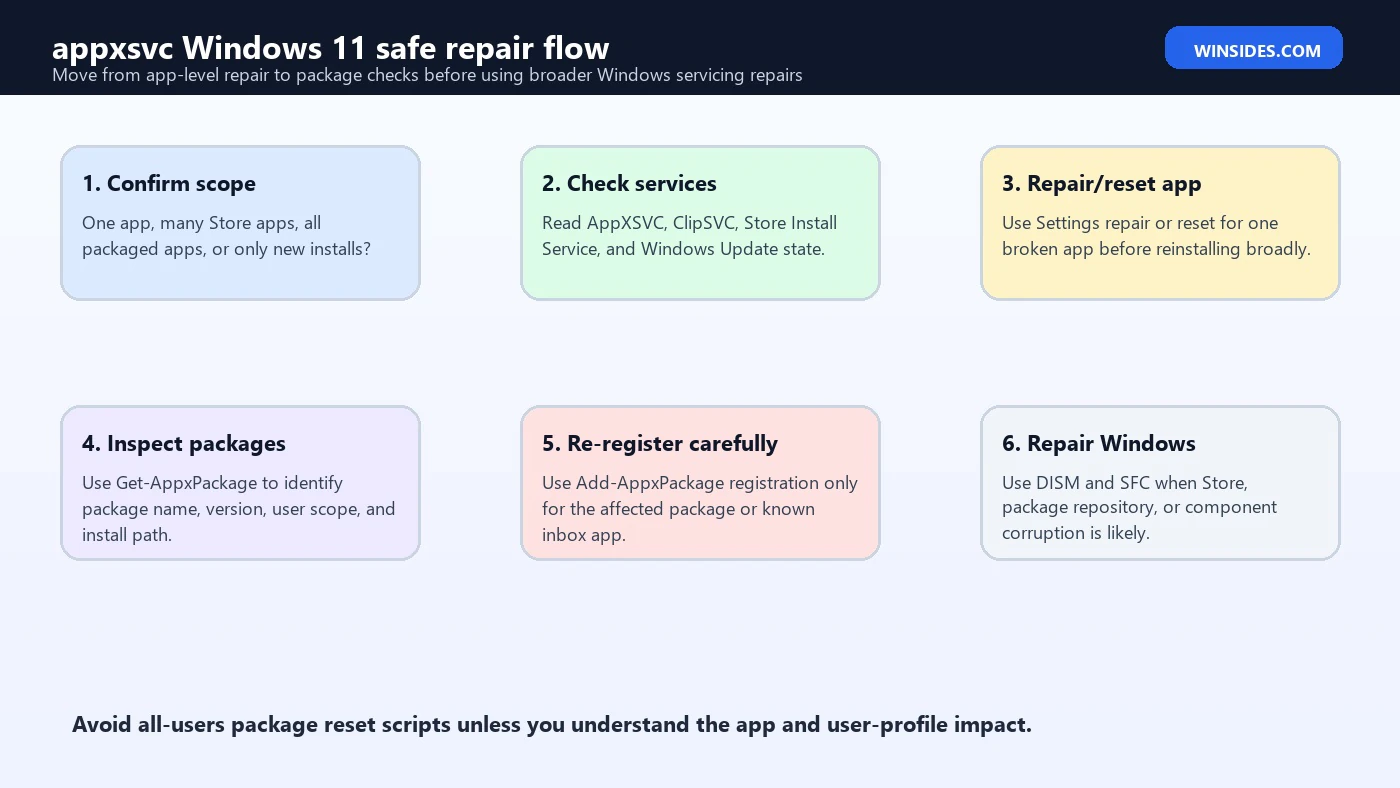
Start with scope. Is one app affected, multiple Store apps, every Microsoft Store install, WinGet, App Installer, or all packaged apps? Is the issue limited to one Windows user profile? Did it begin after a Windows update, Store update, debloat script, antivirus cleanup, profile migration, or folder permission change?
Check services without changing them:
Get-Service -Name AppXSVC,ClipSVC,InstallService,wuauserv,BITS -ErrorAction SilentlyContinue |
    Format-Table Name,Status,StartType,DisplayName
InstallService is Microsoft Store Install Service on many Windows 11 systems. wuauserv and BITS can matter because Store and app installation often intersect with update and download infrastructure. Do not disable or force-start everything. Use the status to understand the chain.
Check packages:
Get-AppxPackage -Name Microsoft.WindowsStore
Get-AppxPackage -Name Microsoft.DesktopAppInstaller
Check whether Windows is generally healthy:
DISM /Online /Cleanup-Image /RestoreHealth
sfc /scannow
Those system repair commands are not AppXSVC-specific, but they are appropriate when multiple inbox apps, Store installs, and Windows components fail at once. If the issue is only one app, use the narrower repair and reset path first.
Repairing One Broken Store App
When one packaged app fails, use Windows Settings before PowerShell. Microsofts support guidance points users to Settings, Apps, Installed apps, Advanced options, then Repair or Reset when available. Repair tries to fix the app without reinstalling. Reset goes further and returns the app to initial settings.
This order matters. If Calculator is broken, repairing Calculator is better than re-registering every Microsoft package for every user. If Photos is broken, reset Photos before touching WindowsApps. If Terminal fails after a Store update, update or reset Terminal before changing service startup settings.
If Settings repair/reset is unavailable or fails, identify the package:
Get-AppxPackage -Name *Calculator*Then consider a package reset:
Get-AppxPackage -Name Microsoft.WindowsCalculator | Reset-AppxPackageIf the package registration is damaged but install files exist, a targeted registration may help:
$pkg = Get-AppxPackage -Name Microsoft.WindowsCalculator
Add-AppxPackage -Register "$($pkg.InstallLocation)AppxManifest.xml" -DisableDevelopmentMode
Do not run this pattern for every package unless you have a tested reason and a rollback plan. Some packages are system components, frameworks, resource packages, or provisioned packages with special behavior. Broad scripts can generate many errors and leave users thinking the situation is worse than it is.
Repairing Microsoft Store and App Installer
If Microsoft Store itself is broken, start with app-level repair/reset. Find Microsoft Store in Installed apps, open Advanced options if available, then repair or reset. You can also sign out and back in, verify date and time, check Windows Update, and restart the PC.
If App Installer or WinGet is the visible problem, check the App Installer package:
Get-AppxPackage -Name Microsoft.DesktopAppInstallerIf it is missing or not registered, Microsofts WinGet documentation provides a focused registration example for App Installer:
Add-AppxPackage -RegisterByFamilyName -MainPackage Microsoft.DesktopAppInstaller_8wekyb3d8bbweThat command is helpful because it targets a known package family. It is not a reason to reset all app packages. If App Installer was removed from the device, reinstall it through Microsoft Store or the official Microsoft app page when possible.
ClipSVC can matter when licensing or Store entitlement is involved. If Store apps report licensing problems, check whether Microsoft account, Store account, network access, system clock, and Client License Service are healthy. But again, do not disable or permission-edit services casually.
Profile-Specific AppXSVC Problems
Some app deployment failures are per-user. One account cannot open Microsoft Store, but a new local test account can. One profile has broken Start menu app entries, while another profile launches the same app. One user shows a missing App Installer registration, while another user has it.
This behavior makes sense because app packages are registered in user profiles. Package files may be staged on disk, but each user can have registration state, app data, and settings. Get-AppxPackage without -AllUsers reports the current profile. -AllUsers gives a broader view, but it requires administrator permissions and still must be interpreted carefully.
If a new test account works, do not immediately reinstall Windows. Compare package registration, app data, policies, and profile health. You may need to reset one apps data, re-register a package for the affected user, or repair that profile. If all users fail, the problem is more likely system-wide.
Managed devices add another layer. Group Policy, Intune, Microsoft Store restrictions, AppLocker, WDAC, endpoint security, and education or enterprise images can all influence packaged apps. On a managed PC, local repair may be overwritten by policy. Document the package name, error code, user scope, and event log details before escalating.
Broad App Re-Registration: Why It Is Risky
Many online fixes tell users to run a command that re-registers every app package. Sometimes that helps. Sometimes it produces a wall of red errors, resets app behavior, touches packages that were not broken, and hides the original signal. For Novak quality, broad re-registration should be treated as a later repair step, not a first response.
The risk comes from scale. Windows 11 includes user apps, framework packages, inbox apps, Store-related packages, language resources, optional packages, and system-adjacent packages. Not all of them are meant to be handled the same way. Some are installed for one user. Some are provisioned. Some are dependencies. Some are already in use. Some are managed by Microsoft Store or Windows Update.
If you must re-register, do it narrowly. Identify the package. Confirm the install location. Register that apps manifest. Review the error. Restart. Test. A targeted repair gives you a clear before and after. A broad script gives you noise.
Before any broad repair, create a restore point or backup, close apps, document the affected packages, and be ready to undo. On business devices, avoid broad app repair scripts unless approved by IT. App deployment is part of the endpoint baseline.
Common Causes of AppXSVC Errors
Common causes include a damaged app registration, missing package dependency, Store cache issue, user profile corruption, interrupted Store update, broken App Installer registration, disabled services, Windows Update problems, package files tampered with under WindowsApps, third-party cleanup tools, and aggressive debloat scripts.
Dependencies deserve special attention. App packages may depend on frameworks, resources, or optional packages. Microsofts Add-AppxPackage documentation includes dependency-related parameters and describes package extensions such as .msix, .appx, .msixbundle, and .appxbundle. If a dependency is missing, the main app may fail even though AppXSVC itself is fine.
Apps in use can also affect registration. Microsofts Add-AppxPackage reference includes parameters such as -DeferRegistrationWhenPackagesAreInUse, which indicates that package registration can be delayed when the app is currently in use. That means a failed or deferred update may clear after the app closes or after a restart.
System tampering is another major cause. Taking ownership of WindowsApps, deleting package folders, removing inbox apps with unsupported scripts, blocking Microsoft Store services, or disabling update services can produce AppXSVC symptoms later. The repair is not always start AppXSVC. The repair is restoring the package platform.
What Not to Do
Do not disable AppXSVC because it appears in Task Manager. It is part of the Windows app deployment stack. If it is active during app installation or update, that is expected.
Do not take ownership of C:Program FilesWindowsApps as a casual troubleshooting step. Windows intentionally locks down package files, and Microsofts MSIX documentation explains that Windows prevents apps from launching if deployed files are tampered with.
Do not delete package folders manually. Use Settings, Microsoft Store, winget, or supported Appx cmdlets depending on the app type and scenario.
Do not run all-users removal or re-registration scripts as a first fix. They can affect every profile and produce confusing errors.
Do not assume Microsoft Store, App Installer, WinGet, and AppXSVC are the same component. They are connected, but each has different failure modes.
Do not ignore policy on managed devices. If a school, work, or organization controls Store access, sideloading, app installation, or package deployment, local changes may be blocked or reverted.
Safe Repair Order for appxsvc Windows 11
Use this order when AppXSVC appears related to Store or app deployment trouble.
First, restart once. Pending Store updates, package registration, or app-in-use conditions can clear after a normal restart.
Second, identify scope. One app, one user, many apps, all users, Store only, WinGet only, or all packaged apps?
Third, repair/reset the affected app through Settings if possible. Microsoft recommends this route for apps that are not running correctly.
Fourth, inspect the package with Get-AppxPackage. Confirm package name, version, publisher, install location, and user scope.
Fifth, use targeted Reset-AppxPackage or Add-AppxPackage -Register only for the affected package when the evidence points there.
Sixth, check Store, App Installer, ClipSVC, Windows Update, and download services if the problem affects installation or updates broadly.
Seventh, run DISM and SFC if many packages fail or Windows components appear damaged.
Eighth, consider profile repair, in-place repair install, or organizational policy review when normal repairs do not hold.
This repair order keeps you away from destructive shortcuts while still giving practical fixes.
FAQ
What is appxsvc in Windows 11?appxsvc usually refers to AppXSVC, the AppX Deployment Service. It supports deployment operations for packaged apps.
Is AppXSVC a virus?
No. AppXSVC is a Windows service. Malware can abuse many parts of Windows, but the service itself is legitimate.
Should AppXSVC be running all the time?
No. It may be stopped while idle. The problem is when package install, update, registration, or repair fails when Windows needs the service.
Can I disable AppX Deployment Service?
No, not as a normal fix. Disabling it can break Microsoft Store apps, App Installer, WinGet-related registration, and packaged app updates.
Why is AppXSVC using CPU or disk?
It may be installing, staging, updating, or registering app packages. Check Microsoft Store updates, recent app installs, and Event Viewer before assuming it is stuck.
What is the safest first fix for one broken Store app?
Use Settings, Apps, Installed apps, Advanced options, then Repair or Reset if available.
What PowerShell command checks installed app packages?
Use Get-AppxPackage. Use -AllUsers only from an elevated session when you need all-user package information.
What does Reset-AppxPackage do?
Microsoft says it resets the app to its original settings and makes it behave like a freshly installed app.
Should I re-register every app package?
Only as a later, documented repair step. Target the affected package first whenever possible.
Is WindowsApps access denied normal?
Yes. Package files are heavily locked down by Windows. Manually changing ownership or permissions can break package integrity.
Conclusion: Keep AppXSVC Available, Not Manually Hacked
appxsvc Windows 11 is the AppX Deployment Service, a real Windows service behind package deployment, registration, staging, update, and repair behavior for modern packaged apps. It is normal for users to notice it only when Microsoft Store, App Installer, WinGet, or inbox apps start failing. It is also normal for the service to be stopped while idle. A stopped idle AppXSVC is not the same thing as a broken app platform.
The safest troubleshooting path is to identify scope, use app-level repair or reset first, inspect packages with Get-AppxPackage, use Reset-AppxPackage or Add-AppxPackage narrowly, and broaden to Store, ClipSVC, Windows Update, DISM, SFC, and profile repair only when the evidence supports it. Avoid disabling the service, deleting package folders, taking ownership of WindowsApps, or running all-users scripts as a first reaction.
When AppXSVC is available and the package repository is healthy, Windows 11 can install, update, and repair Store and MSIX apps reliably. Keep the deployment stack intact, fix the failed stage, and treat package integrity as part of Windows stability rather than as clutter to remove.
For more interesting articles, stay tuned to Winsides.com!









Community
Comments (0)