

Introduction to Block Level Backup Engine Service Windows 11
Block Level Backup Engine Service Windows 11 refers to the Windows service named wbengine. In Services, its display name is Block Level Backup Engine Service. It is part of the classic Windows backup and recovery path that supports image-style backups, volume-level backup work, and recovery operations. Most Windows 11 users never open it directly. They notice it only when a backup fails, a system image job gets stuck, wbadmin reports a running operation, or a troubleshooting guide asks them to check whether wbengine, Volume Shadow Copy Service, and Windows Backup are available.
The most important thing to understand is that wbengine is not a normal always-on desktop app. It is a service that can be manual and stopped while no backup job is running. On an idle Windows 11 PC, seeing Block Level Backup Engine Service, Volume Shadow Copy, or Windows Backup stopped does not automatically mean anything is broken. Backup services often wake when a supported backup or recovery action needs them, then return to idle. The problem begins when the service cannot start during a backup, when VSS writers fail, when the backup target is unavailable, or when a backup job never completes.
Microsoft documents wbadmin as the command-line tool that lets administrators back up and restore operating systems, volumes, files, folders, and applications from an elevated command prompt. Microsoft also states that scheduled backup configuration requires the Administrators group, while other wbadmin tasks require Backup Operators, Administrators, or delegated permissions. See Microsofts wbadmin command reference for the official command reference. That permission model explains why backup errors can look like service errors, storage errors, or access-denied errors depending on how the job is started.
This guide explains what the Block Level Backup Engine Service does, how it fits with Windows Backup, wbadmin, and Volume Shadow Copy Service, why it may be stopped when idle, how to check backup status safely, what common failure patterns mean, and how to troubleshoot without damaging your recovery path.
Table of contents
Key Takeaways
- Block Level Backup Engine Service is the
wbengineservice. It supports Windows backup and recovery work when image-style or volume-level backup operations need it. - Stopped does not always mean broken. On Windows 11,
wbengine,VSS, andSDRSVCcan be manual and stopped when no backup job is active. wbadminis the supported command-line surface. Use it from an elevated command prompt when checking backup and recovery jobs.- VSS is often the real failure point. Many backup failures are caused by Volume Shadow Copy Service writer, provider, shadow storage, or application consistency problems.
- The backup target matters. Wrong drive letter, disconnected disk, low space, blocked share permissions, and overwritten network-share backups can all look like
wbenginetrouble. - Use
-vssCopyunless you know why-vssFullis needed. Microsoft warns that full VSS backup semantics can affect other backup products. - Do not force service changes blindly. Changing startup type, permissions, registry keys, or VSS providers without evidence can make recovery harder.
- Schedule and recovery planning matter more than a one-time successful run. A backup strategy is only useful if restore points are current, reachable, and tested.
What the Block Level Backup Engine Service Is
The Block Level Backup Engine Service is a Windows service used by backup and recovery components when they need to work at a volume or block level. The service name is wbengine. Its job is not to show a friendly interface. Its job is to participate in the lower-level backup operation after a user interface, scheduled task, or command-line tool asks Windows to create or restore backup data.
The phrase “block level” is important. A normal file copy sees files and folders. A block-level backup path thinks in terms of disk volumes and changed storage blocks. That is what makes image-style backup and bare-metal recovery scenarios possible. Instead of copying only a few documents, Windows can capture the volumes required to restore a working system state. That kind of backup needs coordination with the file system, running applications, the operating system, and the destination where backup data is stored.
On Windows 11, users usually encounter this service through classic backup features, system image backup discussions, Windows Recovery Environment, or wbadmin. The modern consumer “Windows Backup” experience that syncs settings, apps, and folders to a Microsoft account is not the same thing as a full system image. wbengine belongs to the local backup and recovery infrastructure, not to cloud sync by itself.
This distinction matters because users often search for the service after seeing it in Task Manager, Services, Event Viewer, or a third-party cleanup report. The correct question is not “Can I remove this service?” The correct question is “Is my backup and recovery path healthy, and is this service behaving normally for the job I am trying to run?”
How wbengine Relates to Windows Backup and wbadmin
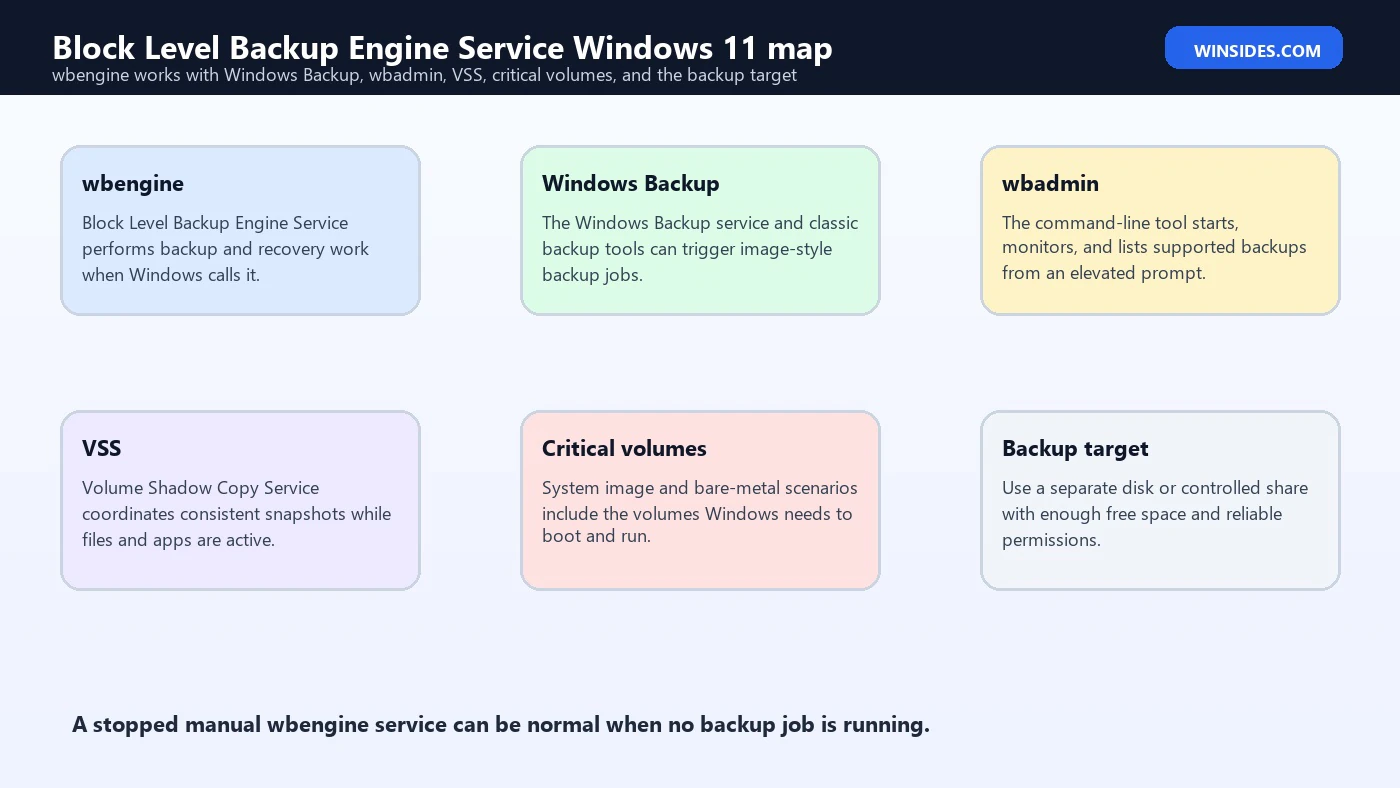
Windows has several layers around backup. At the user level, there may be Control Panel backup screens, recovery options, or a backup product interface. At the administrative level, there is wbadmin. At the service level, there are services such as wbengine, Windows Backup, and Volume Shadow Copy. At the storage level, Windows must read volumes safely and write backup data to another disk or network location.
Microsofts wbadmin documentation is the best public anchor for understanding the supported command-line path. It describes wbadmin as a tool for backing up and restoring the operating system, volumes, files, folders, and applications from a command prompt. It also lists commands such as wbadmin start backup, wbadmin get status, wbadmin get versions, wbadmin start recovery, and wbadmin stop job. Those are not random repair commands; they are the supported management surface for this backup family.
When you run a backup, wbadmin does not personally copy every block as a standalone app. It asks the Windows backup infrastructure to do the work. That is where wbengine and related services become relevant. If the service cannot be started, if VSS cannot prepare a consistent snapshot, if the target rejects writes, or if the backup catalog is damaged, the visible failure may appear in wbadmin, Event Viewer, or the backup interface.
For Windows 11 troubleshooting, this means you should not treat wbengine as isolated. A service error is one piece of the chain. You also need to consider command permissions, source volumes, critical volumes, VSS writers, VSS providers, target storage, backup catalog state, and third-party backup software.
Healthy Service State on Windows 11
A common confusion is seeing the Block Level Backup Engine Service stopped. That can be normal. Backup-related services often use manual startup because Windows starts them on demand. If no image backup, restore, catalog operation, or recovery action is active, wbengine does not need to keep consuming attention.
Use PowerShell to check the service state without changing anything:
Get-Service -Name wbengine,VSS,SDRSVC -ErrorAction SilentlyContinue |
    Format-List Name,DisplayName,Status,StartType
You may see wbengine stopped and manual. You may also see VSS, the Volume Shadow Copy service, stopped and manual. You may see SDRSVC, the Windows Backup service, stopped and manual. If the computer is idle and no backup is running, that baseline is not automatically a fault.
The stronger warning signs are different. If wbengine fails to start during a backup, if the service is disabled, if it is missing, if a backup job reports access denied, if wbadmin get status shows a stuck operation, or if Event Viewer records repeated backup and VSS errors, then you have useful evidence. The service state should be interpreted in context, not in isolation.
Avoid changing startup type just because a service is stopped. Setting everything to Automatic is not a repair strategy. It can mask the original problem, create unnecessary background activity, or clash with how Windows expects on-demand services to behave. Observe first, then repair the part of the chain that actually failed.
Why Volume Shadow Copy Service Matters
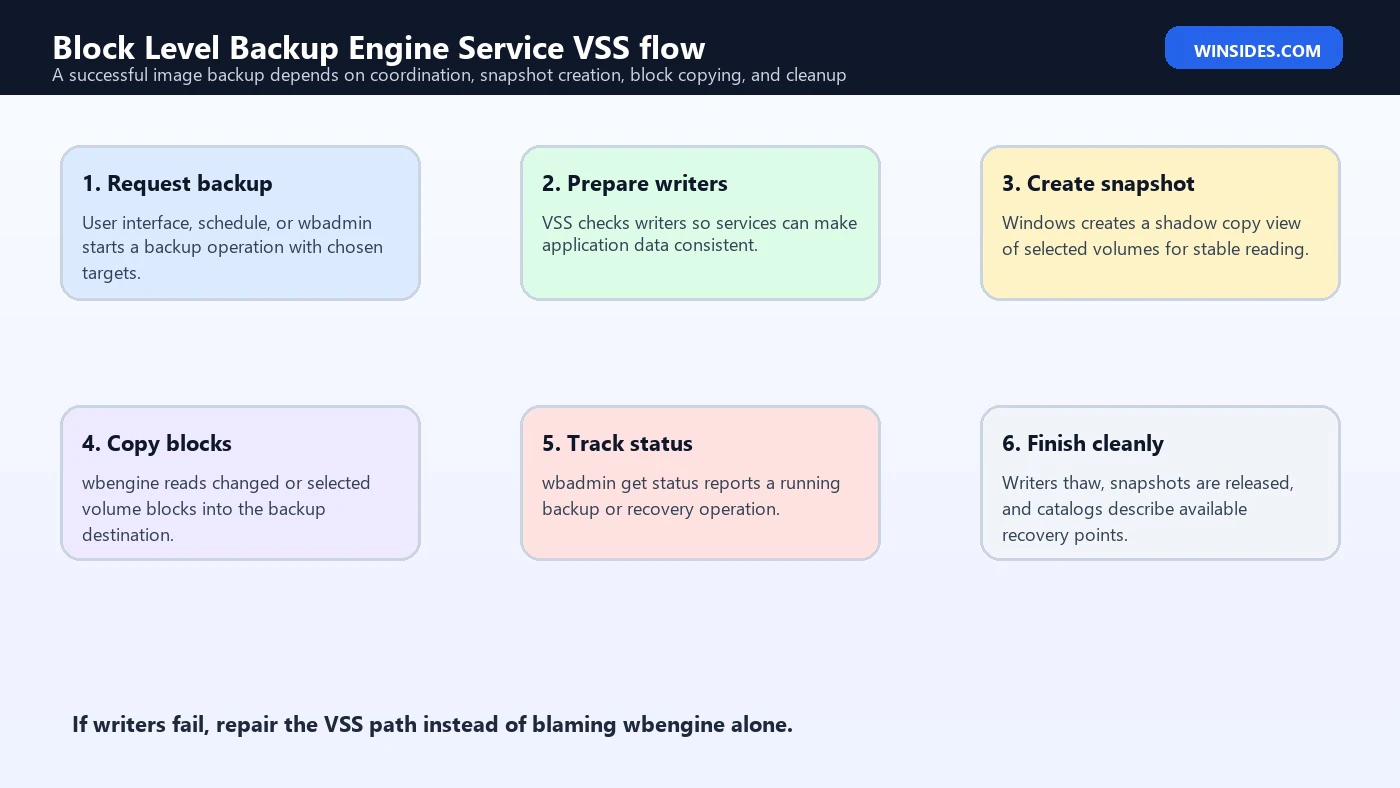
Most real backup failures blamed on wbengine are really backup-chain failures. Volume Shadow Copy Service, or VSS, is one of the biggest parts of that chain. VSS helps Windows create a consistent point-in-time view of data while the system is running. Without that coordination, an image backup could capture files while applications are halfway through writing them.
Microsofts vssadmin documentation says the tool displays current volume shadow copy backups and installed shadow copy writers and providers. See Microsofts vssadmin command reference for the official reference. Those writers and providers matter because a backup job may need applications and system components to prepare their data before a snapshot is taken. If a writer is failed, waiting, timed out, or reporting an error, wbengine may not be the real cause.
A simple VSS check is:
vssadmin list writersHealthy writers usually show stable states with no error. If a writer reports an error, note the exact writer name and error. Do not delete shadow copies or resize shadow storage as a first reaction. Many VSS issues are temporary and clear after a restart. Others point to a specific application, database service, security product, or storage problem.
VSS providers also matter:
vssadmin list providersWindows includes a Microsoft software provider. Some backup products or storage tools may add their own providers. That can be legitimate, but it also means third-party backup tools can influence snapshot behavior. If wbengine started failing after installing, updating, or removing a backup product, VSS provider and writer checks become much more important.
When the Service Runs and Why It May Be Stopped
The Block Level Backup Engine Service normally matters during backup and restore operations, not while you are browsing the web or editing a document. A backup request can come from a scheduled backup, a one-time wbadmin start backup command, a system image workflow, or a recovery operation. During that work, Windows needs to identify source volumes, prepare snapshots, read volume data, write backup data, and update catalogs.
Between those operations, the service may sit stopped. This is efficient and expected for many Windows services that are triggered only when needed. A stopped service becomes suspicious only when it cannot be started when requested or when the backup interface says the service is unavailable.
Users sometimes see advice to manually start wbengine before making a backup. That is usually unnecessary. If the backup path is healthy, Windows can start what it needs. If the service cannot start, manually clicking Start in Services may reveal an error, but it rarely solves the root cause. The real fix depends on the message: dependency failure, access denied, missing file, disabled service, account problem, registry damage, or another condition.
If you are testing, use a command that asks the backup stack a real question instead of only starting the service:
wbadmin get statusMicrosofts wbadmin get status reference says the command reports the status of the backup or recovery operation currently running, requires elevated permissions, and does not stop until the operation is finished. It also notes that wbadmin stop job is the command used to stop a current backup or recovery operation. See Microsofts wbadmin get status reference for that behavior. That warning matters because a user may think the command is frozen when it is actually waiting on a backup job.
Basic Checks Before Changing Anything
Start every wbengine investigation with observation. The aim is to identify which stage failed: service start, VSS preparation, source volume reading, target writing, catalog update, or restore selection. Jumping straight to service edits can destroy useful clues.
Begin with service state:
Get-Service -Name wbengine,VSS,SDRSVC -ErrorAction SilentlyContinue |
    Format-Table Name,Status,StartType,DisplayName
Then check whether Windows believes a backup or recovery operation is running:
wbadmin get statusThen check available backup versions:
wbadmin get versionsRun these from an elevated Command Prompt or elevated PowerShell session. If the command fails with a permissions message, that is not the same as a broken service. Microsofts command documentation repeatedly emphasizes elevated permissions and membership in Administrators or Backup Operators for backup work. Use the right elevation before interpreting the result.
Next, check VSS writers:
vssadmin list writersFinally, inspect Event Viewer. Look under Windows Logs, System, and Application. Also look for backup-specific, VSS, Service Control Manager, disk, NTFS, and storage warnings around the time of failure. The timestamp matters. A VSS writer error one minute before a backup fails is more useful than a random warning from last month.
Understanding wbadmin start backup
Microsofts wbadmin start backup reference says the command creates a backup using specified parameters. If parameters are specified, it creates a VSS copy backup and does not update the history of the files being backed up. See Microsofts wbadmin start backup reference for the official parameter details. That description is dense, but it explains several real-world support cases.
A basic one-time backup has a source and a target. For example, the source might be C: and the target might be an external drive. A more recovery-oriented job may include -allCritical, which includes all critical volumes containing the operating systems state. That option matters for bare-metal recovery because Windows may need more than the visible C: volume to boot.
An example command shape is:
wbadmin start backup -backupTarget:E: -include:C: -allCritical -quietDo not copy that command blindly. Confirm that E: is a separate backup target and not a volume being included in the backup. Microsoft notes that the target volume for a critical-volume backup can be local, but it cannot be any of the volumes included in the backup. If you accidentally target the wrong disk, Windows will reject the job or put your recovery plan at risk.
For network targets, permissions matter. A UNC path must be reachable, writable, and stable. The account running the backup must have the required access. If the share is reused incorrectly, Microsoft warns that a later backup to the same remote shared folder can overwrite the previous backup. That is not a wbengine bug. It is a target management issue.
VSS Copy vs VSS Full
One of the most important details in the wbadmin start backup documentation is the difference between VSS copy and VSS full behavior. Microsoft states that -vssFull performs a full backup using VSS, updates file history to reflect backup, and may truncate logs of previous backups. Microsoft also cautions against using that option when another product backs up applications on the included volumes because it can interfere with incremental, differential, or other backup sequences.
The safer default for many one-time or diagnostic backups is VSS copy behavior. Microsoft describes -vssCopy as backing up files without updating backup history, preserving information that other backup systems may depend on. In other words, if a third-party backup tool already protects a database or application, a careless VSS full backup can disrupt that products assumptions.
For a home Windows 11 PC, this may sound abstract. For a workstation running development databases, virtual machines, accounting software, or endpoint backup agents, it matters a lot. If you are using another backup product, check its documentation before running a full VSS backup through wbadmin.
This is why a good wbengine article should not simply say “run this command.” Backup commands have consequences. The right command depends on whether you need file backup, volume backup, system image style recovery, application consistency, a one-time copy, or integration with another backup system.
Backup Target Requirements
The backup target is one of the easiest places to make a mistake. A valid target must be separate from the protected data, reliable enough to hold the backup, large enough for the job, and accessible with the correct permissions. If the target is an external USB drive, make sure it is attached, healthy, and not sleeping or disconnecting under load. If the target is a network share, make sure DNS, credentials, share permissions, NTFS permissions, and network stability are all sound.
Drive letters can change. Recovery environments can assign different letters than normal Windows. A target that was E: yesterday can become F: after another removable drive is attached. Before running a command, verify with Disk Management, Get-Volume, or File Explorer. Do not assume.
Free space is also more complicated than the visible size of your documents. Image-style backups may include critical volumes, metadata, and system partitions that users rarely think about. VSS may also need shadow copy storage while a backup is prepared. A target with “some space left” may still be too small for a consistent, useful backup.
For network shares, avoid dumping all machines into one flat folder. Microsoft warns that backing up again to the same remote shared folder can overwrite previous backup data. Use organized subfolders, machine-specific locations, or a backup product designed to manage retention. A backup that silently overwrites your only known-good image is not a reliable backup plan.
Common Error Patterns
If the Block Level Backup Engine Service cannot start, check whether it is disabled, whether dependencies or related services are broken, and whether system files are damaged. A failed start during a backup is more meaningful than an idle stopped state. Record the exact error number and message.
If wbadmin get status appears stuck, remember Microsofts note that the command does not stop until the operation finishes. Use a second elevated window to inspect disk activity, Event Viewer, and backup target behavior. If you truly need to stop a current backup or recovery operation, the supported command path is wbadmin stop job, not killing random processes.
If the backup fails during snapshot creation, use vssadmin list writers. A failed writer points toward the application or Windows component that could not prepare consistent data. Restarting the computer may clear a transient writer state. Persistent writer errors require targeted repair.
If the backup starts and then fails while writing, inspect the target. Look for disconnects, insufficient space, access denied, file system errors, antivirus interference, network timeouts, or a share path that overwrites previous backups. Do not spend an hour changing wbengine if the external drive is dropping offline under sustained writes.
If backup versions are missing, check the backup catalog and target path. Do not delete catalogs unless you understand the consequences. Microsoft lists wbadmin delete catalog, but the command is meant for cases where the local backup catalog is corrupted and there is no usable catalog elsewhere. Catalog repair is not a casual cleanup step.
Safe Repair Order
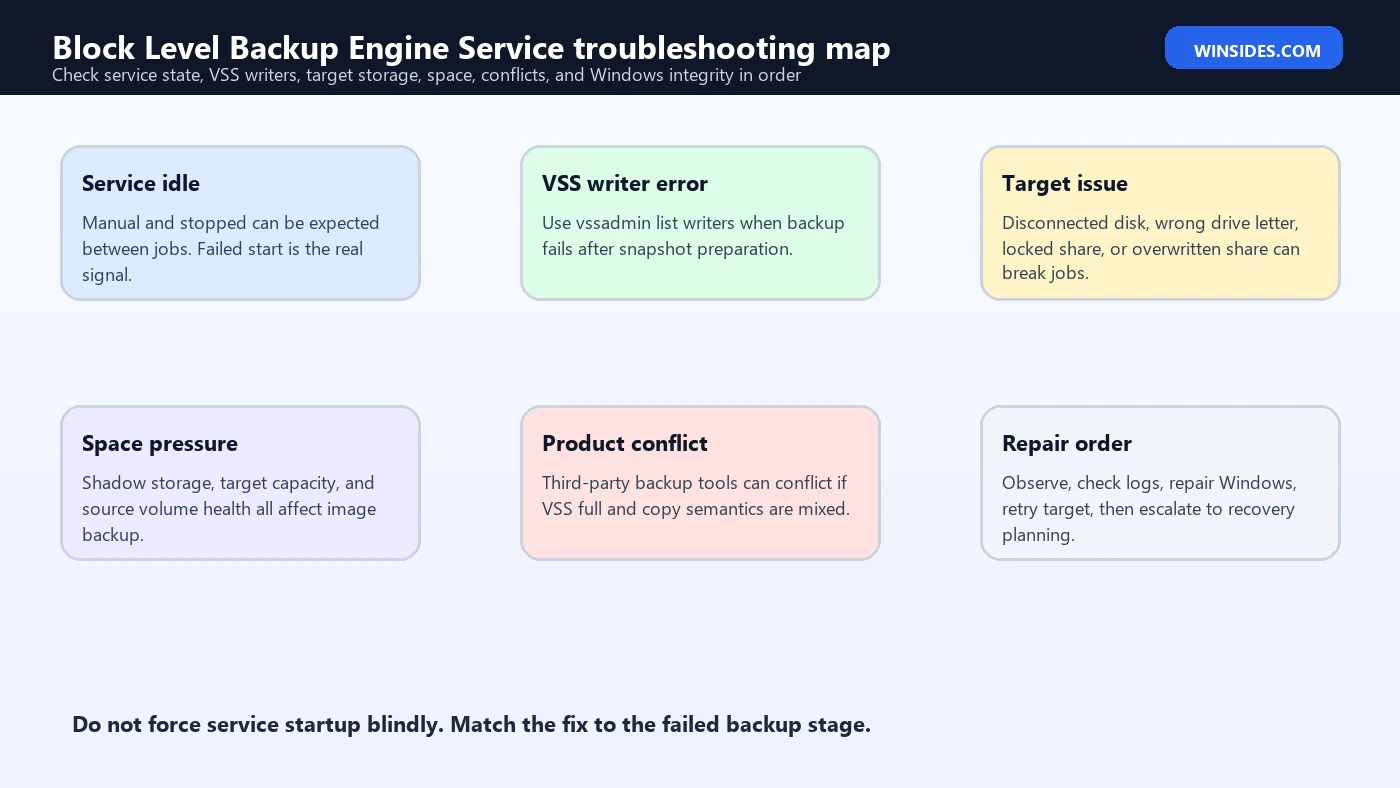
Use a repair order that protects data first. Backups exist because recovery matters. A hurried service tweak can make recovery worse if it deletes catalogs, overwrites targets, or damages VSS configuration.
Start with a restart. Many VSS and backup job states clear after a normal reboot. Then check service state, backup status, backup versions, VSS writers, and Event Viewer. Write down the exact stage and message.
Next, verify the target. Confirm the drive letter, disk health, free space, share path, credentials, and write permissions. For USB disks, try a direct port and avoid hubs. For network shares, verify access with the same account and from the same machine.
Then repair Windows integrity if corruption is suspected:
DISM /Online /Cleanup-Image /RestoreHealth
sfc /scannow
After that, review third-party backup, antivirus, ransomware protection, and endpoint tools. If the issue began after installing or removing one of them, use vendor guidance or cleanup tools. Backup and security products often interact with VSS, file system filters, and controlled folder access.
Only after those checks should you consider deeper changes such as resetting backup configuration, repairing catalogs, or using recovery media. Those actions should be tied to evidence. The goal is not to make one command succeed once; the goal is to restore a backup path you can trust.
Third-Party Backup Conflicts
Many Windows 11 users run third-party backup products because they want image retention, cloud backup, incremental backups, centralized management, or easier restore testing. That is fine. The risk comes from mixing backup systems without understanding VSS behavior.
If another product uses VSS to protect applications, running a VSS full operation through wbadmin can change backup history or log behavior in ways the other product does not expect. Microsofts own documentation warns about this. This is not a theoretical warning for servers only. Some Windows 11 PCs run local databases, virtual machines, mail archives, developer services, or business software that also care about consistent backups.
The safest approach is to choose one primary backup strategy and understand how one-time Windows backups fit into it. If you use a third-party image backup product, use its console for routine imaging and its guidance for rescue media. Use wbadmin for specific Windows-supported tasks only when you know the interaction is safe.
If you recently uninstalled a backup product and Windows Backup now fails, suspect leftovers. VSS providers, services, drivers, scheduled tasks, or filter components can remain. Use the vendors cleanup instructions rather than deleting files from System32 or removing providers blindly.
What Not to Do
Do not disable the Block Level Backup Engine Service because you do not use system images every day. A manual, idle backup service is not a performance problem. Disabling it can break supported backup and recovery workflows when you need them most.
Do not delete shadow copies as your first fix. Shadow copies can be part of restore points, backup staging, or other recovery paths. Deleting them may free space, but it can also remove useful recovery data. Identify why VSS is failing first.
Do not run random registry files to “restore” wbengine. Service configuration and permissions are security-sensitive. Importing an unknown registry file can weaken permissions, change service behavior, or create a mismatch with your Windows build.
Do not ignore target warnings. A backup that writes to a failing USB disk or unstable share is not reliable. If the target is questionable, replace or repair the target rather than forcing Windows to continue.
Do not treat one green backup as full proof. Recovery must be tested. At minimum, confirm that backup versions are visible, the target is reachable from recovery media or Windows Recovery Environment, and you know where BitLocker recovery keys are stored.
Practical Backup Strategy for Windows 11
For a single home PC, the practical strategy is simple: keep personal files synced or copied, keep a separate image or full backup for disaster recovery, and keep the recovery key and installer media available. Do not rely on only one mechanism. Cloud sync is not the same as image backup. Image backup is not the same as versioned file history. A recovery USB is not the same as a recent backup.
For a business PC, the strategy should be documented. Who owns the backup? Where is it stored? How often does it run? How long are versions retained? Is the device encrypted with BitLocker? Who has the recovery key? Can the backup be restored to replacement hardware? Are endpoint security and backup products compatible? Those questions matter more than whether wbengine is stopped while idle.
For technical users, wbadmin can be useful for one-time jobs and status checks, but it should not replace a tested backup plan. If you need automated retention, offsite storage, reporting, and restore verification, use a product designed for that. If you use built-in Windows tooling, document the exact commands, targets, and recovery steps.
The Block Level Backup Engine Service is only one component. A dependable Windows 11 recovery plan needs healthy services, healthy storage, clear permissions, correct VSS behavior, and a target that survives the same failure that destroys the PC.
FAQ
What is Block Level Backup Engine Service in Windows 11?
It is the Windows service named wbengine. It supports backup and recovery operations that need block-level or image-style access to volumes.
Should Block Level Backup Engine Service be running all the time?
No. It can be manual and stopped when no backup or recovery job is active. That idle state is not automatically a problem.
Why does Windows Backup fail if wbengine is stopped?
The service being idle is normal, but it must be able to start when a supported backup job needs it. If it fails to start during a job, check the exact service error, Event Viewer, VSS writers, and target storage.
What is wbadmin?wbadmin is Microsofts command-line tool for supported backup and recovery operations. It must be run from an elevated command prompt for the tasks discussed here.
What is VSS?
Volume Shadow Copy Service helps Windows create consistent snapshots while the system is running. Backup failures often involve VSS writers or providers rather than wbengine alone.
How do I check whether a backup is currently running?
Run wbadmin get status from an elevated prompt. Microsoft notes that the command waits until the current operation is finished.
Can I stop a stuck backup?
The supported command is wbadmin stop job. Use it carefully, especially during recovery operations, and inspect logs afterward.
Is -vssFull safe?
Use it only when you understand the consequences. Microsoft warns that it can affect other backup products that rely on backup history for incremental or differential behavior.
Why does my network backup overwrite older backups?
Microsoft notes that repeated backups to the same remote shared folder can overwrite previous backup data. Use organized subfolders, retention-aware software, or a clear target strategy.
Should I change wbengine startup type to Automatic?
Usually no. Manual startup can be normal. Fix the backup failure, VSS issue, permission problem, or target problem instead of changing startup type without evidence.
Conclusion: Keep wbengine Useful, Idle, and Ready
Block Level Backup Engine Service Windows 11 is not a mysterious performance drain. It is the wbengine service that supports Windows backup and recovery work when a block-level or image-style operation needs it. It can sit stopped while the system is idle, and that alone is not a failure. The real test is whether Windows can start and use it when a backup or restore job requires it.
When backup fails, troubleshoot the whole chain. Check wbengine, Windows Backup, VSS, wbadmin status, Event Viewer, source volumes, target storage, permissions, third-party backup tools, and Windows component health. Pay special attention to VSS writers and backup targets because they are frequent causes of failures that users incorrectly blame on the service.
The safe mindset is simple: do not disable backup infrastructure, do not delete recovery data casually, do not run random registry repairs, and do not assume a backup is good until you know it can be found and restored. Keep wbengine available, keep your backup target reliable, and keep your recovery plan documented before the day you need it.
For more interesting articles, stay tuned to Winsides.com!









Community
Comments (0)