

Introduction to Black Screen After Windows Update
black screen after windows update is one of the most stressful Windows 11 problems because the computer may appear to be powered on, but the desktop, login screen, or mouse pointer never appears. Sometimes the screen turns black after the restart that completes an update. Sometimes you can sign in, hear startup sounds, or see keyboard lights, but the display stays blank. In other cases, the black screen appears only after installing a driver update, feature update, cumulative update, or firmware update that arrived through Windows Update.
A black screen after an update does not always mean Windows is destroyed. It can come from several different layers: a display driver that failed to initialize, a monitor output switching to the wrong display, Explorer not starting after sign-in, a GPU driver reset, a failed update rollback, a startup repair issue, BitLocker or firmware timing, hybrid graphics confusion on a laptop, or external hardware that interferes during boot. The safe fix depends on where the boot path stops.
Microsoft’s Windows recovery guidance explains that Windows includes several recovery tools for startup failures, update problems, and system issues. It also recommends backing up personal files before recovery actions and distinguishes between Startup Repair, System Restore, uninstalling an update, Reset, and reinstalling Windows. Microsofts Windows recovery options guidance That matters here because the wrong recovery choice can turn a display problem into data loss.
This guide focuses on Windows 11. It walks through the black-screen patterns that appear after Windows Update, the fastest non-destructive checks, how to get into Safe Mode or Windows Recovery Environment, how to uninstall a recent update, when to roll back or reinstall a display driver, when to use Startup Repair or System Restore, and what not to do when the screen is blank but the system may still be working underneath.
Table of contents
Key Takeaways
- A black screen after Windows Update is not one single problem. It can be display output, driver, login shell, startup repair, failed update, or hardware timing.
- Start with simple display checks. Try brightness, monitor input, external display unplugging, Windows display reset shortcut, and a cold restart before destructive recovery.
- Safe Mode is often the best repair entry point. Microsoft documents Windows startup settings and Safe Mode as reduced startup modes for troubleshooting. Microsofts Windows startup settings and Safe Mode guidance
- Uninstalling the latest update belongs after scope checks. Use it when the timing clearly points to a recent quality or feature update.
- Display driver rollback is different from uninstalling a Windows update. If the screen fails after a GPU driver update, driver rollback or reinstall may be cleaner.
- Recovery options should be used in order. Startup Repair, System Restore, uninstall update, Reset, and reinstall are different tools with different risk levels.
- Back up data before recovery actions whenever possible. Microsoft explicitly recommends backing up personal files before recovery processes. Microsofts Windows recovery options guidance
- Do not keep forcing power off repeatedly. One forced power cycle may be necessary to reach recovery, but repeated hard shutdowns can worsen update or disk state.
What Usually Causes a Black Screen After Updating
The most common cause is display initialization. Windows updates can include display driver changes, graphics stack updates, monitor detection changes, firmware interactions, or timing changes that affect how Windows hands off from boot graphics to the full desktop driver. If that handoff fails, the PC may be awake but the panel or monitor remains black.
A second common cause is the sign-in shell. Windows may boot, accept credentials, and then fail to load Explorer, the desktop, or the user session correctly. In that case, the machine may respond to keyboard shortcuts, Task Manager, or remote management even while the screen looks empty. A black screen with a movable cursor often points closer to the shell/user-session layer than a black screen with no signal at all.
A third cause is an update rollback or incomplete update state. If Windows was applying updates and the process was interrupted, it may loop through repair, rollback, or pending update stages. Microsoft’s Windows Update troubleshooting guidance lists incomplete updates, stuck updates, insufficient space, incompatible drivers, access issues, and update database problems among common Windows Update causes. Microsofts Windows Update troubleshooting guidance
A fourth cause is external hardware. Docks, USB-C displays, HDMI adapters, external drives, capture cards, and multi-monitor configurations can confuse display routing after an update. Microsoft recommends disconnecting external storage devices, drives, docks, and other hardware not needed for basic functionality when troubleshooting Windows Update problems. Microsofts Windows Update troubleshooting guidance The same idea applies to black screens after updates: reduce the system to the simplest display path.
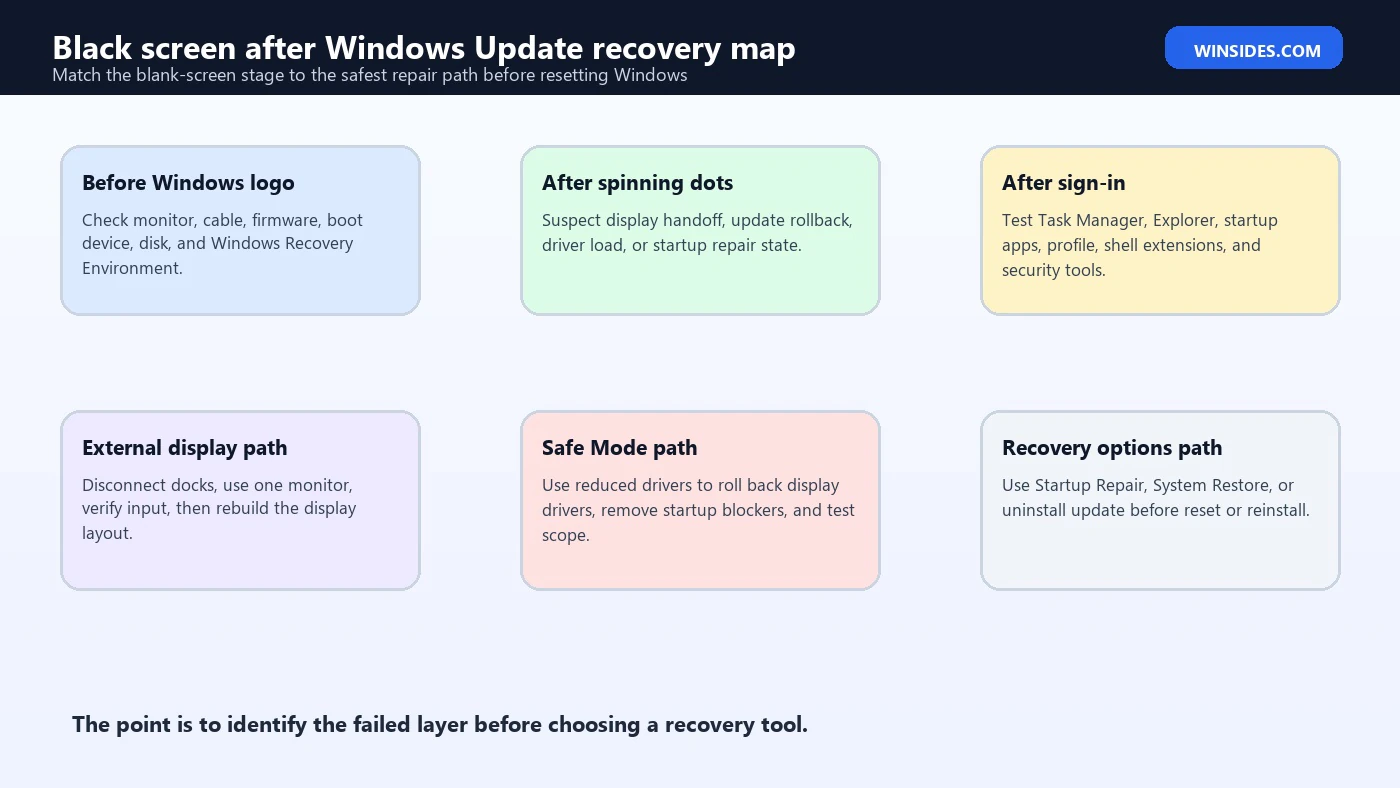
Identify the Black Screen Type First
Before repairing anything, identify what kind of black screen you have. A no-signal monitor is different from a backlit laptop panel with no image. A black screen before the Windows logo is different from a black screen after sign-in. A black screen with a cursor is different from a totally frozen system. The symptom stage tells you which layer to repair.
If the monitor says no signal, check monitor input, cable, dock, GPU port, external display mode, and whether the PC is actually awake. If the laptop panel is lit but blank, brightness, display driver, hybrid graphics, or shell loading may be involved. If the cursor appears, Windows probably reached a graphical session, and Explorer, display driver, profile, or startup apps are suspects.
If you see the manufacturer logo but never see Windows, focus on boot and recovery. If you see Windows spinning dots and then black, focus on display driver handoff, update rollback, or sign-in screen. If the black screen appears only after entering the password or PIN, focus on user profile, Explorer, startup apps, and graphics shell.
Write down when it happens. That sounds basic, but it saves time. “Black before logo,” “black after spinning dots,” “black after sign-in,” and “black only on external monitor” are four different repair paths.
First Non-Destructive Checks
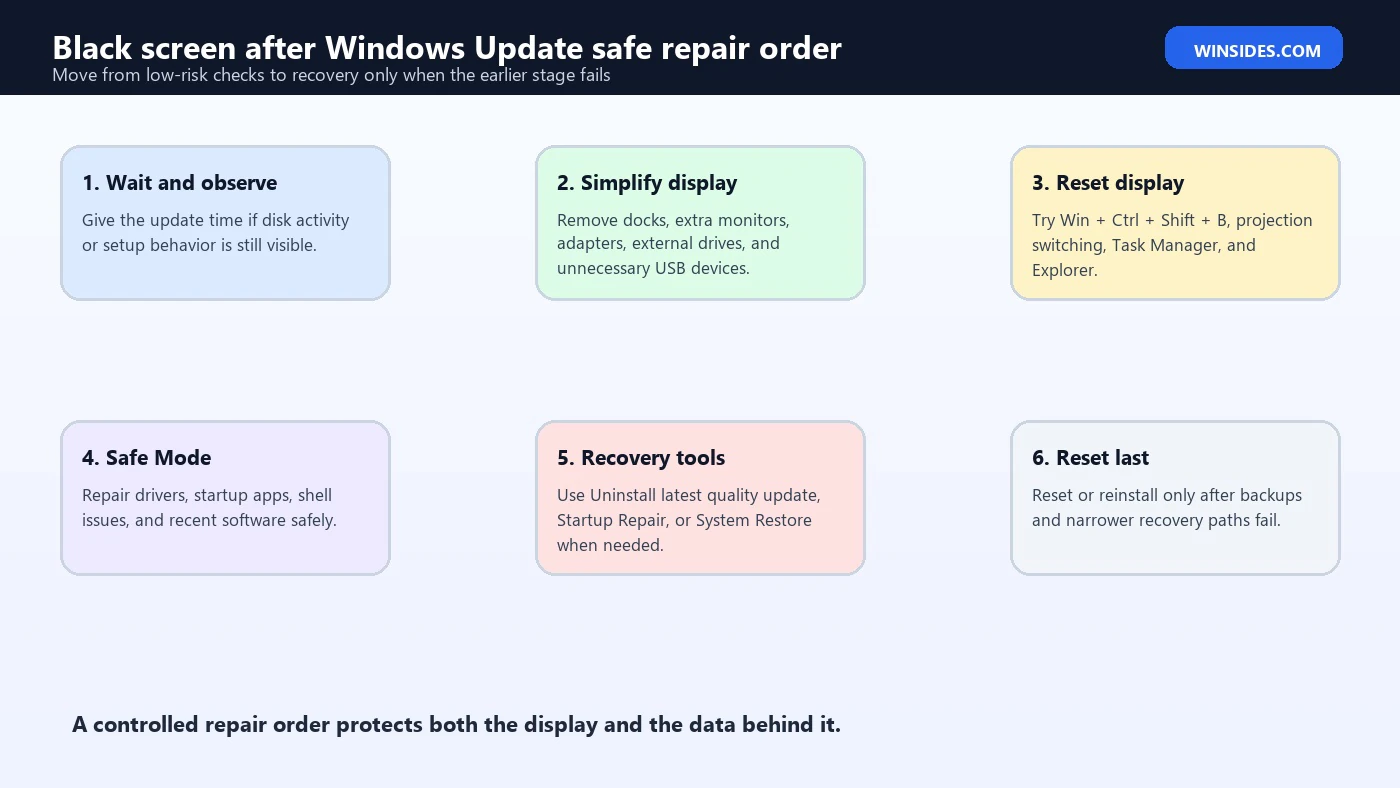
Start with the checks that do not change Windows. Wait a few minutes if the update just restarted. Some updates leave the screen blank briefly while the system finishes configuring. If disk activity, fans, or keyboard lights show activity, give the system reasonable time before forcing power off.
Check brightness and display output. On laptops, use the brightness keys. On desktops, verify the monitor is on the correct input and the cable is seated. If you use a dock, connect the monitor directly to the laptop or desktop if possible. If you use multiple monitors, disconnect all but one known-good display.
Use the display reset shortcut:
Win + Ctrl + Shift + B
Windows may beep and reset the graphics driver. This can restore display when the driver stack is alive but the output is stuck. It will not fix every black screen, but it is quick and safe.
Try projection switching:
Win + P
Then press the arrow keys and Enter to cycle display modes. This helps when Windows sends output to the wrong monitor after an update. It is especially useful on laptops that were recently connected to a dock or external screen.
If you can open Task Manager with Ctrl + Shift + Esc, Windows is not fully dead. From Task Manager, you may be able to run explorer.exe, sign out, restart, or inspect startup apps. If Task Manager opens, the repair path is much less severe than a machine that never reaches Windows.
Use Safe Mode or Windows Recovery Environment
Safe Mode is the most useful next step when the screen fails after the Windows boot handoff but the computer still powers on. Microsoft describes Safe Mode as a startup mode that uses a limited set of files and drivers. If the PC works in Safe Mode, the core Windows installation is usually still recoverable, and the cause is more likely a driver, startup app, service, display setting, or update layer loaded during normal startup. Microsofts Windows startup settings and Safe Mode guidance
If you can reach the sign-in screen, hold Shift, select Power, and choose Restart. Windows should restart into the recovery menu. From there, choose Troubleshoot, Advanced options, Startup Settings, Restart, and then select Safe Mode or Safe Mode with Networking. Safe Mode with Networking is helpful if you need to download a graphics driver, read documentation, or access cloud files, but basic Safe Mode is cleaner for isolating display and startup issues.
If the screen is black before sign-in, you may need Windows Recovery Environment. The usual path is to interrupt startup two or three times by holding the power button when Windows begins loading. Use this carefully. The goal is not to repeatedly crash the system; the goal is to trigger Windows recovery when there is no visible way to reach the menu. Once recovery appears, stop forcing shutdowns and use the recovery tools from the menu.
On BitLocker-protected systems, recovery actions may ask for the BitLocker recovery key. Do not panic if that appears. It does not automatically mean the drive is damaged. It means Windows is protecting the encrypted disk because the boot path changed enough to require verification. Get the recovery key from your Microsoft account, organization portal, or administrator before continuing.
Safe Mode can tell you a lot. If the display works in Safe Mode, avoid Reset this PC as the first reaction. Instead, repair the display driver, uninstall a recent update, disable a problematic startup app, or run system file repair. If the display does not work in Safe Mode either, the problem may sit earlier in the boot chain, firmware, disk, panel, monitor, cable, or recovery state.
If You Can Reach the Login Screen
A black screen after Windows Update is less severe when the sign-in screen appears reliably. That means firmware, disk unlock, boot files, and core graphics are getting far enough to draw the Windows sign-in interface. The failure then often begins after user authentication.
Sign in and wait for a minute. If the screen turns black after the password or PIN, try Ctrl + Alt + Delete. If the security screen appears, select Task Manager. If Task Manager opens, choose Run new task, type explorer.exe, and press Enter. If the desktop appears, the Windows shell failed to start automatically. That may be caused by a corrupted startup item, shell extension, user profile issue, display utility, or update timing problem.
If Explorer starts manually, restart normally once. If the issue returns, open Task Manager again, go to Startup apps, and disable non-essential startup programs temporarily. Prioritize display overlays, GPU tuning utilities, theme tools, remote desktop tools, dock software, screen recorders, and anything installed immediately before the update. You are not deleting them. You are only testing whether one of them blocks the desktop.
If the black screen appears only for one user account, create or test another local administrator account if possible. A user-profile-specific black screen points away from Windows boot repair and toward shell configuration, startup entries, policy, profile corruption, or account-specific app data. If every account is affected, system-level services, graphics driver, Windows update state, and security software become more likely.
Also check whether the computer is reachable from another device. If Remote Desktop, file sharing, or management tools still connect, Windows is running. That does not fix the display, but it confirms the machine is not fully dead. For work PCs, this is a good point to involve IT before resetting the system, because domain policies, BitLocker, endpoint security, and update rings may all be involved.
If the Screen Turns Black After Sign-In
A black screen after sign-in with a mouse cursor often points to the desktop shell or graphics session rather than a failed Windows installation. The simplest test is Task Manager. Press Ctrl + Shift + Esc. If Task Manager opens, use File, Run new task, and start explorer.exe. If that restores the desktop, update or remove shell-related startup items and check recently installed utilities.
If Task Manager opens but Explorer does not start, run cmd as an administrator from Task Manager if available and check basic system state. You can run file repair tools, but do not start with large destructive actions. The practical order is to confirm the display driver, verify free disk space, check recent updates, and only then repair the component store or system files.
If the desktop appears in Safe Mode but disappears in normal mode, restart into Safe Mode and open Device Manager. Display adapters should show the installed GPU. If there is a warning icon, a disabled device, or a newly installed driver that matches the update date, the graphics path is suspect. Microsofts Device Manager guidance covers updating drivers, browsing for drivers, and letting Windows search for updated driver software. Microsofts Device Manager driver update guidance
If a third-party antivirus or endpoint agent updated at the same time, include it in your timeline. A Windows update may be blamed because it happened during the same reboot, while the actual black screen is caused by a security product, display overlay, encryption prompt, or driver that also changed during that maintenance window. This is common on business laptops.
Do not remove random services because the screen is black. A black desktop is frustrating, but disabling services blindly can create new boot problems. Test in Safe Mode, make one change at a time, and restart after each meaningful change so you know what actually fixed the issue.
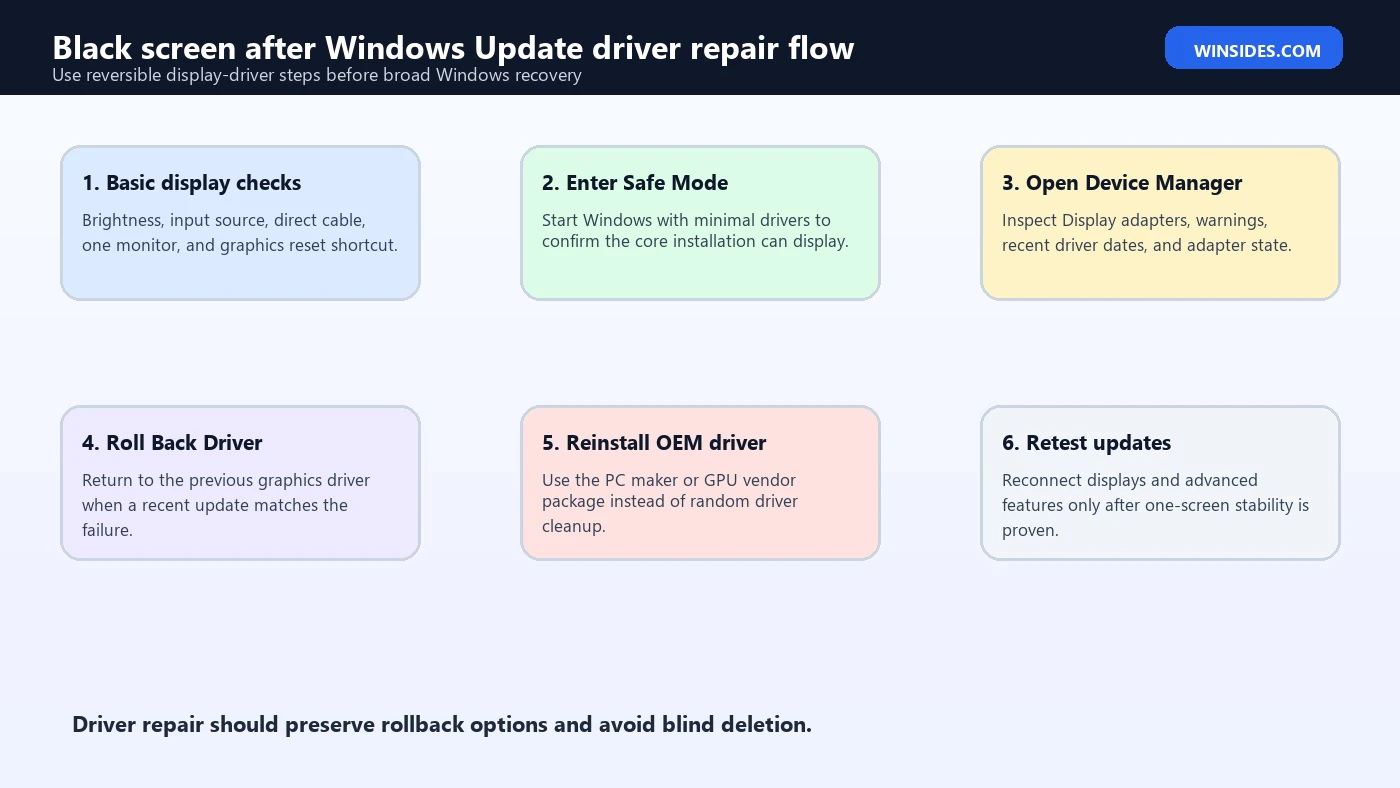
Roll Back or Reinstall the Display Driver
Display driver repair is one of the most common fixes for a black screen after Windows Update. Windows Update may install a driver from Microsoft, the device manufacturer, Intel, AMD, NVIDIA, or an OEM package. Sometimes that driver is correct but conflicts with a dock, external monitor, hybrid graphics configuration, or older vendor utility. Sometimes the update replaces a stable OEM driver with a generic one that does not handle a specific laptop panel correctly.
From Safe Mode, open Device Manager and expand Display adapters. If the adapter properties show a recently updated driver, use the Driver tab and look for Roll Back Driver. If the button is available, rolling back is usually safer than uninstalling everything. It returns the device to the previous driver version. After rollback, restart normally and test the display.
If rollback is not available, uninstall the display adapter driver from Device Manager and restart. Be careful with the checkbox that removes driver software. On a laptop with hybrid graphics, removing the wrong package can make recovery harder. A cleaner approach is often to download the correct driver package from the PC manufacturer first, especially for Dell, HP, Lenovo, ASUS, Acer, MSI, Surface, or business-class systems with custom graphics switching.
For desktops with NVIDIA, AMD, or Intel graphics, use the official vendor driver or the motherboard/OEM recommended driver. If the black screen started immediately after a GPU driver update, install the previous known-good version. Newest is not always best for stability. A stable driver that supports your monitor, refresh rate, HDR mode, and sleep behavior is better than a newer driver that breaks output after every restart.
After the driver repair, test with the simplest display path. Use one monitor, one cable, one refresh rate, and no dock. Set the display to a standard resolution and refresh rate before reconnecting extra monitors. If HDR, VRR, custom scaling, or high refresh rate modes were involved, turn them back on later one at a time.
Uninstall the Latest Windows Update
If the display driver path does not explain the timing, uninstall the latest Windows update. This is most appropriate when the black screen started immediately after a cumulative update, preview update, feature update, or update restart, and Safe Mode or Recovery Environment is accessible.
From Windows Recovery Environment, choose Troubleshoot, Advanced options, and Uninstall Updates. Windows may offer an option to uninstall the latest quality update or the latest feature update. A quality update is the regular monthly or out-of-band update. A feature update is a larger version upgrade. Start with the latest quality update when the issue appeared after a normal monthly patch. Use feature update rollback when the issue appeared after moving to a new Windows version.
If you can reach Settings in Safe Mode or normal mode, you can also review update history and remove recent updates from the installed updates page. Keep your notes precise. Record the update name, KB number, date, and what changed. That helps if the update later reinstalls and the problem returns.
Uninstalling an update is not a permanent security strategy. It is a diagnostic and recovery step. If removing the update fixes the black screen, pause long enough to install updated graphics, chipset, BIOS or firmware, dock firmware, and OEM drivers before trying the update again. If the same update breaks the system repeatedly after driver cleanup, document it and check the vendors support channels.
Do not uninstall every update in a panic. Work from newest to oldest and retest. Removing too much at once can make it difficult to know which component caused the black screen. It can also leave the system behind on important security fixes.
Use Startup Repair and System Restore
Startup Repair is useful when Windows cannot boot properly, gets stuck during startup, or fails before sign-in. It is less useful for a desktop-only black screen after signing in. Microsoft lists Startup Repair among the recovery tools available when Windows has startup trouble. Microsofts Windows recovery options guidance If your black screen appears before the sign-in screen or after a failed update restart, Startup Repair is a reasonable recovery option.
System Restore is different. It returns system files, drivers, registry settings, and some configuration state to a restore point. It usually does not delete personal files, but installed apps, drivers, and updates after that restore point may be affected. Use it when the problem started after a clear update or driver change and a restore point exists from before the problem.
In Windows Recovery Environment, choose Troubleshoot, Advanced options, and System Restore. Pick a restore point that predates the black screen. Read the affected programs list if Windows shows it. After restore completes, restart and test the system before reinstalling updates.
If Startup Repair and System Restore both fail, do not immediately assume Reset this PC is required. Check whether Safe Mode works, whether the disk is healthy, whether the display works on an external monitor, and whether the update can be uninstalled. Reset and reinstall belong later in the decision tree because they take more time, affect apps, and can complicate recovery if files are not backed up.
Disconnect Docks and External Hardware
External hardware can make a black screen after Windows Update look like a broken operating system when the real problem is display routing. Docks, USB-C hubs, HDMI adapters, DisplayPort cables, capture cards, external drives, printers, and secondary monitors all add variables during startup. Updates can change driver timing, firmware handoff, USB initialization, or display detection, and a previously stable dock can become the device that blocks a clean display path.
Shut the PC down fully. Disconnect everything except power, keyboard, mouse, and one known-good display. For a laptop, test the built-in display first without a dock. For a desktop, connect one monitor directly to the GPU or motherboard output that normally works. Avoid adapters while testing. Use a simple HDMI or DisplayPort cable if possible.
If the system starts normally with accessories removed, reconnect hardware one item at a time. Start with the main monitor, then the dock, then other USB devices. If the black screen returns when a specific dock or monitor is connected, update that device firmware or driver and check whether the display is being assigned as the primary screen. Some business docks need firmware updates after Windows graphics or USB-C changes.
External storage deserves special attention during update recovery. If Windows is trying to finish an update, boot from the wrong device, or enumerate a problematic USB drive early, startup can delay or fail. Microsofts update troubleshooting guidance recommends removing external storage devices and other unnecessary hardware when resolving update problems. Microsofts Windows Update troubleshooting guidance That advice is especially relevant when the screen goes black during the first reboot after an update.
Check Laptop, Multi-Monitor, and Hybrid Graphics Issues
Laptops add two extra layers: the built-in panel and hybrid graphics. Many Windows 11 laptops use an integrated GPU for efficiency and a discrete GPU for performance. After an update, the handoff between those layers can fail, especially when the laptop was docked, asleep, connected to an external monitor, or using high refresh rate output.
If the internal panel is black, test an external monitor. If the external monitor works, the internal panel path, brightness control, panel driver, or hybrid graphics configuration may be involved. If the internal panel works but the external monitor is black, check the monitor input, dock, cable, refresh rate, display mode, and GPU output.
For multi-monitor desktops, start with one screen. Windows may remember a virtual layout where the login screen or desktop is on a monitor that is no longer connected. The Win + P projection menu can help, but a full one-monitor test is cleaner. After the system is stable, reconnect the second and third displays and rebuild the layout in Settings.
High refresh rate, HDR, VRR, and custom resolution settings can also create a black screen on some combinations of monitors and drivers. If Safe Mode works, boot normally with one display and set the refresh rate to a conservative value such as 60 Hz before reconnecting the full setup. Then re-enable advanced display features one at a time.
If your laptop has OEM graphics software, install the OEM package before using a generic driver. A generic driver may be technically newer but lack the exact panel, brightness, switching, or dock behavior the laptop manufacturer expects. This is common on gaming laptops and business laptops with customized graphics stacks.
Repair Windows Update State
When the screen is recoverable but updates keep failing or reinstalling into the same black screen, repair the update state before repeating the cycle. Start with free space. A system drive that is nearly full can cause updates, driver staging, component cleanup, and rollback to fail. Free enough space for Windows to install, stage, and reverse updates if needed.
Run Windows Update troubleshooting from Settings if the desktop is available. If not, use Safe Mode with Networking or recovery tools as appropriate. Microsofts Windows Update troubleshooting guidance covers common update blockers, including stuck updates, missing files, driver compatibility, insufficient disk space, and external hardware. Microsofts Windows Update troubleshooting guidance The goal is to fix the update pipeline, not just remove one update and hope the next attempt behaves differently.
If Windows boots, use system repair commands from an elevated terminal. These commands are not magic, and they do not directly fix every display problem, but they can repair component store and system file damage left by a failed update:
DISM /Online /Cleanup-Image /RestoreHealth
sfc /scannow
Run DISM first, then SFC. Restart after the repairs finish. If either command reports errors, save the output. If DISM cannot access source files or SFC cannot repair files, that is a separate servicing issue that should be fixed before you continue forcing update attempts.
If the update repeatedly causes the same black screen after driver cleanup and system repair, check whether the update is a preview update, optional driver update, firmware update, or required security update. Optional driver updates can often be avoided if the OEM driver is working. Security updates should not be skipped permanently; instead, resolve the underlying driver, firmware, or hardware conflict.
Event Viewer and Reliability Monitor Clues
After the display is usable again, check the evidence. Event Viewer and Reliability Monitor can show whether the black screen was tied to a display driver crash, Windows update failure, service failure, hardware error, or app crash. This is important because a black screen after Windows Update may be a symptom of an update timing issue rather than the update package itself.
Open Reliability Monitor by searching for View reliability history. Look at the date and time of the update restart. Red X entries for Windows failures, hardware errors, display driver crashes, or application failures can point toward the layer that broke. A LiveKernelEvent, display driver stopped responding entry, or repeated app crash after sign-in is much more useful than guessing.
Open Event Viewer and review System and Application logs around the time of the black screen. Look for display driver resets, WindowsUpdateClient entries, Kernel-Power events caused by forced shutdowns, Service Control Manager errors, disk warnings, and startup repair events. Do not treat one warning as proof. Look for clusters that match the failure time.
If the event history shows repeated display resets, repair the GPU driver and reduce display complexity. If it shows update rollback or servicing errors, repair Windows Update state. If it shows disk warnings, back up immediately and check storage health. If it shows no Windows events during the black screen period, the issue may have happened before Windows logging started, which points more toward firmware, display output, or hardware.
What Not to Do During a Black Screen
Do not reset Windows as the first step unless data is already backed up and every safer recovery path has failed. Reset can be useful, but it is a broad action. It removes apps, changes system state, and can create extra recovery work. For many black screen after Windows Update cases, Safe Mode, driver rollback, update uninstall, Startup Repair, or System Restore is enough.
Do not delete GPU driver folders manually. Use Device Manager, Apps, the official installer, or the OEM driver package. Manual deletion can leave Windows with broken driver store references, missing control panels, and startup errors that are harder to clean than the original black screen.
Do not run random registry fixes from forums. Display, shell, update, and recovery problems can all produce black screens, and a registry change meant for one scenario can damage another. If a registry fix cannot be explained clearly and reversed, skip it.
Do not keep forcing power off every time the screen stays black for a few seconds. One controlled forced shutdown may be necessary to reach recovery. Repeated forced shutdowns while updates are applying can damage update state and increase the chance of file-system repair.
Do not assume the update is always at fault. The update may have exposed a failing driver, weak cable, dock firmware bug, unstable overclock, disk issue, or security product conflict. The timing matters, but evidence matters more.
Best Practices Before Installing Future Updates
Before installing major Windows updates, connect the PC to reliable power and leave enough free disk space. On laptops, avoid doing feature updates while docked to a complicated multi-monitor setup unless that setup is required and known stable. For desktops, avoid changing GPU drivers, BIOS settings, or display cables during the same update window.
Keep OEM firmware and chipset drivers current. Many black screen issues that appear to be Windows Update problems are actually firmware, BIOS, USB-C, Thunderbolt, dock, or graphics switching problems. Updating those pieces from the PC manufacturer can make Windows updates much smoother.
Create a restore point before risky driver or feature updates if System Protection is enabled. Also keep a real backup of important files. Microsofts recovery documentation emphasizes backing up personal files before using recovery options. Microsofts Windows recovery options guidance A backup changes the entire stress level of troubleshooting because you can repair confidently instead of worrying that every click might affect irreplaceable data.
For business systems, do not bypass company update controls. If a work laptop gets a black screen after Windows Update, IT may have logs, recovery keys, endpoint tools, driver baselines, and known issue notices. A self-service reset can break management enrollment or encryption recovery.
Frequently Asked Questions
Is a black screen after Windows Update always a GPU driver problem?
No. A GPU driver is common, but not guaranteed. The cause can be display output, monitor routing, Explorer failing after sign-in, update rollback, firmware timing, dock behavior, disk trouble, BitLocker recovery, startup repair, or a third-party security tool. The stage of the black screen matters more than the fact that an update happened recently.
Should I use Uninstall latest quality update?
Use Uninstall latest quality update when the black screen started immediately after a recent monthly update and simpler display or driver checks do not solve it. It is a reasonable recovery step from Windows Recovery Environment. If it fixes the issue, update your drivers and firmware before letting the same update install again.
What if Safe Mode also shows a black screen?
If Safe Mode also fails, the issue may happen before normal Windows drivers and startup apps load. Test another monitor or cable, disconnect docks, use Windows Recovery Environment, run Startup Repair, try System Restore, and check disk or hardware health. If the machine never displays firmware or manufacturer logo, focus on hardware, monitor, cable, BIOS, or power rather than Windows.
Can I fix the black screen without losing files?
Usually, yes. Many fixes are non-destructive: display reset shortcut, one-monitor testing, Safe Mode, driver rollback, update uninstall, Startup Repair, System Restore, DISM, and SFC. Reset or reinstall should come later. Even then, back up files first whenever possible.
Why does the preview or external monitor work while the laptop screen is black?
That often points to panel routing, brightness, hybrid graphics, refresh rate, or OEM display driver behavior. Install the correct OEM graphics and chipset packages, test one screen at a time, and reset advanced display settings before restoring the full monitor setup.
Conclusion: Recover the Screen Before Rebuilding Windows
A black screen after Windows Update is scary because it hides the system from you, but it is not automatically a disaster. Treat it as a staged troubleshooting problem. First identify where the screen goes black. Then remove display variables, try safe keyboard shortcuts, test Safe Mode, repair the display driver, uninstall the latest update if the timing fits, and use Startup Repair or System Restore when Windows cannot start normally.
The safest repairs are the ones that preserve evidence and protect data. Keep notes about the update, driver version, monitor setup, dock, and exact failure point. Make one change at a time. Back up files before broad recovery actions. If the screen returns in Safe Mode or after a driver rollback, you are likely dealing with a recoverable software or configuration issue rather than a destroyed installation.
The final goal is not only to get the display back once. It is to make the next update safer by cleaning up drivers, simplifying the display path, updating firmware, checking logs, and keeping backups ready. That approach fixes the immediate black screen while reducing the chance that the same update cycle becomes a repeat emergency.
For more interesting articles, stay tuned to Winsides.com!









Community
Comments (0)