

Introduction to Fix Problems Using Windows Update
fix problems using windows update is a Windows 11 recovery option that many users overlook because it looks like a normal update screen, but it behaves more like an in-place repair. Instead of wiping the PC, deleting apps, or asking for a USB installer, Windows downloads a repair version of the current Windows build through Windows Update and reinstalls the same version over the existing installation.
This matters because many Windows 11 problems sit in the uncomfortable middle ground between a simple setting issue and a full reinstall. The PC may boot, but Windows Update keeps failing. Settings may open slowly. Built-in apps may behave oddly. System files may be damaged. Component store corruption may block cumulative updates. DISM or SFC may report problems that do not resolve cleanly. In those situations, a repair reinstall through Windows Update can be cleaner than trying random registry edits and less disruptive than Reset this PC.
Microsoft describes this option as a way to reinstall the current version of Windows when a PC is having problems, especially problems related to Windows Update. The process reinstalls the same Windows version already on the PC, repairs system files and components, and preserves apps, files, and settings. Microsoft also notes that the PC should stay connected to power and the internet during the process. Microsofts guide to fixing issues by reinstalling the current version of Windows
This guide explains what Fix problems using Windows Update does, when to use it, when not to use it, how it differs from Reset this PC, what to check before starting, what to expect during the repair, and how to troubleshoot the option if it is missing or fails. The goal is to help you use the feature deliberately, not as a last-second panic button.
Table of contents
Key Takeaways
- Fix problems using Windows Update is a repair reinstall for Windows 11. It downloads and installs a repair version of the current Windows build through Windows Update.
- It keeps apps, files, and settings. Microsoft positions it as less disruptive than Reset or a clean reinstall when Windows can still boot. Microsofts guide to fixing issues by reinstalling the current version of Windows
- It is best for Windows Update, system component, and system file problems. It is not the first fix for every driver, hardware, profile, or app problem.
- You need power, internet, and enough free space. A repair download and install can fail if the PC is offline, low on storage, or unstable.
- The option may be missing on managed PCs. Microsoft says devices managed by work or school policies may not show it. Microsofts guide to fixing issues by reinstalling the current version of Windows
- Back up important files first. Even repair options designed to preserve data should be approached with a current backup.
- Use it after simpler checks. Try Windows Update troubleshooting, DISM, SFC, driver checks, and recovery decisions before treating it as the only answer.
- Do not confuse it with Reset this PC. Reset is broader and may remove apps or change more of the system state.
What Fix Problems Using Windows Update Actually Does
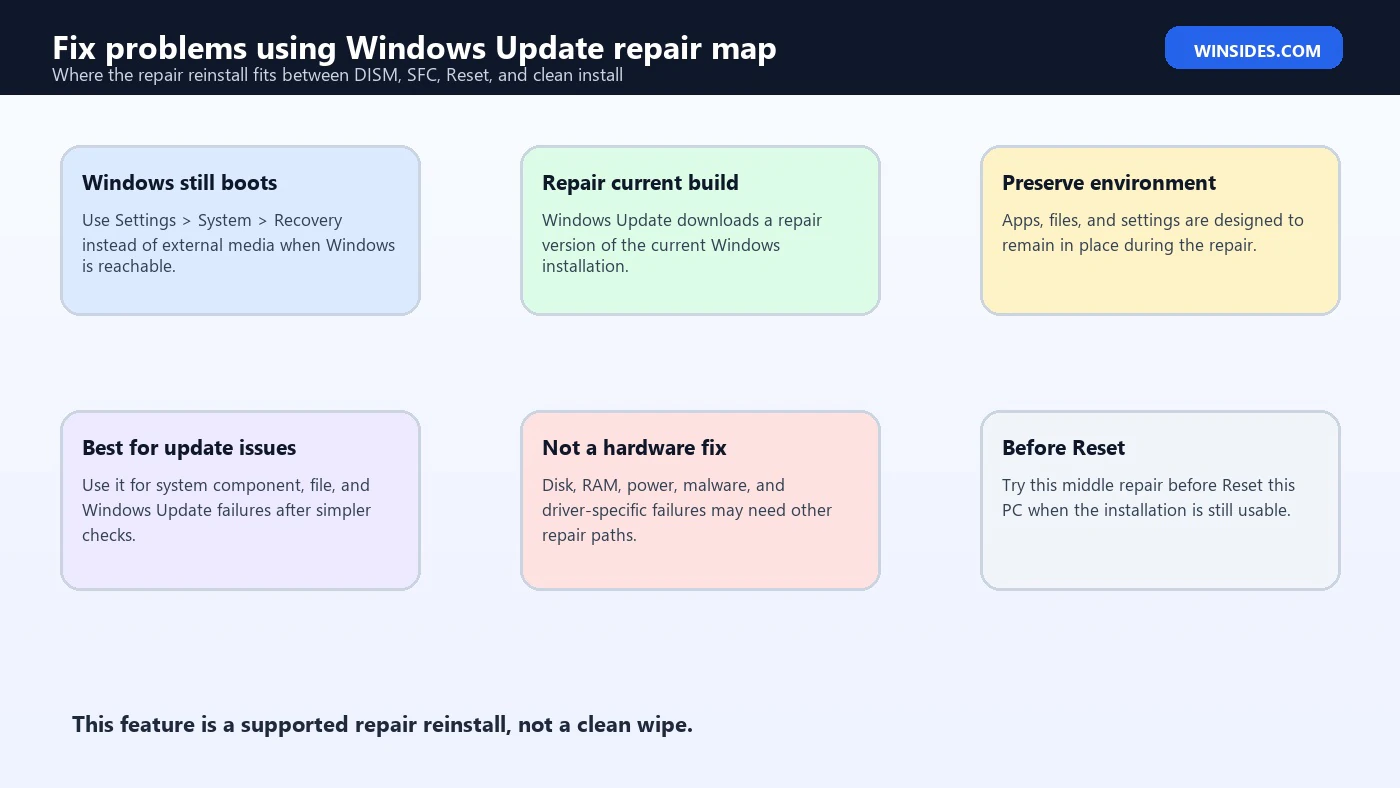
Fix problems using Windows Update is a Windows 11 recovery path that uses Windows Update as the delivery mechanism for a repair install. The system downloads a repair version of the last successfully installed operating system update and installs it over the current Windows installation. The important detail is that this is not a feature upgrade to a different Windows version and not a clean install from USB.
Think of it as a controlled refresh of the operating system files and components that belong to the current Windows build. When Windows Update has damaged component state, missing files, or update-related repair needs, the system can use the Windows Update pipeline to put the current build back into a healthier state.
Microsoft says the process repairs system files and components while preserving apps, files, and settings. Microsofts guide to fixing issues by reinstalling the current version of Windows That makes it useful for a PC that still starts but has stubborn Windows problems. It is especially relevant when Windows Update itself recommends reinstalling the current version to repair system files and components after an update installation fails.
It is not a general-purpose miracle fix. It does not replace a failing SSD, repair bad RAM, remove every malware infection, or solve every third-party driver problem. It also does not replace the need for backups. It is a repair tool for a Windows installation that is still reachable enough to use Settings and Windows Update.
When You Should Use It
Use Fix problems using Windows Update when the symptoms point to Windows system files, servicing components, or Windows Update state. Good candidates include repeated cumulative update failures, errors that continue after a reboot, Settings or Windows Update repair prompts, damaged system components, and stubborn system behavior that appears after an interrupted or failed update.
It is also useful when DISM and SFC do not fully resolve a repair. DISM and SFC are still worth running because they are faster and less disruptive, but if they report corruption, fail to repair everything, or the same Windows Update errors return afterward, a repair reinstall through Windows Update may be the next clean step.
Use it when Windows can still boot normally enough to reach Settings. The feature is designed from inside Windows, not from a completely unbootable recovery-only state. If the PC cannot start at all, Microsofts broader recovery options page points users toward Startup Repair, System Restore, recovery drives, installation media, or other recovery tools depending on the failure pattern. Microsofts Windows recovery options guidance
It is also a sensible middle step before Reset this PC. Reset is broader and more disruptive. If the issue appears to be Windows system component damage rather than a user profile disaster or malware cleanup case, a repair reinstall that keeps apps and settings can save time.
Use it when you want a supported repair path. Many Windows repair articles on the internet suggest deleting servicing folders, changing registry permissions, forcing update cache resets, or using third-party scripts. Some of those steps can help in specific cases, but they can also create new damage. Fix problems using Windows Update is built into Windows 11 and documented by Microsoft, which makes it a safer tool to try before unsupported repair experiments.
When You Should Not Use It First
Do not use Fix problems using Windows Update as the first response to every problem. If the issue is one broken app, reinstall that app. If a printer stopped working after a driver change, check the printer driver. If Wi-Fi is missing because the network adapter is disabled, repair the adapter path. A Windows repair reinstall is heavier than a targeted fix.
Do not start it on a PC with obvious hardware instability. If the computer randomly powers off, freezes during light use, reports disk errors, or shows memory errors, solve the hardware risk first. A repair reinstall requires a stable download and install window. If the PC crashes mid-repair because of storage or memory problems, the situation can get worse.
Do not use it when malware infection is strongly suspected and you cannot trust the running installation. Microsofts recovery options guidance distinguishes between ordinary recovery and suspected infection scenarios, where installation media may be more appropriate. Microsofts Windows recovery options guidance If malware may have altered system security, a clean reinstall path can be safer than repairing over a compromised installation.
Do not use it when you cannot afford downtime. The process can take time, requires a restart, and should not be interrupted. If you are in the middle of work, a battery is low, or your internet connection is unreliable, wait until the PC can stay plugged in and online.
Do not use it as a substitute for backup. The feature is designed to preserve files, apps, and settings, but no repair operation should be treated as risk-free. Back up important files before beginning, especially if the system already has update failures or storage warnings.
Requirements and Availability
Fix problems using Windows Update applies to Windows 11. Microsoft says the option can be unavailable if the PC is managed by work or school. It can also be missing if the device is running a Windows version earlier than Windows 11 with the 2022 annual update, and Microsoft notes that the February 2024 optional update or a later update is needed on the PC. Microsofts guide to fixing issues by reinstalling the current version of Windows
For personal PCs, the most common practical requirements are simple: Windows 11 must be new enough, Settings must open, Windows Update must be reachable, the internet connection must work, and the system drive must have enough free space. The PC should also stay connected to power during the whole repair.
For managed business or school PCs, the option may be intentionally hidden. Microsoft lists update management policies and managed update services as reasons the option may not be available. Microsofts guide to fixing issues by reinstalling the current version of Windows That means the absence of the button is not always a bug. It may be policy. If the device is enrolled in an organization, ask IT before trying to bypass update controls.
The option also depends on Windows Update being usable enough to download and install the repair package. If Windows Update is completely blocked by proxy settings, metered network restrictions, corrupted services, blocked update policies, or offline operation, the repair path may fail before it can help.
If the option is missing on a personal PC, install available Windows updates first, restart, and check again under Settings > System > Recovery. If updates cannot install, use the Windows Update troubleshooter and basic repair commands before assuming the feature is unsupported.
How to Use Fix Problems Using Windows Update
Open Settings and go to System > Recovery. Under Fix problems using Windows Update, select Reinstall now. Windows opens a repair flow that uses Windows Update. Microsofts documented steps say the reinstall takes you to the Windows Update page in Settings, downloads a repair version of the last operating system update that was successfully installed on the PC, installs it, and then requires a restart if you did not allow automatic restart. Microsofts guide to fixing issues by reinstalling the current version of Windows
Before selecting OK, close open files and save work. Keep the PC plugged in. If you are on a laptop, do not start on low battery. If you are on Wi-Fi and your connection is weak, move closer to the router or use Ethernet. Treat this like a major update session.
During the process, avoid repeated restarts, shutdowns, or cleanup tools. Windows may spend time downloading, staging, installing, and configuring the repair package. Progress can appear slow. Interrupting the process because it is not moving every second is one of the easiest ways to create update state problems.
After the repair completes, restart if Windows did not do so automatically. Sign in and test the original issue. Do not immediately install every optional driver update or preview update. First confirm that Windows Update opens, Settings behaves normally, built-in apps work, and the error that led you to the repair is gone.
Then check for updates again. A repair reinstall may bring Windows files back into a consistent state, but the PC may still need later cumulative updates, Defender updates, driver packages, or Store app updates.
What to Check Before Starting
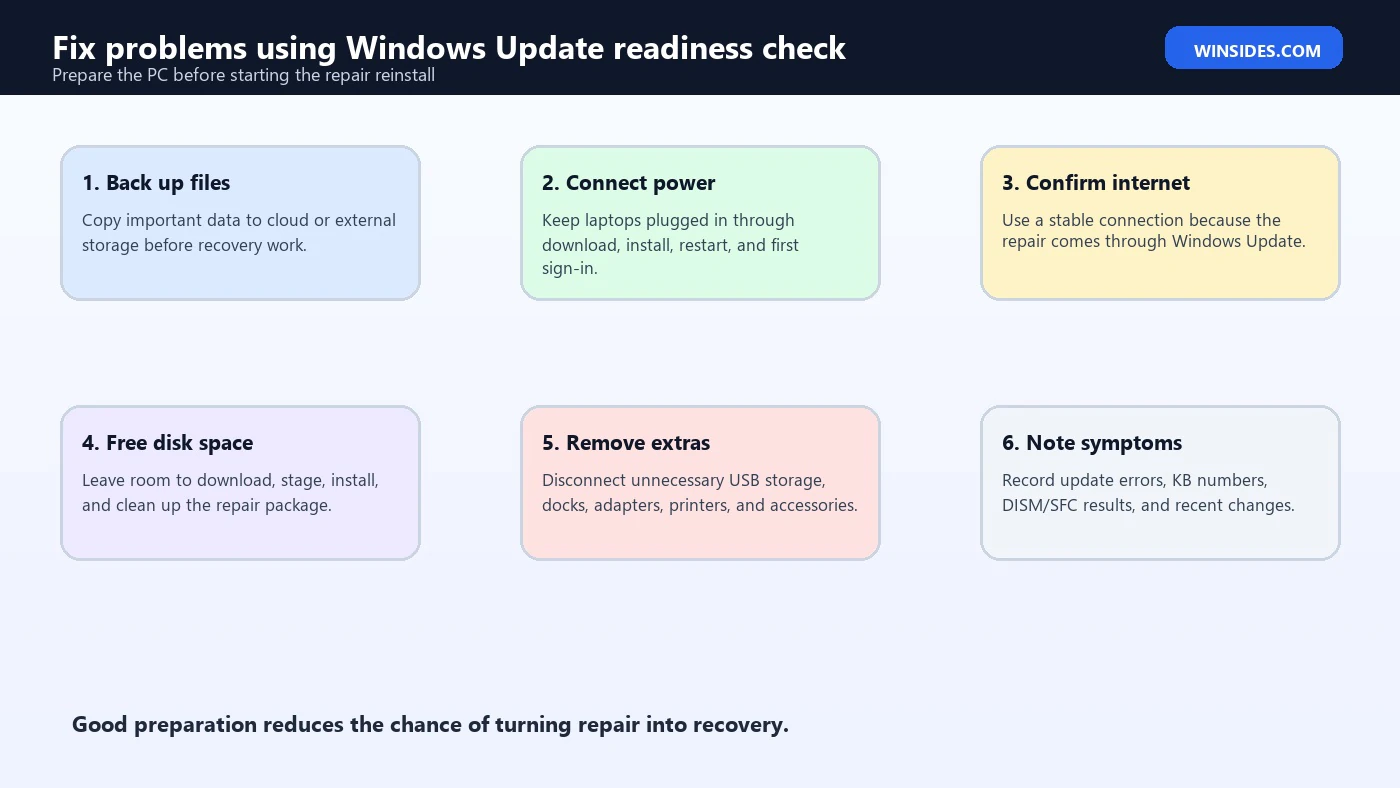
Back up important files first. Use OneDrive, File History, external storage, or another backup method you trust. Microsofts recovery guidance recommends backing up important files before recovery processes because some options can lead to data loss, and even safer repair operations deserve caution. Microsofts Windows recovery options guidance
Check free disk space. Windows repair operations need room to download, stage, and install files. If the system drive is almost full, clean up temporary files, empty the Recycle Bin, remove unneeded downloads, and move large personal files to another drive before starting.
Disconnect unnecessary external devices. Keep keyboard, mouse, power, and internet. Remove extra USB storage devices, docks you do not need, printers, capture devices, and unusual adapters. Microsofts Windows Update troubleshooting guidance recommends removing external storage and hardware that is not needed for basic functionality when resolving update problems. Microsofts Windows Update troubleshooting guidance
Pause third-party cleanup utilities. Disk cleaners, driver updaters, registry cleaners, and aggressive security tools can interfere with Windows servicing. If a tool modifies update folders or drivers while Windows is repairing itself, the result can be confusing.
Write down the error or symptom. If the repair fails or only partly helps, you will need a timeline. Note the update error code, KB number, last successful update date, recent driver changes, and whether DISM or SFC reported anything.
How It Differs from Reset This PC
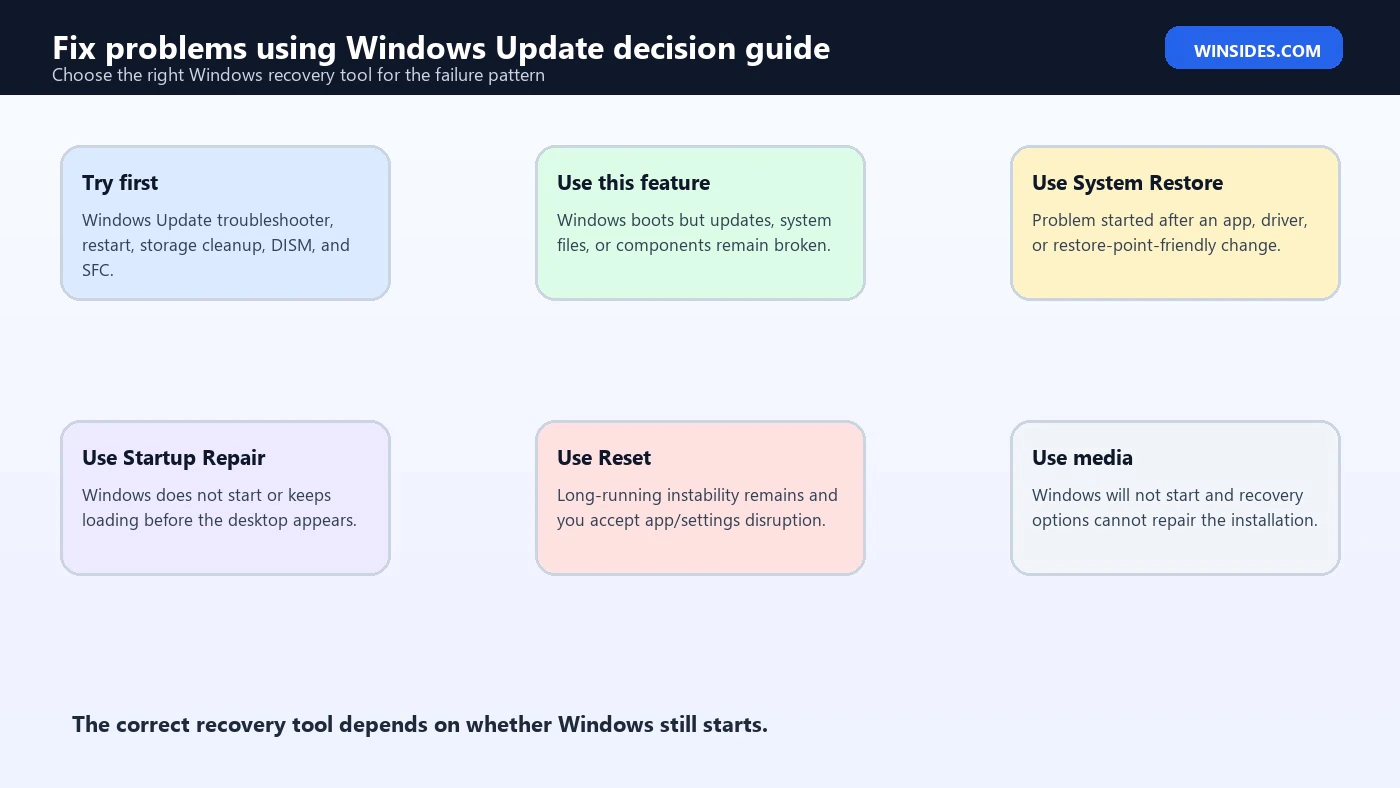
Fix problems using Windows Update preserves apps, files, and settings while reinstalling the current Windows version. Reset this PC is broader. Reset can keep personal files, but it typically removes apps and resets settings. Depending on the option chosen, Reset can be much more disruptive.
Use the repair reinstall when Windows is mostly intact but system files, components, or update state need repair. Use Reset when Windows is unstable in a broader way, when a long-running configuration problem cannot be isolated, or when you deliberately want a cleaner Windows environment. Use installation media when Windows cannot start, when recovery tools fail, or when a clean reinstall is the safer option.
Microsofts recovery options page is useful because it maps problems to recovery paths. It suggests reinstalling Windows using Windows Update for problems installing, downloading, or applying a Windows update; System Restore for problems after a recent app; Reset when the PC has not been working well for a while; Startup Repair when Windows does not start; and other reinstall paths when startup recovery fails. Microsofts Windows recovery options guidance
That comparison matters because many users jump from a Windows Update error directly to Reset this PC. Fix problems using Windows Update can be a better middle step. It is still a serious repair, but it is designed to preserve more of your working environment.
Relation to DISM and SFC
DISM and SFC are command-line repair tools. SFC checks protected system files and attempts to replace damaged copies. Microsofts System File Checker guidance recommends using DISM first on modern Windows before running SFC when repairing missing or corrupted system files. Microsofts System File Checker repair guidance
A common repair order is:
DISM /Online /Cleanup-Image /RestoreHealth
sfc /scannow
DISM repairs the Windows component store that SFC may rely on. SFC then scans protected system files. If both complete cleanly and the issue is fixed, you may not need Fix problems using Windows Update. If they fail, report corruption, or the same Windows Update failure continues, the repair reinstall becomes more attractive.
The important distinction is scope. DISM and SFC repair from within the existing servicing framework. Fix problems using Windows Update downloads and installs a repair version of the current Windows build through Windows Update. It is heavier, but still less disruptive than Reset or clean install.
Do not run repair commands endlessly. If DISM fails three different ways, SFC repeatedly reports unrepaired files, and Windows Update still cannot install, repeating the same commands is unlikely to change the outcome. Move to the next documented repair step.
If Windows Update Recommends the Repair
Sometimes Windows Update itself recommends reinstalling the current version of Windows to repair system files and components after an update installation fails. Microsoft documents this message and explains that selecting Reinstall now opens the Fix problems using Windows Update flow. Microsofts guide to fixing issues by reinstalling the current version of Windows
When Windows recommends it, take the message seriously. It usually means Windows detected a repair condition that a normal update retry may not solve. Before starting, save work, connect power, check storage, and back up important files. Then run the repair and restart when prompted.
After the repair, go back to Windows Update and check update history. Confirm that the failed update has either installed successfully or is no longer stuck in the same failure loop. If it fails again with the same code, the remaining cause may be driver compatibility, policy, storage health, blocked services, antivirus interference, or a deeper servicing issue.
Do not ignore repeated repair prompts. If Windows repeatedly asks to repair the current version, something is still wrong. Use Reliability Monitor, Event Viewer, update history, and the Windows Update troubleshooter to collect more details.
If the Option Is Missing
If Fix problems using Windows Update is missing, first confirm the device is Windows 11 and up to date enough to support the option. Microsoft says the option might be unavailable on versions earlier than Windows 11 with the 2022 annual update and that the February 2024 optional update or later is needed. Microsofts guide to fixing issues by reinstalling the current version of Windows
Next, check whether the PC is managed. Work, school, Autopatch, deployment service, WSUS, MDM, or Group Policy update controls can hide or disable the option. On those devices, the absence of the button may be intentional. Do not try to bypass policy on a managed PC.
If it is a personal PC, install available updates, restart, and check Settings > System > Recovery again. Also make sure Windows Update access has not been removed by a policy tweak, privacy tool, or registry change. If you previously used a debloat script, update blocker, or registry cleaner, it may have changed update policy state.
If Windows Update itself does not work, run the Windows Update troubleshooter and basic repair commands first. The repair reinstall depends on Windows Update, so a completely broken update client may need preliminary repair before the option can be used.
If the Repair Fails
If the repair fails, do not immediately repeat it without changing anything. Read the error. Check whether the PC lost internet, ran out of space, restarted unexpectedly, or had a driver crash during installation. Those causes need direct fixes before a retry.
Open Windows Update history and Reliability Monitor. Look for update failure codes, servicing failures, app crashes, hardware errors, or unexpected shutdowns around the repair time. If the failure happened during download, focus on connection, proxy, VPN, DNS, metered network settings, or Microsoft Update reachability. If it happened during install, focus on disk space, component store, drivers, security tools, and system file integrity.
Run DISM and SFC from an elevated terminal if Windows still boots. Restart, then try Windows Update again. If the same failure returns, consider whether System Restore, Reset this PC, or installation media is the better next recovery tool. Microsofts recovery options page helps choose between those paths based on whether Windows starts and what recently changed. Microsofts Windows recovery options guidance
For managed PCs, stop and involve IT. Update policies, compliance tools, encryption, endpoint security, and deployment rings can all affect repair behavior. A personal workaround may make the device non-compliant or harder to support.
Safety Notes for Laptops and Work PCs
For laptops, power is not optional. Keep the charger connected through download, install, restart, and first sign-in. Avoid docking and undocking during the repair. If you normally use a USB-C dock, consider using direct power and direct Wi-Fi or Ethernet until the repair is done.
For BitLocker-protected PCs, make sure the recovery key is available before major recovery work. A standard repair reinstall through Windows Update should not usually ask for it, but recovery paths, firmware changes, or startup troubleshooting can. It is better to have the key and not need it than to need it mid-repair.
For work or school devices, follow organization policy. If the option is missing, it may be blocked by design. If it is present, the repair may still interact with update rings, compliance rules, and endpoint protection. Document the issue and let IT know before taking broader steps like Reset or reinstall.
For devices with poor battery health, unstable storage, or recurring power loss, stabilize the hardware first. A repair reinstall is only as safe as the environment it runs in.
What to Do After the Repair
After the repair finishes and the PC restarts, test the original problem before changing anything else. If Windows Update was failing, check updates again. If Settings was crashing, open the same Settings page. If system files were corrupt, run SFC again. If apps were broken, open those apps. Confirm the repair actually addressed the symptom.
Then install remaining updates in a controlled way. Install required Windows updates first. Restart. Then review optional updates separately. Avoid installing every optional driver update unless it is relevant to your issue. A working OEM driver can be better than a newer optional driver that introduces instability.
Check Device Manager for warning icons. Check Reliability Monitor for fresh failures. If the repair removed the immediate problem but new driver or app errors appear, fix those separately rather than running the repair again.
Clean up only after stability is confirmed. Do not delete Windows.old or temporary installation files immediately if you might need recovery information. Once the PC is stable and backed up, Storage Sense or Disk Cleanup can reclaim space.
Common Mistakes to Avoid
The biggest mistake is starting the repair while the PC is in a fragile state. If the battery is low, the drive is nearly full, the internet connection is unstable, or the computer has been freezing randomly, fix those conditions first. The repair process needs a calm environment because Windows must download, stage, install, and restart without interruption.
Another mistake is treating the feature as an update blocker. Fix problems using Windows Update is not meant to avoid updates forever. It is meant to repair the current installation so Windows Update can work correctly again. If the same update fails after the repair, collect the new error code and check for a driver, policy, storage, or compatibility issue instead of repeatedly running the repair.
Do not combine too many repair actions at once. If you run registry cleaners, driver installers, update reset scripts, DISM, SFC, and the repair reinstall all in the same session, you will not know which action helped or which action caused a new problem. Use a clean order: document the symptom, back up files, run narrow checks, perform the Windows Update repair, restart, and test.
Finally, do not ignore managed-device rules. If a work or school PC hides the option, that may be intentional. Update policies can control feature update timing, quality update deferral, Windows Update access, and deployment services. On those systems, the right fix is often an IT-side repair policy or update ring adjustment, not a local workaround.
Frequently Asked Questions
Does Fix problems using Windows Update delete my files?
It is designed to preserve files, apps, and settings. Microsoft describes the process as reinstalling the same Windows version, repairing system files and components, and preserving apps, files, and settings. Microsofts guide to fixing issues by reinstalling the current version of Windows Even so, back up important files before starting because any repair operation has risk.
Is it the same as Reset this PC?
No. Reset this PC is broader and can remove apps or reset many settings depending on the option chosen. Fix problems using Windows Update repairs the current Windows version through Windows Update while preserving more of the existing environment.
Can I use it if Windows will not boot?
Usually no. The feature is accessed from Settings > System > Recovery inside Windows. If Windows does not start, use Windows Recovery Environment options such as Startup Repair, System Restore, recovery drive, or installation media depending on the situation. Microsofts Windows recovery options guidance
Why is the option missing on my PC?
It may be missing because the PC is managed by work or school, update policies are configured, the Windows 11 version is not new enough, or the required updates for the feature are not installed. Microsoft specifically notes managed devices and older Windows 11 builds as availability reasons. Microsofts guide to fixing issues by reinstalling the current version of Windows
Should I run DISM and SFC before using it?
In many cases, yes. DISM and SFC are faster and narrower repair tools. Microsofts SFC guidance recommends using DISM before SFC for repairing missing or corrupted system files. Microsofts System File Checker repair guidance If those tools do not fix the issue, the Windows Update repair reinstall is a sensible next step.
Can this fix Windows Update error codes?
It can help when the error is caused by damaged system files or Windows components. It will not fix every update error. Network problems, policy blocks, incompatible drivers, low storage, managed update settings, or hardware faults may still require separate troubleshooting.
Conclusion: Use Windows Update Repair Before Resetting Windows
fix problems using windows update is one of the most useful Windows 11 repair features because it fills the gap between small command-line repairs and disruptive reset or reinstall options. When Windows still boots but updates, system files, or components are damaged, it can reinstall the current Windows version through Windows Update while keeping apps, files, and settings in place.
Use it thoughtfully. Back up important files, connect power, confirm internet access, free disk space, disconnect unnecessary hardware, and try narrower tools like DISM and SFC when appropriate. If Windows Update itself recommends the repair, follow the prompt after preparing the PC properly. If the option is missing, check Windows version, management status, update policies, and whether the PC is eligible for the feature.
The best recovery decision is the one that matches the failure. Use Fix problems using Windows Update for repairable Windows component and update problems. Use Startup Repair, System Restore, Reset, or installation media when the symptoms call for those tools instead. That order gives you the best chance to repair Windows without turning a manageable update problem into a full rebuild.
For more interesting articles, stay tuned to Winsides.com!









Community
Comments (0)