

Introduction to Event ID 129 on Windows 11
Encountering unexpected errors on your Windows 11 system can be a source of significant frustration, especially when they impact performance or data integrity. Among the myriad of event log entries, Event ID 129 on Windows 11 stands out as a particularly critical warning. This specific event typically signals a reset on a storage controller, often the Advanced Host Controller Interface (AHCI) controller, which manages communication between your operating system and storage devices like SSDs and HDDs. For additional context, see Storport Miniport Drivers, Troubleshoot Event ID 129 with StorAHCI, AHCI Features, Intel Support for Storage Drivers, and AMD Support.
A recurring Event ID 129 can manifest as intermittent system freezes, slow boot times, or even sudden Blue Screens of Death (BSODs). It indicates that the storage controller has initiated a reset, usually due to a communication timeout with a connected device. While a single occurrence might be benign, frequent logging of this event suggests an underlying issue that demands immediate attention.
Ignoring Event ID 129 on Windows 11 can lead to a cascade of problems, potentially culminating in data corruption or complete system instability. Understanding its origins and implementing timely solutions is paramount for maintaining a healthy, responsive, and reliable Windows 11 environment. This comprehensive guide will walk you through diagnosing, troubleshooting, and ultimately resolving this persistent storage-related error.
By proactively addressing this event, you can safeguard your valuable data and ensure your system operates at its optimal performance. Let’s dive into the specifics of what causes this event and how to mitigate its impact effectively.
Table of contents
Key Takeaways: Understanding and Resolving Event ID 129
Understanding and resolving Event ID 129 on Windows 11 is crucial for system stability. Here’s a quick summary of the key points covered in this article:
- Event ID 129 Significance: It indicates a reset on a storage controller, often the AHCI controller, pointing to communication issues with storage devices.
- Common Causes: Driver conflicts, faulty SATA cables, power management settings (LPM), outdated firmware, and even failing hardware are primary culprits.
- Diagnosis Essentials: Use Event Viewer to locate and interpret the event, paying close attention to the StorAHCI source and correlating it with other system events for a complete picture.
- Initial Troubleshooting: Prioritize updating storage controller drivers (manually if necessary), inspecting physical SATA cable connections, and running CHKDSK to verify disk health.
- Advanced Solutions: Consider adjusting Link Power Management (LPM) settings, disabling MSI mode for the AHCI controller, updating BIOS/UEFI firmware, and investigating power supply stability.
- Prevention is Key: Regular driver and firmware updates, coupled with continuous system health monitoring, can significantly reduce the likelihood of future occurrences.
- Hardware Replacement: Be prepared to identify and replace failing storage devices or recognize signs of motherboard component failure if software solutions prove ineffective.
What is Event ID 129 and Why Does it Occur?
Event ID 129 on Windows 11 is a specific log entry that signals a critical issue within your system’s storage subsystem. It typically appears in the System log of the Event Viewer and is associated with the source StorAHCI. This event signifies that the storage controller, which acts as the bridge between your operating system and your hard drives or solid-state drives, has initiated a reset.
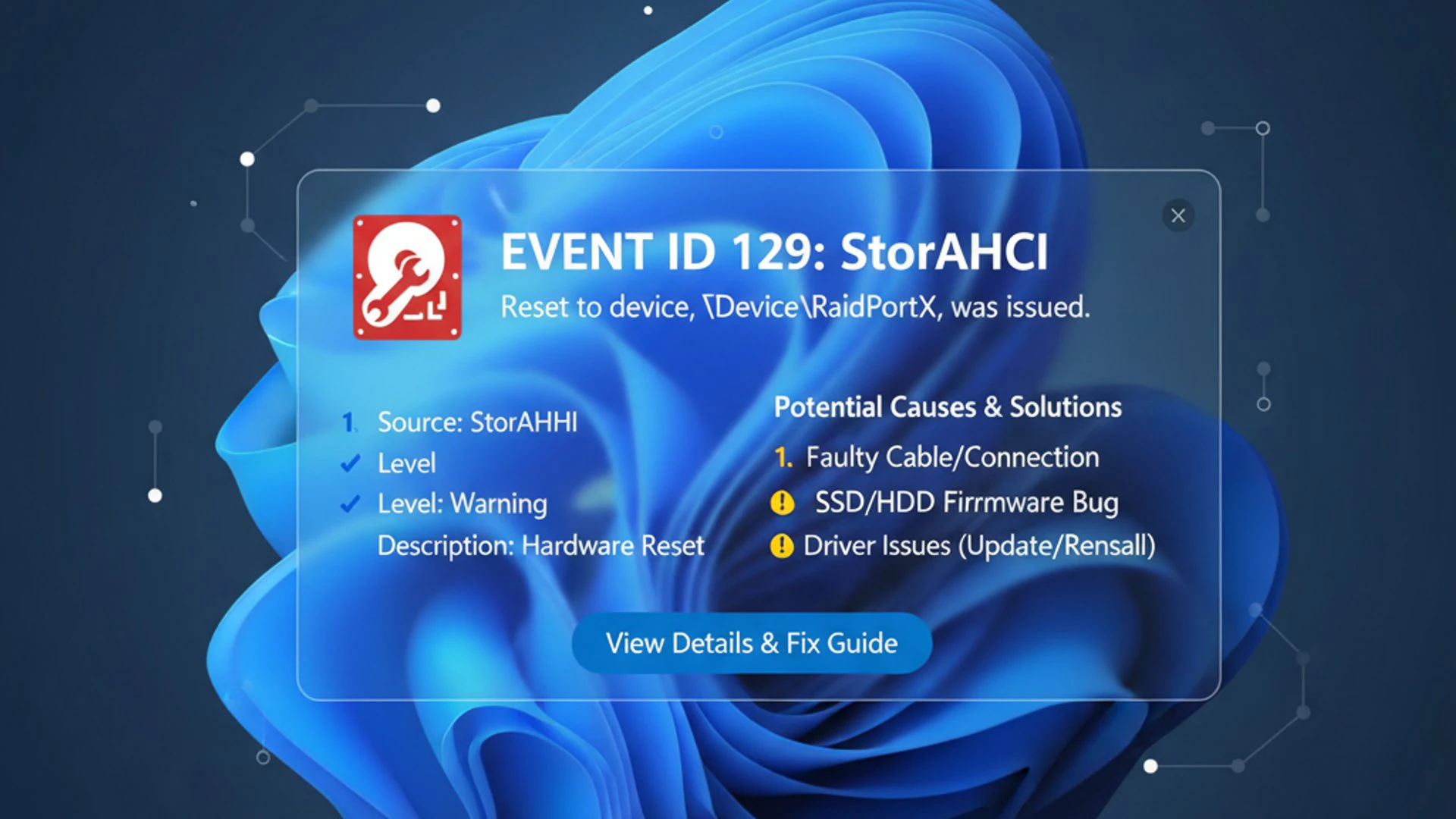
This reset occurs when the controller detects a communication problem with one of its connected devices. Essentially, it tries to re-establish a stable connection after a timeout or an unexpected error. While a single instance might not be alarming, frequent occurrences of Event ID 129 can lead to noticeable performance degradation, data corruption, or even complete system crashes.
Understanding the root cause is paramount to resolving this issue effectively. The underlying reasons can range from simple software glitches to more serious hardware malfunctions. We will explore these in detail, providing you with the knowledge to pinpoint the exact problem affecting your Windows 11 machine.
The impact of this event can vary widely, from minor annoyances like temporary system freezes to severe data loss. Therefore, treating Event ID 129 as a serious warning sign is always advisable, prompting a thorough investigation and resolution.
Understanding the StorAHCI Event Source
The StorAHCI event source is central to understanding Event ID 129 on Windows 11. AHCI stands for Advanced Host Controller Interface, a technical standard that defines how a host system (like your computer’s motherboard) communicates with SATA storage devices. It enables advanced features such as Native Command Queuing (NCQ) and hot-swapping, enhancing performance and flexibility.
When you see StorAHCI as the source for Event ID 129, it means the issue originates from the AHCI controller driver. This driver is responsible for managing the data flow between your CPU and your storage drives. A reset initiated by this driver indicates a failure in maintaining a consistent communication link.
This failure could be due to various factors, including driver bugs, incorrect power management settings, or physical issues with the SATA connection. The driver attempts to recover from these communication errors by performing a device reset, hoping to restore normal operation. However, if the underlying problem persists, these resets will continue to occur, logging repeated Event ID 129 entries.
Identifying the specific AHCI controller (e.g., Intel, AMD, ASMedia) and its driver version is often the first step in troubleshooting. This information helps narrow down potential software-related causes and guides you toward the correct driver updates or configuration changes.
Common Scenarios Leading to Event ID 129
Several common scenarios and underlying causes can trigger Event ID 129 on Windows 11. Pinpointing the exact cause is crucial for effective troubleshooting. One frequent culprit is outdated or corrupt storage controller drivers. If the driver responsible for your AHCI controller is not compatible with Windows 11 or has become corrupted, it can lead to communication timeouts and subsequent resets.
Another significant factor involves physical hardware issues. Loose or faulty SATA data cables are a surprisingly common cause. A cable that isn’t securely seated or has internal damage can lead to intermittent signal loss, prompting the controller to reset. Similarly, a failing power supply unit (PSU) that delivers unstable power to the storage devices can also cause these communication errors.
Power management settings within Windows 11 or your system’s BIOS/UEFI can also contribute. Specifically, aggressive Link Power Management (LPM) settings for SATA devices can cause drives to enter low-power states too quickly or fail to resume properly, leading to communication timeouts. This is particularly prevalent with certain SSDs.
Finally, firmware issues on the storage device itself or the motherboard’s BIOS/UEFI can be a source. Outdated firmware might not properly handle modern operating system demands or specific hardware configurations, resulting in instability. In rare cases, a failing storage drive or a faulty motherboard SATA port can also be the root cause, requiring hardware replacement.
Diagnosing Event ID 129: Locating and Interpreting Logs
Effective diagnosis is the cornerstone of resolving Event ID 129 on Windows 11. The first and most critical step is to accurately locate and interpret the event logs. The Event Viewer is your primary tool for this task, offering a detailed record of system activities, errors, and warnings. Understanding how to navigate this tool and extract relevant information is essential.
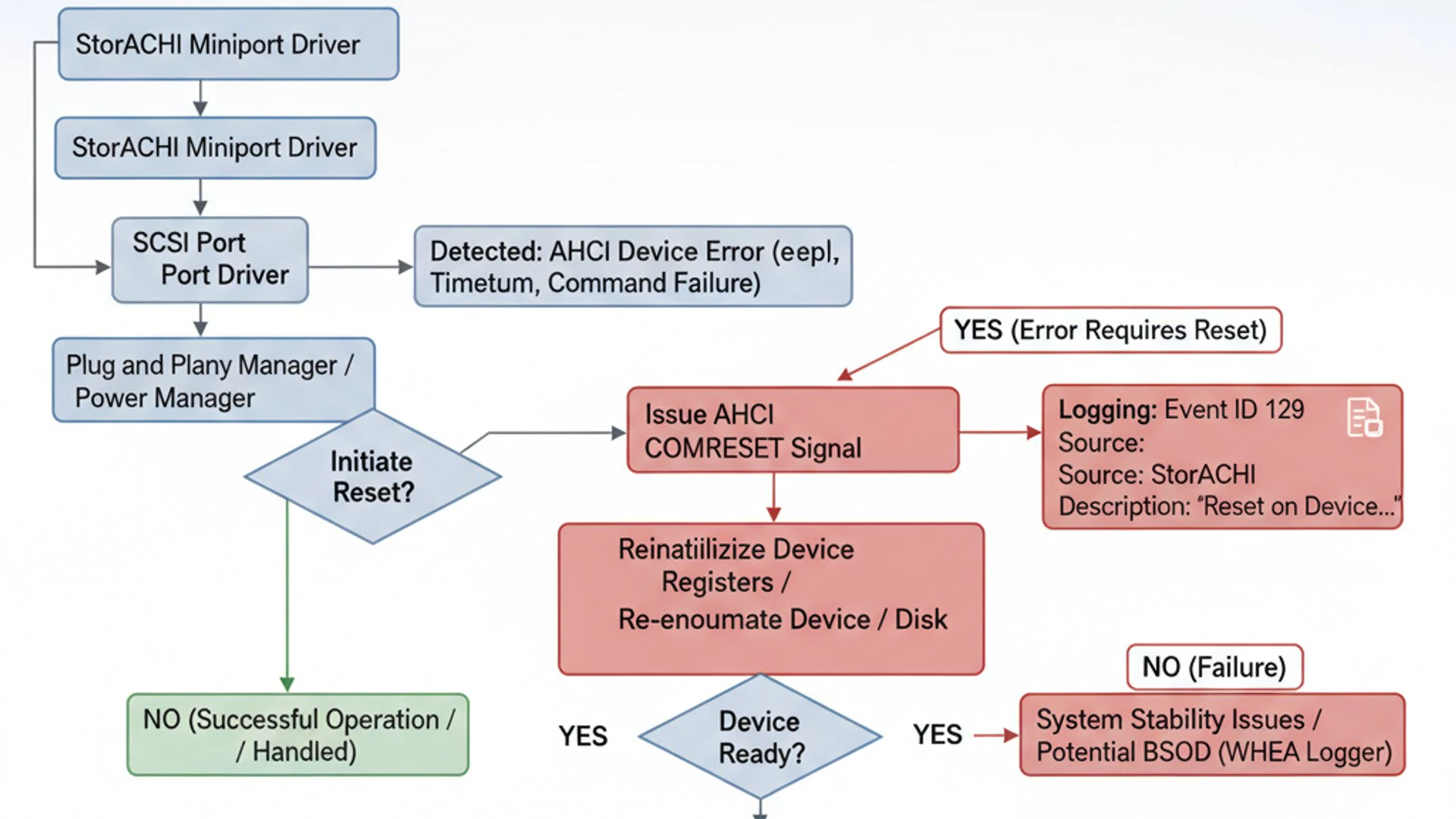
When you encounter performance issues or system instability, checking the Event Viewer should be one of your initial troubleshooting steps. The Event ID 129 entries provide valuable clues about the nature and frequency of the storage controller resets. By examining the details of each event, you can often narrow down the potential causes and formulate a targeted solution.
Beyond simply finding the event, it’s important to understand the context. What other events occurred around the same time as Event ID 129? Were there any preceding warnings or errors that might indicate a related problem? This holistic approach to log analysis can reveal patterns and dependencies that a single event entry might not convey on its own.
This section will guide you through the process of using Event Viewer, identifying specific details within the logs, and correlating Event ID 129 with other system events to build a comprehensive diagnostic picture. This methodical approach significantly increases your chances of a successful resolution.
Using Event Viewer to Pinpoint the Issue
To begin diagnosing Event ID 129 on Windows 11, you’ll need to open the Event Viewer. You can do this by pressing Win + X and selecting “Event Viewer” from the power user menu, or by typing “Event Viewer” into the Windows search bar.
Once open, navigate to Windows Logs > System in the left-hand pane. This is where most hardware and system-related errors are recorded. You’ll see a long list of events, so filtering is necessary to quickly find Event ID 129 entries.
In the right-hand “Actions” pane, click on “Filter Current Log…”. In the filter dialog box, locate the “Event IDs” field and type 129. Then, from the “Event sources” dropdown, select StorAHCI. Click “OK” to apply the filter.
This filtered view will show you all occurrences of Event ID 129 originating from the StorAHCI driver. Pay close attention to the frequency and timestamps of these events. Are they sporadic, or do they occur in clusters? Do they coincide with specific system activities, like heavy disk usage or waking from sleep?
Double-click on an event entry to view its detailed properties. The “General” tab provides a human-readable description, while the “Details” tab offers more technical information, often in XML format. This detailed view is crucial for identifying specific parameters associated with the error.
Identifying Specific Disk and Controller Information
Within the detailed view of an Event ID 129 entry, particularly on the “Details” tab, you can often find crucial information about the affected disk and controller. Look for parameters such as Port, Bus, TargetId, and LUN. These values help identify which specific SATA port or device is experiencing the communication issue.
For example, if the event consistently references Port 0, it suggests the problem lies with the device connected to the first SATA port on your motherboard. Correlating this with your physical setup can help you identify the problematic drive or cable. If you have multiple drives, this information is invaluable for narrowing down the culprit.
Sometimes, the description might also include a device description or vendor ID, which can further specify the exact storage device involved. Make a note of these details. They will be essential when you start troubleshooting, especially if you need to update drivers for a specific controller or investigate a particular drive.
Understanding these technical identifiers allows you to move beyond a generic error message and pinpoint the precise hardware component that requires attention. This targeted approach saves time and prevents unnecessary troubleshooting steps.
Correlating with Other System Events
While Event ID 129 on Windows 11 is a clear indicator of a storage controller reset, it rarely occurs in isolation. To gain a holistic understanding of the problem, it’s vital to correlate these events with other entries in your Event Viewer logs. This process can uncover preceding or subsequent events that shed light on the root cause.
For instance, look for warnings or errors that occurred just before the Event ID 129. Did you see any events related to disk errors (e.g., Event ID 7, 11, or 153 from disk source), unexpected shutdowns, or power-related issues (e.g., from Kernel-Power source)? These could indicate a failing drive, an unstable power supply, or a sudden system interruption that triggered the controller reset.
Conversely, examine events that occur immediately after Event ID 129. Do you notice any entries indicating device re-initialization, file system corruption warnings, or even application crashes? These post-reset events can confirm the impact of the controller reset on system stability and data integrity.
Pro Tip: When correlating events, use the “Find” feature (Ctrl+F) within the Event Viewer or export the filtered logs to a text file for easier searching and analysis of patterns over time. This can reveal intermittent issues that are harder to spot manually.
By piecing together the timeline of events, you can often identify a chain reaction or a common trigger. This correlation is a powerful diagnostic technique that transforms isolated error messages into a coherent narrative of your system’s health.
Initial Troubleshooting Steps for Event ID 129
Once you’ve diagnosed Event ID 129 on Windows 11 and gathered information from the Event Viewer, it’s time to implement initial troubleshooting steps. These steps focus on the most common and easily rectifiable causes, providing a solid foundation before moving to more complex solutions. Addressing these basic elements can often resolve the issue without requiring advanced technical expertise.
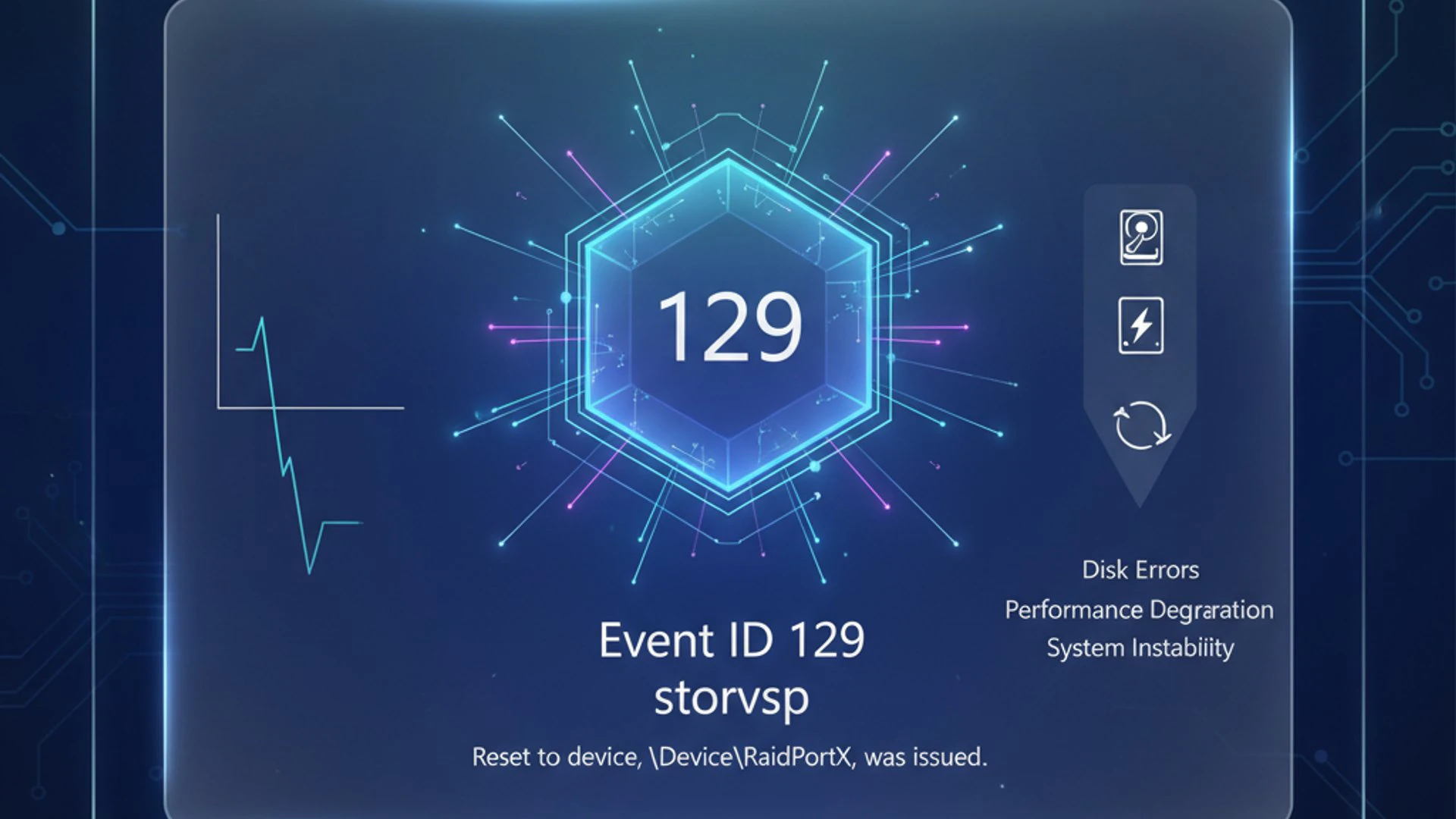
The primary goal here is to eliminate the simplest potential culprits first. This includes ensuring your storage controller drivers are up-to-date and correctly installed, verifying the physical integrity of your storage connections, and checking the health of your disk drives. These actions are fundamental to maintaining a stable storage subsystem.
Many users overlook these seemingly minor details, only to find that a loose cable or an outdated driver was the root of their persistent Event ID 129 errors. A methodical approach to these initial steps can save significant time and effort in the long run, preventing unnecessary deeper dives into system configurations.
We will provide detailed, step-by-step instructions for each of these initial troubleshooting methods, empowering you to confidently tackle the problem. Remember, patience and precision are key when dealing with system-level errors.
Updating Storage Controller Drivers
Outdated or corrupt storage controller drivers are a leading cause of Event ID 129 on Windows 11. The StorAHCI driver, in particular, benefits significantly from being kept current. Manufacturers frequently release updated drivers to improve compatibility, enhance performance, and resolve bugs that can lead to communication issues.
Before attempting any other complex fixes, ensuring your AHCI controller drivers are the latest available is a crucial first step. Windows Update often handles driver updates automatically, but sometimes it misses critical ones or installs generic versions. For optimal stability, it’s often best to obtain drivers directly from your motherboard manufacturer’s website or the chipset vendor (e.g., Intel, AMD).
Identify your motherboard model and chipset by using tools like Speccy or checking your system information (msinfo32). Then, visit the manufacturer’s support page, locate the drivers section for your specific model, and download the latest AHCI/SATA controller drivers. Always download drivers compatible with Windows 11 and your system’s architecture (64-bit).
If you’re unsure, starting with your motherboard manufacturer’s website is generally the safest approach, as they provide drivers specifically tailored for your hardware configuration. This proactive measure can often resolve Event ID 129 without further intervention.
Manual Driver Update via Device Manager
Once you have downloaded the correct storage controller drivers, you can manually update them through Device Manager. This method ensures that the specific driver you’ve obtained is installed, overriding any generic or older versions Windows might be using.
- Press
Win + Xand select Device Manager from the menu. - Expand the IDE ATA/ATAPI controllers section. You should see an entry for your AHCI controller, often named “Standard SATA AHCI Controller” or something similar from Intel, AMD, or ASMedia.
- Right-click on your AHCI controller and select Update driver.
- Choose Browse my computer for drivers.
- Click Let me pick from a list of available drivers on my computer.
- Click Have Disk… and then Browse. Navigate to the folder where you extracted the downloaded drivers and select the appropriate
.inffile. - Follow the on-screen prompts to install the driver. You might need to restart your computer after the installation is complete.
If the issue persists, you might consider uninstalling the existing driver first (right-click, then “Uninstall device,” checking the “Delete the driver software for this device” box if available), then restarting your PC and installing the new driver. This ensures a clean installation.
Checking SATA Cable Connections
A surprisingly common and easily overlooked cause of Event ID 129 on Windows 11 is a loose or faulty SATA cable. These cables carry both data and power (though power cables are separate, they often run alongside data cables). An intermittent connection can lead to communication timeouts, triggering the AHCI controller to reset.
Before delving into software solutions, it’s highly recommended to physically inspect your SATA connections. Power down your computer completely and unplug it from the wall. Open your computer case and locate your storage drives (SSDs/HDDs) and the SATA ports on your motherboard.
Carefully disconnect and then firmly re-seat both the data and power cables for all your storage devices, especially the primary boot drive. Ensure they click securely into place. If you have spare SATA cables, consider replacing the existing ones, particularly if they appear worn, bent, or if the clips are broken. High-quality, shielded SATA cables are always recommended for reliability.
Important Note: While inspecting, also check the power supply connections to your drives. Ensure they are snug and not damaged. An unstable power delivery can mimic data connection issues.
After re-seating or replacing the cables, close your case, power on your computer, and monitor the Event Viewer for any recurrence of Event ID 129. This simple physical check can often resolve the problem quickly and effectively.
Verifying Disk Health with CHKDSK
Another crucial initial troubleshooting step for Event ID 129 on Windows 11 involves verifying the health of your storage drives. Corrupted file systems or bad sectors on a disk can lead to read/write errors, causing the AHCI controller to struggle and eventually reset. The built-in Windows utility, CHKDSK (Check Disk), is invaluable for this purpose.
- Open Command Prompt as an administrator. You can do this by typing
cmdinto the Windows search bar, right-clicking on “Command Prompt,” and selecting “Run as administrator.” - In the Command Prompt window, type the command
chkdsk C: /f /r /xand press Enter. ReplaceC:with the letter of the drive you want to check if it’s not your primary system drive. - If you are checking your system drive (C:), CHKDSK will inform you that it cannot run immediately because the volume is in use. It will ask if you want to schedule the check for the next time the system restarts. Type
Yfor Yes and press Enter. - Restart your computer. CHKDSK will run before Windows boots, scanning your disk for errors and attempting to repair them. This process can take a significant amount of time, depending on the size and speed of your drive.
The /f parameter tells CHKDSK to fix errors on the disk, /r tells it to locate bad sectors and recover readable information, and /x forces the volume to dismount first if necessary. Running CHKDSK can identify and repair file system inconsistencies that might be contributing to your Event ID 129 errors. If CHKDSK reports numerous unfixable bad sectors, it could indicate a failing drive, which might require replacement.
Advanced Solutions for Persistent Event ID 129
If the initial troubleshooting steps haven’t resolved Event ID 129 on Windows 11, it’s time to explore more advanced solutions. These methods delve deeper into system configurations and firmware, addressing issues that are often more subtle or hardware-specific. While these steps require a bit more technical comfort, they can be highly effective in eliminating persistent errors.
These advanced solutions target specific aspects of how your storage controller interacts with your drives and the operating system. They involve modifying power management schemes, adjusting driver communication modes, and ensuring your system’s core firmware is up-to-date. Each of these areas can introduce instabilities if not configured correctly or if outdated.
It’s important to approach these steps systematically and to understand the potential impact of each change. Always create a system restore point or a full backup before making significant system changes, especially when dealing with BIOS/UEFI updates. This precaution ensures you can revert to a stable state if any issues arise.
This section will guide you through adjusting Link Power Management settings, disabling MSI mode, updating BIOS/UEFI firmware, and investigating potential power supply issues. These comprehensive approaches aim to provide a robust solution for even the most stubborn Event ID 129 occurrences.
Adjusting Link Power Management (LPM) Settings
Link Power Management (LPM) is a feature designed to save power by allowing SATA links to enter a low-power state when idle. While beneficial for energy efficiency, aggressive LPM settings can sometimes cause communication issues and trigger Event ID 129 on Windows 11, especially with certain SSDs or older AHCI controllers. The controller might struggle to wake the drive from its low-power state quickly enough, leading to timeouts.
You can often adjust LPM settings in two places: Windows Power Options and your system’s BIOS/UEFI. To adjust in Windows:
- Press
Win + R, typepowercfg.cpl, and press Enter to open Power Options. - Click Change plan settings next to your active power plan, then Change advanced power settings.
- Scroll down and expand Hard disk, then AHCI Link Power Management – HIPM/DIPM.
- Set both “AHCI Link Power Management – Host Initiated” (HIPM) and “AHCI Link Power Management – Device Initiated” (DIPM) to Active or Disabled. Experiment with “Active” first, as “Disabled” might consume more power.
- Click Apply and then OK.
In some BIOS/UEFI settings, you might find an option related to “SATA Aggressive Link Power Management” or similar under storage or advanced settings. Try disabling this feature. Be cautious when changing BIOS settings and only modify options you understand. Disabling LPM can sometimes resolve Event ID 129 by ensuring a constant, stable communication link with your storage devices.
Disabling MSI Mode for AHCI Controller
Message Signaled Interrupts (MSI) mode is a more efficient way for hardware devices to communicate interrupt requests to the CPU compared to traditional line-based interrupts. While generally beneficial, some older AHCI controllers or specific driver implementations can experience instability when operating in MSI mode, potentially contributing to Event ID 129 on Windows 11.
Disabling MSI mode for your AHCI controller can sometimes resolve these communication issues by forcing the controller to use the older, but potentially more stable, line-based interrupt method. This is a registry modification, so proceed with caution and back up your registry before making changes.
- Press
Win + R, typeregedit, and press Enter to open the Registry Editor. - Navigate to
HKEY_LOCAL_MACHINE\SYSTEM\CurrentControlSet\Enum\PCI. - Under PCI, you’ll find several subkeys. You need to locate the one corresponding to your AHCI controller. This can be tricky. Look for keys that contain
VEN_xxxx&DEV_xxxx(Vendor ID and Device ID). You can find these IDs in Device Manager: right-click your AHCI controller, go to Properties > Details tab > Property: Hardware Ids. - Once you find the correct PCI key (e.g.,
VEN_8086&DEV_2822&SUBSYS_B0051458&REV_00for an Intel controller), expand it, then expand the subkey beneath it (usually a single instance, e.g.,3&11583659&0&FA). - Navigate to
Device Parameters\Interrupt Management\MessageSignaledInterruptProperties. - Double-click on the MSISupported DWORD value and change its data from
1to0. - Restart your computer for the changes to take effect.
If you cannot find the correct key or are uncomfortable editing the registry, it’s best to skip this step or seek professional assistance. Reversing this change is as simple as setting MSISupported back to 1.
Updating BIOS/UEFI Firmware
An outdated BIOS/UEFI firmware can be a significant contributor to various system instabilities, including persistent Event ID 129 on Windows 11. The BIOS (Basic Input/Output System) or its modern successor, UEFI (Unified Extensible Firmware Interface), is the fundamental software that initializes your hardware components before the operating system loads. It contains critical instructions for how your motherboard communicates with all connected devices, including storage controllers.
Motherboard manufacturers frequently release BIOS/UEFI updates to improve hardware compatibility, enhance stability, fix bugs, and optimize performance. An older firmware version might not fully support the features of your storage devices, or it might have bugs that lead to communication timeouts with the AHCI controller. Updating it can often resolve these underlying issues.
The process for updating BIOS/UEFI varies significantly between motherboard manufacturers (e.g., ASUS, MSI, Gigabyte, ASRock, Dell, HP). Generally, you will need to:
- Identify your motherboard’s exact model number.
- Visit the manufacturer’s support website and download the latest BIOS/UEFI firmware for your specific model.
- Carefully follow the manufacturer’s instructions for updating. This usually involves placing the firmware file on a USB drive and flashing it from within the BIOS/UEFI interface or using a specialized utility.
Warning: BIOS/UEFI updates are critical operations. An interruption during the process (e.g., power loss) can permanently damage your motherboard. Ensure your system has stable power and follow instructions precisely. If unsure, consult a professional.
After a successful update, reset your BIOS/UEFI settings to default (or load optimized defaults) and then reconfigure any necessary settings, such as boot order or XMP profiles. Monitor Event Viewer to see if Event ID 129 persists.
Investigating Power Supply Issues
An often-overlooked cause of intermittent hardware errors, including Event ID 129 on Windows 11, is an unstable or insufficient power supply unit (PSU). Storage devices, especially high-performance SSDs and traditional HDDs, require a consistent and clean power delivery to function correctly. Fluctuations, drops, or insufficient wattage from the PSU can lead to communication errors and device resets.
Symptoms of a failing or inadequate PSU might include:
- Random system reboots or shutdowns.
- Intermittent hardware failures (e.g., USB devices disconnecting, graphics card issues).
- Unusual noises from the PSU fan.
- Frequent Event ID 129 errors, particularly under load.
To investigate, first ensure your PSU meets the wattage requirements for all your system components. Online PSU calculators can help you estimate this. If your PSU is old, or if you’ve recently added new power-hungry components, it might be struggling.
While difficult to diagnose without specialized equipment, you can try a few things:
- Check Cables: Ensure all power cables to the motherboard, graphics card, and especially the SATA power cables to your drives are securely connected.
- Test with Minimal Components: If possible, disconnect non-essential peripherals and drives to reduce the load on the PSU and see if the errors persist.
- Monitor Voltages: Some motherboard monitoring software or BIOS interfaces can display PSU voltages. Look for significant deviations from standard 12V, 5V, and 3.3V rails.
Ultimately, if you suspect your PSU is the culprit and other solutions have failed, testing with a known good, higher-wattage PSU is the most definitive way to confirm. A stable power foundation is critical for overall system health.
Preventing Future Occurrences of Event ID 129
Resolving Event ID 129 on Windows 11 is a significant step, but preventing its recurrence is equally important for long-term system stability. Proactive maintenance and continuous monitoring can significantly reduce the chances of encountering this frustrating storage controller error again. A stable system is a well-maintained system, and this principle applies directly to the health of your storage subsystem.
Prevention strategies focus on maintaining optimal conditions for your hardware and software. This includes keeping drivers and firmware up-to-date, as these are the primary interfaces between your operating system and physical components. Regular updates ensure you benefit from bug fixes, performance enhancements, and improved compatibility that manufacturers release.
Beyond updates, actively monitoring your system’s health and performance allows you to catch potential issues before they escalate into critical errors like Event ID 129. Early detection can save you from data loss, system crashes, and extensive troubleshooting down the line. It’s about being vigilant and understanding the subtle signs your computer might be giving you.
This section will outline practical measures you can adopt to safeguard your Windows 11 system against future Event ID 129 errors, ensuring a smoother and more reliable computing experience.
Regular Driver and Firmware Maintenance
One of the most effective preventive measures against Event ID 129 on Windows 11 is consistent driver and firmware maintenance. Just as you update your operating system, keeping your hardware’s foundational software current is vital. Outdated drivers or firmware can introduce compatibility issues, performance bottlenecks, or critical bugs that manifest as storage controller resets.
Make it a habit to periodically check for updates:
- Motherboard Drivers & BIOS/UEFI: At least once every few months, visit your motherboard manufacturer’s website. Look for updated chipset drivers, AHCI/SATA drivers, and BIOS/UEFI firmware for your specific model. These updates often contain crucial fixes for storage-related issues.
- Storage Device Firmware: If you use SSDs, check the manufacturer’s website (e.g., Samsung Magician, Crucial Storage Executive) for firmware updates for your specific drive model. SSD firmware updates can significantly improve performance, reliability, and address bugs that cause communication errors.
- Windows Updates: Ensure Windows Update is active and regularly installing important updates. While it might not always provide the absolute latest hardware drivers, it does deliver critical system stability and security patches that can indirectly prevent hardware conflicts.
Remember to download updates only from official sources to avoid malicious software. Always follow the manufacturer’s instructions carefully when performing firmware updates to prevent potential damage to your components. Consistent maintenance minimizes the risk of encountering Event ID 129 due to software-related incompatibilities or bugs.
Monitoring System Health and Performance
Proactive monitoring of your system’s health and performance can help you detect early warning signs of potential issues that might lead to Event ID 129 on Windows 11. Don’t wait for a critical error to appear; regularly check key indicators to ensure your storage subsystem is operating optimally.
Here are some tools and practices for effective monitoring:
- Event Viewer: Even after resolving Event ID 129, continue to periodically check the System log for new occurrences. Look for any other storage-related warnings or errors (e.g., disk errors, controller warnings) that might precede a full-blown Event ID 129.
- Task Manager/Resource Monitor: Use these built-in Windows tools to observe disk activity. Look for unusually high disk usage, especially when the system is idle, or prolonged periods of 100% disk utilization without a clear reason. This could indicate a struggling drive or background process.
- S.M.A.R.T. Data: Utilize tools like CrystalDiskInfo to monitor the S.M.A.R.T. (Self-Monitoring, Analysis, and Reporting Technology) attributes of your drives. S.M.A.R.T. provides insights into the health and predicted lifespan of your SSDs and HDDs. Warnings about reallocated sectors, pending sectors, or high error rates are strong indicators of a failing drive.
- Performance Monitoring: Keep an eye on overall system responsiveness. If your system starts feeling sluggish, especially during disk-intensive tasks, it could be a sign of underlying storage issues.
By regularly reviewing these metrics, you can often identify and address problems like impending drive failure or intermittent communication issues before they trigger critical errors and impact your data.
When to Consider Hardware Replacement
Despite all troubleshooting efforts, including initial fixes and advanced solutions, some instances of Event ID 129 on Windows 11 may persist. At this point, it’s crucial to consider that the problem might stem from a fundamental hardware failure rather than a software glitch or configuration error. Recognizing when to replace hardware is vital to prevent further data loss and restore system stability.
Hardware failures can manifest in various ways, from a slowly degrading storage device to a faulty motherboard component. Continuing to troubleshoot a hardware problem with software solutions can be a frustrating and ultimately fruitless endeavor. It can also put your valuable data at increased risk if the underlying component is unstable.
This section will guide you through identifying the tell-tale signs of failing storage devices and recognizing symptoms that point towards a faulty motherboard. Knowing when to make the call for hardware replacement is a critical skill for any Windows 11 user facing persistent Event ID 129 errors.
While replacing hardware can be an investment, it’s often the most definitive and reliable solution for deep-seated issues that software cannot fix. It ensures your system’s foundation is sound, providing peace of mind and preventing future headaches.
Identifying Failing Storage Devices
If Event ID 129 on Windows 11 continues to plague your system, despite all software and cable checks, a failing storage device is a strong possibility. Both Hard Disk Drives (HDDs) and Solid State Drives (SSDs) can fail, though their failure modes differ.
Signs of a failing HDD include:
- Clicking or Grinding Noises: These are classic indicators of mechanical failure.
- Frequent Freezes or Crashes: Especially during file access or system boot.
- Extremely Slow Performance: Disk access times become unusually long.
- Corrupted Files: Files become unreadable or disappear.
- S.M.A.R.T. Warnings: Tools like CrystalDiskInfo report warnings for attributes like “Reallocated Sector Count” or “Current Pending Sector Count.”
Signs of a failing SSD are often less obvious but include:
- Read-Only Mode: The drive suddenly becomes read-only, preventing any new data from being written.
- Frequent File System Errors: CHKDSK often finds errors, but they quickly reappear.
- Slow Performance: While SSDs are fast, a failing one can become extremely sluggish.
- BSODs: Especially those related to storage access or boot failures.
- S.M.A.R.T. Warnings: Pay attention to “Media Wearout Indicator,” “Unsafe Shutdown Count,” or “ECC Error Rate.”
If you suspect a failing drive, the most prudent action is to immediately back up all critical data and replace the drive. A failing drive can lead to complete data loss at any moment.
Recognizing Faulty Motherboard Components
When all other troubleshooting avenues for Event ID 129 on Windows 11 have been exhausted, and you’ve ruled out failing storage drives, the issue might lie with a faulty motherboard component. Specifically, a defective SATA controller or a damaged SATA port on the motherboard can cause persistent communication errors that trigger Event ID 129.
Diagnosing a faulty motherboard can be challenging, as symptoms can be vague and overlap with other issues. However, certain indicators might point in this direction:
- Persistent Errors Across Multiple Drives/Ports: If you’ve tried different drives and different SATA ports, and the Event ID 129 still occurs, it strongly suggests the controller itself is the problem.
- Intermittent Hardware Detection: Devices connected to specific SATA ports might occasionally disappear from Device Manager or fail to be detected during boot.
- Other Unexplained Hardware Issues: If you’re experiencing other unrelated hardware malfunctions (e.g., USB port issues, network card problems) alongside Event ID 129, it could indicate a broader motherboard instability.
- Physical Damage: Visually inspect the SATA ports on your motherboard for bent pins, corrosion, or other physical damage.
If you suspect a motherboard issue, you might try testing your storage drive in another computer to confirm it works correctly. If the drive functions perfectly elsewhere, and you’ve tried all other solutions, replacing the motherboard might be the only recourse. This is often a job best left to experienced technicians, given the complexity and cost involved.
Conclusion: Maintaining a Stable Windows 11 System
Event ID 129 on Windows 11 serves as a critical warning sign, indicating underlying communication issues within your system’s storage subsystem. While initially daunting, understanding its nature and systematically applying the troubleshooting steps outlined in this guide can lead to a successful resolution. From updating drivers and checking physical connections to adjusting advanced power settings and even considering hardware replacement, a methodical approach is key to restoring stability.
The journey to resolve Event ID 129 emphasizes the importance of proactive system maintenance. Regular driver and firmware updates, coupled with vigilant monitoring of system health through tools like Event Viewer and S.M.A.R.T. data, are not just reactive fixes but essential practices for preventing future occurrences. These habits contribute significantly to the overall longevity and reliability of your Windows 11 machine.
Ultimately, a stable Windows 11 system free from persistent Event ID 129 errors is achievable through a combination of informed diagnosis, targeted solutions, and ongoing preventive measures. By taking these steps, you not only safeguard your data but also ensure a smoother, more efficient computing experience. Remember, your computer’s health is a continuous process, and staying informed is your best defense against unexpected issues.
For more interesting articles, stay tuned to Winsides.com!









Community
Comments (0)