

Introduction to Windows Couldn’t Connect to the Group Policy Client Service
Windows couldn’t connect to the Group Policy Client service is a Windows 11 sign-in and policy-processing error that usually appears when Windows cannot start, contact, or complete work with gpsvc, the Group Policy Client service. It may appear after a user signs in, during a slow startup, after an update, or after a domain policy problem. Standard users may be blocked while an administrator can still sign in, which is why the message often says an administrator should review the system event log.
The service behind the error is gpsvc, displayed as Group Policy Client. Its job is to apply administrator-configured settings for the computer and users through Group Policy. That makes the service essential on domain-joined and managed Windows 11 computers. Disabling it is not a fix; it can prevent security policy, user policy, computer policy, scripts, folder redirection, certificates, and other enterprise settings from applying.
Microsofts Group Policy troubleshooting guidance starts with logs, not guesses. It recommends reading Group Policy events in the System event log, using the Group Policy operational log, identifying the Activity ID for the failed processing instance, and using GPUPDATE to refresh policy during troubleshooting. See Microsofts Group Policy troubleshooting guidance for Microsofts guidance. That approach is exactly what this error needs because the visible service message does not reveal whether the real cause is a service startup failure, user profile problem, domain controller connectivity issue, DNS problem, SYSVOL access failure, policy filtering mistake, or damaged Windows component.
This guide explains what the message means, why it happens on Windows 11, how gpsvc and User Profile Service fit together, how to regain access safely, how to use Event Viewer, gpresult, and gpupdate, and what to avoid when a standard user or domain account cannot sign in.
Table of contents
Key Takeaways
- The service is
gpsvc. Its display name is Group Policy Client. - The full error says Windows could not connect to the Group Policy Client service, and standard users may be blocked from signing in. That points toward profile, permission, policy, domain, or service access problems during sign-in.
- Do not disable Group Policy Client. Windows uses it to apply administrator-configured user and computer settings.
- Scope decides the repair. One user failing suggests a user profile problem; every user failing suggests a system, service, domain, or policy problem.
- Use another administrator account if possible. You need a working admin path before repairing the affected profile.
- Use logs first. System events and Microsoft-Windows-GroupPolicy/Operational events show the policy stage and Activity ID.
gpresultis for after sign-in works. It shows Resultant Set of Policy, but it usually needs a working session.- Preserve data before profile surgery. Do not delete a user profile until files, certificates, browser data, and app state are backed up or migrated.
What the Error Means
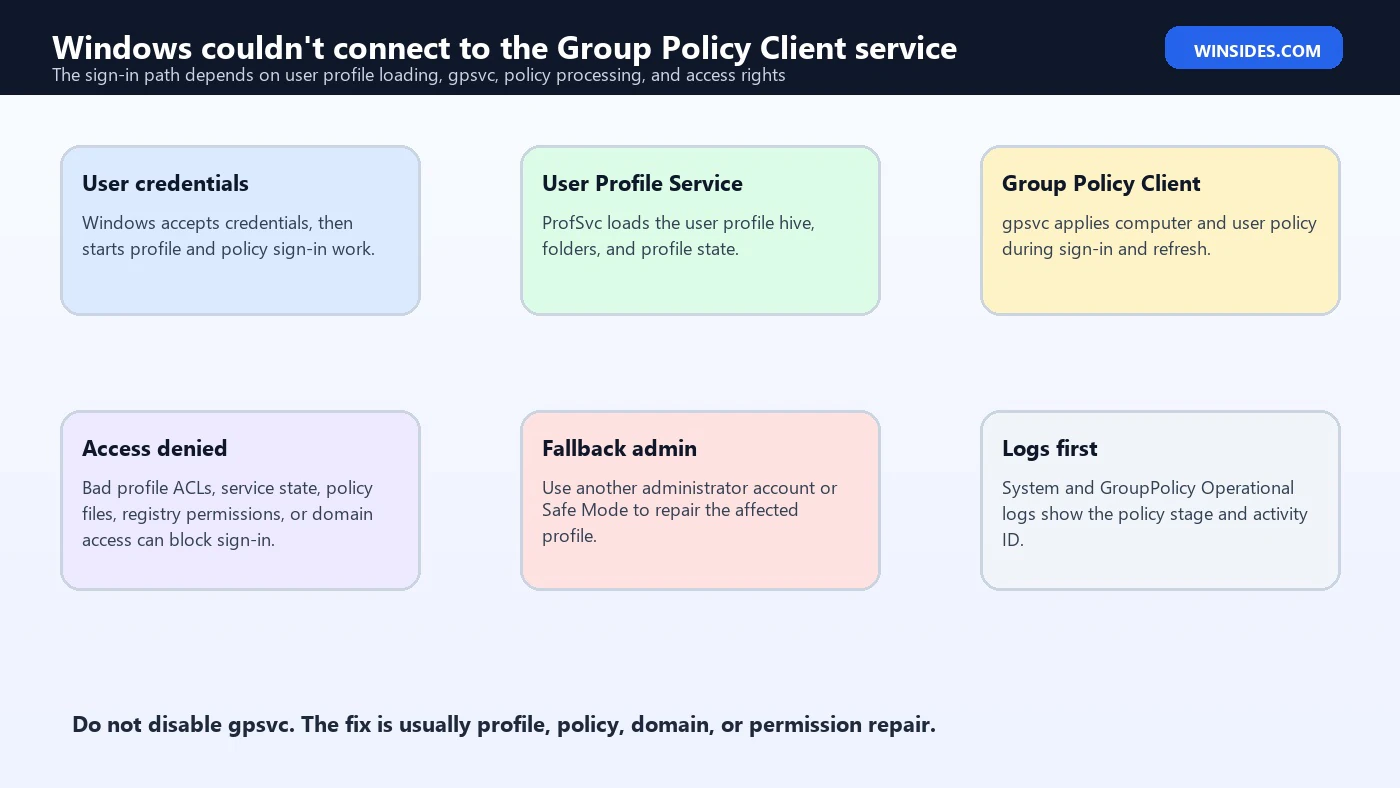
The message appears during sign-in, after Windows has accepted the account credential but before the desktop is available. That timing matters. The user is not necessarily typing the wrong password. Windows is failing while loading the profile, applying sign-in policy, or handing the user session through services that participate in logon.
The Group Policy Client service applies Group Policy settings for the computer and the user. On a domain-joined or managed device, that can include scripts, folder redirection, security settings, drive mappings, registry-based policies, software installation, and other policies. On a standalone home PC, local Group Policy can still exist, but the domain side is absent.
The phrase Windows could not connect to the Group Policy Client service is broad. It can mean the user profile registry hive cannot be loaded with the expected permissions. It can mean the Group Policy Client service cannot access a needed registry path or file. It can mean domain policy paths cannot be reached. It can mean a profile SID path is damaged. It can mean a security product or cleanup tool changed permissions. It can also follow disk errors or incomplete updates.
The fastest mistake is treating the message as a single-cause error. It is not. The correct repair begins by asking: does another account sign in? Does Safe Mode work? Is the computer domain joined? Did this start after a Windows update, profile rename, registry cleanup, malware cleanup, disk issue, domain policy change, or permission change?
How Group Policy Client Fits Into Sign-In
During Windows sign-in, multiple components cooperate. Credential providers handle authentication. User Profile Service, ProfSvc, loads and unloads user profiles. Group Policy Client, gpsvc, applies user and computer policy. Windows Event Log records events. Network services may be needed for domain policies. If one piece fails at the wrong moment, the user may never reach the desktop.
Local service metadata for gpsvc says it is responsible for applying settings configured by administrators for the computer and users through Group Policy. It also warns that applications and components that depend on Group Policy might not function if the service is disabled. That is why service-disabling scripts are dangerous. They can create a sign-in problem that looks like a mysterious Windows failure later.
User Profile Service is just as important. If the profile cannot load, Group Policy processing for that user may fail or appear to fail. A corrupt NTUSER.DAT, incorrect profile folder permissions, damaged profile registry entry, missing profile path, or broken SID mapping can produce sign-in failure even though gpsvc itself is intact.
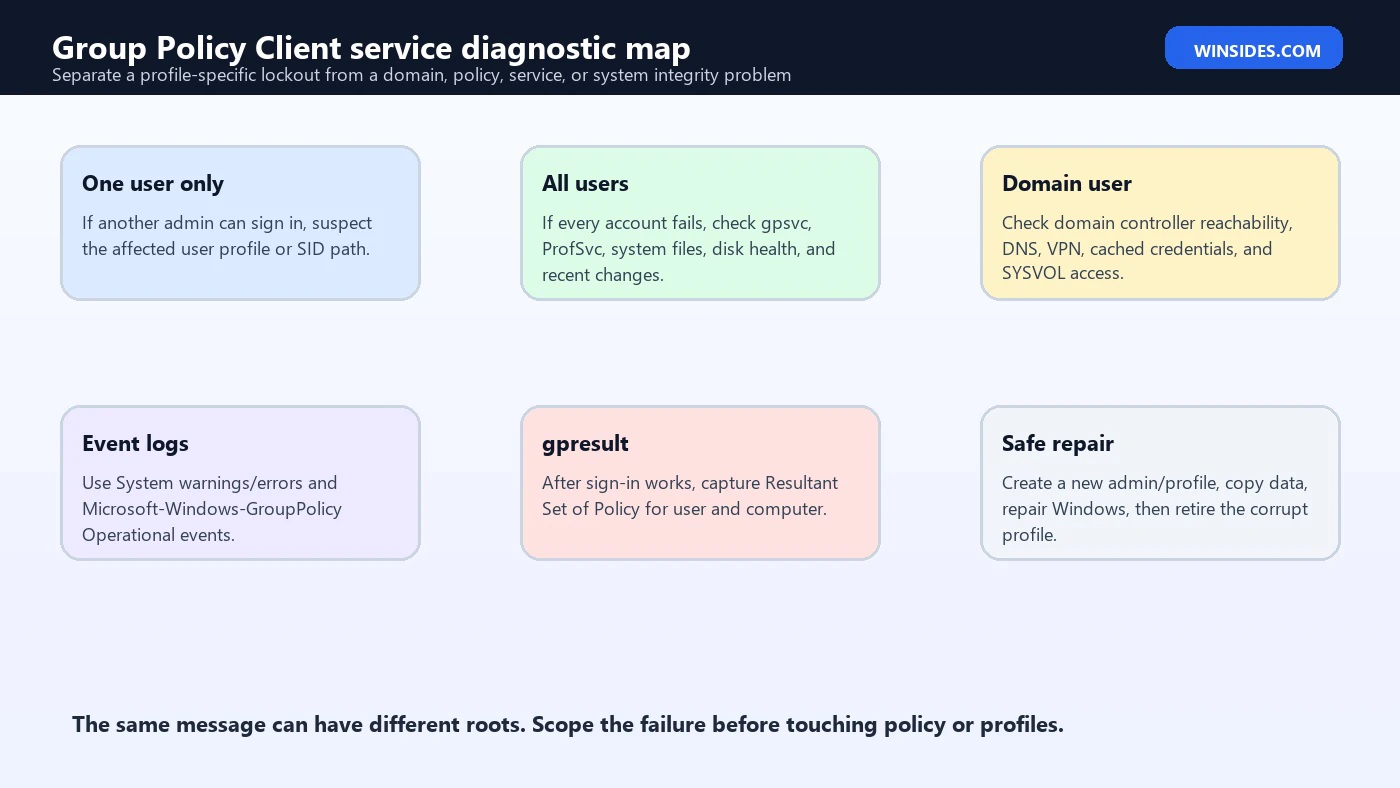
This is why a one-user failure and an all-users failure should be treated differently. If only one account shows the error, the profile is the primary suspect. If every account fails, services, system files, policy infrastructure, domain reachability, or disk health move higher on the list.
Why the Error Happens
Common causes include a corrupted user profile, incorrect profile folder permissions, damaged profile registry keys, Group Policy Client service disabled or unable to start, User Profile Service trouble, a failed Windows update, domain controller connectivity problems, broken DNS on a domain PC, security software interference, malware cleanup damage, or aggressive registry and permission cleanup.
For local accounts, profile corruption is common. Windows may accept the password, then fail when loading that accounts profile. If another administrator account opens normally, create a new profile and move user data carefully rather than trying every registry fix first.
For domain accounts, policy and network conditions matter more. The client may need domain controller access, DNS resolution, SYSVOL access, LDAP, Kerberos, and policy files. Microsofts Group Policy troubleshooting guidance gives Event ID 1129 as an example of policy failing because of lack of network connectivity to a domain controller. That is a domain infrastructure issue, not a local profile-only issue.
For managed or corporate laptops, VPN and cached credentials complicate the picture. A user may sign in offline with cached credentials, but user policy, scripts, folder redirection, or drive mapping may fail until domain resources are reachable. If the Group Policy Client service error appears after a password change, device move, VPN change, or domain policy rollout, involve IT instead of making local profile changes blindly.
Immediate Recovery: Get a Working Admin Path
Before repairing anything, get a way into Windows. If another administrator account works, use it. If a standard account works but cannot repair system settings, configure it as administrator only if you are authorized and can do so safely. Microsofts Windows account guidance explains that Windows allows multiple user accounts and that an account can be configured as administrator when needed. It also warns to limit administrators because they have complete system control. See Microsofts Windows user account management guidance for Microsofts account guidance.
If no normal account works, try Safe Mode. Safe Mode can bypass some startup items, drivers, and network-dependent sign-in behavior. If Safe Mode lets an administrator sign in, you can inspect logs, create a new admin account, run system repairs, and copy data from the affected profile.
Do not delete the affected user folder just to make the error disappear. That folder may contain Desktop, Documents, Downloads, browser profiles, certificates, email archives, application data, encryption keys, and unsynced files. Preserve it before making profile-level changes.
A safe first goal is simple: create or use a working administrator account, confirm the disk is healthy enough to copy files, and back up the affected profile data. After that, you can decide whether to repair the existing profile or migrate to a new one.
Check Whether One User or All Users Fail
Scope is the decision point. Try another local administrator. Try another existing user. If the PC is domain joined, try a cached domain account and a local administrator if policy allows it. Record exactly which accounts fail.
If one user fails and others work, suspect that users profile. The profile registry entry, profile folder ACL, user hive, or user-specific policy can be damaged. In that case, the safest repair is often creating a new profile and migrating data.
If every user fails, suspect system-wide issues. Check whether gpsvc, ProfSvc, Windows Event Log, Remote Procedure Call, Workstation, DNS Client, and related services are not disabled. Check disk health. Run DISM and SFC. Review recent updates, security tools, domain changes, and permission modifications.
If only domain users fail while local users work, suspect domain connectivity, DNS, cached credentials, domain trust, VPN, SYSVOL access, or domain policy. Do not rebuild local profiles until domain checks are complete.
Read Group Policy Logs First
Microsofts Group Policy troubleshooting guidance says to start by reading Group Policy events recorded in the System event log. Warning events can provide follow-up information, while error events describe failure and probable causes. Microsoft also recommends using the Details tab to view error codes and descriptions.
Open Event Viewer and check:
Windows Logs > SystemLook for Group Policy warning or error events around the service connection failure time. Then open:
Applications and Services Logs > Microsoft > Windows > GroupPolicy > OperationalMicrosoft recommends identifying the Activity ID for the failed Group Policy processing instance and using the operational log to divide processing into pre-processing, processing, and post-processing phases. That matters because the Group Policy Client service error may be a symptom of an earlier failure, such as network discovery, domain controller access, a client-side extension, or script processing.
If you can sign in with another admin, filter the logs around the failed timestamp. If you cannot access the user session, boot into Safe Mode or use another account. Do not skip logs. They are the difference between repairing a profile and wasting hours on domain policy when the issue was local.
Use gpresult Correctly
gpresult displays Resultant Set of Policy information. Microsofts command reference says it displays RSoP information for a remote user and computer, and that Group Policy generates a resulting set of policy settings when the user signs in. See Microsofts gpresult command reference for the command reference.
For a working session, generate an HTML report:
gpresult /h C:Tempgpresult.htmlFor a summary:
gpresult /rFor verbose details:
gpresult /z > C:Temppolicy.txtThe limitation is important: if the user cannot sign in at all, their current sign-in policy result may not be available from that failed session. Use gpresult after you regain access, when testing another user, or when checking the computer side of policy. For domain troubleshooting, run it as an administrator and compare a working device with the broken one.
The report can show applied GPOs, denied GPOs, security filtering, WMI filtering, and user/computer scope. That helps distinguish a true service failure from a policy that is linked, denied, or failing because the machine cannot reach domain resources.
Use gpupdate Carefully
Microsofts gpupdate command reference says it updates Group Policy settings. It can update user and computer policy, reapply all settings with /force, wait for policy processing, log off when required by certain user policy extensions, reboot when required by certain computer policy extensions, and make the next foreground policy application synchronous. See Microsofts gpupdate command reference for the command reference.
A basic refresh is:
gpupdate /forceDo not treat this as magic. If the user profile is corrupt, gpupdate /force will not rebuild the profile. If DNS cannot find a domain controller, policy refresh will still fail. If a client-side extension is broken, the command may reproduce the same error and give you a fresh Activity ID for logs.
That fresh Activity ID is useful. Microsofts guidance notes that refreshing Group Policy changes the Activity ID in the operational log. If you are troubleshooting, run gpupdate, note the time, then inspect the newest Group Policy operational events. That gives you a clean test case.
Avoid /logoff and /boot unless you understand why they are needed. Some policy extensions require logoff or restart, but forcing those on a fragile sign-in path can make recovery harder if you do not have another admin account.
Service Checks That Are Safe
Check services without changing them first:
Get-Service -Name gpsvc,ProfSvc,EventLog,RpcSs,Dnscache,LanmanWorkstation -ErrorAction SilentlyContinue |
    Format-Table Name,Status,StartType,DisplayName
gpsvc is Group Policy Client. ProfSvc is User Profile Service. EventLog records the events you need. RpcSs, DNS Client, and Workstation can matter in domain and network policy scenarios.
If gpsvc appears stopped in a running session, that alone is not always enough to diagnose a sign-in failure. The service participates when policy work is needed. The bigger question is whether it is disabled, cannot start, or logs errors during sign-in or policy refresh.
Do not set random service permissions. Do not remove service hardening. Do not delete svchost groups. Do not copy service registry settings from another PC with a different build. Service configuration damage is serious, and incorrect fixes can break policy, sign-in, and security.
If services are disabled after a debloat or optimization script, undo that script using its own restore mechanism if available. For managed devices, ask IT before changing service startup types because endpoint policy may enforce them.
Profile Repair Strategy
When only one user fails, create a new profile and migrate carefully. This is often safer than trying to repair a damaged profile registry entry by hand. Microsofts account guidance covers adding another user account and configuring a user as administrator when needed. Use that to create a clean admin or clean user profile if you can sign in with another admin.
After creating the new account, sign into it once so Windows builds the profile. Then copy user data from the old profile, but do not blindly copy hidden profile hives such as NTUSER.DAT. Copy documents, pictures, downloads, desktop files, project folders, and known application exports. Export browser bookmarks and password data through the browser when possible.
Be careful with encrypted files, certificates, Outlook PST files, OneDrive sync state, game saves, developer keys, SSH keys, VPN profiles, and app-specific data under AppData. Some data can be copied; some needs export/import; some belongs to the old user SID and may not work if copied raw.
Once the new profile works, keep the old profile until you verify data, apps, browser sign-ins, OneDrive, and any work or school resources. Only remove the old account after you are sure the migration is complete.
Domain and Work PC Checks
For domain-joined Windows 11 PCs, the error can involve domain policy. Check whether the device can reach a domain controller. Check DNS. Check VPN. Check time synchronization. Check whether SYSVOL is reachable. Check whether the user recently changed password and the laptop is offline. Check whether cached credentials are stale.
Useful checks include:
nltest /dsgetdc:yourdomain.examplegpupdate /forcegpresult /h C:Tempgpresult.htmlMicrosofts Group Policy troubleshooting guidance specifically discusses reading Group Policy operational logs and isolating dependent components. For Event ID 1129, it points to lack of network connectivity to a domain controller. That kind of failure is not repaired by deleting the users profile.
If the device is managed by IT, avoid local hacks. A domain policy, Intune profile, security baseline, script, folder redirection setting, or drive mapping can affect sign-in. Escalate with logs, Activity ID, username, device name, domain, timestamp, and whether local users can sign in.
Local Policy and Standalone PCs
A standalone Windows 11 PC can still have local Group Policy. Windows Pro, Enterprise, and Education expose Local Group Policy Editor. Windows Home has fewer local policy management surfaces, but the Group Policy Client service can still exist because Windows components use common infrastructure.
For standalone PCs, likely causes shift toward profile corruption, service damage, local registry permissions, file system errors, malware cleanup, updates, or third-party tools. If there is no domain, do not waste time troubleshooting SYSVOL or domain controllers.
Check whether the issue started after changing local security policy, installing system-tuning tools, removing accounts, renaming profile folders, or manually editing C:Users. Renaming a user folder by hand is a classic way to break profile paths and permissions.
If you need a clean repair path, create a new local or Microsoft account, migrate data, run system integrity checks, and then remove broken policy or profile remnants only after the new account works.
System Repair Steps
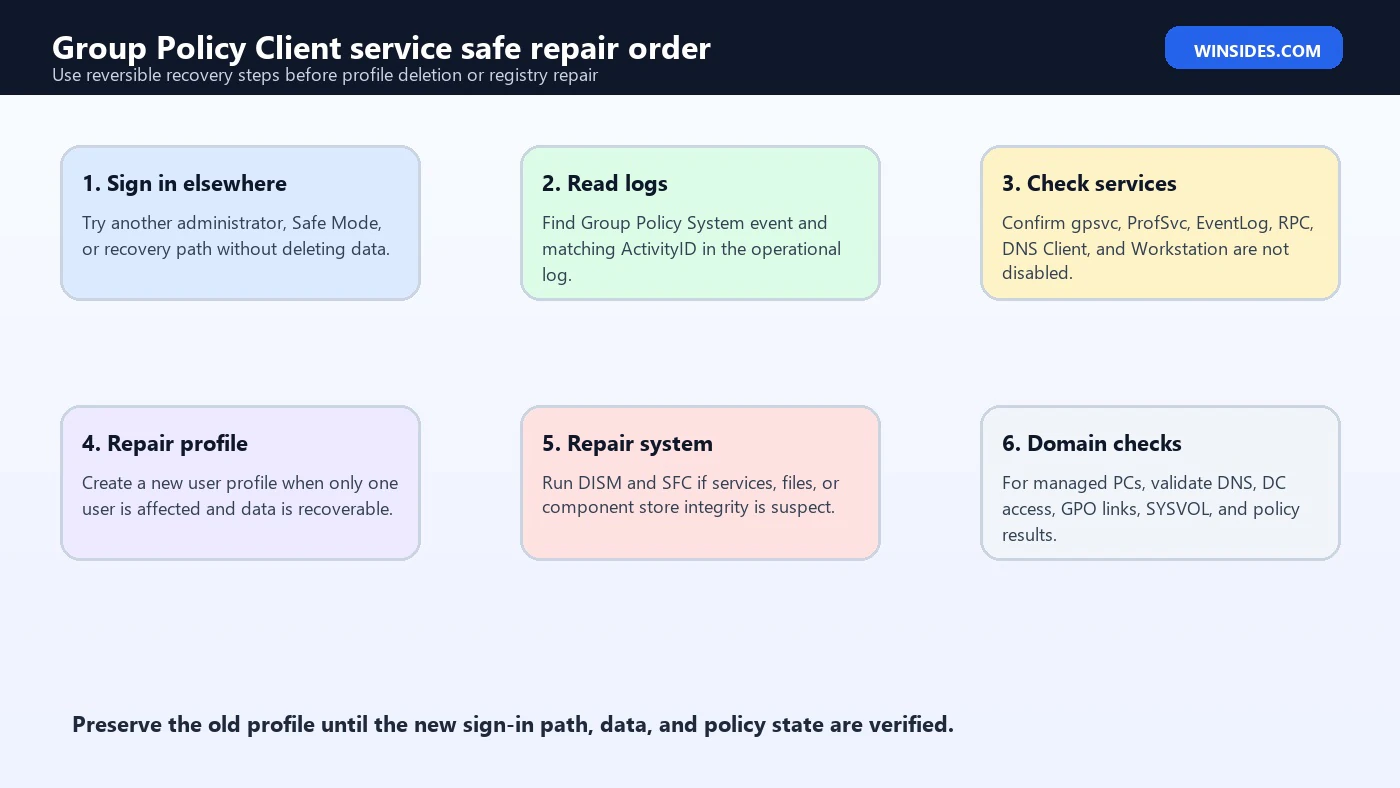
If multiple accounts fail, or if services and logs suggest system damage, run Windows integrity checks from a working administrator session or Safe Mode with networking when possible:
DISM /Online /Cleanup-Image /RestoreHealth
sfc /scannow
Then restart and test again. If DISM or SFC reports repairs, check the sign-in path before making additional changes.
Check disk health too. Profile and registry corruption can come from failing storage or sudden power loss. Review System log for disk, NTFS, volmgr, or storage controller errors. A profile repair on a failing drive is temporary at best.
If the issue began immediately after a Windows update, review Update history and known issues, but avoid uninstalling updates blindly on managed devices. For personal PCs, System Restore can be useful if restore points exist and the problem began recently.
If all local repair fails and data is safe, an in-place repair install may be safer than registry surgery. It preserves apps and files in many scenarios while refreshing Windows system components, but you still need a backup first.
What Not to Do
Do not disable Group Policy Client. Its own service description warns that administrator-configured settings will not apply if it is disabled, and components depending on Group Policy may not function.
Do not delete the affected user profile folder before copying data. That folder may contain irreplaceable files and app state.
Do not take ownership of large registry branches or C:Users folders just because the error says service connection failure. Broad permission changes can weaken security and break profile isolation.
Do not copy random gpsvc registry exports from the internet. Service registry layout can differ by Windows build, and wrong permissions can make sign-in worse.
Do not run gpupdate /force repeatedly without reading logs. Repeating the command can generate more events, but it does not repair a broken profile or disconnected domain.
Do not remove a work or school account, unjoin a domain, or disconnect MDM just to test unless that is approved. Those actions can remove access, certificates, VPN, compliance state, and managed apps.
Safe Recovery Checklist
Use this concise order when you see Windows couldn’t connect to the Group Policy Client service.
First, try another administrator account. If none works, try Safe Mode or recovery options.
Second, back up the affected user data before deleting, resetting, or replacing the profile.
Third, determine scope: one user, all users, local users only, or domain users only.
Fourth, check System and GroupPolicy/Operational logs around the service connection failure time.
Fifth, check service state for gpsvc, ProfSvc, and Event Log without changing startup types casually.
Sixth, if one user is affected, create a new profile and migrate data carefully.
Seventh, if domain users are affected, check DNS, DC reachability, VPN, SYSVOL, and Group Policy logs.
Eighth, run DISM and SFC if Windows component corruption is likely.
Ninth, use gpresult and gpupdate after access is restored or from a working admin context to confirm policy health.
When System Restore or In-Place Repair Makes Sense
If the error began immediately after a driver update, Windows update, security-suite cleanup, registry cleanup, or service-tuning script, System Restore can be a sensible option if restore points exist. Use it only after you understand what data is at risk and after saving anything important from the affected profile. System Restore is not a file backup, but it can roll back system configuration, service state, drivers, and registry changes that may have damaged the sign-in path.
An in-place repair install is a later option when multiple accounts fail, DISM or SFC cannot repair the system cleanly, services are damaged, and profile migration alone does not solve the problem. It can refresh Windows components while preserving many apps and files, but it still deserves a real backup first. Do not start a repair install on a disk that is showing storage errors or on a device managed by an organization without checking policy and recovery requirements.
For business devices, recovery decisions should be coordinated with IT. Reimaging may be faster and safer than local repair if the device is enrolled, encrypted, and backed up. For personal devices, a new profile plus data migration is usually less disruptive than reinstalling Windows when only one user account is broken.
The key is to match the recovery method to scope. One bad profile usually needs profile migration. All users failing may need system repair. Domain users failing may need domain or policy repair. A failing disk needs hardware and backup attention before any software fix.
FAQ
What does Windows couldn’t connect to the Group Policy Client service mean?
It means Windows accepted the sign-in attempt but failed while loading the user session and processing Group Policy or profile-related work. The common message includes service connection failure.
What is the Group Policy Client service name?
The service name is gpsvc, and the display name is Group Policy Client.
Can I disable Group Policy Client?
No. Disabling it can prevent administrator-configured policies from applying and can break components that depend on Group Policy.
Why does only one user get this error?
If only one user fails, the profile for that user is likely damaged or has bad permissions. Create a new profile and migrate data carefully.
Why do all users get this error?
If all users fail, suspect service damage, system corruption, disk problems, a broken update, domain policy trouble, or broad permission changes.
Can gpupdate fix this?
Sometimes it can refresh policy after access is restored, but it will not fix every profile or service problem. Use it with logs.
What does gpresult show?
Microsoft says gpresult displays Resultant Set of Policy information for a user and computer. It is useful after you can sign in or from an admin troubleshooting context.
Should I delete the old profile?
Not until data is backed up and the replacement profile is verified. Profile folders can contain important app data and certificates.
Is this a domain problem?
It can be, especially for work PCs. If local users work but domain users fail, check domain controller access, DNS, VPN, SYSVOL, and Group Policy logs.
What is the safest first repair?
Use another admin account, read logs, back up data, determine scope, then repair either the affected profile or the system/domain issue shown by logs.
Conclusion: Restore the Policy Path, Not Just the Login Screen
windows couldn’t connect to the group policy client service is a sign-in path failure, not a reason to disable Group Policy Client. The service name is gpsvc, and Windows uses it to apply administrator-configured policy for users and computers. When the message includes service connection failure, the real cause is often a profile permission issue, damaged user profile, service state problem, domain connectivity issue, or Group Policy processing failure.
The safe repair path is to regain access through another administrator or Safe Mode, preserve the affected users data, determine whether one user or all users are affected, read System and GroupPolicy/Operational logs, then use gpresult and gpupdate as evidence tools. If one profile is broken, migrate to a clean profile. If the whole machine or domain path is broken, repair Windows, services, storage, DNS, domain connectivity, or policy assignment.
Treat the error carefully because sign-in failures can put user data at risk. Fix the stage that failed, keep gpsvc enabled, and verify the new sign-in path before removing old profiles or policy data.
For more interesting articles, stay tuned to Winsides.com!
Extra Checks for the Couldn't Connect Message
When the wording specifically says Windows could not connect to the Group Policy Client service, add one more layer to the normal sign-in investigation: confirm whether the service failed to start or whether Windows could not finish communication with it during the user session. A service startup failure points toward service configuration, service control manager events, damaged system files, or dependency problems. A communication failure after the service starts points more toward policy processing, user profile loading, domain connectivity, or a client-side extension that hangs.
Check the System log for Service Control Manager events near the same timestamp. If the service failed to start, the event text and error code matter. If the service started but Group Policy processing failed, the GroupPolicy Operational log and gpresult output matter more. This distinction keeps the repair focused and avoids unnecessary profile deletion.
If a new local user works and the original user fails, treat the profile as suspect. If every local and domain user fails, treat the Windows installation or computer policy path as suspect. If local users work but domain users fail, treat DNS, domain controller access, SYSVOL, VPN timing, cached credentials, and domain policy as primary suspects.









Community
Comments (0)