

Introduction to NVIDIA Display Container
nvidia display container is one of those Windows 11 background components that many users notice only after opening Task Manager, checking Services, or troubleshooting why NVIDIA Control Panel, NVIDIA App, or GPU settings are not behaving normally. The service is commonly shown as NVIDIA Display Container LS, and the executable is usually NVDisplay.Container.exe. On a system with NVIDIA graphics drivers installed, it helps host NVIDIA display-related user interface components, tray behavior, settings integration, telemetry-related helper pieces in some driver branches, and links between the installed driver stack and NVIDIA’s control software.
The important point is that NVIDIA Display Container is not the graphics driver itself. Your display output, DirectX games, CUDA workloads, video acceleration, and monitor signal are handled by NVIDIA driver components deeper in Windows. The container service sits above that driver layer. It is closer to the control and presentation layer: the parts that let NVIDIA settings show up, let the legacy NVIDIA Control Panel or newer NVIDIA App communicate with installed driver features, and let users manage display or 3D options without manually editing driver state.
That difference matters because many online fixes go too far. If NVIDIA Display Container uses CPU, fails to start, or appears several times in Task Manager, the answer is not always to remove every NVIDIA component or disable every NVIDIA service. A damaged display container can break the NVIDIA settings interface while the GPU still works. A damaged driver can break rendering while the display container still appears. A broken NVIDIA App install can confuse the picture further because NVIDIA is actively moving many GeForce controls into the newer NVIDIA App. NVIDIA’s own app page positions NVIDIA App as the modern hub for gamers and creators, including driver management, optimization, recording, monitoring, and settings workflows. NVIDIAs official NVIDIA App page
This guide explains what NVIDIA Display Container does on Windows 11, how it relates to NVIDIA App and NVIDIA Control Panel, why it can appear in Task Manager, what symptoms point to service trouble, and how to troubleshoot it safely. The goal is practical: keep the NVIDIA driver working, restore the settings interface, avoid malware confusion, and repair the driver package only when the evidence points there.
Table of contents
Key Takeaways
- NVIDIA Display Container is usually the NVIDIA Display Container LS service. Its process name is commonly
NVDisplay.Container.exe. - It is not the core display driver. It supports NVIDIA user interface and settings behavior above the lower-level driver stack.
- Do not disable it as a first fix. Disabling it can make NVIDIA Control Panel or NVIDIA settings unavailable even when the GPU driver still works.
- Multiple NVIDIA container processes can be normal. NVIDIA packages can use container-style processes for different helper roles.
- Use Services, Task Manager, Event Viewer, and file path checks first. Diagnose before reinstalling drivers.
- NVIDIA App changes the context. Modern NVIDIA driver workflows increasingly rely on NVIDIA App rather than the old Control Panel alone.
- High CPU or memory usage is usually a symptom. Check recent driver updates, NVIDIA App, overlays, telemetry, corrupted profiles, or repeated service restarts.
- Use official NVIDIA driver downloads for repair. NVIDIA provides an official driver download page for selecting the correct driver package. NVIDIAs official driver download page
- Windows tools help verify service and log state. Microsoft documents
sc.exe queryfor service state andwevtutilfor event log queries. Microsofts sc.exe query command reference Microsofts wevtutil command reference
What NVIDIA Display Container Is
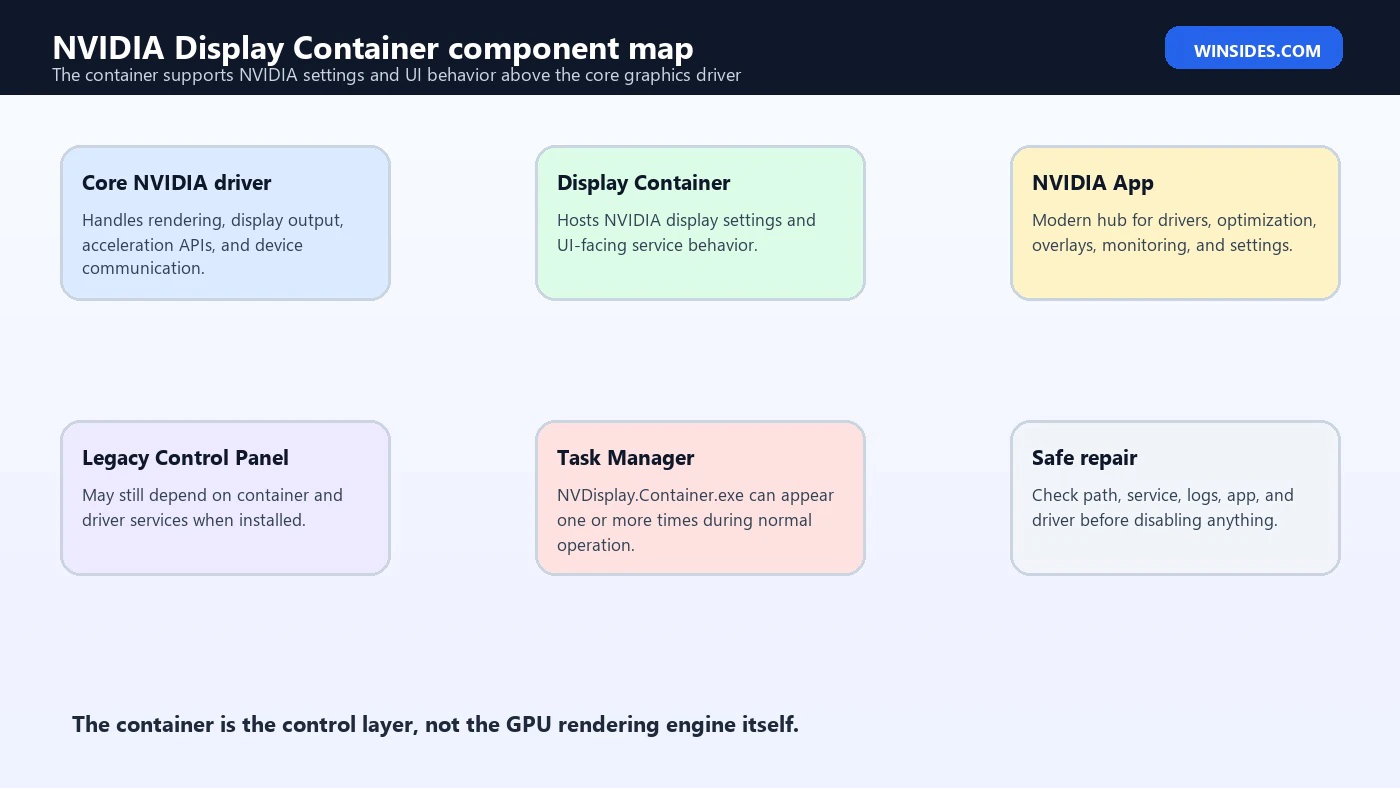
NVIDIA Display Container is best understood as a service host for NVIDIA display settings and UI-facing driver components. The name includes Container because NVIDIA packages several helper functions in container-style processes rather than exposing every component as a separate obvious application. On many Windows 11 systems, the service display name is NVIDIA Display Container LS, and the service name is commonly NVDisplay.ContainerLocalSystem.
The executable is usually located inside NVIDIA’s driver folder under C:Program FilesNVIDIA CorporationDisplay.NvContainer. The exact path can vary by driver branch, OEM package, DCH package, Standard package, and installation history. A legitimate NVIDIA Display Container process should be signed by NVIDIA and should run from an NVIDIA installation path, not from a random temporary folder, Downloads folder, or user profile startup path.
The service can participate in NVIDIA settings availability, notification area integration, Control Panel launch behavior, desktop context menu integration in older setups, display configuration features, and communication between user-facing NVIDIA software and the installed driver. If the service is broken, users commonly report that NVIDIA Control Panel will not open, NVIDIA settings disappear from the right-click menu, tray icons are missing, or NVIDIA App cannot show certain settings correctly.
It is not unusual to see more than one NVIDIA process. Modern NVIDIA software can include the display container, local system container, NVIDIA App background components, overlay services, frame capture features, update components, and driver telemetry or support helpers depending on what was installed. Seeing multiple NVIDIA entries does not automatically mean malware or corruption. The name, publisher, path, behavior, and timing matter.
Display Container vs NVIDIA Driver
The NVIDIA graphics driver is the deeper layer that lets Windows talk to the GPU. It handles rendering, display output, acceleration APIs, monitor modes, power behavior, and low-level device communication. If that layer fails, symptoms are more serious: black screens, display driver resets, Device Manager errors, poor resolution choices, game crashes, or Windows falling back to Microsoft Basic Display Adapter.
NVIDIA Display Container is different. It is a service-level companion around the driver. It helps expose NVIDIA settings and user interface functions. If it fails, you may still get a display signal and games may still run, but NVIDIA Control Panel or NVIDIA App may fail to open, certain display settings may disappear, or right-click NVIDIA entries may be missing. That distinction lets you avoid the wrong fix.
For example, if your monitor works, the correct refresh rate is available, Device Manager shows the NVIDIA adapter normally, and only NVIDIA Control Panel fails to launch, the display container or NVIDIA user interface layer is a stronger suspect than the whole display driver. If Windows shows driver crashes, Event ID 4101 display resets, black screens, or Device Manager Code errors, the lower-level driver is more likely involved.
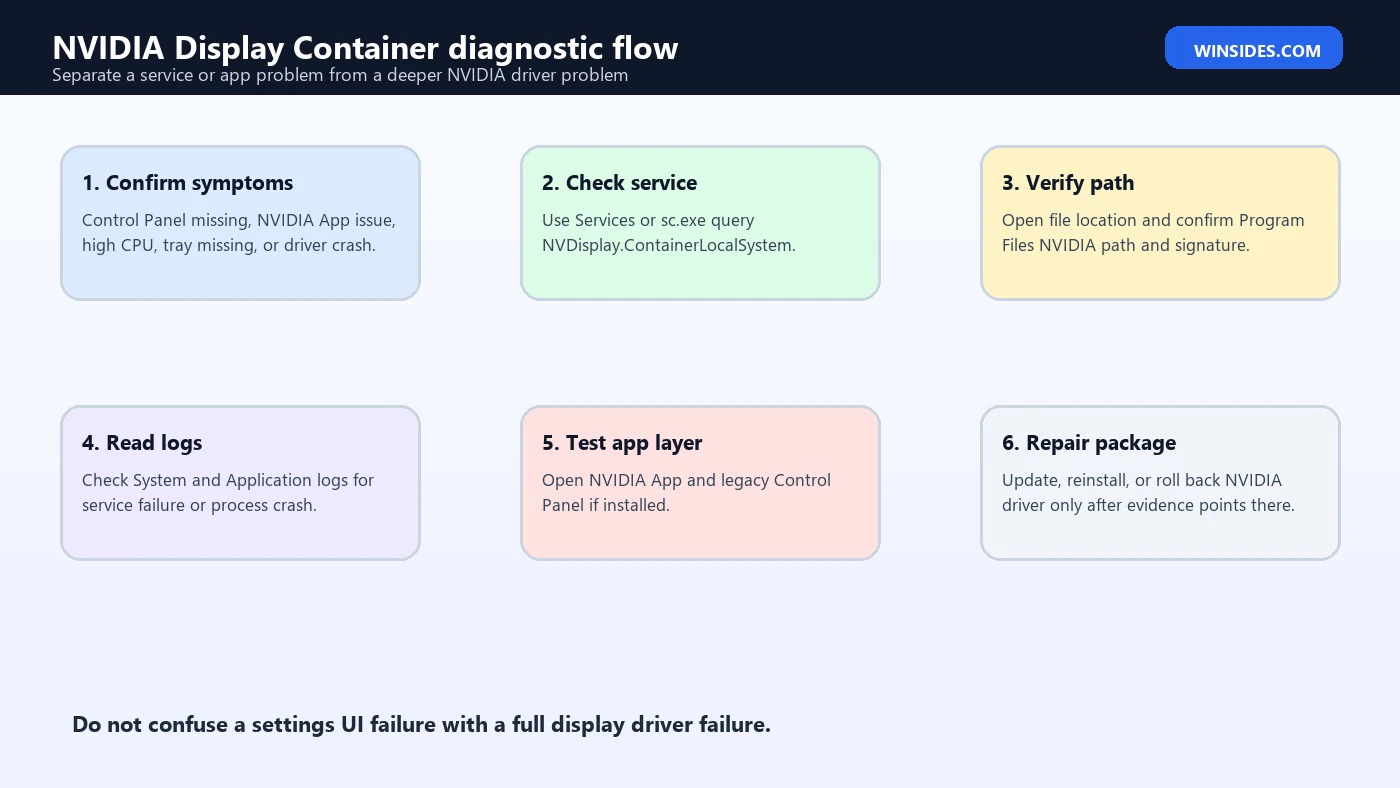
The safest troubleshooting order is to identify which layer is broken. Check the NVIDIA process path and service state. Check whether NVIDIA App opens. Check Device Manager for the GPU. Check Windows Event Viewer for service crashes and display driver resets. Then decide whether a service restart, NVIDIA App repair, driver reinstall, or Windows driver rollback is appropriate.
How NVIDIA App Changed the Control Panel Story
For years, many users associated NVIDIA Display Container with the legacy NVIDIA Control Panel. That connection still matters on systems where the old Control Panel is installed, but it is no longer the full picture. NVIDIA App is now the main NVIDIA software hub for many GeForce users. NVIDIA describes it as a unified app for gamers and creators that brings together driver downloads, game optimization, overlays, recording, performance monitoring, and graphics settings workflows. NVIDIAs official NVIDIA App page
This matters when troubleshooting because a missing old Control Panel entry does not always mean the GPU driver failed. On newer driver packages, clean installs, or systems moving to NVIDIA App, some control workflows may live in NVIDIA App instead. A user may search for NVIDIA Control Panel, not find it, and blame NVIDIA Display Container, while the actual issue is that the old Control Panel is no longer the primary installed interface.
That said, NVIDIA Display Container can still matter for both old and new workflows. It may be part of the local service layer that lets NVIDIA settings and display options appear. If the container is missing, disabled, repeatedly crashing, or blocked by security software, NVIDIA App may not show expected options and the legacy Control Panel may fail as well.
The practical test is simple: do not judge by one shortcut. Check NVIDIA App, check the old Control Panel if installed, check Device Manager, and check the Display Container service. If the driver works but both NVIDIA interfaces fail, the container or app layer deserves attention. If the driver itself is unstable, repair the driver package.
Common Symptoms of NVIDIA Display Container Trouble
The most common symptom is NVIDIA Control Panel not opening. A user clicks the desktop context menu entry or searches the Start menu, and nothing appears. Sometimes the Control Panel opens slowly, crashes, or shows a message that NVIDIA display settings are not available. On newer systems, NVIDIA App may open but miss expected graphics or display options.
Another symptom is a missing NVIDIA tray icon or right-click entry. This can be normal if the installed package no longer exposes that entry, but it can also point to a container or startup component not running. Treat it as a clue, not proof.
High CPU usage is another complaint. NVDisplay.Container.exe may spike after boot, after driver installation, after connecting monitors, after NVIDIA App starts, or after a game closes. Short spikes can be normal. Sustained high CPU, repeated restarts, or heat and fan noise while idle need investigation.
Memory usage can also look suspicious in Task Manager. A container process using moderate memory is not automatically a problem, but memory that grows steadily, processes that respawn constantly, or container entries that appear from unusual paths should be checked.
Finally, there are event log symptoms. Service Control Manager may record service start failures, application logs may show NVIDIA process crashes, or Windows may record display driver resets. The exact log source tells you whether the issue is service-level, app-level, or driver-level.
Should You Disable NVIDIA Display Container?
Disabling NVIDIA Display Container is not the first fix. It may reduce a visible process in Task Manager, but it can also remove NVIDIA settings access, tray behavior, desktop integration, and Control Panel or NVIDIA App functionality. If the complaint is that the process exists, that is not enough reason to disable it. The service exists because NVIDIA’s driver package installed it.
There are cases where advanced users temporarily stop the service for testing. That is different from disabling it permanently. A temporary restart can tell you whether a stuck UI component recovers. Permanently disabling the service creates future confusion because a later NVIDIA App or driver update may assume the service exists and can run.
If the service uses high CPU, find out why. If the driver package is corrupted, repair the package. If NVIDIA App is broken, repair or reinstall NVIDIA App. If the process is running from the wrong path, treat it as a security investigation. If a new driver caused the issue, roll back or install a stable driver. Disabling the service is a workaround that can hide the cause.
A good rule: if the GPU works and you only want fewer background processes, do not break the NVIDIA control layer without understanding what you lose. If the container is malfunctioning, fix the installed NVIDIA software stack rather than leaving it half-disabled.
Check the Service State Safely
Start with the service state. Open Services and look for NVIDIA Display Container LS. The startup type is normally Automatic or an NVIDIA-managed automatic setting depending on driver package. If it is disabled, that is a red flag. If it is running, the service layer is at least active. If it starts and immediately stops, check Event Viewer.
You can also use sc.exe query. Microsoft documents this command as a way to display information about a specified service, including state and exit details. Microsofts sc.exe query command reference On many systems the service name is NVDisplay.ContainerLocalSystem, so a useful check is:
sc.exe query NVDisplay.ContainerLocalSystem
If the service name differs, use Services to open the service properties and read the service name. Do not guess from the display name alone. The display name is what you see in the Services console; the service name is what command-line tools use.
If the service is stopped, try starting it from Services. If it starts and NVIDIA settings return, the issue may have been a transient startup problem. If it fails with an error, record the error. If it starts but the NVIDIA UI still fails, move to NVIDIA App, Control Panel, and driver checks.
Do not immediately change startup type, logon account, recovery actions, or service permissions. Those changes can make the service harder to repair. A service failing to start usually needs logs and package repair, not manual permission edits.
Check Task Manager and File Location
Task Manager is useful for confirming what is running, but it can mislead if you only look at process names. Right-click NVDisplay.Container.exe and open the file location. A legitimate process should usually live under C:Program FilesNVIDIA Corporation, often in a Display.NvContainer folder. It should also have NVIDIA as the publisher in file properties or digital signatures.
If the process runs from a user profile, Downloads, Temp, ProgramData with a strange subfolder, or a misspelled NVIDIA path, treat it as suspicious. Malware sometimes borrows familiar process names. The real NVIDIA container belongs with the NVIDIA driver package, not in a random startup folder.
Also check whether the process count matches your installed software. Systems with NVIDIA App, overlays, Broadcast, GeForce Experience remnants, RTX Desktop Manager, or professional driver tools can show more NVIDIA processes than a bare driver-only installation. That is not automatically wrong. The question is whether the process path, signature, and behavior are legitimate.
If you see sustained high CPU, sort Task Manager by CPU and watch for patterns. Does usage spike only after login? Only when NVIDIA App opens? Only when monitors are connected or disconnected? Only after a game closes? That timing helps decide whether the container is indexing settings, handling overlay/app state, or stuck in a restart loop.
Use Event Viewer and wevtutil
Event Viewer helps separate a cosmetic NVIDIA UI problem from a real service failure. Start with Windows Logs, then System. Look for Service Control Manager events around boot, sign-in, driver installation, or the time NVIDIA settings failed. If NVIDIA Display Container fails to start, the System log may show service start or timeout events.
Then check Windows Logs, Application. Look for NVIDIA process crashes, application errors, .NET errors, installer failures, or NVIDIA App-related entries. If the old Control Panel crashes but the service is fine, the problem may be the UI executable or app package rather than the service.
Microsoft documents wevtutil as a command-line tool for retrieving information about event logs, querying events, exporting logs, and more. Microsofts wevtutil command reference A quick recent System log query can look like this:
wevtutil qe System /f:text /c:30 /rd:true
That command is broad, so use it mainly for quick collection. In a real investigation, filter by time and source in Event Viewer. The goal is to find whether NVIDIA Display Container failed, the display driver reset, or an unrelated Windows component failed first.
If you see display resets, black screens, or driver timeout messages, widen the investigation to the driver. If you see only Control Panel launch failures, stay focused on NVIDIA App, Control Panel, container service, and package repair.
Check Device Manager Before Reinstalling
Device Manager tells you whether Windows sees the NVIDIA adapter correctly. Open Device Manager, expand Display adapters, and confirm the NVIDIA GPU appears without warning icons. If it shows an error code, Microsoft provides Windows guidance for updating drivers through Device Manager. Microsofts Device Manager driver update guidance That does not mean Device Manager is always the best NVIDIA driver installation method, but it is useful for confirming whether Windows thinks the device is healthy.
If Device Manager shows the NVIDIA GPU normally, the driver layer may be healthy and the issue may be limited to NVIDIA settings or services. If Device Manager shows Microsoft Basic Display Adapter, a disabled NVIDIA device, or a Code error, the problem is deeper than NVIDIA Display Container.
For laptops with hybrid graphics, also check the integrated GPU. NVIDIA settings may depend on the laptop’s OEM graphics design, mux switch, Advanced Optimus behavior, BIOS settings, and power mode. A missing NVIDIA Control Panel option on a hybrid laptop is not always a container failure; it may be controlled by the OEM design.
Do not remove the device from Device Manager as a first step unless you are intentionally reinstalling the driver and have the correct installer ready. Removing the device can temporarily reduce display capability and may complicate remote support.
Repair NVIDIA App or Control Panel First
If the GPU is healthy and only NVIDIA settings are missing, repair the user-facing layer before reinstalling the entire driver. Start by updating NVIDIA App from NVIDIA’s official app page or from the app’s own update path. NVIDIA App is now central to many driver and settings workflows, so an outdated or damaged app can look like a service issue. NVIDIAs official NVIDIA App page
If you still rely on the legacy NVIDIA Control Panel, check whether it is installed. On newer driver packages or after clean installs, the old Control Panel may not be present in the same way it was years ago. Search the Start menu, check installed apps, and use NVIDIA App for settings where available.
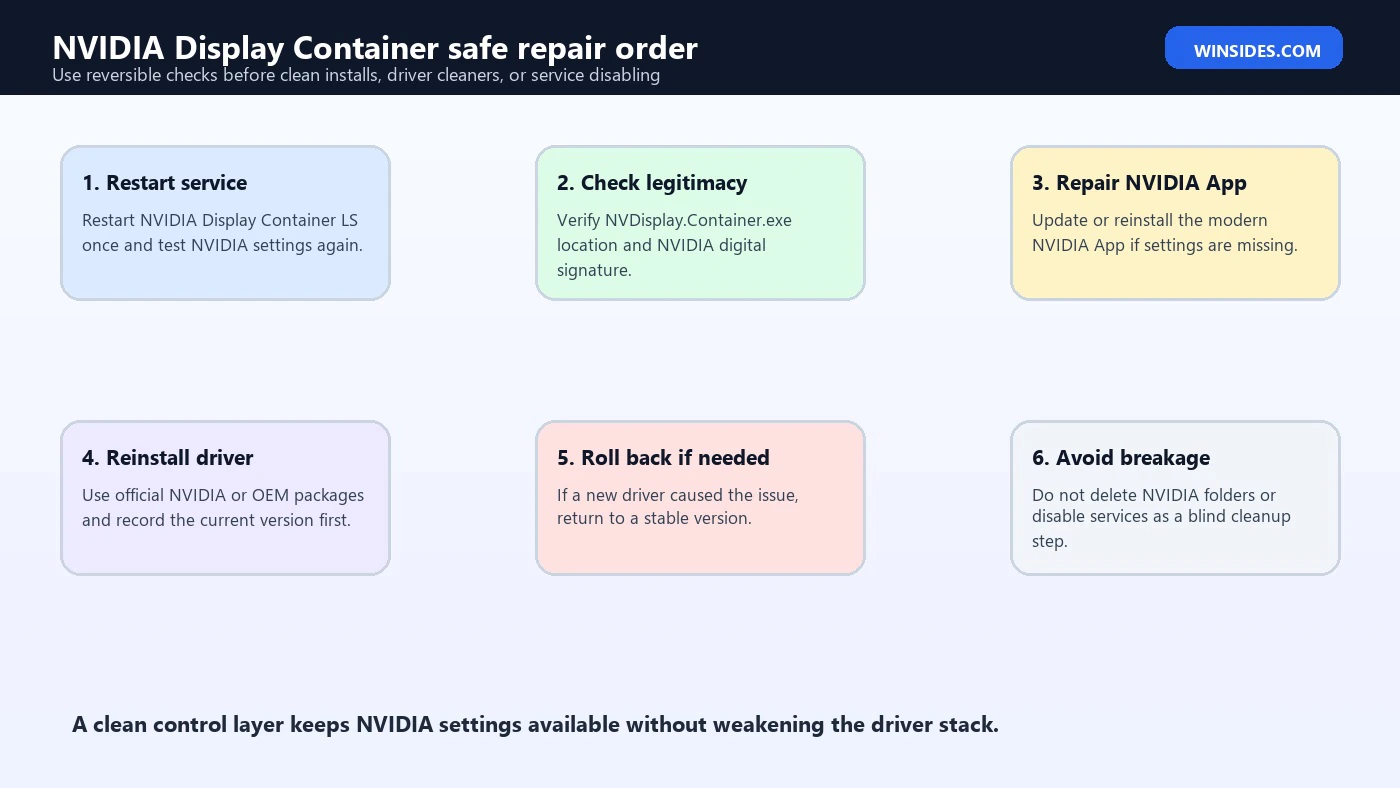
If the Control Panel exists but fails to open, restart NVIDIA Display Container LS once from Services and test again. If that works temporarily, the service may not be starting cleanly at boot. If it fails again after restart, check Event Viewer and consider driver repair.
If NVIDIA App opens but settings are missing, confirm the installed driver is correct for your GPU. A Windows-supplied basic driver or a mismatched OEM package may not expose the same settings as a full NVIDIA package.
Update or Reinstall the NVIDIA Driver
If service checks, app repair, and Event Viewer point to NVIDIA package corruption, reinstall the driver. Use NVIDIA’s official driver download page to select the correct GPU, product series, operating system, and driver type. NVIDIAs official driver download page For GeForce users, NVIDIA App can also manage driver updates when it is working correctly.
Before reinstalling, record the current driver version. Open Device Manager, open the NVIDIA adapter, and check the Driver tab. Also note whether the system is a laptop, desktop, OEM workstation, or enterprise-managed computer. Laptops may need OEM-specific packages for brightness, mux, hotkeys, or hybrid graphics behavior.
A normal driver reinstall is often enough. Download the official installer, close games and GPU-heavy apps, run the installer, and reboot. If the installer offers a clean installation option, use it only when normal repair fails or when settings corruption is likely. Clean installation can reset profiles and remove old components, which is useful for repair but can also remove custom NVIDIA settings.
If a brand-new driver caused the issue, do not assume newer is always better for your exact system. Roll back to a known stable version or use the OEM-recommended driver for laptops and workstations if needed. Stability matters more than chasing the newest package when the problem is service or UI reliability.
Fix High CPU from NVDisplay.Container.exe
High CPU from NVDisplay.Container.exe should be handled in layers. First, confirm it is sustained. A short spike after boot, driver installation, monitor changes, or NVIDIA App launch can be normal. Sustained usage while idle, repeated spikes every few seconds, or fan noise with no visible workload deserves troubleshooting.
Start by restarting the service once. Open Services, restart NVIDIA Display Container LS, and watch Task Manager. If CPU drops and stays down, the service may have been stuck after a driver or app state change. If CPU returns, check NVIDIA App, overlay features, game optimization scanning, recording features, and recent driver updates.
Next, update NVIDIA App and the driver from official sources. A mismatch between an older app and newer driver package can create odd behavior. If the issue began after a driver update, test a stable previous driver. If it began after installing NVIDIA App, repair or reinstall the app.
Then check Event Viewer. Repeated service restarts or app crashes can make CPU look high because Windows keeps relaunching components. If Event Viewer shows a loop, reinstalling the package is more effective than repeatedly ending the process.
Avoid permanent process-killing utilities. They may suppress CPU usage but leave NVIDIA settings broken and create confusing symptoms later. Fix the source of the loop.
Check for Malware Impersonation
Because NVDisplay.Container.exe is a known process name, malware can imitate it. The first check is file location. The legitimate NVIDIA Display Container should normally run from an NVIDIA Corporation folder under Program Files. It should not run from a user Downloads folder, AppData roaming folder, temporary folder, or random startup folder.
Check digital signatures. Right-click the file, open Properties, and review Digital Signatures. A legitimate NVIDIA binary should be signed by NVIDIA. If the signature is missing, invalid, or from an unknown publisher, treat it as suspicious.
Check spelling. Malware often uses near-miss names, extra letters, or paths that look plausible at a glance. NVDisplay.Container.exe under a valid NVIDIA path is different from a similarly named executable under a user profile.
If suspicious, disconnect from untrusted networks, run Microsoft Defender or your trusted security tool, and avoid deleting random files manually before the scan. If the machine is business-managed, escalate to IT/security because GPU driver folders and service entries may be monitored.
Laptop and OEM Considerations
NVIDIA laptops can behave differently from desktops. Many Windows 11 laptops use hybrid graphics, where an Intel or AMD integrated GPU handles desktop display while the NVIDIA GPU wakes for games, rendering, AI, or compute workloads. In that design, NVIDIA Display Container may still be present even when the NVIDIA GPU is not actively driving the display.
OEM utilities can also influence graphics switching, mux mode, power profiles, hotkeys, display routing, and driver packages. A gaming laptop from ASUS, Acer, Dell, Lenovo, HP, MSI, or Razer may include vendor services that interact with NVIDIA settings. If a generic NVIDIA driver breaks brightness, external display switching, or performance mode, test the OEM-recommended driver.
External monitors add another layer. USB-C docks, HDMI adapters, DisplayPort MST hubs, G-SYNC displays, and Advanced Optimus laptops can expose different settings depending on which GPU owns the output. Missing settings are not always a Display Container failure; sometimes the display path is controlled by the integrated GPU or dock firmware.
For workstations and NVIDIA RTX professional systems, do not assume gaming-driver behavior. Professional driver branches, RTX Desktop Manager, Mosaic, Sync, and certified application workflows can add components and services. Use the driver branch recommended for the workstation workload.
What Not to Do
Do not delete NVIDIA folders manually because a forum suggested it. NVIDIA packages include driver files, services, app components, profiles, and installer records. Manual deletion can leave Windows Installer, Device Manager, and NVIDIA App in an inconsistent state.
Do not disable every NVIDIA service to reduce Task Manager clutter. Some services are optional, but the Display Container is tied to settings and UI behavior. Disable only for a controlled test and restore the service if it affects NVIDIA controls.
Do not download drivers from random mirror sites. Use NVIDIA’s official driver download page, NVIDIA App, Windows Update when appropriate, or the laptop/workstation vendor’s support site. NVIDIAs official driver download page
Do not treat the old NVIDIA Control Panel as the only valid test. NVIDIA App has changed the control workflow, especially on modern GeForce packages. Test the current app and the driver layer, not only the legacy shortcut.
Do not confuse NVIDIA Display Container with a display driver crash. If you have black screens, driver timeout errors, or Device Manager errors, troubleshoot the driver and hardware path too.
Best Practices
- Keep NVIDIA drivers updated from official NVIDIA, OEM, or managed enterprise sources.
- Use NVIDIA App for modern GeForce driver and settings workflows where appropriate.
- Keep a note of the last stable driver version before major updates.
- Check the file path and signature before trusting a process name.
- Use Services and Event Viewer before reinstalling drivers.
- Restart NVIDIA Display Container once for testing, but do not permanently disable it casually.
- Avoid mixing multiple driver-cleaner tools unless you have a recovery plan.
- On laptops, prefer OEM drivers if generic drivers break hybrid graphics behavior.
- Reboot after driver repairs before judging whether the service is healthy.
- Preserve custom NVIDIA profiles before clean installation if they matter.
Frequently Asked Questions
What is nvidia display container?
It usually refers to NVIDIA Display Container LS, a Windows service hosted by NVDisplay.Container.exe. It supports NVIDIA display settings and user interface behavior around the installed NVIDIA driver.
Is NVIDIA Display Container a virus?
The legitimate NVIDIA Display Container is not a virus. Check the file path and digital signature. A real NVIDIA process should usually run from an NVIDIA Corporation folder under Program Files and be signed by NVIDIA.
Can I disable NVIDIA Display Container?
You can sometimes stop it temporarily for testing, but disabling it permanently can break NVIDIA settings, Control Panel behavior, tray integration, or NVIDIA App features. It is better to fix the driver or app issue.
Why are there multiple NVIDIA container processes?
NVIDIA software can use container-style processes for different helper roles, including settings, app integration, overlays, and support services. Multiple processes are not automatically a problem.
Why is NVDisplay.Container.exe using high CPU?
Possible causes include a stuck service state, NVIDIA App activity, overlay features, recent driver updates, corrupted settings, repeated crashes, or a driver package mismatch. Check Task Manager timing and Event Viewer.
Why is NVIDIA Control Panel not opening?
The Display Container service may be stopped or broken, the old Control Panel may not be installed, NVIDIA App may be the current settings interface, or the driver package may be damaged. Check service state, app state, and driver health.
Is NVIDIA Display Container required for gaming?
The core graphics driver handles game rendering, but the container can support settings and control features. Disabling it may not immediately stop games, but it can remove important NVIDIA configuration access.
Should I reinstall the NVIDIA driver?
Reinstall if the service fails repeatedly, NVIDIA settings do not work after service/app repair, Event Viewer shows NVIDIA package errors, or Device Manager indicates driver trouble. Use official NVIDIA or OEM sources.
What is the service name for NVIDIA Display Container LS?
On many systems it is NVDisplay.ContainerLocalSystem. Confirm on your PC through Services because naming can vary by package.
How do I check it from Command Prompt?
Use sc.exe query NVDisplay.ContainerLocalSystem. Microsoft documents sc.exe query as a way to display service state and related information. Microsofts sc.exe query command reference
Conclusion: Keep the NVIDIA Control Layer Healthy
NVIDIA Display Container is not random bloat and it is not the whole graphics driver. It is the service layer that helps NVIDIA settings, NVIDIA App, legacy Control Panel behavior, and display-related user interface components communicate with the installed driver stack. When it works, most users never think about it. When it fails, NVIDIA settings can disappear even while the GPU still renders games.
The safest repair path is evidence-led. Check the service, verify the process path and signature, review Event Viewer, confirm Device Manager sees the GPU correctly, test NVIDIA App or Control Panel, and then reinstall the NVIDIA driver only if the package appears damaged. Use official NVIDIA driver downloads, NVIDIA App, or OEM driver packages depending on the machine. NVIDIAs official driver download page
If NVDisplay.Container.exe is using high CPU or repeatedly crashing, do not simply kill it forever. Find the loop, update or repair the app, and restore the driver package. If the file path is suspicious, treat it as a security issue. A clean, legitimate NVIDIA Display Container keeps Windows 11 GPU settings predictable without weakening the driver stack.
For more interesting articles, stay tuned to Winsides.com!









Community
Comments (0)