

Introduction to DirectX 12 Download Windows 11
DirectX 12 download Windows 11 is a search phrase that needs a careful answer because the safest answer is not the one many download sites imply. On Windows 11, DirectX 12 is already part of the operating system. You do not normally download a separate DirectX 12 installer. You update the DirectX runtime through Windows Update, keep Windows current, and install the correct graphics driver for your GPU. If a game says DirectX is missing, the problem may be a legacy DirectX component, a graphics driver, a hardware feature level, a corrupted game install, or an outdated redistributable, not the absence of DirectX 12 itself.
That distinction matters because fake “DirectX 12 download” pages are common. Some offer random DLL files. Some repack old runtime installers. Some bundle unwanted software. Some promise to add DirectX 12 Ultimate support to hardware that cannot support it. None of that is a safe route. Microsoft’s own DirectX End-User Runtime pages explicitly explain that the package installs legacy side-by-side libraries for older games and does not modify the DirectX Runtime installed with Windows. That is the heart of this topic.
The practical Windows 11 answer is simple: check DirectX with dxdiag, update Windows, update the GPU driver, then use the Microsoft DirectX End-User Runtime only when an older game asks for older components such as D3DX9, D3DX10, D3DX11, XAudio 2.7, XInput 1.3, XACT, or Managed DirectX 1.1. If the error is about DirectX 12 feature level support, the answer may be GPU hardware and driver support, not a downloadable runtime.
For accurate references, Microsoft’s DirectX End-User Runtime Web Installer page and DirectX End-User Runtimes June 2010 page explain what the legacy packages actually install. Microsoft’s DirectX 12 Ultimate announcement explains the hardware-feature side of DirectX 12 Ultimate, and Microsoft Learn’s Direct3D 12 programming guide describes Direct3D 12 as the 3D graphics API at the heart of DirectX.
Table of contents
Key Takeaways
- There is no normal standalone DirectX 12 download for Windows 11. DirectX 12 is built into Windows 11 and serviced through Windows Update and system updates.
- The Microsoft DirectX End-User Runtime is not a DirectX 12 upgrade. It installs legacy side-by-side components for older games and apps.
- Use dxdiag first. It shows the DirectX version, display adapter, driver model, and supported Direct3D feature levels.
- Feature level errors are often hardware or driver issues. Software cannot add DirectX 12 Ultimate features to an unsupported GPU.
- Never download individual DirectX DLL files from random websites. Use Microsoft downloads, Windows Update, game launchers, and GPU vendor drivers.
- Old D3DX, XAudio, XInput, or XACT errors are different from DirectX 12 missing. Those are the cases where the legacy Microsoft runtime can help.
- For games, update in layers. Update Windows, update the graphics driver, verify game files, install required redistributables, then troubleshoot hardware support.
Is DirectX 12 Already Installed on Windows 11?
Yes. Windows 11 includes DirectX 12 support as part of the operating system. That does not mean every Windows 11 PC can use every DirectX 12 Ultimate feature, and it does not mean every game will automatically run in DirectX 12 mode. It means the operating system includes the modern DirectX runtime platform. Actual game behavior depends on the game, GPU, driver, feature levels, settings, and sometimes command-line launch options.
This is why the phrase “download DirectX 12 for Windows 11” can be misleading. If Windows 11 is installed and updated, the core runtime is already present. If a game says DirectX is missing, the message may be using loose wording. It might need a legacy DirectX library from an older SDK. It might require a newer GPU driver. It might require a GPU that supports Direct3D feature level 12_0 or higher. It might need the game files repaired. The correct fix depends on the exact error.
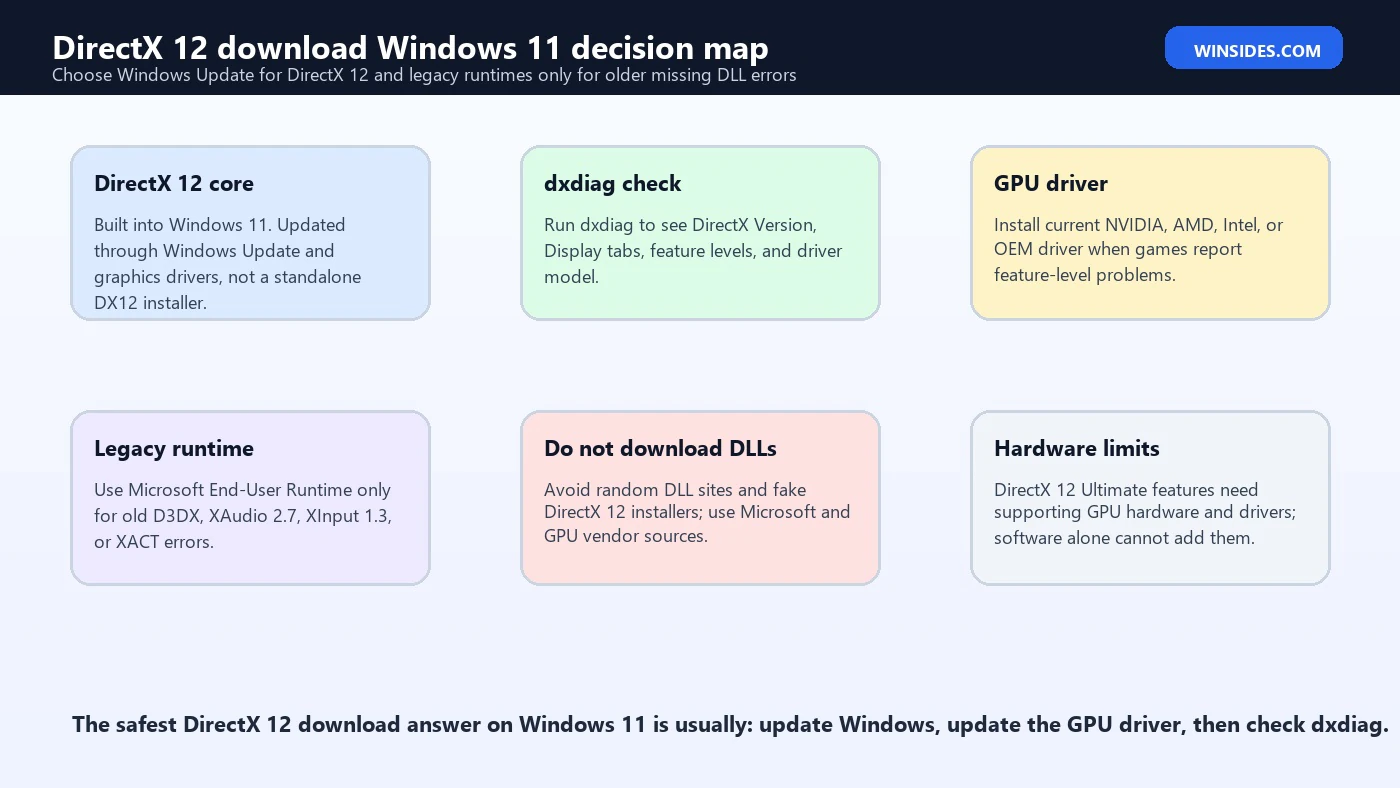
Think of DirectX as several related layers rather than one simple installer. Windows provides the core runtime. Your graphics driver exposes hardware features. The game chooses the API path. Legacy components may be needed for older titles. The GPU determines which Direct3D feature levels are available. A fake installer cannot solve all of those layers.
Why DirectX 12 Does Not Have a Normal Standalone Installer
Modern DirectX is tied closely to Windows. Microsoft’s DirectX download pages state that DirectX is included in Windows versions and that the legacy End-User Runtime does not change the DirectX version installed on the operating system. That is the key technical detail. The downloadable runtime package exists because older games and applications may depend on optional side-by-side libraries from older DirectX SDKs. It is not a way to replace or upgrade DirectX 12 on Windows 11.
For Windows 11 users, the practical update path is Windows Update. Install cumulative updates, optional updates when appropriate, and graphics driver updates. Some DirectX improvements also arrive through GPU drivers and game updates. A newer driver can expose support, fix crashes, improve shader compilation, add game profiles, and resolve feature-level detection issues. A separate DirectX 12 setup file is not the normal path.
This is also why old advice can confuse users. Years ago, many games installed DirectX runtimes as part of setup. That pattern still exists for older components, but it does not mean Windows 11 users should hunt for DirectX 12 installers. Use the legacy runtime only when the error matches legacy component names or when the game publisher specifically requires it.
How to Check DirectX Version with dxdiag
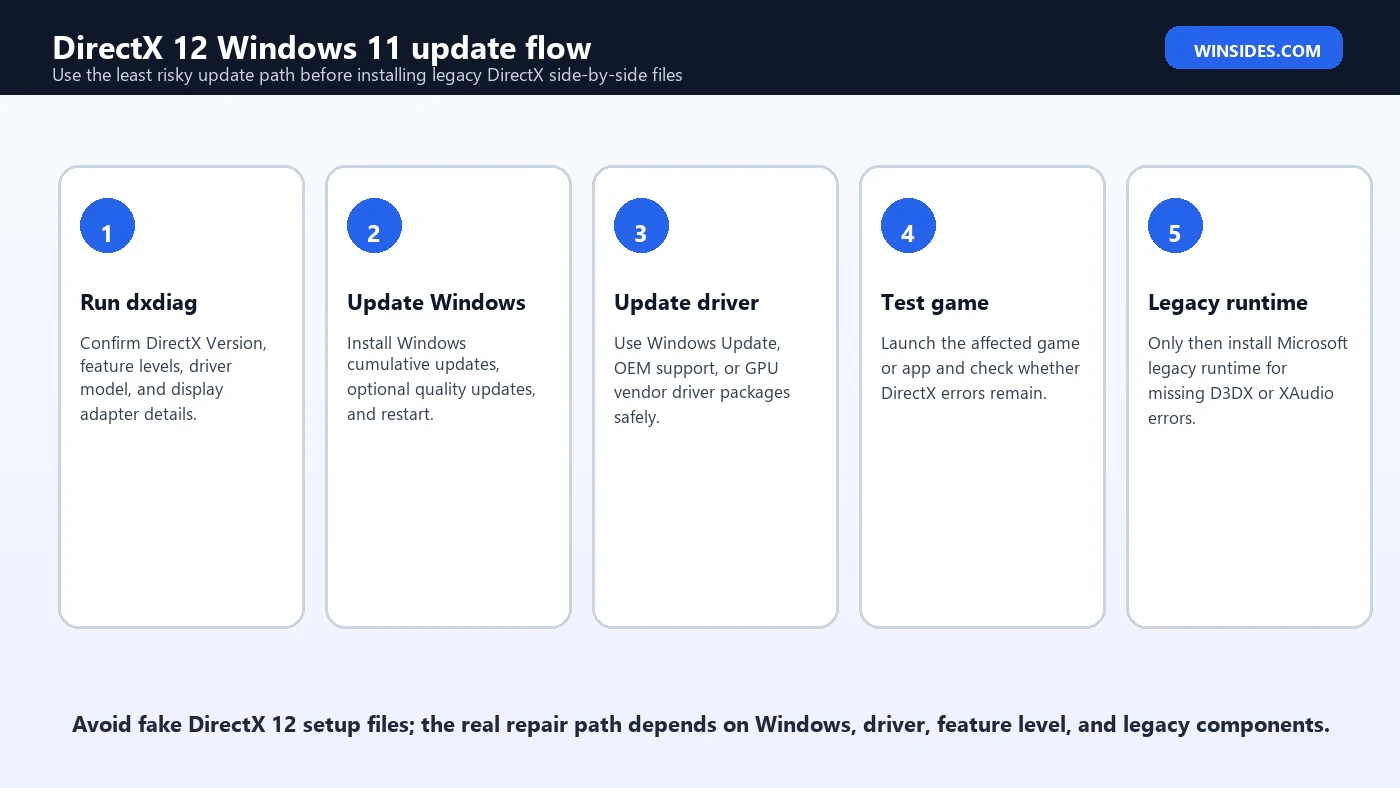
The first safe check is dxdiag. Press Windows logo key + R, type dxdiag, and press Enter. The System tab shows the DirectX Version. The Display tabs show your graphics adapter, driver details, driver model, Direct3D acceleration status, and supported feature levels. This information is more useful than a generic “DirectX installed” check because games care about feature levels and drivers, not just the headline version.
Win + R\nType: dxdiag\nPress Enter\nCheck: System tab > DirectX Version\nCheck: Display tab > Feature Levels and Driver ModelIf dxdiag shows DirectX 12 but a game still refuses to run, do not assume dxdiag is wrong. The game may need a specific feature level, a newer driver, DirectX 12 Ultimate features, or legacy runtime libraries. The DirectX Version line tells you what Windows reports. The Display tab tells you more about what the GPU and driver expose. Both matter.
For laptops with integrated and dedicated graphics, check every Display tab. A game may be launching on the wrong GPU. If a high-performance game runs on the integrated GPU instead of the NVIDIA, AMD, or Intel Arc GPU, feature level and performance errors can appear even though the laptop has a capable dedicated GPU. Windows Graphics settings and the GPU control panel can help assign the high-performance adapter.
How to Update DirectX 12 on Windows 11
The correct DirectX 12 update path starts with Windows Update. Open Settings, go to Windows Update, check for updates, install available updates, and restart. Then check optional updates if you are troubleshooting a game or graphics problem. Optional driver updates can sometimes help, but OEM or GPU vendor drivers may be newer than Windows Update versions. Use the route that fits your PC.
Next, update the graphics driver. For NVIDIA, AMD, and Intel GPUs, use the vendor driver tool or official support page when you need the newest game-ready or stability driver. For laptops, especially gaming laptops and hybrid graphics systems, the PC manufacturer driver can sometimes be safer because it includes power, mux, or display-routing customizations. If the vendor driver causes issues, roll back or use the OEM package.
After updating, restart Windows and run dxdiag again. Check DirectX Version, feature levels, driver model, and driver date. Then test the game or app. This layered workflow is safer than repeatedly installing legacy DirectX packages that do not change the core DirectX 12 runtime.
What the DirectX End-User Runtime Actually Does
The DirectX End-User Runtime is useful, but only for the right problem. Microsoft says the package installs runtime libraries from the legacy DirectX SDK for some games that use D3DX9, D3DX10, D3DX11, XAudio 2.7, XInput 1.3, XACT, or Managed DirectX 1.1. Microsoft also states that the package does not modify the DirectX Runtime installed on Windows. That means it is not a DirectX 12 upgrade.
Use the web installer when the PC has internet access and you trust the Microsoft Download Center source. Use the June 2010 redistributable when you need the complete package offline or when a game installer expects the old redistributable. Both packages exist for compatibility with older software. They can fix missing D3DX or XAudio messages, but they will not add DirectX 12 Ultimate to an old GPU.
This matters for SEO-search users because many posts say “install DirectX” without explaining which DirectX problem is involved. If the error says d3dx9_43.dll or xinput1_3.dll is missing, the legacy runtime may be relevant. If the error says the game requires DirectX 12 feature level 12_0, the legacy runtime is usually not the fix. That points to GPU capability or driver support.
DirectX 12 vs DirectX 12 Ultimate
DirectX 12 and DirectX 12 Ultimate are related but not identical from a user troubleshooting perspective. DirectX 12 is the modern graphics API platform. DirectX 12 Ultimate is a feature set that includes capabilities such as DirectX Raytracing, Variable Rate Shading, Mesh Shaders, and Sampler Feedback. Microsoft described DirectX 12 Ultimate as a way to align next-generation graphics features across PC and Xbox hardware. Hardware support matters.
A Windows 11 PC can show DirectX 12 in dxdiag and still lack some DirectX 12 Ultimate capabilities. That is not necessarily a broken installation. It may simply mean the GPU does not support the full feature set. Some older GPUs can run DirectX 12 games but cannot support all DirectX 12 Ultimate features. Some games will run with reduced settings; others may require a specific feature level.
Do not trust any installer that promises to add DirectX 12 Ultimate features to unsupported hardware. DirectX features require the operating system, the driver, and the GPU to agree. Software alone cannot turn an old GPU into a ray-tracing capable DirectX 12 Ultimate GPU.
DirectX Version vs Feature Levels
The DirectX Version line in dxdiag can be misunderstood. It tells you the runtime version available in Windows. Feature levels show what the graphics hardware and driver can actually support for Direct3D. A PC can report DirectX 12 while the GPU only supports lower feature levels. Games that require a higher feature level will fail even though the DirectX Version line looks modern.
For game troubleshooting, feature levels are often more important than the headline DirectX version. If a game requires feature level 12_0 or 12_1, check the Display tab in dxdiag. If that feature level is missing, update the driver first. If it remains missing after a correct driver update, the GPU likely does not support it. The fix is then a different GPU or a lower game setting/API path if the game offers one.
This is common on older laptops and office desktops. The system may be running Windows 11, but the graphics hardware may be basic, integrated, or older than the game expects. Installing DirectX End-User Runtime will not solve that. It can add old side-by-side libraries, not new silicon capabilities.
When to Install the Legacy DirectX Runtime
Install the legacy DirectX runtime when a game or application complains about old DirectX SDK libraries. Common examples include missing D3DX9, D3DX10, D3DX11, XAudio 2.7, XInput 1.3, XACT, or Managed DirectX 1.1 components. These errors often appear with older games from the 2000s and early 2010s, older game launchers, old mod tools, emulators, or legacy creative applications.
Use the Microsoft Download Center page, not a DLL download site. Individual DLL downloads are risky because you cannot easily verify source, version, architecture, dependencies, or whether the file has been modified. The official runtime installs the required side-by-side files properly. It also avoids replacing core Windows DirectX files, which is exactly what you want on Windows 11.
If the affected game has its own redistributables folder, the publisher may include the version it expects. Steam, Epic Games, GOG, EA app, Ubisoft Connect, and other launchers often install redistributables automatically or include repair/verify options. Use those options before manually hunting for files.
When Not to Install the Legacy Runtime
Do not install the legacy DirectX runtime just because a game performs poorly. Low FPS, stutter, shader compilation pauses, overheating, or GPU driver crashes are usually not fixed by legacy DirectX files. Those problems point to driver updates, game patches, graphics settings, thermal limits, Windows power settings, or hardware capability.
Do not use the legacy runtime to chase DirectX 12 Ultimate support. It will not add DirectX Raytracing, Mesh Shaders, Sampler Feedback, or higher feature levels to unsupported hardware. Do not repeatedly run different DirectX installers from different websites. That increases risk without addressing the actual layer that matters.
Do not try to uninstall DirectX from Windows 11. DirectX is part of Windows. Microsoft download pages also note that the DirectX runtime cannot be uninstalled in the way older standalone programs can. If Windows components are corrupted, use Windows repair tools, DISM, SFC, Windows Update repair, or an in-place repair install rather than deleting DirectX files.
Common DirectX Error Messages and What They Mean
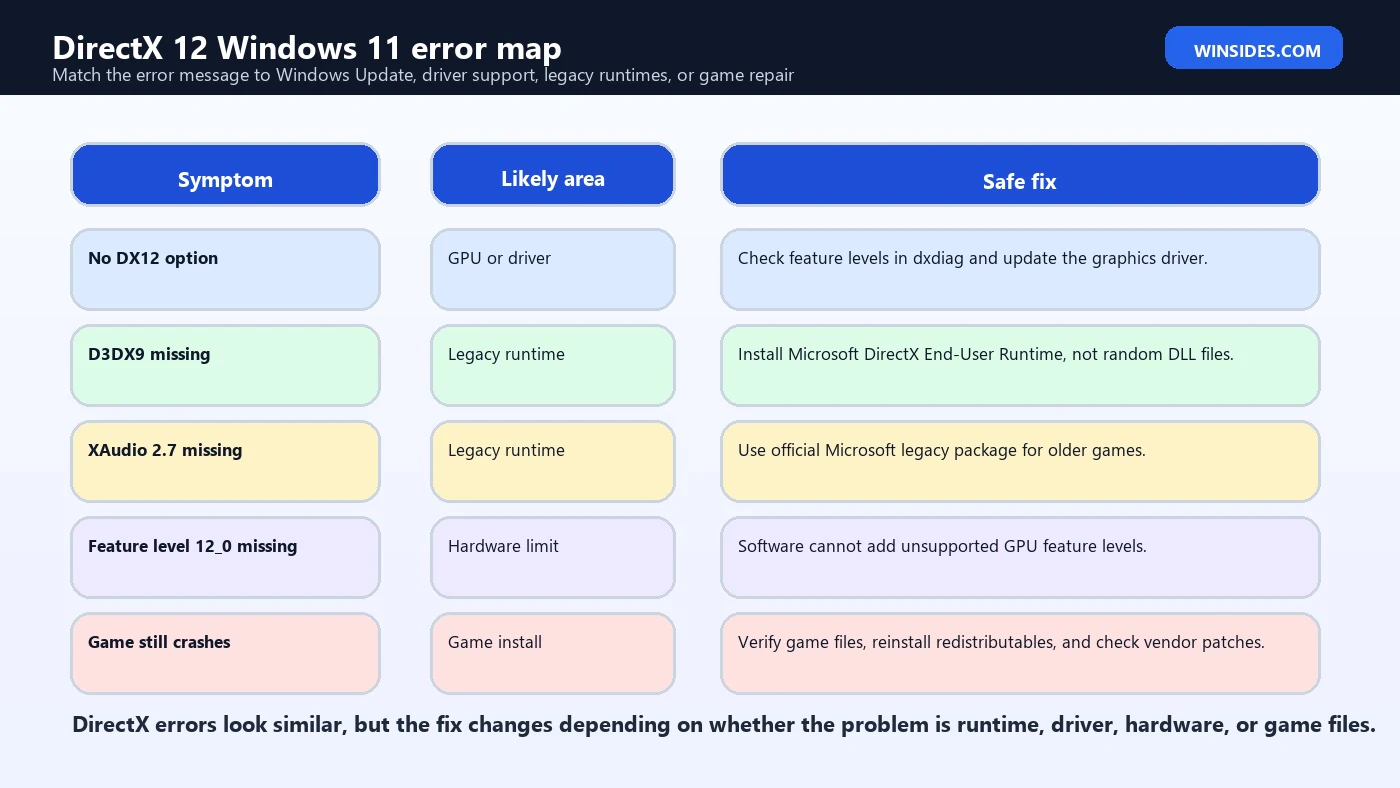
| Error or symptom | Likely meaning | Best first fix |
|---|---|---|
| d3dx9_43.dll missing | Legacy DirectX SDK library missing | Install Microsoft DirectX End-User Runtime |
| xinput1_3.dll missing | Older XInput component missing | Install official legacy runtime or game redistributables |
| XAudio2_7.dll missing | Older audio component needed by game | Install official legacy runtime |
| DirectX 12 not supported | Driver or GPU feature level issue | Check dxdiag feature levels and update GPU driver |
| DX12 option missing in game | Game did not detect support or setting is unavailable | Update driver, check launch options, verify GPU selection |
| Game crashes on launch | Could be driver, runtime, game files, overlay, or mod issue | Verify game files and update GPU driver first |
Fix: DirectX 12 Is Installed but the Game Still Fails
If dxdiag shows DirectX 12 but a game still fails, work from the game outward. First, update the game. Then verify or repair game files in the launcher. Next, update the graphics driver. Then check whether the game is launching on the correct GPU. For laptops, open Windows Settings > System > Display > Graphics and assign the game to the high-performance GPU if needed. Also check the NVIDIA, AMD, or Intel control panel if your system uses vendor-specific switching.
Disable overlays for testing. Steam Overlay, Discord Overlay, Xbox Game Bar, NVIDIA overlay, AMD overlay, recording tools, FPS counters, and mod injectors can all interact with DirectX games. You do not have to remove them permanently. Turn them off temporarily and test. If the game launches cleanly, re-enable tools one by one.
If the game offers DirectX 11 and DirectX 12 modes, test both. Some games have a faster or more stable DirectX 11 path on certain systems, even when DirectX 12 is available. Choosing DirectX 11 does not mean Windows 11 lacks DirectX 12. It means that game, driver, or hardware combination may run better through another rendering path.
Fix: Feature Level 12_0 or 12_1 Is Missing
Feature level errors are often the point where a download-focused approach fails. If dxdiag does not show the feature level required by the game, update the GPU driver. If the feature level still does not appear, the GPU probably does not support it. A runtime installer cannot change that. The feature level is exposed by the GPU and driver.
Older integrated graphics are common examples. A PC may meet basic Windows 11 requirements but still lack the graphics features required by a modern game. Some games publish minimum GPU requirements in terms of feature level. If your hardware does not meet them, the realistic fixes are to use another PC, install a supported GPU in a desktop, use a lower API path if offered, or choose games with lower requirements.
Be careful with driver-updater utilities that claim to unlock features. Use Windows Update, the PC manufacturer, or the GPU vendor. Random driver tools can install wrong drivers, adware, or unstable packages. DirectX errors are frustrating enough without adding a bad driver on top.
Fix: d3dx9, d3dx10, or d3dx11 DLL Missing
Missing D3DX errors are one of the best cases for the Microsoft DirectX End-User Runtime. These files are old side-by-side libraries that some older games were built against. Windows 11 can have DirectX 12 installed and still not include every old optional D3DX helper library by default. That is not a contradiction. It is exactly why the legacy runtime exists.
Download the runtime from Microsoft, run it, and restart if prompted. Then launch the game again. If the game still fails, verify game files or reinstall the game. If the game includes a redist folder, run its included setup. Do not paste individual DLL files into System32, SysWOW64, or the game folder unless the publisher gives that exact instruction. Manual DLL copying creates more long-term maintenance problems.
If several old games have the same D3DX error, installing the Microsoft runtime once may fix all of them. If only one game fails, the game install may be corrupted. Use the launcher repair option before changing system files.
Fix: XInput, XAudio, or XACT Errors
XInput and XAudio errors often appear in older games that expect legacy controller or audio components. A message about XInput 1.3 or XAudio 2.7 is not the same as a DirectX 12 missing message. It points to legacy side-by-side components. The Microsoft DirectX End-User Runtime can help because those components are part of the older SDK library set that some games still require.
If the issue is controller-specific, also update or reconnect the controller, test another USB port, and remove duplicate controller mapping tools. Steam Input, DS4Windows, reWASD, Xbox Accessories, and game-specific input settings can all affect controller behavior. The runtime may fix a missing DLL, but it will not fix every input mapping problem.
For audio errors, update audio drivers only if there is a clear reason. Many XAudio errors are missing legacy runtime issues, not Realtek or Bluetooth driver failures. If other apps have normal sound and only one old game fails with an XAudio message, start with the legacy runtime or the game redistributables.
Fix: DirectX Error After a GPU Driver Update
If DirectX errors started immediately after a GPU driver update, the new driver may be unstable for that game or system. Restart first. Then perform a clean driver install using the vendor installer if available. If the problem remains, roll back to the previous known-good driver. For laptops, compare the vendor driver with the OEM driver from the laptop manufacturer.
Do not assume the newest driver is always best for every PC. Game-ready drivers can fix new titles but occasionally introduce regressions. Studio drivers or OEM drivers may be more stable for content creation and laptops. The right driver is the one that supports your GPU and works reliably with your games and display setup.
If the driver update also changed display settings, check refresh rate, HDR, variable refresh rate, multiple monitors, and GPU selection. Some DirectX crashes are triggered by display-mode changes rather than the DirectX runtime itself.
Fix: DirectX Error After Windows Update
Windows updates can expose driver or game issues, especially around graphics stacks, security updates, and display behavior. If a DirectX error appears after a Windows update, first install any remaining updates and restart. Then update the GPU driver. Windows may have installed a generic or older driver during the update process. Reinstalling the correct GPU driver often fixes the problem.
If only one game is affected, check the game launcher for patches. Developers often ship updates for new Windows builds, driver changes, or anti-cheat compatibility. Also verify game files. If many DirectX games fail, focus on the GPU driver, Windows system files, overlays, and graphics settings.
Use System Restore or update rollback only when the problem is clearly tied to the update and normal driver repair fails. Rolling back Windows should not be the first response to one old game missing a legacy DLL.
Safe Download Rules
- Use Windows Update for Windows 11 DirectX runtime servicing.
- Use Microsoft Download Center for the DirectX End-User Runtime or June 2010 redistributable.
- Use NVIDIA, AMD, Intel, or your PC manufacturer for graphics drivers.
- Use Steam, Epic Games, GOG, EA app, Ubisoft Connect, or the game publisher to repair game files.
- Avoid individual DLL download sites.
- Avoid installers claiming to add DirectX 12 Ultimate to unsupported hardware.
- Avoid driver-updater utilities that are not from the GPU vendor or PC manufacturer.
- Read the exact error message before installing anything.
Developer Note: Direct3D 12 Is the API, Not a Consumer Patch
For developers, Direct3D 12 is the 3D graphics API at the heart of modern DirectX. Microsoft Learn describes it as an API and platform for apps to use graphics and computing capabilities of PCs with Direct3D 12-compatible GPUs. That developer framing is different from a consumer download. Developers install SDKs, headers, tools, PIX, Visual Studio components, and drivers. Gamers generally update Windows, drivers, games, and redistributables.
This distinction prevents confusion. A developer looking for DirectX 12 tools may need the Windows SDK and Direct3D 12 documentation. A gamer looking for a missing DLL probably needs the legacy runtime or game redistributables. A player seeing “feature level 12_0 required” needs hardware and driver support. These are three different tasks with three different fixes.
What About DirectStorage, Auto HDR, and Gaming Features?
Windows 11 gaming features such as DirectStorage and Auto HDR are related to the broader gaming platform, but they are not solved by a DirectX 12 download. DirectStorage depends on operating system support, game support, storage, GPU, and driver behavior. Auto HDR depends on Windows settings, display capability, game behavior, and graphics configuration. If those features are missing, troubleshoot them specifically.
DirectX 12 is part of the foundation for modern gaming, but not every gaming feature is a DirectX runtime problem. For example, a DirectStorage issue may involve NVMe storage and game support. HDR problems may involve the monitor, cable, Windows HDR settings, and color profile. Keep the symptom specific so you do not waste time reinstalling unrelated packages.
Best Practice Troubleshooting Order
- Run dxdiag and capture the DirectX version, feature levels, display adapter, driver model, and driver date.
- Install Windows Updates and restart.
- Update the graphics driver from Windows Update, OEM support, or the GPU vendor.
- Verify or repair the affected game files in its launcher.
- Check whether the game is using the correct GPU on hybrid laptop systems.
- Disable overlays and mods temporarily for testing.
- Install the Microsoft legacy DirectX runtime only if the error mentions legacy components such as D3DX, XAudio, XInput, or XACT.
- Check minimum game requirements for DirectX feature levels and GPU support.
- Avoid fake DirectX installers and individual DLL downloads.
Frequently Asked Questions
Can I download DirectX 12 for Windows 11?
Not as a normal standalone installer. DirectX 12 is built into Windows 11 and updated through Windows Update and system servicing.
What is the DirectX End-User Runtime for?
It installs legacy DirectX SDK side-by-side components used by some older games, such as D3DX, XAudio 2.7, XInput 1.3, XACT, and Managed DirectX 1.1.
Will the DirectX End-User Runtime upgrade DirectX 12?
No. Microsoft states that the package does not modify the DirectX Runtime installed on Windows.
How do I check DirectX on Windows 11?
Press Win + R, type dxdiag, press Enter, then check the System and Display tabs.
Why does dxdiag show DirectX 12 but my game says DirectX is missing?
The game may need a legacy component, a specific feature level, a newer GPU driver, or repaired game files.
Can I install DirectX 12 Ultimate on any PC?
No. DirectX 12 Ultimate features require compatible GPU hardware, drivers, and OS support.
Should I download missing DirectX DLL files manually?
No. Use Microsoft runtimes or game redistributables instead of random DLL download sites.
Does updating my GPU driver update DirectX?
It does not replace the Windows runtime, but it can expose features, fix crashes, and improve DirectX game compatibility.
Can DirectX be uninstalled from Windows 11?
No, not like a normal app. DirectX is part of Windows. Repair Windows components instead of trying to remove it.
Why does an old game need DirectX if Windows 11 has DirectX 12?
Older games may need optional legacy SDK libraries that are not the same as the modern core DirectX runtime.
Conclusion: The Safe DirectX 12 Download Answer Is Usually No Download
DirectX 12 download Windows 11 is one of those searches where the safest answer is counterintuitive. Windows 11 already includes DirectX 12. You normally update it through Windows Update, graphics drivers, and game updates. A separate DirectX 12 installer is not the correct fix for most modern Windows 11 systems, and fake download pages can create more problems than they solve.
The Microsoft DirectX End-User Runtime is still useful, but only for legacy components. It can help with old D3DX, XAudio, XInput, XACT, or Managed DirectX errors. It does not upgrade the DirectX runtime installed with Windows, and it cannot add DirectX 12 Ultimate features to unsupported GPUs. If the problem is feature level support, check dxdiag, drivers, and hardware requirements.
Use the right repair path: dxdiag first, Windows Update second, GPU driver third, game repair fourth, legacy runtime only when the error message points there. That approach keeps Windows 11 clean, avoids unsafe DLL downloads, and gives you the best chance of fixing the game without installing the wrong thing.
For more interesting articles, stay tuned to Winsides.com!









Community
Comments (0)