

Introduction to Event ID 4625 Failed Logon
Event ID 4625 Failed Logon is one of the most important Windows Security log events for authentication troubleshooting and attack detection. Microsoft defines 4625 as an audit failure event for an account that failed to log on. It is generated on the computer where the logon attempt was made, and it can appear on domain controllers, member servers, and workstations. In practical terms, it tells you that Windows received a logon attempt, rejected it, and recorded enough context to help you understand why.
The value of Event ID 4625 is not just the fact that a logon failed. Failed logons happen constantly in real environments: mistyped passwords, expired saved credentials, services running with old passwords, RDP scans, SMB probes, disabled accounts, wrong logon rights, broken scripts, VPN attempts, and real password attacks can all create the same event ID. The investigation depends on the fields inside the event: target account, logon type, status, substatus, workstation name, source network address, process name, authentication package, and timing.
The primary Microsoft reference is 4625(F): An account failed to log on. Microsoft also documents security identifiers, which helps explain why the SID fields matter. This guide turns those fields into a practical triage workflow for administrators, SOC analysts, and Windows engineers.
The goal is not to panic over every 4625. The goal is to read it correctly. A single bad password from a known workstation may be normal. A burst of bad passwords against a domain admin account from an external IP is not. A service account failing every minute after a password change is operational drift. A disabled account being probed from many sources may be malicious reconnaissance. Event 4625 gives you the raw evidence, but context turns it into a decision.
Table of contents
Key Takeaways
- Event ID 4625 means Windows rejected a logon attempt. It logs on the computer where the attempt was made, which may be a workstation, server, or domain controller.
- Logon Type is one of the most important fields. Type 2 means interactive, 3 means network, 5 means service, and 10 usually points to Remote Desktop.
- Status and SubStatus explain why authentication failed. They distinguish bad password, unknown user, locked account, disabled account, denied logon right, no logon servers, and other cases.
- Source Network Address and Workstation Name tell you where to look next. They can identify a client, jump box, scanner, VPN path, or localhost process.
- Process Name and Authentication Package help separate user activity from service, script, NTLM, Kerberos, or application behavior.
- Repeated patterns matter more than isolated events. Correlate 4625 with successful logons, lockouts, process creation, VPN, firewall, and identity-provider logs.
- Service accounts and privileged accounts deserve special monitoring. Microsoft specifically recommends monitoring failed logons for local accounts and service accounts on high-value systems.
What Event ID 4625 Means
Event ID 4625 is recorded by the Microsoft-Windows-Security-Auditing provider when a logon failure occurs. The event belongs to the Security log, and it is tied to Audit Logon and, in some cases, Audit Account Lockout. Microsoft notes that the event is generated for any logon failure and appears on the machine where the logon attempt was made. That detail matters because the event location tells you which system received the attempted logon, not necessarily where the attacker or user physically sat.
For example, a failed RDP logon to a server usually appears on that server. A failed SMB connection to a file server appears on the file server. A failed local console sign-in appears on the workstation. Some domain-authentication paths also produce related events on domain controllers, but 4625 itself should be interpreted in relation to the computer field and the specific logon path.
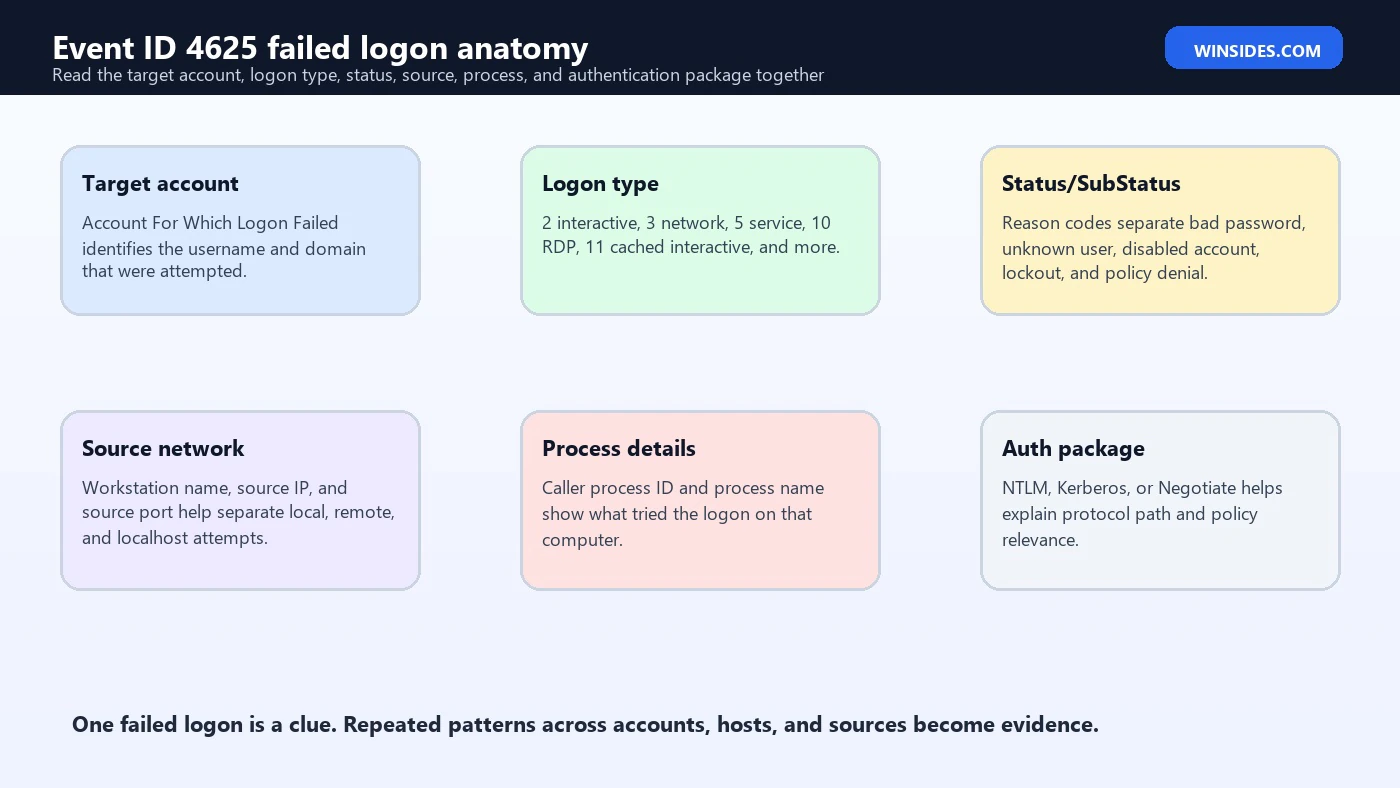
The event has several sections. Subject describes the account that reported the failed logon information. Account For Which Logon Failed describes the attempted account. Failure Information gives status and substatus codes. Process Information points to the process that attempted the logon on that machine. Network Information gives workstation and IP details when available. Detailed Authentication Information tells you whether NTLM, Kerberos, or Negotiate was involved.
Where Event 4625 Is Logged
One of the easiest mistakes is looking on the wrong computer. Microsoft states that Event 4625 generates on the computer where the logon attempt was made. If a user fails to unlock a laptop, look on that laptop. If an RDP attempt fails against a server, look on that server. If an application fails to connect to a file share, look on the file server and then correlate with the client or application host. If a domain authentication attempt involves a domain controller, related domain-controller events may help, but the 4625 location still matters.
This is especially important during account lockout investigations. The domain account may lock at the domain level, but the bad password may originate from a scheduled task on one server, a mapped drive on another workstation, a mobile VPN client, or an old service password. Event 4625 on the receiving system helps you identify that path. If you collect Security logs centrally into a SIEM, keep the Computer field visible in every alert because it tells you which system accepted the attempted logon path.
For internet-exposed services, also check edge logs. Windows may show the failed RDP, IIS, SMB, or VPN authentication attempt, but firewalls, reverse proxies, VPN gateways, identity providers, and EDR tools can provide the external source, geolocation, user-agent, and session details Windows does not always have.
Understand Subject vs Target Account
Event 4625 has a Subject section and an Account For Which Logon Failed section. The Subject is the security principal that reported the logon failure. In many examples, this can be Local System or a machine account because the system is reporting the event. The target account is the account that someone tried to use. For triage, the target account is usually the more important identity: it is the username, domain, and SID involved in the failed attempt.
Microsofts SID documentation explains that a security identifier uniquely identifies a security principal such as a user, group, or computer account. Event Viewer tries to resolve SIDs into account names, but if a SID cannot be resolved you may see the raw value. That is useful during deleted-account investigations, trust issues, local account attempts, or events involving well-known security principals.
Do not assume the Subject account is the attacker or user. A 4625 with SubjectUserName as a computer account can still be reporting a failed logon for a completely different target user. Read the Account For Which Logon Failed section before deciding who was attacked, who mistyped a password, or which account is at risk.
Logon Type Is the Triage Shortcut
Logon Type is the fastest way to understand the access path. Microsoft lists common Windows logon types in the 4625 documentation. Type 2 is interactive, meaning a user logged on at the computer. Type 3 is network, common for SMB, remote file access, IIS integrated authentication, and many service-to-service connections. Type 4 is batch. Type 5 is service. Type 7 is unlock. Type 8 is network cleartext. Type 9 is new credentials. Type 10 is remote interactive, commonly Remote Desktop. Type 11 is cached interactive.
| Logon Type | Meaning | Common investigation path |
|---|---|---|
| 2 | Interactive | Console, local sign-in, or keyboard at the machine. |
| 3 | Network | SMB, IIS, remote resource access, lateral movement, or service-to-service access. |
| 4 | Batch | Scheduled jobs or batch process context. |
| 5 | Service | Windows service account startup or service control path. |
| 7 | Unlock | Workstation unlock with bad credentials. |
| 8 | NetworkCleartext | Network logon where credentials are passed to the package in cleartext form before hashing. |
| 9 | NewCredentials | Runas /netonly style outbound credential use. |
| 10 | RemoteInteractive | Remote Desktop or Terminal Services path. |
| 11 | CachedInteractive | Cached domain logon without contacting a domain controller. |
Logon Type prevents false assumptions. A bad password for a user with Logon Type 10 and a public source IP is not the same as a bad password with Logon Type 5 from a service host. A disabled account with Logon Type 3 from a file server has a different root cause than the same account failing locally at a console. Always interpret the status code through the logon type.
Status and SubStatus Codes
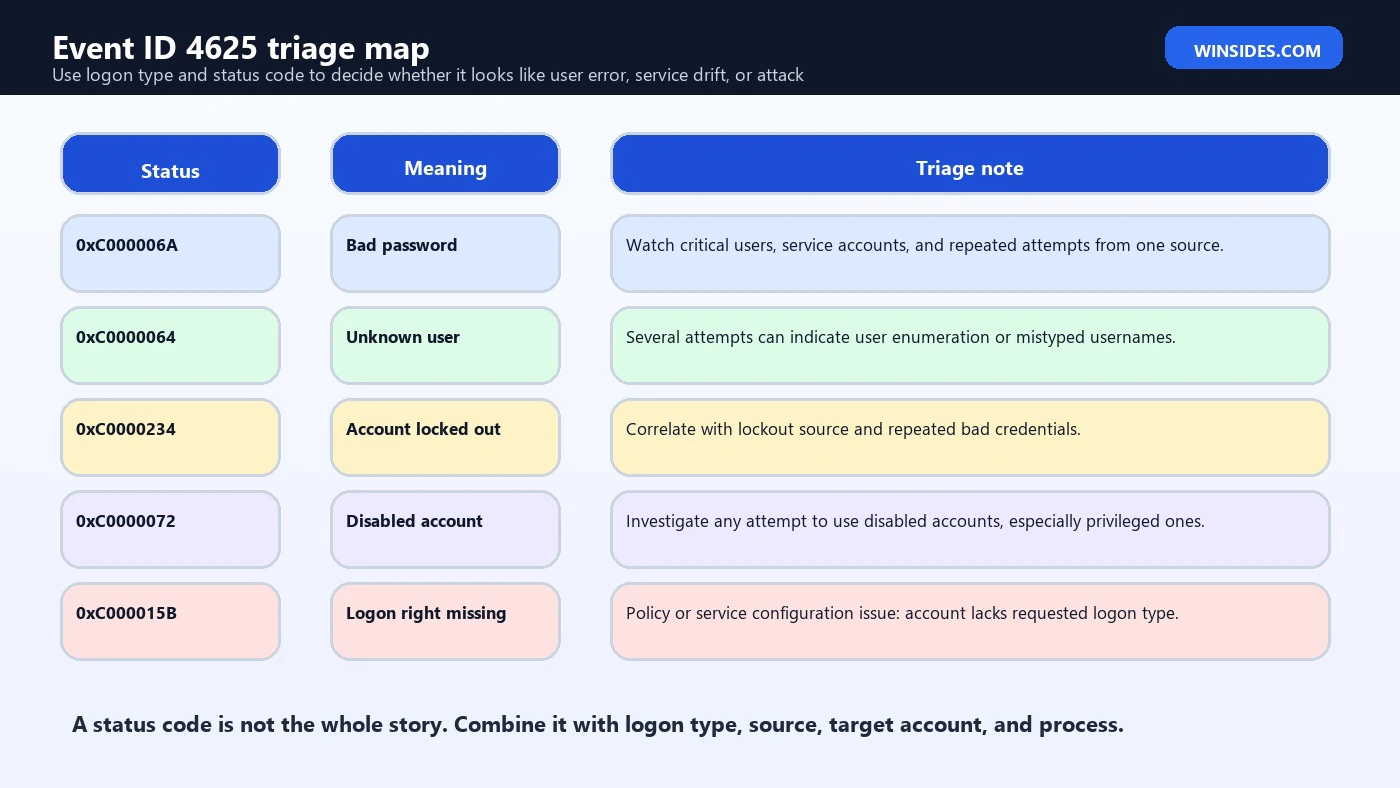
Status and SubStatus explain why the logon failed. Microsofts 4625 documentation calls out several useful values. 0xC0000064 means the username is misspelled or the account does not exist. 0xC000006A means bad password. 0xC000006D is a broader bad username or authentication information condition. 0xC000006F means logon outside authorized hours. 0xC0000070 means logon from an unauthorized workstation. 0xC0000072 means the account is disabled. 0xC000015B means the user has not been granted the requested logon type at that machine. 0xC0000234 indicates account lockout.
These codes are not just trivia. They tell you whether to investigate a password spray, user enumeration, old service password, account policy, disabled-account probing, missing logon right, or infrastructure outage. For example, repeated 0xC0000064 across many usernames can indicate enumeration. Repeated 0xC000006A against one privileged account can indicate a password attack or an old stored password. 0xC000015B often points to local security policy or user-right assignment rather than a bad password.
Network Information Fields
The Network Information section includes Workstation Name, Source Network Address, and Source Port when Windows has that information. Microsoft notes that 127.0.0.1 or ::1 means localhost. Source Port is often 0 for interactive logons. For remote attempts, Source Network Address can be the client IP, a proxy, a load balancer, a VPN gateway, or sometimes unavailable depending on the protocol and path.
Treat source IP as an investigation lead, not absolute truth. For internal networks, map it to DHCP logs, VPN sessions, EDR device identity, firewall logs, and asset inventory. For external sources, check whether it is a real internet client, a cloud proxy, a VPN concentrator, a NAT device, or a security scanner. If the event shows localhost, investigate the local process and stored credentials on that machine.
Workstation Name can be useful but inconsistent. It may show a computer name, a client-supplied value, or a placeholder. Source IP plus Computer plus Process Name usually gives better evidence than workstation name alone.
Process and Authentication Package
Process Information identifies the process ID and process name that attempted the logon on the computer where the event was logged. Microsoft notes that the process ID can be converted from hex to decimal and compared with Task Manager or correlated with process-creation events such as 4688. If a failed logon is tied to winlogon.exe, it likely has a different meaning than one tied to a service executable, IIS worker process, scheduled task host, or custom application.
Authentication Package tells you whether NTLM, Kerberos, or Negotiate was involved. Microsoft explains that Negotiate selects Kerberos unless Kerberos cannot be used or the application did not provide sufficient information. NTLM failures can be especially important if your organization restricts NTLM, monitors NTLM versions, or expects specific accounts never to use NTLM. Kerberos failures may require correlating with domain-controller Kerberos events or SPN issues.
The Package Name field is NTLM-specific. If the package shows NTLM V1 in an environment that expects NTLM V2 or Kerberos, the event may indicate legacy clients, misconfiguration, or risky protocol use. For privileged and service accounts, authentication package is part of the severity decision.
Common Cause: Bad Password or Stale Credential
The most common benign cause is a bad password. A user mistypes a password, a password manager has an old entry, a mapped drive stores stale credentials, a mobile app keeps retrying, or a scheduled task still uses the old password. The status code 0xC000006A is a strong clue. The investigation becomes more serious when the same account fails repeatedly, when a privileged or service account is targeted, or when failures come from many hosts.
For stale credentials, look for regular timing. A failure every five minutes often points to a service, script, monitoring probe, scheduled task, application pool, or saved credential. A failure at workstation unlock may point to user behavior. A burst from many IPs against many accounts suggests attack tooling rather than a forgotten mapped drive.
Do not reset the account immediately unless policy demands it. First identify the source. If you reset a password while the bad source keeps retrying, you may cause repeated lockouts and make the incident harder to trace.
Common Cause: RDP and Remote Interactive Attempts
Logon Type 10 usually indicates RemoteInteractive, commonly RDP or Terminal Services. If you see Event ID 4625 with Logon Type 10 from unfamiliar external IP addresses, treat it as high priority. Internet-exposed RDP is a common target for password spraying and brute force. Even internal RDP failures against admin accounts deserve scrutiny because they may indicate lateral movement attempts.
For RDP triage, check source IP, target username, account type, time window, and whether there are matching successful logons. If failures are followed by Event ID 4624 success for the same account and source, escalate quickly. If failures hit disabled, renamed, or honeypot accounts, preserve evidence and review exposure. If the source is a known jump server, verify who used it and whether the attempt matches expected admin activity.
Useful follow-up evidence includes firewall logs, VPN logs, RD Gateway logs, EDR telemetry, local administrators group membership, and successful logon events around the same time.
Common Cause: Service Account Failure
Microsoft recommends monitoring service accounts because they should not be locked out or prevented from functioning. A service account failing with Logon Type 5 may indicate a Windows service has an old password. Logon Type 4 can point to batch or scheduled task use. Logon Type 3 can indicate network resource access by an application or service. These are operational issues, but they can become security issues if the service account is privileged or used from unexpected systems.
Start by finding where the service account is expected to run. Compare the source host with the service inventory. If the account fails from a server that no longer owns that workload, you may have a forgotten task, old application pool, retired agent, or copied configuration. If the account fails from an unknown workstation, treat it as suspicious. Service accounts should have tight expected-use boundaries.
The fix may involve updating stored credentials, moving to a group managed service account, removing the old service, correcting logon rights, or rotating the credential after exposure. Avoid broad password resets until you know every dependency.
Common Cause: Unknown User and User Enumeration
Status 0xC0000064 indicates a bad or unknown username. A single event may be a typo. Many events using different usernames from the same source can indicate user enumeration. Attackers often test lists of names to learn which accounts exist before trying passwords. Microsofts monitoring guidance specifically notes that several events in a row for this status can be a sign of enumeration.
Look for username patterns: first initial plus last name, common admin names, disabled accounts, default vendor accounts, old employee names, service account naming conventions, and email address formats. Also compare unknown-user failures with valid-user bad-password failures from the same source. A transition from unknown users to valid users can show that enumeration succeeded.
Response may include blocking the source, tightening exposed authentication surfaces, reviewing account naming leakage, increasing monitoring for the validated accounts, and correlating with web, VPN, mail, and identity-provider logs.
Common Cause: Missing Logon Right
Status or SubStatus 0xC000015B means the user has not been granted the requested logon type at that machine. This is often a policy issue rather than a password issue. The account may be valid and the password may be correct, but local security policy, domain policy, or user-right assignment does not allow that account to log on in that way.
For example, an account may not have Allow log on as a service, Allow log on locally, Allow log on through Remote Desktop Services, or Access this computer from the network. The right fix is to adjust group membership or policy according to least privilege, not to keep retrying the password. For privileged users, a denied logon right can also be a useful control that prevents account abuse on machines where the account should not be used.
Common Cause: Disabled, Expired, or Locked Account
Attempts against disabled accounts, expired accounts, and locked accounts deserve attention. A user may have an old device or service still trying the account. An attacker may be trying stale credentials. A disabled account should generally not be used, so any attempt against it is worth reviewing. Account lockout status may indicate repeated bad passwords or a policy threshold being reached.
Correlate Event ID 4625 with account management and lockout events. If a high-value account locks, find the source before unlocking or resetting. If a disabled account receives attempts from many external sources, check whether that username is exposed in old documentation, public breach data, scripts, or application configuration. Disabled does not mean invisible.
How to Query Event ID 4625 with PowerShell
For a quick local investigation, PowerShell can pull recent 4625 events from the Security log. On protected systems, you need appropriate rights to read the Security log. In production, a SIEM or centralized event collector is better, but local commands are useful for triage and lab validation.
Get-WinEvent -FilterHashtable @{LogName="Security"; Id=4625; StartTime=(Get-Date).AddHours(-24)} |
  Select-Object TimeCreated, ProviderName, Id, MachineName, Message |
  Format-List
For structured analysis, parse the XML fields rather than scraping the message text. The field names in Microsofts XML example include TargetUserName, TargetDomainName, Status, SubStatus, LogonType, ProcessName, IpAddress, IpPort, WorkstationName, LogonProcessName, and AuthenticationPackageName.
$events = Get-WinEvent -FilterHashtable @{LogName="Security"; Id=4625; StartTime=(Get-Date).AddHours(-24)}
$events | ForEach-Object {
  $xml = [xml]$_.ToXml()
  $data = @{}
  foreach ($d in $xml.Event.EventData.Data) { $data[$d.Name] = $d."#text" }
  [pscustomobject]@{
    Time = $_.TimeCreated
    Computer = $_.MachineName
    TargetUser = $data.TargetUserName
    Domain = $data.TargetDomainName
    LogonType = $data.LogonType
    Status = $data.Status
    SubStatus = $data.SubStatus
    SourceIP = $data.IpAddress
    Process = $data.ProcessName
    AuthPackage = $data.AuthenticationPackageName
  }
}
SIEM and Detection Ideas
For security monitoring, do not alert equally on every 4625. Alert fatigue will bury the important events. Build detections around context: privileged accounts, service accounts, local accounts on critical servers, high-value workstations, external source IPs, repeated failures, many target accounts from one source, many sources against one account, disabled accounts, and failures followed by success.
- Many target accounts from one source in a short period: possible password spray or enumeration.
- Many source IPs against one account: possible distributed guessing or exposed account.
- Bad password followed by successful logon from same source and account: possible compromise.
- Failures for disabled or expired accounts: stale credential or malicious reuse attempt.
- Service account failures from unexpected hosts: credential leakage or configuration drift.
- RDP Logon Type 10 failures from internet sources: exposed remote access risk.
- NTLM authentication for accounts that should use Kerberos: protocol downgrade or legacy dependency.
Microsofts monitoring recommendations for 4625 include watching unexpected process names, process paths outside standard folders, suspicious substrings in process names, mismatch between logon type and account use, high-value account lockouts, local account failures, service account failures, unauthorized workstations or IP addresses, NTLM use where it should not occur, and weak NTLM key length. These recommendations translate well into SIEM rules.
Response Workflow for Event ID 4625
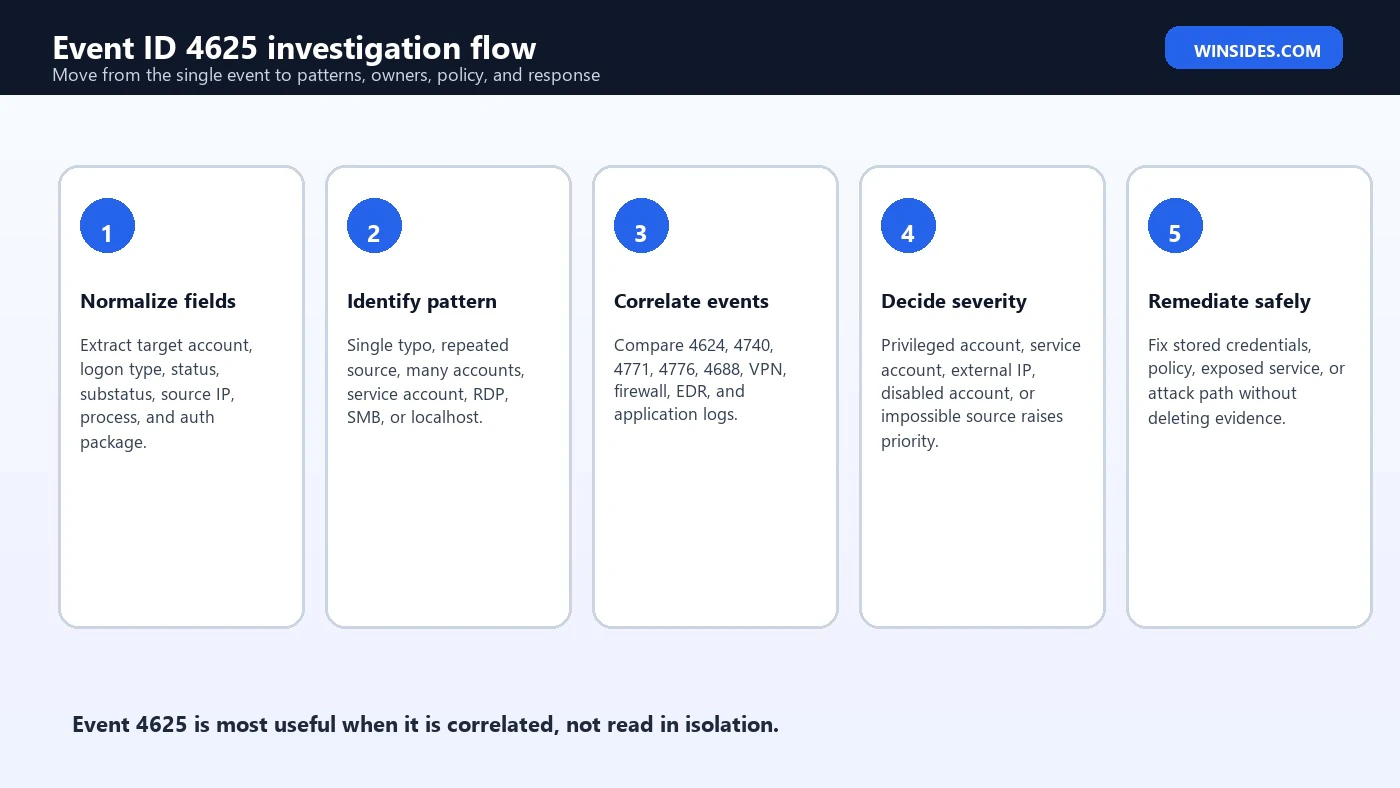
A good response workflow keeps operational troubleshooting and security investigation separate until the evidence says which path matters. Event ID 4625 can be a harmless typo, but it can also be the first visible sign of password spraying, exposed RDP, reused credentials, or service account drift. The safest approach is to preserve context, identify the pattern, then apply the smallest corrective action that resolves the cause.
- Preserve the event context. Do not clear the Security log. Export the event or copy the XML if the system is sensitive.
- Identify the target account. Confirm whether it is a user, local account, domain account, service account, disabled account, or privileged account.
- Read Logon Type first. Type 3, Type 5, and Type 10 usually point to very different causes.
- Interpret Status and SubStatus together. Bad password, unknown user, disabled account, lockout, expired account, unauthorized workstation, and missing logon right each require a different fix.
- Trace the source. Map source IP and workstation name to VPN, DHCP, firewall, EDR, RD Gateway, application, or asset inventory records.
- Look for success after failure. Failed logons followed by a successful logon for the same account and source deserve fast escalation.
- Fix the root cause. Update stale credentials, remove exposed services, correct policy, disable unused accounts, or block hostile sources.
If the failure is clearly user error, help the user update saved passwords and password managers. If it is service account drift, find the dependency before rotating credentials. If it is remote access abuse, close or restrict the exposed path first. If it touches an admin account, treat it as a higher-severity event even when the password was not guessed successfully.
Correlation Events to Check
Event ID 4625 is strongest when it is correlated with nearby security, system, and application events. The single event tells you that a logon failed. The surrounding events tell you whether the failure was isolated, repeated, followed by success, tied to lockout, associated with Kerberos or NTLM, or part of a broader sequence.
- 4624 Successful Logon: Check whether a success occurred after repeated failures for the same account, source, or logon type.
- 4740 Account Locked Out: Use this to trace lockout patterns and identify the caller computer for domain accounts.
- 4771 Kerberos Pre-Authentication Failed: Useful on domain controllers when Kerberos failures are involved.
- 4776 NTLM Credential Validation: Useful when NTLM authentication is involved and you need domain-controller context.
- 4688 Process Creation: Correlate process ID and process name when process auditing is available.
- Firewall, VPN, RD Gateway, IIS, EDR, and identity-provider logs: Use them to validate source IP, application path, geolocation, session owner, and device identity.
Correlation also reduces false positives. A single failed interactive logon on a users workstation may not be interesting. The same account failing on an internet-facing server, then succeeding through RDP, is a very different story. A disabled account failing once from an old laptop is operational cleanup. A disabled account failing from dozens of public IP addresses is suspicious recon or credential stuffing.
Best Practices to Reduce 4625 Noise
Many organizations collect thousands of failed logon events every day. The goal is not to eliminate every 4625. The goal is to make the noisy ones explainable and the dangerous ones obvious. Reducing avoidable noise improves detection quality and makes real incidents easier to investigate.
- Centralize Security logs from domain controllers, servers, high-value workstations, and remote access systems.
- Keep service account inventories current, including where each account is allowed to run.
- Prefer group managed service accounts where supported so passwords are not manually stored across services.
- Remove saved credentials, mapped drives, old scheduled tasks, and application pools that keep retrying expired passwords.
- Restrict RDP and administrative ports behind VPN, RD Gateway, conditional access, or trusted management networks.
- Alert more aggressively on privileged accounts, local administrator accounts, service accounts, disabled accounts, and accounts used from unusual sources.
- Build baselines for normal source hosts, logon types, and authentication packages for important accounts.
- Retain logs long enough to see slow password spraying, recurring lockouts, and pattern changes after password resets.
Noise reduction should never mean ignoring failed logons entirely. Instead, tag expected behavior, suppress well-understood benign patterns carefully, and keep high-risk combinations visible. A service account failing every minute is noisy, but it is also telling you that something is misconfigured. A local admin account failing on a server is rare enough that it should stay visible.
Frequently Asked Questions
Is Event ID 4625 always a sign of hacking?
No. It often comes from normal mistakes, old saved credentials, scheduled tasks, services, or policy restrictions. It becomes suspicious when the pattern involves many attempts, privileged accounts, unknown sources, external RDP, disabled accounts, or failures followed by success.
Where should I look for Event ID 4625?
Check the Security log on the computer that received the logon attempt. That can be a workstation, member server, domain controller, Remote Desktop host, or application server, depending on the authentication path.
What is the most important field in Event ID 4625?
There is no single field that answers everything. Start with TargetUserName, LogonType, Status, SubStatus, IpAddress, WorkstationName, ProcessName, and AuthenticationPackageName. Together, they explain who failed, how they tried to log on, why Windows rejected it, and where the attempt appears to have come from.
Why does Event ID 4625 show a wrong or blank source IP?
The source can be missing, localhost, a proxy, a VPN gateway, a NAT address, or a device supplied name depending on protocol and infrastructure. Treat source information as a clue and validate it with network, VPN, firewall, DHCP, EDR, and server logs.
What does Logon Type 3 mean in Event ID 4625?
Logon Type 3 is a network logon. It commonly appears for SMB, remote resource access, web-integrated authentication, and service-to-service connections. It is often investigated differently from console sign-in or RDP failures.
What does Logon Type 10 mean in Event ID 4625?
Logon Type 10 is RemoteInteractive and is commonly associated with Remote Desktop or Terminal Services. Repeated Type 10 failures from unknown or public IP addresses should be treated as remote access risk.
What is the difference between Status and SubStatus?
Status gives the main failure reason, while SubStatus can add more detail. For many investigations, both values are needed to tell the difference between bad password, unknown user, disabled account, expired account, lockout, missing logon right, or workstation restriction.
Should I reset the password immediately after seeing Event ID 4625?
Not automatically. If the account is high-risk or compromise is likely, follow your incident process. For routine lockouts, find the source first. Resetting too early can hide the root cause and may trigger more lockouts if a stale credential keeps retrying.
Conclusion: Read the Pattern Behind the Failed Logon
Event ID 4625 Failed Logon is simple on the surface, but the useful story is in the pattern. One failed logon may be a typo. Repeated failures against a service account can expose stale configuration. Unknown-user failures can reveal enumeration. RemoteInteractive failures from public sources can point to exposed RDP. Bad passwords followed by a successful logon can turn a routine alert into a real incident.
The most reliable way to investigate 4625 is to combine the fields instead of reading them in isolation. Start with the target account, then logon type, status and substatus, source network address, process name, and authentication package. Correlate with successful logons, account lockouts, Kerberos or NTLM events, remote access logs, firewall records, and endpoint telemetry. That full view helps you separate user error from configuration drift and real attack behavior.
For administrators, the long-term win is cleaner authentication hygiene: fewer stale saved passwords, better service account ownership, restricted remote access, clear baselines, and central logging. When those practices are in place, Event ID 4625 becomes less of a noisy distraction and more of a precise signal that shows where Windows authentication is being misused, misconfigured, or attacked.
For Microsoft references, keep the official Event 4625 auditing documentation handy for field definitions and status-code examples. For identity context, Microsofts security identifier documentation explains how SIDs identify users, groups, computers, and other security principals.
For more interesting articles, stay tuned to Winsides.com!









Community
Comments (0)