

Introduction to Event ID 4688 Process Creation
Event ID 4688 Process Creation is one of the most valuable Windows Security events for endpoint visibility. Microsoft defines it as the event generated every time a new process starts. In normal language, it records that Windows created a process, who requested it, what executable started, what process launched it, and in newer event versions, extra context such as command line, target subject, mandatory label, and parent process name.
For defenders, administrators, and incident responders, Event ID 4688 is powerful because processes are where user activity, administration, automation, malware, scripts, installers, living-off-the-land tools, and troubleshooting commands become visible. A user opening Notepad, an administrator running PowerShell, an Office document launching a script host, a service starting a helper process, or an attacker spawning command shells can all create 4688 telemetry when process creation auditing is enabled.
The official Microsoft reference is 4688(S): A new process has been created. This guide also references Microsofts Event 4624 logon documentation because 4688 logon IDs can be correlated with logon sessions, and Microsofts security identifier documentation because process creation events include SID-backed subject fields.
The important thing is not to treat every process launch as suspicious. Windows creates many processes. Administrators and software tools launch many more. Event 4688 becomes useful when you combine fields: new process path, command line, parent process, creator process ID, account, logon ID, token elevation, mandatory label, time, host role, and surrounding events. A process name alone rarely proves anything. A process name plus parent, command line, user context, path, and behavior can be decisive.
Table of contents
Key Takeaways
- Event ID 4688 records new process creation. Microsoft states that it is generated every time a new process starts.
- Command line is optional. Microsoft notes that Process Command Line is empty by default and must be enabled through policy to appear in 4688 events.
- Parent-child relationships matter. New Process Name, Creator Process ID, and Creator Process Name help explain how the process was launched.
- Subject and logon ID provide user context. The account and SubjectLogonId can connect process creation to a 4624 logon session.
- Token Elevation Type helps interpret admin context. Full, elevated, and limited tokens are important when UAC and privileged workflows are involved.
- 4688 is a detection foundation, not a complete incident report. Correlate with file, network, registry, logon, script block, Sysmon, EDR, and application telemetry.
- Command-line auditing is useful but sensitive. Arguments may contain secrets, tokens, file paths, usernames, internal URLs, or other data that should be protected.
What Event ID 4688 Means
Event ID 4688 belongs to the Microsoft-Windows-Security-Auditing provider. It appears in the Security log when Audit Process Creation is enabled and a new process starts. The event includes information about the subject account, the new process, and the process that requested creation. Microsofts documentation also shows version differences: newer versions can include Process Command Line, Target Subject fields, Mandatory Label, and Creator Process Name.
The event should be read as a record of process start, not process success. A process creation event means Windows attempted to create a process and recorded the details. It does not, by itself, prove the process completed a malicious action, opened a network connection, wrote a file, or persisted. To answer those questions, correlate with other events and telemetry. Still, process creation is often the earliest reliable sign of a suspicious chain.
For example, powershell.exe is not automatically bad. PowerShell is a legitimate administration tool. But winword.exe launching PowerShell with hidden window, encoded command, download cradle, and a user profile path is much more suspicious. Likewise, cmd.exe is normal in admin work, but a web server process spawning cmd.exe can indicate exploitation. Event 4688 gives the details needed to separate normal from abnormal.
Anatomy of a 4688 Event
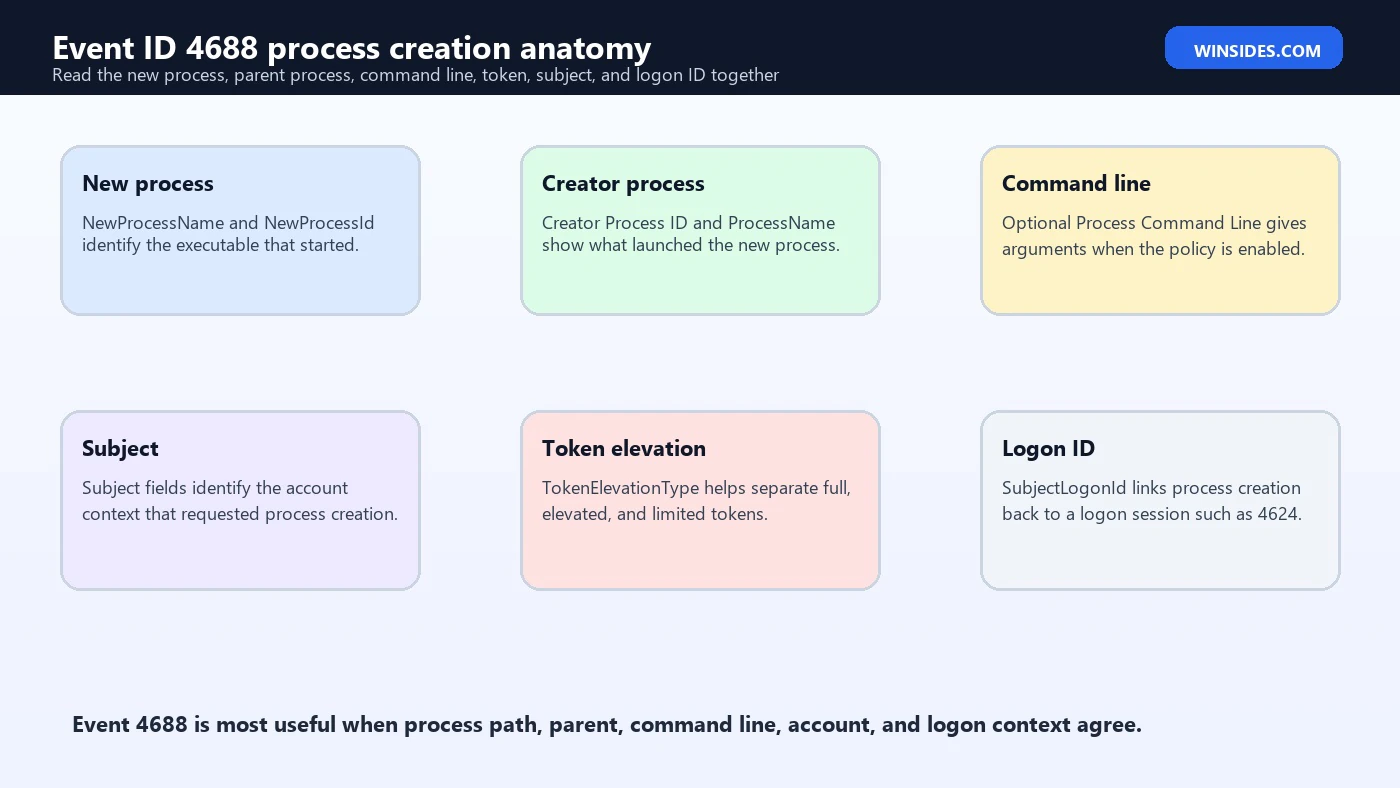
Microsofts 4688 documentation lists fields that should be normalized in any SIEM or investigation tool. The Subject section identifies the account that requested process creation. The Process Information section identifies the new process ID, new process name, token elevation type, creator process ID, process command line, and creator process name. The Target Subject section appears in newer versions when the new process runs under a different account than the creator. Mandatory Label helps describe integrity level.
| Field | Meaning | Why it matters |
|---|---|---|
| SubjectUserName | The account that requested the process creation. | Connects the process to a user, service, or computer context. |
| SubjectLogonId | The logon session identifier. | Correlates with Event 4624 and nearby activity in the same session. |
| NewProcessId | The PID assigned to the new process. | Helps connect creation to later process, network, or termination events. |
| NewProcessName | Full path of the executable that started. | Separates system binaries from user-writable paths and renamed tools. |
| TokenElevationType | Elevation state of the process token. | Shows whether the process used full, elevated, or limited token context. |
| ProcessId | Creator process ID. | Identifies the parent process that requested the new process. |
| CommandLine | Optional command-line arguments. | Critical for script, LOLBin, admin, installer, and malware investigations. |
| ParentProcessName | Creator process name in newer event versions. | Makes parent-child analysis easier without PID-only correlation. |
The NewProcessName path is often more important than the file name. C:\Windows\System32\WindowsPowerShell\v1.0\powershell.exe is not the same evidence as a renamed copy of PowerShell running from a user profile, temporary folder, writable share, or suspicious application directory. Path, signer, hash, parent, command line, and user context all need to match the expected workflow.
Command Line Auditing and Privacy
The Process Command Line field is one of the most useful parts of Event 4688, but Microsoft notes that it is empty by default. Command-line logging must be enabled through policy. Once enabled, process creation events can show arguments such as script paths, PowerShell parameters, encoded commands, URLs, file names, service actions, installer switches, and administrative flags. That extra detail is often what turns a generic process launch into an explainable event.
Command-line data also creates privacy and security responsibilities. Arguments can contain passwords, access tokens, database connection strings, internal hostnames, email addresses, user names, document paths, API keys, or customer data. If you enable command-line auditing, protect Security logs and SIEM access accordingly. Treat process command lines as sensitive operational data, especially on administrator workstations, build servers, jump boxes, and application servers.
In a well-run environment, command-line auditing should be paired with retention controls, role-based access, alert tuning, and careful redaction in tickets or reports. The benefit is large: it becomes much easier to distinguish legitimate admin commands from suspicious commands when you can see what the process was asked to do.
Token Elevation Type Explained
Token Elevation Type helps interpret whether a process is running with elevated rights. Microsoft documents three values. Type 1 is a full token with no privileges removed or groups disabled. Type 2 is an elevated token used when User Account Control is enabled and the process is running with elevated privileges. Type 3 is a limited token with administrative privileges removed and admin groups disabled.
This field is helpful because two identical command lines can have very different risk depending on token context. A user launching cmd.exe with a limited token may only affect their profile. The same command launched with an elevated token by an administrator may affect system configuration, services, scheduled tasks, security settings, or protected directories. For detections, TokenElevationType should be combined with user role, host role, process path, and parent process.
Token elevation is also useful for investigating UAC bypass, suspicious administrative tooling, malware attempting privilege escalation, or unexpected elevation on workstations. If a process that normally runs limited suddenly appears with elevated token context, check what launched it and whether there was an explicit user action, scheduled task, service, exploit, or remote administration tool involved.
Subject, Target Subject, and SID Context
The Subject section describes the security principal that requested process creation. It includes the account name, account domain, logon ID, and SID. Microsofts SID documentation explains that a security identifier uniquely identifies a security principal such as a user, group, or computer account. This matters because display names can be reused, renamed, or resolved inconsistently. The SID is the durable identity clue.
Newer 4688 versions can also include Target Subject fields. Microsoft describes these as the security context under which the new process will run when it differs from the creator subject. This can happen with explicit credentials, services, scheduled tasks, runas-style workflows, or other cases where the target process context is not identical to the creator. When target subject is present, read both subject and target subject before deciding who actually ran the process.
SubjectLogonId is especially valuable because it can be correlated with Event 4624. If you connect a process creation event to the logon session that preceded it, you can learn whether the activity came from an interactive console, RDP session, network logon, service, batch job, or other logon type. That context helps explain whether a process launch was expected for that user and machine.
Parent and Child Process Relationships
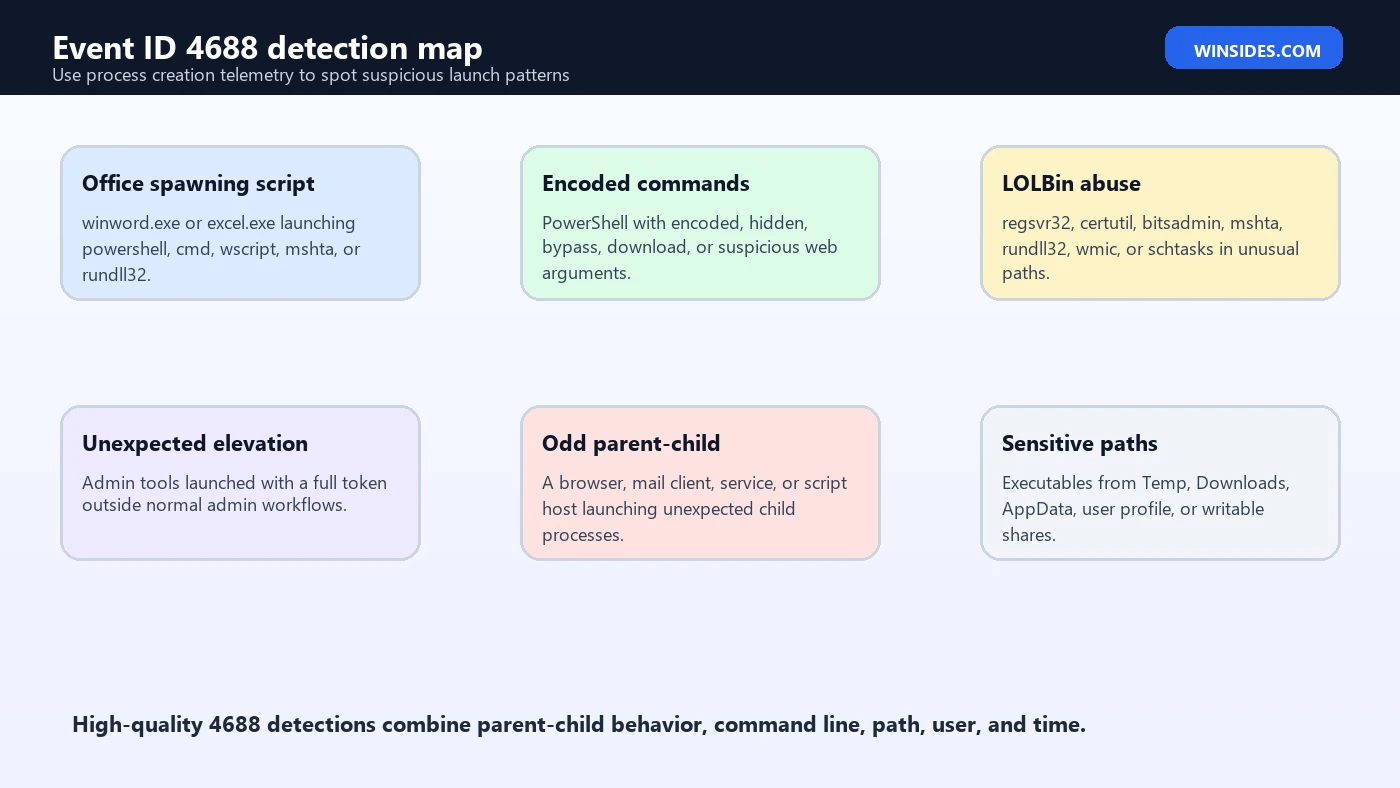
Parent-child analysis is the main reason Event 4688 is so useful. The new process tells you what started. The creator process tells you how it started. A normal parent-child relationship depends on the host role and workflow. Explorer launching Notepad is routine. A software deployment agent launching an installer may be routine. A browser launching a download helper can be routine. But Microsoft Word launching PowerShell, IIS worker process launching command prompt, or a PDF reader launching a script host deserves investigation.
The creator process ID is helpful, but PIDs are reused after processes exit. That means you should correlate by time, host, process ID, and process start event rather than treating a PID as globally unique forever. Newer Event 4688 versions include Creator Process Name, which makes the relationship easier to read. If you also collect Sysmon or EDR telemetry, use those sources to build a longer process tree with hashes, signatures, network connections, file writes, and child process chains.
Parent-child detections should be tuned to the environment. Administrators may legitimately run PowerShell from management tools. Developers may launch compilers from editors. Help desk tools may spawn command shells during remote support. The suspicious signal is usually a parent-child relationship that does not fit the application, account, host, or time window.
Common Detection: Office Spawning Scripts
One classic Event 4688 detection looks for Office applications launching scripting or command interpreters. Examples include winword.exe, excel.exe, powerpnt.exe, or outlook.exe launching powershell.exe, cmd.exe, wscript.exe, cscript.exe, mshta.exe, rundll32.exe, or regsvr32.exe. This pattern can appear in macro abuse, malicious documents, exploit chains, or unusual automation.
Do not rely only on process names. Check command line, document path, user, host role, child process, network activity, and whether the Office application was user-launched. If Word launches PowerShell with an encoded command and downloads content from the internet, severity is high. If Excel launches a trusted internal automation tool from a managed path with a known signer, it may be normal but still worth documenting.
A good SIEM rule should include parent process name, child process name, command-line keywords, path exclusions for approved automation, and account context. The rule should also preserve enough evidence in the alert for a human to validate quickly.
Common Detection: PowerShell and Encoded Commands
Event 4688 becomes extremely useful when command-line auditing is enabled for PowerShell. Suspicious patterns include -EncodedCommand, hidden windows, execution policy bypass, remote downloads, suspicious base64 strings, inline web requests, credential harvesting commands, and chained script execution. Attackers often use PowerShell because it is present by default and powerful. Administrators use it for the same reasons, so context is everything.
A PowerShell command launched by a known deployment system during a maintenance window may be normal. The same command launched by a browser, Office application, temporary executable, or web server process is different. Use Event 4688 to capture the process launch, then correlate with PowerShell operational logs, script block logging if enabled, module logging, EDR command-line telemetry, file writes, and network connections.
For response, avoid deleting the process evidence too quickly. Capture command line, parent process, user, current working directory if available from EDR, file hashes, script paths, downloaded URLs, and child processes. PowerShell detections are strongest when they show the full chain, not just the word powershell.
Common Detection: Living-off-the-Land Binaries
Living-off-the-land binaries, often called LOLBins, are legitimate Windows or Microsoft-signed utilities that can be abused for execution, download, proxy execution, persistence, or defense evasion. Event 4688 can reveal those tools at launch time. Common examples include rundll32.exe, regsvr32.exe, mshta.exe, certutil.exe, bitsadmin.exe, wmic.exe, schtasks.exe, powershell.exe, and cmd.exe.
The tool name alone is not enough. certutil.exe can be used for legitimate certificate work. It can also be abused to decode files or retrieve remote content. rundll32.exe can load legitimate DLL exports, but unusual command lines, user-writable paths, remote URLs, or odd parent processes raise risk. schtasks.exe can be normal admin work or persistence creation depending on account, time, target host, task name, and command line.
For LOLBin detections, combine path, parent, command line, network indicators, user context, and frequency. Baseline legitimate admin tooling so detection rules can focus on unusual launch points, arguments, hosts, and accounts. The more command-line detail you have, the better the signal.
Common Detection: Suspicious Paths
Process path is one of the easiest 4688 fields to use well. Windows and enterprise software normally launch from predictable directories. Processes launched from user-writable paths such as Downloads, Desktop, Temp, AppData, browser cache, removable drives, or public shares deserve additional attention. Attackers often place payloads in writable directories because standard users cannot write to protected system paths.
Be careful with broad rules. Many legitimate apps install under user profiles, especially modern collaboration tools, browsers, updaters, and developer tooling. A path rule should consider process name, signer, hash reputation, parent, command line, user, host group, and whether the executable is common in that environment. A never-seen-before executable in AppData launched by a browser is very different from a signed enterprise collaboration app that always updates from AppData.
Event 4688 by itself may not include hash or signer. If your SIEM also collects EDR, Defender for Endpoint, Sysmon, or application control logs, enrich the 4688 event with hash, signer, reputation, file creation time, and prevalence. That turns path-based suspicion into stronger evidence.
Common Detection: Web Server Spawning Shells
On servers, parent-child relationships can show exploitation. A web server worker process, application pool, database service, print service, backup service, or management agent spawning cmd.exe, powershell.exe, whoami.exe, net.exe, nltest.exe, or discovery tools can indicate post-exploitation activity. Event 4688 is often one of the first Windows Security events that makes this visible.
Examples depend on the server role. IIS worker process w3wp.exe launching a command shell is suspicious unless a known application genuinely does that. SQL Server launching command shells can be suspicious unless an approved job uses it. A backup agent launching a helper executable from its install directory may be normal. The host role and application owner are essential context.
When this pattern appears, collect the web logs, application logs, process tree, command line, child processes, files written by the process, network connections, account context, and whether a successful logon preceded the chain. Do not dismiss the event because the child tool is a normal Windows binary. Exploitation frequently uses normal binaries after initial code execution.
How to Query Event ID 4688 with PowerShell
You can query recent process creation events with PowerShell if you have permission to read the Security log. On busy systems, 4688 volume can be high, so narrow the time range and filter further when possible. Centralized collection is better for long retention, but local queries are useful during incident response and lab validation.
Get-WinEvent -FilterHashtable @{LogName='Security'; Id=4688; StartTime=(Get-Date).AddHours(-2)} |
  Select-Object TimeCreated, MachineName, Id, Message |
  Format-List
For structured analysis, parse the XML fields. Field names commonly include SubjectUserName, SubjectDomainName, SubjectLogonId, NewProcessId, NewProcessName, TokenElevationType, ProcessId, CommandLine, TargetUserName, TargetDomainName, TargetLogonId, ParentProcessName, and MandatoryLabel. Confirm the exact names in your environment because event versions and collectors can differ.
$events = Get-WinEvent -FilterHashtable @{LogName='Security'; Id=4688; StartTime=(Get-Date).AddHours(-2)}
$events | ForEach-Object {
  $xml = [xml]$_.ToXml()
  $data = @{}
  foreach ($d in $xml.Event.EventData.Data) { $data[$d.Name] = $d.'#text' }
  [pscustomobject]@{
    Time = $_.TimeCreated
    Computer = $_.MachineName
    User = "$($data.SubjectDomainName)\$($data.SubjectUserName)"
    LogonId = $data.SubjectLogonId
    NewProcess = $data.NewProcessName
    NewProcessId = $data.NewProcessId
    ParentProcessId = $data.ProcessId
    ParentProcess = $data.ParentProcessName
    CommandLine = $data.CommandLine
    TokenElevation = $data.TokenElevationType
  }
}
Useful PowerShell Filters
After parsing the XML, filter for the behavior you care about. The following examples are starting points, not universal rules. Tune them for your environment and avoid creating noisy rules that fire on every legitimate admin action.
# Find PowerShell process creation events with command-line detail
Get-WinEvent -FilterHashtable @{LogName='Security'; Id=4688; StartTime=(Get-Date).AddHours(-24)} |
ForEach-Object {
  $xml = [xml]$_.ToXml(); $data = @{}
  foreach ($d in $xml.Event.EventData.Data) { $data[$d.Name] = $d.'#text' }
  if (($data.NewProcessName -like '*\powershell.exe') -or ($data.NewProcessName -like '*\pwsh.exe')) {
    [pscustomobject]@{Time=$_.TimeCreated; User=$data.SubjectUserName; Parent=$data.ParentProcessName; Command=$data.CommandLine}
  }
}
For investigations, always export enough context: event record ID, computer, time, user, logon ID, new process, parent process, command line, and token elevation. If you only export process name, you will lose the fields that explain the event.
Correlating 4688 with Logon Events
SubjectLogonId lets you connect process creation to a logon session. Microsofts Event 4624 documentation describes successful logon events and their logon IDs. If you correlate 4688 SubjectLogonId with 4624 Logon ID on the same host, you can often determine whether a process came from an interactive sign-in, Remote Desktop session, service logon, network logon, batch job, or other access path.
This correlation is extremely useful during incident response. A suspicious process may not make sense until you know how the account got onto the machine. If the process ran under a user session created by RDP from an unusual IP, the case is different from a process launched by a known service logon. If a process ran under a service account but the parent-child chain looks like interactive user behavior, that mismatch is important.
Use the same approach for account lockouts, failed logons, privilege use, scheduled task creation, service installation, and remote administration. Event 4688 explains process activity, but logon events explain access path. Together, they create a timeline that is much harder to misread.
SIEM Normalization and Detection Ideas
To use Event 4688 well in a SIEM, normalize the key fields. Store process path, process name, command line, parent process path, parent process name, process ID, parent process ID, user, domain, SID, logon ID, token elevation type, mandatory label, host, timestamp, and event record ID. If you can enrich with signer, hash, prevalence, file creation time, endpoint risk, and network connections, do it. Raw 4688 events are useful; enriched 4688 events are much better.
- Office application spawning script interpreters or command shells.
- Browsers or mail clients spawning PowerShell, cmd, mshta, wscript, cscript, rundll32, or regsvr32.
- Web server processes spawning shells, discovery tools, scripting tools, or network utilities.
- PowerShell with encoded command, hidden window, execution policy bypass, remote download, or suspicious base64 content.
- LOLBins launched with unusual command lines, user-writable paths, or unexpected parents.
- Executables launched from Temp, AppData, Downloads, public shares, or removable media.
- Privileged token processes launched by non-admin workflows or outside normal change windows.
- Rare processes on servers, domain controllers, backup servers, or jump hosts.
- Command-line references to credential dumping, discovery, lateral movement, or persistence tools.
Detection rules should include allowlists only when the benign workflow is understood. Blindly excluding an entire parent or process name can create dangerous gaps. Prefer narrow exceptions: known path, known signer, known account, known host group, known command line, and known maintenance window. Keep a review date on exceptions because admin automation and attacker tradecraft both change over time.
Investigation Workflow
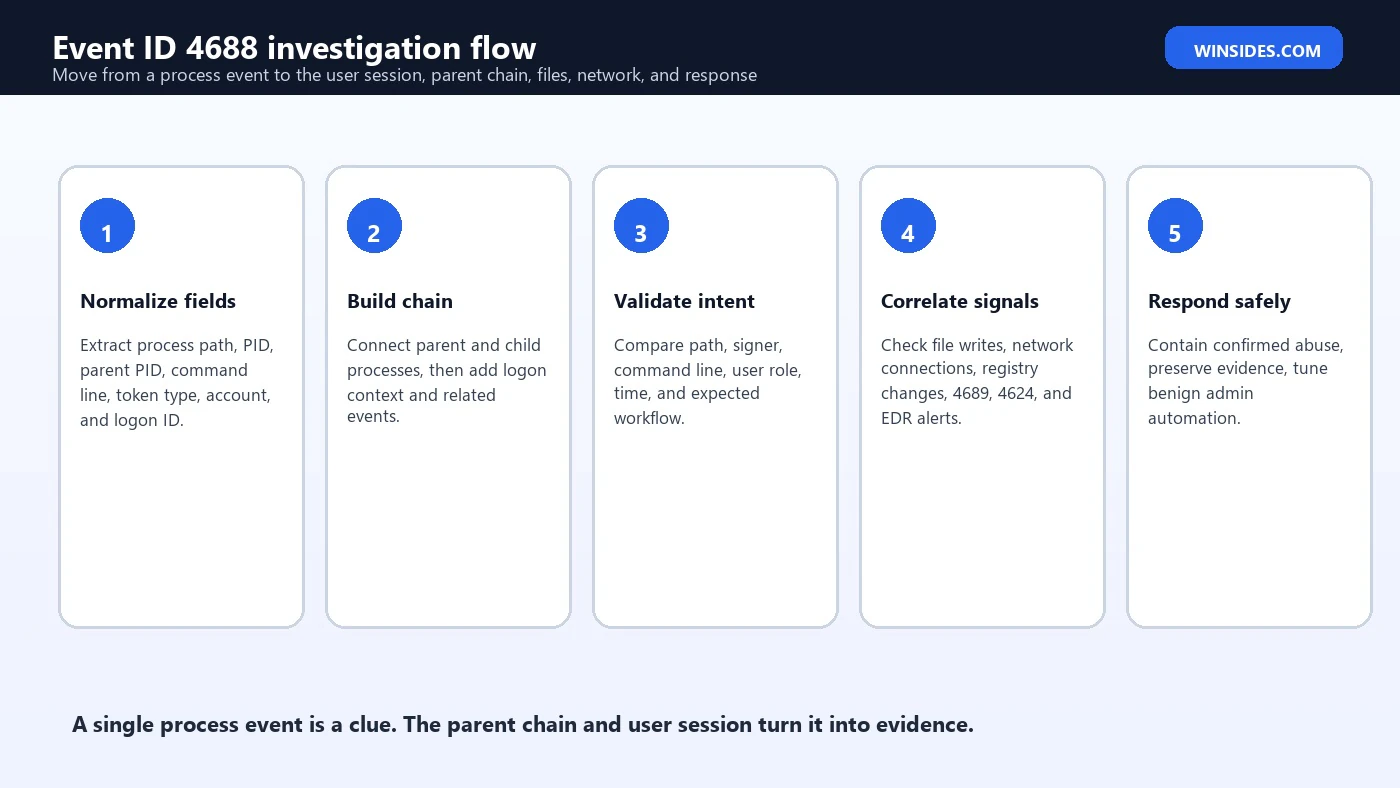
When a 4688 event looks suspicious, start by preserving the raw event and building the process chain. Then validate the account, path, parent, command line, and logon session. The goal is to decide whether the process launch matches a legitimate workflow or indicates abuse.
- Capture the event. Save time, computer, event record ID, new process, parent process, command line, user, SID, logon ID, and token elevation type.
- Build the parent-child chain. Find the parent process creation event and any child processes spawned by the suspicious process.
- Validate the file. Check path, signer, hash, creation time, prevalence, and whether it ran from a user-writable location.
- Validate the user session. Correlate SubjectLogonId with 4624 to understand how the account accessed the host.
- Check surrounding behavior. Look for file writes, registry changes, service creation, scheduled tasks, network connections, and credential access.
- Ask whether the workflow is expected. Compare against role, host function, admin tools, software deployment, and change windows.
- Respond proportionally. Tune benign automation, or contain and preserve evidence if the process is confirmed suspicious.
Response Workflow
Response depends on confidence and impact. If the event is a noisy but legitimate admin tool, document it and tune narrowly. If the event is suspicious but not confirmed, preserve evidence, collect related telemetry, and avoid deleting files before analysis. If the event indicates active compromise, isolate the host according to your incident process, preserve logs, capture volatile context if required, and investigate credentials used in the process chain.
For confirmed suspicious process creation, review the account involved, reset or rotate credentials if exposure is likely, check for successful lateral movement, search for the same command line or hash across the environment, and verify whether persistence was created. Event 4688 often reveals the first visible command, but later child processes may show the real objective. Follow the chain until it stops.
For benign findings, do not simply suppress everything. If a deployment tool launches PowerShell with encoded commands, create a precise exception for the deployment server, signed tool path, account, command pattern, and host group. Keep the rest of the detection alive. This lets the environment keep using administrative automation without hiding attacker activity that imitates it badly.
Common Mistakes When Reading Event 4688
- Treating process name as proof. A process name can be renamed or used legitimately. Path, signer, parent, command line, and user context matter.
- Ignoring command line because it is blank. Blank usually means command-line auditing is not enabled, not that the process had no arguments.
- Assuming PID is globally unique. Process IDs are reused. Correlate by host and time.
- Ignoring the parent process. The parent often explains whether the launch path is normal or suspicious.
- Over-suppressing admin tools. Broad exclusions for PowerShell, cmd, or deployment systems can hide real incidents.
- Missing logon context. Without 4624 correlation, you may not know whether the process came from RDP, service, interactive, or batch activity.
- Forgetting data sensitivity. Command lines can contain secrets and should be protected in logs and exports.
Best Practices for 4688 Collection
Collect Event 4688 from high-value endpoints first: servers, domain controllers, administrator workstations, jump hosts, remote access servers, development build systems, backup servers, and endpoints with sensitive access. Then expand according to storage, SIEM cost, endpoint volume, and detection maturity. Full process creation logging on every endpoint can create large data volume, but selective collection may miss lateral movement and malware execution. The right balance depends on risk and budget.
If you enable command-line auditing, review who can read Security logs and SIEM fields. Limit access, protect exports, and avoid pasting sensitive command lines into public tickets. Normalize paths and command lines consistently. Use enrichment where possible. Build dashboards for top processes, rare processes, suspicious parents, elevated token processes, encoded PowerShell, and process launches from user-writable paths.
Finally, validate detections with real administrative workflows. Many high-signal 4688 patterns overlap with legitimate admin behavior. The aim is not to alert every time PowerShell runs. The aim is to catch the unusual launch path, command line, account, host, or timing that makes PowerShell risky in that context.
Frequently Asked Questions
What is Event ID 4688 Process Creation?
It is the Windows Security event generated when a new process starts, provided process creation auditing is enabled. It records fields such as new process path, process ID, creator process, account context, token elevation type, and optionally command line.
Why is Process Command Line blank in Event 4688?
Microsoft notes that the command line field is empty by default. You need to enable the policy that includes command line in process creation events. After enabling it, protect the data because command lines may contain sensitive information.
Is powershell.exe in Event 4688 always malicious?
No. PowerShell is a normal Windows administration tool. It becomes suspicious when parent process, command line, path, user, host role, timing, or child behavior does not match expected administration.
How do I find the parent process for Event 4688?
Use the creator process ID and, in newer event versions, Creator Process Name or ParentProcessName. Correlate by host and time because process IDs can be reused after a process exits.
How can I connect Event 4688 to a user logon?
Use SubjectLogonId and correlate it with Event 4624 Logon ID on the same host. This can help identify whether the process belonged to an interactive, RDP, service, batch, or other logon session.
Should I collect Event 4688 everywhere?
It depends on SIEM capacity, risk, and monitoring maturity. At minimum, collect from high-value systems and administrative endpoints. Broader collection improves visibility but increases data volume.
Can Event 4688 replace EDR or Sysmon?
No. Event 4688 is valuable, but EDR and Sysmon can add hashes, signatures, network connections, file writes, process GUIDs, and richer process trees. Use 4688 as part of a broader telemetry strategy.
What are the best detections for Event 4688?
Good starting points include Office spawning script interpreters, browsers spawning PowerShell, web servers spawning shells, encoded PowerShell, LOLBins with suspicious arguments, processes from user-writable paths, and unexpected elevated token use.
Conclusion: Process Creation Is the Start of the Story
Event ID 4688 Process Creation is one of the most practical Windows Security events because it shows what started, who started it, and often how it was launched. It is useful for administration, troubleshooting, threat hunting, incident response, and detection engineering. But it should not be read as a process-name-only alert. The value is in the combination of new process, parent process, command line, account, logon ID, token elevation, path, host role, and surrounding behavior.
For everyday operations, 4688 helps answer what ran on a machine and under which account. For security monitoring, it reveals suspicious parent-child relationships, command-line abuse, script execution, living-off-the-land binaries, unexpected elevation, and processes launched from risky locations. For incident response, it gives a timeline anchor that can be connected to logon events, file activity, network connections, and endpoint alerts.
The strongest 4688 programs enable command-line visibility where appropriate, protect the resulting data, normalize fields consistently, enrich with endpoint context, and tune detections narrowly. When you use Event 4688 this way, process creation becomes more than log noise. It becomes a reliable signal that explains what happened on a Windows system and where the investigation should go next.
For Microsoft references, keep the official Event 4688 process creation documentation available for field definitions. Pair it with Event 4624 logon documentation for logon-session correlation and Microsofts security identifier documentation for SID context.
For more interesting articles, stay tuned to Winsides.com!









Community
Comments (0)