

Introduction to Event ID 4740 Account Lockout
Event ID 4740 Account Lockout is the Windows Security log event that tells you a user account has been locked out. Microsoft defines 4740 as the event generated every time a user account is locked out. For user accounts, it can be generated on domain controllers, member servers, and workstations, which makes it useful in both Active Directory and local-account troubleshooting.
The important part is that Event ID 4740 usually arrives after earlier authentication failures. The lockout is the result, not the root cause. A password was typed incorrectly too many times, a saved credential kept retrying, a service account password was changed in Active Directory but not in the service, a VPN client reused an old password, a Remote Desktop endpoint received a password attack, or an application kept submitting bad credentials. Event 4740 tells you which account was locked and often gives the caller computer that triggered the lockout, but you still need correlation to explain what happened before the lockout.
The main Microsoft reference for this event is 4740(S): A user account was locked out. This guide also uses Microsofts Event 4625 failed logon documentation, Event 4771 Kerberos pre-authentication documentation, and security identifier documentation because those sources explain the related events and identity fields that make lockout investigations work.
A lockout can be ordinary help desk work or a serious identity signal. The same event ID can describe a user who forgot a password, a retired laptop still syncing mail, a critical service account being broken by a password rotation, or an attacker trying passwords against a privileged account. The difference is in the caller computer, target account, timing, preceding failures, logon path, and whether any successful logon follows the failures.
Table of contents
Key Takeaways
- Event ID 4740 means a user account was locked out. It is generated when the account reaches the configured lockout condition.
- The caller computer is the most important first clue. It identifies the computer name from which the logon attempt was received before the account locked.
- 4740 is a result event. To find the root cause, correlate it with preceding failed logon events such as 4625, Kerberos pre-authentication failures such as 4771, NTLM validation events, VPN logs, RDP logs, and application logs.
- The Subject is often SYSTEM. Microsoft recommends reporting 4740 when the Subject Security ID is not SYSTEM because that can be unusual.
- High-value account lockouts should be monitored every time. Admin accounts, service accounts, local administrator accounts, and domain controller accounts deserve special treatment.
- Do not just unlock the account and move on. If the bad credential source remains active, the account can lock again within minutes.
- Source names are not always IP addresses. Microsoft notes that Caller Computer Name may show a computer name even for computers outside the domain, so validate the path with other logs.
What Event ID 4740 Means
Event ID 4740 belongs to the Microsoft-Windows-Security-Auditing provider and the Audit User Account Management subcategory. In plain language, Windows is recording that a user account has crossed the lockout threshold and is now blocked from sign-in until policy, time, or an administrator unlocks it. The event is not the same as a single failed password attempt. It is the moment the account becomes locked.
That distinction matters because administrators often search for 4740 and stop when they find it. The 4740 event confirms the lockout, but the actual evidence often sits in the minutes before it. Look for failed logons, Kerberos pre-authentication failures, NTLM credential validation failures, VPN authentication failures, remote access attempts, IIS or application authentication failures, and endpoint telemetry around the same time. The timeline is usually more important than the individual lockout record.
For a domain user, the lockout is usually visible on domain controllers and may also be collected centrally by a SIEM. For a local user account, the event can appear on the workstation or server where the local account exists. That is why the Computer field, Account Domain field, Target Account fields, and Caller Computer Name all need to be read together. A domain account and a local account with similar names are not the same identity.
Anatomy of Event ID 4740
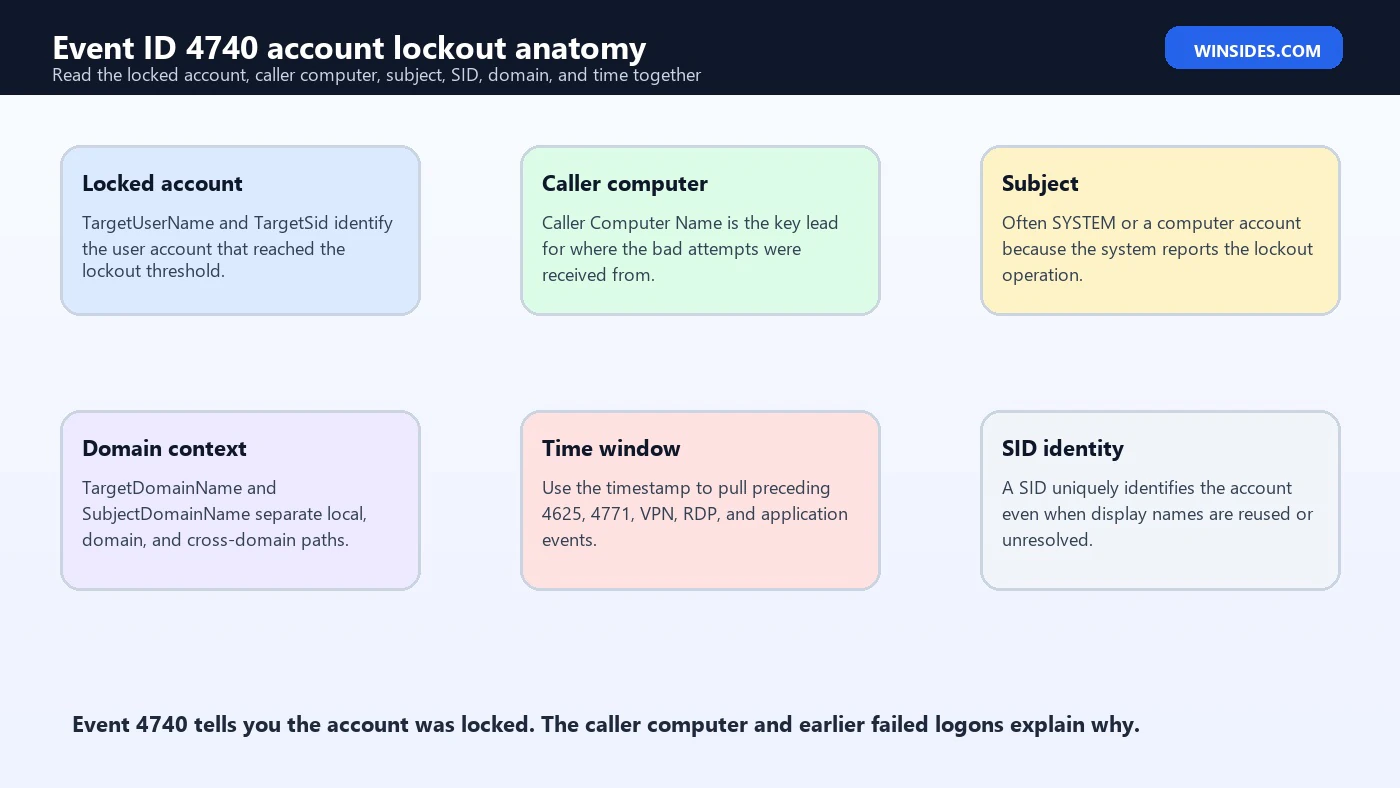
The Event 4740 record is smaller than Event 4625, but the fields are highly useful. Microsofts example includes Subject fields, the account that was locked out, and Additional Information. The Subject section contains the account that performed the lockout operation. In many environments this is Local System or a domain controller computer account because the system is recording the lockout. The Account That Was Locked Out section contains the target user name and target SID. Additional Information contains Caller Computer Name, which is often the best clue for the originating system.
| Field | Meaning | How to use it |
|---|---|---|
| TargetUserName | The account name that became locked. | Start with ownership, risk level, privilege, and expected use. |
| TargetDomainName | The domain or computer associated with the locked account. | Separate domain accounts from local accounts and identify the account boundary. |
| TargetSid | The SID of the locked account. | Use it to identify the security principal even if names are reused or unresolved. |
| SubjectUserName | The account that reported or performed the lockout operation. | Often SYSTEM or a computer account; unusual values can be worth alerting on. |
| SubjectLogonId | A hexadecimal logon identifier. | Can help correlate with nearby events that carry the same logon ID. |
| CallerComputerName | The computer name from which the logon attempt was received. | Use it as the first lead for stale credentials, service drift, or remote access paths. |
The TargetSid field is valuable because a SID uniquely identifies a security principal. Microsofts SID documentation explains that SIDs identify users, groups, computer accounts, and processes running in a security context. Names can be renamed, duplicated across local systems, or unresolved in Event Viewer, but the SID is the durable identity clue inside the event.
Why the Caller Computer Name Matters
Caller Computer Name is the field that usually turns a vague lockout into an actionable lead. It tells you the computer name from which the logon attempt was received before the account locked out. If the value is a workstation, begin there. If it is a server, check services, scheduled tasks, application pools, mapped drives, scripts, monitoring tools, and saved credentials. If it is a jump host, RD Gateway, VPN endpoint, or application server, the real originating user or IP may require additional logs.
The caller computer is not perfect evidence by itself. Microsoft explicitly notes that when the computer is not in your domain, you may still get a computer name rather than an IP address in the 4740 event. That means the caller field should be treated as a lead, not a final answer. Confirm it with domain controller logs, endpoint logs, VPN logs, firewall logs, RDP logs, DHCP records, asset inventory, EDR telemetry, and application logs. In modern environments with proxies, NAT, VPN, and remote desktop gateways, a single computer name may represent a path rather than a final device.
When the same user locks repeatedly and the caller computer is always the same, you likely have a stale credential or scheduled process. When the same user locks from different caller computers, think about password spraying, shared credentials, multiple devices, or a password changed without updating all clients. When many users lock from the same caller computer, treat the caller as high priority because it may be a broken service, application, script, or attack source.
Where Event ID 4740 Is Logged
Microsoft states that Event 4740 can generate for user accounts on domain controllers, member servers, and workstations. For Active Directory accounts, administrators often search domain controller Security logs first because domain controllers make account lockout decisions for domain identities. In environments with many domain controllers, a central log collector or SIEM saves time because the relevant event may be on a different domain controller than the one you first check.
For local accounts, check the machine where the local account exists. A local administrator account locked on one server is not the same identity as a domain administrator account, even if the display name looks familiar. The Account Domain and SID help you make that distinction. Local account lockouts on servers and workstations deserve special attention because Microsofts monitoring guidance calls out local accounts on high-value systems as important identity signals in related failed-logon events.
If your investigation begins with a help desk ticket, ask for the exact username, time, device, and whether the user recently changed the password. Then validate the timeline in logs. Users often describe every authentication problem as a lockout, but the logs may show expired password, disabled account, missing logon right, smart card problem, or service credential failure instead. Event 4740 confirms a real lockout event.
Event 4740 vs 4625, 4771, and 4776
Event 4740 tells you the account locked. It does not always tell you every bad password attempt that led to the lockout. Event 4625 records failed logons and includes details such as logon type, status, substatus, source network address, workstation name, process name, and authentication package. Event 4771 records Kerberos pre-authentication failures on domain controllers and can include client address, service name, failure code, and pre-authentication type. Event 4776 is often useful when NTLM credential validation is involved. Together, these events explain the chain that produced the lockout.
For example, a 4740 event may show that CONTOSO\alex locked from WS-44. Nearby 4625 events on the workstation or server can show whether the bad attempts were interactive, network, service, batch, or Remote Desktop logons. Nearby 4771 events can show wrong password Kerberos pre-authentication failures from a client address. VPN or RD Gateway logs may reveal that the caller computer was reached through a remote access path. Without correlation, you may unlock the account but leave the cause untouched.
| Event | What it tells you | Use during lockout triage |
|---|---|---|
| 4740 | An account was locked out. | Start point: locked account, caller computer, reporting host, and time. |
| 4625 | An account failed to log on. | Find logon type, status, source IP, process, and authentication package. |
| 4771 | Kerberos pre-authentication failed. | Find client address and Kerberos failure code on domain controllers. |
| 4776 | NTLM credential validation occurred. | Use when NTLM paths, legacy apps, or workgroup style authentication may be involved. |
| 4624 | An account successfully logged on. | Check whether success followed failures, which raises severity. |
Common Cause: User Password Mistakes
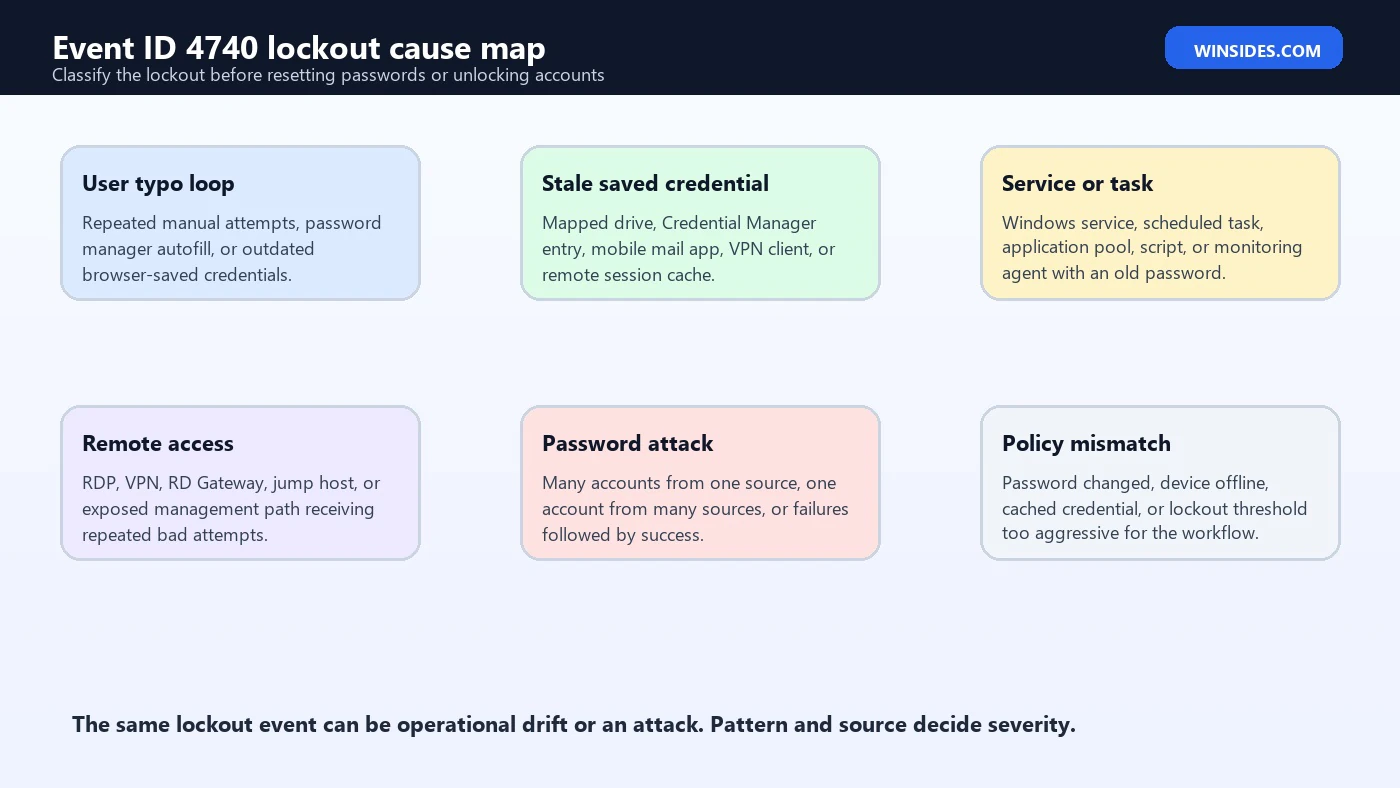
The simplest lockout cause is repeated user error. A user types the wrong password enough times to reach the lockout threshold. This can happen after a password change, after a long vacation, when keyboard layout changes, when Caps Lock is on, or when the user is trying an old password from memory. These are usually low-severity events when the account is not privileged, the caller computer matches the users normal workstation, and there is no suspicious pattern around the same time.
Even user mistakes should be handled carefully. If the user has multiple devices, the lockout may be caused by a phone, tablet, Outlook profile, VPN client, browser, password manager, or mapped drive rather than manual typing. Ask what changed: recent password reset, new device, VPN use, remote desktop session, mailbox app, Wi-Fi profile, or cached credential. The caller computer name and event time should guide that conversation.
If a user locks repeatedly after password resets, stop resetting and find the source. A reset can actually increase noise if old credentials keep retrying. The right fix may be removing the saved credential, closing a remote session, updating a mobile app, deleting a mapped drive credential, or signing out of an old workstation that is still running background tasks.
Common Cause: Stale Credentials
Stale credentials are one of the most common reasons for repeated lockouts. Windows Credential Manager, mapped drives, legacy applications, Remote Desktop saved credentials, VPN clients, wireless profiles, Outlook or mail clients, synchronization tools, and browser-integrated authentication can all keep using an old password. The user may have changed the password correctly, but one saved location continues to send the old value until the account locks.
The pattern is usually rhythmic. The account locks every few minutes, every hour, at startup, at unlock, when VPN connects, when Outlook opens, or when a scheduled process runs. If Event 4740 always shows the same caller computer, investigate that device first. Review Credential Manager, mapped network drives, persistent drive mappings, scheduled tasks, services, stored RDP credentials, browser profiles, and any applications that authenticate to file shares, intranet sites, databases, or mail services.
On a domain workstation, also consider disconnected or cached sessions. A user may have signed in on another computer, changed their password elsewhere, and left an old session alive. Background network access from that old session can keep submitting the previous credential. Lockout troubleshooting is often about finding the hidden place where the old password still lives.
Common Cause: Services, Scheduled Tasks, and Application Pools
Service accounts are high-impact lockout sources because one bad secret can affect production systems. A Windows service may run as a domain account. A scheduled task may store credentials. An IIS application pool may use a custom identity. A monitoring agent, backup tool, deployment script, database connector, or legacy application may authenticate repeatedly. If the account password changes in Active Directory but the dependent system is not updated, Event 4740 can appear quickly and repeatedly.
For service accounts, the caller computer name is especially important. If the caller is an expected server, review services, tasks, application pools, and installed products on that server. If the caller is unexpected, treat it as suspicious until proven otherwise. A service account should have a known usage boundary. A service account locking from a random workstation may indicate copied credentials, a retired script, a compromised host, or an account being tested by someone who should not have it.
The fix is not always an immediate password reset. First identify all dependencies. Then update the stored secret, move to a group managed service account where possible, remove retired tasks, correct logon rights, and document the account owner. If there is a chance the password was exposed, rotate it after the dependency map is known so you do not create a wider outage.
Common Cause: RDP, VPN, and Remote Access
Remote access paths can generate lockouts in two ways. A legitimate user may keep trying the old password through VPN, Remote Desktop, RD Gateway, or a jump host. An attacker may be trying passwords against an exposed remote access surface. Event 4740 alone may show only a caller computer name, so the remote access logs are critical. VPN, firewall, RDP, RD Gateway, identity provider, and EDR records can provide the real source IP, session owner, device, country, and success or failure sequence.
If the locked account is privileged, if the caller computer is unfamiliar, or if the lockout happens outside normal hours, treat the event as higher severity. Look for preceding Event 4625 records with RemoteInteractive logon paths, failures from public IP addresses, and any Event 4624 success after the failures. Repeated lockouts from internet-facing remote access systems are not just help desk noise. They can indicate credential stuffing or password spraying.
A good control is to reduce direct exposure. Restrict RDP, require VPN or RD Gateway, enforce multifactor authentication where available, limit which accounts can use remote access, and monitor high-value accounts separately. Account lockout policy is not a substitute for secure remote access design; it is only one layer that slows password guessing and signals abuse.
Common Cause: Password Spraying or Brute Force
Password attacks can show up as account lockouts, but not always in obvious ways. A brute-force attempt may hammer one account until it locks. A password spray may try one or two passwords against many accounts to avoid lockout thresholds. A credential stuffing attempt may use known password pairs from other breaches. Event 4740 becomes especially important when a sensitive account locks, many accounts lock in a short time, a caller computer is unfamiliar, or failures are followed by a successful logon.
Look for distribution. One account locked from many caller computers can suggest distributed guessing, multiple stale devices, or shared credential misuse. Many accounts locked from one caller computer can indicate a broken application, a script, or an attack tool. Many accounts with preceding 4625 status for bad password or 4771 failure code for wrong password can point to a password attack. A locked disabled account can indicate that old or exposed usernames are being tested.
Response should preserve evidence. Do not clear logs, do not remove the caller system from the network without collecting enough context, and do not unlock high-value accounts until you understand whether the bad attempts stopped. Block hostile sources, disable exposed remote access paths, rotate credentials if compromise is likely, review successful logons, and escalate when failures are followed by success.
How to Query Event ID 4740 with PowerShell
For quick triage on a single computer, PowerShell can query recent Event 4740 records from the Security log. You need permission to read the Security log. On domain controllers and servers, run this from an administrative shell or through your log collection tool. A SIEM is better for enterprise-scale history, but local PowerShell is useful for confirming a case.
Get-WinEvent -FilterHashtable @{LogName='Security'; Id=4740; StartTime=(Get-Date).AddHours(-24)} |
  Select-Object TimeCreated, MachineName, Id, Message |
  Format-List
For structured analysis, parse the event XML instead of scraping the rendered message. Microsofts Event 4740 documentation shows target account, subject account, and caller computer information. In real environments, confirm the exact EventData names by checking the XML tab for one known event, then normalize the fields in your script or SIEM.
$events = Get-WinEvent -FilterHashtable @{LogName='Security'; Id=4740; StartTime=(Get-Date).AddHours(-24)}
$events | ForEach-Object {
  $xml = [xml]$_.ToXml()
  $data = @{}
  foreach ($d in $xml.Event.EventData.Data) { $data[$d.Name] = $d.'#text' }
  [pscustomobject]@{
    Time = $_.TimeCreated
    Computer = $_.MachineName
    LockedUser = $data.TargetUserName
    LockedDomain = $data.TargetDomainName
    LockedSid = $data.TargetSid
    SubjectUser = $data.SubjectUserName
    SubjectDomain = $data.SubjectDomainName
    CallerComputer = $data.CallerComputerName
  }
}
Because field naming and rendered labels can be confusing, validate your parser by opening one event in Event Viewer and comparing the XML tab with the Friendly View tab. Many administrators also export the raw XML for one known lockout and build their parser from that real event. In a SIEM, normalize the caller computer, locked account, domain, reporting host, and timestamp into searchable fields.
Safer PowerShell Pattern for Field Discovery
When you are unsure of the exact Data Name used by a Windows build or collection pipeline, print all EventData names first. This avoids silently mapping the wrong value. It is better to discover the names from a real event than to build a brittle script that assumes every rendered label maps to the same internal name.
$event = Get-WinEvent -FilterHashtable @{LogName='Security'; Id=4740} -MaxEvents 1
$xml = [xml]$event.ToXml()
$xml.Event.EventData.Data | Select-Object Name, '#text' | Format-Table -AutoSize
After you know the field names used in your collected events, save a reusable query in your SIEM or admin scripts. Include the locked user, caller computer, event computer, domain, SID, timestamp, and record ID. During incidents, this saves time and reduces mistakes.
Investigation Workflow
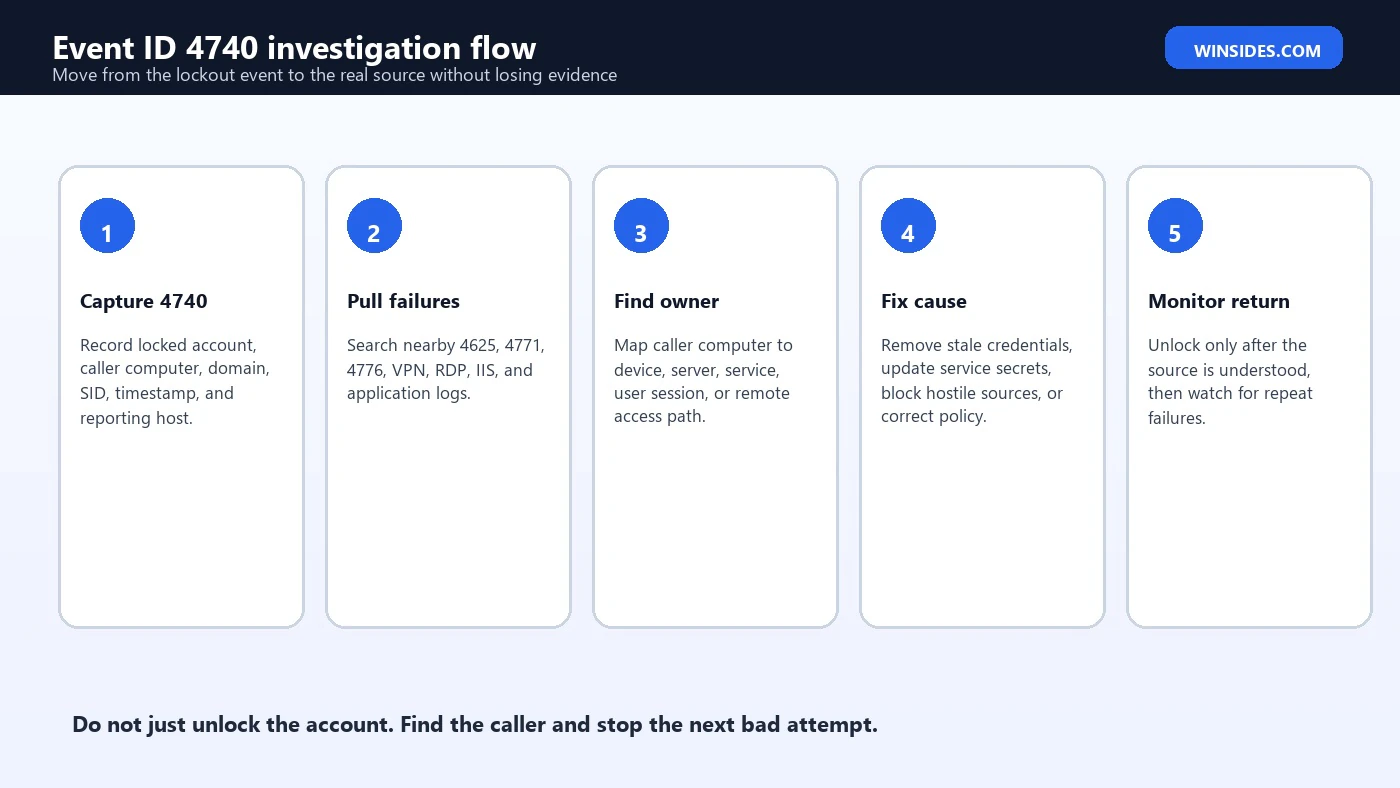
A reliable Event ID 4740 investigation starts with the locked account and caller computer, then expands outward. The mistake to avoid is unlocking the account before the source is identified. If the bad credential source keeps retrying, the account can lock again and the repeated unlocks can hide whether the activity is benign or malicious.
- Record the account and time. Capture TargetUserName, TargetDomainName, TargetSid, event time, event computer, and record ID.
- Classify the account. Decide whether it is a normal user, admin, service account, local account, disabled account, break-glass account, or other high-value identity.
- Trace the caller computer. Map Caller Computer Name to asset inventory, user assignment, server owner, remote access path, or application owner.
- Search nearby failed logons. Pull 4625, 4771, 4776, VPN, RDP, firewall, EDR, and application logs around the same timestamp.
- Look for repeating cadence. Every few minutes suggests a service, scheduled task, agent, application, or saved credential.
- Check for success after failure. A successful 4624 after many failures can indicate compromise and should raise severity.
- Fix the source before unlocking. Remove stale credentials, update service secrets, block bad sources, or disable the exposed path first.
How to Handle High-Value Account Lockouts
Microsofts monitoring recommendations for Event 4740 specifically call out high-value domain or local accounts. This includes domain administrators, local administrator accounts, service accounts, database administrators, domain controller accounts, break-glass accounts, and any account that can change infrastructure or access sensitive data. A lockout against one of these accounts is not routine until proven routine.
For high-value accounts, preserve the timeline. Pull all related failures, successful logons, VPN records, endpoint activity, and administrative actions around the lockout. Confirm whether the caller computer is expected for that account. If a domain admin account locks from a workstation where that account should never be used, treat the caller as suspicious. If a service account locks from a new server, validate whether that server legitimately owns the workload.
Also check whether the account successfully authenticated shortly before or after the lockout. Failed attempts can be noise, but failure followed by success can be a sign that the right password was eventually found or that the user corrected a typo. For privileged accounts, even the benign explanation should be documented.
What to Check on the Caller Computer
Once the caller computer is identified, examine it according to the account type. For a user workstation, start with interactive sessions, Credential Manager, mapped drives, VPN clients, mail clients, browser saved credentials, remote desktop connections, and scheduled tasks. For a server, focus on services, scheduled tasks, application pools, database connection strings, backup tools, monitoring agents, deployment systems, scripts, and local applications that reach domain resources.
Useful checks include the Services console, Task Scheduler, IIS Application Pools, Windows Credential Manager, persistent drive mappings, startup scripts, group policy preferences, third-party agents, and application configuration files. On servers, coordinate with the application owner before changing credentials. On workstations, confirm whether the user recently changed the password and whether the device was offline during that change.
If the caller computer is unfamiliar, retired, not in the domain, or missing from inventory, escalate. It may be a stale DNS name, a device outside management, a VPN client, a spoofed NetBIOS name, a jump server, or an attack path. Event 4740 can give you a name, but asset and network validation make the name useful.
Account Lockout Policy and Tuning
Account lockout policy is a balance. A low threshold can stop simple guessing but also causes frequent business disruption from stale credentials and user mistakes. A high threshold reduces help desk noise but gives attackers more attempts. The right policy depends on authentication exposure, MFA coverage, remote access design, monitoring maturity, user population, and service account hygiene.
Do not tune lockout policy based only on help desk pressure. If lockouts are constant, find the sources. A noisy environment often means stale credentials, unmanaged services, direct RDP exposure, or applications that retry too aggressively. Reducing the threshold problem without fixing those causes may make attacks harder to see. On the other hand, an extremely aggressive threshold can let attackers intentionally lock important users as a denial-of-service tactic.
Many organizations use separate controls for privileged accounts: stricter monitoring, limited logon locations, privileged access workstations, MFA, just-in-time access, service account inventory, and alerting on any unexpected lockout. Account lockout policy is only one control. It works best when combined with identity monitoring, remote access hardening, and good credential lifecycle management.
SIEM Detection Ideas
Event 4740 works well in SIEM detections because it is a high-signal event compared with individual failed logons. The key is to enrich it. Add account type, privilege level, department, owner, caller computer asset data, known service-account host list, whether the account is disabled, whether the caller is domain-joined, and whether there were related successful logons. That context turns lockout alerts from noise into decisions.
- Alert on any lockout for domain administrator, local administrator, service account, database administrator, domain controller, or break-glass accounts.
- Alert when Caller Computer Name is not in the expected host list for the locked account.
- Alert when many accounts lock from one caller computer in a short time window.
- Alert when one account locks from multiple caller computers in a short time window.
- Alert when Event 4740 is followed by Event 4624 success for the same account from an unusual source.
- Alert when disabled, guest, or non-active accounts lock or receive repeated failed logons.
- Alert when the Subject Security ID is not SYSTEM, matching Microsofts monitoring recommendation.
- Suppress only well-understood benign patterns after documenting the owner, source, and remediation plan.
Detection should also include trend dashboards. Show top locked accounts, top caller computers, lockouts by hour, lockouts by domain controller, high-value account lockouts, and repeat lockouts after password resets. Trends reveal broken services and attack campaigns that individual tickets may miss.
Response Workflow
When a user reports an account lockout, it is tempting to unlock immediately. That may be appropriate for low-risk cases, but it should not be the only step. A repeat lockout often means the bad source is still active. A high-value lockout can be an early warning signal. A structured response prevents the same account from locking again and avoids missing an active attack.
- Low-risk user typo: Verify caller computer, help the user update saved credentials, unlock according to policy, and watch for recurrence.
- Repeated user lockout: Identify the stale credential source before more resets. Check devices, VPN, mail clients, mapped drives, and old sessions.
- Service account lockout: Find every dependency, update the stored secret or move to managed service accounts, then rotate if exposure is possible.
- Privileged account lockout: Preserve evidence, review related failures and successes, validate caller computer, and escalate if anything is unexpected.
- Attack pattern: Block hostile sources, restrict remote access, review successful logons, rotate credentials as needed, and preserve logs for incident handling.
The practical rule is simple: unlock only after you know what will happen next. If the same source will immediately retry the old password, unlocking is only temporary relief. If the source is malicious, unlocking may give attackers more chances. If the source is a critical service, unlocking without fixing the service can cause another outage.
Preventing Repeat Account Lockouts
Prevention is mostly hygiene. Keep a service account inventory. Document where each account is allowed to run. Use group managed service accounts where possible. Avoid storing user passwords in services or tasks. Clean up saved credentials after password resets. Retire old devices and old remote sessions. Restrict privileged accounts to known systems. Monitor lockouts for accounts that should not be used interactively.
For users, provide clear password-change guidance: update VPN clients, mail apps, mobile devices, browsers, password managers, mapped drives, and remote sessions after changing a password. For administrators, use central logging so the help desk can see the caller computer quickly. For security teams, combine 4740 with 4625, 4771, 4776, 4624, VPN, firewall, and EDR records so lockouts can be triaged without guesswork.
Good prevention also means not using account lockout as the only defense. Multifactor authentication, conditional access, network restrictions, privileged access workstations, service account controls, passwordless options, and remote access hardening all reduce the chance that lockouts become the first and only warning sign of credential abuse.
Frequently Asked Questions
Is Event ID 4740 Account Lockout always a security incident?
No. Many lockouts are caused by user mistakes or stale saved credentials. It becomes security-relevant when the account is privileged, the caller computer is unusual, many accounts lock, a disabled account is involved, remote access is exposed, or failed attempts are followed by a successful logon.
What is the first field to check in Event 4740?
Check the locked account and Caller Computer Name first. The account tells you risk and owner. The caller computer gives you the first place to search for stale credentials, services, tasks, applications, or remote access paths.
Why does the caller computer not show an IP address?
Microsoft notes that 4740 may show a computer name even when the computer is not in your domain. Use VPN, firewall, DHCP, RD Gateway, EDR, and application logs to validate the real network path.
How is Event 4740 different from Event 4625?
Event 4740 records the account lockout. Event 4625 records failed logon attempts. A good lockout investigation starts with 4740, then looks backward at 4625 and related events to learn why the threshold was reached.
Why does a service account keep locking?
The most common reason is an old password stored in a service, scheduled task, application pool, script, monitoring agent, backup job, or application configuration. Find the caller computer and update or remove the stored credential before unlocking repeatedly.
Should I unlock the account immediately?
For low-risk user mistakes, follow your help desk policy. For repeated, privileged, service-account, or suspicious lockouts, identify the source first. Unlocking before fixing the source often causes another lockout and can hide an attack pattern.
Can Event 4740 identify the exact application causing the lockout?
Not by itself. It usually gives the caller computer. You need 4625, 4771, endpoint logs, process logs, service configuration, Task Scheduler, application logs, VPN logs, or EDR telemetry to identify the exact application or process.
What should I monitor for high-value accounts?
Monitor every 4740 for privileged accounts, service accounts, local administrators on important servers, domain controller accounts, and break-glass accounts. Also monitor failures from unexpected caller computers and any successful logon after repeated failures.
Conclusion: Find the Source Before the Next Lockout
Event ID 4740 Account Lockout is one of the most useful Windows identity events because it marks the moment an account becomes unavailable. But the event is only the starting point. The locked account, SID, reporting computer, and caller computer identify the case. The earlier failures, remote access logs, endpoint telemetry, services, tasks, and application logs explain the cause.
A clean investigation does three things. First, it classifies the account: ordinary user, local account, service account, administrator, disabled account, or other high-value identity. Second, it traces the caller computer and related logon failures. Third, it fixes the source before unlocking or resetting repeatedly. That discipline prevents recurring lockouts and helps security teams detect real credential abuse.
For routine help desk work, 4740 points to the device or server that needs cleanup. For security monitoring, it highlights high-value accounts, unexpected callers, attack patterns, and lockouts followed by success. Treat the event as a pivot point, not the whole story, and it becomes a reliable guide for both operational fixes and incident response.
For Microsoft references, keep the official Event 4740 documentation handy for field definitions and monitoring recommendations. Pair it with Event 4625 failed logons, Event 4771 Kerberos pre-authentication failures, and Microsofts security identifier documentation when you need to connect the lockout to the authentication path.
For more interesting articles, stay tuned to Winsides.com!









Community
Comments (0)