

Introduction to Group Policy Loopback Processing
Group Policy loopback processing is one of those Active Directory features that looks small in the Group Policy editor but changes the entire logic of user policy. Normally, a user receives User Configuration settings based on where the user account lives in Active Directory. A computer receives Computer Configuration settings based on where the computer account lives. That is clean for personal workstations, but it breaks down when the computer itself has a special role. A classroom PC, lab PC, kiosk, reception desk, Remote Desktop Session Host, jump server, or shared support workstation may need the same locked-down user experience for anyone who signs in.
That is where group policy loopback processing comes in. Microsoft describes it as a way to apply user policy based on the location of the computer object as well as, or instead of, the user object. You enable it from the Computer Configuration side of a GPO, link that GPO where the computer account can receive it, and then decide whether loopback should run in Merge mode or Replace mode. The mode choice is critical because Merge keeps normal user policy and adds computer-location user policy afterward, while Replace ignores the normal user GPO list and uses only the user settings associated with the computer location.
The main Microsoft reference for this behavior is Loopback processing of Group Policy. For verification and refresh work, Microsoft also documents gpresult for Resultant Set of Policy reporting and gpupdate for policy refresh. This guide uses those official behaviors as the base, then turns them into a practical planning and troubleshooting workflow for Windows administrators.
The short version is simple: use loopback when the computer role should shape the user environment. Do not use it as a shortcut for every policy conflict. Loopback is powerful because it changes the source of user policy, but that also means it can surprise administrators who expect user OU policy to win. A clear OU design, a clear mode choice, and reliable RSoP testing are what keep it predictable.
Table of contents
Key Takeaways
- Group policy loopback processing changes how User Configuration is selected. It lets user policy follow the computer location when the computer has a special role.
- The setting is configured under Computer Configuration. The policy must apply to the computer account, because the computer is what activates loopback at user sign-in.
- Merge mode keeps normal user policy. Windows processes the user GPO list first, then adds user settings from GPOs linked to the computer location, giving the computer-location user settings higher precedence.
- Replace mode ignores the normal user GPO list. Windows uses only the user settings from the computer location, which is better for kiosks, labs, RDS hosts, and other tightly controlled shared computers.
- Loopback is supported in Active Directory environments. The user and computer accounts need to be Active Directory accounts for the normal loopback design to work as intended.
- gpresult is your proof tool. Use it to see the applied GPOs, denied GPOs, and final Resultant Set of Policy rather than guessing.
- Do not fix every conflict with loopback. Use OU design, security filtering, WMI filters, and GPO precedence deliberately before reaching for loopback.
What Group Policy Loopback Processing Actually Does
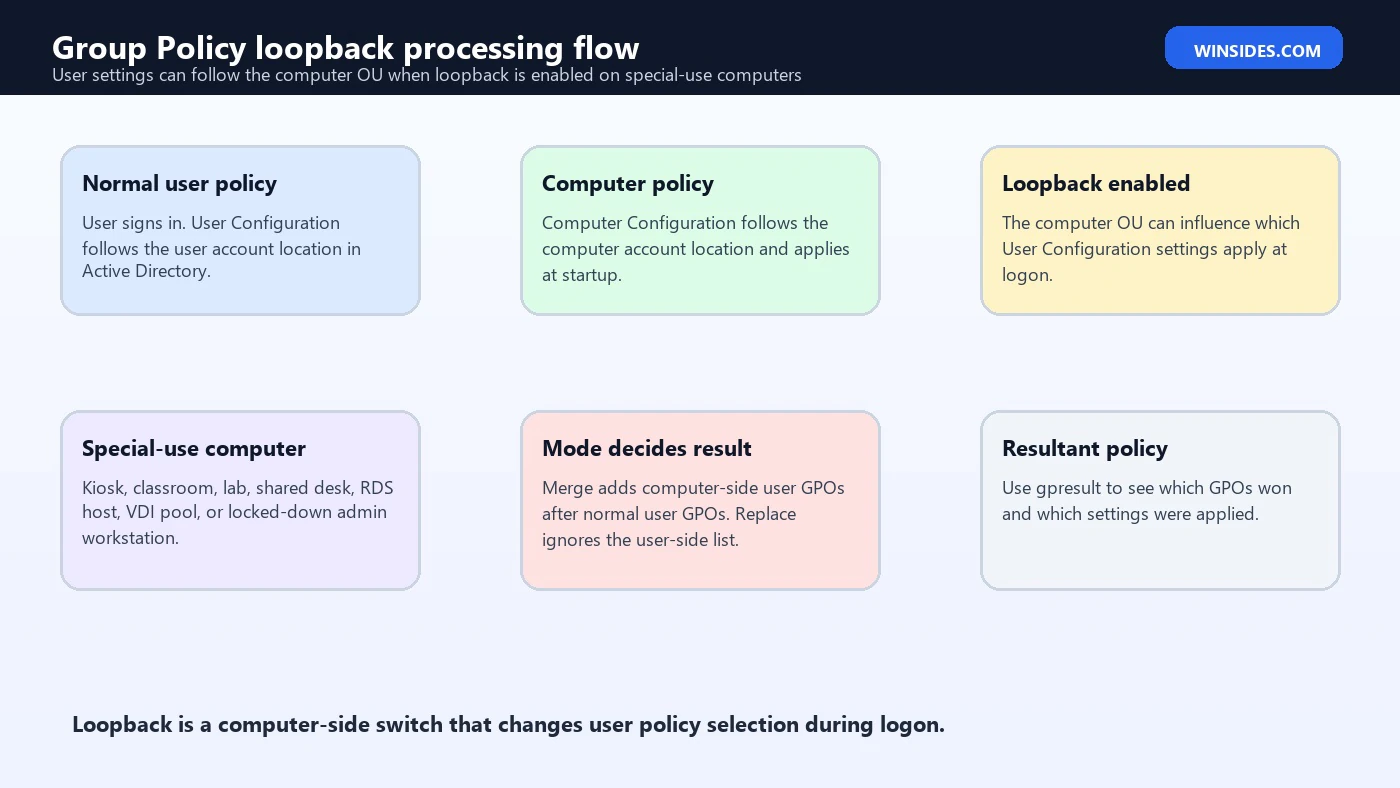
Group Policy normally has two parallel tracks. Computer Configuration settings follow the computer account and apply mainly at startup or during computer policy refresh. User Configuration settings follow the user account and apply at sign-in or during user policy refresh. If Vignesh signs in to a normal office workstation, his User Configuration usually comes from the user OU, group membership, site, domain, and linked OUs that apply to him. The workstation location does not normally replace his user policy.
Loopback processing changes that second track. When loopback is enabled for a computer, Windows changes how it builds the user GPO list for users who sign in to that computer. That is why the setting lives under Computer Configuration. The computer must receive the loopback setting before it can alter user policy selection at logon. Enabling loopback in a GPO that only reaches the user account does not accomplish the goal.
The use case is role-based computers. Imagine a training room where executives, engineers, and interns all sign in with their normal domain accounts, but the training PCs must always hide Control Panel, redirect folders to a lab share, disable certain shortcuts, map classroom printers, and present a training browser configuration. You do not want to move all those users into the training OU. You want the training PC to impose a training-room user experience. Loopback gives you that ability.
Another common example is Remote Desktop Services. Users may have rich desktop settings on their own workstations, but a session host often needs a narrower profile: no local shutdown options, controlled Start menu, limited drive redirection, specific application shortcuts, and a shorter idle timeout. Those settings are user settings, but they should follow the session host, not the user object. Loopback is the standard Group Policy tool for that pattern.
Where to Enable Loopback Processing
The setting is located in a GPO under Computer Configuration, then Administrative Templates, then System, then Group Policy, then Configure user Group Policy loopback processing mode. Enable the policy and choose either Merge or Replace. Link the GPO to the OU that contains the computer accounts that should run loopback. If the computers are in multiple OUs, either link the GPO carefully to each location or redesign the computer OU structure so the special-use devices are easier to manage.
Do not link the loopback switch only to the user OU and expect it to work. The computer must receive the Computer Configuration setting. After the computer receives that setting, user sign-in on that computer uses the configured loopback behavior. This is the most common design mistake: an administrator enables loopback in a GPO that applies beautifully to users, but not to the computers that are supposed to activate it.
In practice, many administrators separate the loopback switch from the user settings that will be applied through loopback. For example, one GPO named Enable Loopback – RDS Hosts – Replace can contain the Computer Configuration setting. Other GPOs linked to the RDS computer OU can contain the User Configuration settings that shape the session host experience. That naming makes troubleshooting easier because you can see which GPO turns on loopback and which GPOs provide the user settings.
Merge Mode Explained
Merge mode is the less disruptive option. In Merge mode, Windows gathers the normal user GPO list first. Then it gathers another list using the computer location in Active Directory and adds that computer-location list to the end. Because later-applied policy normally has higher precedence, user settings from the computer-location GPOs can override conflicting settings from the normal user GPOs. The user still receives their ordinary user policy, but the special computer can add or override settings.
Use Merge mode when the user identity still matters. For example, a shared engineering lab might need a common lab printer and a locked browser home page, but engineers still need their normal drive mappings, application preferences, and department restrictions. Merge allows the user policy to come along while giving the lab OU a final say over settings that must be consistent on those lab computers.
Merge can be confusing because it creates two user-policy paths. If a setting is configured in both paths, precedence matters. If a setting is configured only in the user OU, it can still apply. If a setting is configured only in the computer-location user GPOs, it can apply when the user signs in to those loopback computers. The administrator must think in terms of the final Resultant Set of Policy, not just whether a GPO is linked somewhere.
Replace Mode Explained
Replace mode is stricter. In Replace mode, Windows does not use the normal user GPO list. Instead, it builds the user policy list from the computer object location. The user identity still exists, security filtering still matters, and permissions still matter, but the normal user OU path is not the source of the user GPO list. This is the mode to consider when the computer role should dominate the entire user experience.
Use Replace mode for kiosks, classrooms, exam computers, public terminals, Remote Desktop Session Hosts, VDI nonpersistent pools, and other environments where user personalization should not leak in from the normal user OU. If a user has a normal workstation policy that maps personal drives, exposes admin tools, or applies desktop customization, Replace mode can keep those normal user GPOs out of the special computer session.
The tradeoff is that Replace mode can remove expected user settings. If a user normally receives proxy settings, certificate enrollment, folder redirection, drive mappings, or application settings from their user OU, those settings may disappear on a Replace-mode computer unless equivalent settings are linked where the computer location can provide them. Replace mode is not wrong; it simply demands a complete design for the special computer environment.
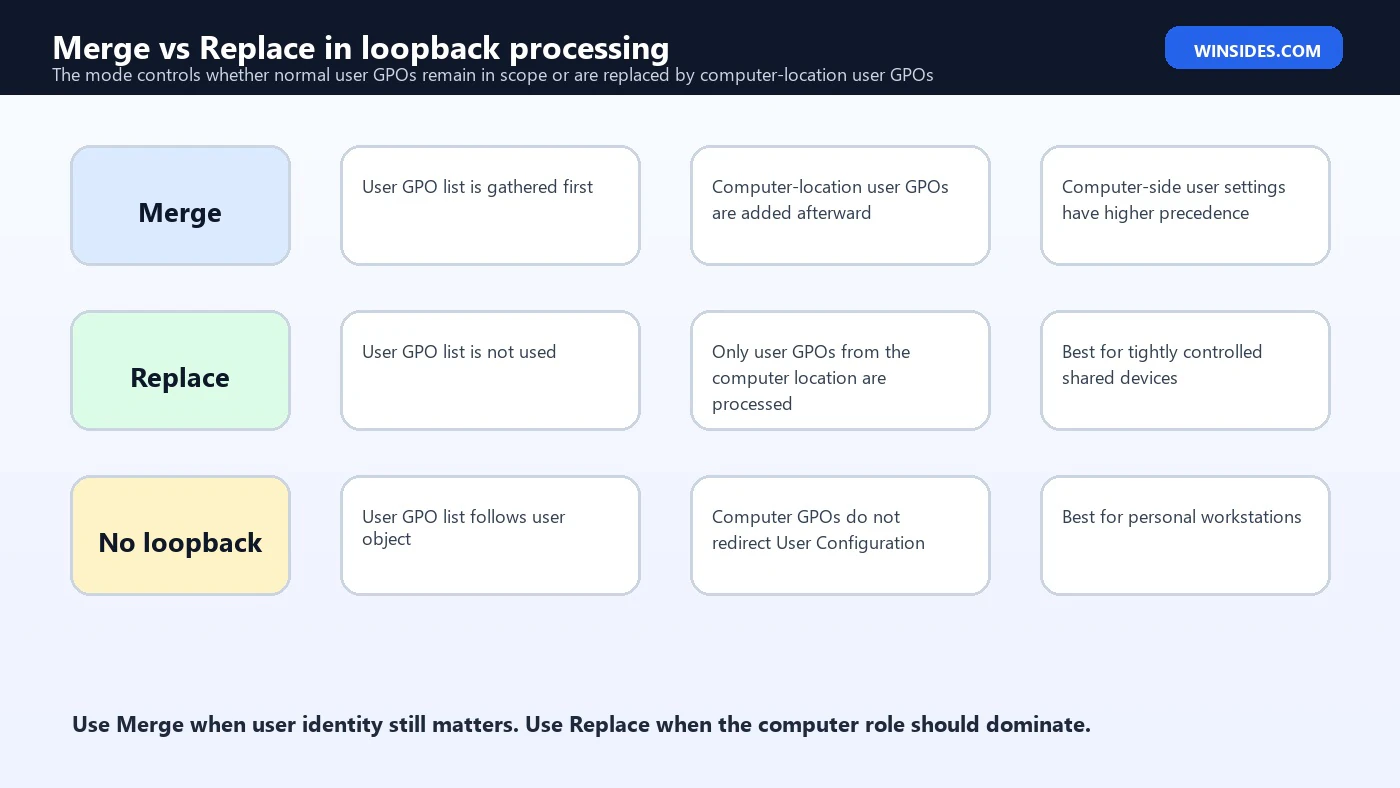
Merge vs Replace: Which One Should You Use?
| Scenario | Recommended mode | Reason |
|---|---|---|
| Training room where users still need normal department settings | Merge | The room can add classroom restrictions while retaining identity-based user settings. |
| Public kiosk or reception PC | Replace | The computer role should fully control the user environment. |
| Remote Desktop Session Host with a locked-down app set | Replace or carefully designed Merge | Replace is cleaner when the RDS session must differ sharply from normal workstations. |
| Admin jump server | Replace | The jump server should provide a constrained, audited admin experience regardless of normal user desktop policy. |
| Shared lab where only a few settings must differ | Merge | The lab can override specific settings without rebuilding every user policy. |
| Normal one-user workstation | No loopback | Standard user and computer policy paths are usually simpler and easier to support. |
If you are unsure, start with the question: should the user bring their normal user policy to this computer? If yes, Merge may be the right fit. If no, Replace is usually cleaner. The wrong choice usually shows up as either too many personal settings leaking into a shared environment or too many expected user settings disappearing when a user signs in.
There is also an operational question: who will troubleshoot it later? Merge can be harder to explain because two user-policy paths combine. Replace is conceptually cleaner but requires you to recreate every user setting the special computer needs. The right answer is the one that produces predictable RSoP output and can be documented well enough for the next administrator.
Active Directory Requirements and Boundaries
Microsoft states that loopback is supported in an Active Directory environment and that both the computer account and the user account must be in Active Directory. That point is easy to overlook in hybrid environments. The classic loopback model is built around domain users, domain computers, GPO links, OUs, security filtering, and Group Policy processing. Local accounts and unmanaged devices do not give you the same design surface.
Loopback does not mean computer settings become user settings. It means the user GPO list is selected differently when a user signs in to a computer affected by the loopback policy. Computer Configuration remains Computer Configuration. User Configuration remains User Configuration. The special behavior is about which User Configuration GPOs are considered for that logon.
Loopback also does not bypass all normal filtering. Security filtering, permissions, WMI filters, enforced links, block inheritance, slow link behavior, client-side extension requirements, and policy refresh timing can still affect the final result. Treat loopback as a change to GPO list selection, not as a magic override button.
A Clean OU Design for Loopback
A stable loopback design starts with computer OUs. Put special-use computers in OUs that describe their role: RDS Hosts, Training Room PCs, Kiosk Devices, Shared Lab PCs, Exam Computers, Helpdesk Jump Servers, or VDI Pool. Link the loopback enablement GPO to that computer OU. Then link the user-setting GPOs that should apply through loopback to the same OU or to a parent OU where the scope is clear.
Avoid mixing normal workstations and loopback computers in the same OU unless you are intentionally filtering. If a loopback GPO accidentally applies to regular workstations, users may receive unexpected settings at sign-in. If a special computer is left outside the loopback OU, users may not receive the controlled environment they need. OU placement becomes part of the security and user-experience design.
Naming helps. Use names that expose both purpose and mode, such as GPO – Enable Loopback – Kiosks – Replace or GPO – Lab User Settings – Loopback Merge. When the RSoP report lists applied GPOs, these names make the story legible. Future you will appreciate that kindness.
Security Filtering, Delegation, and Permissions
Security filtering is where many loopback designs stumble. The computer must receive the GPO that enables loopback. The relevant user settings must also be readable and applicable for the final processing path. If you filter a GPO too tightly, it may be linked correctly but denied during processing. If you filter too loosely, settings may apply to users or computers beyond the intended scope.
A practical pattern is to let the computer group receive the loopback enablement GPO and then scope user-setting GPOs according to the users who should receive those settings on those computers. In many environments, Authenticated Users or Domain Users still have read access while a more specific group controls Apply Group Policy. The exact model depends on your delegation standards, but the goal is the same: the GPO must be visible and applicable in the final RSoP path.
Be careful with attempts to deny policy by removing read permissions from the computer object in ways that conflict with loopback behavior. Microsoft notes an important limitation around filtering user settings by denying or removing Apply Group Policy and Read rights from the computer object specified for loopback. In plain terms, do not assume every normal filtering trick behaves the way you expect once loopback changes the user GPO list. Test with gpresult, not assumptions.
WMI Filters and Item-Level Targeting
WMI filters can still influence whether a GPO applies. That can be useful for separating Windows versions, laptop vs desktop behavior, or specific hardware classes, but WMI filters also slow troubleshooting because a GPO may be linked and security-allowed yet still filtered out. If loopback is not applying, always check whether a WMI filter is attached to the loopback GPO or the user-setting GPOs.
Group Policy Preferences item-level targeting adds another layer. A GPO may apply, but a specific preference item may not. For example, a drive mapping inside a loopback-applied user GPO might target only members of a security group, only a particular OS version, or only a certain computer name pattern. That is not loopback failure; it is preference-level targeting doing what it was configured to do.
When troubleshooting, separate three questions: did the loopback setting apply to the computer, did the user-setting GPO enter the final user GPO list, and did the individual setting or preference item pass its own targeting rules? Mixing those questions together creates confusion.
Testing with gpupdate
After changing loopback settings, run gpupdate on the target computer. Microsoft documents gpupdate as the command that updates Group Policy settings, with options such as /target, /force, /logoff, /boot, and /sync. Loopback affects user policy at sign-in, so a sign out and sign in is often needed for clean testing. Some client-side extensions, such as user-targeted software installation or folder redirection, may require logoff behavior.
gpupdate /force

REM For a clean user-policy test, sign out and sign back in after refresh.
REM If policy processing asks for logoff or restart, follow that prompt in a maintenance-safe window.
Do not rely only on background refresh when validating a new loopback design. Foreground processing at computer startup and user logon can behave differently for some settings. If the policy controls shell restrictions, folder redirection, software installation, or first-logon user environment, plan a real sign-out/sign-in test with a representative user account.
Testing with gpresult
The best everyday proof tool is gpresult. Microsoft describes it as a command that displays Resultant Set of Policy information for a user and computer. For loopback, the HTML report is especially useful because it separates user and computer details, shows applied GPOs, shows denied GPOs, and often gives reasons for denial. That is far better than guessing from the Group Policy Management Console alone.
gpresult /h C:\Temp\loopback-rsop.html /f
gpresult /scope user /r
gpresult /scope computer /r
Open the HTML report and inspect the user section for applied GPOs. If you configured Merge mode, you should expect to see normal user GPO influence plus user GPOs from the computer location. If you configured Replace mode, you should expect the normal user OU GPO list to be absent from the user section unless those same GPOs are also in the computer-location path. This is the cleanest way to confirm whether the mode is behaving as intended.
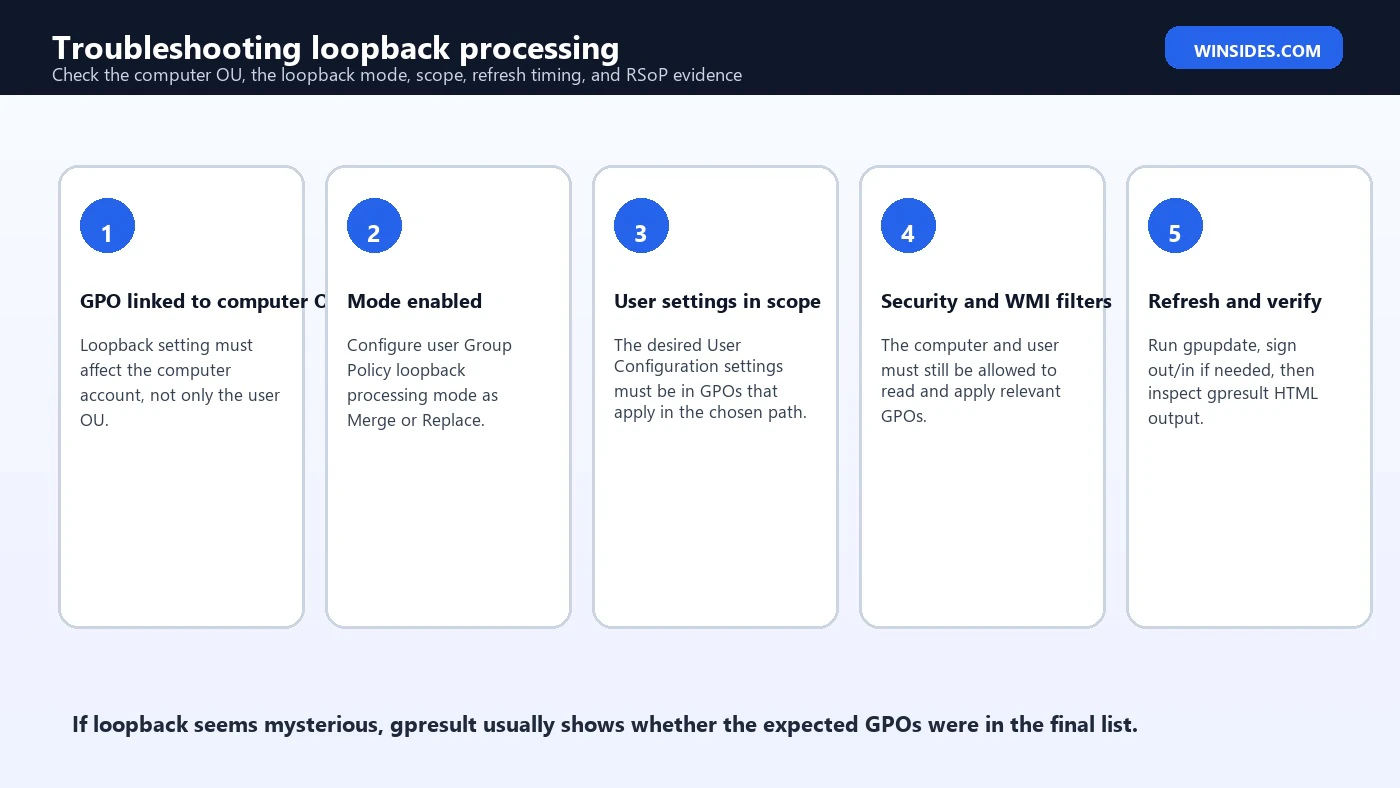
Troubleshooting: Loopback Does Not Apply
If loopback does not apply at all, start with the computer side. Confirm the target computer account is in the OU where the loopback enablement GPO is linked. Confirm the GPO is enabled, the Computer Configuration portion is enabled, and the setting is configured as Enabled with Merge or Replace selected. Confirm inheritance is not blocked in a way that removes the GPO and that security filtering allows the computer to apply it.
Next, refresh computer policy and restart or sign out/in as appropriate. A user policy report alone may not show why the computer did not receive the loopback switch. Use gpresult /scope computer /r or an HTML report to confirm the loopback GPO appears under computer applied GPOs. If it does not, the issue is not Merge vs Replace. The issue is that the computer never received the switch.
If the computer receives the switch but the expected user settings do not apply, move to the user side. Check whether the user-setting GPOs are linked in the computer-location path. Check security filtering, WMI filtering, and denied GPOs in gpresult. In Replace mode, remember that normal user OU GPOs are intentionally ignored, so settings from those GPOs will disappear unless provided in the computer-location path.
Troubleshooting: Merge Mode Applies Too Much
Merge mode can feel noisy because normal user policy still comes along. If a shared computer is still receiving personal drive mappings, department printers, or desktop customizations, that may be expected in Merge mode. The computer-location GPOs can override conflicting settings, but settings that do not conflict may still apply from the normal user path.
The fix is not always to add more overrides. Sometimes the cleaner answer is Replace mode. If the whole point of the computer is to provide a standardized environment, Replace reduces surprises. If you still need a few identity-based settings, consider reintroducing them deliberately in the computer-location path through security filtering, groups, or item-level targeting.
Use gpresult to list which user GPOs are applied. If unwanted GPOs come from the normal user OU, that is Merge behavior. If unwanted GPOs come from the computer-location path, fix the GPO links or filters there. The source of the GPO tells you which part of the design needs adjustment.
Troubleshooting: Replace Mode Removes Needed Settings
Replace mode can be beautifully predictable and brutally strict. If users lose expected mappings, certificates, proxy settings, OneDrive configuration, browser policies, or folder redirection on a loopback computer, check whether those settings lived only in the normal user OU. Replace mode ignores that normal user list. The settings need to be recreated, linked, or scoped in the computer-location user policy path if they are still required on that computer.
This is common on Remote Desktop Session Hosts. A user may have workstation policies that configure browser settings and mapped drives, then sign in to an RDS host using Replace mode and find those settings missing. The RDS host is doing what it was told. The administrator must decide which settings belong in the RDS user environment and configure them in the RDS loopback policy path.
Before switching from Replace to Merge, ask whether you really want all normal user policy to return. A targeted fix inside the loopback computer OU may be safer than reopening the entire user OU policy set. Replace mode is not a failure when it removes settings; it is a boundary. You decide what crosses it.
Event Viewer and Group Policy Operational Logs
When gpresult is not enough, check Event Viewer on the client. The Group Policy operational log can show processing events, errors, timing, and extension behavior. Look under Applications and Services Logs, then Microsoft, then Windows, then GroupPolicy, then Operational. This is helpful when a client-side extension fails, policy refresh times out, domain controller access is unreliable, or a setting depends on foreground processing.
Do not start in Event Viewer if the design itself is unclear. First confirm OU placement, GPO links, security filtering, mode, and gpresult output. Event logs are best for explaining processing failures after the policy path makes sense. If the wrong GPOs are linked, Event Viewer will faithfully show processing, but it will not redesign the OU for you.
For recurring issues, capture the event log, the gpresult HTML report, the computer name, the user name, the OU paths for both objects, the loopback mode, and the GPO links. That small evidence bundle usually turns a vague complaint into a solvable policy path problem.
Common Use Cases
- Kiosk computers: Replace mode can deliver a tightly controlled user shell regardless of who signs in.
- Classrooms and labs: Merge mode can add lab restrictions while keeping useful user-specific settings.
- Remote Desktop Session Hosts: Replace mode often gives a cleaner server-session experience than normal workstation user policy.
- VDI pools: Loopback can keep nonpersistent desktops consistent across users.
- Admin jump servers: Replace mode can enforce a controlled administrative workspace.
- Shared frontline devices: Computer-location user policy can standardize printers, browser behavior, desktop shortcuts, and restrictions.
The common pattern is that the same user should behave differently depending on where they sign in. If the computer role is irrelevant, loopback probably adds complexity without enough benefit. If the computer role is central to the session, loopback is often the cleanest native Group Policy answer.
Best Practices
- Use loopback only for clearly defined special-use computer OUs.
- Name the enablement GPO with the selected mode, such as Merge or Replace.
- Keep user-setting GPO names descriptive so gpresult output is easy to read.
- Prefer Replace for highly controlled shared devices and Merge for additive room or lab settings.
- Document which normal user settings are expected to disappear in Replace mode.
- Test with a real user account and a real target computer, not only with GPMC assumptions.
- Use gpresult HTML output as your acceptance test before rolling out broadly.
- Avoid mixing normal workstations and loopback computers in the same OU without a deliberate filtering plan.
- Review WMI filters and item-level targeting whenever a linked GPO appears not to apply.
- Keep a rollback plan: unlink the enablement GPO, move test computers back, or change mode during a controlled window.
Frequently Asked Questions
What is group policy loopback processing?
It is a Group Policy feature that lets user policy be selected based on the computer location when a user signs in to a computer affected by loopback.
Where is the loopback processing setting?
It is under Computer Configuration, Administrative Templates, System, Group Policy, Configure user Group Policy loopback processing mode.
What is Merge mode?
Merge mode gathers the normal user GPO list first, then adds user GPOs from the computer location, giving the computer-location user settings higher precedence.
What is Replace mode?
Replace mode ignores the normal user GPO list and uses user GPOs from the computer location instead.
Should I use Merge or Replace?
Use Merge when user identity policy should remain. Use Replace when the computer role should fully control the user environment.
Does loopback apply to local users?
The classic Microsoft loopback design is for Active Directory environments with domain user and computer accounts.
Does loopback affect computer settings?
No. Computer Configuration still follows computer policy. Loopback changes how User Configuration is selected at logon.
Why is my loopback policy not applying?
The computer may not be in scope for the loopback GPO, security filtering may deny it, the mode may not be enabled, or the expected user-setting GPOs may not be linked in the computer-location path.
How do I prove loopback is working?
Run gpresult, preferably with HTML output, and inspect the applied and denied GPOs in both the user and computer sections.
Can loopback replace good OU design?
No. Loopback depends on good OU design. It is most reliable when special-use computers are grouped clearly and documented well.
Conclusion: Use Loopback Only When the Computer Role Should Win
Group policy loopback processing is a precise tool for a precise problem: a user needs a different User Configuration experience because of the computer they are using. It is not only for old Windows environments, and it is not only for kiosks. It is useful anywhere the computer role should shape the user session, including classrooms, RDS hosts, VDI pools, lab systems, shared devices, and admin jump servers.
The most important design choice is Merge vs Replace. Merge keeps normal user policy and adds computer-location user policy afterward. Replace ignores the normal user policy list and uses the computer-location user policy path. Neither mode is automatically better. Merge preserves identity-based settings. Replace gives a cleaner controlled environment. Your OU design and operational goal decide which one belongs.
Before broad deployment, link loopback carefully, test with real users, refresh policy, sign out and back in, and inspect gpresult. If the RSoP report tells the same story as your design document, loopback will feel predictable. If not, fix the OU, filtering, or mode before users discover the surprise for you.
For more interesting articles, stay tuned to Winsides.com!









Community
Comments (0)