

Introduction to KRB_AP_ERR_MODIFIED
KRB_AP_ERR_MODIFIED is a Kerberos error that usually means the client received a service ticket, but the target service could not decrypt it with the key it has. In Windows environments, that almost always points to a mismatch between the service principal name, the Active Directory account that owns that SPN, the account running the service, the machine account password, or the DNS name the client used to reach the service. It is not a generic network error, and it is rarely fixed by restarting random servers.
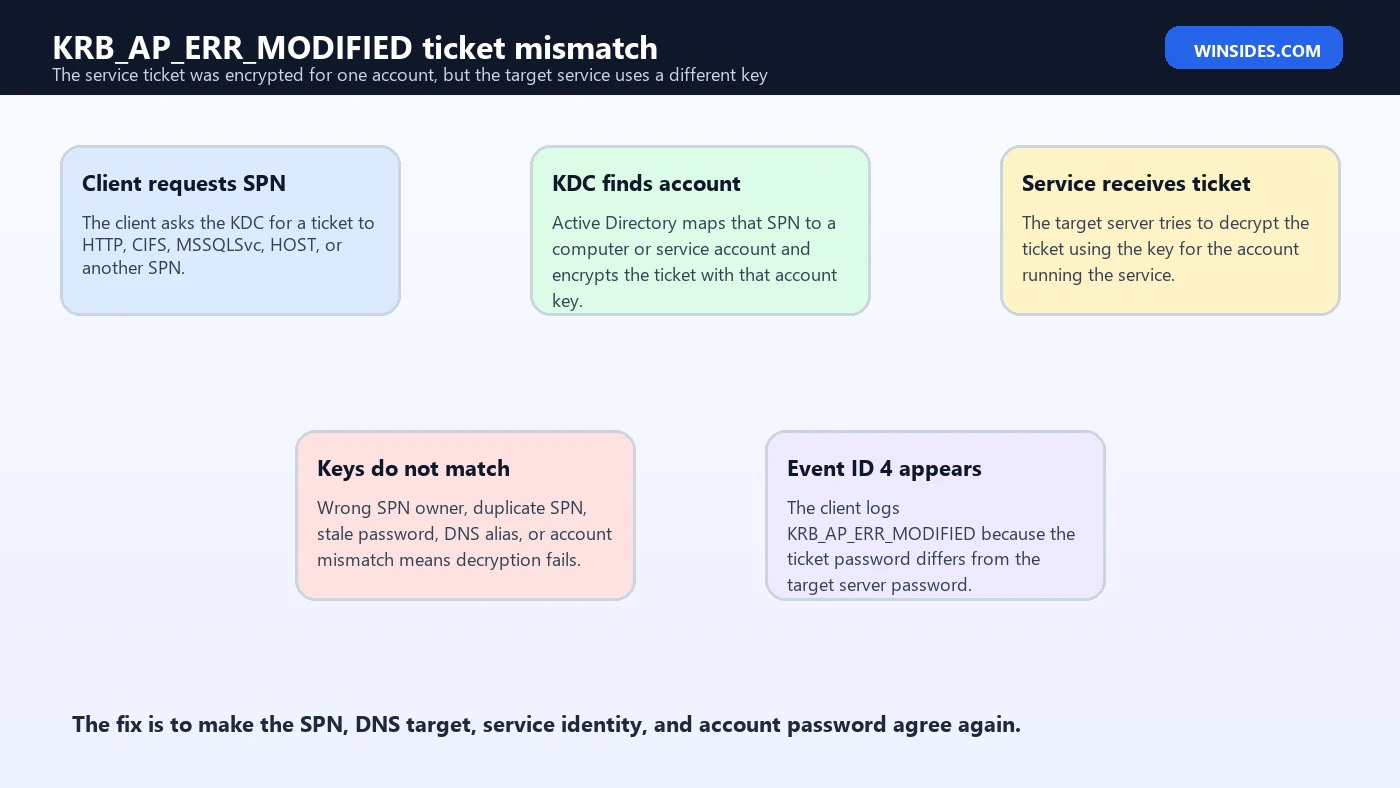
The classic Windows symptom is Kerberos Event ID 4 on the client. Microsoft describes the message as a case where the password used to encrypt the Kerberos service ticket is different from the password on the target server. In plain English, the Key Distribution Center encrypted the ticket for one identity, but the service that received the ticket is using another identity or another copy of the identity key. Kerberos refuses that because mutual authentication depends on both sides agreeing about who the service really is.
The main Microsoft references for this article are the Windows Server article The kerberos client received a KRB_AP_ERR_MODIFIED error from the server, the setspn command reference, the klist command reference, and the Kerberos authentication overview. Microsoft documents that Kerberos verifies identities through tickets, that SPNs locate service principals, that setspn -S checks for duplicates before adding an SPN, that setspn -X searches for duplicate SPNs, and that klist can show or purge cached Kerberos tickets.
This guide turns those facts into a practical workflow. We will explain what the error means, how to identify the failing SPN, how duplicate SPNs cause the wrong key to be used, why IIS, SQL Server, file shares, DNS aliases, NLB names, restored virtual machines, and stale tickets commonly trigger it, and how to fix the mapping without making the outage worse.
Table of contents
Key Takeaways
- KRB_AP_ERR_MODIFIED means the service ticket could not be decrypted by the target service. The ticket was encrypted for a different account or key than the one the service is using.
- Start with the SPN in Event ID 4. Copy the reported server or service name exactly before changing anything.
- Duplicate SPNs are a top cause. Use
setspn -Xand targetedsetspn -Qqueries to find conflicts. - The service identity must own the SPN. IIS app pools, SQL Server services, and custom Windows services must run under the account that owns the matching SPN.
- DNS aliases and NLB names need deliberate SPN planning. Kerberos uses the name the client connects to, not the name you had in mind.
- Machine password mismatch can produce the same symptom. Restored VMs, duplicate computer accounts, and broken secure channels can leave account keys out of sync.
- Clear cached tickets after the fix. Use
klist purgeor sign out and back in so the client requests a fresh service ticket.
What KRB_AP_ERR_MODIFIED Means in Kerberos
Kerberos is built around shared secrets and tickets. A client asks a domain controller for a service ticket to a service principal name, such as HTTP/web01.contoso.com, CIFS/fileserver.contoso.com, or MSSQLSvc/sql01.contoso.com:1433. The KDC looks up which Active Directory account owns that SPN and encrypts the service ticket using a key derived from that account password. The client then presents the ticket to the target service.
The service must be able to decrypt the ticket. If it is running under the account that owns the SPN, and the account password is synchronized correctly, the ticket decrypts. If the SPN points to another account, a duplicate SPN confuses lookup, the service is running under a different identity, the computer account password is stale, or the client reached a different server through DNS or a load-balanced name, the service cannot decrypt the ticket. That is when the Kerberos client reports KRB_AP_ERR_MODIFIED.
The word modified can be misleading. It does not always mean someone tampered with the ticket in transit. It means the ticket did not validate against the service key presented by the target. Kerberos cannot safely assume this is harmless because the same symptom could also indicate spoofing or a service identity problem. So it fails authentication instead of silently falling back to a weaker path.
Why Event ID 4 Matters
Kerberos Event ID 4 is often the first clue. The message usually includes the service name or server name that failed, such as host/server.domain.com, HTTP/app.domain.com, or another SPN-like value. Do not skip that detail. The SPN in the event tells you which name the client requested, and that name is the center of the investigation.
Administrators sometimes start by checking the server they think users are reaching. That can waste time when DNS aliases, CNAMEs, NLB virtual names, reverse proxies, and application shortcuts are involved. Kerberos does not authenticate the idea in your head. It authenticates the name the client used. If the event says HTTP/intranet.contoso.com, query that SPN. If it says CIFS/oldfiles.contoso.com, query that SPN. The reported name is evidence.
If multiple clients log the same SPN, the problem is usually service-side, SPN-side, DNS-side, or account-side. If only one client fails, cached tickets, stale DNS cache, local hosts file entries, or client-specific name resolution can be involved. That split helps you avoid unnecessary domain-wide changes.
Common Root Causes
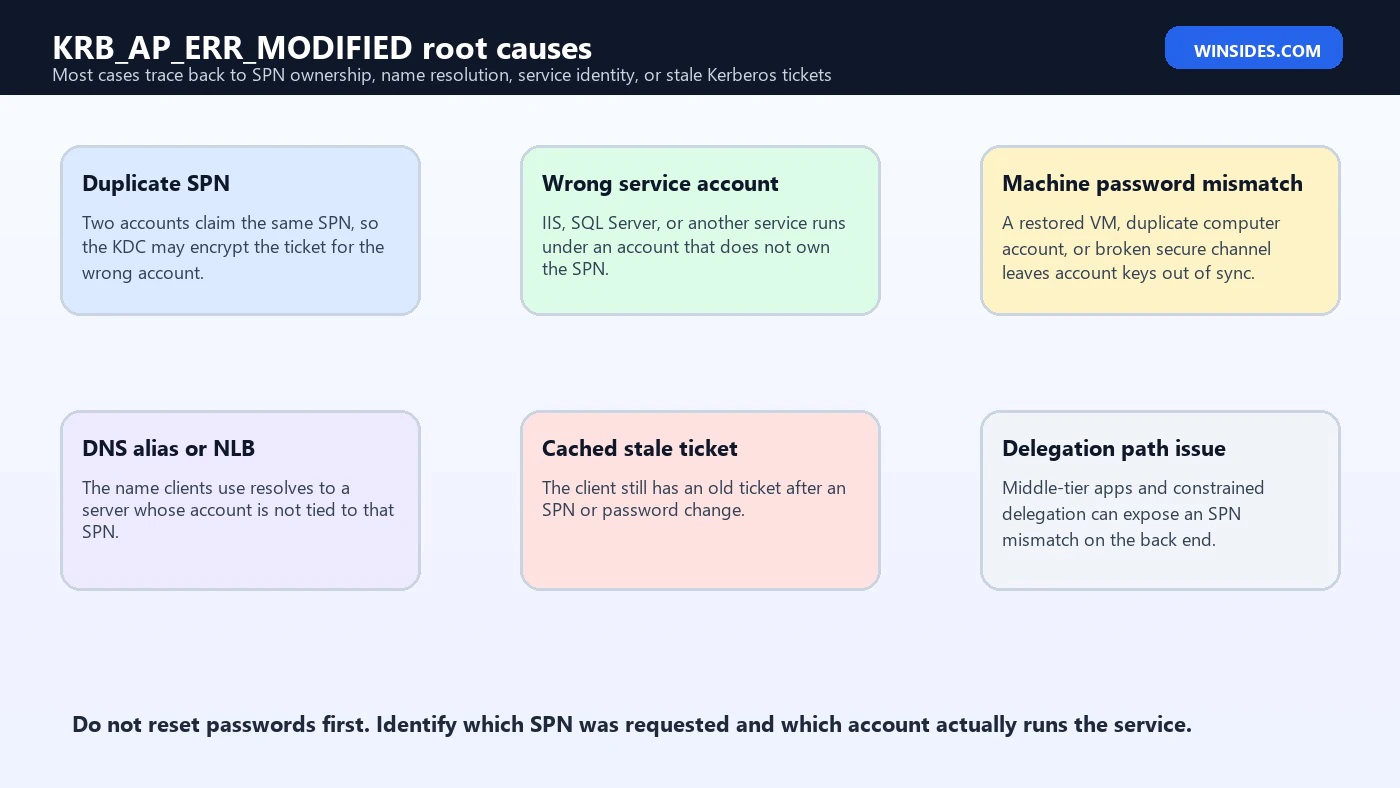
The most common root cause is an SPN registered on the wrong account. For example, an IIS site runs under a domain service account, but the HTTP SPN is registered on the web server computer account. The client receives a ticket encrypted for the computer account, then the application pool tries to decrypt it as the service account. The keys do not match, and authentication fails.
Another common cause is a duplicate SPN. Active Directory should treat SPNs as unique within the scope that matters for authentication. If two accounts claim the same SPN, the KDC may choose the wrong account or encounter ambiguity. Microsoft explicitly recommends setspn -S instead of setspn -A because -S verifies that no duplicate SPN exists before adding it. That one habit prevents many future KRB_AP_ERR_MODIFIED incidents.
DNS and aliases are also common. A user browses to https://portal.contoso.com, but the actual server is web03.contoso.com. Kerberos expects an HTTP SPN for the name the client used, not only for the physical server name. In NLB or load-balanced environments, the virtual name must map to an account that every node can use correctly, often a shared service account rather than individual computer accounts.
Machine password mismatch is another source. A computer account has a password in Active Directory, and the local machine stores its copy. If a VM snapshot is restored, a machine is cloned incorrectly, a duplicate computer account exists, or the secure channel is broken, the server may not hold the key the KDC used. The symptom can look like an SPN issue because Kerberos still sees a decryption mismatch.
Start with the Failing SPN
The safest troubleshooting workflow starts with the failing SPN. Copy the SPN from the event log or from the application error. Then query Active Directory for that exact value. If the service name is HTTP/app.contoso.com, do not query only the server name. If the service is SQL Server, remember that SQL SPNs often include a port or instance form. If the service is file sharing, the SPN may use CIFS or be covered by a host SPN on the computer account.
setspn -Q HTTP/app.contoso.com
setspn -Q HTTP/app
setspn -Q MSSQLSvc/sql01.contoso.com:1433
setspn -Q CIFS/fileserver.contoso.com
A clean result shows the SPN on the account that actually runs the service. A suspicious result shows the SPN on a different computer account, an old service account, a disabled account, or multiple accounts. No result can also be a clue, especially for IIS and SQL services running under domain accounts. In that case, the KDC may choose a different path or authentication may fall back depending on the application and client settings.
Find Duplicate SPNs with setspn
Duplicate SPNs deserve special attention because they are both common and dangerous. Microsoft documents setspn -X as the option that searches for duplicate SPNs. In a small domain, running it across the domain may be quick. In a large forest, run targeted queries first, then plan broader duplicate searches during an appropriate window if needed.
setspn -X
setspn -T * -X
setspn -Q HTTP/app.contoso.com
setspn -F -Q */app.contoso.com
If you find a duplicate, do not delete randomly. Determine which account is supposed to own the SPN. The correct owner is normally the account under which the service decrypts Kerberos tickets. For a service running as Local System, Network Service, or another identity tied to the computer account, the SPN may belong on the computer account. For a service running under a domain service account or group managed service account, the SPN usually belongs on that service account.
When adding an SPN, prefer setspn -S rather than setspn -A. Microsoft notes that -S verifies that no duplicate SPN exists before adding it. That small difference matters. -A can create the very condition you are trying to prevent.
Match the Service Account to the SPN Owner
After you know which SPN is failing, identify the account that runs the service. For IIS, inspect the application pool identity. For SQL Server, inspect the SQL Server service account in SQL Server Configuration Manager or Services. For a custom Windows service, check the Log On tab or the managed service account configuration. For a file server using the built-in Server service, the computer account is usually involved.
The SPN owner and the service identity need to match the Kerberos reality. If HTTP/app.contoso.com is on CONTOSO\WebSvc, but the IIS app pool runs as ApplicationPoolIdentity or Network Service on WEB01, the service may not have the right key. If MSSQLSvc/sql01.contoso.com:1433 is on the old SQL service account, but SQL now runs under a gMSA, clients can receive tickets encrypted for the old identity.
The fix is usually to move the SPN to the correct account, not to add the same SPN everywhere. Remove the wrong mapping only after confirming the intended service identity. Then add the SPN to the correct account with setspn -S. Finally, recycle or restart the affected service if it needs to pick up a service-account change, and clear client tickets so clients request fresh tickets.
IIS and HTTP SPN Cases
IIS is a frequent place to see KRB_AP_ERR_MODIFIED because HTTP SPNs are easy to misplace. If an IIS site uses Windows Integrated Authentication and runs under the computer identity, the computer account may be the right SPN owner for the host name. If the app pool runs under a domain service account, the HTTP SPN for the site name usually needs to be on that service account. If multiple web servers serve the same DNS name, the SPN strategy must fit the load-balanced design.
Microsofts older KRB_AP_ERR_MODIFIED article specifically mentions IIS 6, NLB virtual names, DNS resolution, NTFS access, and application pool settings as possible factors. The product versions have changed, but the Kerberos principle remains current: the name clients use must resolve to the intended service, and the service must hold the key for the SPN requested by clients.
setspn -Q HTTP/intranet.contoso.com
setspn -S HTTP/intranet.contoso.com CONTOSO\WebAppSvc
setspn -D HTTP/intranet.contoso.com CONTOSO\WrongAccount
Be cautious with kernel-mode authentication, app pool identities, and providers. Changing IIS authentication settings without understanding the service identity can mask the problem or shift it to NTLM fallback. The clean Kerberos fix is still to align the HTTP SPN with the identity that can decrypt the ticket.
SQL Server and MSSQLSvc SPN Cases
SQL Server Kerberos issues often involve MSSQLSvc SPNs. The SPN may include the fully qualified domain name and port, or an instance-oriented form depending on configuration. If SQL runs under a domain service account, the SPN should normally be registered to that account. If SQL runs under Local System or Network Service, the computer account may be involved. A service-account change without SPN cleanup is a classic cause of KRB_AP_ERR_MODIFIED or related Kerberos failures.
Start by identifying exactly what name and port clients use. Applications might connect to sql01, sql01.contoso.com, a listener name, an alias, or an availability group listener. Query those SPNs. Then inspect the SQL Server service account. The account that owns the requested MSSQLSvc SPN should match the SQL service identity that decrypts the ticket.
setspn -Q MSSQLSvc/sql01.contoso.com:1433
setspn -Q MSSQLSvc/sql-listener.contoso.com:1433
setspn -S MSSQLSvc/sql-listener.contoso.com:1433 CONTOSO\SqlSvc
Avoid adding the same SQL listener SPN to every node account unless the design specifically calls for it and Kerberos can resolve it without duplicates. Shared listener names normally require careful SPN ownership. In many environments, a domain service account or gMSA gives a cleaner identity boundary than relying on individual node computer accounts.
File Share and CIFS Cases
File share access commonly uses CIFS or host-related SPNs. A normal file server accessed by its own name usually works with computer-account SPNs. Problems appear when users access the share through an alias, old server name, DFS target, CNAME, or clustered name that does not map cleanly to the account receiving the ticket. The client asks for a ticket to the name it uses, and the server must be able to decrypt that ticket.
If Event ID 4 shows cifs/alias.contoso.com, check whether that alias SPN exists and who owns it. Check DNS to see where the alias points. Check whether the file service runs on a cluster, a standalone server, a NAS device, or a Windows file server. A mismatch between alias ownership and target identity can produce the same Kerberos error pattern as IIS or SQL.
Do not assume that because ping resolves, Kerberos is correct. DNS resolution only tells you where the packets go. Kerberos also needs the name-to-account mapping to be correct. That mapping is the SPN.
DNS Aliases, CNAMEs, NLB, and Load Balancers
DNS aliases are convenient for users and applications, but they create Kerberos design work. If clients access portal.contoso.com, the KDC builds the ticket around that service name. If the traffic is then sent to WEB01, WEB02, or a load balancer, the service endpoint must still be able to decrypt the ticket for portal.contoso.com. That usually means the portal SPN must belong to a shared service account used consistently by all participating nodes or to a properly designed virtual computer object in a cluster scenario.
NLB and VIP designs often fail when each node runs under its own computer account but clients connect to one virtual name. The ticket may be encrypted for one account while another node receives it. That is a textbook path to KRB_AP_ERR_MODIFIED. The fix is not to register the virtual SPN on every node. That creates duplicate SPNs. The fix is to choose the correct shared identity model.
Before changing SPNs, draw the name path: user URL or UNC path, DNS record, load balancer or VIP, target servers, service identity, and SPN owner. The mismatch usually becomes obvious once those pieces are on one line.
Machine Account Password and Secure Channel Problems
Sometimes the SPN owner is right, but the account key is stale. Domain-joined computers maintain a machine account password with Active Directory. If a virtual machine is restored from an old snapshot, cloned improperly, or disconnected long enough to create secure channel issues, the local machine may not have the same secret that Active Directory expects. The KDC encrypts a ticket with the AD-side key, while the target machine tries to decrypt with its local key. That can produce KRB_AP_ERR_MODIFIED symptoms.
This is especially suspicious when the failing SPN is a host or CIFS SPN on a computer account and the problem began after restore, clone, rename, domain rejoin, disaster recovery, or duplicate computer-account cleanup. Check the secure channel, look for duplicate computer accounts, and confirm the machine identity is unique.
nltest /sc_verify:contoso.com
Test-ComputerSecureChannel -Verbose
Test-ComputerSecureChannel -Repair -Credential CONTOSO\AdminUser
Use repair commands carefully and during an approved maintenance window because fixing a secure channel can affect services. If the machine account is duplicated or the wrong computer object was reused, clean up the identity problem rather than repeatedly resetting passwords.
Clear Cached Kerberos Tickets After Fixing the Root Cause
After you fix an SPN or service-account mismatch, clients may still hold old Kerberos tickets. Microsoft documents klist as a tool that displays cached Kerberos tickets and can purge them. Purging tickets forces the client to request fresh tickets. That matters because otherwise a user can keep presenting a ticket that was issued before the fix.
klist
klist tickets
klist purge
klist get HTTP/app.contoso.com
Use klist purge with care on production sessions because it destroys cached tickets for that logon session and can interrupt access to resources until tickets are requested again. For end users, signing out and back in is often cleaner. For servers, scheduled service restarts may be needed if the service account changed or if long-running processes cache credentials.
Do not treat ticket purging as the fix by itself. If the SPN is still wrong, the next ticket will be wrong too. Purging is the final cleanup step after the directory and service identity are corrected.
A Safe Fix Order
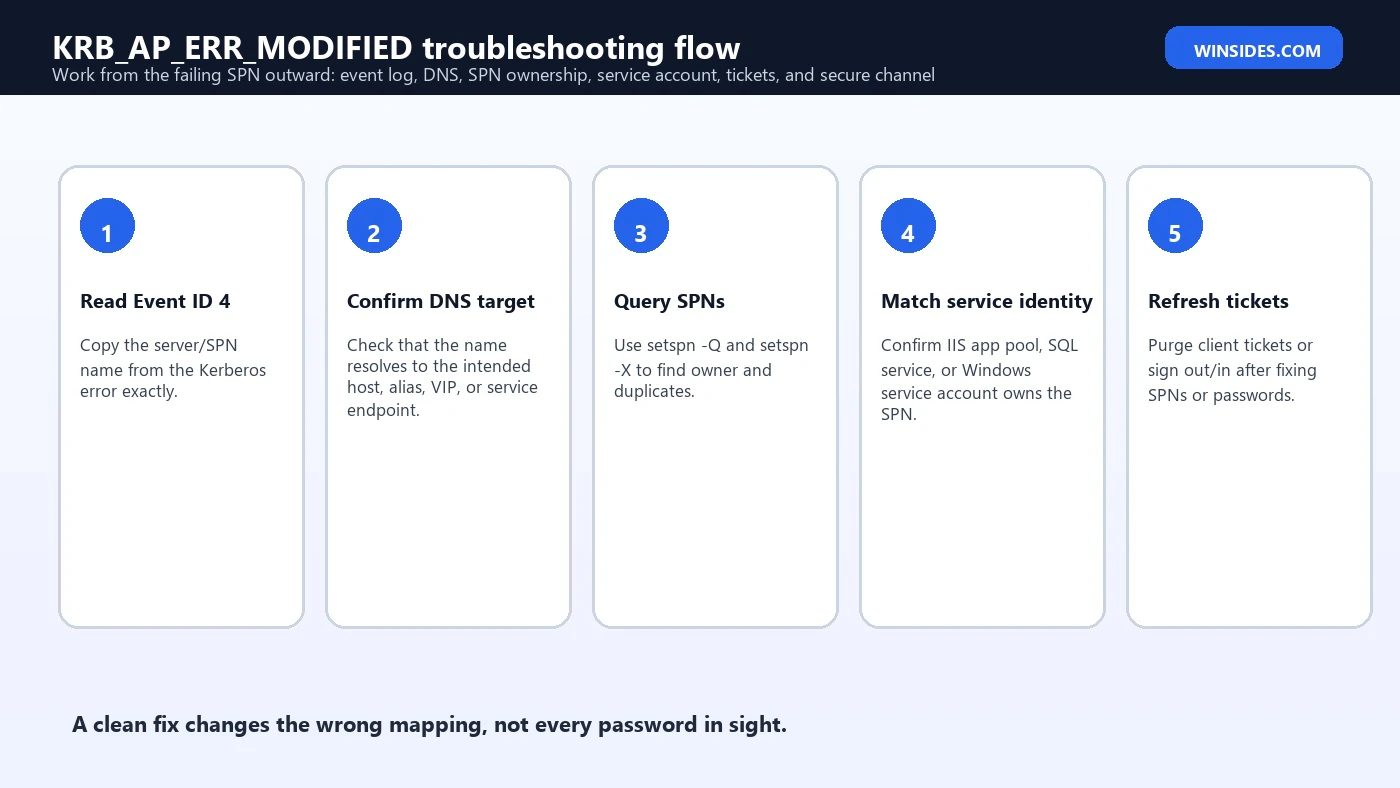
- Capture the exact Event ID 4 text, including the SPN or server name.
- Confirm the client name path: URL, UNC path, SQL connection string, DNS alias, listener, or load-balanced name.
- Query the exact SPN with
setspn -Q. - Search for duplicate SPNs with targeted queries and
setspn -X. - Identify the account that actually runs the target service.
- Move the SPN to the correct account using
setspn -Dfor the wrong owner andsetspn -Sfor the correct owner. - If a machine account password mismatch is suspected, verify the secure channel and duplicate computer accounts.
- Restart or recycle affected services only when needed.
- Purge cached tickets or sign out and back in.
- Retest with the same client path that originally failed.
Command Reference for Investigation
| Goal | Command | What to look for |
|---|---|---|
| Find who owns an SPN | setspn -Q HTTP/app.contoso.com | The account listed should match the service identity. |
| Find duplicate SPNs | setspn -X | Any duplicate matching the failing service name is suspicious. |
| Add SPN safely | setspn -S HTTP/app.contoso.com CONTOSO\SvcWeb | -S checks for duplicates before adding. |
| Remove wrong SPN | setspn -D HTTP/app.contoso.com CONTOSO\OldSvc | Remove only after confirming the correct owner. |
| View tickets | klist tickets | Look for cached service tickets to the failing SPN. |
| Purge tickets | klist purge | Use after the SPN or password mismatch is fixed. |
What Not to Do
- Do not register the same SPN on every node in a load-balanced farm.
- Do not add SPNs with
setspn -Awhensetspn -Scan protect you from duplicates. - Do not reset service account passwords before identifying the failing SPN and service identity.
- Do not ignore DNS aliases, CNAME records, SQL listeners, NLB names, and old shortcuts.
- Do not assume NTLM fallback means Kerberos is healthy.
- Do not delete SPNs from production accounts without documenting current ownership and rollback.
- Do not troubleshoot only from the server side when the client event log tells you the requested SPN.
Prevention Checklist
The best prevention is disciplined SPN ownership. Every service name should have one intended owner. Every service account change should include an SPN review. Every load-balanced or aliased name should have a planned identity model. Every automation that adds SPNs should use duplicate-safe behavior. And every major restore or clone process should protect machine identity and secure-channel health.
- Document the SPNs required by each IIS site, SQL instance, listener, file service, or custom application.
- Use dedicated domain service accounts or gMSAs where shared service identity is required.
- Use
setspn -Sfor new SPNs so duplicate checks happen before the write. - Run periodic duplicate-SPN checks in large environments.
- Include SPN cleanup in service-account migration runbooks.
- Avoid reusing computer names or restoring domain-joined servers from old snapshots without secure-channel planning.
- Verify DNS aliases and load-balanced names against SPN ownership before go-live.
Frequently Asked Questions
What is KRB_AP_ERR_MODIFIED?
It is a Kerberos error that usually means a service ticket was encrypted for an account or key that does not match the target service identity.
Is KRB_AP_ERR_MODIFIED always a duplicate SPN?
No. Duplicate SPNs are common, but wrong service identity, DNS aliases, machine password mismatch, load balancer design, and stale tickets can also cause it.
Which event should I check first?
Check Kerberos Event ID 4 on the client and copy the reported server or SPN name exactly.
How do I find duplicate SPNs?
Use setspn -X for duplicate searches and setspn -Q for targeted SPN ownership checks.
Should I use setspn -A or setspn -S?
Use setspn -S when adding SPNs because Microsoft documents that it verifies no duplicate SPN exists before adding.
Why does IIS trigger KRB_AP_ERR_MODIFIED?
The HTTP SPN may be registered on the wrong account for the app pool identity, or clients may connect through a DNS alias or load-balanced name whose SPN is not owned correctly.
Why does SQL Server trigger this error?
The MSSQLSvc SPN may belong to an old service account, the wrong node, or the wrong listener identity.
Can klist fix KRB_AP_ERR_MODIFIED?
No. klist purge clears cached tickets after the SPN or password mismatch is fixed; it does not correct a wrong SPN owner.
Can a restored VM cause this error?
Yes. Restoring or cloning a domain-joined server can create machine password or computer-account identity mismatches that break Kerberos decryption.
Is NTLM fallback an acceptable fix?
It may hide the symptom, but it does not fix Kerberos. The better fix is to align SPN ownership, service identity, DNS, and account passwords.
Conclusion: Fix the Identity Mapping, Not Just the Symptom
KRB_AP_ERR_MODIFIED is a Kerberos identity mismatch. The KDC issued a ticket for one account or key, but the target service could not decrypt it with the key it had. That is why the most reliable troubleshooting path starts with the exact SPN from Event ID 4, then checks DNS, SPN ownership, duplicate SPNs, service identity, machine account health, and cached tickets.
The fastest messy fix is often to add more SPNs or force NTLM. The better fix is to make the identity model true again. A service name should map to the account that runs the service. A load-balanced name should have one deliberate Kerberos identity strategy. A restored server should have a healthy secure channel. A client should request a fresh ticket after the mapping is corrected.
Once those pieces line up, Kerberos does what it was designed to do: prove the client is talking to the service identity it requested. That is the whole point of the protocol, and it is why KRB_AP_ERR_MODIFIED should be treated as a useful diagnostic signal rather than a random authentication annoyance.
For more interesting articles, stay tuned to Winsides.com!









Community
Comments (0)