

Introduction to Acer Nitro 5 Blue Screen Errors on Windows 11
There are few things more unsettling for a computer user than the sudden appearance of a Blue Screen of Death (BSoD). This abrupt halt to your workflow, often accompanied by cryptic error messages, signifies a critical system failure. For owners of the Acer Nitro 5, a popular gaming laptop, encountering a Blue Screen on Windows 11 can be particularly frustrating, interrupting immersive gaming sessions or crucial work tasks. For additional context, see Troubleshoot blue screen errors, Acer support website, BlueScreenView, and bug check code reference.
The Acer Nitro 5 is renowned for its performance, especially in gaming, but this power can sometimes lead to unique challenges when combined with the complexities of Windows 11. These BSoD events aren’t just annoying; they can lead to lost data, corrupted files, and a general sense of instability that undermines the laptop’s reliability. Understanding the root causes and knowing how to effectively troubleshoot these issues is paramount.
This comprehensive guide is designed to empower you with the knowledge and tools needed to diagnose, resolve, and ultimately prevent the dreaded Acer Nitro 5 Blue Screen on Windows 11. We will delve into common error types, explore both software and hardware solutions, and provide actionable steps to restore your system’s stability and performance. Say goodbye to unexpected shutdowns and hello to a smoother computing experience.
Table of contents
Key Takeaways for Troubleshooting BSoD on Acer Nitro 5
When faced with an Acer Nitro 5 Blue Screen on Windows 11, immediate action and a systematic approach are crucial. Here are the most critical points to remember for quick diagnosis and resolution:
- Check Recent Changes First: Always consider any new hardware, software, or Windows updates installed just before the BSoD appeared. These are frequently the culprits.
- Analyze Dump Files: Utilize tools like NirSoft BlueScreenView to interpret the minidump files Windows creates. This often reveals the specific driver or module causing the crash.
- Update Drivers Prudently: Ensure all critical drivers, especially graphics (NVIDIA/AMD) and chipset drivers, are up to date, downloading exclusively from official Acer or component manufacturer websites.
- Run System Scans: Employ System File Checker (SFC) and Deployment Image Servicing and Management (DISM) commands to repair corrupted Windows system files.
- Monitor Temperatures: Overheating is a common cause for gaming laptops. Keep an eye on CPU and GPU temperatures, especially during demanding tasks, and ensure proper cooling.
- Test Hardware Components: Don’t overlook physical issues. Use Windows Memory Diagnostic for RAM and check your storage drive’s health for potential hardware-related BSoD causes.
- Proactive Maintenance: Regular system updates, driver management, and cleaning can significantly reduce the likelihood of future BSoD incidents on your Acer Nitro 5.
Understanding Blue Screen of Death (BSoD) on Windows 11
The Blue Screen of Death, or BSoD, is Windows’ way of telling you that something has gone critically wrong. It’s not just a random error; it’s a protective measure. When the operating system encounters a problem it cannot recover from, it initiates a sudden shutdown to prevent further damage to your data or hardware. This critical system error often displays a blue screen with a sad face emoticon and a brief error message.
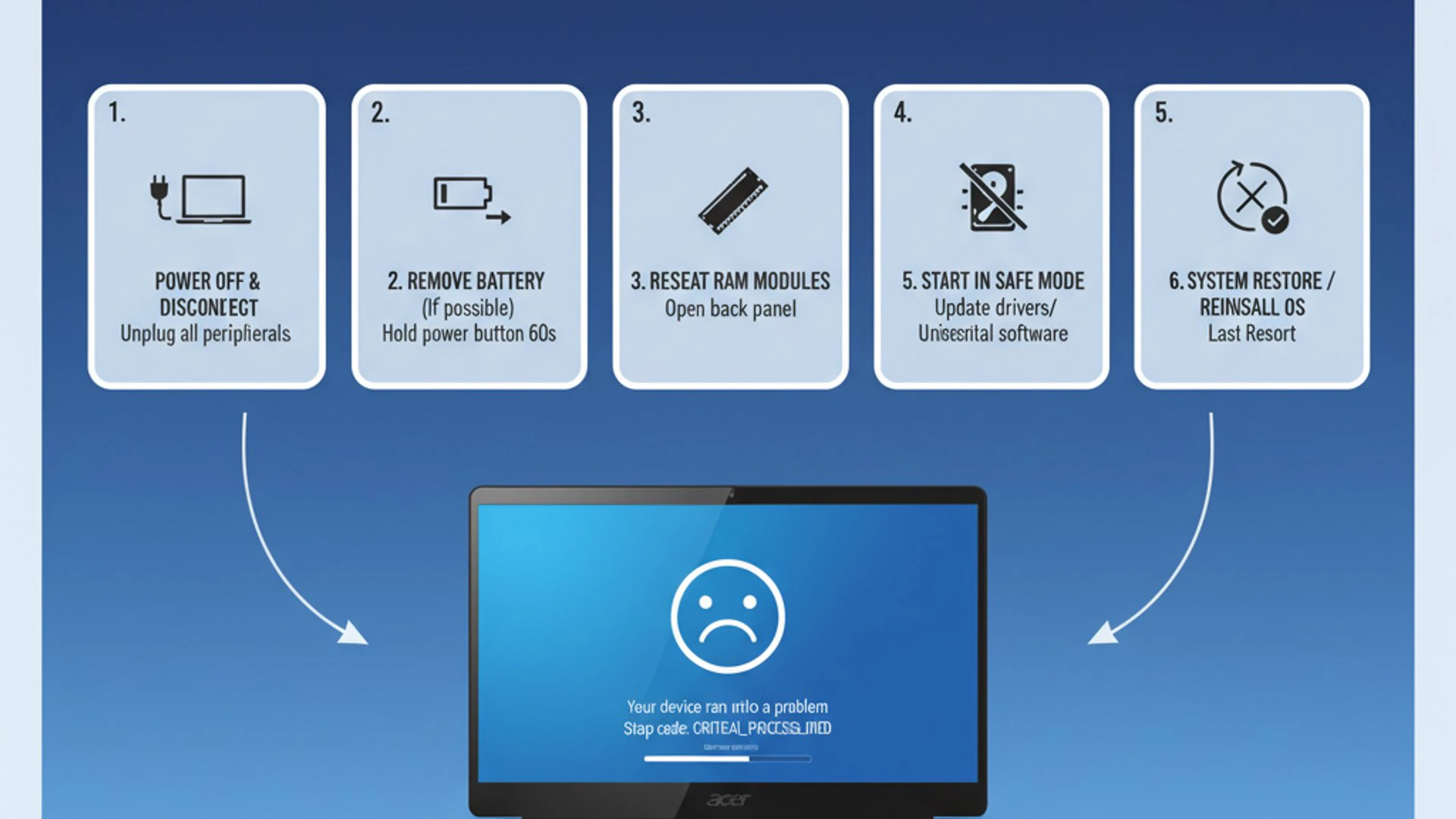
While alarming, a BSoD provides valuable diagnostic information. The stop code and accompanying message can often point towards the specific component or driver that caused the crash. Understanding these codes is the first step in effectively troubleshooting an Acer Nitro 5 Blue Screen on Windows 11.
Common BSoD Error Codes and Their Meanings
Windows 11 BSoD errors come with various stop codes, each hinting at a different underlying problem. Recognizing these can significantly narrow down your troubleshooting efforts. Some codes are more prevalent than others, especially on performance-oriented machines like the Acer Nitro 5.
One common error is DRIVER_IRQL_NOT_LESS_OR_EQUAL. This typically indicates a problem with a device driver trying to access an invalid memory address. It often points to faulty or incompatible network card, graphics card, or sound card drivers. Updating or rolling back these drivers is a common fix.
Another frequent culprit is CRITICAL_PROCESS_DIED. This error means that a critical system process, essential for Windows to run, has terminated unexpectedly. This can be due to corrupted system files, faulty memory, or even malware. It requires a deeper dive into system integrity.
You might also encounter PAGE_FAULT_IN_NONPAGED_AREA, which suggests an issue with your system’s memory (RAM) or a faulty driver trying to access a page of memory that doesn’t exist. Similarly, KERNEL_SECURITY_CHECK_FAILURE often points to corrupted system files, memory issues, or driver conflicts, particularly after Windows updates.
Less common but equally problematic are errors like UNEXPECTED_KERNEL_MODE_TRAP, which can signify hardware problems, especially with the CPU or memory, or even severe driver conflicts. Each code serves as a clue, guiding your investigation into the heart of the BSoD problem.
Why Acer Nitro 5 Users Encounter BSoD on Windows 11
The Acer Nitro 5, being a gaming laptop, is often pushed to its limits. This high-performance usage, combined with the nuances of Windows 11, can make it more susceptible to BSoD errors compared to standard office machines. Several factors contribute to this vulnerability.
Driver conflicts are a primary cause. Gaming laptops feature powerful, specialized hardware like dedicated NVIDIA or AMD graphics cards, high-refresh-rate displays, and advanced chipsets. Incompatible, outdated, or corrupted drivers for these components can clash with Windows 11, leading to instability and crashes. A new Windows update might introduce an incompatibility with an older driver, triggering a BSoD.
Overheating is another significant factor. During intense gaming or heavy computational tasks, the CPU and GPU generate substantial heat. If the cooling system isn’t functioning optimally (e.g., due to dust accumulation, failing fans, or dried thermal paste), components can reach critical temperatures, causing them to throttle performance or even trigger a BSoD to prevent permanent damage. The Acer Nitro 5 Blue Screen on Windows 11 can often be traced back to thermal issues.
Furthermore, hardware stress from demanding games can expose underlying weaknesses. A marginally stable RAM stick, a failing SSD, or even an inadequate power supply might perform fine during light use but buckle under pressure, leading to a crash. The combination of high-performance components and a complex operating system like Windows 11 means that even minor inconsistencies can manifest as critical errors.
Initial Diagnostic Steps for Acer Nitro 5 BSoD
When your Acer Nitro 5 encounters a BSoD, the first step is not to panic, but to systematically gather information. Immediate diagnostic actions can often reveal the cause quickly, saving you a lot of time and effort. These steps focus on identifying recent changes and analyzing the crash data Windows provides.
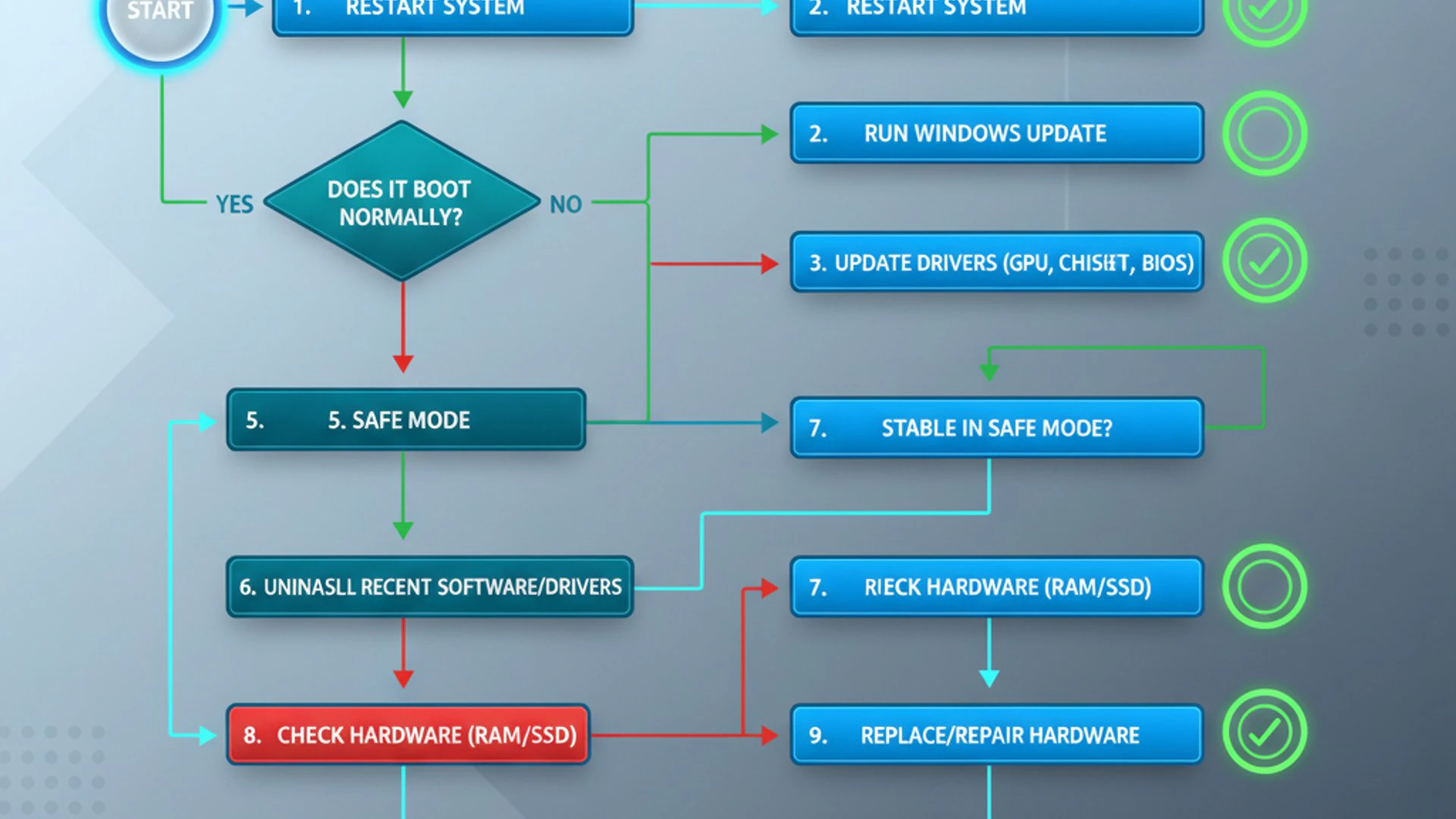
Before diving into complex solutions, it’s crucial to understand the context of the crash. Was it after a new game installation? A Windows update? Or perhaps a new peripheral? This initial assessment is invaluable for guiding your troubleshooting process and resolving the Acer Nitro 5 Blue Screen on Windows 11.
Checking for Recent Hardware or Software Changes
One of the most common triggers for a BSoD is a recent change to your system. Windows is a complex ecosystem, and new additions can sometimes introduce conflicts. Think back to what you did just before the BSoD occurred.
Did you install any new software or games? A recently installed application might be incompatible with your system or contain bugs that cause crashes. Try to recall if the problem started immediately after a specific program installation. Similarly, new drivers, especially for graphics cards or peripherals, can be problematic if they are not fully compatible with Windows 11 or your specific Acer Nitro 5 hardware.
Hardware changes are also major suspects. If you recently installed a new RAM stick, an external hard drive, or any other peripheral, try removing it to see if the BSoD persists. Sometimes, even a faulty USB device can cause system instability. Windows updates are another frequent cause; Microsoft rolls out patches regularly, and occasionally, an update might introduce a bug or conflict with existing drivers or software. If a BSoD appeared shortly after a Windows update, consider rolling back the update as a temporary measure.
“Always consider recent system changes as the primary suspect when troubleshooting sudden BSoD occurrences. Reverting these changes can often provide an immediate solution.”
Accessing and Analyzing Dump Files (Minidump)
When a BSoD occurs, Windows typically creates a small file called a minidump (or dump file) that contains crucial information about the crash. These files are stored in the C:\Windows\Minidump folder and are invaluable for diagnosing the exact cause of the Acer Nitro 5 Blue Screen on Windows 11.
You cannot simply open these files like a text document; they require specialized tools for interpretation. Analyzing these dump files can often pinpoint the specific driver or system component that failed, giving you a clear direction for troubleshooting. This step is often the most effective way to move beyond generic error messages.
Using NirSoft BlueScreenView for Analysis
One of the most user-friendly and effective tools for analyzing minidump files is NirSoft BlueScreenView. This free, lightweight utility scans your minidump folder and displays all crash information in a clear, readable table. It highlights the driver or module that likely caused the crash, making it easy to identify the culprit.
To use BlueScreenView, first download it from the official NirSoft website (www.nirsoft.net). Once downloaded, extract the executable and run it. The program will automatically scan your system for minidump files and list them.
- Download and Run: Get BlueScreenView and launch it.
- Review Crash Details: The main window will show a list of BSoD events. Click on the most recent one.
- Identify the Culprit: Look at the bottom pane. BlueScreenView will highlight the drivers or modules that were in the crash stack, often indicating the one responsible. Pay close attention to files ending with
.sys. - Research the Driver: Once you identify a suspicious driver (e.g.,
nvlddmkm.sysfor NVIDIA graphics,rtwlane.sysfor Realtek Wi-Fi), research it online. This will tell you what hardware it belongs to, guiding your driver update or rollback efforts.
This process provides a targeted approach, preventing you from blindly updating every driver on your system. It’s a powerful first step in resolving the Acer Nitro 5 Blue Screen on Windows 11.
Software-Related Solutions to Prevent BSoD
Many BSoD errors, especially on Windows 11, stem from software conflicts, outdated drivers, or corrupted system files. Addressing these issues systematically can resolve a significant percentage of blue screen problems on your Acer Nitro 5. This section focuses on software-based remedies that you can implement without opening your laptop’s casing.
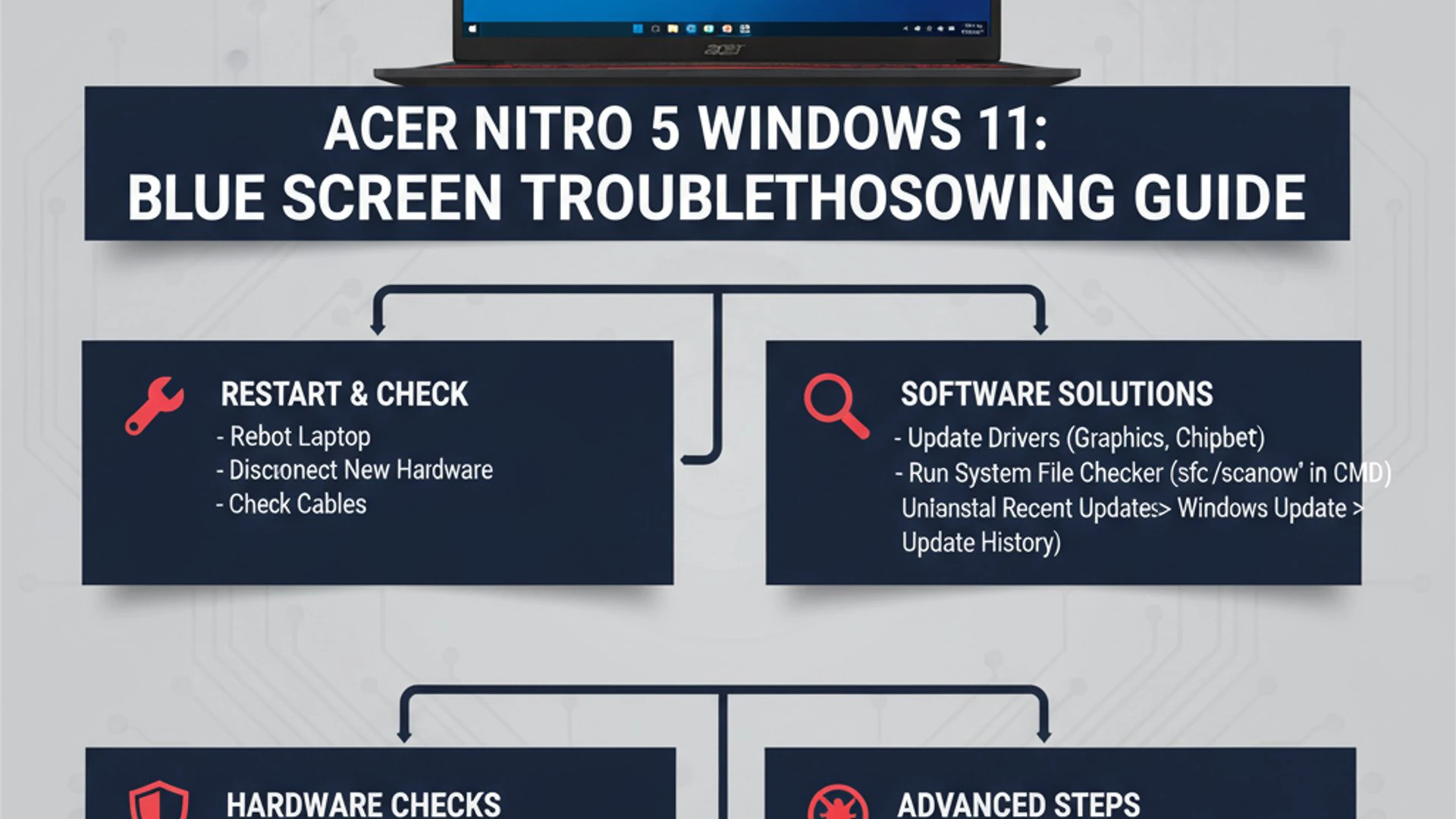
From ensuring your operating system is current to meticulously managing your drivers, these steps are crucial for maintaining a stable and reliable computing environment. Proactive software management is key to preventing the recurrence of an Acer Nitro 5 Blue Screen on Windows 11.
Updating Drivers and Windows 11 System
Outdated or incompatible drivers are a leading cause of BSoD errors. For an Acer Nitro 5, with its specialized gaming hardware, keeping drivers current is paramount. Windows 11 updates also play a vital role in system stability and security.
Always start by ensuring your Windows 11 operating system is fully updated. Go to Settings > Windows Update and click “Check for updates.” Install any pending updates, including optional ones, and restart your system as required. These updates often include critical bug fixes and compatibility improvements.
Next, focus on your device drivers. While Windows Update sometimes provides driver updates, it’s often best to get the latest drivers directly from the manufacturer’s website, especially for critical components like graphics cards, chipset, and network adapters. Visit the official Acer support website for your specific Nitro 5 model and download the latest drivers available.
How to Update Graphics Drivers (NVIDIA/AMD)
Graphics drivers are particularly important for gaming laptops and are frequently implicated in BSoD issues. For Acer Nitro 5 laptops, you’ll typically have an NVIDIA GeForce or AMD Radeon dedicated graphics card.
For NVIDIA users:
- Download NVIDIA Driver: Visit the official NVIDIA driver download page. Select your product type, series, product, and operating system. Download the latest “Game Ready Driver” (GRD).
- Clean Installation: Run the downloaded installer. During the installation process, choose “Custom (Advanced)” and check the box for “Perform a clean installation.” This removes previous driver files and prevents potential conflicts.
- Restart: Follow the prompts to complete the installation and restart your Acer Nitro 5.
For AMD users:
- Download AMD Driver: Go to the official AMD support page. Use the auto-detect tool or manually select your graphics card model. Download the latest recommended driver.
- Clean Installation: Run the installer. AMD’s installer usually offers an option for a “Factory Reset” or “Clean Install.” Select this to ensure all old driver components are removed.
- Restart: Complete the installation and reboot your system.
After updating, monitor your system for any recurring BSoD. If the problem persists, you might consider rolling back to a previous stable driver version if the issue started immediately after an update.
Running System File Checker (SFC) and DISM
Corrupted Windows system files are a common cause of instability and BSoD errors. Fortunately, Windows 11 provides built-in tools to check and repair these files: the System File Checker (SFC) and Deployment Image Servicing and Management (DISM).
SFC scans for and restores corrupted system files. DISM is a more powerful tool that can repair the underlying Windows image that SFC uses, making it effective for more deeply rooted issues. Running both in sequence is a recommended practice to ensure your system files are in optimal condition.
- Open Command Prompt as Administrator: Search for “cmd” in the Windows search bar, right-click on “Command Prompt,” and select “Run as administrator.”
- Run DISM Commands: Before running SFC, it’s good practice to run DISM to ensure the component store is healthy. Type the following commands one by one, pressing Enter after each:
These commands might take some time to complete. Ensure you have an active internet connection for the
RestoreHealthcommand, as it might download necessary files.DISM /Online /Cleanup-Image /CheckHealthDISM /Online /Cleanup-Image /ScanHealthDISM /Online /Cleanup-Image /RestoreHealth
- Run SFC Scan: Once DISM completes, type
sfc /scannowand press Enter. This command will scan all protected system files and replace corrupted ones with cached copies. - Restart: After SFC finishes, restart your Acer Nitro 5.
These scans can often resolve underlying system integrity issues that contribute to the Acer Nitro 5 Blue Screen on Windows 11.
Scanning for Malware and Viruses
Malware and viruses can wreak havoc on your system, causing instability, performance issues, and even BSoD errors. Malicious software can corrupt system files, interfere with drivers, or consume excessive resources, leading to critical failures. A thorough scan is a crucial step in troubleshooting an Acer Nitro 5 Blue Screen on Windows 11.
Windows 11 comes with a robust built-in antivirus solution, Windows Security (formerly Windows Defender). It’s often sufficient for most users, but you can also use reputable third-party antivirus software for an additional layer of protection.
- Open Windows Security: Search for “Windows Security” in the Start menu and open it.
- Navigate to Virus & threat protection: Click on “Virus & threat protection” in the left-hand menu.
- Perform a Full Scan: Under “Virus & threat protection settings,” click “Scan options.” Select “Full scan” and then “Scan now.” This will perform a deep scan of your entire system, which can take several hours.
- Consider Offline Scan: If you suspect deeply embedded malware, select “Microsoft Defender Offline scan.” Your PC will restart and perform a scan before Windows 11 loads, which is effective against rootkits and other persistent threats.
Regularly scanning your system for malware is a good practice, not just when troubleshooting a BSoD, but as part of routine system maintenance. For more advanced protection, consider exploring services like Web Threat Defense Service on Windows 11.
Uninstalling Problematic Software or Updates
As mentioned earlier, recently installed software or Windows updates can sometimes be the direct cause of BSoD errors. If you’ve identified a specific program or update that coincided with the onset of the BSoD, uninstalling it is a logical next step.
To uninstall software:
- Open Settings: Go to Settings > Apps > Installed apps.
- Locate and Uninstall: Find the recently installed application, click the three dots next to its name, and select “Uninstall.” Follow the on-screen prompts.
- Restart: Reboot your Acer Nitro 5 after uninstallation.
To uninstall a Windows Update:
- Access Update History: Go to Settings > Windows Update > Update history.
- Uninstall Updates: Scroll down and click “Uninstall updates.” This will open the Control Panel.
- Select and Uninstall: Find the problematic update (usually identified by its KB number and installation date), right-click it, and choose “Uninstall.”
- Restart: Restart your system to complete the process.
If the BSoD stops occurring after removing the software or update, you’ve likely found your culprit. You can then try to find an alternative program or wait for a more stable version of the update.
Hardware-Related Troubleshooting for Acer Nitro 5
While software issues are common, hardware malfunctions can also frequently lead to an Acer Nitro 5 Blue Screen on Windows 11. Given the demanding nature of gaming, components like RAM, storage drives, and the cooling system are under constant stress. This section delves into diagnosing and addressing hardware-related causes.
Before proceeding with these steps, ensure your laptop is powered off and unplugged if you need to physically access internal components. Always exercise caution when dealing with computer hardware to prevent static discharge or damage.
Checking RAM (Memory) for Errors
Faulty or unstable RAM is a very common cause of BSoD errors, often manifesting with codes like PAGE_FAULT_IN_NONPAGED_AREA or MEMORY_MANAGEMENT. Windows 11 includes a built-in tool, Windows Memory Diagnostic, to check for RAM issues.
- Open Windows Memory Diagnostic: Search for “Windows Memory Diagnostic” in the Start menu and open it.
- Choose Scan Option: Select “Restart now and check for problems (recommended).” Your computer will restart and run a comprehensive memory test. This process can take a significant amount of time, often 15-30 minutes or more, depending on your RAM size.
- Review Results: After the test, your computer will restart into Windows. The results will usually appear in a notification or can be found in the Event Viewer (under “Windows Logs” > “System,” look for “MemoryDiagnostics-Results”).
If errors are found, it indicates a problem with one or more RAM modules. If your Acer Nitro 5 has multiple RAM sticks, try removing them one by one and retesting to identify the faulty stick. Replacing defective RAM is often the only solution. Ensure you purchase compatible RAM for your specific Nitro 5 model.
Monitoring CPU and GPU Temperatures
Overheating is a notorious problem for gaming laptops and a frequent cause of the Acer Nitro 5 Blue Screen on Windows 11. When components like the CPU and GPU reach dangerously high temperatures, they can trigger a BSoD as a protective measure to prevent permanent damage. Monitoring these temperatures is crucial.
You can use third-party tools like HWMonitor or MSI Afterburner (even if you don’t have an MSI card, it works for monitoring). Download and install one of these utilities. Run it in the background while you perform demanding tasks, such as playing a game or running a benchmark.
Ideal CPU temperatures under load typically range from 60-80°C, with anything consistently above 90°C being a cause for concern. For GPUs, temperatures usually stay below 85°C during heavy gaming. If you observe temperatures consistently exceeding these thresholds, especially just before a BSoD, overheating is likely the issue.
To mitigate overheating:
- Clean Fans and Vents: Use compressed air to clear dust from the fan vents.
- Use a Cooling Pad: A laptop cooling pad can significantly improve airflow.
- Repaste Thermal Compound: For advanced users, replacing the thermal paste on the CPU and GPU can drastically improve cooling performance.
Verifying Storage Drive Health (SSD/HDD)
A failing hard drive or solid-state drive (SSD) can lead to data corruption, slow performance, and ultimately, BSoD errors, especially those related to critical processes or file access. Ensuring the health of your storage drive is an important diagnostic step for your Acer Nitro 5 Blue Screen on Windows 11.
Windows has a built-in tool called chkdsk (Check Disk) that can scan for and repair bad sectors or file system errors on your drive.
- Open Command Prompt as Administrator: Search for “cmd,” right-click, and select “Run as administrator.”
- Run Chkdsk: Type
chkdsk /f /rand press Enter. You will likely be prompted to schedule the scan for the next restart. TypeYand press Enter. - Restart Your PC: Your Acer Nitro 5 will restart, and the
chkdskscan will run before Windows loads. This process can take a long time, depending on the size and condition of your drive.
For SSDs, you can also use manufacturer-specific tools (e.g., Samsung Magician, Crucial Storage Executive) to check drive health and firmware. If chkdsk reports numerous bad sectors or if your drive health utility indicates a failing drive, consider backing up your data immediately and replacing the drive. For comprehensive data protection, consider setting up a System Image Backup on Windows 11.
Ensuring Proper Power Supply and Connections
An often-overlooked cause of system instability and BSoD errors is an inadequate or faulty power supply. While laptops use external power adapters, internal power delivery to components can be affected. For an Acer Nitro 5, especially during demanding tasks like gaming, stable power is critical.
First, ensure you are using the original Acer power adapter designed for your specific Nitro 5 model. Using an underpowered or generic adapter can lead to insufficient power delivery, causing components to malfunction under load. Check the adapter and cable for any visible damage, frayed wires, or loose connections.
Internally, ensure all power connections to components like the motherboard, GPU, and storage drives are secure. While this typically requires opening the laptop, a loose connection can cause intermittent power issues. If you’re comfortable doing so, gently reseat any visible cables. If the BSoD occurs randomly, even during light use, a faulty power adapter or battery could be the culprit. Try running the laptop solely on battery power (if the BSoD occurs while plugged in) or with a different, compatible power adapter if available.
“A stable power supply is the bedrock of system reliability. Don’t underestimate the impact of a faulty adapter or loose internal connection on BSoD occurrences.”
Advanced Troubleshooting and Recovery Options
If the standard software and hardware troubleshooting steps haven’t resolved the Acer Nitro 5 Blue Screen on Windows 11, it’s time to consider more drastic measures. These options involve reverting your system to a previous state or, in the most severe cases, reinstalling Windows entirely. While these are more time-consuming, they are often effective for persistent BSoD issues.
Always ensure you have backed up your important data before attempting these advanced recovery options. This precaution can save you from potential data loss during the process.
Performing a System Restore or Reset
Windows 11 offers powerful recovery options that can help you revert your system to a stable state without losing personal files. These include System Restore and PC Reset.
System Restore allows you to roll back your system files, installed applications, and registry settings to a previous point in time when your Acer Nitro 5 was functioning correctly. It’s an excellent option if you suspect a recent software installation or update caused the BSoD.
- Access System Restore: Search for “Create a restore point” in the Start menu and open it.
- Start Restore: In the System Properties window, click “System Restore…”
- Choose Restore Point: Follow the wizard to select a restore point from before the BSoD issues began.
- Confirm and Restore: Confirm your choice and let the process complete. Your PC will restart.
If System Restore doesn’t work or if the BSoD is persistent and severe, a PC Reset might be necessary. This option reinstalls Windows 11, giving you the choice to keep your personal files or remove everything.
- Access Reset PC: Go to Settings > System > Recovery.
- Get Started: Under “Recovery options,” click “Get started” next to “Reset this PC.”
- Choose Option: Select “Keep my files” (removes apps and settings, keeps personal files) or “Remove everything” (a clean slate).
- Cloud or Local Reinstall: Choose how to reinstall Windows (Cloud download is often more reliable but requires internet).
- Confirm and Reset: Follow the prompts to confirm and initiate the reset.
While “Keep my files” is less disruptive, “Remove everything” provides a cleaner installation and is more effective for deeply rooted issues causing the Acer Nitro 5 Blue Screen on Windows 11.
Reinstalling Windows 11 (Clean Installation)
A clean installation of Windows 11 is the ultimate troubleshooting step when all other methods fail. This process completely wipes your primary drive and installs a fresh copy of the operating system, eliminating all software conflicts, corrupted files, and malware. It’s a guaranteed way to rule out software as the cause of your Acer Nitro 5 Blue Screen on Windows 11.
Important: This will erase all data on your primary drive. Ensure you have a complete backup of all important files before proceeding. You will also need your Windows 11 product key (though often automatically detected if previously activated) and installation media (a USB drive with Windows 11 installer).
- Create Installation Media: Download the Windows 11 Media Creation Tool from Microsoft’s website and use it to create a bootable USB drive.
- Boot from USB: Insert the USB drive, restart your Acer Nitro 5, and press the appropriate key (often F2, F12, or Del) to enter the BIOS/UEFI settings. Change the boot order to prioritize the USB drive.
- Install Windows: Follow the on-screen instructions. When prompted, select “Custom: Install Windows only (advanced).” Delete all partitions on your primary drive (usually Drive 0) and then select the unallocated space to install Windows.
- Install Drivers: After Windows 11 is installed, visit the Acer support website for your Nitro 5 model and download all necessary drivers (chipset, graphics, network, audio, etc.). Install them one by one, restarting as needed.
A clean installation ensures that your system starts fresh, providing a stable foundation for your Acer Nitro 5. This is often the most effective solution for persistent BSoD issues that defy other troubleshooting methods.
Contacting Acer Support for Hardware Issues
If, after exhausting all software and basic hardware troubleshooting steps, your Acer Nitro 5 Blue Screen on Windows 11 persists, it’s highly likely that a more serious hardware defect is at play. At this point, it’s best to contact Acer’s official support.
Before contacting them, gather all relevant information: your laptop’s serial number, the exact model, a description of the problem, any BSoD error codes you’ve encountered, and a summary of the troubleshooting steps you’ve already performed. This information will help their support staff diagnose the issue more efficiently.
Acer support can guide you through further diagnostics, arrange for a repair under warranty (if applicable), or provide options for out-of-warranty service. Common hardware failures that might require professional intervention include motherboard issues, CPU/GPU defects, or complex power delivery problems that are beyond typical user repair capabilities. Don’t hesitate to reach out to them if you suspect a deeper hardware problem.
Best Practices to Prevent Future BSoD Incidents
Preventing BSoD errors on your Acer Nitro 5 is far better than constantly troubleshooting them. By adopting a proactive approach to system maintenance and driver management, you can significantly reduce the likelihood of encountering the dreaded Acer Nitro 5 Blue Screen on Windows 11. These best practices are about maintaining a healthy and stable computing environment.
Consistency is key. Regular checks and updates will ensure your system remains robust against potential issues, allowing you to enjoy your Acer Nitro 5 without constant interruptions.
Regular Maintenance and Monitoring
A well-maintained system is a stable system. Establishing a routine for system maintenance can prevent many issues that lead to BSoD errors. This includes keeping your storage clean and monitoring system health parameters.
Disk Cleanup and Defragmentation: Regularly run Disk Cleanup to remove temporary files, system logs, and other unnecessary data that can clutter your drive. For traditional HDDs, periodic defragmentation (though less critical for SSDs) helps optimize file access. Windows 11 automatically optimizes drives, but you can manually initiate it via the “Optimize Drives” tool.
System Health Monitoring: Keep an eye on your system’s performance and temperatures. Tools like Task Manager can show you resource usage (CPU, RAM, Disk, GPU), while dedicated monitoring software (e.g., HWMonitor, MSI Afterburner) provides detailed temperature readings. Unusual spikes in resource usage or consistently high temperatures can be early indicators of impending problems. Also, regularly check the Event Viewer (Windows Logs > System) for warning or error messages that precede a BSoD, as these can offer clues.
Backup Your Data: While not a BSoD prevention, regular backups are crucial for recovery. Use Windows Backup, cloud services, or external drives to regularly back up your important files. This ensures that even if a BSoD leads to data loss or a system reset, your valuable information is safe. Consider using a robust backup strategy like System Image Backup on Windows 11.
Safe Driver Management and Updates
Drivers are the communication bridge between your hardware and Windows 11. Managing them safely is paramount for preventing BSoD errors on your Acer Nitro 5.
Download from Official Sources Only: Always download drivers directly from the official Acer support website for your specific laptop model, or from the component manufacturer’s website (e.g., NVIDIA, AMD, Intel). Avoid generic driver update utilities or unofficial websites, as these can provide outdated, incompatible, or even malicious drivers that will cause instability.
Create Restore Points Before Updates: Before installing a major driver update (especially for graphics cards or chipset), create a manual system restore point. This provides a quick rollback option if the new driver causes issues. You can do this by searching for “Create a restore point” in the Start menu.
Monitor After Updates: After installing new drivers, pay close attention to your system’s behavior. If you notice any instability, performance drops, or BSoD errors, immediately consider rolling back the driver to its previous version via Device Manager. To do this, open Device Manager, find the device, right-click, select “Properties,” go to the “Driver” tab, and click “Roll Back Driver.”
Avoid Beta Drivers for Stability: While beta drivers might offer new features or performance boosts, they are not fully tested and can introduce instability. For maximum system stability and to avoid an Acer Nitro 5 Blue Screen on Windows 11, stick to stable, WHQL (Windows Hardware Quality Labs) certified drivers.
Conclusion: Restoring Stability to Your Acer Nitro 5
Encountering an Acer Nitro 5 Blue Screen on Windows 11 can be a daunting experience, but it is rarely an insurmountable problem. By systematically approaching the issue, you can diagnose the root cause and implement effective solutions. We’ve covered a wide spectrum of troubleshooting steps, from initial diagnostics like analyzing dump files to advanced recovery options such as a clean Windows 11 installation.
Remember, the key lies in a methodical approach: start with the simplest solutions, such as checking recent changes and updating drivers, and gradually move towards more complex hardware diagnostics or system resets. Proactive measures, including regular maintenance, temperature monitoring, and safe driver management, are equally vital in preventing future BSoD incidents.
Your Acer Nitro 5 is a powerful machine, designed for performance. With diligent effort and the guidance provided in this article, you can restore its stability and ensure a smooth, uninterrupted computing experience. Don’t let a blue screen deter you; empower yourself with knowledge, and reclaim control over your system.
For more interesting articles, stay tuned to Winsides.com!









Community
Comments (0)