

Introduction to LAPS Password Management
LAPS Password Management is the Windows approach for controlling local administrator passwords so that every managed device can have a unique, rotated, recoverable local admin credential. Microsofts current implementation is Windows Local Administrator Password Solution, usually called Windows LAPS. It is built into supported Windows versions and can back up the managed local administrator password to Microsoft Entra ID or Windows Server Active Directory, depending on how the device is joined and how policy is configured.
The reason LAPS matters is simple: shared local administrator passwords are dangerous. If many devices use the same local admin password, one compromise can become lateral movement across the fleet. Attackers can reuse credentials, pass hashes, move from workstation to workstation, and turn a local credential into broad operational access. LAPS reduces that risk by giving each device its own managed password, rotating that password, storing it in a protected directory, and limiting who can retrieve it.
Microsofts Windows LAPS overview explains that Windows LAPS automatically manages and backs up the password of a local administrator account on Microsoft Entra-joined or Windows Server Active Directory-joined devices. Microsoft also documents the Windows LAPS architecture and key concepts, policy settings, and event logs used to monitor operations.
A good LAPS design is not just a password length setting. It is a complete access-control design. You decide which account is managed, where the password is backed up, who can retrieve it, how often it rotates, whether Active Directory passwords are encrypted, what happens after the account is used, and how the environment monitors success and failure. This guide explains those decisions in practical Windows administration terms.
Table of contents
Key Takeaways
- Windows LAPS is the modern built-in replacement for local admin password management. Microsoft says legacy Microsoft LAPS is deprecated on newer OS versions such as Windows 11 23H2 and later.
- LAPS protects against password reuse and lateral movement. Each managed device can have a unique local administrator password that is rotated and backed up securely.
- Backup location depends on device join state. Entra-only devices back up to Microsoft Entra ID, AD-only devices back up to Windows Server Active Directory, and hybrid devices can use either one, but not both at the same time.
- Policy can be configured through Intune/CSP or Group Policy. Use Intune for Entra and hybrid Intune-managed devices, and Group Policy for AD-joined devices when appropriate.
- Retrieval permissions are the security boundary. Entra ID uses role-based access control, while Active Directory uses ACLs and optional password encryption.
- Monitoring is built in. Windows LAPS has a dedicated operational event log channel with events for policy processing, configuration, password updates, blocked tampering, and post-authentication actions.
- Post-authentication actions reduce standing risk. Windows LAPS can rotate the managed password after the local admin account is used, based on configured policy.
What Windows LAPS Does
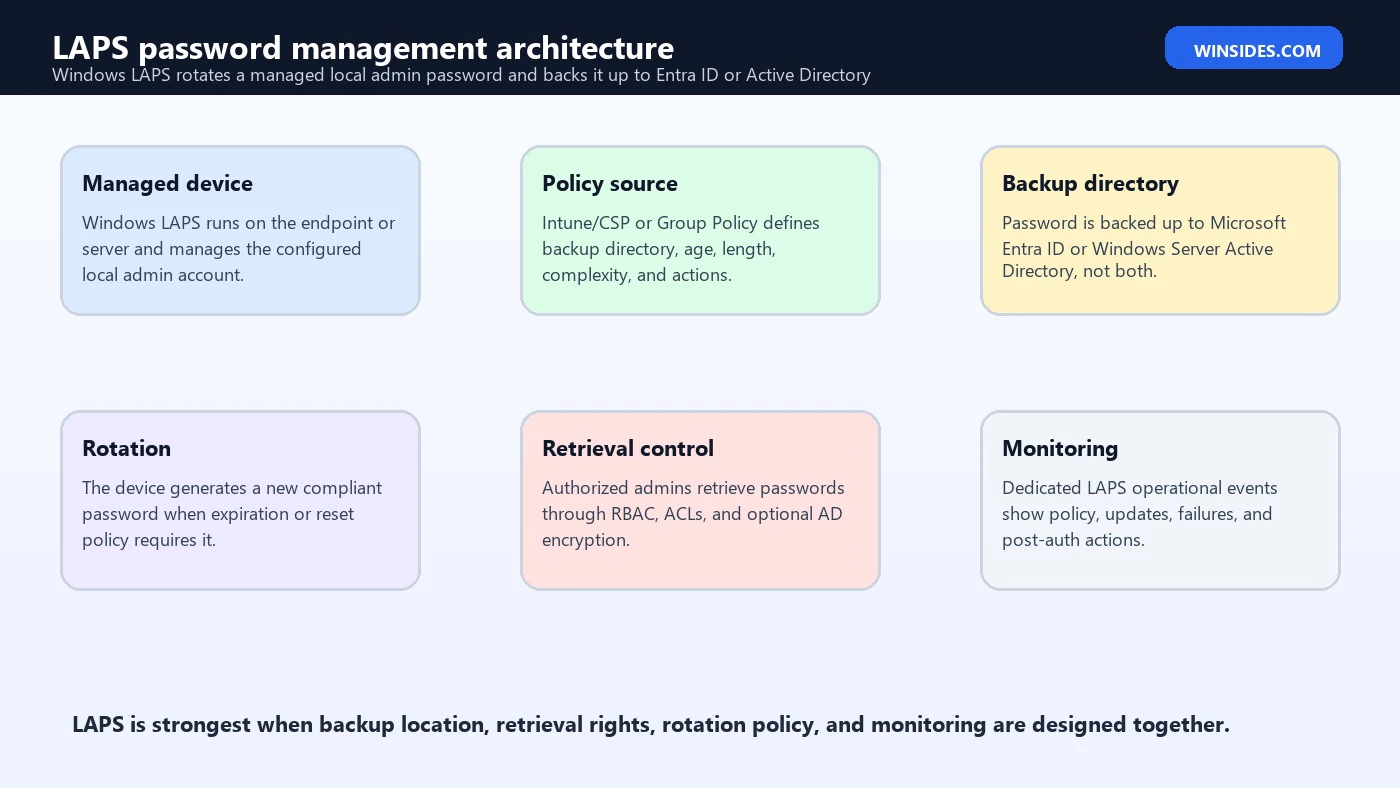
Windows LAPS manages the password for a local administrator account on a Windows device. The managed account can be the built-in Administrator account, a custom local administrator account, or in newer Windows versions, an automatically managed account depending on policy support. When policy is applied, the device generates a password that satisfies the configured requirements, stores it in the selected directory, and updates the local account. When the password expires or policy triggers rotation, the device generates a new one.
The password is not meant to be memorized, shared broadly, or reused across machines. An authorized administrator retrieves it only when needed for device recovery, help desk work, break-glass access, or local troubleshooting. After use, the password should be rotated according to policy. This changes the local admin password from a standing shared secret into a controlled, device-specific recovery credential.
Windows LAPS can also manage Directory Services Restore Mode passwords on Active Directory domain controllers. That is a specialized domain-controller scenario, but it follows the same principle: protect powerful local recovery credentials, store them securely, and make retrieval auditable and limited to authorized administrators.
Why LAPS Password Management Matters
Local administrator credentials remain important even in modern cloud-managed environments. Devices can lose network connectivity. Remote tools can fail. A machine may need recovery before domain or Entra sign-in works. Help desk technicians may need local elevation on a single device. Without LAPS, organizations often fall back to shared local admin passwords, disabled built-in accounts with unknown history, or undocumented break-glass practices. Those patterns create serious risk.
Microsoft lists several benefits of Windows LAPS, including protection against pass-the-hash and lateral traversal attacks, improved security for remote help desk scenarios, ability to sign in to and recover otherwise inaccessible devices, and security models for protecting stored passwords in Active Directory or Microsoft Entra ID. In practice, those benefits come from two controls working together: device-specific secrets and restricted retrieval.
If an attacker compromises one machine and obtains its local admin password, LAPS limits reuse because other machines have different passwords. If a help desk technician retrieves a password, the retrieval should be limited, logged, and followed by rotation. If an old shared password leaks, a properly managed LAPS deployment prevents it from being useful across the fleet.
Windows LAPS vs Legacy Microsoft LAPS
Microsoft released the older Microsoft LAPS product years before Windows LAPS became native to Windows. The older product used a separate installer and Active Directory schema/Group Policy model. Windows LAPS is a separate, built-in implementation available on supported Windows versions. Microsoft states that the legacy Microsoft LAPS product is deprecated as of Windows 11 23H2 and later, and that the legacy MSI package is blocked on newer OS versions. Microsoft recommends planning migration to Windows LAPS-capable systems.
Windows LAPS adds capabilities that legacy Microsoft LAPS did not provide, including backup to Microsoft Entra ID, optional password encryption in Windows Server Active Directory, password history storage, post-authentication actions, and deeper native Windows integration. It also has its own PowerShell module, CSP support, Group Policy support, and dedicated operational event log channel.
The practical guidance is straightforward: use Windows LAPS for modern Windows LAPS-capable systems. Do not install legacy Microsoft LAPS on new Windows 11 23H2 or later systems. If you still operate legacy deployments on older platforms, plan migration carefully, because policy overlap and account targeting must be understood before switching production devices.
Supported Platforms and Licensing
Microsoft documents Windows LAPS support for Windows 11 23H2 and later, and for other Windows 10 and Windows 11 client versions that received the April 11, 2023 update or later. Windows Server 2025 and later include Windows LAPS, and Windows Server 2019 and Windows Server 2022 are supported when they have the April 11, 2023 update or later. The exact platform matrix matters when you are planning deployment because older unpatched systems may not have the native Windows LAPS feature.
The Windows LAPS feature itself is available for free in supported Windows platforms. Microsoft documents that backing up passwords to Windows Server Active Directory has no additional licensing requirement. Backing up passwords to Microsoft Entra ID requires Microsoft Entra ID Free or higher, while other Entra-related or Intune-related features can have their own licensing requirements. For a real deployment, validate licensing against the management path you plan to use.
Policy settings introduced in newer releases also matter. For example, Microsoft documents automatic account management CSP settings as requiring Windows 11 24H2 or later, and policy-setting documentation marks several automatic account management options as supported only in Windows 11 24H2, Windows Server 2025, and later. Do not assume every LAPS feature is available on every LAPS-capable OS.
Choose the Backup Directory
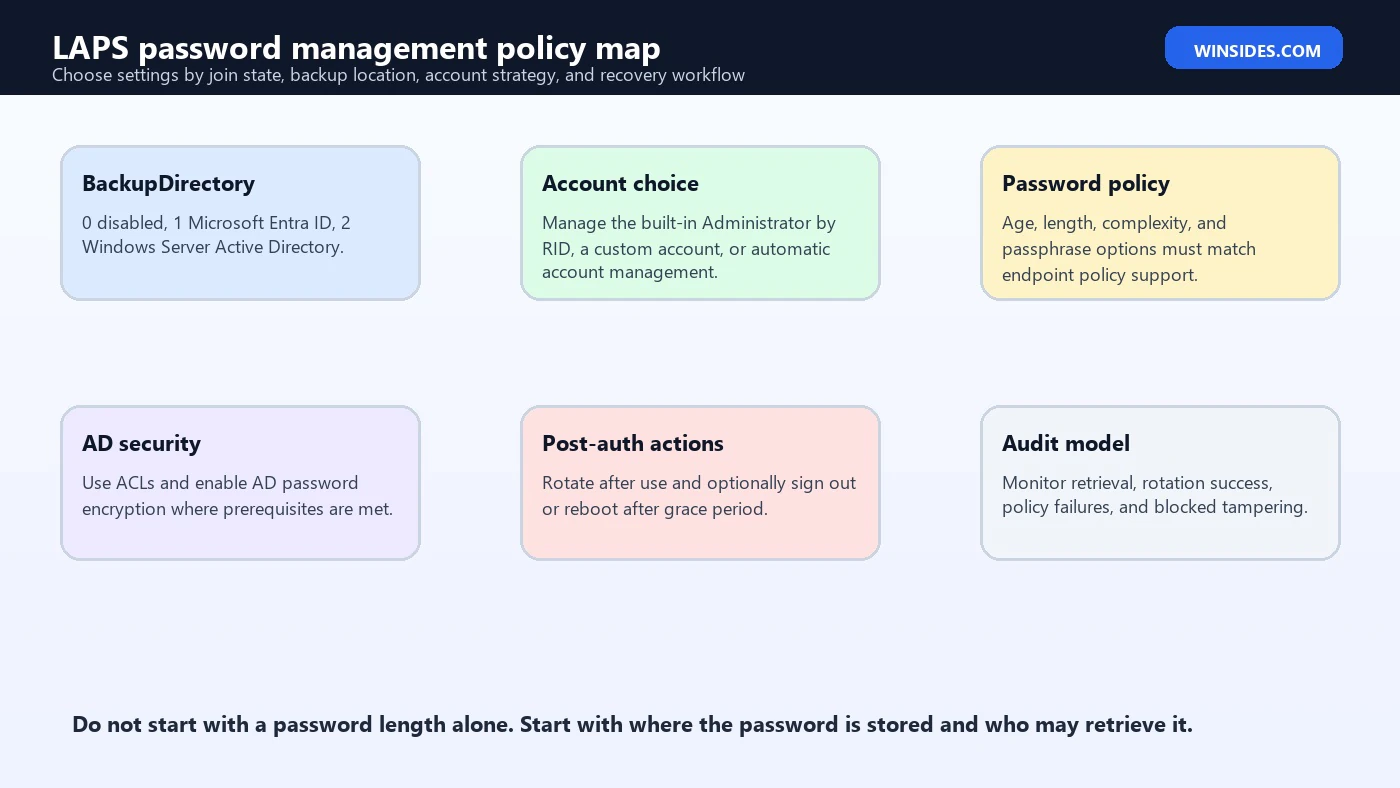
The backup directory is one of the first design decisions. Microsoft documents the BackupDirectory setting as the control that determines where the managed account password is backed up. Value 0 disables backup, value 1 backs up to Microsoft Entra ID, and value 2 backs up to Windows Server Active Directory. If the setting is not specified, it defaults to disabled. In production, disabled backup means the LAPS-managed password cannot be retrieved from the directory, so it is usually not the desired final state.
Device join state controls what is possible. Microsoft states that Microsoft Entra-joined-only devices can back up only to Microsoft Entra ID. Windows Server Active Directory-joined-only devices can back up only to Windows Server Active Directory. Hybrid-joined devices can back up to either Microsoft Entra ID or Windows Server Active Directory, but not both. Windows LAPS does not support Microsoft Entra workplace-joined clients.
For cloud-managed fleets, Entra backup with Intune policy is often the natural path. For traditional domain-joined servers and workstations, Active Directory backup through Group Policy may be simpler. For hybrid environments, choose deliberately. The decision affects retrieval permissions, auditing, help desk workflows, incident response, and recovery design.
Policy Settings That Matter Most
Windows LAPS has many policy settings, but several shape the deployment more than the rest. Start with backup location, managed account choice, password age, password length, complexity, encryption, password expiration protection, and post-authentication actions. A long password is useful, but it does not compensate for weak retrieval permissions or missing monitoring.
| Policy area | Microsoft setting example | Why it matters |
|---|---|---|
| Backup location | BackupDirectory | Controls whether the password is backed up to Entra ID, Active Directory, or disabled. |
| Managed account | AdministratorAccountName or automatic account management | Determines whether LAPS manages the built-in Administrator account or another account. |
| Password age | PasswordAgeDays | Controls maximum password age; default is 30 days, with Entra ID minimum documented as seven days. |
| Password length | PasswordLength | Controls length; Microsoft documents supported values from 8 to 64 characters. |
| Password format | PasswordComplexity or passphrase settings | Controls complexity or passphrase behavior depending on OS support. |
| AD encryption | ADPasswordEncryptionEnabled | Protects Active Directory-stored passwords with encryption when prerequisites are met. |
| After-use response | PostAuthenticationActions | Controls reset and sign-out/reboot behavior after the managed account authenticates. |
Microsoft warns that AdministratorAccountName should not be specified unless you want to manage an account other than the built-in local administrator account. The built-in Administrator is identified by its well-known relative identifier. If you configure a custom local administrator account, you must make sure the account exists; Windows LAPS does not create that custom account unless you are using the newer automatic account management feature where supported.
Password policy must also be compatible with the endpoint. Microsoft notes that configuring a password length incompatible with the devices local password policy can cause Windows LAPS to fail creating a compatible password. That is a good example of why LAPS should be tested on representative machines before broad deployment.
Built-In Administrator vs Custom Managed Account
One common design question is whether to manage the built-in Administrator account or a custom local administrator account. The built-in account has a stable RID and is easy for Windows LAPS to identify. A custom account can make operations more explicit, but it must exist on every target device unless automatic account management is supported and enabled. Custom account naming also creates documentation, provisioning, and exception-handling work.
The right answer depends on organizational policy. Some teams prefer the built-in Administrator account because it is predictable and does not rely on name matching. Others prefer a custom account because it separates managed emergency access from the built-in account name. On newer supported platforms, automatic account management can manage a built-in or new custom account and can randomize the account name suffix when configured. Microsoft documents these automatic account management settings as Windows 11 24H2, Windows Server 2025, and later features.
Whichever model you choose, do not leave unmanaged local admin accounts scattered across the fleet. LAPS manages the configured account. Other local administrators, vendor accounts, deployment leftovers, and manually created accounts still need inventory and control.
Active Directory Password Security
When Windows LAPS backs up passwords to Windows Server Active Directory, Microsoft documents two main protection mechanisms: ACLs and encrypted passwords. ACLs control which security principals can read or reset LAPS password-related attributes on computer objects. Encryption adds another layer by encrypting the password before it is stored so that only the configured principal can decrypt it. Microsoft strongly recommends enabling password encryption when storing Windows LAPS passwords in Active Directory.
The ACL model is sensitive. Permission to read LAPS passwords is effectively permission to become a local administrator on the managed devices. Permission to set password expiration time can force rotation and affect operations. Microsofts architecture documentation describes read and decrypt permissions as sensitive and recommends careful monitoring, with the most secure approach reserving high-sensitivity permissions for tightly controlled administrators.
If you use AD backup, design OU delegation carefully. Do not grant broad password-read rights to large help desk groups without considering device scope. A workstation support team may need access to workstation passwords but not server passwords. A server operations team may need access to specific server OUs. Domain controllers and DSRM scenarios require even tighter control. Treat LAPS retrieval as privileged access, not as a simple help desk convenience.
Microsoft Entra ID Password Security
When Windows LAPS backs up passwords to Microsoft Entra ID, Microsoft documents that the passwords are stored on the Microsoft Entra device object and secured through the Microsoft Entra role-based access control model. The managed device authenticates to Entra ID using its device identity, and Microsoft notes that password data is encrypted before being persisted and decrypted before being returned to authorized clients.
By default, Microsoft documents that Global Administrator, Cloud Device Administrator, and Intune Administrator roles can retrieve clear-text passwords. In a production environment, review who has those roles and whether separate delegated roles or workflows are appropriate. LAPS retrieval should be audited, limited, and connected to a support or recovery process. If too many people can retrieve local administrator passwords, the deployment loses much of its security value.
For Intune-managed fleets, align LAPS retrieval with help desk roles, device scope tags, incident response roles, and access reviews. Password retrieval should be possible when needed, but not casual. Every retrieval should have a reason and should trigger appropriate logging, especially for high-risk devices or privileged workstations.
Password Rotation and Policy Processing
Windows LAPS processes policy in the background. Microsoft documents that Windows LAPS uses a background task that wakes up every hour to process active policy. This is not a configurable Task Scheduler task. Windows LAPS responds to Group Policy Object change notifications, and administrators can manually start policy processing by forcing Group Policy refresh or by running the Invoke-LapsPolicyProcessing cmdlet, with Microsoft noting the cmdlet as the more scoped method.
When policy is active and the password expires, the device generates a new random password that complies with current length and complexity requirements. The device validates the new password, backs it up to the configured directory, computes the next expiration time, and updates the local account. You can also rotate before normal expiration by using methods such as Reset-LapsPassword, the CSP ResetPassword execute action, or modifying password expiration time in Active Directory scenarios.
Password age changes require care. Microsoft notes that changing the PasswordAgeDays policy setting does not change the current password expiration time and does not cause the managed device to initiate rotation by itself. If you need immediate rotation, use an explicit rotation method rather than assuming a policy value change will rotate every password immediately.
Post-Authentication Actions
Post-authentication actions are one of the most useful Windows LAPS improvements. They let the environment respond after the managed local administrator account is used. The policy can trigger password reset after a grace period and can also sign out or reboot depending on configuration. This reduces the time that a retrieved password remains useful after recovery or support work.
The policy design should match the operational need. A short grace period can improve security but may interrupt legitimate support. A longer grace period gives technicians time to complete work but leaves the password valid for longer. For servers, sign-out or reboot behavior must be planned carefully. For workstations, stronger post-authentication action may be acceptable. The best policy is one that support teams understand and security teams can verify through events.
Post-authentication actions also improve incident response. If a password is retrieved and used on a device, rotation after use prevents that same password from remaining valid indefinitely. That is the core LAPS principle: local administrator credentials should be recoverable, unique, controlled, and temporary.
Monitoring Windows LAPS Event Logs
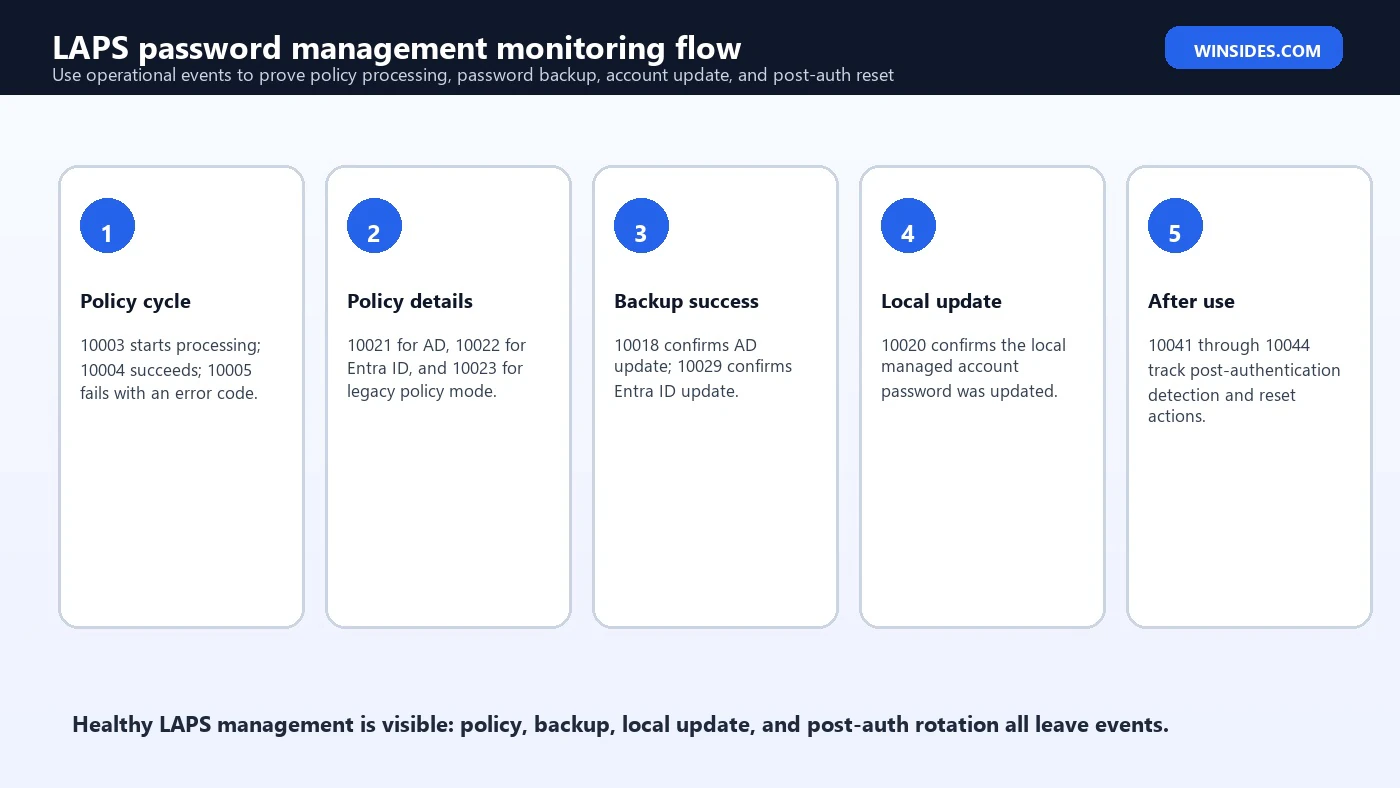
Microsoft documents a dedicated Windows LAPS operational event log channel at Applications and Services > Logs > Microsoft > Windows > LAPS > Operational. This log is essential for proving whether policy is applied, whether password backup succeeds, whether the local managed account was updated, and whether post-authentication actions are working. Do not deploy LAPS without collecting or at least checking this log on representative devices.
| Event | Meaning | Use |
|---|---|---|
| 10003 | Policy processing starts. | Marks the beginning of a LAPS processing cycle. |
| 10004 | Policy processing succeeds. | Confirms successful processing. |
| 10005 | Policy processing fails. | Use the error code and surrounding events to troubleshoot. |
| 10021 | Policy configured for Active Directory backup. | Shows AD policy configuration details. |
| 10022 | Policy configured for Entra ID backup. | Shows Entra policy configuration details. |
| 10018 | Password updated in Active Directory. | Confirms AD backup success. |
| 10029 | Password updated in Entra ID. | Confirms Entra backup success. |
| 10020 | Local admin account updated. | Confirms the local managed account password changed. |
| 10031 | External password modification blocked. | Signals tampering protection for the managed account. |
| 10041-10044 | Post-authentication flow. | Tracks detected use, grace period, reset, and action success or failure. |
Microsoft notes an important distinction: the Windows LAPS event log channel on an Active Directory domain controller contains events related to management of the local DSRM account if enabled, and not domain-joined client behaviors. If you are troubleshooting a workstation or member server, look at the client device event log or your central endpoint logging, not only the domain controller.
Deployment Workflow
A safe LAPS deployment starts with inventory and a small pilot. Identify which devices are Entra joined, AD joined, or hybrid joined. Confirm operating system support and patch level. Decide whether passwords will back up to Microsoft Entra ID or Windows Server Active Directory. Identify who can retrieve passwords and who can administer policy. Then test on a pilot group before deploying broadly.
- Inventory devices. Separate Entra-only, AD-only, hybrid, servers, workstations, privileged workstations, and domain controllers.
- Choose backup location. Use Entra ID or Active Directory according to join state and support workflow.
- Choose account model. Built-in Administrator, custom local admin, or automatic account management where supported.
- Set password policy. Configure age, length, complexity, and passphrase options supported by your OS versions.
- Lock down retrieval. Use Entra RBAC or AD ACLs, and enable AD encryption where possible.
- Pilot and verify. Confirm event logs, password backup, retrieval, rotation, and post-authentication actions.
- Expand gradually. Roll out by device group, OU, ring, or management scope while monitoring failures.
- Document support flow. Define who can retrieve, when they can retrieve, how they record purpose, and how rotation is verified.
Do not skip verification. A policy can appear assigned but fail on the device because of OS support, account mismatch, local password policy, directory permissions, AD schema preparation, Entra registration, or management conflicts. The LAPS operational event log is the first place to prove the client saw policy and completed the password update path.
Common Troubleshooting Scenarios
If LAPS is not rotating passwords, start with the event log. Look for policy processing events, policy configuration details, backup success or failure, and local account update events. If policy processing fails, the failure event and nearby policy events usually tell you whether the device is configured for the wrong backup location, cannot contact the directory, lacks permissions, cannot update the local account, or violates password policy.
If the password is not visible in Active Directory, check schema preparation, computer object permissions, ACLs, encryption prerequisites, and whether the device is actually configured for AD backup. If the password is not visible in Microsoft Entra ID, check device join state, policy assignment, Intune or CSP configuration, device registration health, and retrieval role permissions. Hybrid devices require special attention because they can use either Entra or AD backup, but not both at the same time.
If a custom administrator account is not being updated, confirm the account exists and that AdministratorAccountName is correct. If you intended to manage the built-in Administrator account, Microsoft recommends not setting AdministratorAccountName. If automatic account management is configured, confirm the OS supports it and the related settings are correctly assigned.
Security Monitoring Ideas
LAPS management should be monitored as privileged access. Password retrieval, policy failures, failed backups, repeated post-authentication actions, and blocked external password modification all deserve attention. A healthy deployment should produce predictable success events and a manageable number of failures. A sudden increase in failures can indicate policy rollout issues, directory permission problems, or endpoint health problems.
- Alert on repeated 10005 policy processing failures across many devices.
- Alert when 10031 shows blocked external password modification for the managed account.
- Track 10018 and 10029 success events to confirm AD or Entra backup is working.
- Track 10020 events to confirm local account password updates.
- Monitor post-authentication events 10041 through 10044 to verify rotation after use.
- Review password retrieval logs in Entra ID or Active Directory workflows according to your retrieval path.
- Monitor changes to LAPS policy, retrieval permissions, AD ACLs, Entra roles, and Intune assignments.
- Alert when high-risk devices have no recent successful LAPS processing event.
The retrieval side is just as important as the rotation side. If an attacker gains a role that can retrieve many LAPS passwords, the LAPS deployment can become a credential source. Review who has retrieval rights, how often they retrieve, from where, and for which devices. Privileged role reviews and just-in-time access are useful companions to LAPS.
Common Mistakes to Avoid
- Using one shared local admin password. This is the problem LAPS is designed to remove.
- Deploying without retrieval design. If too many people can read passwords, the deployment is weak. If nobody can retrieve them, recovery fails.
- Backing up to the wrong directory. Join state determines whether Entra ID, Active Directory, or either is valid.
- Assuming policy assignment means success. Confirm success through LAPS operational events and password retrieval tests.
- Managing a custom account that does not exist. Windows LAPS cannot update a missing custom account unless supported automatic account management is used.
- Skipping AD encryption. Microsoft strongly recommends enabling password encryption for AD-stored Windows LAPS passwords where prerequisites allow it.
- Ignoring post-authentication rotation. Retrieved passwords should not remain useful longer than necessary after use.
- Forgetting legacy migration. Legacy Microsoft LAPS and Windows LAPS policy overlap should be planned carefully before cutover.
Frequently Asked Questions
What is LAPS Password Management?
LAPS Password Management is the practice of using Windows LAPS to manage, rotate, back up, and protect local administrator passwords on Windows devices. It prevents the same local admin password from being reused across many systems.
What is Windows LAPS?
Windows LAPS is Microsofts modern built-in Local Administrator Password Solution. It can back up managed local administrator passwords to Microsoft Entra ID or Windows Server Active Directory on supported Windows versions.
Can Windows LAPS back up to both Entra ID and Active Directory?
No. Microsoft documents that hybrid-joined devices can back up to either Microsoft Entra ID or Windows Server Active Directory, but not both at the same time.
Does Windows LAPS create a custom local admin account automatically?
Only when using the newer automatic account management feature on supported OS versions. If you configure a custom administrator account with older account targeting settings, make sure that account already exists on the device.
Where are LAPS events stored?
Windows LAPS events are in Applications and Services Logs > Microsoft > Windows > LAPS > Operational. Microsoft documents events for policy start, success, failure, policy details, password updates, blocked password modification, and post-authentication actions.
Is legacy Microsoft LAPS still recommended?
Microsoft states that legacy Microsoft LAPS is deprecated on newer platforms such as Windows 11 23H2 and later. New deployments should use Windows LAPS on supported systems.
Who can retrieve LAPS passwords from Microsoft Entra ID?
Microsoft documents that Global Administrator, Cloud Device Administrator, and Intune Administrator can retrieve clear-text passwords by default. Organizations should review and restrict retrieval access according to least privilege.
Should every workstation and server use the same LAPS policy?
Usually no. Workstations, servers, privileged access workstations, and domain controllers can have different retrieval, rotation, post-authentication, and monitoring requirements. Use scoped policies that match device risk.
Conclusion: Make Local Admin Access Recoverable but Temporary
LAPS Password Management is one of the most practical Windows security controls because it fixes a real operational problem without eliminating recovery access. Administrators still need a way to recover machines, troubleshoot offline devices, and perform emergency local access. Windows LAPS makes that access unique per device, protected in a directory, limited to authorized retrievers, rotated by policy, and visible through events.
A strong deployment starts with the right backup directory, retrieval model, and account strategy. It then adds password policy, AD encryption or Entra RBAC, post-authentication actions, and operational monitoring. The result is not just a longer local administrator password. It is a controlled local access workflow that reduces password reuse, helps stop lateral movement, and gives support teams a safer recovery path.
For Microsoft references, use the official Windows LAPS overview, Windows LAPS concepts, policy settings, and event log documentation when planning or troubleshooting a deployment.
For more interesting articles, stay tuned to Winsides.com!









Community
Comments (0)