

Introduction to Shutting Down Service Group Policy Client
Seeing a message like shutting down service group policy client on Windows 11 can be confusing because the wording sounds like something is being turned off permanently. In most cases, it does not mean the Group Policy Client service is disabled or broken. It usually means Windows is in the middle of sign-out, restart, or shutdown work, and the Group Policy Client service, also known by the service name gpsvc, is stopping as part of the normal shutdown sequence.
The problem begins when that message stays on the screen for a long time, when shutdown becomes painfully slow, when the computer hangs on “Please wait for the Group Policy Client,” or when Event Viewer shows repeated Group Policy warnings and errors around the same time. At that point, the issue is rarely solved by trying to stop or disable the service. The safer path is to find out what the service was doing: applying computer policy, applying user policy, waiting on a domain controller, processing scripts, handling folder redirection, refreshing registry policy, reading SYSVOL, or waiting for a client-side extension to finish.
Microsoft’s Group Policy troubleshooting guidance is built around that same idea. It recommends reading Group Policy events in the System log, using the Group Policy Operational log, identifying the correct ActivityID for the processing instance, and using tools such as gpupdate and gpresult to refresh and verify policy. Microsofts Group Policy troubleshooting guidance This article turns that guidance into a Windows 11-focused troubleshooting workflow for the shutdown message and slow shutdown behavior.
The short version is simple: do not disable the Group Policy Client service. On domain-joined computers, it is responsible for applying administrator-configured policy to the computer and the signed-in user. If it is unhealthy, disabled, blocked from domain resources, or stuck behind a failing policy extension, you can get sign-in issues, shutdown delays, missing policy, security setting drift, mapped drive problems, folder redirection issues, or unreliable enterprise configuration. The fix is to repair the reason gpsvc is waiting, not to remove the service from the shutdown path.
Table of contents
Key Takeaways
- “Shutting down service Group Policy Client” is often normal during restart or shutdown. Windows stops services as part of the shutdown sequence, and gpsvc can appear in that flow.
- The message becomes important when shutdown hangs or repeats. A short message is not a failure. A delay, freeze, or repeated Event Viewer error needs investigation.
- Do not disable the Group Policy Client service. Disabling gpsvc can prevent user and computer policy from applying and can create larger domain management problems.
- Start with Event Viewer. Microsoft recommends reading Group Policy events in the System log and then using the Microsoft-Windows-GroupPolicy/Operational log for detailed processing phases.
- Use the ActivityID to follow one policy-processing instance. Group Policy generates different ActivityIDs for different refresh, sign-in, and processing events.
- Use gpresult to confirm what actually applied. It helps identify applied GPOs, denied GPOs, filtering, and policy result evidence.
- Use gpupdate for controlled refresh testing. Refreshing Group Policy can reproduce the issue without waiting for the next shutdown, but it also generates a new ActivityID.
- Common causes include domain connectivity, DNS, SYSVOL access, slow scripts, folder redirection, corrupted local policy cache, low resources, and pending restarts.
What the Group Policy Client Service Does
The Group Policy Client service is the Windows service that processes Group Policy settings for the computer and the signed-in user. Its service name is gpsvc. On a domain-joined Windows 11 computer, it helps Windows receive settings from Active Directory Group Policy Objects, apply local policy where relevant, enforce security options, process registry-based administrative templates, and hand work to Group Policy client-side extensions.
Those client-side extensions matter. Group Policy is not a single setting file. It can include security policy, registry policy, scripts, folder redirection, software installation, drive mappings, printers, scheduled tasks, environment variables, Internet Explorer maintenance legacy settings in older environments, and many Group Policy Preferences items. When Windows is signing in, signing out, restarting, or shutting down, some of those extensions may need foreground processing. If an extension waits for network resources, a domain controller, a script path, a redirected folder, or a slow file server, the visible symptom can look like the Group Policy Client service itself is the problem.
That is why the service name can mislead people. gpsvc is often the coordinator or messenger. The root cause may be DNS, a blocked LDAP port, an unreachable domain controller, SYSVOL replication delay, a script that no longer exists, a permission problem, a profile issue, a low-resource condition, or a Group Policy Object that applies in the wrong scope. Microsoft’s troubleshooting guidance repeatedly points administrators toward logs and processing phases because the service message alone is not enough evidence.
On a personal Windows 11 Home computer that is not domain-joined, you normally should not see the same enterprise policy behavior. On a Windows 11 Pro, Enterprise, Education, or domain-managed device, the service is much more central. It may also be active on hybrid joined, VPN-connected, or enterprise-managed laptops where policy refresh depends on domain connectivity.
Why It Appears During Shutdown
During shutdown, Windows stops applications, ends user sessions, processes sign-out work, stops services, writes final state, and powers off or restarts. Services that were running are asked to stop in an orderly way. The Group Policy Client service may be part of that sequence, especially if user policy, computer policy, scripts, or extensions need to complete foreground or shutdown-related work.
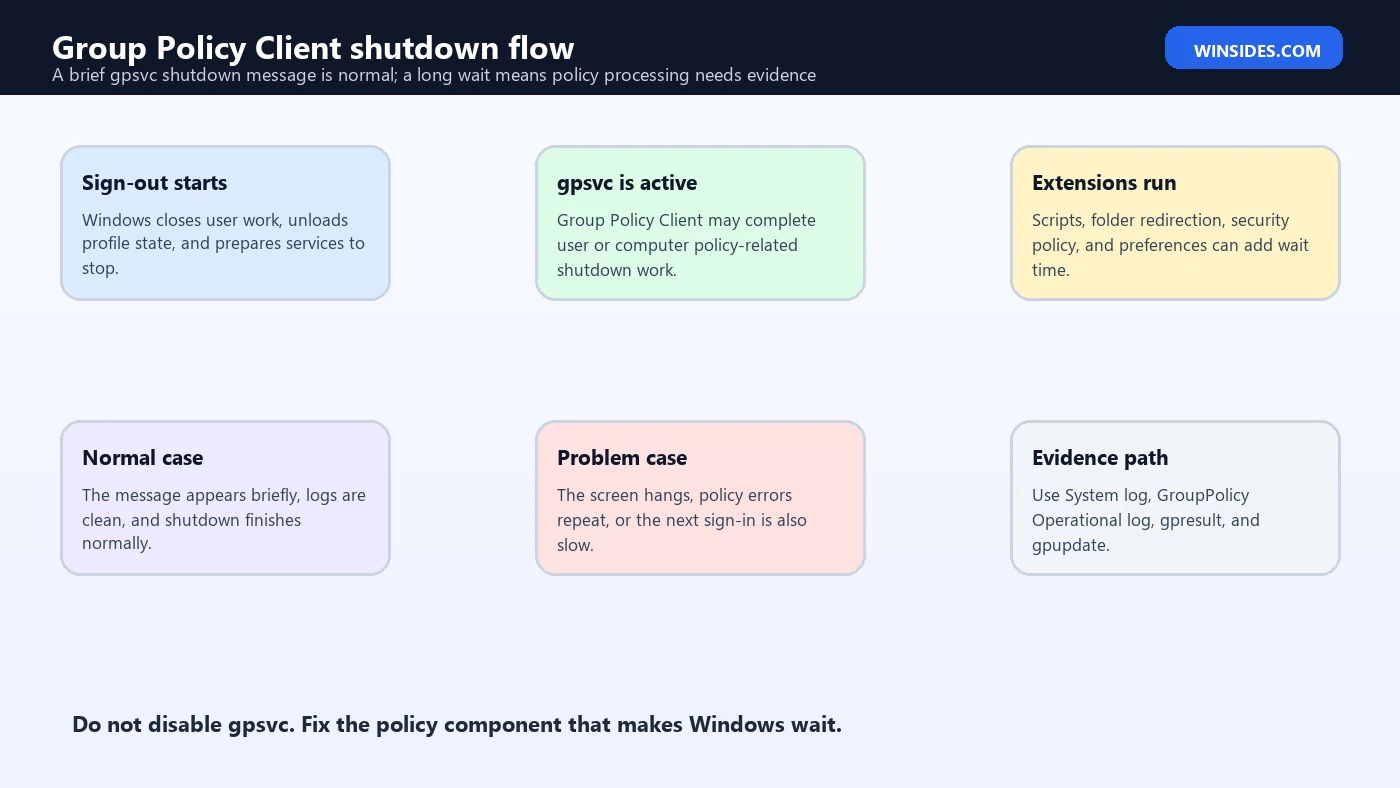
If the message appears briefly and the computer shuts down normally, there may be nothing to repair. A service entering a stopped state during shutdown is expected. The goal is not to prevent gpsvc from stopping during shutdown. The goal is to identify why Windows is waiting too long or why the service appears repeatedly in a failure pattern.
The more interesting symptoms are delays and loops: the shutdown screen sits for several minutes, the machine never finishes restarting, users see “Please wait for the Group Policy Client,” Event Viewer records repeated Group Policy warnings, or the next sign-in is slow after a forced power-off. Those symptoms suggest a processing delay or failure, not just a normal service stop.
The message can also be noticed after an update. Windows updates, security baseline changes, VPN changes, domain controller changes, or new GPO links can alter the amount of work Group Policy performs at the next restart. A slow shutdown after one policy change may be a clue that a newly linked GPO, script, folder redirection setting, or preference item is doing more than expected.
Normal Message vs Real Problem
Treat the message as normal when it appears briefly, the restart completes, Event Viewer does not show repeated Group Policy errors, users can sign in normally, and gpresult shows expected policy. In that case, Windows was likely only displaying a service shutdown step that happened to be visible for a moment.
Treat it as a problem when shutdown takes several minutes longer than normal, the machine hangs until forced off, the same device repeats the delay every restart, only domain users are affected, policy changes are not applying, a new GPO was linked shortly before the symptom started, or the System log contains Group Policy errors near the shutdown time.
Also treat it as a problem when the message appears with related sign-in issues. A computer that hangs on shutdown because policy cannot finish may also hang at the next sign-in because it is still trying to process user or computer policy. The phrase may change from “shutting down service group policy client” to “Please wait for the Group Policy Client,” but the investigation is similar: identify the policy processing instance, read the logs, and isolate the component that waited or failed.
Do not assume the service itself is corrupt just because its name appears on the screen. Windows often names the service that is waiting, not the underlying resource. A stuck mapped drive script may make Group Policy look slow. A domain controller DNS problem may make the service look unhealthy. A broken SYSVOL path may show up as a policy failure. Slow profile unloading may appear near the same time and confuse the timeline.
First Rule: Do Not Disable gpsvc
The Group Policy Client service is not a tweak target. Disabling it can break enterprise configuration, security enforcement, user policy, computer policy, and future troubleshooting. On domain-joined computers, administrators rely on this service to apply password policy, security baselines, firewall rules, certificates, audit policy, scripts, mapped resources, Windows Update settings, and many other controls.
Trying to stop gpsvc manually can also give misleading results. Some Windows services are protected, shared, trigger-started, or managed by the service control manager in ways that make manual stop/start experiments less useful than logs. Even if a command appears to change a service state, that does not prove the underlying policy pipeline is healthy.
Use service checks only for observation. Microsoft’s sc.exe query documentation states that the query command displays service information such as service name, type, state, exit codes, checkpoint, and wait hint. Microsofts sc.exe query command reference That is useful because it tells you whether gpsvc is running or stopped at a point in time. It does not tell you why a GPO failed or why shutdown is slow.
Useful observation commands include:
sc.exe query gpsvc
sc.exe queryex gpsvc
Do not change the service startup type as a “fix.” If the Group Policy Client service is disabled or damaged, restore the normal Windows service configuration through proper system repair, enterprise policy correction, or administrative recovery. The shutdown delay is a symptom; disabling the symptom reporter can leave the machine unmanaged.
Check the System Log First
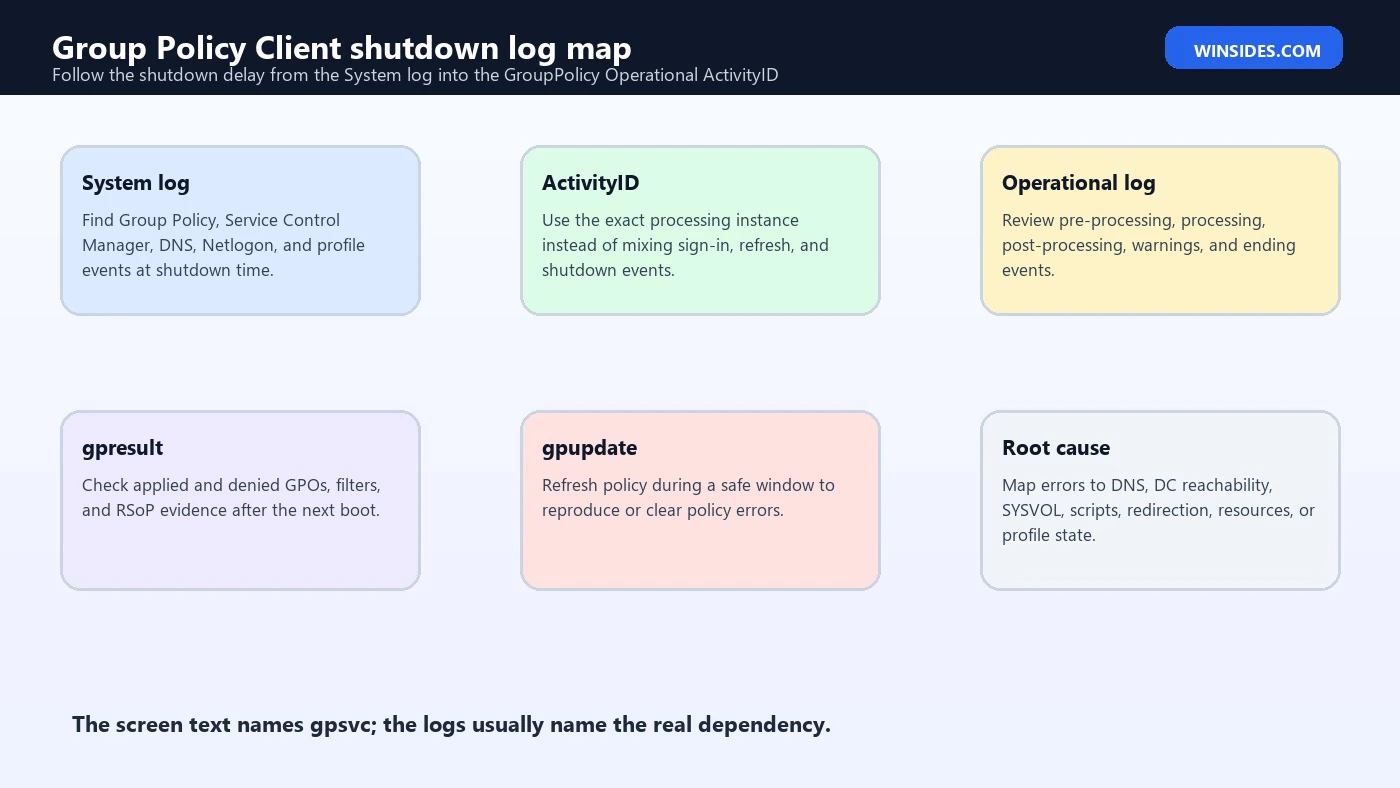
Microsoft recommends starting with Group Policy events in the System log. Warning events provide information to keep the service healthy, and error events describe failures and probable causes. The Details tab can include error codes, descriptions, the domain controller involved, the processing context, and other evidence.
Open Event Viewer, go to Windows Logs, then System, and filter around the shutdown or restart time. Look for Group Policy, Service Control Manager, User Profile Service, Winlogon, DNS Client, Netlogon, and related events. If the shutdown hang happens at 6:10 PM, do not read random policy events from the morning. Build a tight timeline around the delay.
Common Group Policy System events include failures to connect to a domain controller, read policy files, authenticate to Active Directory, resolve user or computer names, or access SYSVOL. Microsoft’s guidance lists examples such as Event ID 1129 for lack of network connectivity to a domain controller, Event ID 1002 for low-resource policy processing failure, Event ID 1006 for Active Directory authentication failure, Event ID 1030 for failure retrieving new Group Policy settings, Event ID 1058 for failure reading a policy file, Event ID 1053 for name resolution or account resolution problems, and Event ID 1097 for failure determining the computer account.
Those events are more useful than the shutdown screen text. The screen may only say Group Policy Client. The System log may say the computer could not read a specific gpt.ini, could not reach LDAP, had access denied to a policy path, lacked resources, or could not contact the domain.
Use the GroupPolicy Operational Log
The detailed log lives under Applications and Services Logs, Microsoft, Windows, GroupPolicy, Operational. Microsoft recommends using this log to identify the ActivityID of the policy-processing instance, divide the log into phases, and consolidate starting events with their matching ending events. That process matters because one computer can have multiple Group Policy processing instances, especially during startup, sign-in, background refresh, and remote or terminal sessions.
The ActivityID is the thread that lets you follow one instance from beginning to end. Microsoft notes that the Group Policy service assigns a unique ActivityID for each instance of policy processing. User sign-in, user policy refresh, and other processing moments can have different ActivityIDs. If you mix them together, you may blame the wrong policy event for the shutdown delay.
In Event Viewer, start with the System event that matches the delay, open the Details tab, and find the ActivityID. Then use the GroupPolicy Operational log to filter around that ActivityID. Microsoft’s guidance shows an XML query pattern for filtering the operational log by ActivityID. That is powerful when the log contains many unrelated policy events.
If you prefer command-line collection, wevtutil can query event logs. Microsoft documents it as a tool to retrieve information about event logs and publishers, install and uninstall manifests, run queries, export, archive, and clear logs. Microsofts wevtutil command reference Use it for collection, not guesswork. For example:
wevtutil qe Microsoft-Windows-GroupPolicy/Operational /f:text /c:30 /rd:trueThat command shows recent Group Policy operational events in text form. For a real investigation, export or filter the log around the exact time and ActivityID.
Run gpresult After the Computer Boots
After the machine finishes booting, use gpresult to see the Resultant Set of Policy. Microsoft documents gpresult as a command that displays RSoP information for a remote user and computer. Microsofts gpresult command reference For this issue, the HTML report is usually easiest to read because it shows applied GPOs, denied GPOs, WMI filters, security filtering, and user/computer sections.
Run:
gpresult /h C:Tempgpsvc-shutdown.html /f
gpresult /scope computer /r
gpresult /scope user /r
If the report shows an expected GPO is denied, inspect the reason. It may be security filtering, WMI filtering, disabled computer or user configuration, slow link behavior, loopback processing, or missing permissions. If the report shows errors, use those errors to guide the investigation. Microsoft’s Group Policy guidance specifically says to verify gpresult output and look for the affected GPO because it can show why the GPO is not getting applied.
Do not run gpresult as the wrong user and assume it represents the affected session. User policy depends on the user. Computer policy depends on the computer. If only one user experiences the shutdown delay, capture evidence from that user session when possible. If every user on the machine is affected, focus more heavily on computer policy, domain connectivity, scripts, services, and system state.
Test With gpupdate Carefully
gpupdate refreshes Group Policy. Microsoft documents options such as /target, /force, /wait, /logoff, /boot, and /sync. Microsofts gpupdate command reference It is useful because you can reproduce or clear policy errors without waiting for the next scheduled background refresh or shutdown.
Use:
gpupdate /force
gpupdate /target:computer /force
gpupdate /target:user /force
If gpupdate /force hangs, errors, asks for logoff, asks for restart, or takes much longer than expected, that is evidence. It suggests the shutdown delay may be part of a broader Group Policy processing problem. Read the console output, then check System and GroupPolicy Operational logs immediately after the command.
Remember Microsoft’s ActivityID warning: refreshing Group Policy changes the ActivityID in the custom view. If you run gpupdate, update your ActivityID filter. Otherwise, you may keep staring at old events while the current failure is in a different processing instance.
Use /boot and /logoff only when needed and during a safe window. Some policy extensions require logoff or restart to apply. If gpupdate tells you a restart is required, schedule it deliberately. Do not force restarts on active users during production troubleshooting.
Common Cause: Domain Controller Connectivity
Domain-joined computers need network connectivity and name resolution to domain controllers for many Group Policy operations. Microsoft’s Event ID 1129 example describes Group Policy failing because of lack of network connectivity to a domain controller. The guidance discusses LDAP connectivity, site-level LDAP queries, name resolution, and TCP handshake failure to port 389 in one troubleshooting path.
For Windows 11 laptops, this often appears with VPN timing. A user shuts down while offsite, policy tries to complete work, the VPN disconnects too early, or the computer cannot reach the domain controller. At the next startup, the same laptop may process cached credentials quickly but struggle with domain policy until VPN connectivity is restored. If your organization uses Always On VPN, pre-logon VPN, or device tunnels, verify the timing.
DNS is another frequent cause. Group Policy depends heavily on locating domain controllers and SYSVOL paths. If the client uses a public DNS server, a stale VPN DNS adapter, a wrong suffix, or broken site DNS records, Group Policy can stall or fail. Microsoft’s guidance for timeout and name resolution issues points administrators toward DNS checks such as confirming LDAP SRV records.
Basic checks include:
ipconfig /all
nltest /dsgetdc:yourdomain.example
nslookup -type=SRV _ldap._tcp.dc._msdcs.yourdomain.example
Replace the domain name with your actual Active Directory domain. These commands are diagnostic. The fix may be DNS adapter order, VPN DNS configuration, domain controller availability, firewall rules, or AD site/subnet configuration.
Common Cause: SYSVOL or GPO File Access
Event ID 1058 is one of the classic Group Policy file access problems. Microsoft’s guidance describes failures where Windows attempted to read a policy file from a domain controller and could not. The cause may be name resolution, network connectivity, replication latency, or DFS client problems. The event details can include the domain controller and path involved.
During shutdown or policy refresh, Windows may need to read GPO files from SYSVOL. If a GPO points to a missing script, a replicated file has not arrived on the domain controller being used, or the computer cannot access \domainSYSVOL, policy processing can wait or fail.
Check the exact path from the event. Do not test a similar path on a different domain controller and call it done. Microsoft’s guidance says to identify the domain controller used by the computer, compose the full path to gpt.ini, and verify access using the credentials that failed. That last part matters because an administrator account may read a path that the affected user or computer account cannot.
Useful checks include:
dir \yourdomain.exampleSYSVOL
dir \dcnameSYSVOLyourdomain.examplePolicies
If only one domain controller fails, investigate replication, DFSR health, SYSVOL availability, and domain controller connectivity. If all domain controllers fail, investigate client network, DNS, firewall, or permissions.
Common Cause: Slow Shutdown Scripts
Shutdown scripts are a direct reason Group Policy can appear during shutdown. If a computer-scoped shutdown script copies files, writes logs to a network share, calls a remote server, waits on a missing executable, or hangs because of a prompt, Windows may wait for that script. The visible shutdown message may mention Group Policy Client because the script is part of policy processing.
Check GPOs linked to the computer OU for startup and shutdown scripts. Look for scripts that rely on mapped drives, interactive prompts, unreachable file servers, old server names, missing executables, or slow package installers. A script that worked on office Ethernet may hang on VPN or Wi-Fi. A script that worked for Windows 10 may behave differently after a Windows 11 security baseline change.
Avoid using shutdown scripts for long-running maintenance if a scheduled task, Configuration Manager deployment, Intune remediation, or management agent job would be more reliable. Shutdown is a fragile time to perform network-heavy work because users are waiting, network adapters may be changing state, and other services are stopping.
If you find a shutdown script, test it manually in the same context and from the same network location. Then check whether it logs start and end times. A script with no logging is hard to defend in a shutdown path. At minimum, log the hostname, timestamp, script version, exit code, and target server.
Common Cause: Folder Redirection and Offline Files
Folder redirection and Offline Files can also create Group Policy delays during sign-in, sign-out, or shutdown. If Documents, Desktop, AppData, or other folders are redirected to a file server that is slow, offline, or permission-blocked, user policy may take longer to complete. Users may describe the symptom as Windows being stuck on Group Policy Client even though the real wait is redirected data or policy extension processing.
Check whether the affected users have redirected folders. Compare a user with the delay to a user without the delay. If only users in one OU or security group are affected, inspect the folder redirection GPO and the file server path. Confirm permissions, availability, DFS referrals, quotas, offline file sync state, and recent file server changes.
Do not immediately remove folder redirection from a production user to “test.” That can move or orphan data if done incorrectly. Instead, collect logs, test with a pilot user, and plan changes carefully. Folder redirection is user data infrastructure, not just a logon setting.
If the delay began after a file server migration, DFS namespace change, or permission cleanup, focus there. The Group Policy Client may be waiting because the policy extension is trying to reconcile redirected paths with the new file server state.
Common Cause: Corrupt Local Policy Cache
Sometimes the domain is healthy but the local machine is not. Local policy cache, registry policy files, WMI repository health, disk problems, system file damage, or profile corruption can make policy processing unreliable. The machine may process policy slowly, hang at shutdown, or show inconsistent gpresult output.
Start with non-destructive checks. Confirm free disk space, memory pressure, Event Viewer disk errors, Windows Update state, and pending restarts. Microsoft’s Group Policy guidance lists Event ID 1002 as a low-resource policy processing failure and suggests checking memory and available disk space and restarting if the machine has been running for an extended period.
Then use Windows repair tools when system integrity is suspect:
DISM /Online /Cleanup-Image /RestoreHealth
sfc /scannow
These commands do not diagnose every Group Policy problem, but they are safer than registry surgery when Windows components or files may be damaged. If only one user is affected, also consider user profile repair. If every user on one computer is affected, computer-level policy cache, service state, disk health, or domain trust issues are more likely.
Common Cause: Low Resources or Pending Restart
A Windows 11 computer that is low on memory, storage, or system resources may fail or delay Group Policy processing. Microsoft’s Event ID 1002 description says processing failed because of a system allocation failure and advises ensuring the computer is not low on memory or disk space. That is plain but important. A full system drive can make almost any Windows service look broken.
Check free space on the system drive, page file configuration, memory pressure, and whether the computer has been running for weeks without restart. Also check for pending updates, stuck servicing operations, or installation tasks waiting for reboot. If Windows is trying to finish updates, close applications, unload profiles, and process Group Policy at the same shutdown, the visible delay may not have one single cause.
Avoid hard power-offs except when the machine is truly stuck. Repeated forced shutdowns can make the next boot slower, create file-system repair work, and leave policy or update state inconsistent. If a machine is frequently stuck, capture logs after the next boot and fix the root cause rather than normalizing forced shutdown as the daily workaround.
Enterprise Checks for Administrators
For domain administrators, the investigation should include both client and domain sides. On the client, collect System events, GroupPolicy Operational events, gpresult HTML, service state, and the exact shutdown time. On the domain side, inspect the GPO links, security filtering, WMI filters, delegation, script paths, SYSVOL health, DFSR state, domain controller availability, and AD site/subnet mapping.
Look for recent changes. A new GPO link, a changed WMI filter, a moved computer account, a domain controller patch, a DFS namespace change, a VPN client update, a firewall rule change, or a file server migration can all land near the same symptom. The fastest fix often comes from connecting the symptom timeline to the change timeline.
Use small test groups. If one new GPO caused shutdown delays, unlink it from a test OU first, not from the whole domain without understanding impact. If a shutdown script is suspected, disable that script in a pilot copy of the GPO and test a representative device. Preserve evidence before changing too much because once the symptom disappears, you still need to explain which change fixed it.
For recurring user complaints, create a standard collection package: gpresult HTML, exported System log, exported GroupPolicy Operational log, list of applied GPOs, affected user, computer name, OU paths, network location, VPN state, and time of shutdown. That turns “my laptop is stuck” into a repeatable troubleshooting case.
Safe Repair Order
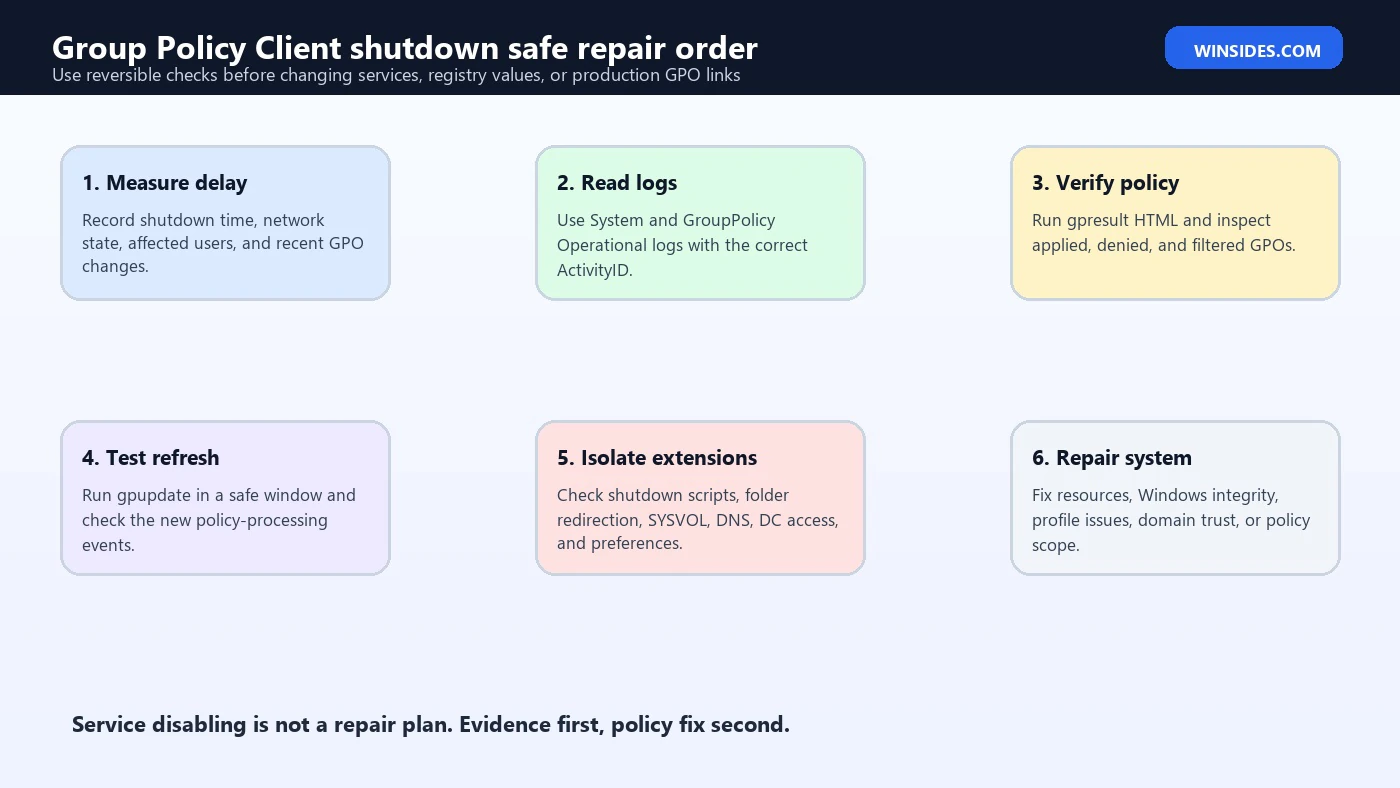
Start with observation. Confirm whether the message is brief or truly stuck. Record how long shutdown takes, whether it happens on restart and shutdown, whether it affects one user or all users, whether the computer is domain-joined, and whether it is on corporate network, VPN, or offline.
Next, read logs. Check the System log for Group Policy errors around the shutdown time. Open the GroupPolicy Operational log and identify the correct ActivityID. If the logs point to a domain controller, SYSVOL path, access denied code, name resolution failure, or low-resource event, follow that lead first.
Then refresh and verify. Run gpupdate /force during a safe window and capture the output. Run gpresult /h and read applied and denied GPOs. If policy refresh reproduces the delay, you have a live troubleshooting path that does not require repeatedly shutting down the machine.
Then isolate policy extensions. Check shutdown scripts, startup scripts, folder redirection, drive mappings, printers, software installation, and Group Policy Preferences items. Disable or edit only in a controlled test scope. Do not randomly unlink production GPOs.
Then repair the local system. Check disk space, restart cleanly, install updates, run DISM and SFC when system integrity is suspect, and repair the user profile if only one profile is affected. If the machine has domain trust problems, DNS problems, or broken secure channel symptoms, handle those with standard domain repair procedures.
Finally, document the fix. If the cause was a dead script path, stale domain controller, broken DFS referral, or folder redirection permission, record it. The next time the same shutdown message appears, you want a known diagnostic path instead of another round of guesswork.
What Not to Do
Do not disable the Group Policy Client service. That can leave the computer outside expected management and security policy.
Do not delete random registry keys because a forum post said gpsvc is stuck. Microsoft’s own guidance warns that registry changes can cause serious problems if done incorrectly. If you enable GPSvc debug logging, do it carefully, back up the registry, and remove the debug setting when finished.
Do not assume shutdown /f is a fix. Microsoft’s shutdown command documentation notes that /f forces running applications to close and warns that it can result in loss of unsaved data. Microsofts shutdown command reference It may get a stuck system powered off, but it does not repair Group Policy processing.
Do not blame the newest Windows update without checking policy logs. Updates can trigger new timing, but Group Policy delays are often caused by domain, script, SYSVOL, or policy extension issues that were already present.
Do not troubleshoot only from the domain controller. The affected Windows 11 client has the exact logs for what it tried, which domain controller it used, which ActivityID failed, and what error code was returned.
Frequently Asked Questions
What does shutting down service group policy client mean?
It usually means Windows is stopping the Group Policy Client service as part of shutdown or restart. If it appears briefly, it can be normal. If Windows hangs there, investigate Group Policy processing, domain connectivity, scripts, logs, and client-side extensions.
Is the Group Policy Client service the same as gpsvc?
Yes. The service display name is Group Policy Client, and the service name is gpsvc.
Should I disable gpsvc to make shutdown faster?
No. Disabling the Group Policy Client service can prevent policy from applying and can break enterprise management. Fix the slow policy component instead.
Why is Windows 11 stuck on Group Policy Client during shutdown?
Common causes include slow or failed Group Policy processing, domain controller connectivity problems, DNS issues, inaccessible SYSVOL paths, slow shutdown scripts, folder redirection delays, low resources, pending restarts, or corrupted local policy state.
Which log should I check first?
Start with Windows Logs, System, around the shutdown time. Then check Applications and Services Logs, Microsoft, Windows, GroupPolicy, Operational for detailed Group Policy processing events.
What is the ActivityID in Group Policy logs?
It is an identifier assigned to a specific Group Policy processing instance. Microsoft recommends using it to filter the operational log so you follow the correct sign-in, refresh, or shutdown-related processing sequence.
Which command shows applied Group Policy?
Use gpresult /h C:Tempreport.html /f for an HTML report. It shows Resultant Set of Policy details, including applied and denied GPOs.
Can gpupdate help troubleshoot this?
Yes. gpupdate /force can refresh policy and reproduce errors while the computer is running. Check the new ActivityID and logs after running it.
Could a shutdown script cause this message?
Yes. Computer shutdown scripts are processed through Group Policy. A slow, missing, interactive, or network-dependent script can make shutdown wait on Group Policy Client.
Is this only a domain computer problem?
It is most common and most meaningful on domain-joined or enterprise-managed computers. Non-domain personal Windows 11 devices can still have local policy, but they normally do not depend on Active Directory Group Policy processing.
Conclusion: Fix the Policy Wait, Not the Service Name
The phrase shutting down service group policy client is not automatically a Windows 11 disaster. A brief message during restart or shutdown can be normal service shutdown behavior. The real warning sign is delay: repeated hangs, long shutdowns, policy errors, slow sign-ins, or Event Viewer messages that show Group Policy could not finish its work.
The safest fix is evidence-led. Start with the System log, follow the correct ActivityID into the GroupPolicy Operational log, use gpresult to confirm applied and denied GPOs, and use gpupdate to test policy refresh. Then check the likely causes: domain controller connectivity, DNS, SYSVOL access, scripts, folder redirection, low resources, pending restarts, local system health, and recent GPO changes.
The Group Policy Client service should stay healthy and enabled. It is the mechanism Windows uses to receive enterprise configuration, not a background annoyance to remove. Once you repair the policy path that is making shutdown wait, the shutdown message usually returns to being what it should be: a brief, normal part of Windows closing down cleanly.
For more interesting articles, stay tuned to Winsides.com!









Community
Comments (0)