

Introduction to Deploying Configuration Manager Clients Using Group Policy
Deploying Configuration Manager clients using group policy is a practical way to install the Microsoft Configuration Manager client on domain-joined Windows computers without relying on client push, user logon scripts, or manual visits to each device. It is especially useful when a Windows 11 fleet is already organized in Active Directory, when new computers should receive the client at startup, or when administrators want a deployment path that does not require a client push account with local administrator access on every target computer.
The key is understanding what Group Policy can and cannot do in this scenario. Microsoft documents Group Policy installation as a supported Windows client installation method for Configuration Manager, but it is not the same as running a custom CCMSetup.exe command line from a script. Group Policy software installation uses the Windows Installer package CCMSetup.msi, which lives in the Configuration Manager installation directory under bini386. Microsoft also notes that you cannot add properties directly to that MSI to change installation behavior. That is why client installation properties must come from Active Directory publishing, a Configuration Manager administrative template, or another approved provisioning path rather than from a modified MSI package. Microsofts Windows client deployment guidance for Configuration Manager
This article focuses on the safe enterprise workflow: prepare the site, confirm client prerequisites, decide how the client will discover installation properties, publish or assign the MSI through a computer-scoped Group Policy Object, and then verify the result with Group Policy and Configuration Manager logs. The article also covers the situations where software update-based installation may be a better fit, because Microsoft recommends that method for many Active Directory environments when WSUS and the software update point are already in place. Microsofts Configuration Manager client installation methods
The most important mindset is this: Group Policy is the delivery mechanism, not the whole client assignment strategy. The client still needs to find the right site code, management point, distribution point or management point source, boundaries, certificates where applicable, and fallback status point if you use one. A clean GPO can still produce a failed deployment if the client cannot reach the source files, if installation properties are missing, if the Windows Installer policy never applies, or if the device has a pending restart or prerequisite problem. That is why a phased rollout with clear verification is safer than linking the GPO to every workstation OU at once.
Table of contents
Key Takeaways
- Deploying Configuration Manager clients using group policy is supported for Windows clients. It can install or upgrade the client without discovering the computer first and without maintaining a client push installation account.
- Group Policy software installation uses CCMSetup.msi. Microsoft places this package in the Configuration Manager installation directory under bini386, and it is the MSI used for Group Policy-based installation.
- You cannot customize CCMSetup.msi by adding properties to it. If installation behavior needs site code, management point, fallback status point, or other settings, those properties must come from Active Directory publishing or provisioned client installation settings.
- If the Active Directory schema is extended and the site is published, clients can automatically read installation properties from AD DS. This reduces manual typing errors and keeps the GPO simpler.
- If the schema is not extended, use the ConfigMgrInstallation.adm template to provision installation properties. Microsoft supplies that administrative template on the Configuration Manager installation media.
- The GPO should target computers, not users. Computer startup processing is what installs assigned software before normal user work begins.
- Large rollouts can create network traffic. Staging by OU, security group, WMI filter, or phased link order protects distribution points, management points, WAN links, and users.
- Verification needs both Group Policy and Configuration Manager evidence. Use gpresult, Event Viewer, ccmsetup.log, client assignment state, and console reports rather than relying on the presence of the GPO alone.
Where Group Policy Fits in Configuration Manager Client Deployment
Configuration Manager provides several client installation methods. Microsoft lists client push, software update point-based installation, Group Policy installation, logon script installation, manual installation, Intune MDM installation, package/program deployment for upgrades, operating system image installation, workgroup installation, and internet-based installation paths. Each method solves a different operational problem. Group Policy is not the newest or flashiest method, but it remains valuable in classic Active Directory environments because computers can receive the install at startup based on OU placement, group filtering, and normal Group Policy processing.
The most direct Group Policy method is software installation through a computer-scoped GPO. You publish or assign the Configuration Manager client installer package to computers, and Windows Installer runs during startup processing. For a domain-joined Windows 11 workstation in a managed OU, that can be predictable and auditable. You do not need Configuration Manager discovery to find the computer first, and you do not need to store a push account that has local administrator rights on the endpoint.
Group Policy deployment is also useful when you want to bootstrap the Configuration Manager client before the device is fully managed by Configuration Manager. That sounds obvious, but it is an important distinction. You cannot deploy a package through Configuration Manager to a device that does not yet have a working client. Group Policy can be the bridge that gets the client installed so Configuration Manager can take over software updates, application deployment, compliance settings, inventory, endpoint protection integrations, and client health evaluation.
The tradeoff is that Group Policy is not as dynamic as some Configuration Manager-native methods. If a large number of computers process the GPO at the same time, they may all try to download client files in the same window. Microsoft explicitly calls out high network traffic as a disadvantage of Group Policy installation when many clients are installed. The solution is not to avoid Group Policy altogether. The solution is to scope and stage the GPO so the rollout behaves like a deployment plan instead of a surprise flood.
Group Policy Installation vs Software Update-Based Installation
Before building the GPO, decide whether you actually mean Group Policy software installation or software update-based installation. Microsoft describes both methods near each other because they can both involve Group Policy, but they are not the same workflow.
In Group Policy installation, the GPO publishes or assigns the Configuration Manager client by using CCMSetup.msi. The client installs when the computer starts, and users may also see the client listed in Add or Remove Programs depending on how it is assigned or published. This is the method administrators usually mean when they say they want to deploy the ConfigMgr client with Group Policy.
In software update point-based installation, the Configuration Manager client is published to the software update point as a software update. For computers without the client, you configure a GPO that points Windows Update to the intranet software update point. Microsoft notes that this method can automatically install the client on new computers when WSUS and Group Policy settings are correctly configured. It can also reinstall the client if it is removed. However, it depends on a functioning software update infrastructure, and it must use the same server for client installation and software updates. Microsofts Windows client deployment guidance for Configuration Manager
For many Active Directory environments, Microsoft’s client deployment recommendations favor software update-based installation because it uses existing Windows technologies, integrates with Active Directory, is easier to configure for firewalls, and is described as the most secure among the compared options. That does not make Group Policy software installation wrong. It means you should choose deliberately. If you already have a healthy software update point deployment path, that may be cleaner. If you need a straightforward computer-startup MSI assignment, the Group Policy installation method may fit better.
What CCMSetup.msi Actually Does
The Configuration Manager client installation process can be confusing because several similar names appear: CCMSetup.exe, CCMSetup.msi, and Client.msi. They are not interchangeable.
For manual installations, Microsoft documents CCMSetup.exe as the command used to install the Configuration Manager client. The executable downloads needed files, including Client.msi, prerequisites, and updates or fixes for the Configuration Manager client. Microsoft is very clear that you cannot directly install Client.msi. The supported command-line path is CCMSetup.exe, with setup parameters first and client MSI properties after those parameters. Microsofts client installation parameters and properties reference
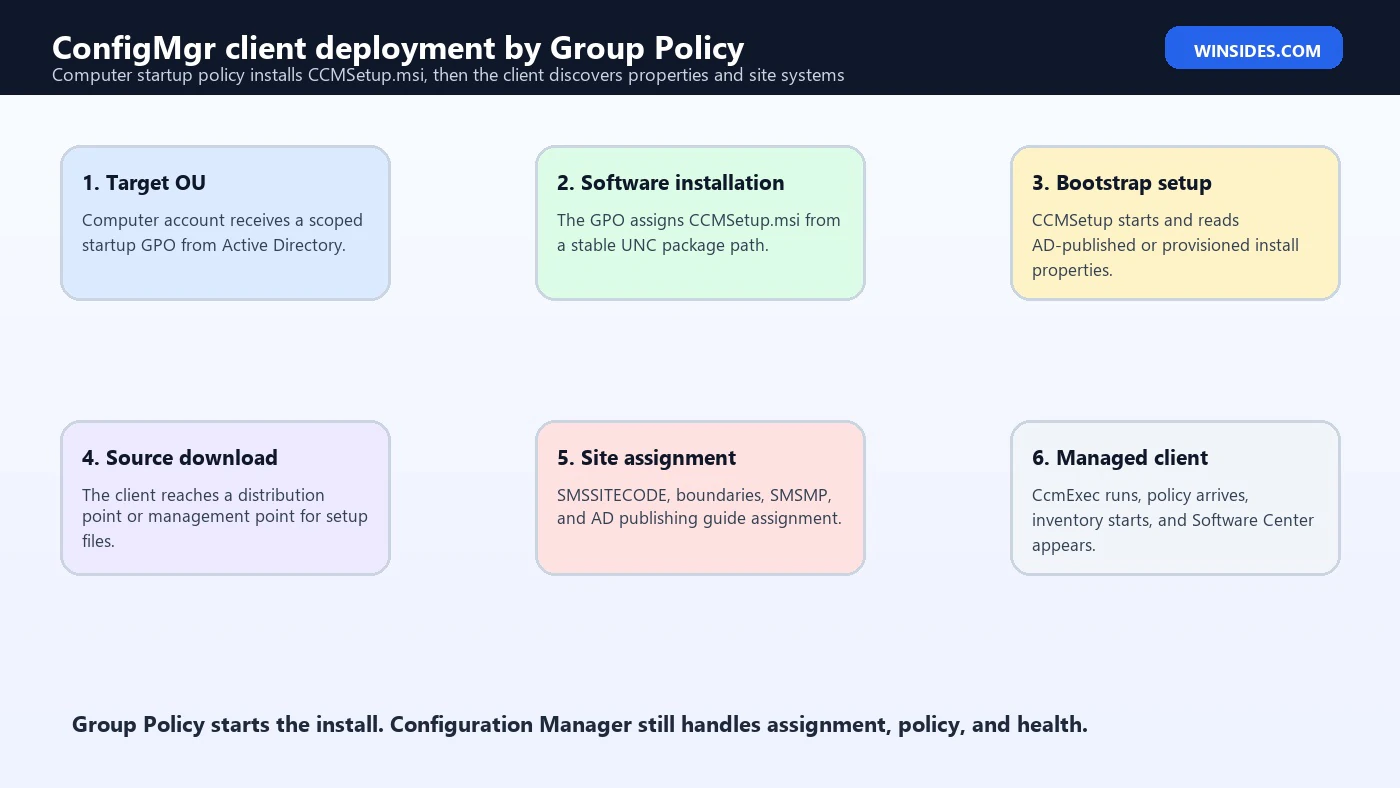
For Group Policy software installation, Microsoft points to CCMSetup.msi, not CCMSetup.exe. The MSI is found in the Configuration Manager installation directory under bini386 on the site server. The purpose of CCMSetup.msi is to bootstrap the Configuration Manager client installation through Windows Installer. It is the package that Group Policy can assign to computers at startup. It is not a place to embed all of your site assignment logic.
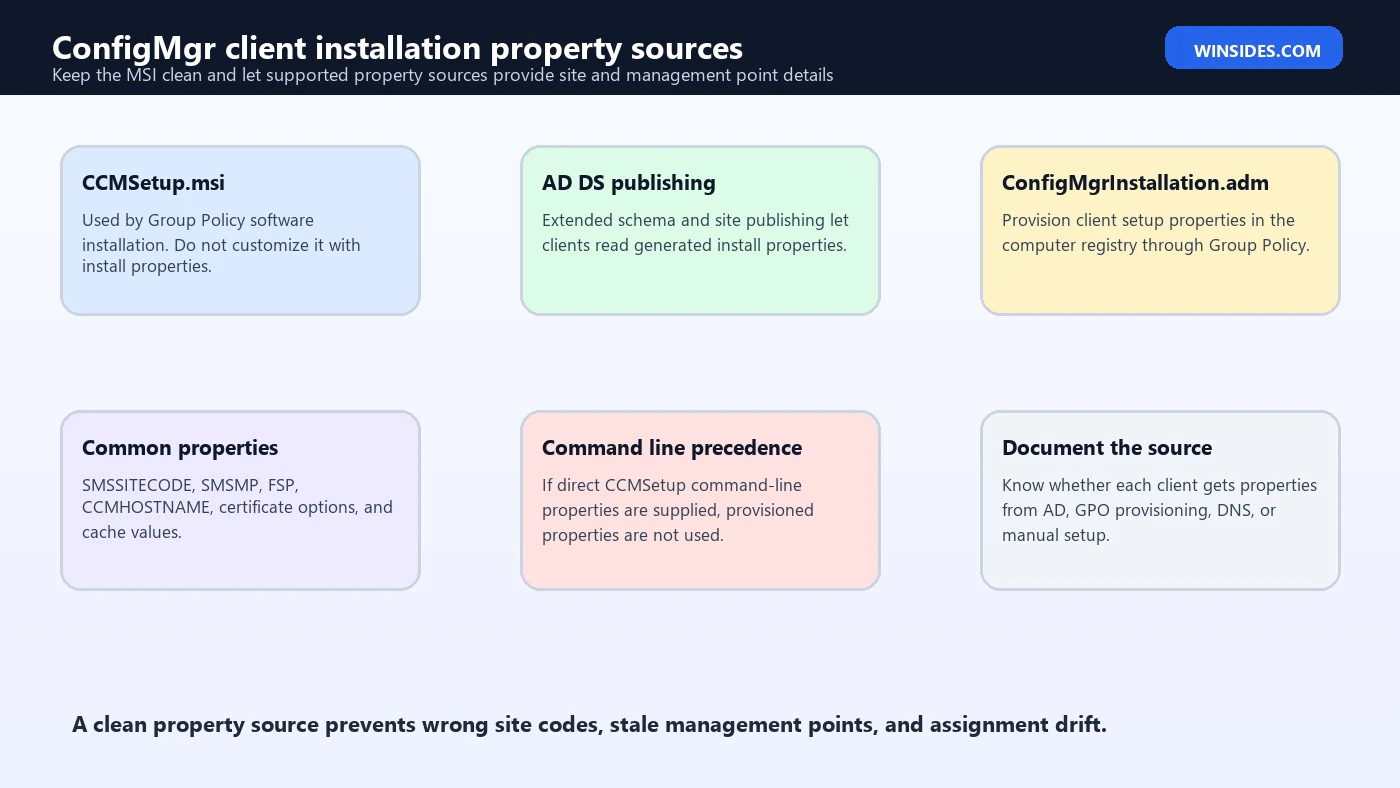
That difference matters because many failed deployments begin with a wrong assumption: an administrator tries to add SMSSITECODE, SMSMP, FSP, /mp, or /source behavior into the Group Policy software installation package itself. Microsoft says you cannot add properties to CCMSetup.msi to change installation behavior. If you need properties, supply them through AD DS publishing or provision them by Group Policy with the ConfigMgr administrative template.
The Supported Client Property Paths
When the ConfigMgr client starts installing, it needs enough information to assign itself correctly. The exact needs vary by hierarchy, network design, certificates, and whether the client can use Active Directory or DNS service location. At minimum, administrators often care about site code, management point, fallback status point, and communication mode.
If the Active Directory schema is extended for Configuration Manager and the site is published to Active Directory Domain Services, the site can publish many client installation properties to AD DS. Microsoft’s deployment guidance explains that when CCMSetup runs without installation properties, it can read those properties from Active Directory. That is the cleanest path in many domain environments because the properties are generated and published by the site instead of manually typed into a GPO.
If the schema is not extended, or if clients are in another forest, Microsoft says you can use Group Policy to provision client installation parameters for CCMSetup.exe. The supplied administrative template is named ConfigMgrInstallation.adm, and it is available on Configuration Manager installation media in the TOOLSConfigMgrADMTemplates folder. After importing the template into a GPO, you enable the setting named Configure Client Deployment Settings and enter the required CCMSetup command-line properties in the CCMSetup box. Microsofts Windows client deployment guidance for Configuration Manager
This is where many administrators should slow down. Provisioning properties through that template stores the installation properties in the computer registry so the client can read them during installation. It does not mean the Group Policy software installation package itself was modified. The MSI remains the bootstrap package. The properties come from the provisioned policy settings or AD DS publication.
Planning the Deployment Scope
Start with a pilot OU or a tightly scoped security group. Do not link the client installation GPO to every workstation and server OU on the first pass. Even if the configuration is technically correct, client installation creates CPU, disk, service, network, and sometimes restart pressure. Microsoft recommends phased client rollout to reduce CPU processing impact on the site server and to avoid disrupting users. That advice applies strongly to Group Policy deployment because startup processing can align across many computers. Microsofts client deployment recommendations for Configuration Manager
A good pilot scope includes a few representative Windows 11 devices from different network segments, hardware classes, and security baselines. Include at least one device that has never had the client, one device with an older client if upgrade is part of the goal, and one device that is frequently offline or remote if that pattern exists in the real fleet. The point is not to produce a perfect lab success. The point is to catch boundary, source access, certificate, and restart behavior before the rollout touches hundreds of endpoints.
Use Group Policy security filtering or OU staging to control the rollout. A common pattern is to create a GPO named something like Deploy ConfigMgr Client – Pilot, link it to a staging OU, and filter it to a group such as GG_ConfigMgr_Client_Pilot_Computers. As confidence grows, move more computer accounts into the pilot group or link the GPO to the next OU. Avoid a design where a single accidental OU link installs the client across domain controllers, servers, kiosks, and workstations all at once.
Be careful with servers. Configuration Manager can manage servers, but client installation on servers should respect maintenance windows, application owner approvals, restart behavior, and change-control expectations. If your GPO targets all computers in a broad OU, servers may receive the client at the next startup even if the operations team expected workstation-only behavior. Keep server scoping explicit.
Preparing Configuration Manager and Active Directory
Before touching the GPO, confirm the Configuration Manager site is ready. Clients need a path to a management point after installation. They also need a way to download client source files from a distribution point or management point unless a source is provided through another supported path. Microsoft’s prerequisites page states that group policy-based installation requires client computers to communicate with a distribution point or management point to download source files. Microsofts Windows client prerequisite guidance for Configuration Manager
Confirm that boundaries and boundary groups are correct for the target subnets, VPN ranges, and sites. A client can install and still fail assignment or content location if the network location is not represented in Configuration Manager. If site assignment is expected to be automatic, make sure the client’s network location is included in a boundary group configured for assignment. If you rely on a specific management point, document it.
Confirm that AD DS publishing is working if you intend to rely on it. This means the schema was extended, the site is allowed to publish to the domain, and the relevant site properties are published. When this is healthy, a client running with no additional installation properties can discover site assignment information, management point information, fallback status point information, and communication settings from AD DS depending on configuration. That reduces the amount of fragile text inside a GPO.
If you cannot or do not want to extend the schema, prepare the ConfigMgrInstallation.adm method. Import the template into a GPO, enable the setting, and enter only the required properties. Keep the string short and deliberate. Microsoft notes that the default template may not support strings larger than 255 characters and gives a workaround that involves increasing the MAXLEN value in the ADM file. Treat that as a change to be tested, documented, and source-controlled rather than edited casually on a production domain controller.
Preparing the Client Source and Permissions
The Group Policy software installation package must be accessible to computer accounts at startup. That is a different context from a signed-in administrator browsing the share. When a computer processes assigned software, it commonly accesses the package as the machine account. If your share or NTFS permissions only allow a help desk user, the GPO may look correct in Group Policy Management Console but fail during startup.
Use a stable UNC path. Avoid mapped drives, administrator-only shares, temporary folders, or paths that depend on a user profile. The Configuration Manager site server shares the client folder as \
Replication matters if you use DFS or multiple domain controllers. The GPO and package path need to be reachable when the target computer boots. If a branch office device applies the GPO before it can reach the share efficiently, installation may time out or add significant startup delay. Consider whether distribution point locality, DFS referrals, WAN throttling, or staged OUs are needed before production rollout.
Keep the source current. Microsoft’s prerequisites guidance warns that if you copy ccmsetup.exe to a file share or use ccmsetup.msi with Group Policy, you should make sure you update the version of ccmsetup. An older setup file may not properly validate newer SHA-2 signed client binaries. This is one of those small operational details that can quietly break an otherwise correct deployment after a site upgrade.
Creating the Group Policy Software Installation GPO
Open Group Policy Management Console from an administrative workstation or server with RSAT tools. Create a new GPO for the pilot deployment. Name it clearly, for example Deploy Configuration Manager Client – Pilot – Computer Startup. Link it to the pilot OU or link it higher with strict security filtering. The best name is the one that tells a future administrator what this GPO does without opening it.
Edit the GPO and go to Computer Configuration, Policies, Software Settings, Software Installation. Add a new package and browse to the UNC path of CCMSetup.msi. Always use the UNC path, not a local drive path from your administrative machine. Choose Assigned for computer startup installation. Avoid placing this under User Configuration because the Configuration Manager client is a computer agent and the supported Group Policy installation path is designed around computer startup.
After adding the package, review the deployment settings. Keep the first pilot simple. Do not combine first-time client installation, aggressive restart requirements, many other startup scripts, and multiple new security baselines in the same maintenance window. If the computer has a pending restart or another Windows Installer operation is already running, you want the evidence to point clearly to the ConfigMgr client deployment rather than to a stack of unrelated changes.
Link or filter the GPO only to test computers. Then force policy on a pilot client or restart it during a safe window. Microsoft’s gpupdate documentation confirms that the command updates Group Policy settings, and the /boot option can cause a restart after Group Policy settings are applied when client-side extensions require startup processing. Software installation is exactly the kind of computer-targeted extension where startup behavior matters, so plan for restart-based testing instead of expecting a silent background refresh to prove everything. Microsofts gpupdate command reference
Provisioning Client Installation Properties by GPO
If you use AD DS publishing, you may not need to provision properties by GPO. However, if the schema is not extended, if clients sit in another forest, or if you want to override properties for a specific computer group, the ConfigMgrInstallation.adm path becomes important. Microsoft’s procedure is straightforward: import the ADM template, open Configure Client Deployment Settings, enable it, enter the required CCMSetup properties, and assign the GPO to the target computers. Microsofts Windows client deployment guidance for Configuration Manager
Use this approach to provide values such as site code, management point, fallback status point, DNS suffix, cache settings, certificate behavior, or other supported client installation properties when your environment requires them. Keep in mind the precedence note from Microsoft: if installation properties are supplied on the CCMSetup.exe command line, provisioned properties on the computer are not used. In the Group Policy MSI scenario, the properties are normally not coming from a direct command line, so provisioning can matter.
For a typical intranet client, a property set might include SMSSITECODE=ABC, SMSMP=smsmp01.contoso.com, and FSP=smsfsp01.contoso.com if those values are appropriate for the site. If the environment uses HTTPS-only management points, Microsoft documents that SMSMP should be prefixed with https:// when the management point only accepts HTTPS client connections. Do not copy sample values blindly. Replace them with your site code, management point FQDN, fallback status point, and certificate model.
Keep a plain-text record of the property string outside the GPO, preferably in a change ticket or operations documentation. When client deployment fails, administrators need to know whether the intended properties came from AD DS publishing, ConfigMgrInstallation.adm, software update-based provisioning, or a manual command. Mixed sources create troubleshooting confusion.
Important Properties and Parameters to Understand
SMSSITECODE assigns the client to a site code or allows automatic assignment in some scenarios. Microsoft’s examples show SMSSITECODE=AUTO for automatic location in AD DS-supported environments and direct site codes such as ABC for explicit assignment. Use automatic assignment only when boundaries, AD publishing, and the site design support it. For internet-based management point scenarios, Microsoft warns not to use AUTO with SMSSITECODE when CCMHOSTNAME is specified.
SMSMP specifies an initial management point for the Configuration Manager client to use. Microsoft’s client deployment recommendations specifically call out using SMSMP and FSP when installing with client MSI properties, because SMSMP can remove the dependency on service location solutions such as AD DS and DNS. That can make early assignment more predictable in segmented environments. Microsofts client deployment recommendations for Configuration Manager
FSP specifies a fallback status point. It is optional, but Microsoft describes it as useful for receiving and processing state messages from clients and for monitoring installation and assignment issues. If you have a fallback status point, include it in a way that matches your design. If you do not have one, do not invent a value just to match examples.
/mp is a CCMSetup.exe parameter that specifies a management point for downloading client installation files. It is different from SMSMP, which specifies an initial management point for the installed client to use. This distinction matters because setup download behavior and post-install client assignment are not the same thing. Microsoft’s parameter documentation notes that /mp does not assign the client to that management point after installation. Microsofts client installation parameters and properties reference
/source specifies a local or UNC file download location for setup files. Microsoft notes that when using /source, the account used for client installation needs Read permission to that location. In the Group Policy software installation method, be especially mindful of computer account access because startup processing does not run as your interactive administrator account.
Validating Group Policy Scope
Before rebooting a target computer, verify scope. In Group Policy Management Console, confirm the GPO link, security filtering, WMI filtering, delegation, and inheritance. The GPO should apply to computer accounts. If you filter by group, remember that computer group membership changes normally require a reboot or secure channel refresh before the computer token reflects the new membership. Do not add a computer to a security group and expect every policy decision to change instantly without a restart.
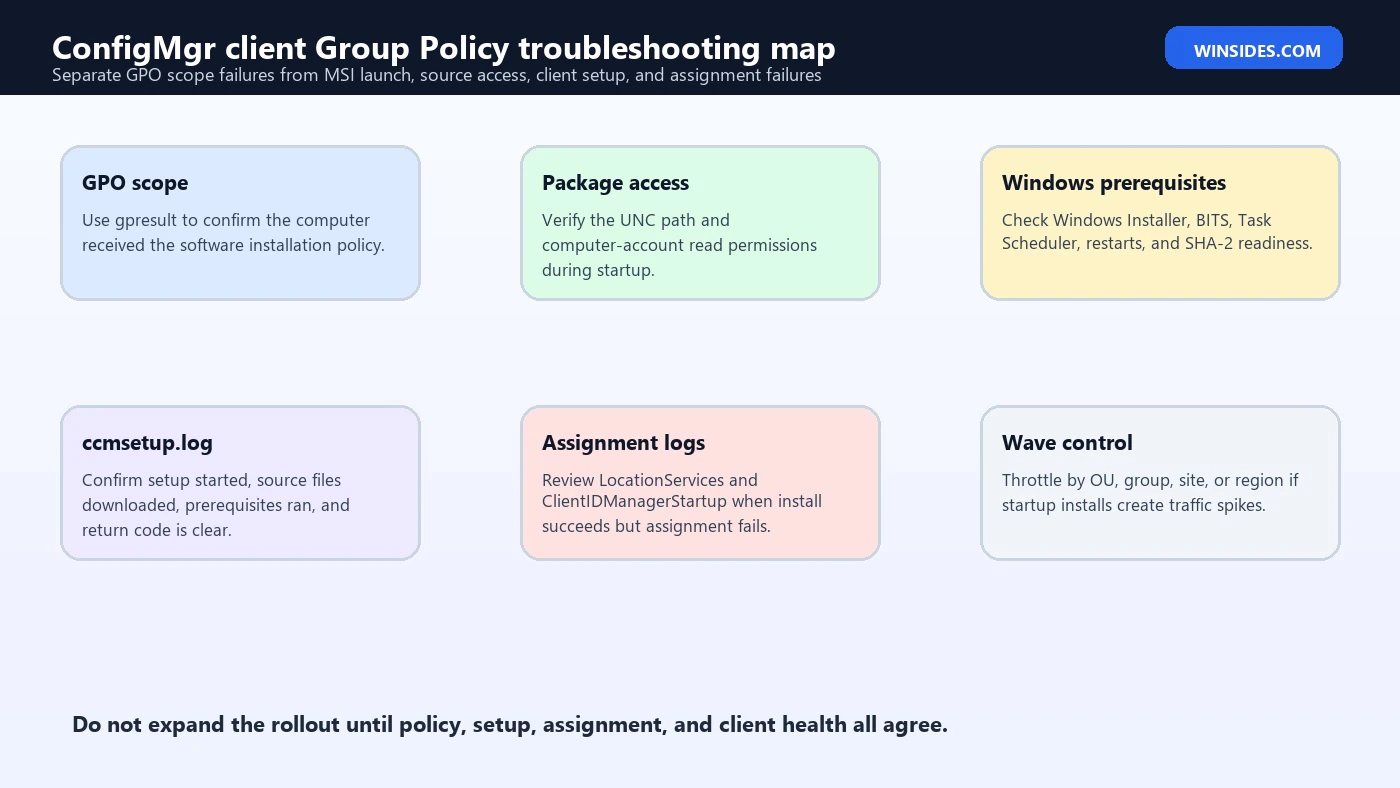
On the client, use gpresult after policy processing. Microsoft documents gpresult as the command that displays Resultant Set of Policy information for a remote user and computer. Use an HTML report when possible because it makes applied and denied GPOs easier to inspect. For this deployment, inspect the Computer Details section, not just the user section. You want to know whether the software installation GPO applied to the computer. Microsofts gpresult command reference
Useful verification commands include:
gpupdate /force
gpresult /h C:Tempconfigmgr-client-gpo.html /f
gpresult /scope computer /r
If the GPO is denied, the report usually tells you why. It may be security filtering, WMI filtering, disabled computer configuration, blocked inheritance, link order, or the computer account not being in the expected OU. Fix GPO scope before troubleshooting ccmsetup.log. If Group Policy never applies the package, the Configuration Manager installer may never start.
What Happens on the Windows 11 Client
On a target Windows 11 computer, the assigned software installation normally occurs during computer startup processing. The Windows Installer policy extension evaluates assigned packages, resolves the MSI path, and installs the package under system context. CCMSetup.msi then bootstraps the Configuration Manager client setup path. Depending on configuration, the client may read installation properties from AD DS, provisioned registry values, or other supported sources.
The setup engine then obtains required client files and prerequisites. Microsoft’s prerequisites page lists Windows Installer, BITS, Task Scheduler, Remote Differential Compression, SHA-2 code signing support, and other components as relevant dependencies. Many are enabled by default on modern Windows, but administrators should not disable them on Configuration Manager clients. For current Windows 11 devices, the common failure pattern is less about missing legacy components and more about source access, restart state, policy scope, security products, or network reachability.
During installation, the key client-side log is usually C:WindowsccmsetupLogsccmsetup.log. That log tells you whether setup started, which command line or property source it used, where it tried to download files, whether prerequisites were installed, and whether the client install returned a success or failure code. If Client.msi runs, additional client logs under C:WindowsCCMLogs become useful after installation.
After installation, the SMS Agent Host service (CcmExec) should run, and the Configuration Manager control panel applet or Software Center should become available depending on client features and timing. Do not treat Software Center appearance as the only success signal. A client may install but not assign. A client may assign but not receive policy. A client may receive policy but have boundary or content issues. Verify the full chain.
Monitoring Rollout Health
Monitor from both ends. On the domain side, watch Group Policy application and startup behavior. On the Configuration Manager side, watch client deployment, assignment, client health, and fallback status point reports if available. Microsoft notes that fallback status point and client deployment reports can help track installation progress for some methods, and client logs provide detailed troubleshooting context even without a fallback status point.
For a pilot, collect evidence from every target. Confirm that the GPO applied, the MSI attempted installation, ccmsetup.log completed successfully, CcmExec is running, the client has the expected site code, the client shows in the console, and the client receives machine policy. If one pilot succeeds and two fail, do not expand. Group Policy rollouts get expensive when small misconfigurations are multiplied by hundreds of startup events.
For production, use waves. A practical rhythm might be one IT pilot OU, then one small office OU, then several workstation OUs, then servers only through a separate change window. If your organization uses multiple geographic sites, roll out by network region so management points and distribution points are not overloaded. If VPN devices are included, stage them separately because startup Group Policy processing and source access can behave differently off-network.
Keep old installation methods in mind. If client push is also enabled site-wide, if software update-based installation is also publishing the client, and if a logon script still runs CCMSetup.exe, you may have multiple bootstrap methods trying to touch the same computer. That can hide the cause of a success or failure. During a controlled Group Policy rollout, document which methods are active.
Troubleshooting: GPO Applies but Client Does Not Install
If gpresult shows the GPO applied but the client is not installed, check Event Viewer under Application and System logs for Windows Installer and Group Policy software installation events. The failure may be a package path problem, MSI access issue, startup timeout, Windows Installer problem, or policy processing issue. If the package path uses a DFS namespace, test the referral path from the client site. If it uses the site server directly, test the share and NTFS permissions from the target computer context.
Confirm that the package path is a UNC path and that Domain Computers or the relevant computer accounts have Read access. Do not assume that because your administrator account can open the path, startup installation can do the same. A quick practical test is to use a temporary scheduled task running as SYSTEM or a PsExec SYSTEM shell in a lab to test access, but follow your organization’s tooling and security policy.
Check for pending restarts and existing MSI operations. Windows Installer can process only so much at startup, and another assigned application, security update, or prerequisite installation may be blocking or delaying the ConfigMgr client package. If the device has been offline for weeks, it may be catching up on many startup tasks. In that case, use a cleaner pilot computer or give the machine a maintenance window before declaring the GPO broken.
If the MSI appears to launch but ccmsetup.log shows download failures, move to Configuration Manager source access. The client may not be reaching a distribution point or management point, or the source may be old. Verify DNS, proxy, firewall, BITS, and boundary group behavior. Microsoft’s prerequisites guidance explicitly states that group policy-based installation needs the client computer to communicate with a distribution point or management point to download source files.
Troubleshooting: Client Installs but Does Not Assign
A client installation can succeed while assignment fails. This often happens when the bootstrap package runs but site assignment information is missing or wrong. Check LocationServices.log, ClientIDManagerStartup.log, and ccmsetup.log on the client. Confirm that SMSSITECODE, AD DS publishing, DNS service location, SMSMP, and boundary group assignment match your intended design.
If AD DS publishing is expected, verify that the site is publishing and that the client can query AD DS. If the schema is not extended, confirm the ConfigMgrInstallation.adm GPO actually applied to the computer and wrote the expected client deployment settings. If you used a direct property string, confirm there are no spelling errors, wrong site codes, stale management point names, or missing HTTPS prefixes for HTTPS-only management points.
Be careful when using SMSSITECODE=AUTO. Automatic assignment is convenient when the environment is designed for it, but it can produce confusing results when boundaries are incomplete or multiple sites are in play. For a pilot, explicit assignment may be easier to reason about. For a broad enterprise rollout, automatic assignment may still be right, but only after boundaries and AD publishing are verified.
If the client appears in the wrong site, do not simply reinstall repeatedly. Fix the assignment source. Remove stale provisioning values if they are wrong, correct AD publishing or boundaries, and then reassign or reinstall according to the Configuration Manager support approach your organization follows. Reinstalling without changing the bad source just repeats the mistake.
Troubleshooting: The Deployment Creates Too Much Network Traffic
Group Policy deployment can create bursts. Many computers process startup policy at the beginning of a workday, after patching, or after a power event. If they all attempt client installation simultaneously, the distribution point, management point, WAN link, or file share can get hammered. Microsoft lists high network traffic as a disadvantage when a large number of clients are installed through Group Policy.
Control the wave size. Security groups, staged OUs, link enablement windows, WMI filters, and regional rollouts all help. For remote offices, consider whether the local distribution point is healthy and whether the client can download locally rather than crossing a WAN. If you must deploy to a large fleet, choose off-hours waves and monitor site system performance.
Do not use a single GPO edit as a global deployment trigger unless you intentionally want every in-scope machine to react at next startup. Treat the GPO link like a production deployment switch. In a mature environment, the change ticket should state the number of expected devices, the source location, the time window, the rollback path, and the monitoring dashboard.
If the rollout is already too noisy, disable the link for the next wave, let current installations finish, and inspect the logs. Avoid repeatedly removing and re-adding the package in a way that causes clients to churn. Stabilize first, then continue with smaller waves.
Security and Certificate Considerations
Configuration Manager client deployment can involve Kerberos, AD DS publishing, HTTPS management points, PKI certificates, firewall rules, and site system communication. The Group Policy method does not remove those requirements. It only changes how the client bootstrap starts. If the site requires HTTPS client communication, make sure client certificates are in place before the rollout. If the management point only accepts HTTPS, Microsoft’s property documentation notes that management point names for SMSMP should include https://.
Avoid embedding sensitive secrets in broadly readable GPOs. Group Policy installation does not need a client push account, which is one of its advantages. Keep it that way. If you find yourself placing passwords, tokens, or overly permissive share credentials into deployment scripts, step back and redesign the method.
Use least privilege on the package source. Target computer accounts need read access, not write access. Help desk operators who monitor the rollout may need read access to logs or reports, not rights to edit the GPO. Domain admins should not be the only people who understand the deployment, but the GPO should still be protected from accidental edits.
For internet-based clients and cloud management gateway scenarios, do not assume the same Group Policy method applies directly. Group Policy works best for domain-joined clients that can process domain policy and reach intranet resources. Internet-only or Microsoft Entra-oriented deployment may need Intune, CMG token-based installation, VPN staging, or another supported path.
When Not to Use Group Policy for ConfigMgr Client Deployment
Do not use Group Policy installation when the devices are not domain-joined and cannot process AD DS Group Policy. Workgroup computers need other installation methods. Microsoft documents specific limitations for workgroup clients, including the inability to use client push and the lack of AD DS service location.
Do not use it as the primary path for unmanaged internet-only devices. If the computer cannot reach domain controllers or the MSI source at startup, the GPO cannot do its job. Use an installation method designed for internet-based management, Intune MDM, cloud management gateway onboarding, or a temporary VPN-based path.
Do not use Group Policy if your organization already has a healthy software update-based client installation design and Microsoft’s recommended flow fits the environment better. The software update method can be more firewall-friendly and can reinstall clients if removed. Group Policy software installation may still be useful for exceptions, labs, or a specific OU, but it does not have to be the universal answer.
Do not link it to domain controllers unless you have a deliberate server management plan. The Configuration Manager client can be installed on servers, but domain controllers deserve special change control. Accidental deployment through a broad computer OU is not a rollout strategy.
Best Practices for a Clean Rollout
- Use a pilot GPO and a separate production GPO, or at least separate pilot and production scopes.
- Keep the GPO computer-scoped and avoid user-side deployment for the Configuration Manager client.
- Use a stable UNC path that computer accounts can read during startup.
- Prefer AD DS publishing when the schema is extended and the site is publishing correctly.
- Use ConfigMgrInstallation.adm only for the properties you truly need.
- Keep property strings documented and reviewed.
- Validate boundaries and boundary groups before deployment.
- Confirm distribution point and management point availability from pilot networks.
- Use SMSMP and FSP deliberately where your design benefits from explicit values.
- Avoid broad deployment to all workstations and servers in a single wave.
- Monitor ccmsetup.log, client assignment, client health, and Group Policy results.
- Keep source files current after Configuration Manager upgrades.
- Separate workstation and server rollout plans.
- Do not remove the old troubleshooting evidence until the client is healthy in the console.
Frequently Asked Questions
Can I deploy Configuration Manager clients using Group Policy on Windows 11?
Yes. The supported client platform for Group Policy installation is Windows, and Windows 11 devices in Active Directory can receive computer-scoped Group Policy software installation when the GPO, source path, and installation properties are configured correctly.
Which file should I use for Group Policy software installation?
Use CCMSetup.msi for Group Policy-based installation. Microsoft says this file is located in the Configuration Manager installation directory under bini386 on the site server.
Can I add SMSSITECODE or SMSMP directly to CCMSetup.msi?
No. Microsoft says you cannot add properties to CCMSetup.msi to change installation behavior. Use AD DS publishing or provision client installation properties through the ConfigMgrInstallation.adm Group Policy administrative template when needed.
What is ConfigMgrInstallation.adm used for?
It is a Configuration Manager administrative template used to provision client installation properties through Group Policy. Microsoft provides it in the TOOLSConfigMgrADMTemplates folder on the Configuration Manager installation media.
Is Group Policy installation better than client push?
It depends on the environment. Group Policy does not require discovered computers or a client push account with local administrator rights, but large rollouts can create network traffic. Client push can target discovered resources but has firewall, discovery, and administrative account requirements.
Is software update-based client installation better?
For many Active Directory environments with WSUS and a software update point, Microsoft’s recommendations highlight software update-based installation as a strong option. It can be more secure and firewall-friendly. Group Policy software installation remains useful when MSI assignment at startup is the desired bootstrap method.
Why did the GPO apply but the ConfigMgr client did not install?
Common causes include the wrong package path, missing computer account permissions to the share, Windows Installer startup problems, pending restarts, disabled software installation processing, or client source download failures. Check gpresult, Event Viewer, and ccmsetup.log.
Where is the main client setup log?
The main setup log is usually C:WindowsccmsetupLogsccmsetup.log. After the client is installed, additional logs under C:WindowsCCMLogs help troubleshoot assignment, policy, inventory, and client health.
Should I use SMSSITECODE=AUTO?
Use it only when boundaries, AD DS publishing, and site assignment design support automatic assignment. In complex or pilot scenarios, explicit site code assignment may be easier to verify.
Does Group Policy deployment work for workgroup computers?
No, not in the normal AD DS Group Policy software installation sense. Workgroup computers do not process domain Group Policy and need another supported Configuration Manager installation method.
Conclusion: Make Group Policy the Bootstrap, Not the Guesswork
Deploying Configuration Manager clients using group policy works best when it is treated as a controlled bootstrap process. The GPO starts the installation, but the success of the deployment depends on site publishing, client installation properties, reachable source files, healthy Windows prerequisites, network design, boundaries, and post-install assignment. If those pieces are planned, Group Policy can be a clean way to bring Windows 11 devices under Configuration Manager management.
The safest pattern is simple: prepare the Configuration Manager site, choose the property source, create a computer-scoped pilot GPO, assign CCMSetup.msi from a stable UNC path, verify with gpresult and ccmsetup.log, and expand in waves. Do not overload the network, do not customize the MSI incorrectly, and do not treat a GPO link as proof that clients are healthy.
For enterprise administrators, the real win is repeatability. A documented Group Policy client deployment gives you a known path for new domain-joined devices, rebuilds, labs, and controlled workstation waves. Pair it with proper monitoring and current client source files, and it becomes a reliable part of the Configuration Manager lifecycle rather than a one-time installation trick.
For more interesting articles, stay tuned to Winsides.com!









Community
Comments (0)