

Introduction to Use a Proxy Server Windows 11
use a proxy server windows 11 usually means turning on the manual proxy option in Settings > Network & internet > Proxy. A proxy server sits between your PC and the destination you are trying to reach. Instead of the app connecting directly to a website or service, it sends the request to the proxy, and the proxy connects on its behalf.
Windows 11 includes several proxy-related controls: Automatically detect settings, Use setup script, and Use a proxy server. Microsofts Windows proxy settings page is the official starting point for the user-facing proxy controls in Windows. Microsoft Support proxy settings in Windows The manual option is the clearest one: you enter a proxy server address and port, optionally add addresses that should bypass the proxy, and save.
This setting can be useful in companies, schools, labs, restricted networks, testing environments, and some VPN setups. It can also break internet access very quickly if the server address, port, bypass list, or network context is wrong. A proxy setting that works inside an office may fail at home. A proxy that works in a browser may not work for every Windows service. Some system components use WinHTTP, and Microsoft documents separate WinHTTP proxy behavior and configuration. Microsoft Learn WinINET proxy configuration in WinHTTP
This guide explains what Use a proxy server does in Windows 11, when you should use it, how it differs from automatic detection and setup scripts, how bypass entries work, why some apps ignore the setting, how to inspect WinHTTP proxy state, and how to fix the common problems that appear after manual proxy configuration.
Table of contents
Key Takeaways
- Use a proxy server Windows 11 is the manual proxy option under Settings > Network & internet > Proxy.
- Manual proxy uses a fixed server and port. This is different from Automatically detect settings and Use setup script.
- The proxy server address is not the same as a setup script URL. A manual proxy needs a server name or IP address and a port, not a PAC file URL.
- Only use a trusted proxy. A proxy can see destination metadata and may affect privacy, sign-in, updates, and app behavior.
- The bypass list matters. It tells Windows which addresses should avoid the proxy and connect directly.
- Local addresses may need direct access. Internal sites, printers, routers, NAS devices, development servers, and intranet resources can fail if forced through a proxy.
- Some apps and services use different proxy stacks. WinHTTP settings can matter for services and system components. Microsoft Learn WinINET proxy configuration in WinHTTP
- If internet access breaks, turn the manual proxy off first. If access returns, the proxy address, port, authentication, bypass list, VPN state, or policy is the likely cause.
What a Proxy Server Does
A proxy server is an intermediary. Your PC asks the proxy to reach a destination, and the proxy makes the request onward. In a business network, the proxy may filter web traffic, log destinations, enforce policy, scan content, apply authentication, or route traffic through a specific network location.
For simple web browsing, a proxy can seem invisible when it works. You open a site, the browser sends the request through the proxy, and the page loads. When the proxy fails, the result can be confusing. Some sites may time out, some apps may show sign-in errors, Windows Update may fail, Microsoft Store may stop loading, or only internal sites may break.
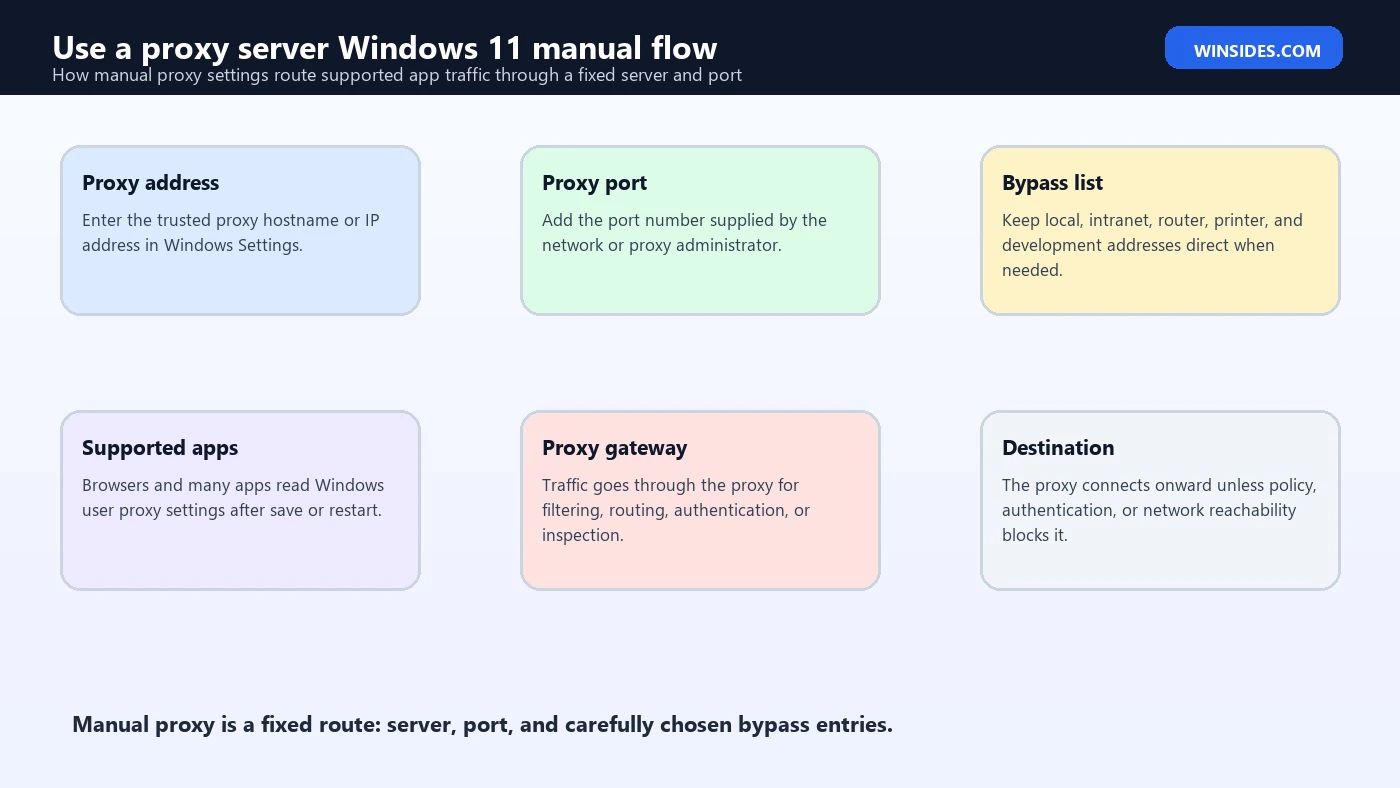
A manual proxy is a fixed route. If you configure proxy.example.com on port 8080, Windows tells supported apps to use that proxy unless an address matches a bypass rule. This is simpler than a PAC setup script, but it is less flexible. The proxy does not automatically change based on destination unless the proxy itself applies rules after receiving traffic.
A manual proxy is most useful when the network really expects one fixed proxy endpoint. It is less ideal for laptops that move between many networks unless the proxy is reachable from all of them or managed by VPN software.
Where to Find Use a Proxy Server in Windows 11
Open Settings, choose Network & internet, and select Proxy. On that page, find the Manual proxy setup section. Turn on Use a proxy server. Enter the proxy IP address or hostname, enter the port, configure the bypass list if needed, and save.
The address field is for the proxy server itself. It should not contain a web page URL, PAC file URL, or script address. If your administrator gives you something like proxy.company.com and port 8080, that belongs here. If they give you a script URL ending in .pac, that belongs under Use setup script instead.
After saving the manual proxy, close and reopen apps that were already running. Many apps detect proxy changes quickly, but some read proxy settings only when they start.
If the device is managed by a company or school, the setting may be locked or reset by policy. If you see that settings are managed by your organization, do not fight the setting. Record what is shown and follow IT guidance.
For personal PCs, leave the manual proxy off unless you operate a trusted proxy, use a known work or school proxy, or are following a specific troubleshooting procedure.
Manual Proxy vs Automatically Detect Settings
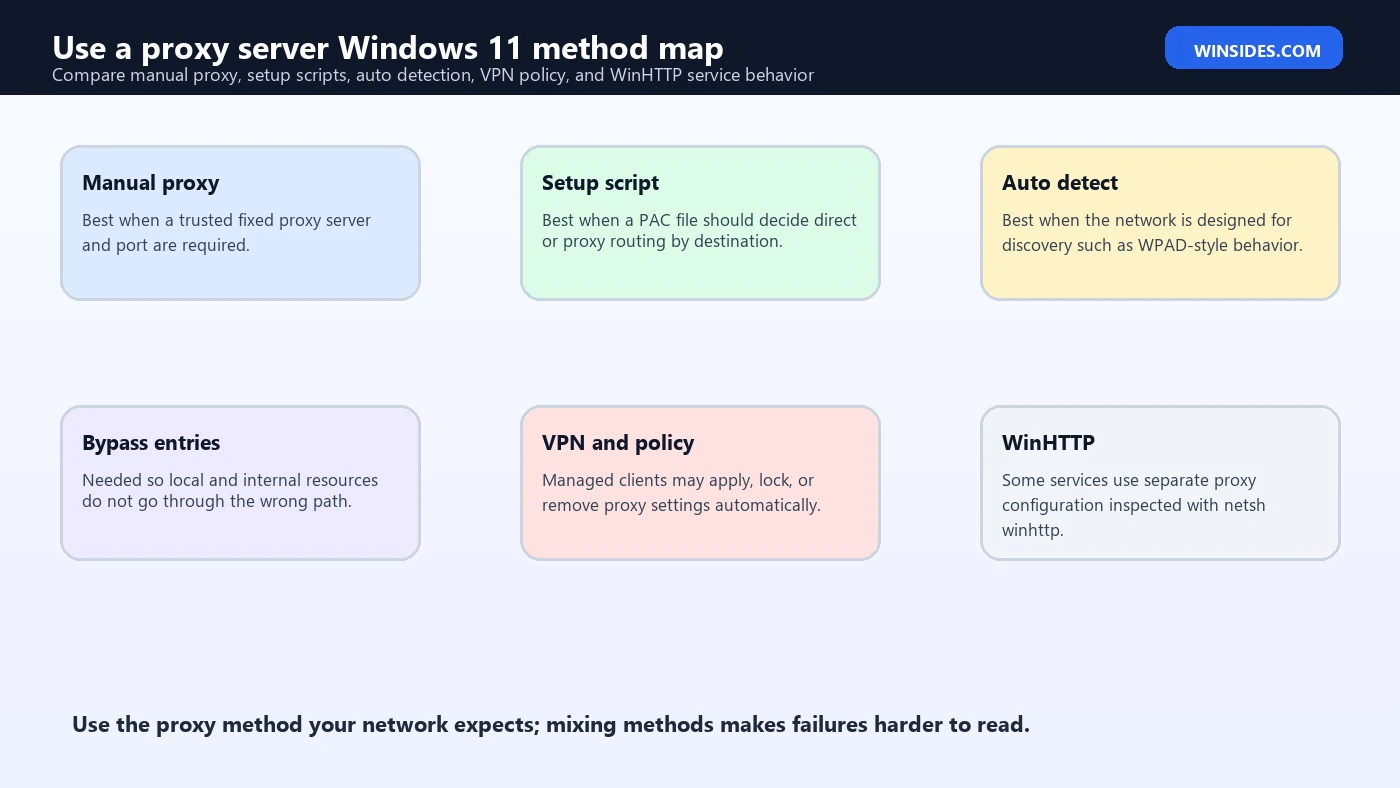
Automatically detect settings and Use a proxy server are different approaches. Automatically detect settings asks Windows to discover proxy configuration from the network, often associated with WPAD-style discovery in managed environments. Manual proxy bypasses discovery and uses the fixed server and port you enter.
Automatic detection is useful when the network is designed for it. The user does not need to know the proxy address. The network supplies discovery information. However, discovery can fail when DNS, DHCP, VPN, or network policy is misconfigured.
Manual proxy is explicit. If you enter a server and port, supported apps know exactly where to send traffic. That is easier to understand, but it can be brittle. If you leave the office and the proxy is not reachable from home, internet access may fail until you disable the manual proxy or connect the required VPN.
Do not enable both randomly. Some environments may use both, but most users should follow the exact method their administrator provides. Mixing proxy methods makes troubleshooting harder because you may not know which setting is affecting which app.
Manual Proxy vs Use Setup Script
Use setup script is for a proxy auto-configuration script, commonly a PAC file. Manual proxy is for a fixed server and port. The difference matters because users often paste the wrong value into the wrong field.
A PAC script contains logic. Microsoft documents WinHTTP auto-proxy support for environments that use automatic proxy configuration. Microsoft Learn WinHTTP auto-proxy support It can return DIRECT for some destinations and PROXY for others. It can route internal sites one way and public sites another way. It can include fallback behavior. That flexibility is why enterprise networks often prefer setup scripts.
A manual proxy is simpler. Every supported destination goes through the proxy unless a bypass rule says otherwise. The proxy server may still decide what to do internally, but Windows is not running destination-specific PAC logic before sending traffic.
Use manual proxy when the instruction is a server plus port. Use setup script when the instruction is a script URL. If you are not sure which one you were given, do not guess. Ask for the exact Windows 11 proxy setting that should be used.
When You Should Use a Manual Proxy
Use a manual proxy when a trusted administrator, school, lab, VPN provider, or network document gives you a fixed proxy server and port. This is common in controlled environments where all outbound web traffic must pass through a specific gateway.
It is also useful for temporary testing. Developers, network engineers, and security analysts may point traffic to a local or test proxy to inspect requests. In that case, the proxy may run on localhost or a private IP address, and the setting should be turned off when the test ends.
Manual proxy can be useful in a small office with one proxy appliance and simple routing. It can also help in restricted networks where direct internet access is blocked but proxy access is allowed.
Do not use random free proxy servers as your Windows system proxy. A system proxy can affect browsers, apps, sign-in flows, and sensitive traffic paths. Even when HTTPS protects content, a proxy can see destinations and connection metadata. Untrusted proxies can also break certificates, inject errors, slow traffic, or create privacy risk.
If you do not have a trusted proxy server and port, leave the setting off.
Proxy Address, Port, and Bypass List
The proxy address identifies the server. It might be a hostname such as proxy.example.com, an internal name such as proxy01, an IP address, or localhost for a local test proxy. The port identifies the service on that server, such as 8080, 3128, 8000, 8888, or a custom enterprise port.
The bypass list tells Windows which destinations should avoid the proxy. This is important for local resources. Without bypass rules, the PC might try to reach a router, printer, intranet site, NAS device, local development server, or private address through the proxy. That can fail or create unnecessary traffic.
Common bypass patterns include local hostnames, intranet domains, private IP ranges, and development addresses. The exact syntax can vary by Windows UI and policy, so follow administrator documentation. Do not overuse broad bypasses unless you understand the security model.
A good bypass list is precise. It allows local and internal resources to work while keeping intended proxy traffic controlled. A bad bypass list either sends too much through the proxy or bypasses the proxy for destinations that should be inspected.
If internal websites fail after enabling manual proxy, the bypass list is one of the first places to check.
The Local Addresses Bypass Option
Windows proxy settings may include an option to not use the proxy server for local addresses. This is designed for resources that are reached directly on the local network or intranet. It can help with routers, printers, admin portals, file devices, intranet servers, and local development tools.
However, local address behavior can be tricky. A short hostname like intranet may be local, but a fully qualified internal domain like intranet.company.local may not be treated the same way unless included in the bypass list. Some internal resources use private IP addresses. Others use split DNS over VPN.
If a local device stops loading after you enable a proxy, try adding a specific bypass entry instead of disabling the proxy entirely. For example, bypass the router address, printer hostname, NAS address, or internal domain that should stay direct.
For managed devices, bypass rules should come from IT. Internal routing can be part of the security design. A user-created bypass might accidentally avoid inspection or break access to corporate resources.
Proxy Authentication and Sign-In Problems
Some proxy servers require authentication. The proxy may ask for a username and password, use Windows integrated authentication, require device trust, or depend on VPN connection state. When authentication fails, the user may see repeated credential prompts, blank pages, 407 proxy authentication errors, or app-specific sign-in failures.
Browsers usually handle proxy authentication better than background services because the user is present to respond to prompts. Services running in the background may not have an interactive user context. This is one reason a browser can work while Windows Update, Store, activation, or a command-line tool fails.
If the proxy requires authentication, check whether the account is allowed to use it, whether the PC is domain joined or Entra joined as expected, whether the VPN is connected, and whether the service supports the required authentication method.
Avoid storing credentials in random proxy tools. If the proxy is enterprise-managed, follow the official sign-in path. If a proxy repeatedly asks for credentials, the issue may be policy, expired password, wrong network, clock skew, certificate trust, or missing domain connectivity.
WinHTTP and Why Some Services Behave Differently
Windows proxy settings are not always consumed identically by every component. Many user apps use the Windows user proxy settings. Some system services and applications use WinHTTP. Microsoft documents WinHTTP proxy behavior and how WinHTTP can be configured from WinINET-style proxy settings. Microsoft Learn WinINET proxy configuration in WinHTTP
This distinction matters when a browser works but Windows services fail. For example, a user may enable a manual proxy in Settings and successfully browse the web, while a background service still tries direct access or uses a different proxy configuration.
Administrators often inspect WinHTTP with:
netsh winhttp show proxyIf WinHTTP is set to direct access, that does not necessarily mean the manual proxy in Settings is off. It means the WinHTTP service-level configuration is direct. In some environments, administrators import user proxy settings into WinHTTP with:
netsh winhttp import proxy source=ieThe command still uses source=ie for historical reasons. Do not run it casually. Changing WinHTTP can affect Windows Update, Microsoft Store, activation, device management, and security tools. Use it only when following trusted administrator guidance.
App-Specific Proxy Settings
Some apps ignore Windows proxy settings or have their own proxy configuration. Developer tools, package managers, browsers under enterprise policy, VPN clients, security products, remote access tools, and older desktop apps may each behave differently.
If only one app fails after enabling the proxy, check that apps settings first. Look for proxy, network, HTTP, HTTPS, certificate, or authentication options. Some apps rely on environment variables. Others use config files. Some support only unauthenticated proxies. Some do not support PAC scripts but do support manual proxies.
If Microsoft Edge or another browser behaves differently from the rest of Windows, check browser policies and extensions. Enterprise browser policy can override system proxy settings. Some extensions also affect traffic, although managed environments often restrict proxy extensions.
If command-line tools fail, inspect their documentation. Tools such as Git, npm, Python package installers, curl, package managers, and cloud CLIs often have separate proxy settings. A Windows manual proxy may not be enough for every developer workflow.
VPNs, Security Software, and Managed Devices
VPN clients frequently manage proxy settings. Some apply a proxy only while connected. Some clear the proxy when disconnected. Some use split tunneling. Some publish proxy scripts or manual proxy settings as part of the connection profile.
Security software can also manage proxy traffic. Endpoint protection, web filtering, parental controls, enterprise secure web gateways, and TLS inspection tools may install local proxies or enforce system proxy values.
Managed Windows 11 devices may receive proxy settings through Group Policy, MDM, endpoint security configuration, browser policy, or sign-in scripts. If settings revert after reboot, sign-in, VPN connection, or policy sync, that is likely intentional.
Do not fight managed proxy settings on a work or school PC. They may be required for compliance, logging, malware protection, cloud access, or internal routing. If the setting is wrong, report the exact proxy address, port, network state, and failing app to the administrator.
For personal PCs, remove old proxy settings after leaving a school, employer, VPN provider, or test lab. Old proxies are a common cause of sudden browser and app failures.
Troubleshooting: Internet Breaks After Enabling Proxy
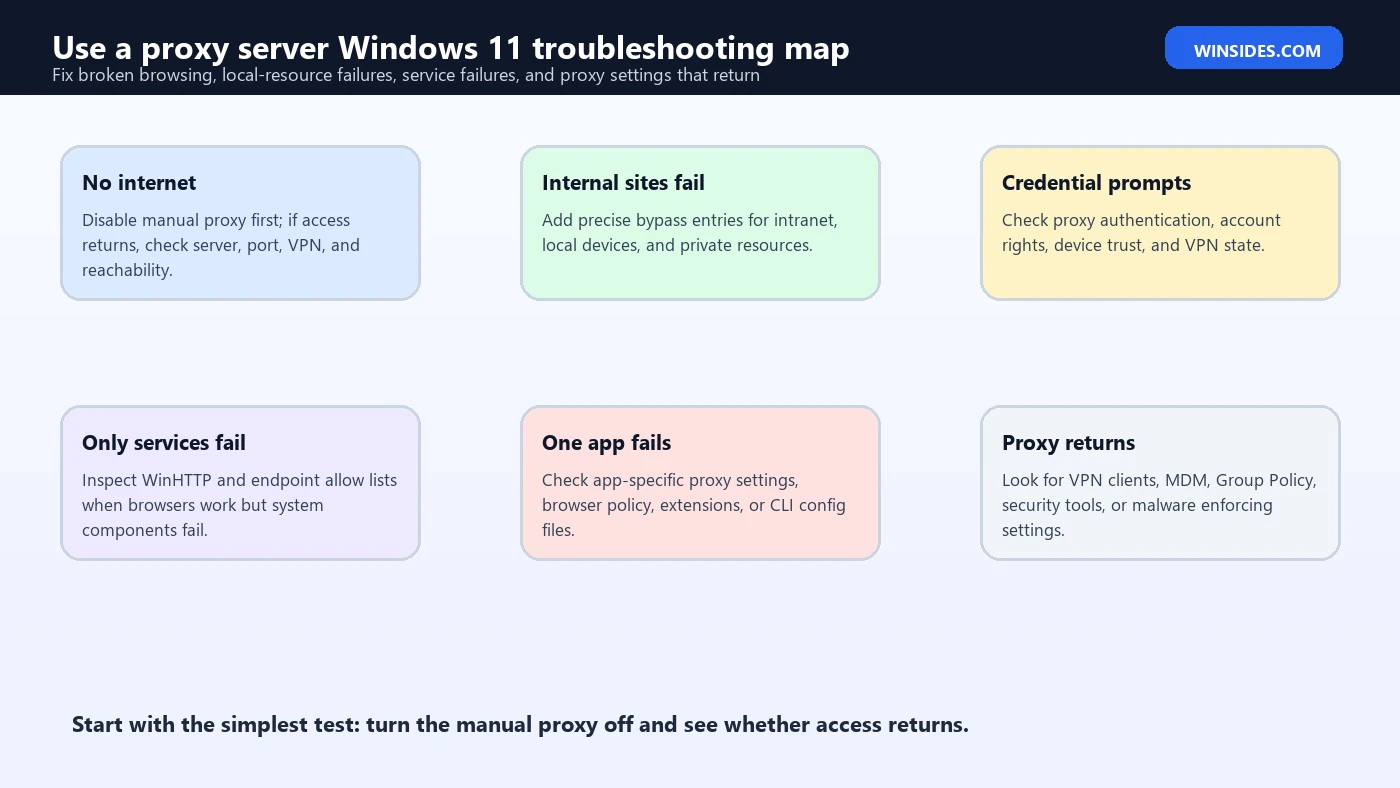
If internet access breaks right after enabling Use a proxy server, turn it off and test again. If access returns, the manual proxy setting is the likely cause.
Next, verify the address and port. A proxy address typo, wrong port, missing VPN, or unreachable internal server can break all supported traffic. If the proxy is meant for an office network, connect to the office LAN or VPN before testing.
Check whether the proxy requires authentication. If the browser prompts for credentials, but other apps fail silently, the issue may be authentication support. Some apps cannot handle interactive proxy prompts.
Check the bypass list. If public websites work but internal sites fail, internal addresses may need bypass entries. If internal sites work but public sites fail, the proxy itself may be blocked, down, or rejecting the request.
Try a direct network path. Disconnect VPN if the proxy is not VPN-based, or connect VPN if the proxy is internal. Avoid testing too many changes at once. Change one thing, test, and record the result.
If the device is managed, stop making random changes and involve IT. A managed proxy can be part of a larger access policy.
Troubleshooting: Only Microsoft Store, Update, or Activation Fails
When browsing works but Microsoft Store, Windows Update, activation, or device management fails, check for service-level proxy behavior. These components may not behave exactly like a user browser.
Start with:
netsh winhttp show proxyIf WinHTTP is direct while the environment requires a proxy, that may explain the failure. Microsofts Learn documentation covers WinHTTP proxy configuration concepts and the relationship between WinINET and WinHTTP proxy settings. Microsoft Learn WinINET proxy configuration in WinHTTP
Also check endpoint allow lists. Corporate proxies sometimes block Microsoft service endpoints, TLS inspection may break certificate pinning, or authentication may fail for services that cannot prompt the user.
If the device belongs to an organization, this is an administrator-level problem. The fix may involve proxy policy, bypass rules, endpoint allow lists, certificate deployment, device trust, or MDM configuration. Do not try random public proxy settings to fix Windows Update.
Troubleshooting: Proxy Keeps Turning Back On
If Use a proxy server keeps turning back on, something is likely managing it. Common sources include VPN clients, security suites, web filtering tools, malware, Group Policy, MDM, browser policy, or old startup scripts.
On a work or school device, policy is the most likely explanation. The setting may be required. If it breaks access, report it instead of repeatedly disabling it.
On a personal PC, check installed VPN clients, parental control apps, security products, and browser extensions. Some software installs a local proxy and keeps it enabled for filtering. If you uninstall that software without removing its proxy setting, the PC may be left pointing at a proxy that no longer exists.
If you suspect malware, use trusted security tools and avoid entering credentials into unknown proxy prompts. A malicious local proxy can interfere with traffic and steal metadata.
Security and Privacy Considerations
A proxy server is not automatically private or safe. It is a traffic intermediary. The operator of the proxy can often see destination hostnames, timing, volume, and connection metadata. If TLS inspection is installed and trusted on the device, the proxy may also inspect encrypted traffic in enterprise contexts.
In a company or school, this may be intentional and documented. In a random public proxy, it is a risk. Do not use unknown free proxies for system-wide Windows traffic. They can slow the PC, inject errors, collect metadata, break sign-ins, or create certificate warnings.
A manual proxy can also affect security tools. If the proxy blocks update endpoints, the PC may stop receiving timely updates. If it redirects traffic unexpectedly, troubleshooting becomes harder. If it bypasses security controls, it may violate policy.
Use a proxy only when you trust the operator and understand the purpose. For personal privacy, a reputable VPN or privacy tool is not the same thing as a random proxy server pasted into Windows settings.
Best Practices for Use a Proxy Server Windows 11
Use manual proxy only when you have a trusted server and port. Do not guess. Do not paste proxy details from random websites. Do not use manual proxy when your administrator gave you a setup script URL.
Keep proxy methods clean. Use one expected method: automatic detection, setup script, or manual proxy. Mixing them without documentation makes failures harder to understand.
Document the original settings before changes. A screenshot or note can save time if access breaks.
Configure bypass rules carefully. Internal resources, local devices, routers, printers, NAS devices, and development servers often need direct access.
Close and reopen affected apps after changing proxy settings. Some apps read settings only at launch.
Check WinHTTP when services fail but browsers work. Use read-only inspection first. Do not import or change WinHTTP settings unless you are following trusted guidance.
Remove stale proxy settings after leaving a network, school, employer, VPN, or lab. Old proxy entries are a common cause of mysterious internet problems.
When Not to Use a Manual Proxy
Do not use a manual proxy just because a browser page suggested it as a generic internet fix. On Windows 11, system-wide proxy settings can affect browsers, Store apps, sign-in components, update clients, and background services differently. A wrong entry can therefore create several unrelated-looking problems at once.
Avoid manual proxy settings on public Wi-Fi unless the network owner explicitly provides them. Most hotels, airports, and cafes use captive portals, not fixed proxy servers. In those environments, enabling a manual proxy usually makes the sign-in page harder to reach.
Also avoid keeping a manual proxy enabled after testing. Once the troubleshooting session is over, return Windows 11 to the normal connection method for that network. This one cleanup step prevents many later cases where the PC appears online but apps quietly fail.
Frequently Asked Questions
What does Use a proxy server mean in Windows 11?
It means Windows will tell supported apps to send traffic through a fixed proxy server and port unless the destination matches a bypass rule.
Where is Use a proxy server in Windows 11?
Open Settings > Network & internet > Proxy, then use the Manual proxy setup section.
Should I enable Use a proxy server?
Enable it only if you have a trusted proxy server address and port from your organization, school, VPN provider, lab, or your own network setup.
Is a proxy server the same as a setup script?
No. A manual proxy uses a fixed server and port. A setup script uses a PAC URL that contains routing logic.
Why does my internet stop when I enable a proxy?
The proxy address may be wrong, the port may be wrong, the proxy may be unreachable from your current network, VPN may be required, authentication may fail, or the bypass list may be missing needed entries.
Why do some apps ignore Windows proxy settings?
Some apps use their own proxy configuration, some use WinHTTP, some are controlled by enterprise policy, and some do not support the same proxy authentication method as browsers.
Conclusion: Use Manual Proxy Settings Only When the Route Is Known
Use a proxy server Windows 11 is useful when a trusted network expects a fixed proxy server and port. It can help organizations route, filter, secure, or inspect traffic, and it can help administrators test specific network paths. But it is not a casual speed or privacy switch.
The safest approach is to use the exact server and port from a trusted source, configure bypass entries carefully, understand how it differs from automatic detection and setup scripts, and remember that WinHTTP or app-specific proxy settings may explain why only some components fail.
If enabling the manual proxy breaks access, turn it off first, confirm whether access returns, and then troubleshoot the proxy address, port, authentication, VPN state, bypass list, and service-level proxy behavior in a controlled order.
For more interesting articles, stay tuned to Winsides.com!









Community
Comments (0)