

Imagine this: you’re engrossed in a game, scrolling through social media, or perhaps navigating an important document on your Android device. Suddenly, without warning, your screen flashes blue. Not just a momentary flicker, but a stark, unyielding blue that replaces your familiar interface. Your device becomes unresponsive, frozen in this unsettling state. This alarming phenomenon, often dubbed the ‘Android Blue Screen of Death’ (BSOD), can strike fear into the heart of any smartphone or tablet owner.
While not identical to its Windows counterpart, an Android BSOD signifies a critical system failure, rendering your device temporarily or even permanently unusable. It’s a clear indicator that something has gone fundamentally wrong, demanding immediate attention. Understanding the root causes and knowing how to effectively troubleshoot this issue is paramount for restoring your device’s functionality and safeguarding your valuable data.
This comprehensive guide will demystify the Android BSOD, differentiating it from less severe glitches and exploring its common software and hardware origins. We’ll equip you with a range of practical solutions, from initial troubleshooting steps to advanced recovery techniques, ensuring you’re prepared to tackle this daunting problem head-on. Our goal is to empower you with the knowledge to diagnose, resolve, and ultimately prevent future occurrences of the dreaded Android blue screen of death.
Table of contents
Key Takeaways: Understanding and Resolving Android BSOD
Before diving into the intricate details, here’s a quick summary of the essential points you’ll learn about the Android blue screen of death: For additional context, see Android Help Center, Android developer documentation, and Android Safety Center.
- The Android BSOD indicates a critical system malfunction, distinct from simple freezes or black screens.
- Causes are broadly categorized into software issues (corrupted files, malware, bugs) and hardware failures (damaged components, battery problems).
- Initial troubleshooting involves force restarting, removing peripherals, and booting into safe mode to isolate problems.
- Advanced software solutions include clearing the cache partition, performing a factory reset (with crucial backup), and firmware reinstallation.
- For hardware-related BSODs, checking for physical damage and assessing battery health are key, often leading to professional repair.
- Prevention is vital: regular updates, careful app installations, storage management, and physical protection can significantly reduce risk.
- Always back up your data regularly to mitigate loss in case of severe system failure.
What is the Android Blue Screen of Death (BSOD)?
The term “Blue Screen of Death” originated from Windows operating systems, where a critical system error would halt the OS and display diagnostic information on a blue background. While Android doesn’t typically show the same detailed error codes, the “Android Blue Screen of Death” refers to a similar catastrophic failure.
When an Android device experiences a BSOD, its screen turns a solid blue, and the device becomes completely unresponsive. This state signifies that the operating system has encountered an unrecoverable error, preventing it from functioning normally. It’s a severe symptom that demands immediate attention.
This isn’t just a minor glitch; it’s a sign of deep-seated issues. The device’s core processes have crashed, and it can no longer execute commands or display its usual interface. Users often find themselves unable to turn off the device normally or interact with any on-screen elements.
Understanding the nature of this problem is the first step toward finding a solution. It’s a critical alert from your device, indicating that its health is severely compromised.
Distinguishing Android BSOD from Other Issues
It’s crucial to differentiate an actual Android blue screen of death from other common, less severe Android problems. Many users might confuse a temporary freeze or a black screen with a BSOD, but their underlying causes and required solutions can be very different.
A frozen screen means the device is unresponsive but still displays an image, often the last active application. This can be caused by an app crash or temporary system overload. A simple force restart usually resolves this.
A black screen, on the other hand, means the display is off, but the device might still be running (e.g., vibrating, making sounds). This could indicate a display driver issue, a deep sleep state, or a completely drained battery. Again, a force restart or charging can often fix it.
The Android BSOD is uniquely characterized by its solid blue display, indicating a fundamental system crash, not just an application freeze or a display problem. It’s a more severe and persistent issue than these other common glitches, suggesting a deeper system or hardware conflict. Recognizing this distinction helps in applying the correct troubleshooting methods.
Common Causes of Android Blue Screen Errors
The sudden appearance of an Android blue screen of death can be unsettling, but understanding its potential origins is key to effective diagnosis and resolution. These critical errors can stem from a variety of sources, broadly categorized into software-related and hardware-related triggers.
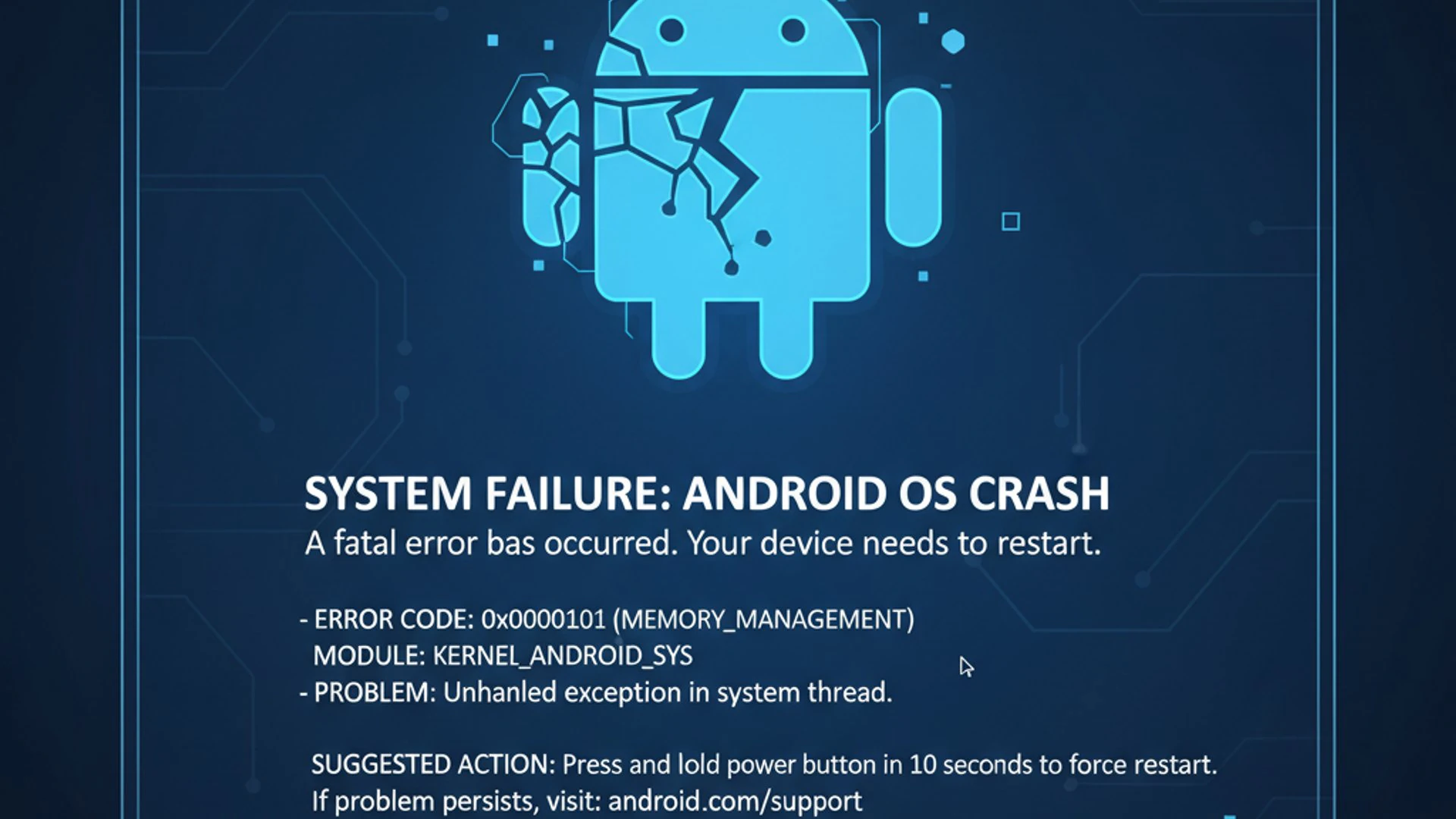
Pinpointing the exact cause often requires a systematic approach, as symptoms can sometimes overlap. However, by examining the circumstances leading up to the BSOD, you can often narrow down the possibilities and focus your troubleshooting efforts.
Both software and hardware issues can lead to system instability that culminates in a blue screen. Let’s explore these categories in detail to provide a clearer picture of what might be afflicting your device.
Software-Related Triggers
Software issues are frequently behind an Android blue screen of death. These problems can range from corrupted files to malicious applications, all of which disrupt the operating system’s normal functioning and can lead to a critical crash.
The complexity of modern Android devices means that even minor software inconsistencies can cascade into significant system failures. Identifying the specific software culprit often involves recalling recent changes or installations on your device.
Corrupted System Files or OS Updates
One of the most common software culprits for an Android blue screen of death is corrupted system files. These vital files are essential for the operating system to boot and run correctly. If they become damaged due to improper shutdowns, failed updates, or storage issues, the system can become unstable and crash.
Similarly, a problematic or incomplete OS update can introduce critical errors. If an update fails to install correctly, or if the update itself contains bugs, it can lead to system instability that manifests as a blue screen. This is why it’s always recommended to have a stable internet connection and sufficient battery during updates.
Sometimes, even a seemingly successful update can have underlying compatibility issues with existing apps or hardware drivers, causing the system to falter. This fragility underscores the importance of a robust and intact operating system environment.
Malicious Apps and Malware Infections
The digital landscape is fraught with threats, and malicious applications or malware infections can severely compromise your Android device’s integrity. These rogue programs often run in the background, consuming excessive resources, interfering with system processes, or even corrupting critical data.
A particularly aggressive piece of malware might trigger an Android blue screen of death by causing system conflicts or attempting to access restricted areas of the operating system. Such infections can destabilize the entire device, leading to frequent crashes or complete system failure.
Downloading apps from untrusted sources significantly increases the risk of encountering malware. Always exercise caution and scrutinize app permissions before installation to protect your device from these digital invaders. A compromised device is a vulnerable device.
Firmware Bugs and Incompatibilities
Firmware is the low-level software that controls your device’s hardware. Bugs within this firmware, or incompatibilities between the firmware and the Android operating system, can lead to severe system instability. These issues are often harder to diagnose and resolve for the average user.
Manufacturers regularly release firmware updates to address known bugs and improve performance. However, sometimes a new firmware version might introduce its own set of problems, especially if it’s not fully optimized for specific hardware configurations. This can result in an Android blue screen of death.
Custom ROMs or unofficial firmware installations also carry a higher risk of introducing bugs and incompatibilities. While they offer customization, they lack the rigorous testing of official releases, making them more prone to critical errors. Sticking to official software is generally the safest approach.
Hardware-Related Triggers
While software often takes the blame, hardware malfunctions are equally capable of causing an Android blue screen of death. These physical issues can range from internal component damage to problems with the device’s power supply, leading to system failures that software troubleshooting alone cannot fix.
Diagnosing hardware problems can be more challenging as they often require physical inspection or specialized tools. However, recognizing the signs of hardware failure is crucial for deciding whether to attempt repairs yourself or seek professional assistance.
Damaged Internal Components
Physical trauma, such as drops or impacts, can lead to damaged internal components within your Android device. Even if the screen appears intact, critical components like the motherboard, memory chips, or storage modules could have sustained damage. This damage can cause intermittent failures or a complete system crash, resulting in an Android blue screen of death.
Over time, wear and tear, or exposure to extreme temperatures, can also degrade components. For instance, a failing eMMC or UFS storage chip might corrupt data or become unreadable, preventing the OS from loading properly. This type of damage often requires professional repair or component replacement.
Water damage is another significant culprit. Even a small amount of moisture can short-circuit components, leading to unpredictable behavior and severe system errors. If your device has been exposed to liquids, internal corrosion could be the root cause of the blue screen.
Battery Issues and Power Fluctuations
The battery is the heart of your mobile device, and issues with it can profoundly impact system stability. A failing or degraded battery might not supply consistent power, leading to unexpected shutdowns or system crashes. These power fluctuations can sometimes manifest as an Android blue screen of death, especially during demanding tasks.
Swollen batteries are a clear indicator of internal damage and can also exert pressure on other internal components, potentially causing further damage. Using non-original or faulty charging cables and adapters can also lead to inconsistent power delivery, stressing the battery and other power management circuits.
“A healthy battery is fundamental to a stable Android device. Any inconsistency in power delivery can trigger critical system errors.”
If your device frequently shuts down or struggles to hold a charge before displaying the blue screen, a failing battery is a strong suspect. Addressing battery health is often a straightforward, yet critical, step in troubleshooting a persistent Android blue screen of death.
Initial Troubleshooting Steps for Android BSOD
When faced with the dreaded Android blue screen of death, panic is a natural reaction. However, a calm and systematic approach to troubleshooting can often resolve the issue without needing advanced technical skills. Start with these simple yet effective steps.
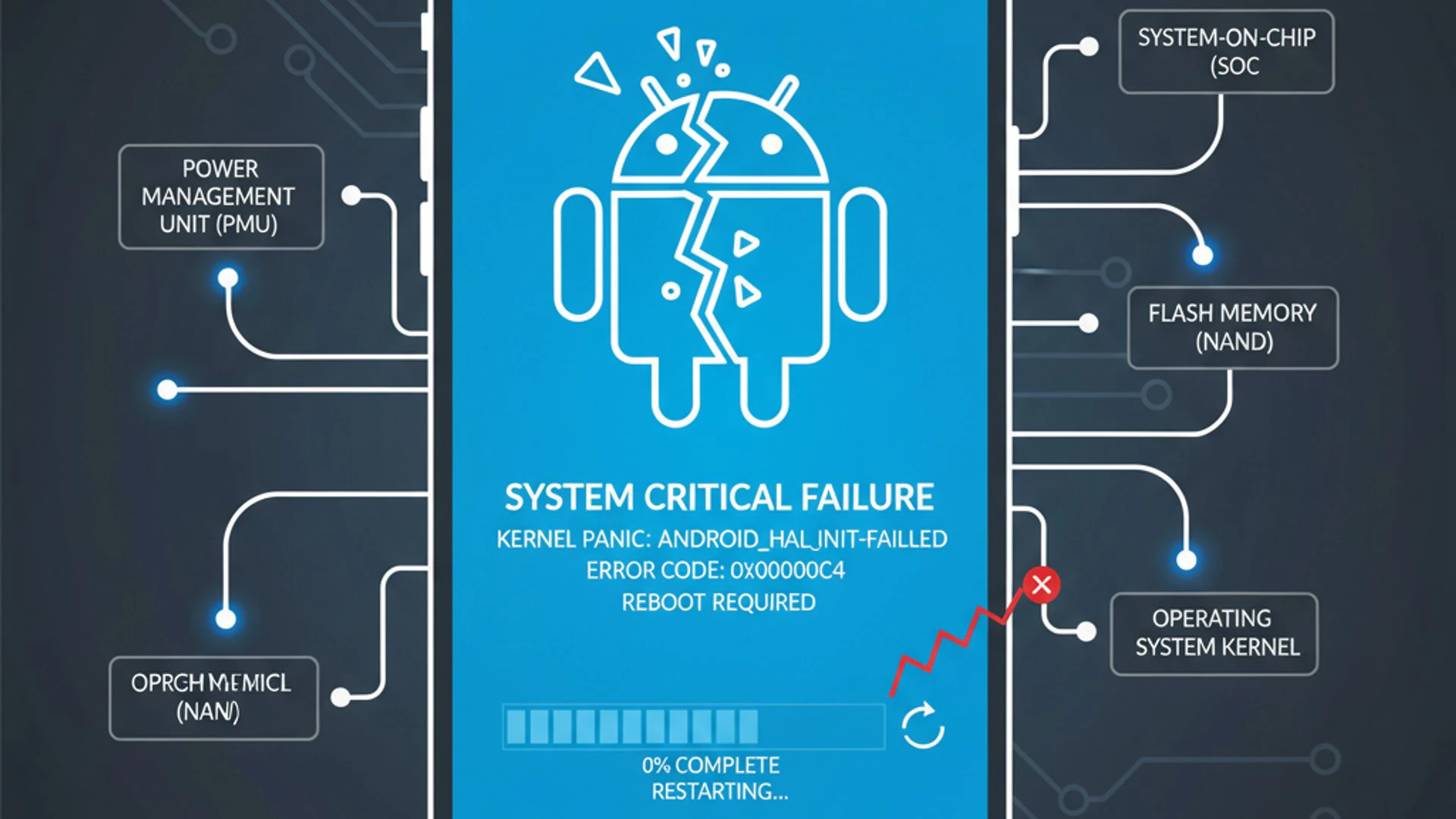
These initial actions are designed to address common, less severe causes of system crashes. They aim to reset the device’s state, remove potential conflicts, or isolate problematic applications, providing a clearer path to diagnosis.
Force Restart Your Android Device
The first and often most effective step for any system freeze or critical error, including an Android blue screen of death, is a force restart. This action cuts power to the device and reboots the operating system from scratch, clearing any temporary software glitches or memory errors that might be causing the problem.
The method for a force restart varies slightly by manufacturer, but generally involves holding down a combination of buttons:
- Press and hold the Power button and the Volume Down button simultaneously.
- Keep them held for about 10-20 seconds.
- Your device should vibrate, and the screen will go black before displaying the manufacturer’s logo, indicating a successful restart.
If this doesn’t work, try holding just the Power button for an extended period (up to 30 seconds). This simple action can often resolve the issue if it was caused by a temporary software hang.
Remove External Peripherals and SIM/SD Cards
Sometimes, external components can interfere with your device’s operation and trigger an Android blue screen of death. Before delving deeper into software solutions, it’s wise to eliminate these as potential culprits.
Carefully remove any connected USB devices, headphones, or other peripherals. More importantly, eject your SIM card and SD card. A corrupted SD card, in particular, can cause significant system instability, as the OS might try to read or write to a faulty storage medium.
After removing these, attempt to force restart your device. If it boots up normally without the blue screen, reinsert the cards one by one to identify which component might be causing the conflict. This method helps isolate hardware-related interference.
Boot into Safe Mode to Diagnose App Conflicts
If your Android device still encounters the blue screen after a force restart, the problem might lie with a recently installed or updated application. Android’s Safe Mode is an invaluable diagnostic tool that allows you to boot your device with only essential system apps running, disabling all third-party applications.
To enter Safe Mode:
- Turn off your device completely (if possible).
- Press and hold the Power button. When the manufacturer’s logo appears, release the Power button and immediately press and hold the Volume Down button.
- Keep holding Volume Down until the device fully boots up. You should see “Safe Mode” displayed in the corner of the screen.
Once in Safe Mode, if your device runs without the Android blue screen of death, it strongly suggests a problematic third-party app. You can then uninstall suspicious applications one by one, starting with the most recently installed ones, and restart your device normally to see if the issue is resolved.
Advanced Solutions for Software-Related BSODs
When initial troubleshooting steps don’t resolve the Android blue screen of death, it’s time to consider more advanced software solutions. These methods delve deeper into the device’s system, aiming to rectify corrupted data or reinstall the operating system entirely. Before attempting any of these, ensure you have backed up all critical data.
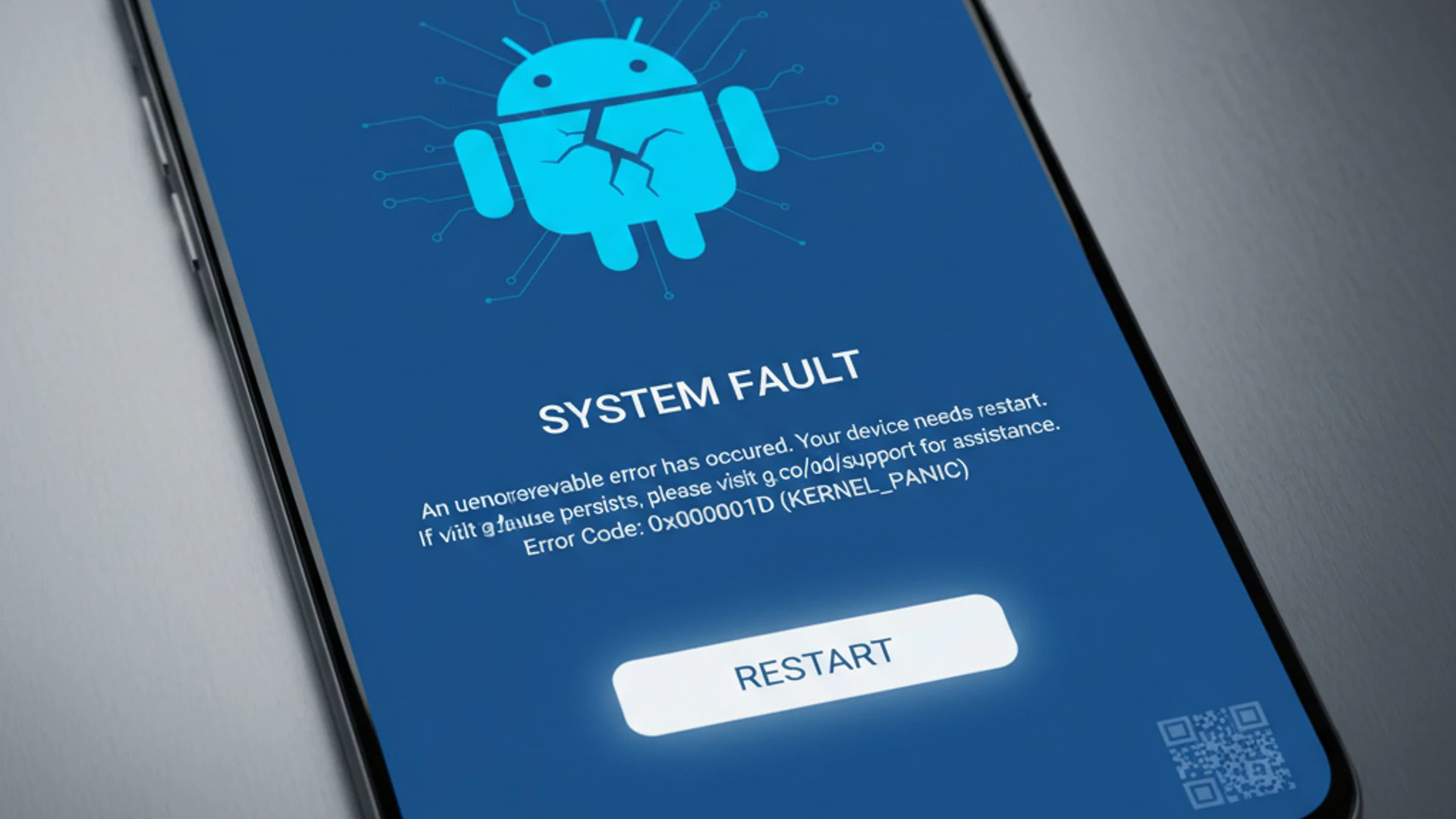
These solutions carry a higher risk of data loss if not performed correctly, especially a factory reset or firmware reinstallation. Therefore, proceeding with caution and preparation is paramount. Always prioritize data backup before proceeding.
Clear Cache Partition
The cache partition stores temporary system files, app data, and other transient information that helps your device run faster. Over time, this cache can become corrupted or accumulate excessive data, leading to system instability and potentially an Android blue screen of death. Clearing it can often resolve these issues without affecting your personal data.
Accessing the cache partition requires booting into Recovery Mode:
- Turn off your Android device completely.
- Press and hold the specific button combination for your device to enter Recovery Mode (e.g., Volume Up + Power button, or Volume Down + Power button, or all three buttons).
- Once in Recovery Mode, use the Volume buttons to navigate and the Power button to select.
- Select “Wipe cache partition” (do NOT select “Wipe data/factory reset” yet).
- Confirm the action and then select “Reboot system now.”
This process will remove temporary files without deleting your photos, apps, or settings. It’s a safe and often effective step for resolving various system glitches.
Factory Reset Your Device (Data Backup Essential)
If clearing the cache partition doesn’t work, a factory reset is often the next logical step for software-related Android blue screen of death issues. This process restores your device to its original factory settings, effectively wiping all user data, installed apps, and custom configurations. It’s a drastic measure but highly effective in eliminating software conflicts, corrupted files, and malware.
CRITICAL WARNING: A factory reset will erase ALL data on your device. Ensure you have a complete and recent backup of your photos, videos, contacts, messages, and any other important files. Use cloud services like Google Drive or a PC backup solution like System Image Backup on Windows 11 if you’re transferring to a Windows PC.
To perform a factory reset via Recovery Mode:
- Boot your device into Recovery Mode using the appropriate button combination.
- Navigate using the Volume buttons and select “Wipe data/factory reset” using the Power button.
- Confirm your choice when prompted.
- Once the reset is complete, select “Reboot system now.”
After the reset, your device will boot up as if it were brand new. You can then restore your data from your backup. This often resolves persistent software-related BSODs by providing a clean slate for the operating system.
Reinstall or Update Firmware (Flashing ROM)
When all other software solutions fail, and the Android blue screen of death persists, reinstalling or updating the device’s firmware (often referred to as “flashing a ROM”) might be necessary. This is the most advanced software solution, as it involves replacing the entire operating system image on your device. It can fix deep-seated software corruption or firmware bugs that a factory reset cannot resolve.
This process is complex and varies significantly between device manufacturers and models. It typically involves:
- Downloading the official firmware package for your specific device model from the manufacturer’s website.
- Installing specific drivers on your computer.
- Using a manufacturer-specific flashing tool (e.g., Odin for Samsung, MiFlash for Xiaomi, or universal tools like SP Flash Tool).
- Booting your device into a special “download mode” or “fastboot mode.”
- Connecting your device to your computer and following the flashing tool’s instructions.
Caution: Flashing incorrect firmware or making errors during the process can permanently “brick” your device, rendering it unusable. Only attempt this if you are confident in your technical abilities and have thoroughly researched the specific steps for your device. If unsure, it’s best to seek professional help.
Addressing Hardware-Related Android BSODs
When software troubleshooting doesn’t resolve the Android blue screen of death, the problem likely lies within the device’s physical components. Hardware issues can be more challenging to diagnose and fix, often requiring specialized tools or expertise. However, there are still steps you can take to identify and potentially address these problems.
Understanding the signs of hardware failure is crucial for deciding whether to attempt a DIY fix, seek professional repair, or consider device replacement. Always prioritize safety when dealing with internal components.
Check for Physical Damage and Loose Connections
Physical damage is a common culprit for hardware-related Android blue screen of death. Even if the screen isn’t cracked, internal components can be dislodged or damaged from drops, impacts, or pressure. Carefully inspect your device for any signs of external damage, such as dents, bends, or cracks in the casing.
If you’re comfortable and knowledgeable about disassembling electronics, you might cautiously open the device (if it’s designed for user access) to check for loose connections or obvious signs of component damage, like burnt spots or detached cables. However, be aware that opening your device often voids its warranty and can introduce further damage if not done correctly.
Pay particular attention to the display connector, battery connector, and main board connections. Sometimes, simply reseating a loose ribbon cable can resolve intermittent display issues or system crashes. If you notice any signs of water damage (e.g., water indicator stickers changed color), that’s a strong indicator of internal corrosion.
Battery Health Assessment and Replacement
A failing battery can lead to inconsistent power delivery, causing system instability and potentially an Android blue screen of death. Over time, batteries degrade, losing their capacity and ability to provide stable voltage. Signs of a failing battery include:
- Rapid battery drain, even when not in use.
- Device shutting down unexpectedly, especially under load.
- The device becoming excessively hot.
- A swollen battery, which can physically push against other components.
Many Android devices have built-in battery health checkers in their settings (e.g., under “Battery” or “Device Care”). Third-party apps can also provide more detailed battery statistics. If your battery health is significantly degraded, or if it appears swollen, battery replacement is highly recommended.
Replacing a battery can be a DIY task for some models, but it often requires specific tools and careful handling. For many modern devices, the battery is glued in place, making replacement challenging. If you’re unsure, it’s safer to seek professional assistance.
Professional Repair Services
When all troubleshooting steps fail, or if you suspect significant internal hardware damage beyond your expertise, it’s time to consider professional repair services. Attempting complex hardware repairs without the right tools or knowledge can exacerbate the problem, potentially rendering your device irreparable.
A professional technician has the diagnostic equipment to pinpoint exact hardware failures, whether it’s a faulty motherboard, a damaged storage chip, or a defective display controller. They can also perform intricate repairs, such as microsoldering, that are impossible for the average user.
Before sending your device for repair, inquire about:
- Their diagnostic fees.
- The estimated cost of repair.
- Warranty on their work.
- Whether they use genuine parts.
While professional repair incurs a cost, it can be a worthwhile investment to restore a valuable device, especially if it’s relatively new or contains irreplaceable data. Sometimes, however, the cost of repair might approach the cost of a new device, in which case replacement might be a more economical option.
Preventing Future Android Blue Screen Incidents
An ounce of prevention is worth a pound of cure, especially when it comes to the Android blue screen of death. Proactive measures can significantly reduce the likelihood of encountering this frustrating issue, ensuring your device remains stable and reliable. Adopting good digital hygiene and physical care practices is essential for long-term device health.
By following these preventative tips, you can minimize software conflicts, protect against malware, and safeguard your hardware from damage, ultimately extending the lifespan of your Android device.
Regular Software Updates and Patches
Keeping your Android operating system and all installed applications up to date is one of the most critical preventative measures. Regular software updates and patches often include bug fixes, performance enhancements, and crucial security patches that address vulnerabilities. These updates can resolve underlying issues that might otherwise lead to system instability and an Android blue screen of death.
Ensure that your device is set to receive automatic updates or regularly check for them manually in your device’s settings under “System” or “Software Update.” Similarly, keep your apps updated through the Google Play Store. Developers frequently release updates to fix bugs and improve compatibility, which can prevent app-related crashes.
Ignoring updates can leave your device vulnerable to known exploits and software glitches, increasing the risk of critical system failures. Always update your device when a new, stable version is available.
Install Apps from Trusted Sources Only
The apps you install have a direct impact on your device’s stability and security. To prevent malicious software and poorly coded applications from causing an Android blue screen of death, it is paramount to install apps from trusted sources only.
The Google Play Store is the primary trusted source for Android applications. While not entirely immune to malicious apps, Google employs rigorous security checks to screen apps before they are published. Always read app reviews, check developer information, and scrutinize requested permissions before installing any application.
Avoid sideloading apps from unknown websites or third-party app stores, as these sources are often unregulated and carry a much higher risk of distributing malware or unstable software. A single rogue app can compromise your entire system.
Maintain Sufficient Storage Space
Running an Android device with critically low storage space can lead to a host of performance issues, including sluggishness, app crashes, and even an Android blue screen of death. The operating system requires a certain amount of free space to function correctly, store temporary files, and perform updates.
When storage is nearly full, the system struggles to manage data, leading to errors and instability. Regularly check your device’s storage usage in settings and free up space by:
- Deleting unnecessary photos and videos.
- Uninstalling unused apps.
- Clearing app cache data (different from clearing cache partition).
- Moving large files to cloud storage or an external drive.
Aim to keep at least 15-20% of your device’s internal storage free to ensure optimal performance and prevent system errors caused by storage constraints.
Protect Against Physical Damage
Hardware damage is a significant cause of the Android blue screen of death. Protecting your device from physical trauma is crucial for its longevity and stability. Simple precautions can make a big difference:
- Use a robust protective case and a screen protector to guard against drops and scratches.
- Avoid exposing your device to extreme temperatures, both hot and cold, as these can degrade internal components and battery life.
- Keep your device away from liquids and moisture. If accidental exposure occurs, follow immediate drying procedures (e.g., power off, remove SIM/SD, use desiccants, but avoid rice).
- Handle your device with care, avoiding unnecessary impacts or bending.
These measures help preserve the integrity of your device’s internal components, reducing the risk of hardware failures that could lead to a blue screen. Investing in good protection is a small price to pay for preventing costly repairs or replacements.
Conclusion: Keeping Your Android Device Stable
Encountering an Android blue screen of death can be a deeply frustrating experience, signaling a critical malfunction that demands immediate attention. However, as we’ve explored, this alarming phenomenon is often resolvable with the right knowledge and a systematic approach. From understanding its distinction from other common issues to diagnosing its diverse software and hardware origins, you are now equipped with a comprehensive toolkit to tackle this challenge.
Remember, the journey to resolution begins with simple troubleshooting steps like a force restart or booting into safe mode. Should these prove insufficient, advanced software solutions such as clearing the cache partition, performing a factory reset (with essential data backup), or even firmware reinstallation offer powerful remedies. For hardware-related issues, careful inspection, battery assessment, and knowing when to seek professional repair are crucial.
Ultimately, prevention remains your strongest ally. Regular software updates, cautious app installations, diligent storage management, and robust physical protection are not just good practices; they are vital safeguards against future blue screen incidents. By adopting these proactive measures, you not only enhance your device’s stability and performance but also significantly extend its lifespan.
The Android blue screen of death is a serious warning, but it doesn’t have to be a death sentence for your device. With informed action and consistent maintenance, you can ensure your Android companion remains a reliable and stable tool in your digital life.
For more interesting articles, stay tuned to Winsides.com!









Community
Comments (0)