

Introduction to dolby atmos for headphones windows 11
dolby atmos for headphones windows 11 is the Windows spatial sound setup that lets a pair of normal stereo headphones reproduce Dolby Atmos-style positional audio through virtualization. Instead of requiring ceiling speakers or a physical surround headset, Windows and Dolby Access process directional audio so your two headphone drivers can create a wider, more three-dimensional sound field for supported games, movies, demos, and apps.
Microsofts Windows spatial sound setup article explains the user-facing path: go to Settings > System > Sound, select the playback device under Output, open Device Properties, and choose a spatial sound format. Microsoft notes that Windows Sonic is built in and that other spatial sound options can be added by downloading Dolby Access or DTS Sound Unbound from Microsoft Store. The official setup context is here: Microsofts spatial sound setup guide.
The platform is deeper than a simple toggle. Microsofts Spatial Sound documentation describes Microsoft Spatial Sound as a platform-level solution for Windows, Xbox, and HoloLens 2 that supports surround and elevation cues. Apps can create audio objects positioned in 3D space, while the user-selected renderer decides how those objects reach headphones, speakers, or home theater. That platform context is documented here: Microsoft Spatial Sound documentation.
Dolby describes Dolby Atmos as an experience where creators can place sound exactly where they want it to go for a more realistic and immersive result, and notes that you need entertainment created in Dolby Atmos plus a device that can play it back. That matters on Windows 11 because Atmos for Headphones is not a universal enhancer for every audio stream. It works best when the app and content provide meaningful spatial, surround, or object-based audio. See Dolbys overview here: Dolby Atmos overview. For broader no-sound, driver, or device problems, use Microsofts Windows audio troubleshooting guide alongside the steps below.
Table of contents
Key Takeaways
- Dolby Atmos for Headphones is a spatial renderer. It virtualizes directional audio over ordinary stereo headphones.
- Dolby Access is part of the setup. The app handles setup, licensing or trial flow, demos, and Dolby profile controls.
- Enable it on the active output device. USB headsets, Bluetooth headphones, laptop speakers, HDMI, and virtual devices are separate endpoints.
- Content matters. Atmos, surround, object, or positional game audio benefits far more than plain stereo music.
- Do not stack virtual surround blindly. Atmos plus headset 7.1 plus in-game HRTF can make direction wider but less accurate.
- Bluetooth microphone mode can hurt quality. If the headset switches to hands-free mode, spatial cues may collapse or sound muffled.
- Compare with Windows Sonic and Off. Dolby Atmos may be best for some games and movies, but Sonic or Off may be cleaner for other content.
What Dolby Atmos for Headphones Does
Dolby Atmos for Headphones takes spatial or surround information and renders it as a two-channel headphone signal with directional cues. You still hear through left and right drivers, but the processing adds timing, filtering, level, and spatial cues intended to make sound feel outside your head. When a game engine or movie mix gives the renderer useful positional information, the effect can make footsteps, vehicles, rain, crowd ambience, dialogue placement, or overhead effects easier to perceive.
It is not the same as owning a physical Atmos speaker layout. A home theater Atmos system uses multiple speakers or upward-firing drivers and a receiver or soundbar that decodes the format. Atmos for Headphones instead creates a virtual spatial presentation for two headphone drivers. That makes it convenient, but it also means the result depends heavily on the content, headphones, fit, your ears, the app, and whether other audio processing is already active.
It is also not the same as a simple bass boost or loudness setting. If you enable Atmos and expect every song, YouTube clip, or voice call to become dramatically better, the result may feel subtle or even worse. Atmos for Headphones is most useful when there is positional information to render. A stereo podcast does not become a true 3D production just because a spatial renderer is turned on.
Dolby Access, Licensing, and Setup
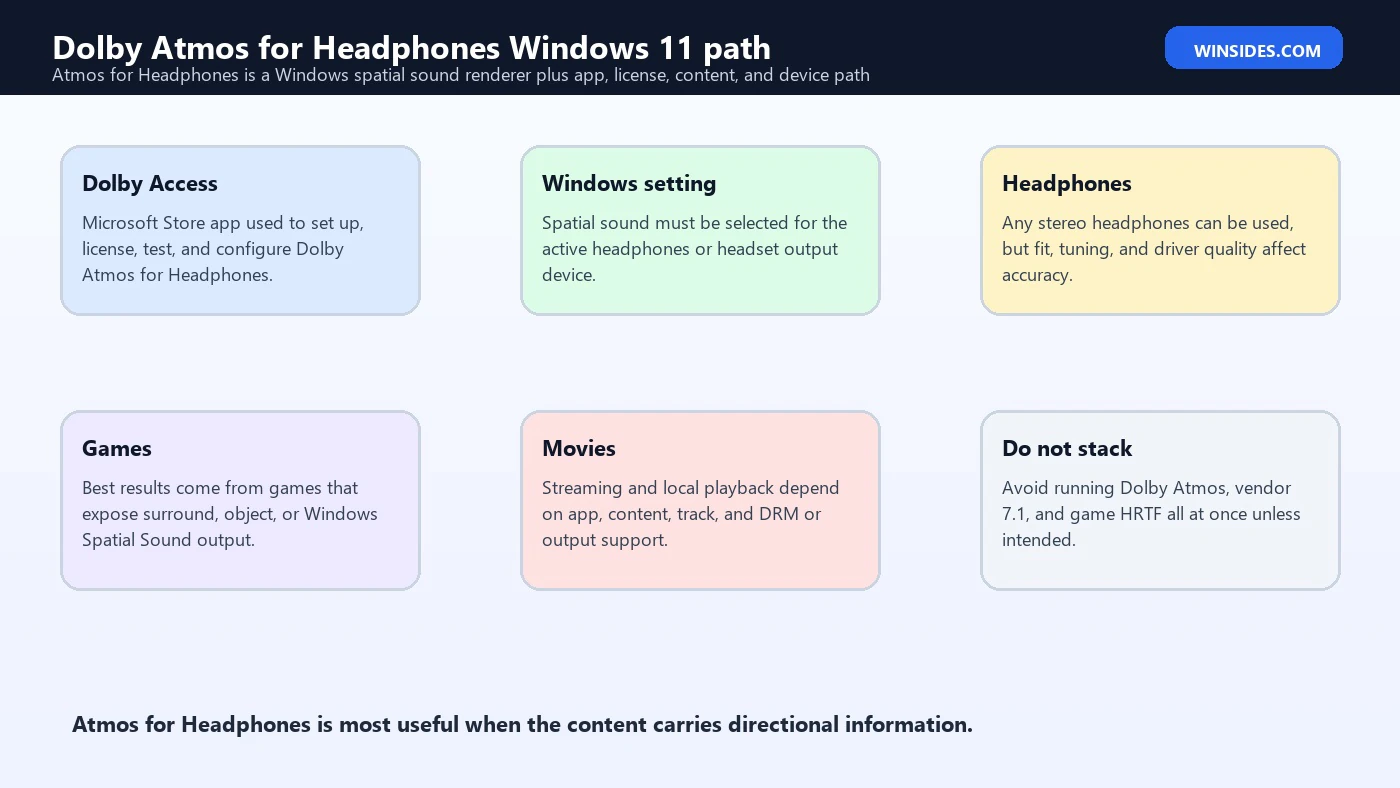
On Windows 11, Dolby Access is the app that usually manages Dolby Atmos for Headphones setup. Depending on your device, bundle, headset, PC maker, previous purchase, or region, you may see a trial, purchase, redemption, or already-licensed state. The important point is that installing the app alone is not always the whole setup. You may need to complete the headphone configuration flow and then select Dolby Atmos for Headphones in Windows spatial sound settings.
If Dolby Atmos for Headphones does not appear in the Windows spatial sound dropdown, open Dolby Access first. Let it update, sign into Microsoft Store if needed, and complete the setup path for headphones. Then return to Settings > System > Sound, select the correct headphone output, and check Spatial sound again. If the app reports a license problem, solve that problem before repeatedly changing Windows audio settings.
For some gaming headsets or laptops, Dolby support may be included by the manufacturer. For others, it is a separate purchase. Do not assume that a headset logo, game marketing page, or PC model name means the Windows license is active. Confirm in Dolby Access and in the selected output device properties. If a headset includes a Dolby license, install the correct vendor software or follow the redemption instructions from the manufacturer.
How to Enable Dolby Atmos for Headphones
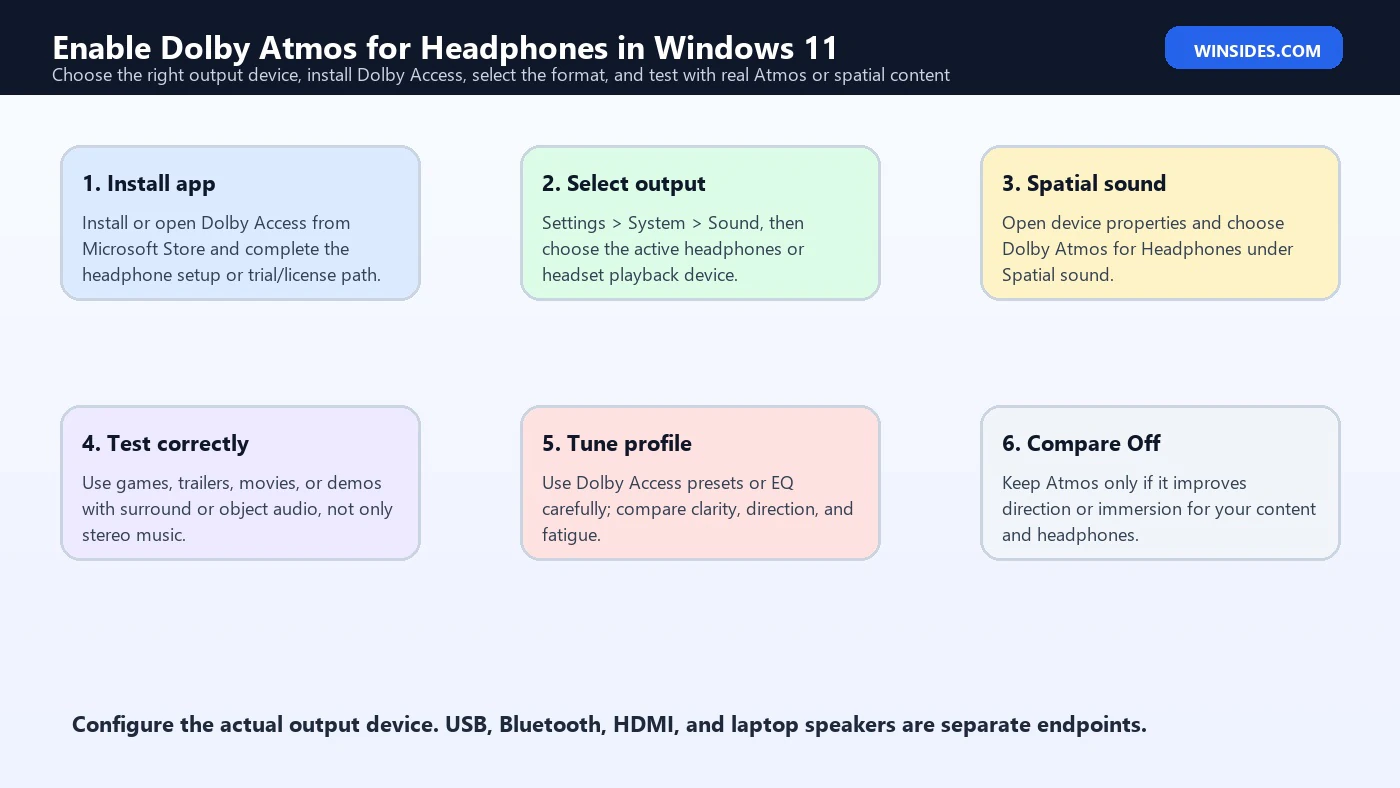
- Install or open Dolby Access. Use Microsoft Store and complete the Dolby Atmos for Headphones setup or license flow.
- Select the actual output device. Go to Settings > System > Sound and choose the headphones or headset playback endpoint you use.
- Open device properties. Find the Spatial sound section for that output device.
- Choose Dolby Atmos for Headphones. Apply the setting if Windows presents an Apply button.
- Test with suitable content. Use a game, movie, trailer, or demo with surround, object, or positional audio.
- Compare calmly. Switch between Off, Windows Sonic, and Dolby Atmos at similar volume to judge direction and clarity.
The output-device step is where many setups go wrong. If you enable Dolby Atmos for a monitor output but listen through a USB headset, nothing useful happens. If your Bluetooth headset exposes both stereo and hands-free endpoints, choose the stereo playback device for listening tests. If you use a controller, capture card, virtual audio cable, or external DAC, confirm Windows is actually sending sound to the device on your head.
Windows Sonic vs Dolby Atmos for Headphones
| Area | Windows Sonic for Headphones | Dolby Atmos for Headphones |
|---|---|---|
| Availability | Built into Windows. | Usually configured through Dolby Access and licensing or trial. |
| Cost | Free. | May require purchase, redemption, bundle, or trial depending on device/account. |
| Best use | Baseline spatial sound and easy troubleshooting. | Games, movies, and content where Atmos rendering sounds more accurate or immersive. |
| Setup complexity | Select it in Spatial sound settings. | Install/configure Dolby Access, then choose the format in Windows. |
| Sound preference | Can be cleaner or simpler on some headphones. | Can feel more immersive or detailed with supported content. |
| Troubleshooting value | Useful comparison point because it removes Dolby Access licensing from the chain. | Useful final choice if it improves direction, clarity, or immersion. |
Do not treat the choice as a brand contest. Windows Sonic is useful because it is free and simple. Dolby Atmos for Headphones is useful because many users prefer its virtualization and Dolby Access controls for specific games or movies. The better setting is the one that gives you accurate direction and clear tone on your actual headset with your actual content.
Best Content to Test Dolby Atmos
Use content that can reveal spatial direction. Games with surround or Windows Spatial Sound support are ideal because you can often stand near a repeatable sound source and rotate the camera. A good test scene includes footsteps, doors, reloads, voices, vehicles, weather, or overhead movement. If the game has an audio mode selector, compare headphones, surround, home theater, Windows Sonic, Dolby Atmos, or binaural modes carefully.
Movies and shows can also work, but the app and track matter. A streaming app may expose Atmos on one device but stereo on another. Some browsers may not deliver the same audio track as a dedicated app. A title page may advertise Atmos, but the selected language track, subscription tier, DRM path, or output device may still determine what you actually receive. If the content is stereo, Atmos for Headphones may only widen or color the stereo mix rather than reveal true object movement.
Dolby demos are useful because they are designed to show the effect, but do not judge your whole setup only from demos. A dramatic demo can sound impressive while a competitive game needs accuracy and a movie needs dialogue clarity. Test across your real use cases: one game, one movie scene, one voice chat, and one music track. Keep the setting only if it improves the things you actually do.
Game Settings That Matter
Games can expose several audio modes, and the labels are not always consistent. Some games output object audio through Windows Spatial Sound. Some output 7.1 or 5.1 channel beds that Windows can virtualize. Some include a built-in headphone HRTF or binaural mode that is already processed for headphones. If you run a built-in HRTF through Dolby Atmos again, the result can become smeared or inaccurate. If a game has a dedicated Dolby Atmos mode, use that games guidance and test it directly.
For competitive play, accuracy matters more than spectacle. A mode that makes explosions huge but weakens front/back footsteps is not helping. Test left, right, front, rear, above, below, close, and far cues if the game offers a training area. Keep dynamic range reasonable for your room and headset. If the center image feels hollow or voices move oddly, compare Windows Sonic and Off.
For single-player games, immersion may matter more than pinpoint competitive cues. Atmos for Headphones can be enjoyable when the game has a strong soundscape, environmental ambience, vertical movement, or cinematic scenes. Still, avoid stacking headset vendor 7.1, Dolby Atmos, and in-game headphone processing unless you know the game expects that combination.
Movies, Streaming Apps, and Local Playback
For movies, Dolby Atmos for Headphones is easiest to understand as a playback chain. The content needs a useful audio mix, the app needs to deliver it, Windows needs to output through the correct device, Dolby Atmos for Headphones needs to be selected, and your headphones need to present the result clearly. If any part of that chain falls back to stereo, the effect may be much less dramatic.
Streaming services can vary by app, browser, plan, region, title, language track, DRM, and device capability. If Atmos is not available in one app, try the official app instead of a browser, or check the service help page for Windows requirements. If a local media player is involved, confirm it can handle the track and output path. Atmos support is not guaranteed simply because Windows has the Dolby renderer enabled.
For dialogue-heavy content, compare clarity. If voices become too distant or hollow, switch presets, try another renderer, or turn spatial sound off. A good Atmos headphone setup should add space without making dialogue hard to follow. Loudness differences can trick you; match volume before comparing.
Bluetooth Headsets and Microphone Mode
Bluetooth headsets are a frequent source of confusion. Many classic Bluetooth devices switch from high-quality stereo playback to a lower-fidelity hands-free mode when the microphone is active. If Discord, Teams, a game chat, or Windows itself uses the headset microphone, audio can become muffled, mono-like, or less spacious. Dolby Atmos cannot restore spatial detail that the Bluetooth mode no longer carries well.
For reliable Atmos testing, use wired headphones, a USB headset, a wireless gaming headset with its own dongle, or a Bluetooth setup that keeps high-quality stereo while voice is active. Another practical workaround is to use a separate microphone, so the headphones can stay in their better playback mode. If Atmos sounds good until voice chat starts, the Bluetooth profile switch is a prime suspect.
Also check whether Windows has selected the hands-free endpoint as the output device. In some setups, the same headset appears as a stereo headphone output and a hands-free headset output. Choose the stereo output for listening. If you need the mic and the audio becomes poor, use a different mic path or different headset hardware for gaming and calls.
Headset Vendor Apps and Duplicate Surround
Gaming headsets often include their own software: virtual 7.1, EQ, bass boost, voice clarity, game/chat balance, sidetone, noise reduction, compressor, limiter, or room effects. These features can be useful, but they can also conflict with Dolby Atmos for Headphones. If both are processing the same signal, direction can become exaggerated, hollow, phasey, or harder to trust.
When troubleshooting, simplify. Disable vendor virtual surround and leave only Dolby Atmos for Headphones active. Then try the reverse: turn Windows spatial sound off and use only the vendor surround. Compare the same content. If the headset vendor says its device is designed to work with Dolby Access, follow that specific guidance. Otherwise, one spatial processor at a time is the clean baseline.
EQ is different from virtual surround. A gentle EQ in Dolby Access or the headset app may help headphone tone without destroying direction. But extreme bass or treble changes can mask footsteps, dialogue, and ambience. If you tune EQ, do it after confirming that the spatial path itself is correct.
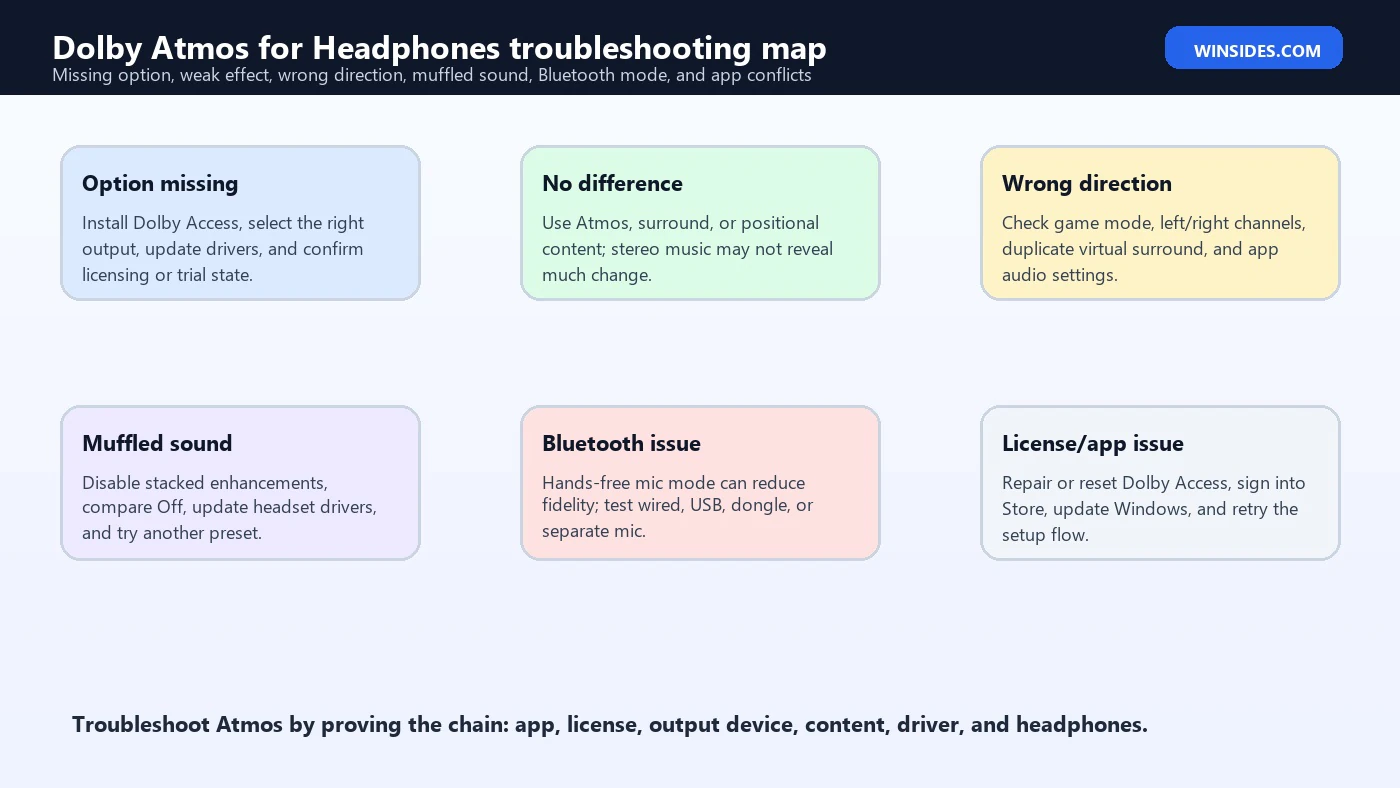
Why Dolby Atmos May Be Missing
- Dolby Access is not installed or updated. Install or update the app and complete the headphone setup flow.
- The license or trial is not active. Check Dolby Access and Microsoft Store account state.
- The wrong output device is selected. Configure the active headphones or headset endpoint, not another audio device.
- The driver does not expose spatial sound correctly. Update audio, USB, Bluetooth, GPU HDMI, or headset drivers.
- A vendor suite is controlling the endpoint. Headset software may override or hide Windows spatial behavior.
- Windows audio is already broken. Fix missing output, no sound, or driver errors before troubleshooting Atmos.
Troubleshooting Dolby Atmos for Headphones
Start with the basics. Confirm normal audio works with spatial sound Off. If no sound plays, follow Microsofts Windows audio troubleshooting path first: check output device, volume, mute state, app volume, drivers, Windows Update, Bluetooth connection, and audio services. Dolby Atmos for Headphones is not a fix for a missing output device or broken base driver.
Next, confirm the Dolby chain. Open Dolby Access, verify the setup or license state, and play a Dolby demo if available. Then open Windows Settings > System > Sound, select the exact headphone output, and choose Dolby Atmos for Headphones under Spatial sound. Test with one known game or movie scene. If the option disappears after switching devices, configure the new device separately.
If the effect sounds wrong, compare Off, Windows Sonic, and Dolby Atmos at similar volume. Disable duplicate virtual surround. Try another Dolby Access preset. Update or roll back the headset driver if the issue started after a driver change. For Bluetooth, test wired or with a separate microphone. For games, change the in-game audio mode and avoid double HRTF processing.
Recommended Setup Matrix
| Setup | Recommended starting point | Reason |
|---|---|---|
| Ordinary wired headphones | Dolby Atmos for Headphones or Windows Sonic | Both can virtualize spatial audio over stereo drivers. Compare clarity and direction. |
| USB gaming headset | Dolby Atmos only, vendor surround off at first | Avoid duplicate spatial processing until you know which path works best. |
| Bluetooth headset without separate mic | Test carefully during voice chat | Hands-free mode may reduce fidelity and weaken spatial cues. |
| Competitive shooter | Use the most accurate mode, not the widest mode | Front/back and distance cues matter more than dramatic ambience. |
| Single-player cinematic game | Dolby Atmos for Headphones | Immersion and environmental space may be more important than pure competitive precision. |
| Stereo music | Off or a gentle Dolby profile only if preferred | Stereo music may not benefit from virtualization. |
| Movies on Windows app | Dolby Atmos if the app and title expose Atmos or surround audio | App, content, track, and output path determine the benefit. |
What Not to Do
Do not assume Dolby Atmos for Headphones will fix every audio problem. If Windows is playing through the wrong device, the headset driver is broken, Bluetooth is in hands-free mode, the game is set to stereo, or the app is only sending a plain stereo stream, Atmos cannot magically reconstruct the perfect mix.
Do not stack all surround features because they sound impressive for five seconds. Dolby Atmos, headset virtual 7.1, Windows Sonic, DTS, and in-game HRTF are different processing paths. Running more than one can make sound bigger but less trustworthy. During troubleshooting, use one spatial renderer at a time.
Do not judge the setting only by loudness. A louder preset often feels better at first. Match volume and listen for direction, dialogue clarity, fatigue, tonal balance, and whether front/back cues are reliable. If Off is clearer for a specific app, use Off for that app or output device.
Dolby Access Profiles and EQ
Dolby Access can expose profiles and tuning controls depending on version, region, device, and license state. Treat those controls as fine tuning, not as proof that the spatial path is correct. First confirm that Windows is using the right output device and that Dolby Atmos for Headphones is selected. Then use the profile controls to adjust tone, dialogue clarity, or game emphasis. If you tune before the routing is correct, you may only be compensating for the wrong endpoint or stacked processing.
For gaming, avoid extreme EQ until you know what the default profile does. Too much bass can hide footsteps and reloads. Too much treble can make positional cues sharp but fatiguing. A profile that sounds exciting in a demo may be tiring over a long session. Make one change at a time and test the same scene. If a preset improves immersion but damages direction, use a different preset for competitive games and keep the cinematic preset for single-player or movies.
For movies, dialogue is the sanity check. Dolby Atmos for Headphones should make the space feel larger without making speech hard to understand. If voices move too far away or the center feels hollow, lower enhancement intensity if available, try a different profile, compare Windows Sonic, or use Off for that app. Do not keep a spatial setting just because it sounds wider if it makes the story harder to follow.
Latency, Performance, and Battery Notes
Spatial processing is generally light on modern Windows 11 PCs, but latency still matters for gaming, live monitoring, and Bluetooth. Wired headphones and USB headsets are usually the safest choices for competitive play because they avoid Bluetooth profile switching and often reduce delay. A wireless gaming headset that uses its own USB dongle may also be more predictable than general Bluetooth earbuds.
If you notice delayed gunshots, late footsteps, lip-sync problems, or lag while monitoring your own voice, compare Atmos with Off and Windows Sonic. Also test the same headset in wired or dongle mode if possible. If latency changes only when Bluetooth is used, the issue is likely the wireless audio path rather than Dolby Atmos itself. If latency appears only in one app, inspect that apps audio buffer, exclusive mode, communication, or enhancement settings.
Battery life can also change with wireless devices. Spatial processing on the PC may not be the biggest drain, but Bluetooth mode, microphone use, active noise cancellation, dongle mode, and headset DSP can affect runtime. If you use Atmos during long calls or gaming sessions, test real battery behavior instead of assuming the marketing estimate applies to your exact mode.
Privacy, Purchases, and Account State
Dolby Access and Microsoft Store account state can matter because Dolby Atmos for Headphones may be licensed through the Store, a device bundle, a redemption, or an existing purchase. If setup fails, check whether Microsoft Store is signed into the right account, whether Dolby Access is updated, and whether the license appears active. A Windows audio setting cannot fix an account or Store entitlement problem by itself.
If you previously purchased Atmos for Headphones and it is missing after reinstalling Windows, changing accounts, or moving devices, start with Microsoft Store account history and Dolby Access. Do not buy again until you confirm which account owns the license and whether the app can restore it. If the license was bundled with a headset or PC, check the vendor instructions because redemption may depend on the device, software package, or registration path.
On shared PCs, remember that Store apps and purchases can be tied to user accounts. One Windows account may show Dolby Access as licensed while another does not. If multiple people use the PC, configure and test under the account that will actually use the headphones. For organization-owned devices, Store access may be controlled by policy, so Dolby Access setup may require IT support.
Decision Checklist Before You Keep Atmos On
- Does your content support it? Use games, movies, demos, or apps with real surround, object, or positional audio.
- Is the correct output selected? Confirm the active headphone endpoint in Settings > System > Sound.
- Is Dolby Access healthy? Check app setup, license, updates, and profile controls.
- Is duplicate surround disabled? Turn off headset 7.1 and game HRTF while testing Atmos.
- Does direction improve? Listen for front/back, distance, height, and left/right accuracy, not just width.
- Does dialogue stay clear? Movies and games should not become hollow or tiring.
- Does Bluetooth stay in quality mode? Test voice chat because mic mode can change the audio path.
- Does Off sound better? If stereo music or a specific game sounds cleaner with Atmos off, use Off for that case.
This checklist keeps Atmos practical. The point is not to force every app through Dolby processing. The point is to know when it helps and when it does not. A strong Windows 11 audio setup can have Atmos on for one headset and one game, Windows Sonic for another headset, and Off for music production or stereo listening. Per-device and per-use-case judgment is normal.
Frequently Asked Questions
What is Dolby Atmos for Headphones on Windows 11?
It is a Dolby spatial sound renderer that virtualizes Atmos, surround, or positional audio over stereo headphones through Windows spatial sound and Dolby Access.
Do I need special Atmos headphones?
No. Ordinary stereo headphones can be used, though headphone quality, fit, tuning, and comfort affect how convincing the result sounds.
Is Dolby Atmos for Headphones free?
Windows Sonic is free. Dolby Atmos for Headphones is usually managed through Dolby Access and may require a trial, purchase, redemption, or device-bundled license.
Why do I not see Dolby Atmos in Spatial sound?
Install or update Dolby Access, complete the setup or license flow, choose the correct output device, and update the relevant audio or headset driver.
Is Dolby Atmos better than Windows Sonic?
Sometimes. Atmos may sound better in supported games or movies, while Sonic may sound cleaner or simpler on some headphones. Compare both with the same content.
Why does Atmos sound muffled on Bluetooth?
The headset may switch to hands-free microphone mode, which can reduce playback quality. Test with a wired headset, USB headset, separate microphone, or different Bluetooth hardware.
Should I use Atmos with a games headphone mode?
Not always. If the game has its own binaural or HRTF headphone mode, try that with Windows spatial sound off, then compare with Atmos using a surround or spatial output mode.
Does Dolby Atmos help music?
Atmos music and spatial mixes can benefit. Ordinary stereo music may sound more natural with spatial sound off, depending on your headphones and preference.
Conclusion: Use Atmos Where It Improves Direction and Immersion
dolby atmos for headphones windows 11 is powerful when the chain is right: Dolby Access is configured, the active headphone output is selected, Windows spatial sound is set to Dolby Atmos for Headphones, the content carries useful spatial or surround information, and duplicate processing is avoided. In that situation, Atmos can add convincing space, height, and positional clarity over ordinary stereo headphones.
It is not a universal enhancer. Stereo music, already-binaural game audio, Bluetooth hands-free mode, wrong output devices, stacked virtual surround, or unsupported apps can make the effect subtle or worse. The best setup is practical: choose one renderer, test with real content, compare at similar volume, and keep the mode that improves clarity and direction for the things you actually do.
If Atmos is missing or broken, troubleshoot the chain instead of guessing. Check Dolby Access, licensing, Microsoft Store sign-in, the Windows output device, driver updates, game audio mode, Bluetooth profile, and competing headset software. Once the chain is clean, Atmos for Headphones becomes much easier to judge honestly.
For more interesting articles, stay tuned to Winsides.com!









Community
Comments (0)